

The Progress Bar Widget in SellMore Post Purchase Upsell enhances your checkout page by visually encouraging customers to increase their order value. It features a progress bar that fills as customers add items to their cart, unlocking rewards like discounts or free shipping when they reach specific thresholds. You can configure up to five tiers, choose between order value or item count for progress calculation, and apply country restrictions to tailor the widget's visibility based on customer location.
To set up the widget, you need to define the widget title and description, select the progress calculation method, and configure tier thresholds and rewards. It's recommended to make the first tier easily achievable to motivate customers, and you can stack rewards for higher tiers to encourage larger purchases. Additionally, be transparent about any country-specific restrictions in the widget description to ensure customers understand the offers available to them.
In this guide, you’ll learn how to set up the progress bar, configure tiers, choose calculation methods, and use country restrictions to control where your offers appear.
How This Feature Works
The progress bar widget displays a visual incentive on your checkout page. As customers add items to their cart, the progress bar fills up. When they reach a tier threshold, they unlock a reward. The widget supports up to five tiers (three by default), giving you flexibility to create a tiered incentive structure that matches your business goals.
The progress bar calculates progress in two ways:
Feature Settings Explained
Widget Basics Core Settings
Widget Title Text
The heading that appears above the progress bar. For example, “Unlock Free Shipping” or “Complete Your Order to Save”. Keep this short and benefit-focused.
Widget Description Text
A short message explaining what the progress bar does. For example, “Spend $50 more to unlock free shipping on your order.” This text appears below the title.
Progress Calculation Method Selection
Choose how the progress bar measures progress. Select either Order Value–Based (total cart amount) or Item Count–Based (number of items). This setting applies to all tiers.
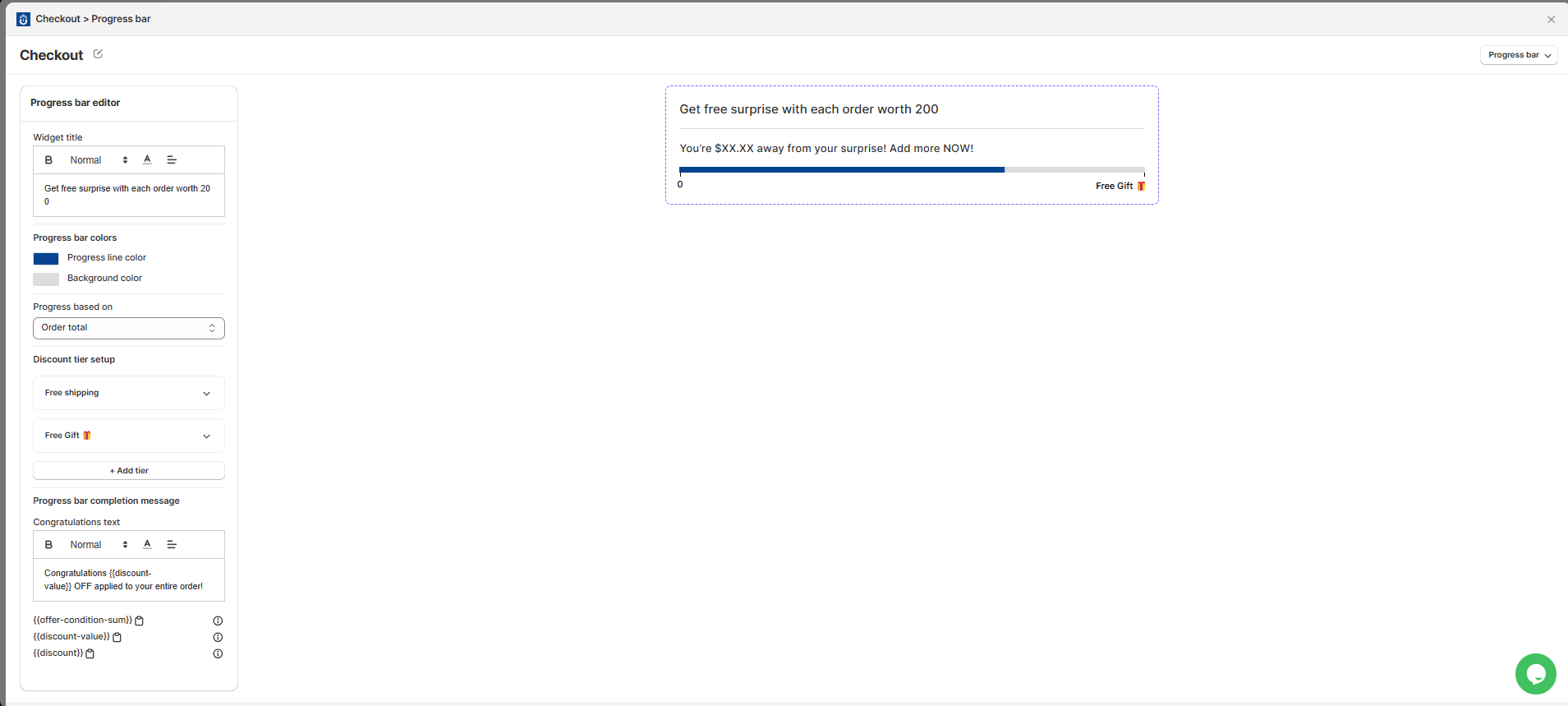
Tier Configuration Up to 5 Tiers
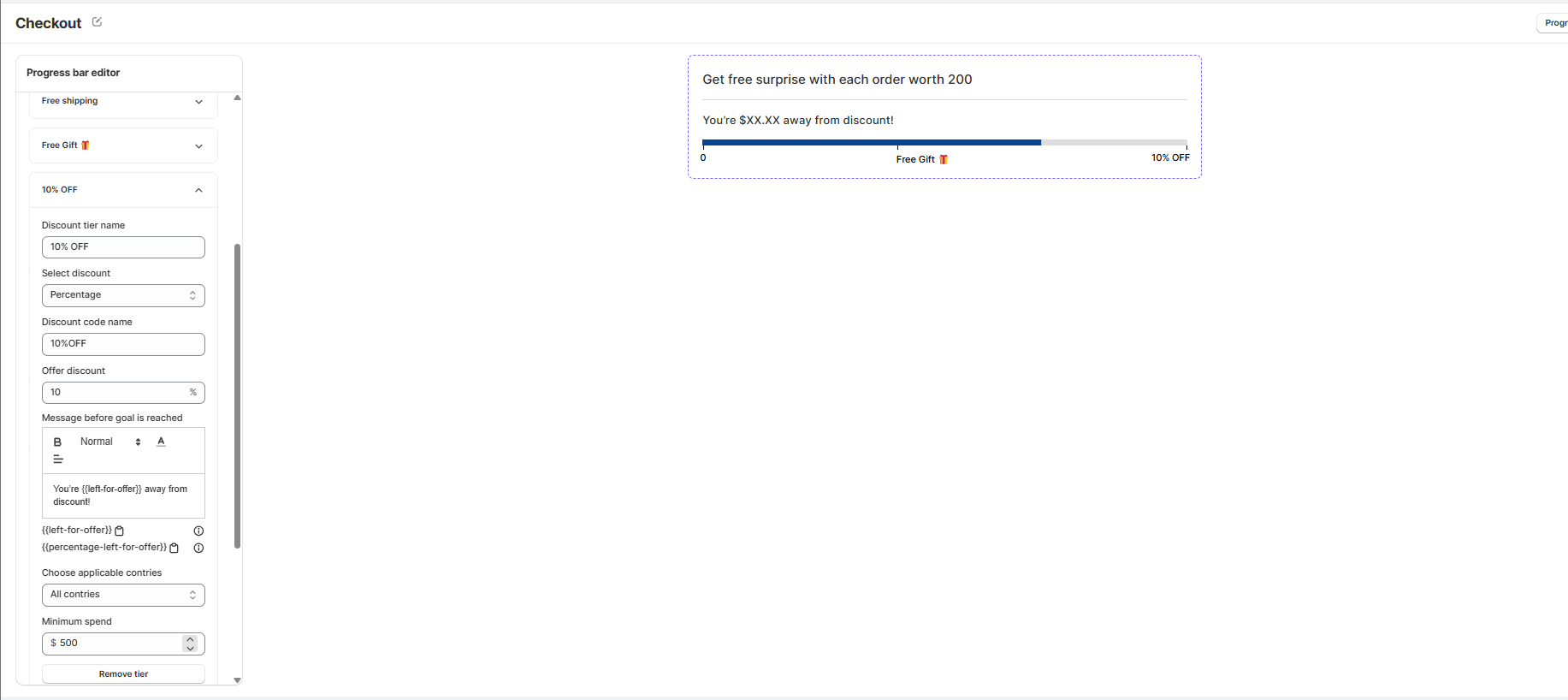
Each tier represents a milestone. When customers reach that milestone, they unlock the reward attached to that tier. By default, three tiers are created. You can add up to two more for a maximum of five.
Tier Threshold Number
The milestone value that triggers the reward. For order value–based, enter an amount (e.g., 50). For item count–based, enter a number (e.g., 5).
Reward Type Selection
Choose what customers unlock at this tier:
- Discount — A percentage or fixed amount off the order
- Free Shipping — Waive shipping costs
- Free Product — Add a free product to the cart
Reward Value Text / Number
The specifics of the reward. For discounts, enter the amount or percentage. For free products, select which product(s) to offer.
Tier Label (Optional) Text
A custom label for the tier, such as “Silver”, “Gold”, or “Platinum”. This appears on the progress bar to help customers understand the tier structure.
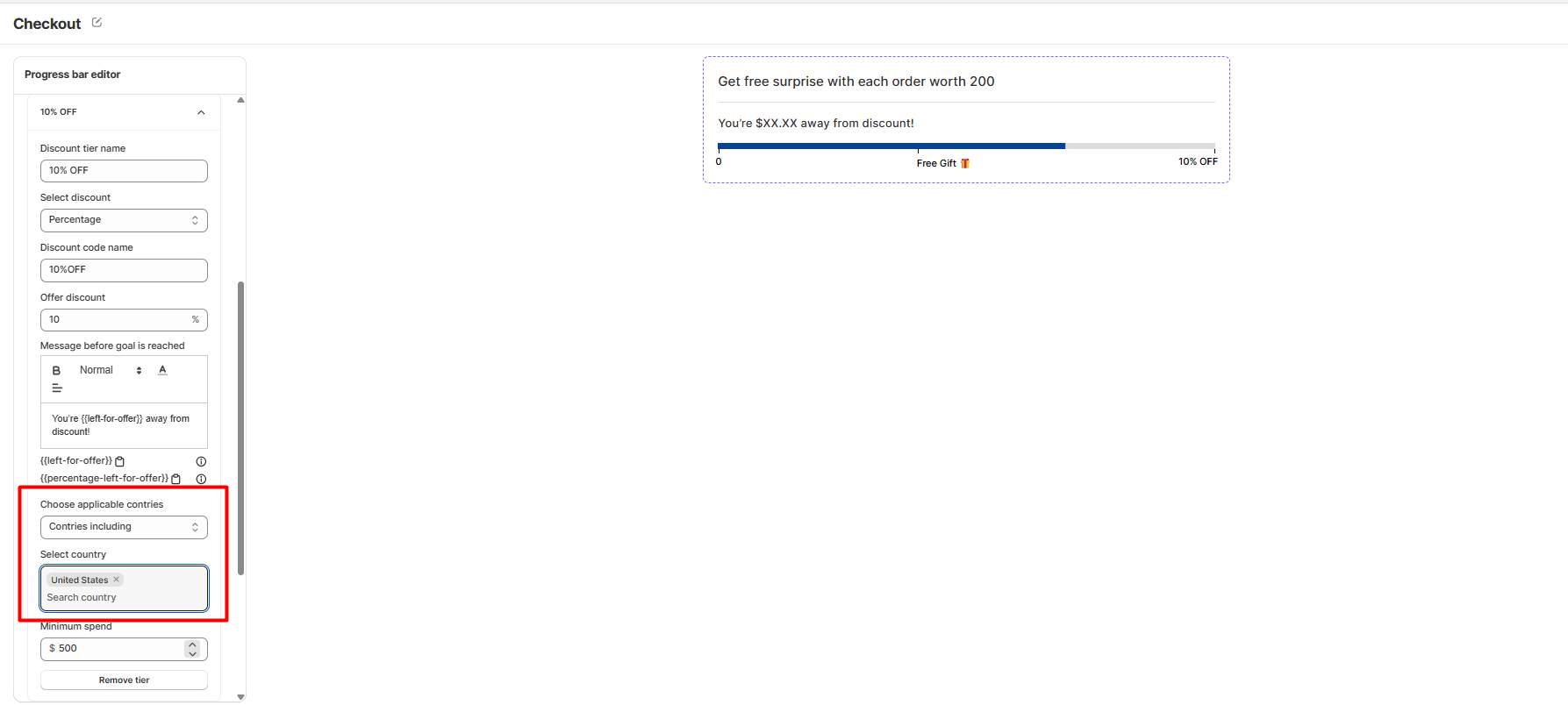
Country Restrictions Optional
Limit where the progress bar widget appears by selecting specific countries. This is useful if your offers, shipping rules, or products are country-specific.
Apply Country Restriction Toggle
Enable this toggle to restrict the widget to selected countries. When disabled, the widget displays to all customers regardless of location.
Select Countries Multi-Select
After enabling restrictions, choose which countries can see this widget. Customers checking out from other countries won’t see the progress bar.
Country Detection Method Auto / Manual
The widget automatically detects the customer’s country from their checkout address. No manual configuration is needed once you’ve selected your target countries.
Common Use Cases
Boost Average Order Value
Set order value tiers ($50, $100, $150) with escalating discounts. Customers see exactly how much more they need to spend to unlock the next reward.
Encourage Bulk Purchases
Use item count tiers (3, 5, 7 items) with free product rewards. Perfect for stores that benefit from larger orders.
Regional Promotions
Create a progress bar with free shipping for domestic customers only using country restrictions. Meanwhile, international customers see a different offer or no widget.
Clear Visual Incentive
The progress bar provides real-time feedback. Customers see their cart value climbing toward the next reward, which encourages them to add more items before checkout.
Tips & Best Practices
2. Stack rewards for higher tiers — Tier 1 might offer 10% off, but Tier 3 could offer free shipping plus 15% off. Escalation encourages bigger purchases.
3. Test threshold values — Monitor how many customers reach each tier. If 90% hit Tier 1 but only 5% reach Tier 3, your thresholds might be too easy or too hard.
4. Use country restrictions wisely — If free shipping thresholds differ by region, use restrictions to show the right offer to the right customer. This improves trust and reduces support questions.
5. Be transparent about restrictions — If your offer is country-specific, mention it in the widget description so customers know it applies to them.


