

Shopify Help Articles
Gather knowledge about the latest insights, updates, tips, and tricks in the Ecommerce industry.

5 Min • 29 April 2026
How Anua Unlocked 5X AOV Growth with iCart’s Smart Cart Features
delivery customization Challenges Solutions drive results Scale business delivery customization Challenges Solutions drive results Scale business delivery customization Challenges Solutions drive results Scale business delivery customization Challenges Solutions drive results Scale business Anua is a globally recognized Korean skincare brand known for its minimalist philosophy and focus on gentle yet effective formulations. Built on the idea of simplifying skincare routines, Anua develops products that deliver visible results while avoiding harsh or irritating components, making them suitable for sensitive skin types. Initially using a traditional full cart experience, Anua transitioned to iCart’s side cart solution in August 2025, to create a more seamless and engaging shopping journey. This shift allowed customers to easily explore complementary skincare products without disrupting their browsing flow, making it more intuitive to discover items that fit into a complete routine. By surfacing relevant recommendations directly within the cart, the brand enhanced product visibility across its range. Challenges Before implementing iCart’s side cart solution, Anua faced limitations with their existing full cart experience, which created friction in the customer journey. The traditional cart setup redirected users away from product pages, interrupting their browsing flow and reducing opportunities to explore additional products. As a skincare brand built around routines rather than single-item purchases, this made it difficult to effectively showcase complementary products and encourage customers to build complete regimens. Additionally, the lack of in-cart personalization and strategic upsell opportunities meant that customers were often unaware of related products that could enhance their skincare results. This limited the brand’s ability to increase average order value (AOV) and fully leverage its diverse product range. Anua needed a more dynamic and intuitive cart experience that could seamlessly introduce relevant recommendations while maintaining a smooth and engaging shopping journey. ❌ Cart Value Barriers Low average order value (AOV) due to single-item focus Most customers completed purchases with one primary product instead of building multi-step routines. Cart abandonment near shipping thresholds Customers were not clearly informed or motivated to reach free shipping or discount thresholds. Missed savings opportunities Customers were unaware of potential value in purchasing bundled routines or multiple complementary products. ❌ Absence of Progress-Based Incentives No free shipping or discount progress bar Customers were not motivated to increase their cart value due to lack of visible incentives. Missing tiered rewards system There were no structured milestones (e.g., “Spend more to unlock offers”), reducing upsell opportunities. ❌ Ineffective Cart UI/UX (Pre-Side Cart) Full-page cart disrupted shopping flowCustomers had to leave their browsing journey, increasing friction and drop-offs. No quick add/remove functionality Users couldn’t easily modify their cart or add suggested products without navigating away. Solution To overcome these challenges, Anua implemented iCart’s side cart solution to transform their traditional cart into a high-converting, interactive experience. By replacing the full-page cart with a seamless side cart, the brand ensured that customers could continue browsing while viewing their cart, significantly reducing friction in the shopping journey. Additionally, features like product recommendations & progress bars for free shipping and discounts motivated customers to increase their cart value. By combining personalization, incentive-driven messaging, and a user-friendly interface, Anua successfully turned their cart into a powerful revenue-driving touchpoint rather than just a checkout step. To maximize their cart effectiveness, they implemented two powerful features: ✅ Progress Bar with Multi-Reward Incentives Implemented a tiered progress bar to encourage higher cart value Customers are guided with a clear message like “Add $3.10 to unlock secret offer,” motivating them to continue adding products. Generated over $5M+ in revenue through incentive-driven cart progression Used product-based rewards to align with customer intent Instead of generic discounts, Anua incentivized purchases with relevant skincare items like Dark Spot Pads and mini serums. Built visual motivation for routine expansion As customers add products, they can clearly track progress toward unlocking multiple rewards, encouraging them to build a complete skincare routine. ✅ Product Recommendations Implemented “Frequently Bought Together” recommendations Customers adding a single product (e.g., toner) are shown complementary items like serums, moisturizers, or pads to complete their routine. Generated over 275K revenue through in-cart recommendations Encouraged full skincare regimen building Instead of isolated purchases, the cart suggests step-by-step product combinations aligned with common skincare routines. Increased product discovery at the final stage By surfacing relevant items directly in the cart, Anua ensured customers explore more of their catalog without leaving the checkout flow. Results Achieved in Last 180 Days 22932 Total Store Orders 45101 Total iCart Orders 5X iCart Generated AOV 65.70% Upsell Affected Conversion Rate These improvements reflect a clear shift in customer behavior on Anua’s store. Cart abandonment reduced as shoppers discovered complementary skincare products and felt encouraged to build complete routines. Engagement also increased, with customers interacting more with in-cart recommendations and exploring relevant product pairings. Results & Impact And...Results is Our Main Clarification By implementing iCart’s cart drawer, product recommendations, and progress bar, Anua transformed its cart into a high-performing conversion touchpoint. Shopping Experience Enhancement The improved cart experience encouraged customers to discover complementary products and understand the value of sustainable beauty routines. For instance, the clear presentation of subscription savings alongside one-time purchase options helped customers make more informed decisions about their long-term hair care needs. As Anua continues to optimize its cart experience, the brand is closely monitoring: Routine-based purchasing behavior - tracking how customers move from single items to multi-step regimens Engagement with in-cart recommendations - measuring interaction with suggested products Cart value progression - analyzing how incentives influence higher spending [related_cases_slider] Ready to Write Your Success Story? Try icart App Join successful businesses like Anua and Master your delivery scheduling Delight customers with precise timing Grow your special occasion orders Expand your delivery reach
Read Blog
8 Min • 27 July 2026
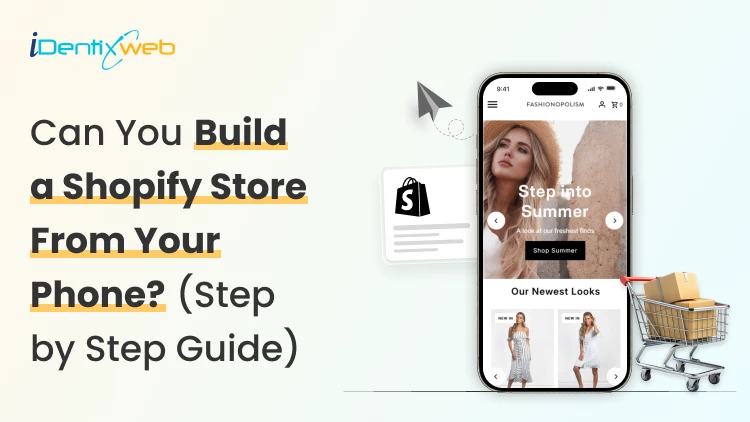
Can You Make a Shopify Store on Your Phone? Yes. (Step-by-Step Guide)
Yes, you can build and launch a Shopify store from your phone. The Shopify mobile app lets you add products, customize your theme, create pages, manage menus, configure payments, review orders, and track performance. You can also make theme changes through Shopify’s mobile online store editor. You can complete the setup and start accepting orders from an iPhone or Android phone. Still, I would not treat a phone as the perfect tool for every Shopify task. From working on Shopify store setups, I have found that mobile works well for launching and everyday management. Desktop is more comfortable for custom code, large catalogs, complex apps, and detailed testing. This guide explains how to create your store from your phone and where you may want a larger screen. Does Shopify have a mobile app? Yes. Shopify has an official mobile app for iOS and Android. The merchant app is designed for store owners and staff. It lets you manage products, orders, inventory, customers, analytics, payments, fulfillment, and parts of your online store. Shopify also provides a mobile theme editor for changing theme settings. How to make a Shopify store on your phone? Step 1: Download the Shopify mobile app Open the Apple App Store or Google Play Store and search Shopify. Open the app after installation. Sign in if you already have an account, or follow the registration process to create one. The app itself is free to download. Running an active Shopify store requires a Shopify subscription after the applicable trial or promotional period. Based on your budget, there are different types of Shopify Plans. Review my Shopify pricing guide before choosing one. Step 2: Create the store and add business details Follow the onboarding questions about your business, what you plan to sell, and where you want to sell. After the store is created, open: Menu > Settings Review the following details: Store name Legal business name Business address Store currency Time zone Contact information Order ID format Measurement units I recommend checking the currency and business location twice. They are easy to overlook during a fast mobile setup and can create extra work later. Step 3: Choose and customize a theme From the Shopify app, go to: Menu > Online Store > Edit Shopify’s mobile theme editor lets you change theme settings. You can add, remove, edit, and rearrange content from your phone. Start with a free Shopify theme if you are building your first store. Keep the initial homepage simple. I would recommend Dawn. Add your logo, fonts, colors, and images. Preview each section as you work. A common mistake is trying to fill every available section. I prefer a shorter homepage with a clear shopping path. A focused layout is easier to review on a phone and easier for customers to use. Step 4: Create your essential pages In the app, go to: Menu > Online store > pages Create the pages your customers need. Most new stores should have: About Us Contact Us Shipping Policy Return and Refund Policy Privacy Policy Terms of Service Frequently Asked Questions Keep the text readable on a small screen. Use short paragraphs, clear headings, and useful links. Step 5: Build the navigation Go to: Menu > Content > Menus Create a simple main menu and footer menu. A basic main menu might include: Home Shop Collections About Contact The footer can hold policy pages, FAQs, account links, and contact details. From experience, navigation is the first area I check on a new Shopify store. A good homepage cannot help much if customers cannot quickly reach products. Step 6: Add products from your phone Tap the Products icon in the Shopify app, then create a product. Add: Product title Description Photos or videos Price Inventory quantity SKU Weight Variants Product category Tags Collections Search engine listing I find it convenient to upload product images from my phone's camera. You can take a photo, crop it, and add it to the product without transferring files to a computer. Shopify lets merchants create, edit, preview, organize, publish, archive, and delete products through its mobile app. Read my guide on how to add products to Shopify for a detailed workflow on adding products. Step 7: Set up payments Go to: Menu > Settings > Payments The payment methods available depend on your business location and eligibility. Complete the requested business, identity, banking, and payout details. Use information that matches your legal and banking records. See my breakdown on how to set up Shopify Payments for a simple walkthrough. Step 8: Configure shipping, delivery, and taxes Open: Menu > Settings > Shipping and delivery Review your shipping profiles, zones, rates, packages, local delivery, and pickup settings. A basic setup may use: Flat-rate shipping Free shipping above a minimum order value Weight-based rates Price-based rates Local delivery Store pickup Carrier-calculated rates when supported Our guide on managing shipping and delivery in Shopify explains the broader setup. Step 9: Connect a domain Shopify gives your store a myshopify.com address. You can use it during setup, but a custom domain usually looks more professional. Go to: Menu > Settings > Domains From this area, you can review your Shopify domain and connect or manage a custom domain. Shopify also provides mobile controls for managing the store’s myshopify.com domain. Choose a name that is short, easy to type, and close to your brand. Changing a domain after launch will impact your existing URLs, marketing links, and search visibility can be affected. Read my guide on changing a Shopify store name and domain before making a major change. Step 10: Test the store before launch Do not skip testing because you built the store on the same phone customers may use. Check the store as a shopper, not as the owner. Test: Homepage loading Menu links Collection pages Product variants Product images Add-to-cart button Cart totals Discount codes Shipping rates Payment flow Confirmation emails Contact forms Policy links Account login Store search I prefer placing at least one full test order before launch. Read my simple guide on placing test orders in Shopify to do exactly that. Step 11: Remove the password and start selling When the store is ready, go to: Menu > Online Store Open the password protection settings and remove the storefront password. Your Shopify store is now open to customers. What can you manage from the Shopify mobile app? The mobile app is useful after launch. Shopify currently supports many daily store tasks from mobile. TaskGood on a phone?My recommendationAdd or edit a productYesGood for small catalogs and quick updatesUpload product photosYesOne of the best mobile workflowsCheck orders and salesYesIdeal for daily monitoringCapture payments and fulfill ordersYesUseful while away from a deskAdjust inventoryYesGood for quick stock correctionsEdit theme sections and blocksYesFine for basic layout changesCreate pages and menusYesGood for short content and simple navigationReview analyticsYesGood for quick checksConfigure a complex appSometimesDesktop is usually easierEdit theme codeNot idealUse a desktop for accuracy and testingImport or edit hundreds of productsNot idealUse desktop tools and bulk workflowsPerform detailed quality assuranceLimitedTest on several devices and browsers Shopify has also made Sidekick available on mobile through text and voice. It can help answer questions and complete supported admin tasks. What I won’t recommend doing on a phone? Custom theme code Liquid, CSS, JavaScript, and structured data require careful editing. A small typing mistake can affect the storefront. Bulk product work Adding five products from a phone is manageable. Cleaning hundreds of rows, variants, SKUs, and prices is much easier on a desktop. Detailed app configuration Many Shopify apps open inside the mobile admin, but their dashboards are difficult to view on a phone screen. Long-form content Writing detailed product descriptions, policy pages, and SEO content is slower on a phone. Formatting errors are also harder to notice. Full store testing Your phone shows one screen size. Customers may use different phones, tablets, laptops, and desktop monitors. Test the store across more than one device. Final verdict Can you make a Shopify store on your phone? Yes. For a small and straightforward store, that is everything you need to start. I see mobile as the fastest route to a working first version. Once the store becomes more complex, a desktop gives you better control. Need help turning the mobile setup into a polished storefront? Identixweb can help with Shopify store setup, theme customization, app configuration, and technical improvements when the project outgrows a phone-based workflow. FAQs 1. Can I create a Shopify store entirely from my phone? Yes. You can use the Shopify mobile app to create and manage a basic online store, add products, customize theme content, set up payments, configure shipping, and launch. Advanced development and large catalog work are usually easier on a desktop. 2. Does Shopify have a mobile app? Yes. Shopify offers an official merchant app for iOS and Android. It supports store management, products, orders, inventory, analytics, payments, fulfillment, and mobile theme editing. 3. Is the Shopify mobile app free? Yes, the app is free to download. You still need an eligible Shopify plan to keep the online store active after the applicable trial or promotional period. 4. Can I edit my Shopify theme from my phone? Yes. Shopify’s mobile theme editor lets you change theme settings and add, remove, edit, or rearrange sections and blocks. I recommend using a desktop for custom codes. 5. Can I add products to Shopify using my phone? Yes. You can add product titles, descriptions, images, prices, inventory, variants, tags, collections, and other details through the Shopify app.
10 Min • 31 July 2026
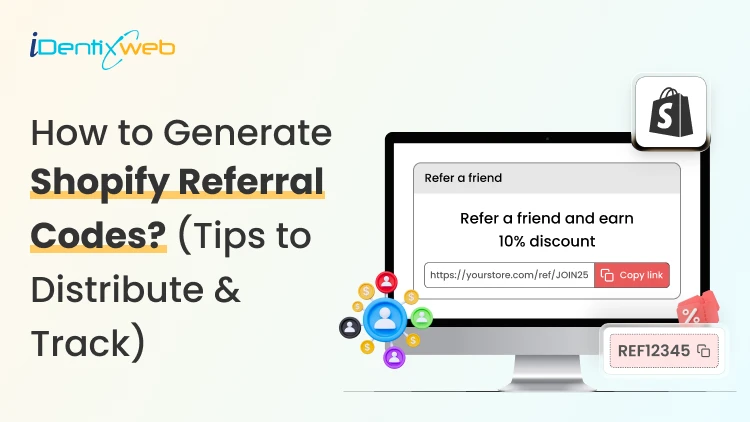
Grow Your Store With Shopify Referral Codes? (Generate, Distribute & Track)
Shopify merchants can run creator affiliate programs through Shopify Collabs, which generates affiliate links and discount codes, tracks attributed sales, and manages commissions. For customer referrals, merchants can manually create a unique discount code for each referrer, add minimum-spend and usage limits, and track resulting orders through discount reports. Automated customer rewards, referral sharing, fraud controls, and advanced attribution generally require a dedicated referral app. A Shopify referral code is one of the cheapest acquisition channels most stores never use. I have set these up for stores doing 40 orders a month and stores doing 4,00, and the setup is far less technical than merchants expect. Here is how referral works in your admin right now, what processes need an app, and how to track whether any of it is making you money. What Is a Shopify referral code? A Shopify referral code is a discount code tied to one specific person, so you know exactly who sent each new customer. A generic code like SUMMER20 tells you nothing about who shared it. A referral code like SAM-15 tells you Sam brought that order in. A referral code can be implemented as a Shopify discount code, but referral platforms may use unique links, customer accounts, or tracking methods. The key difference is that a referral identifier connects the sale to a specific referrer. I will explain the three formats that get mixed up. Referral code. An alphanumeric string the shopper types at checkout. Works for podcasts, in-person events, WhatsApp, and anywhere a link cannot travel. Referral link. A unique URL that attributes visits or purchases to a referrer. A Shopify shareable discount link can automatically apply the discount, while referral apps may use cookies, URL parameters, account matching, or other attribution methods. Discount code. The broad category both of the above sit inside. Run both formats. Links convert better because there is no typing. If you are new to this, my walkthrough on how to create a discount code on Shopify covers the base settings you will need before any of this works. Does Shopify have a referral program? Shopify has no built-in customer-to-customer referral program where your buyers refer their friends. It does have two programs that reward people for referring new merchants to Shopify. One native app that handles affiliate-style referral codes for your store. Three separate things carry the word "referral" in this ecosystem, and merchants confuse them weekly: 1. The Shopify affiliate program This program is for creators, who refer new merchants to Shopify. Eligible affiliates can earn up to $150 USD for a qualified merchant who moves to a full-price Basic, Grow, or Advanced plan. The merchant must start a free trial within 30 days of the qualifying affiliate click, and Shopify currently allows up to 125 days from the start of the trial for the referral to become eligible. The minimum withdrawal balance is $10, reporting and payments are handled through Impact, and Shopify says applications are generally reviewed within five business days. 2. The Shopify partner program This program is for developers, designers, agencies, app companies, and other commerce professionals. Earnings vary by activity and may include merchant-referral revenue share, app or theme revenue, and service income. 3. Your own referral program This is where existing customers refer friends to your store. Shopify’s native discounts and store credit can support a small manual pilot. But an automated customer-to-customer referral program requires an app or custom development. The native tools for merchants Shopify Collabs Shopify Collabs is Shopify's own affiliate marketing app, and it generates unique discount codes and tracking links per creator, tracks the sales attributed to each one, and pays them out. It is available on every Shopify plan except Starter and Retail. Shopify does not charge a monthly Collabs subscription fee, but it currently charges a 2.9% processing fee on automatic commission payments. You can invite creators directly, run an open access program with an instant commission offer, or publish an application page on your online store. If you are eligible for Shopify Flow, you can wire Collabs into automated workflows. For the broader creator strategy, see my guide on finding influencers with Shopify Collabs for merchants. . Native store credit Store credit is a first-party feature in your admin, switched on by default. You issue credit from any customer profile. It applies automatically at checkout for signed-in customers. I see these four limits for this: It only works with new customer accounts. Only the full balance can be applied. Customers cannot spend part of it. The cap is under $15,000 USD per customer account. For stores created on or after May 12, 2025, third-party transaction fees apply to the portion of an order paid with store credit. Plus, stores using Shopify Payments are exempt. Bulk unique code generation Shopify supports bulk unique redeem codes through its Admin API and through third-party bulk-discount apps. In the standard Shopify Admin, merchants can create individual discount codes and export discount data. If you need hundreds or thousands of advocate-specific codes, I would advise using a bulk-discount app or a custom API workflow. How to generate Shopify referral codes (Manual method) Step 1: Choose a discount type Go to Shopify Admin > Discounts > Create discount, then select Amount off products or Amount off orders. Step 2: Create the referral code Under Method, select Discount code and enter a memorable code such as SAM20. Set the discount value, minimum purchase amount, and limit it to one use per customer. Step 3: Save and share Save the discount and send the code to the referrer. You can later track orders and sales generated through that code. Method 2: Shopify Collabs for creator and affiliate referrals Install Collabs. Build your brand profile, set your commission structure as a percentage or a flat amount, decide which products qualify, and publish. Codes and links generate per creator automatically. Attribution is handled by Shopify, so your revenue reporting stays simple. This is best for stores where creators, not customers, drive word of mouth. Method 3: A referral app Referral-app pricing varies more than the monthly subscription alone suggests. Compare order limits, advocate limits, referral revenue fees, fraud controls, integrations, and reward automation before choosing an app. I have compared the main options in detail in my roundup of the best Shopify referral apps in 2026. How to distribute Shopify referral codes Here’s how I distribute Shopify referral codes. Order confirmation page. Peak excitement and zero friction. One line and a copy button works here. Post-delivery email. Post-delivery email. Send it after customers have had enough time to experience the product. This may be seven to ten days for some products, but longer purchase and evaluation cycles may require different timing. Customer account page. Permanent place for the code so people can find it again without digging through email. Packaging insert with a QR code. Physical inserts convert well because the product is in their hands. My guide on creating Shopify QR codes covers the free native options. For email and SMS sequencing, my breakdown of Shopify marketing automation tools covers what to use at each store size.. How to track Shopify referral code performance Discount reports Go to Analytics > Reports, then look for sales by discount report. Shows orders, revenue, and average order value per discount. Compare referral-driven AOV against your store average. Four numbers I always watch: Participation rate. Percentage of customers who claim a code. Share rate. How many of those actually share it? Referral conversion rate. Percentage of referred visitors who buy. Referral CAC. Total rewards paid divided by referred orders. Compare it to your paid ad CAC directly. How to set rewards that do not make losses? Rewards that benefit the referred friend, or both participants, can outperform referrer-only incentives in some situations. Shared rewards will make the recommendation feel more helpful, but the best structure depends on your audience, margins, and product. A one-sided reward makes the referrer feel like they are profiting off a friend. For example, on a $60 order with a 55% gross margin, a 20% friend discount leaves approximately $21 in gross profit before the referrer reward and other costs. After assigning a $20 store-credit reward, the first order is close to break-even before payment fees, shipping, returns, app charges, and support costs. I set these three margin rules: Add a minimum order value so referrals cannot be redeemed on your cheapest SKU. Pay the referrer in store credit, not cash. The reward returns to you. Check your discount combination settings. Shopify lets codes stack with automatic discounts, and a stacked referral code plus a seasonal promo can wipe out a full order's margin. My guide on Shopify discount combinations covers how to set these rules safely. Start small and scale what works A Shopify referral program does not need $200 monthly software. The first thing I would do is to create ten manual codes for your ten best customers and watch the discount report for 30 days. If referred customers convert at a decent rate and your referral CAC beats your ad CAC, the case for a proper app makes itself. A simple referral setup with clear promotion and regular measurement can outperform a more expensive platform that customers rarely see or use. FAQs 1. How can Shopify users set up a referral program? Install a referral app from the Shopify App Store, then configure the user reward, incentive, eligibility rules, sharing methods and fraud controls. Shopify’s native discount tools can create promotional codes, but a referral app is required for unique referral links, automatic rewards, attribution and performance reporting. 2. Is there a referral code for Shopify? Shopify does not offer a referral code that gives every new merchant a discount on a Shopify plan. Approved Shopify Affiliates receive a unique referral link through the Shopify Affiliate Program, while merchants can create their own customer referral codes using Shopify Discounts or a referral app. 3. How to generate referral codes for Shopify? From the Shopify admin, go to Discounts, select Create discount, choose the discount type and enter or generate a code. Set the reward value, eligible products or customers, minimum purchase requirement, usage limit and expiry date. Use a referral app when every user needs a unique code and automated reward tracking. 4. Which is the best referral app for Shopify? ReferralCandy is a strong, dedicated option for referral and affiliate campaigns with attribution, tiered rewards, fraud protection and multiple reward types. Smile is another app that is better suited to merchants who want referrals combined with loyalty points and VIP tiers. 5. Does Shopify have a referral program? Yes. Shopify operates an Affiliate Program through which approved affiliates share unique links and earn commissions for qualified merchants. However, Shopify does not provide a built-in customer refer-a-friend program for individual stores, so merchants must use a referral app or manage codes manually through Shopify Discounts.
12 Min • 27 July 2026
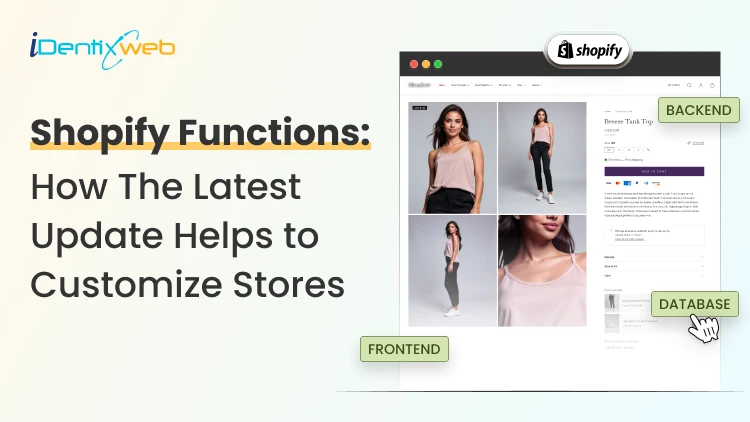
Shopify Functions: How The Latest Update Helps Merchants Customize
Shopify has completed one of its biggest checkout customization changes. Shopify Scripts stopped running on June 30, 2026, and Shopify Functions are now the main way to add custom business rules to carts and checkout. Merchants on any Shopify plan can use public apps built with Shopify Functions. This gives more stores access to advanced discounts, product bundles, delivery rules, payment controls, and checkout validation without asking merchants to manage code themselves. What are Shopify Functions? Shopify Functions are small pieces of backend logic that change how Shopify handles important parts of the buying process. A Function can tell Shopify to: Apply a discount when a cart meets specific conditions Combine several products into a bundle Hide an unsuitable shipping option Stop checkout when an order breaks a business rule Choose how an order should be routed or fulfilled The Function runs on Shopify’s infrastructure during the cart or checkout process. It receives information about the cart, applies the business rules, and sends Shopify a list of actions to perform. What is the latest Shopify Functions update? The most important current update is that Shopify Scripts are gone. Shopify stopped merchants from editing or publishing Scripts on April 15, 2026. All remaining Scripts stopped executing on June 30, 2026. Now merchants need to recreate rules using: A public app built with Shopify Functions A custom app using Shopify Function APIs This update makes the customization system easier to distribute and manage. Shopify Functions are packaged inside apps, and it follows a simple process: A customer changes their cart or moves through checkout. Shopify sends the Function the information it needs. The Function checks that information against its rules. It returns an instruction to Shopify. Shopify applies that instruction to the cart or checkout. For example, a merchant may create a tiered discount with these rules: Spend $100 and receive 10% off Spend $150 and receive 15% off Spend $200 and receive free shipping The Shopify Functions app reads the cart value and returns the correct discount. Shopify then applies it during the buying process. Functions run in a specific order. Cart transformations happen first, followed by product and order discounts, fulfillment logic, delivery rules, shipping discounts, payment changes, and checkout validation. This order matters when several apps are changing the same cart. What can merchants customize with Shopify Functions? 1. Product, order, and shipping discounts The current Discount Function API can create discounts across three areas: Products The complete order Shipping or delivery Use cases for merchants include: Tiered discounts Quantity breaks Buy X, get Y offers Customer-tag discounts Discounts for selected products or collections Shipping discounts based on cart value Discounts for products with custom properties This gives merchants more control than Shopify’s standard discount settings when the offer depends on several conditions. 2. Product bundles and cart changes Cart Transform Functions change how products appear and behave inside the cart. Apps can use them to: Merge multiple products into one bundle Expand a bundle into its individual components Add required products or services Change how bundle items are presented Build mix-and-match bundles Shopify allows Cart Transform apps on different plans. So check the app’s plan requirements instead of assuming every Cart Transform feature is available on every plan. 3. Delivery option customization Delivery Customization Functions can rename, reorder, or hide delivery options at checkout. A merchant could use these rules to: Hide express shipping for products that require preparation Place local delivery above standard shipping Hide delivery methods for particular customer groups Remove unsuitable options for specific addresses Prioritize a preferred delivery service Shopify currently allows up to 25 active delivery customization Functions on a store. Availability may still depend on the app, checkout surface, shipping setup, and the data available to the Function. 4. Payment method customization Payment Customization Functions control which payment choices customers see and how those choices are presented. They can help merchants: Hide cash on delivery for high-value orders Hide a payment option in selected countries Add payment terms for eligible B2B customers Send qualifying B2B orders for review Wallets such as Shop Pay, Apple Pay, and Google Pay have specific limitations. For example, wallets can be removed from certain checkout sections but cannot be reordered, and their branded names cannot be changed. 5. Cart and checkout validation Validation Functions prevent customers from completing an order when the cart does not meet the merchant’s rules. Examples include: Limiting the quantity of a high-demand product Requiring a minimum order amount Preventing incompatible products from being purchased together Checking a purchase order number Restricting purchases based on billing information Displaying an error message when a rule fails These validations run on Shopify’s backend. They can also apply to accelerated checkouts such as Shop Pay, PayPal, Apple Pay, and Google Pay. 6. Fulfillment and order routing Shopify Functions can help determine how an order should be fulfilled after checkout. A merchant may use them to: Prioritize a warehouse Prevent an order from being split across several locations Apply fulfillment restrictions Route orders based on stock, destination, or operational rules Choose a different fulfillment location for particular orders These features are useful for merchants with multiple warehouses, retail stores, and regional fulfillment centers. 7. Local pickup and pickup options Functions include tools for generating local pickup options, pickup-point delivery options, and local pickup charges. This can support cases where a merchant needs to: Generate pickup choices based on the customer’s location Provide pickup points from an external network Charge a fee for selected pickup services What is the Shopify Functions app? A Shopify Functions app is an app that includes one or more Shopify Functions. The app developer writes the backend logic and creates a merchant-facing interface for configuring it. The merchant can then install the app and create rules without editing the Function’s source code. For example, a discount app might allow a merchant to choose: Eligible products Customer tags Minimum quantities Discount values Campaign dates Market or country conditions The app converts those settings into configuration data that its Function can use when Shopify processes a cart. Are Shopify Functions available on all Shopify plans? Yes, it is. Public Shopify Functions apps can be used by stores on any Shopify plan, except where Shopify places a restriction on a particular API, operation, checkout feature, or app. However, merchants should still review: The app developer’s supported plans Restrictions for the specific Function operation Checkout and sales-channel compatibility Whether the app requires Shopify Plus features Limits involving subscriptions, POS, draft orders, or accelerated checkout Are Shopify functions available only on Shopify Plus? No. Shopify Functions are not available only on Shopify Plus. Stores on any plan can use approved public apps from the Shopify App Store that contain Functions. However, Plus is required for specific advanced operations. Here’s a breakdown. RequirementPlan availabilityInstall a public Functions app from the Shopify App StoreAny Shopify plan, subject to feature restrictionsBuild and install a custom app containing Shopify FunctionsShopify PlusUse advanced operations marked as Plus-onlyShopify PlusUse restricted network access for some Function targetsShopify Plus or Enterprise, depending on the API How does the latest Functions update help merchants? More customization without managing code Shopify Functions can be delivered and configured through apps. Therefore, most merchants can use advanced rules without seeing or editing the Function code. Better performance during busy sales Shopify says Functions execute in under 5 milliseconds on its WebAssembly platform. This is helpful during the busiest shopping days of the year. Know more details about the busiest shopping days of the year to prepare for 2026. Easier maintenance A Functions app can be updated and distributed by its developer. Merchants do not need to copy updated code into every store. This can make ongoing maintenance easier. More consistent backend rules Theme customizations may behave differently across online storefronts, accelerated checkout buttons, mobile apps, and other sales channels. Functions operate in Shopify’s backend, which can make business rules more reliable across supported surfaces. However, each Function API has its own compatibility table, so merchants must still verify whether it supports POS, subscriptions, draft orders, accelerated checkout, and other relevant channels. Shopify Scripts to Shopify Functions migration guide Step 1: Open the Shopify Scripts customizations report From Shopify admin: Go to Apps Open the Script Editor app (Only available till July 30, 2026) Find the Replace your Shopify Scripts banner Click Replace Shopify Scripts The report lists previously active customizations under areas such as product discounts, shipping, and payment gateways. It may also provide recommended apps and relevant Shopify Functions tutorials. Step 2: Decide which rules still matter Do not recreate every old Script automatically. For each customization, ask: Is the rule still used? Does it still support the current sales strategy? Does Shopify now provide a native feature for it? Can one app replace several Scripts? Did the Script conflict with other discounts or checkout apps? Step 3: Document the original behavior Write down the exact conditions and results for every rule you want to keep. Include: Eligible customers Eligible products Minimum cart values Quantity requirements Discount amounts Shipping conditions Payment conditions Markets and currencies Exclusions Combination rules Error messages Do not select a replacement app based only on a similar feature name. Confirm that it can reproduce the complete business rule. Step 4: Choose a public app or custom development A public app is usually suitable when the requirement involves common use cases such as: Tiered discounts Free gifts Bundles Shipping rules Payment restrictions Quantity limits Custom development may be necessary when the logic depends on proprietary workflows, unusual data, complex B2B rules, or several connected systems. Remember that a custom app containing Shopify Functions requires Shopify Plus. Step 5: Rebuild the rules Configure the replacement using the chosen Shopify Functions app or custom app. Keep the first version as close as possible to the original Script behavior. Avoid adding unrelated changes during migration because that makes problems harder to identify. Step 6: Test every important scenario Test more than one successful checkout. Cover: Eligible and ineligible customers Minimum and maximum cart values Discount combinations Different countries and currencies Mobile and desktop checkout Shop Pay and other accelerated checkouts Subscriptions Draft orders Local delivery and pickup Shopify documents different compatibility levels for each Function API. A rule that works during standard online checkout may behave differently with subscriptions, draft orders, order editing, or POS. Step 7: Monitor live orders After launch, monitor: Discount amounts Shipping charges Payment availability Checkout errors Bundle inventory Order routing Customer support tickets App execution errors Pricing and checkout logic should be treated as revenue-critical functionality. Review it after app updates, Shopify API changes, theme changes, and major campaign launches. Important Shopify Functions limitations Functions have resource limits Shopify sets limits on compiled size, memory, input size, output size, and execution instructions. Functions must be efficient because they run during key purchase steps. This means extremely complex rules may need to be simplified or split into a better data structure. App conflicts are still possible Several discount Functions can run at the same time, but they do not communicate directly with each other. Shopify evaluates its results using the discount combination settings attached to each discount. Check the combinations between discount, bundle, gift, subscription, shipping, and checkout apps before launching a major campaign. Do you need a developer to use Shopify Functions? You do not need a developer when a public Shopify Functions app already supports your use case. A developer becomes useful when: No existing app matches the rule The logic depends on custom data Several systems need to work together Your store has complex B2B requirements You are replacing heavily customized Shopify Scripts The rule affects several checkout stages You need a custom Functions app on Shopify Plus Final thoughts Shopify Functions have moved advanced commerce logic away from the old Script Editor and into a faster, app-based system. Merchants can create more relevant discounts, flexible bundles, safer checkout rules, clearer delivery options, and better payment experiences without coding. Shopify Functions are also available across Shopify plans, while custom Functions apps and some advanced capabilities remain restricted to Plus or Enterprise. Start with the business rule you need, confirm the app and plan compatibility, and test the complete customer journey before publishing it. FAQs 1. What are Shopify Functions? Shopify Functions are backend rules that customize how Shopify handles discounts, carts, delivery, payments, validation, fulfillment, and other parts of checkout. They are delivered through apps and run on Shopify’s infrastructure when customers shop. 2. What is a Shopify Functions app? A Shopify Functions app is a public or custom Shopify app that contains one or more Functions. It gives merchants an interface for configuring the Function’s rules without editing its underlying code. 3. Are Shopify Functions available on all Shopify plans? Public apps containing Shopify Functions can be installed on any Shopify plan unless the app or specific Function capability has additional restrictions. Merchants should check the app listing and Shopify API documentation for plan and checkout compatibility. 4. Are Shopify Functions available only on Shopify Plus? No. Public Shopify Functions apps can work on Basic, Grow, Advanced, and Plus plans. Shopify Plus is required for custom apps containing Shopify Functions and for some advanced operations. 5. What replaced Shopify Scripts? Shopify Functions replaced Shopify Scripts for custom discount, shipping, payment, cart, and checkout logic. Shopify Scripts stopped executing completely on June 30, 2026. 6. What is the difference between Shopify Functions and Shopify Scripts? Shopify Scripts used Ruby code in the Script Editor and were available only to Shopify Plus merchants. Shopify Functions run through apps on Shopify’s backend, and public Functions apps can be used across Shopify plans. Functions are faster, easier to maintain, and support more customization areas, while Scripts were fully discontinued on June 30, 2026.

Sajini Annie John
2 Min • 22 April 2026
315 Views
Vineet Nair
7 Min • 22 April 2026
307 Views
Vineet Nair
7 Min • 22 April 2026
328 Views
![How to Add Apple Pay to Shopify? [New & Easy Tutorial]](https://www.identixweb.com/wp-content/uploads/2026/03/20-03-Fri-Blog-How-to-Enable-Apple-Pay-in-Your-Shopify-Store_-.webp "How to Add Apple Pay to Shopify? [New & Easy Tutorial]")
Vineet Nair
5 Min • 22 April 2026
361 Views
![How to Transfer Shopify Store Ownership? [2026 Updated Tutorial]](https://www.identixweb.com/wp-content/uploads/2026/03/13-03-Fri-Blog-Complete-Tutorial-to-Change-Store-Owner-on-Shopify.webp "How to Transfer Shopify Store Ownership? [2026 Updated Tutorial]")
Vineet Nair
6 Min • 19 March 2026
387 Views
Sajini Annie John
7 Min • 6 May 2026
408 Views
Sajini Annie John
5 Min • 27 March 2026
379 Views
Sajini Annie John
6 Min • 27 March 2026
338 Views
Sajini Annie John
5 Min • 27 March 2026
309 Views
![How to Change Shopify Cart Icon in Just 4 Steps [For All Themes]](https://www.identixweb.com/wp-content/uploads/2026/02/19-02-Thu-Blog-How-to-Change-Shopify-Cart-Icon-in-Just-10-Minutes_.webp "How to Change Shopify Cart Icon in Just 4 Steps [For All Themes]")
Vineet Nair
6 Min • 20 February 2026
368 Views
Sajini Annie John
6 Min • 13 February 2026
362 Views
Sajini Annie John
2 Min • 11 February 2026
362 Views