

Shopify Help Articles
Gather knowledge about the latest insights, updates, tips, and tricks in the Ecommerce industry.

5 Min • 29 April 2026
How Anua Unlocked 5X AOV Growth with iCart’s Smart Cart Features
delivery customization Challenges Solutions drive results Scale business delivery customization Challenges Solutions drive results Scale business delivery customization Challenges Solutions drive results Scale business delivery customization Challenges Solutions drive results Scale business Anua is a globally recognized Korean skincare brand known for its minimalist philosophy and focus on gentle yet effective formulations. Built on the idea of simplifying skincare routines, Anua develops products that deliver visible results while avoiding harsh or irritating components, making them suitable for sensitive skin types. Initially using a traditional full cart experience, Anua transitioned to iCart’s side cart solution in August 2025, to create a more seamless and engaging shopping journey. This shift allowed customers to easily explore complementary skincare products without disrupting their browsing flow, making it more intuitive to discover items that fit into a complete routine. By surfacing relevant recommendations directly within the cart, the brand enhanced product visibility across its range. Challenges Before implementing iCart’s side cart solution, Anua faced limitations with their existing full cart experience, which created friction in the customer journey. The traditional cart setup redirected users away from product pages, interrupting their browsing flow and reducing opportunities to explore additional products. As a skincare brand built around routines rather than single-item purchases, this made it difficult to effectively showcase complementary products and encourage customers to build complete regimens. Additionally, the lack of in-cart personalization and strategic upsell opportunities meant that customers were often unaware of related products that could enhance their skincare results. This limited the brand’s ability to increase average order value (AOV) and fully leverage its diverse product range. Anua needed a more dynamic and intuitive cart experience that could seamlessly introduce relevant recommendations while maintaining a smooth and engaging shopping journey. ❌ Cart Value Barriers Low average order value (AOV) due to single-item focus Most customers completed purchases with one primary product instead of building multi-step routines. Cart abandonment near shipping thresholds Customers were not clearly informed or motivated to reach free shipping or discount thresholds. Missed savings opportunities Customers were unaware of potential value in purchasing bundled routines or multiple complementary products. ❌ Absence of Progress-Based Incentives No free shipping or discount progress bar Customers were not motivated to increase their cart value due to lack of visible incentives. Missing tiered rewards system There were no structured milestones (e.g., “Spend more to unlock offers”), reducing upsell opportunities. ❌ Ineffective Cart UI/UX (Pre-Side Cart) Full-page cart disrupted shopping flowCustomers had to leave their browsing journey, increasing friction and drop-offs. No quick add/remove functionality Users couldn’t easily modify their cart or add suggested products without navigating away. Solution To overcome these challenges, Anua implemented iCart’s side cart solution to transform their traditional cart into a high-converting, interactive experience. By replacing the full-page cart with a seamless side cart, the brand ensured that customers could continue browsing while viewing their cart, significantly reducing friction in the shopping journey. Additionally, features like product recommendations & progress bars for free shipping and discounts motivated customers to increase their cart value. By combining personalization, incentive-driven messaging, and a user-friendly interface, Anua successfully turned their cart into a powerful revenue-driving touchpoint rather than just a checkout step. To maximize their cart effectiveness, they implemented two powerful features: ✅ Progress Bar with Multi-Reward Incentives Implemented a tiered progress bar to encourage higher cart value Customers are guided with a clear message like “Add $3.10 to unlock secret offer,” motivating them to continue adding products. Generated over $5M+ in revenue through incentive-driven cart progression Used product-based rewards to align with customer intent Instead of generic discounts, Anua incentivized purchases with relevant skincare items like Dark Spot Pads and mini serums. Built visual motivation for routine expansion As customers add products, they can clearly track progress toward unlocking multiple rewards, encouraging them to build a complete skincare routine. ✅ Product Recommendations Implemented “Frequently Bought Together” recommendations Customers adding a single product (e.g., toner) are shown complementary items like serums, moisturizers, or pads to complete their routine. Generated over 275K revenue through in-cart recommendations Encouraged full skincare regimen building Instead of isolated purchases, the cart suggests step-by-step product combinations aligned with common skincare routines. Increased product discovery at the final stage By surfacing relevant items directly in the cart, Anua ensured customers explore more of their catalog without leaving the checkout flow. Results Achieved in Last 180 Days 22932 Total Store Orders 45101 Total iCart Orders 5X iCart Generated AOV 65.70% Upsell Affected Conversion Rate These improvements reflect a clear shift in customer behavior on Anua’s store. Cart abandonment reduced as shoppers discovered complementary skincare products and felt encouraged to build complete routines. Engagement also increased, with customers interacting more with in-cart recommendations and exploring relevant product pairings. Results & Impact And...Results is Our Main Clarification By implementing iCart’s cart drawer, product recommendations, and progress bar, Anua transformed its cart into a high-performing conversion touchpoint. Shopping Experience Enhancement The improved cart experience encouraged customers to discover complementary products and understand the value of sustainable beauty routines. For instance, the clear presentation of subscription savings alongside one-time purchase options helped customers make more informed decisions about their long-term hair care needs. As Anua continues to optimize its cart experience, the brand is closely monitoring: Routine-based purchasing behavior - tracking how customers move from single items to multi-step regimens Engagement with in-cart recommendations - measuring interaction with suggested products Cart value progression - analyzing how incentives influence higher spending [related_cases_slider] Ready to Write Your Success Story? Try icart App Join successful businesses like Anua and Master your delivery scheduling Delight customers with precise timing Grow your special occasion orders Expand your delivery reach
Read Blog
6 Min • 1 July 2026
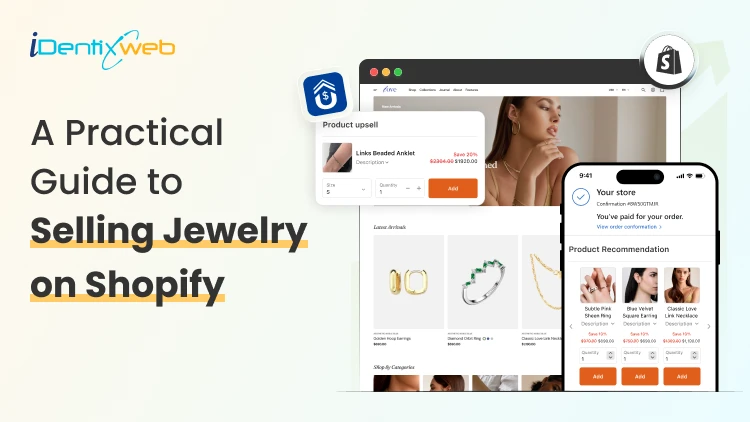
A Practical Guide to Selling Jewelry on Shopify: Upsells & Post Purchase Tricks
Selling Jewelry on Shopify is one of the most practical ways to turn a creative product into a scalable online business. Jewelry is visual, emotional, gift-friendly, and highly personal, which makes it a strong category for ecommerce. But at the same time, jewelry buyers need trust before they purchase. They want clear product images, metal details, size guidance, return policies, secure checkout, and a shopping experience that feels premium. In this guide, we will cover the complete process of Selling Jewelry on Shopify, including store setup, product presentation, marketing, upsells, and post-purchase tricks that can help you get more value from every order. How to sell jewelry on Shopify Step 1: Choose a Clear Jewelry Niche Most competitor blogs start with niche selection, and for good reason. Shopify’s own jewelry business guide also lists finding a niche, researching trends, defining the brand, sourcing products, taking product photos, building the store, marketing, and scaling as core steps. Your niche helps customers understand why they should buy from you instead of another store. A general jewelry store can work, but a focused brand is easier to position. You can build your niche around: Minimal everyday jewelry Premium gold-plated jewelry Handmade or artisan jewelry Bridal and engagement jewelry Personalized name necklaces Men’s bracelets and chains Spiritual, cultural, or zodiac jewelry Affordable luxury jewelry Stackable rings and bracelets Gift-ready jewelry for birthdays, anniversaries, and weddings Many Shopify jewelry stores perform better when they sell around a lifestyle, not just a product. For example, instead of saying “We sell rings,” your brand can say “Everyday stackable rings for modern women.” That instantly creates a clearer customer image. Step 2: Build a Brand That Feels Trustworthy Jewelry is not an impulse product for every customer. Some products may be affordable, but buyers still care about quality, material, packaging, skin safety, durability, and returns. Your brand identity should answer these concerns before the customer asks. Create a strong brand foundation with: A clear brand story Consistent logo, colors, and typography Premium product photography Detailed product descriptions Easy-to-find policies Customer reviews Gift packaging details Care instructions Authentic product videos For jewelry Shopify stores, trust is part of the design. A clean homepage, elegant product cards, visible reviews, and a simple navigation structure can make the store feel more premium. Your brand should also define what makes your jewelry different. Is it handmade? Tarnish-resistant? Waterproof? Customizable? Ethically sourced? Gift-ready? Designed for daily wear? These details help customers justify the purchase. Step 3: Select the Right Shopify Theme Competitor blogs often include theme recommendations because jewelry stores depend heavily on visuals. A good theme should make your products feel premium without slowing down the site. BOGOS also includes themes, product media, collections, apps, homepage optimization, marketing, store examples, and FAQs in its Shopify jewelry guide structure. When choosing a Shopify theme for a jewelry store, look for: Large product image support Mobile-first product pages Quick view option Video support Product filtering Collection-focused layout Lookbook or lifestyle image sections Sticky add-to-cart Recently viewed products Cross-sell sections Fast loading speed If you are just starting, Dawn can work well as a free theme. For premium jewelry brands, choose a theme with stronger visual storytelling, editorial sections, and better collection layouts. The best Shopify jewelry stores do not overload the homepage. They guide customers through clear sections like new arrivals, bestsellers, gifts under a certain price, personalized jewelry, and occasion-based collections. Step 4: Create Product Pages That Sell Your product page is where trust and desire meet. Nivoda’s guide on Shopify jewelry sales recommends rich product descriptions that go beyond basic specs and include craftsmanship, stone quality, carat weight, origin, and care instructions to support both SEO and buyer confidence. For Selling Jewelry on Shopify, every product page should include: Product name with material or style Clear pricing Multiple high-quality images Short product benefit summary Metal, stone, plating, size, and weight details Size guide Care instructions Shipping and return details Warranty or guarantee information Customer reviews Gift packaging details Related products A weak product description says: “This is a gold necklace for women.” A stronger description says: “Designed for everyday layering, this 18k gold-plated necklace adds a minimal shine to workwear, party outfits, and casual looks. Its lightweight chain makes it comfortable for daily wear, while the gift-ready packaging makes it a thoughtful choice for birthdays and anniversaries.” The second version gives style, usage, occasion, and gifting value. That is what helps customers imagine the product in their life. Step 5: Organize Collections Around Buying Intent Do not create collections only by product type. Jewelry shoppers often search by occasion, price, material, and recipient. Useful collection ideas include: Rings Necklaces Earrings Bracelets Anklets Personalized jewelry Gifts for her Gifts for him Wedding jewelry Minimal jewelry Gold jewelry Silver jewelry Jewelry under $50 New arrivals Bestsellers Stackable sets This type of collection structure helps both users and SEO. It also gives you more opportunities to create targeted landing pages for paid ads and email campaigns. Step 6: Use Post-Purchase Tricks That Feel Natural Post-purchase upsells work because the customer has already trusted your brand. They have completed the hardest step: placing the first order. Now you can offer something that improves their purchase. Shopify’s developer documentation notes that thank you and order status pages appear at the end of checkout and can be customized using checkout UI extensions. Here are some post-purchase tricks for jewelry Shopify stores: 1. Offer Matching Products If someone buys earrings, offer the necklace from the same collection. If someone buys a pendant, offer the matching chain. 2. Promote Gift Packaging Jewelry is often bought as a gift. Offer premium packaging, greeting cards, or custom notes after purchase. 3. Add Jewelry Care Products Offer polishing cloths, storage boxes, anti-tarnish pouches, or cleaning kits. 4. Use Limited-Time Offers Carefully Countdown timers can work, but avoid making the offer feel cheap. Use wording like “Add this matching piece before your order is packed.” 5. Offer a Second Piece at a Small Discount For stackable rings or bracelets, offer a second piece with a small discount. This works well because stacking jewelry looks better in pairs or sets. 6. Promote Bestsellers If the original product does not have a perfect match, recommend a bestseller from the same price range. These small offers can turn a single-product order into a larger order without interrupting checkout. Use SellMore to Increase AOV After Checkout Once a customer buys jewelry, the buying journey does not have to end. This is where SellMore Post Purchase Upsell can be useful for Shopify merchants who want to increase average order value without disturbing the original checkout flow. SellMore helps merchants show upsell offers on pages such as the post-purchase page, thank you page, order status page, and checkout page for Shopify Plus stores. Sell More After Every Sale Show irresistible one-click post purchase upsells at the right moment that converts.
10 Min • 31 July 2026
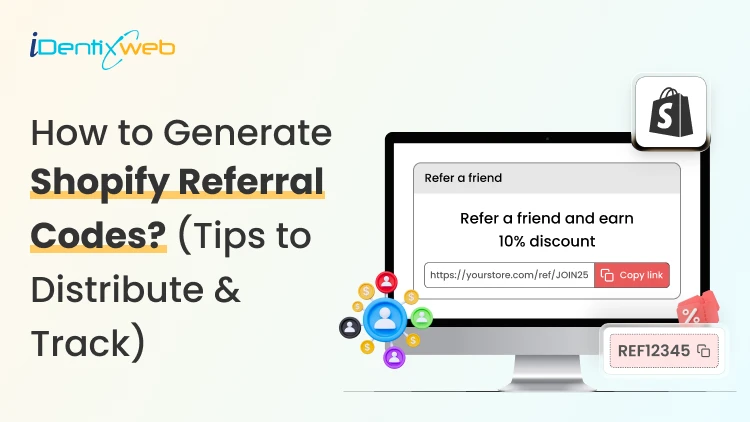
Grow Your Store With Shopify Referral Codes? (Generate, Distribute & Track)
Shopify merchants can run creator affiliate programs through Shopify Collabs, which generates affiliate links and discount codes, tracks attributed sales, and manages commissions. For customer referrals, merchants can manually create a unique discount code for each referrer, add minimum-spend and usage limits, and track resulting orders through discount reports. Automated customer rewards, referral sharing, fraud controls, and advanced attribution generally require a dedicated referral app. A Shopify referral code is one of the cheapest acquisition channels most stores never use. I have set these up for stores doing 40 orders a month and stores doing 4,00, and the setup is far less technical than merchants expect. Here is how referral works in your admin right now, what processes need an app, and how to track whether any of it is making you money. What Is a Shopify referral code? A Shopify referral code is a discount code tied to one specific person, so you know exactly who sent each new customer. A generic code like SUMMER20 tells you nothing about who shared it. A referral code like SAM-15 tells you Sam brought that order in. A referral code can be implemented as a Shopify discount code, but referral platforms may use unique links, customer accounts, or tracking methods. The key difference is that a referral identifier connects the sale to a specific referrer. I will explain the three formats that get mixed up. Referral code. An alphanumeric string the shopper types at checkout. Works for podcasts, in-person events, WhatsApp, and anywhere a link cannot travel. Referral link. A unique URL that attributes visits or purchases to a referrer. A Shopify shareable discount link can automatically apply the discount, while referral apps may use cookies, URL parameters, account matching, or other attribution methods. Discount code. The broad category both of the above sit inside. Run both formats. Links convert better because there is no typing. If you are new to this, my walkthrough on how to create a discount code on Shopify covers the base settings you will need before any of this works. Does Shopify have a referral program? Shopify has no built-in customer-to-customer referral program where your buyers refer their friends. It does have two programs that reward people for referring new merchants to Shopify. One native app that handles affiliate-style referral codes for your store. Three separate things carry the word "referral" in this ecosystem, and merchants confuse them weekly: 1. The Shopify affiliate program This program is for creators, who refer new merchants to Shopify. Eligible affiliates can earn up to $150 USD for a qualified merchant who moves to a full-price Basic, Grow, or Advanced plan. The merchant must start a free trial within 30 days of the qualifying affiliate click, and Shopify currently allows up to 125 days from the start of the trial for the referral to become eligible. The minimum withdrawal balance is $10, reporting and payments are handled through Impact, and Shopify says applications are generally reviewed within five business days. 2. The Shopify partner program This program is for developers, designers, agencies, app companies, and other commerce professionals. Earnings vary by activity and may include merchant-referral revenue share, app or theme revenue, and service income. 3. Your own referral program This is where existing customers refer friends to your store. Shopify’s native discounts and store credit can support a small manual pilot. But an automated customer-to-customer referral program requires an app or custom development. The native tools for merchants Shopify Collabs Shopify Collabs is Shopify's own affiliate marketing app, and it generates unique discount codes and tracking links per creator, tracks the sales attributed to each one, and pays them out. It is available on every Shopify plan except Starter and Retail. Shopify does not charge a monthly Collabs subscription fee, but it currently charges a 2.9% processing fee on automatic commission payments. You can invite creators directly, run an open access program with an instant commission offer, or publish an application page on your online store. If you are eligible for Shopify Flow, you can wire Collabs into automated workflows. For the broader creator strategy, see my guide on finding influencers with Shopify Collabs for merchants. . Native store credit Store credit is a first-party feature in your admin, switched on by default. You issue credit from any customer profile. It applies automatically at checkout for signed-in customers. I see these four limits for this: It only works with new customer accounts. Only the full balance can be applied. Customers cannot spend part of it. The cap is under $15,000 USD per customer account. For stores created on or after May 12, 2025, third-party transaction fees apply to the portion of an order paid with store credit. Plus, stores using Shopify Payments are exempt. Bulk unique code generation Shopify supports bulk unique redeem codes through its Admin API and through third-party bulk-discount apps. In the standard Shopify Admin, merchants can create individual discount codes and export discount data. If you need hundreds or thousands of advocate-specific codes, I would advise using a bulk-discount app or a custom API workflow. How to generate Shopify referral codes (Manual method) Step 1: Choose a discount type Go to Shopify Admin > Discounts > Create discount, then select Amount off products or Amount off orders. Step 2: Create the referral code Under Method, select Discount code and enter a memorable code such as SAM20. Set the discount value, minimum purchase amount, and limit it to one use per customer. Step 3: Save and share Save the discount and send the code to the referrer. You can later track orders and sales generated through that code. Method 2: Shopify Collabs for creator and affiliate referrals Install Collabs. Build your brand profile, set your commission structure as a percentage or a flat amount, decide which products qualify, and publish. Codes and links generate per creator automatically. Attribution is handled by Shopify, so your revenue reporting stays simple. This is best for stores where creators, not customers, drive word of mouth. Method 3: A referral app Referral-app pricing varies more than the monthly subscription alone suggests. Compare order limits, advocate limits, referral revenue fees, fraud controls, integrations, and reward automation before choosing an app. I have compared the main options in detail in my roundup of the best Shopify referral apps in 2026. How to distribute Shopify referral codes Here’s how I distribute Shopify referral codes. Order confirmation page. Peak excitement and zero friction. One line and a copy button works here. Post-delivery email. Post-delivery email. Send it after customers have had enough time to experience the product. This may be seven to ten days for some products, but longer purchase and evaluation cycles may require different timing. Customer account page. Permanent place for the code so people can find it again without digging through email. Packaging insert with a QR code. Physical inserts convert well because the product is in their hands. My guide on creating Shopify QR codes covers the free native options. For email and SMS sequencing, my breakdown of Shopify marketing automation tools covers what to use at each store size.. How to track Shopify referral code performance Discount reports Go to Analytics > Reports, then look for sales by discount report. Shows orders, revenue, and average order value per discount. Compare referral-driven AOV against your store average. Four numbers I always watch: Participation rate. Percentage of customers who claim a code. Share rate. How many of those actually share it? Referral conversion rate. Percentage of referred visitors who buy. Referral CAC. Total rewards paid divided by referred orders. Compare it to your paid ad CAC directly. How to set rewards that do not make losses? Rewards that benefit the referred friend, or both participants, can outperform referrer-only incentives in some situations. Shared rewards will make the recommendation feel more helpful, but the best structure depends on your audience, margins, and product. A one-sided reward makes the referrer feel like they are profiting off a friend. For example, on a $60 order with a 55% gross margin, a 20% friend discount leaves approximately $21 in gross profit before the referrer reward and other costs. After assigning a $20 store-credit reward, the first order is close to break-even before payment fees, shipping, returns, app charges, and support costs. I set these three margin rules: Add a minimum order value so referrals cannot be redeemed on your cheapest SKU. Pay the referrer in store credit, not cash. The reward returns to you. Check your discount combination settings. Shopify lets codes stack with automatic discounts, and a stacked referral code plus a seasonal promo can wipe out a full order's margin. My guide on Shopify discount combinations covers how to set these rules safely. Start small and scale what works A Shopify referral program does not need $200 monthly software. The first thing I would do is to create ten manual codes for your ten best customers and watch the discount report for 30 days. If referred customers convert at a decent rate and your referral CAC beats your ad CAC, the case for a proper app makes itself. A simple referral setup with clear promotion and regular measurement can outperform a more expensive platform that customers rarely see or use. FAQs 1. How can Shopify users set up a referral program? Install a referral app from the Shopify App Store, then configure the user reward, incentive, eligibility rules, sharing methods and fraud controls. Shopify’s native discount tools can create promotional codes, but a referral app is required for unique referral links, automatic rewards, attribution and performance reporting. 2. Is there a referral code for Shopify? Shopify does not offer a referral code that gives every new merchant a discount on a Shopify plan. Approved Shopify Affiliates receive a unique referral link through the Shopify Affiliate Program, while merchants can create their own customer referral codes using Shopify Discounts or a referral app. 3. How to generate referral codes for Shopify? From the Shopify admin, go to Discounts, select Create discount, choose the discount type and enter or generate a code. Set the reward value, eligible products or customers, minimum purchase requirement, usage limit and expiry date. Use a referral app when every user needs a unique code and automated reward tracking. 4. Which is the best referral app for Shopify? ReferralCandy is a strong, dedicated option for referral and affiliate campaigns with attribution, tiered rewards, fraud protection and multiple reward types. Smile is another app that is better suited to merchants who want referrals combined with loyalty points and VIP tiers. 5. Does Shopify have a referral program? Yes. Shopify operates an Affiliate Program through which approved affiliates share unique links and earn commissions for qualified merchants. However, Shopify does not provide a built-in customer refer-a-friend program for individual stores, so merchants must use a referral app or manage codes manually through Shopify Discounts.
10 Min • 27 August 2026
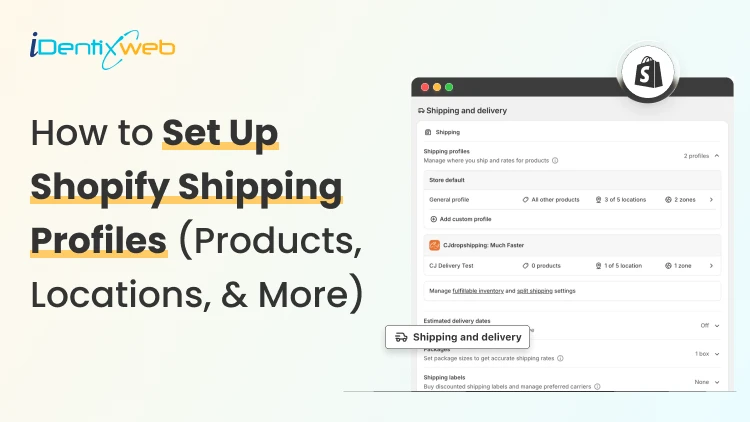
How to Set Up Shopify Shipping Profiles (Products, Locations, & More)
To set up a custom shipping profile in Shopify, go to Shopify Admin → Settings → Shipping and delivery → Shipping profiles → Add custom profile. Add the required products or variants, assign fulfillment locations, create shipping zones, and configure shipping rates based on your requirements. Custom shipping profiles help merchants manage different shipping rules for products like fragile, heavy, oversized, or region-specific items without affecting their entire catalog. Shipping gets complicated when you can't treat every product the same way. A T-shirt, glass vase, and 20-pound bag of pet food might all sit in the same Shopify store. But charging the same shipping rate for each can hurt your margins. Shopify shipping profiles solve this by grouping products with similar shipping needs. It controls where they ship from, where they can ship to, and what customers pay. This guide covers products, variants, fulfillment locations, shipping zones, rates, multiple warehouses, and the checkout issues merchants should test before going live. What Are Shopify Shipping Profiles? Shopify defines a shipping profile as a set of shipping rules for specific products and locations. Stores get a General shipping profile by default, while custom profiles handle products that need different rates. Shipping profileBest forWhat happensGeneral shipping profileProducts using the same shipping ratesProducts stay here unless moved to a custom profileCustom shipping profileFragile, oversized, heavy, or other special productsSelected products or variants get their own locations, zones, and rates Shopify currently allows up to 99 custom shipping profiles for stores using the shipping-profile system. A product or variant can belong to only one profile at a time. Adding it to another profile automatically removes it from the previous one. When do you need a custom shipping profile? You need a custom shipping profile when certain products need different shipping rules from the rest of your catalog. I will explain this better with a few examples below: Furniture or oversized products: Use a separate profile when these products need higher flat rates or special delivery charges. Fragile items: Create one when products such as glassware require extra packaging and higher shipping costs. Heavy products: Use a separate profile if shipping charges need to be calculated differently based on weight. Products sold only in selected regions: Use a separate profile when certain items should ship only to specific countries, states, or regions. Products with free shipping: Create a profile when only selected products should qualify for a $0 shipping rate. Products needing carrier-calculated rates: Use a separate profile when only certain products need live carrier rates instead of your standard flat rates. If most products follow the same shipping rules, keep them in the General shipping profile and create custom profiles only where there is a real difference in cost, location, or delivery requirement. What to prepare before setting up a shipping profile Before creating a profile, I normally map these four things. 1. Products Decide which products or variants genuinely need different shipping treatment. For example, a home decor store will keep cushions and small accessories in the General profile. They move large mirrors into a custom profile because they require protective packaging and higher shipping charges. 2. Fulfillment locations Check where the products are stocked and fulfilled. Locations can represent warehouses, retail stores, fulfillment partners, and other order origins. When a shipping profile is created, eligible online-fulfillment locations are added to it. Locations can share one location group when they use the same zones and rates, or be separated when shipping rules differ. 3. Shipping zones A shipping zone is a group of countries or regions that share shipping rates. You might create zones such as Domestic, Canada, Europe, or selected international countries. Want to sell internationally? Here’s my breakdown of international shipping on Shopify for merchants in 2026. 4. Shipping rates Shopify supports flat rates, order-value-based rates, weight-based rates, carrier or app-calculated rates, and free shipping. Shipping in Shopify can be complicated. Here are my top Shopify shipping strategies to increase sales in 2026. How to create a Shopify shipping profile step by step Step 1: Open Shipping and Delivery From the Shopify admin, go to: Settings > Shipping and delivery Under Shipping profiles, you will see the General profile and any existing custom profiles. Step 2: Create a custom shipping profile Click Add custom profile and enter a clear name, such as: Heavy Products Fragile Items Furniture Free Shipping Products US Warehouse Products Step 3: Add products or variants You can also see the Products section just below the Profile name section. A product or variant can belong to only one shipping profile at a time. This becomes especially useful when only certain variants need different shipping rules, while the rest of the product can stay in the General profile. For example, a merchant selling framed prints might keep the standard-size variants in the General profile. They will move only the oversized frame variant into a custom profile if it needs higher shipping charges, different packaging, or a different fulfillment method. Step 4: Configure fulfillment locations Review Fulfillment locations. If several warehouses should use the same zones and prices, keep them in the same location group. If one warehouse needs different rules, separate it. For example: New York: United States Each location group can have its own zones and rates. Step 5: Create shipping zones For each location group, click Add zone, name it, select the countries or regions, and click Done. For example, a US merchant may create a West Coast zone for California, Oregon, and Washington with a lower shipping rate. They may place Alaska and Hawaii in a separate zone because delivery there costs more. Separate zones help merchants charge rates that better reflect the actual cost of shipping to different regions. Build zones around actual delivery coverage and cost. If certain regions are significantly more expensive to serve, separate rates will be more practical. Step 6: Add shipping rates Inside each zone, click Add shipping option and choose the rate type. Flat rate: Charge one fixed amount, such as $7 for Standard Shipping. This works well when shipping costs are predictable. Order amount-based rate: Change shipping by cart value. A store could charge $8 below $50, $5 from $50 to $99.99, and offer free shipping from $100. Weight-based rate: Charge according to shipment weight. This suits food, hardware, liquids, bulk goods, and similar products. Make sure product weights are accurate, and your tiers cover the full expected weight range. Carrier or app-calculated rate: Let an eligible carrier or app calculate shipping from information such as weight, destination, and package details. Step 7: Save and test Click Save, then place test orders using realistic combinations: A product from the General profile A product from a custom profile Products from two profiles Products fulfilled from different locations Different domestic or international addresses Orders above and below free-shipping thresholds Free shipping can be a great tool to increase conversions. Here’s my complete guide to Shopify free shipping strategies for merchants. Need Help Configuring Your Shopify Shipping Settings? As product catalogs, fulfillment locations, shipping zones, and rate rules grow, managing everything accurately can become difficult. For example, a merchant may sell standard products from one warehouse, oversized items from another, and charge different rates for Alaska and Hawaii. If these rules are not configured properly, customers may see the wrong rate, duplicate charges, or no suitable shipping option at checkout. That’s where Identixweb can help. Our Shopify Store Settings Configuration service helps merchants configure complex shipping, payment, tax, and checkout settings so everything works correctly together. What happens when products come from different profiles? I get this question a lot. Under the current shipping-profile system, Shopify can combine shipping rates when an order contains products from different profiles or requires different location groups. Example: ProductProfile shipping rateT-shirt$4Fragile mug$7Possible combined charge$11 In this case, the customer may see an $11 shipping charge at checkout because Shopify is combining the applicable rates from both profiles. The setup may be technically correct, but the final charge can still feel high to the customer. That’s why merchants should test mixed-profile orders before going live, especially when customers commonly buy products from different profiles together. This helps confirm that the final shipping cost is reasonable and avoids unexpected checkout charges. Common Shopify shipping profile mistakes I see #1 Creating too many profiles This is the most common mistake I encounter with merchants. More profiles do not automatically improve shipping. Start with the General profile and add a custom profile only when a real cost, destination, or fulfillment difference exists. #2 Ignoring mixed-cart costs A rate that looks reasonable for one item but when the customer adds another item with a different profile, the shipping rates increase. Always test mixed carts before creating a profile. #3 Using inaccurate weights Weight-based and calculated rates depend on accurate product data. Incorrect weights can lead to inaccurate checkout charges. #4 Creating zones without checking markets A country appearing in a shipping zone is not enough if that country is not in an active market. Set up Shopify shipping profiles the right way A well-planned Shopify shipping profile helps merchants charge more accurate shipping rates without making fulfillment unnecessarily complicated. The key is to group products only when their shipping costs, destinations, or fulfillment requirements are genuinely different. Start simple, test mixed-product carts, review location-based rates, and update profiles whenever products, warehouses, or shipping costs change. A clean setup makes checkout easier for customers and shipping easier to manage as the store grows. FAQs 1. How to add products to a shipping profile in your Shopify store? Go to Settings > Shipping and delivery > Shipping profiles, open or create a custom profile, and select the products you want to add from the Products section. A product or variant can belong to only one shipping profile at a time, so adding it to a custom profile automatically removes it from its previous profile. 2. What is the difference between a general and custom shipping profile? The General shipping profile is Shopify's default profile and automatically applies to products that aren't assigned to a custom profile. A custom shipping profile is used when certain products need different shipping rates, zones, or fulfillment rules, such as fragile, heavy, or oversized items. 3. Can I offer free shipping for any selected products? Yes. To offer free shipping only on selected products, add those products to a custom shipping profile and create a flat shipping rate with the price set to $0 or enable free shipping for that rate. 4. Does shipping increase when customers buy two products in different shipping profiles? Yes. When products from different shipping profiles are purchased together, Shopify combines their applicable shipping rates and displays one total rate at checkout, which will make the final shipping charge higher. 5. Should I use flat or carrier-calculated shipping rates in Shopify? Use flat rates when shipping costs are predictable, and you want a simple, consistent checkout experience. Use carrier-calculated rates when costs vary significantly by destination, package weight, dimensions, or delivery speed.
Vineet Nair
8 Min • 11 July 2026
159 Views
Sajini Annie John
6 Min • 1 July 2026
171 Views
Sajini Annie John
11 Min • 30 June 2026
155 Views
Sajini Annie John
9 Min • 30 June 2026
163 Views
Sajini Annie John
7 Min • 28 June 2026
155 Views
Sajini Annie John
6 Min • 27 June 2026
159 Views
Vineet Nair
13 Min • 12 June 2026
213 Views
Sajini Annie John
2 Min • 3 June 2026
187 Views
Vineet Nair
10 Min • 3 June 2026
210 Views
Vineet Nair
7 Min • 2 June 2026
246 Views
Vineet Nair
8 Min • 1 July 2026
239 Views
Sajini Annie John
6 Min • 24 May 2026
245 Views