Blog
Gather knowledge about the latest insights, updates, tips, and tricks in the Ecommerce industry.

5 Min • 20 March 2026
How Anua Unlocked 5X AOV Growth with iCart’s Smart Cart Features
delivery customization Challenges Solutions drive results Scale business delivery customization Challenges Solutions drive results Scale business delivery customization Challenges Solutions drive results Scale business delivery customization Challenges Solutions drive results Scale business Anua is a globally recognized Korean skincare brand known for its minimalist philosophy and focus on gentle yet effective formulations. Built on the idea of simplifying skincare routines, Anua develops products that deliver visible results while avoiding harsh or irritating components, making them suitable for sensitive skin types. Initially using a traditional full cart experience, Anua transitioned to iCart’s side cart solution in August 2025, to create a more seamless and engaging shopping journey. This shift allowed customers to easily explore complementary skincare products without disrupting their browsing flow, making it more intuitive to discover items that fit into a complete routine. By surfacing relevant recommendations directly within the cart, the brand enhanced product visibility across its range. Challenges Before implementing iCart’s side cart solution, Anua faced limitations with their existing full cart experience, which created friction in the customer journey. The traditional cart setup redirected users away from product pages, interrupting their browsing flow and reducing opportunities to explore additional products. As a skincare brand built around routines rather than single-item purchases, this made it difficult to effectively showcase complementary products and encourage customers to build complete regimens. Additionally, the lack of in-cart personalization and strategic upsell opportunities meant that customers were often unaware of related products that could enhance their skincare results. This limited the brand’s ability to increase average order value (AOV) and fully leverage its diverse product range. Anua needed a more dynamic and intuitive cart experience that could seamlessly introduce relevant recommendations while maintaining a smooth and engaging shopping journey. ❌ Cart Value Barriers Low average order value (AOV) due to single-item focus Most customers completed purchases with one primary product instead of building multi-step routines. Cart abandonment near shipping thresholds Customers were not clearly informed or motivated to reach free shipping or discount thresholds. Missed savings opportunities Customers were unaware of potential value in purchasing bundled routines or multiple complementary products. ❌ Absence of Progress-Based Incentives No free shipping or discount progress bar Customers were not motivated to increase their cart value due to lack of visible incentives. Missing tiered rewards system There were no structured milestones (e.g., “Spend more to unlock offers”), reducing upsell opportunities. ❌ Ineffective Cart UI/UX (Pre-Side Cart) Full-page cart disrupted shopping flowCustomers had to leave their browsing journey, increasing friction and drop-offs. No quick add/remove functionality Users couldn’t easily modify their cart or add suggested products without navigating away. Solution To overcome these challenges, Anua implemented iCart’s side cart solution to transform their traditional cart into a high-converting, interactive experience. By replacing the full-page cart with a seamless side cart, the brand ensured that customers could continue browsing while viewing their cart, significantly reducing friction in the shopping journey. Additionally, features like product recommendations & progress bars for free shipping and discounts motivated customers to increase their cart value. By combining personalization, incentive-driven messaging, and a user-friendly interface, Anua successfully turned their cart into a powerful revenue-driving touchpoint rather than just a checkout step. To maximize their cart effectiveness, they implemented two powerful features: ✅ Progress Bar with Multi-Reward Incentives Implemented a tiered progress bar to encourage higher cart value Customers are guided with a clear message like “Add $3.10 to unlock secret offer,” motivating them to continue adding products. Generated over $5M+ in revenue through incentive-driven cart progression Used product-based rewards to align with customer intent Instead of generic discounts, Anua incentivized purchases with relevant skincare items like Dark Spot Pads and mini serums. Built visual motivation for routine expansion As customers add products, they can clearly track progress toward unlocking multiple rewards, encouraging them to build a complete skincare routine. ✅ Product Recommendations Implemented “Frequently Bought Together” recommendations Customers adding a single product (e.g., toner) are shown complementary items like serums, moisturizers, or pads to complete their routine. Generated over 275K revenue through in-cart recommendations Encouraged full skincare regimen building Instead of isolated purchases, the cart suggests step-by-step product combinations aligned with common skincare routines. Increased product discovery at the final stage By surfacing relevant items directly in the cart, Anua ensured customers explore more of their catalog without leaving the checkout flow. Results Achieved in Last 180 Days 22932 Total Store Orders 45101 Total iCart Orders 5X iCart Generated AOV 65.70% Upsell Affected Conversion Rate These improvements reflect a clear shift in customer behavior on Anua’s store. Cart abandonment reduced as shoppers discovered complementary skincare products and felt encouraged to build complete routines. Engagement also increased, with customers interacting more with in-cart recommendations and exploring relevant product pairings. Results & Impact And...Results is Our Main Clarification By implementing iCart’s cart drawer, product recommendations, and progress bar, Anua transformed its cart into a high-performing conversion touchpoint. Shopping Experience Enhancement The improved cart experience encouraged customers to discover complementary products and understand the value of sustainable beauty routines. For instance, the clear presentation of subscription savings alongside one-time purchase options helped customers make more informed decisions about their long-term hair care needs. As Anua continues to optimize its cart experience, the brand is closely monitoring: Routine-based purchasing behavior - tracking how customers move from single items to multi-step regimens Engagement with in-cart recommendations - measuring interaction with suggested products Cart value progression - analyzing how incentives influence higher spending [related_cases_slider] Ready to Write Your Success Story? Try icart App Join successful businesses like Anua and Master your delivery scheduling Delight customers with precise timing Grow your special occasion orders Expand your delivery reach
Read Blog
7 Min • 20 April 2026
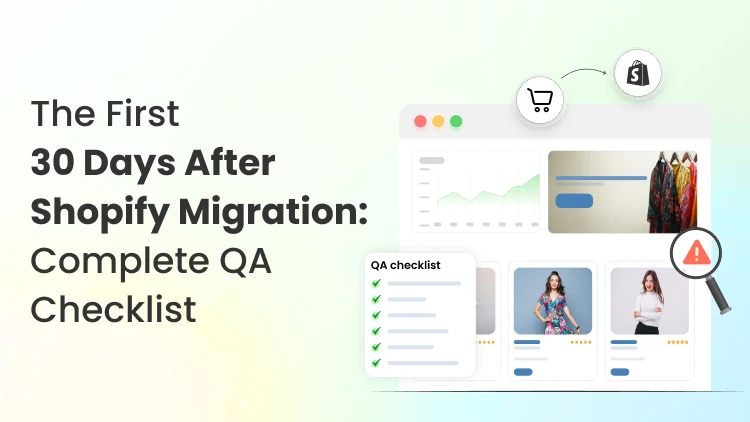
Shopify Migration Checklist: 30-Day Post-Launch QA
A Shopify migration doesn’t end on launch day. Launch is when real traffic and real orders start, and issues begin to surface. I always catch the biggest problems in the first 30 days, which don’t crash the site but still cost you money. The biggest issues I have dealt with during Shopify migration are broken redirects, missing tracking, tax quirks, or checkout issues that only show up on certain devices. This Shopify migration checklist is a post-launch QA plan you can run without overthinking it. It’s written for US-based teams because that’s where the majority of my experience is, but the flow is useful anywhere. Treat it as the step between launch and a stable store. What does post-launch QA mean? In the Shopify migration checklist, I look for three Post-launch QA checks three things: Customers can buy without issues Search engines can crawl and understand the new site Your analytics data is accurate. I always make sure the essentials are correct and stay correct as Shopify apps, theme edits, and ongoing merchandising changes roll in. I have covered the planning side of the migration in ecommerce migration checklist. ✅ Days 1–3: Test checkout and orders Right after launch, I always do Shopify checkout testing by placing a real order on the devices customers use most, starting with mobile and then desktop. I check that the order confirmation email arrives, inventory decreases correctly, fulfillment settings route properly, and any post-purchase upsell or subscription flow behaves correctly. I also check the settings that often cause problems in the first week: shipping rates, tax settings, and payment methods. A working checkout can still cause problems if a popular shipping zone is missing or taxes are misapplied for a key state. You’ll also want to verify that critical pages render and function with real data. Test a product with variants, a product on sale, a product that’s out of stock, and a discounted cart. The goal is to quickly catch a theme edge case before your customers do. ✅ Days 4–7: Redirects and crawlability Most migration SEO problems come from redirects that are incomplete, inconsistent, or pointed to the wrong place. Start by validating your highest-value URLs first: top collections, top products, blog posts that bring organic traffic, and any pages with strong backlink profiles. Start by importing your redirect list in the admin using Shopify URL redirects, especially when you’re moving a lot of legacy URLs. If the structure changed, treat it like a site move with URL changes and spend the first two weeks validating redirect accuracy, canonical tags, and crawl coverage. Here’s what I watch in the first week: old URLs should resolve to the right new URLs (not the homepage unless there’s truly no equivalent), important pages should return 200, and you shouldn’t see chains (A → B → C) or loops. Also check that canonical tags point to the right final URLs, and that indexing signals aren’t accidentally blocked. A practical move here is to export a list of your top landing pages from analytics (or Search Console) and do a quick spot check: does each old URL land on the most relevant new page, and does the new page match intent? ✅ Days 8–14: Analytics and pixels checks Teams often assume everything is working, then later find missing revenue, duplicate purchases, or key events that fail on mobile during Shopify tracking setup after migration. Post-launch QA is part of operations, not a one-time task. If you’re running an ecommerce store, tracking checks work best as a routine, especially when channel mix and tags change week to week. Compare three numbers that should roughly line up: Shopify net sales Your payment processor deposits Analytics purchase revenue. They won’t match perfectly because of timing, refunds, and taxes, but major gaps are a red flag. Next, validate the basics in the storefront: page views, add-to-cart, begin checkout, purchase, and any subscription or post-purchase events you rely on. If you use multiple channels (Meta, Google Ads, TikTok), make sure their pixels are firing once per event, not multiple times due to theme scripts or tag manager duplication. This is also the point where you want to verify that marketing emails and abandoned checkout flows still work. Migration can quietly break email templates, transactional notifications, or app-to-app webhooks. ✅ Days 15–21: Content and merchandising Once checkout and redirects look stable, the next problems are usually content and merchandising issues that reduce conversion without creating obvious errors. Review your top collections and best-selling products. Confirm the page experience is still as good as before. Check product pages for missing content. Review titles, descriptions, images, variant labels, size charts, and tabs. Confirm that structured product information (like materials, sizing, compatibility, or care instructions) still displays correctly if it previously relied on custom fields or app rendering. Also, verify that internal navigation still supports how people shop. Menus, filters, collection sorting, and search behavior are conversion levers. If any of these changed during the migration, you’ll see a lot of traffic but low conversions. During a Shopify migration, the parts that most often change are theme behavior, app dependencies, and how product data renders across templates. ✅ Days 22–30: Speed and ongoing monitoring By the last third of the month, I shift my process to how to keep the site healthy. Site speed is a big part of that, because migrations often add apps, tracking scripts, and heavier themes. The cost shows up gradually: slower mobile load, lower conversion, higher bounce. Look at your core templates (home, collection, product, cart, checkout entry). If performance has gone down, isolate what changed: new apps, heavier images, third-party scripts, or a theme feature that loads on every page. I find removing or deferring a script that’s not working is the best way to increase speed. This is where it helps to have a simple, recurring checklist you run monthly. I have written a straightforward explainer on page speed for SEO that fits well when you’re prioritizing fixes. Finally, do one more pass on error monitoring and operational readiness. Make sure your support team knows shipping timelines, order notifications, and refund flow, and that your internal team has a short list of the metrics that indicate real problems (conversion rate shifts, checkout drop-off changes, sudden traffic loss to key landing pages). Final thoughts: Protect revenue in the first 30 days The first 30 days after a migration are when you earn the benefits of moving to Shopify. If you treat post-launch QA as a repeatable routine, you catch the issues that don’t look that big but compound over time: misrouted redirects, broken tracking, slower pages, and small checkout friction that turns into big lost revenue. Use this Shopify migration checklist as your baseline, then refine it to match your store’s reality. When you make a 30-day post-launch QA part of how you operate, you’re protecting revenue while the store keeps evolving. FAQs 1. What is the Magento to Shopify Migration Checklist? A Magento to Shopify migration checklist includes migrating products, customers, orders, collections, redirects, and apps. After launch, I check variant data, customer accounts, payment settings, and shipping rules, because Magento stores have more complex catalog and backend setups. 2. What is the checklist for the Wix to Shopify migration? A Wix to Shopify migration checklist covers transferring products, pages, blog content, images, domain settings, and design elements. Since Wix and Shopify work very differently, you should also review navigation, mobile layout, contact forms, and SEO settings. 3. What is the Shopify migration SEO checklist? A Shopify migration SEO checklist includes preserving important URLs where possible, setting up 301 redirects, updating meta titles and descriptions, checking canonical tags, submitting the new sitemap, and monitoring crawl errors in Google Search Console. 4. What is the checklist for the WooCommerce to Shopify migration? A WooCommerce to Shopify migration checklist includes moving products, categories, customers, orders, coupons, blog posts, and key plugins or features into the Shopify app alternatives. After migration, it is important to test product pages, checkout flow, tax settings, shipping methods, and redirects because WooCommerce stores often rely heavily on plugins that do not directly carry over to Shopify.
7 Min • 20 April 2026
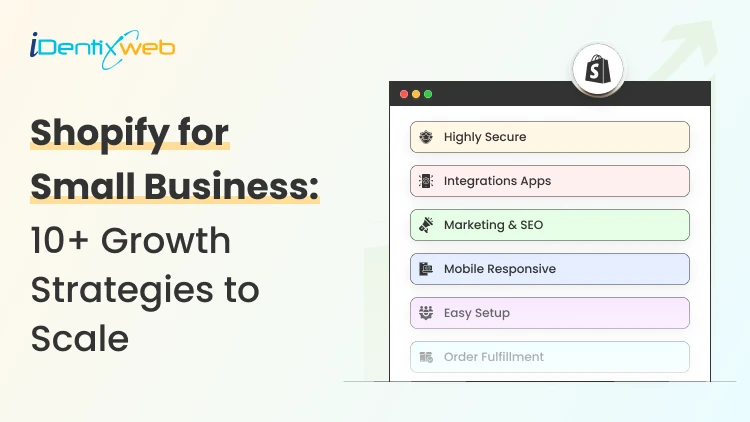
Shopify for Small Businesses? A Complete 2026 Guide for Online Merchants
Even before Shopify, when I was working with small businesses, they always looked for the best ecommerce platforms. Now, after years of working with Shopify clients, I always get asked this one question from small business owners. Is Shopify good for small businesses? My answer is always yes. I found it better than any ecommerce platforms around. But there’s a reason behind it. What I like most is that it does not force a small business owner to think like a developer. You can focus on the parts that increase conversions, for example, your cart page. That matters when you are new, and every decision feels bigger than it should. For a small business, growth comes from doing the right few things early. That is where Shopify helps. In this blog, I will get into the benefits Shopify offers to small businesses, examples of stores that hit it big, plus what to consider before starting a small business on Shopify. Why I recommend Shopify to small businesses? I recommend Shopify to new store owners because it removes a lot of the early struggles owners face, like: Choosing a hosting and setting up the technical side Designing a store from scratch Adding products and organizing collections Setting up payments and checkout Handling shipping settings and basic taxes Making the store mobile-friendly Connecting useful apps without too much complexity Managing orders, inventory, and customer details in one place With Shopify, you can get a store live, test products, and start learning from real customer behavior. That speed matters because you need to get sales as quickly as possible. Shopify makes it easier to launch first and improve after. Is Shopify good for small businesses? 100% Yes. Here is why I think it works well for small businesses: It is easier to manage than more technical platforms It is built for both selling and making storefronts look beautiful It has a large app store, so you can add features as your business grows It works well for both online-only brands and stores that may also sell in person later Best ecommerce platform for small businesses: Shopify vs others For most beginners, Shopify is the easier starting point. Some platforms give you more control, but they also ask for more technical work, more setup time, and more maintenance. I won’t recommend spending time on these as new online merchants. When I work with small brands, I care more about launch speed, ease of use, and how quickly the owner can start learning from sales data. Here are the growth strategies that work early from my experience Start with one clear niche. Even if you want to go with furniture stores, you can go specific, like sofa sets. Lead with one hero product. This can also be a popular collection on your homepage. Keep the design mobile-friendly. Most shoppers are now on smartphones. Offer simple discounts to push first purchases. For example, a free shipping threshold can help reduce hesitation for new visitors. Collect emails from day one. Add a pop-up in your Shopify store Add bundles or upsells in your cart to raise average order value Focus on repeat purchases. I use Shopify Flow to automate my post-purchase email sequence. Optimize your product pages for conversions with clear product images, descriptions, and benefits over features. Add reviews to your home and product pages so customers do not hesitate to buy from your new store. Enable multiple payment options like Shop Pay, Apple Pay, and Google Pay so customers can complete purchases quickly. Instead of spreading thin, focus on one channel first (like Instagram or Meta ads), learn what works, then expand. Turn your small business into a big brand Schedule a Free Strategy Call Examples of small businesses on Shopify that hit it big 1. Bashify Bashify began as a party-planning side hustle by two entrepreneurs who were looking for a fun way to provide customers with high-quality party supplies. How they scaled:By focusing on offering something unique in the crowded party supply market, they managed to turn the business into a $600,000 brand, utilizing Shopify’s ease of use and its powerful e-commerce features. 2. Popov Leather Popov Leather started in a small basement workshop with only a handful of leather products. They created high-quality, handcrafted leather goods that caught the attention of people looking for premium accessories. How they scaled:Popov Leather leveraged Shopify’s simple storefront setup and tools to reach a wider audience. Their focus on craftsmanship, customer service, and branding helped them grow the business into a seven-figure revenue company Tumbleweed Texstyles Tumbleweed Texstyles began as a side hustle in the niche of unique Western apparel. The two founders, both teachers, took a leap into business with a few hand-designed shirts. How they scaled: They used Shopify to streamline their sales, and the business quickly grew, thanks to their unique designs and quality. They turned their small passion project into a 7-figure lifestyle brand, and their Shopify store helped them manage inventory, order fulfillment, and customer outreach with ease. Best Shopify Plan for small businesses Shopify’s public pricing currently lists Basic at $29/month, Grow at $79/month, and Advanced at $299/month when billed yearly. Here is how I would look at those plans as a small business owner: Basic is where most small businesses in Shopify begin Grow makes sense once your operations and reporting needs become more serious Advanced is usually too early for most new businesses The best Shopify plan for small businesses is Basic. It gives you enough to launch properly without pushing your monthly cost too high. Want to try Shopify Capital funding? Here’s how Shopify Capital funding works for small businesses to grow your store. Best Shopify apps for small businesses: My recommendations A small business does not need more than 5 apps. In fact, I have seen small stores use only 2 apps. Here are the areas where you might need to install apps. Reviews and ratings (JudgeMe) For email and SMS marketing (Klaviyo) An app for upsells or bundles (iCart Cart Drawer Cart Upsell) One app for analytics if needed (Shopify Analytics) One operational app only if your business model needs it The final operational apps depend on your business needs. For example, if I run a subscription business, I would install apps like the Seal Subscriptions App. Things to consider before starting your small business on Shopify Before considering Shopify for small businesses in 2026, I would ask myself these questions. Is the product demand real? Can the value be explained in one sentence? Are the margins healthy after shipping, discounts, and app costs? Is the store easy to use on mobile? Is there a reason for customers to come back? These questions matter more than which Shopify theme to go with or a long list of apps. Shopify for small businesses: It’s 100% good Although it's a great platform to start your ecommerce store, the platform itself is not the growth strategy. The real growth comes from clear positioning, smart pricing, a clean store experience, and a plan to bring customers back. I would also advise researching Shopify competitors, like Magento and BigCommerce. Not all store owners think alike, so research carefully and start your online business today. FAQs 1. Is Shopify good for small businesses? Yes. Shopify is an excellent platform for small businesses. It offers an easy-to-use interface, customizable templates, and powerful apps that make it easy to manage your online store. 2. How does Shopify work for small businesses? Shopify works by providing a platform where small businesses can set up, run, and manage their online stores. It allows you to customize your storefront, add products, handle payments, manage inventory, and track customer orders. 3. How much does Shopify cost for small businesses? The Basic plan starts at $29/month, while the Shopify plan is $79/month. The Advanced plan is $299/month. 4. How does Shopify Capital funding work for a small business? Shopify Capital provides funding to eligible merchants to help them grow their businesses. Shopify determines eligibility based on your sales history and performance on the platform. Repayments are made automatically through a percentage of daily sales, making it a flexible way to repay the loan.
5 Min • 16 April 2026
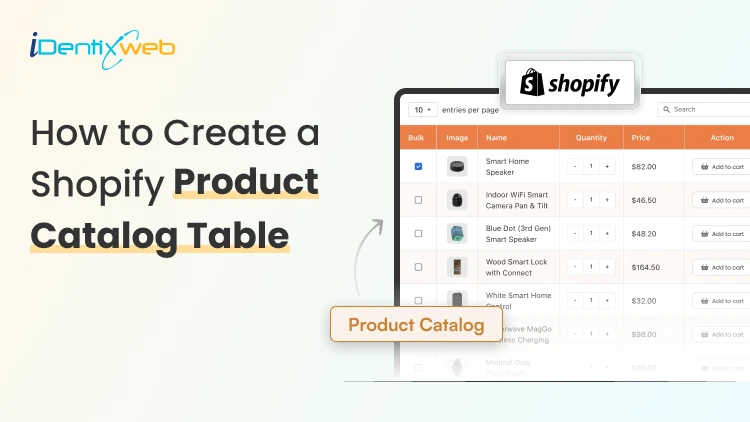
How to Create a Dynamic Shopify Product Catalog Table (Step-by-Step Guide)
You've built your Shopify store. You've added your products. But here's the problem your customers are clicking around, struggling to find what they need, and leaving before they buy. Sound familiar? A well-structured Shopify product catalog is often the missing piece. When shoppers can't quickly compare specs, variants, pricing, or features in one place, they bounce and they buy from someone who made it easier. In this guide, you'll learn exactly how to build a dynamic Shopify product table that helps customers find, compare, and buy products faster without touching a single line of code. What Is a Shopify Product Catalog Table? A Shopify product catalog is a structured, organized display of your products with key details like SKUs, prices, variants, dimensions, and stock status laid out in a scannable table format. Unlike your default grid or list view, a product catalog table lets customers: Compare multiple products side by side Filter and sort by attributes (size, color, price, material) See all variants without clicking into individual product pages Add items to cart directly from the table Step-by-Step: How to Create a Dynamic Shopify Product Catalog Table Step 1: Define What Data Your Table Needs to Show Before you install anything, get clear on what information your buyers actually need to make a decision. Ask yourself: Do customers compare products by specs (weight, size, material)? Do you have many variants per product? Are you selling B2B, wholesale, or retail? Do you need a quick "Add to Cart" directly from the table? Your answers will determine which approach fits best. A clothing store needs size charts and color options. A hardware store needs technical specs and SKU numbers. A B2B supplier needs bulk pricing and stock availability. Pro tip: Talk to your top 5 customers. Ask them what they wish they could see on your product pages before buying. Their answers will shape your catalog table better than any template. Step 2: Set Up Your Product Metafields in Shopify Metafields are the backbone of a dynamic Shopify product catalog. They allow you to store additional product data beyond Shopify's default fields and display it on your storefront. Here's how to set them up: Go to Shopify Admin > Settings > Custom Data > Products Click Add Definition Name your field (e.g., "Material", "Weight", "Dimensions", "SKU Code") Choose the appropriate content type (Text, Number, Date, etc.) Enable "Expose to Storefront API" so apps and themes can read the data Save, and repeat for each attribute you need in your table Once your metafields are created, go to each product and fill in the values. Yes, this takes time upfront but it's what makes your catalog table dynamic. When you update a product, the table updates automatically. For stores with large inventories, use Shopify's bulk import via CSV to populate metafield values at scale instead of editing products one by one. Step 3: Choose the Right Shopify App for Your Product Table While Shopify does allow basic customization, it doesn’t natively support dynamic product catalog tables or advanced comparison layouts. That’s why most merchants rely on specialized apps to build structured, conversion-focused tables without coding. The right app should help you: Turn product data into a clean, structured table view Automatically sync with Shopify products and metafields Allow customers to compare products side by side Enable filtering, sorting, and quick add-to-cart Work seamlessly on both desktop and mobile I would suggest, TablePress app as it is designed specifically for these use cases. Benefits of Adding a Product Catalog Table to Your Shopify Store A product catalog table isn’t just a visual upgrade; it fundamentally changes how customers interact with your store. Instead of clicking through multiple product pages, shoppers can view, compare, and decide in one place. Here are the key benefits: Faster Product Discovery Customers can instantly scan multiple products in a structured format instead of browsing page by page. This reduces friction and helps them find what they need quickly. Easier Product Comparison When key details like price, variants, specs, and availability are shown side by side, customers can make confident decisions without opening multiple tabs or product pages. Higher Conversion Rates By simplifying the decision-making process, product tables reduce drop-offs and increase the likelihood of adding items to cart. Improved Experience for Large Catalogs Stores with many SKUs, variants, or technical products benefit the most. Tables help organize complexity into a clean, digestible format. Reduced Customer Confusion Clear, structured data presentation removes ambiguity around product differences, especially for similar or technical items. Faster Add-to-Cart Actions When customers can select variants and add products directly from the table, it shortens the path from discovery to purchase. Conclusion A Shopify product catalog table isn’t just a design upgrade - it’s a conversion tool. When customers can compare, filter, and purchase without friction, you’re not just improving UX, you’re actively increasing revenue per visitor. Most stores lose sales not because of bad products, but because of unclear presentation. Simplify the buying decision, and the rest follows. FAQs 1. What is a Shopify product catalog table? A Shopify product catalog table is a structured layout that displays products in a table format with key details like price, variants, stock status, and specifications, allowing customers to compare and purchase easily. 2. Why should I use a product table instead of a grid layout? A product table makes it easier for customers to compare multiple products side-by-side, especially when technical details or variants are important. It reduces decision time and improves conversions. 3. Can product tables improve conversion rates? Yes. By reducing friction in product discovery and comparison, product tables help customers make faster decisions, which often leads to higher conversion rates and increased AOV.
Vineet Nair
7 Min • 30 September 2025
660 Views

Bhavesha Ghatode
6 Min • 26 September 2025
571 Views
Vineet Nair
5 Min • 25 September 2025
548 Views
Vineet Nair
7 Min • 25 September 2025
473 Views
Bhavesha Ghatode
7 Min • 25 September 2025
530 Views
Bhavesha Ghatode
5 Min • 25 September 2025
524 Views
Bhavesha Ghatode
7 Min • 24 September 2025
555 Views

Vineet Nair
5 Min • 24 September 2025
476 Views
Bhavesha Ghatode
6 Min • 23 September 2025
460 Views
![How to Change View Cart Color in Shopify? [2026 Updated]](https://www.identixweb.com/wp-content/uploads/2025/09/23-09-Tue-Blog-How-to-Change-the-Color-of-My-View-Cart-Button-on-Shopify-2.webp "How to Change View Cart Color in Shopify? [2026 Updated]")
Vineet Nair
6 Min • 23 September 2025
423 Views
Bhavesha Ghatode
6 Min • 22 September 2025
585 Views

Bhavesha Ghatode
5 Min • 19 September 2025
543 Views