

Blog
Gather knowledge about the latest insights, updates, tips, and tricks in the Ecommerce industry.

5 Min • 20 March 2026
How Anua Unlocked 5X AOV Growth with iCart’s Smart Cart Features
delivery customization Challenges Solutions drive results Scale business delivery customization Challenges Solutions drive results Scale business delivery customization Challenges Solutions drive results Scale business delivery customization Challenges Solutions drive results Scale business Anua is a globally recognized Korean skincare brand known for its minimalist philosophy and focus on gentle yet effective formulations. Built on the idea of simplifying skincare routines, Anua develops products that deliver visible results while avoiding harsh or irritating components, making them suitable for sensitive skin types. Initially using a traditional full cart experience, Anua transitioned to iCart’s side cart solution in August 2025, to create a more seamless and engaging shopping journey. This shift allowed customers to easily explore complementary skincare products without disrupting their browsing flow, making it more intuitive to discover items that fit into a complete routine. By surfacing relevant recommendations directly within the cart, the brand enhanced product visibility across its range. Challenges Before implementing iCart’s side cart solution, Anua faced limitations with their existing full cart experience, which created friction in the customer journey. The traditional cart setup redirected users away from product pages, interrupting their browsing flow and reducing opportunities to explore additional products. As a skincare brand built around routines rather than single-item purchases, this made it difficult to effectively showcase complementary products and encourage customers to build complete regimens. Additionally, the lack of in-cart personalization and strategic upsell opportunities meant that customers were often unaware of related products that could enhance their skincare results. This limited the brand’s ability to increase average order value (AOV) and fully leverage its diverse product range. Anua needed a more dynamic and intuitive cart experience that could seamlessly introduce relevant recommendations while maintaining a smooth and engaging shopping journey. ❌ Cart Value Barriers Low average order value (AOV) due to single-item focus Most customers completed purchases with one primary product instead of building multi-step routines. Cart abandonment near shipping thresholds Customers were not clearly informed or motivated to reach free shipping or discount thresholds. Missed savings opportunities Customers were unaware of potential value in purchasing bundled routines or multiple complementary products. ❌ Absence of Progress-Based Incentives No free shipping or discount progress bar Customers were not motivated to increase their cart value due to lack of visible incentives. Missing tiered rewards system There were no structured milestones (e.g., “Spend more to unlock offers”), reducing upsell opportunities. ❌ Ineffective Cart UI/UX (Pre-Side Cart) Full-page cart disrupted shopping flowCustomers had to leave their browsing journey, increasing friction and drop-offs. No quick add/remove functionality Users couldn’t easily modify their cart or add suggested products without navigating away. Solution To overcome these challenges, Anua implemented iCart’s side cart solution to transform their traditional cart into a high-converting, interactive experience. By replacing the full-page cart with a seamless side cart, the brand ensured that customers could continue browsing while viewing their cart, significantly reducing friction in the shopping journey. Additionally, features like product recommendations & progress bars for free shipping and discounts motivated customers to increase their cart value. By combining personalization, incentive-driven messaging, and a user-friendly interface, Anua successfully turned their cart into a powerful revenue-driving touchpoint rather than just a checkout step. To maximize their cart effectiveness, they implemented two powerful features: ✅ Progress Bar with Multi-Reward Incentives Implemented a tiered progress bar to encourage higher cart value Customers are guided with a clear message like “Add $3.10 to unlock secret offer,” motivating them to continue adding products. Generated over $5M+ in revenue through incentive-driven cart progression Used product-based rewards to align with customer intent Instead of generic discounts, Anua incentivized purchases with relevant skincare items like Dark Spot Pads and mini serums. Built visual motivation for routine expansion As customers add products, they can clearly track progress toward unlocking multiple rewards, encouraging them to build a complete skincare routine. ✅ Product Recommendations Implemented “Frequently Bought Together” recommendations Customers adding a single product (e.g., toner) are shown complementary items like serums, moisturizers, or pads to complete their routine. Generated over 275K revenue through in-cart recommendations Encouraged full skincare regimen building Instead of isolated purchases, the cart suggests step-by-step product combinations aligned with common skincare routines. Increased product discovery at the final stage By surfacing relevant items directly in the cart, Anua ensured customers explore more of their catalog without leaving the checkout flow. Results Achieved in Last 180 Days 22932 Total Store Orders 45101 Total iCart Orders 5X iCart Generated AOV 65.70% Upsell Affected Conversion Rate These improvements reflect a clear shift in customer behavior on Anua’s store. Cart abandonment reduced as shoppers discovered complementary skincare products and felt encouraged to build complete routines. Engagement also increased, with customers interacting more with in-cart recommendations and exploring relevant product pairings. Results & Impact And...Results is Our Main Clarification By implementing iCart’s cart drawer, product recommendations, and progress bar, Anua transformed its cart into a high-performing conversion touchpoint. Shopping Experience Enhancement The improved cart experience encouraged customers to discover complementary products and understand the value of sustainable beauty routines. For instance, the clear presentation of subscription savings alongside one-time purchase options helped customers make more informed decisions about their long-term hair care needs. As Anua continues to optimize its cart experience, the brand is closely monitoring: Routine-based purchasing behavior - tracking how customers move from single items to multi-step regimens Engagement with in-cart recommendations - measuring interaction with suggested products Cart value progression - analyzing how incentives influence higher spending [related_cases_slider] Ready to Write Your Success Story? Try icart App Join successful businesses like Anua and Master your delivery scheduling Delight customers with precise timing Grow your special occasion orders Expand your delivery reach
Read Blog
10 Min • 27 August 2026
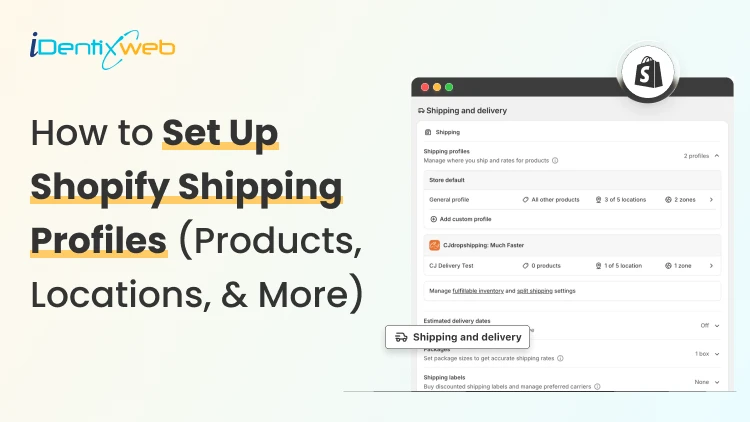
How to Set Up Shopify Shipping Profiles (Products, Locations, & More)
To set up a custom shipping profile in Shopify, go to Shopify Admin → Settings → Shipping and delivery → Shipping profiles → Add custom profile. Add the required products or variants, assign fulfillment locations, create shipping zones, and configure shipping rates based on your requirements. Custom shipping profiles help merchants manage different shipping rules for products like fragile, heavy, oversized, or region-specific items without affecting their entire catalog. Shipping gets complicated when you can't treat every product the same way. A T-shirt, glass vase, and 20-pound bag of pet food might all sit in the same Shopify store. But charging the same shipping rate for each can hurt your margins. Shopify shipping profiles solve this by grouping products with similar shipping needs. It controls where they ship from, where they can ship to, and what customers pay. This guide covers products, variants, fulfillment locations, shipping zones, rates, multiple warehouses, and the checkout issues merchants should test before going live. What Are Shopify Shipping Profiles? Shopify defines a shipping profile as a set of shipping rules for specific products and locations. Stores get a General shipping profile by default, while custom profiles handle products that need different rates. Shipping profileBest forWhat happensGeneral shipping profileProducts using the same shipping ratesProducts stay here unless moved to a custom profileCustom shipping profileFragile, oversized, heavy, or other special productsSelected products or variants get their own locations, zones, and rates Shopify currently allows up to 99 custom shipping profiles for stores using the shipping-profile system. A product or variant can belong to only one profile at a time. Adding it to another profile automatically removes it from the previous one. When do you need a custom shipping profile? You need a custom shipping profile when certain products need different shipping rules from the rest of your catalog. I will explain this better with a few examples below: Furniture or oversized products: Use a separate profile when these products need higher flat rates or special delivery charges. Fragile items: Create one when products such as glassware require extra packaging and higher shipping costs. Heavy products: Use a separate profile if shipping charges need to be calculated differently based on weight. Products sold only in selected regions: Use a separate profile when certain items should ship only to specific countries, states, or regions. Products with free shipping: Create a profile when only selected products should qualify for a $0 shipping rate. Products needing carrier-calculated rates: Use a separate profile when only certain products need live carrier rates instead of your standard flat rates. If most products follow the same shipping rules, keep them in the General shipping profile and create custom profiles only where there is a real difference in cost, location, or delivery requirement. What to prepare before setting up a shipping profile Before creating a profile, I normally map these four things. 1. Products Decide which products or variants genuinely need different shipping treatment. For example, a home decor store will keep cushions and small accessories in the General profile. They move large mirrors into a custom profile because they require protective packaging and higher shipping charges. 2. Fulfillment locations Check where the products are stocked and fulfilled. Locations can represent warehouses, retail stores, fulfillment partners, and other order origins. When a shipping profile is created, eligible online-fulfillment locations are added to it. Locations can share one location group when they use the same zones and rates, or be separated when shipping rules differ. 3. Shipping zones A shipping zone is a group of countries or regions that share shipping rates. You might create zones such as Domestic, Canada, Europe, or selected international countries. Want to sell internationally? Here’s my breakdown of international shipping on Shopify for merchants in 2026. 4. Shipping rates Shopify supports flat rates, order-value-based rates, weight-based rates, carrier or app-calculated rates, and free shipping. Shipping in Shopify can be complicated. Here are my top Shopify shipping strategies to increase sales in 2026. How to create a Shopify shipping profile step by step Step 1: Open Shipping and Delivery From the Shopify admin, go to: Settings > Shipping and delivery Under Shipping profiles, you will see the General profile and any existing custom profiles. Step 2: Create a custom shipping profile Click Add custom profile and enter a clear name, such as: Heavy Products Fragile Items Furniture Free Shipping Products US Warehouse Products Step 3: Add products or variants You can also see the Products section just below the Profile name section. A product or variant can belong to only one shipping profile at a time. This becomes especially useful when only certain variants need different shipping rules, while the rest of the product can stay in the General profile. For example, a merchant selling framed prints might keep the standard-size variants in the General profile. They will move only the oversized frame variant into a custom profile if it needs higher shipping charges, different packaging, or a different fulfillment method. Step 4: Configure fulfillment locations Review Fulfillment locations. If several warehouses should use the same zones and prices, keep them in the same location group. If one warehouse needs different rules, separate it. For example: New York: United States Each location group can have its own zones and rates. Step 5: Create shipping zones For each location group, click Add zone, name it, select the countries or regions, and click Done. For example, a US merchant may create a West Coast zone for California, Oregon, and Washington with a lower shipping rate. They may place Alaska and Hawaii in a separate zone because delivery there costs more. Separate zones help merchants charge rates that better reflect the actual cost of shipping to different regions. Build zones around actual delivery coverage and cost. If certain regions are significantly more expensive to serve, separate rates will be more practical. Step 6: Add shipping rates Inside each zone, click Add shipping option and choose the rate type. Flat rate: Charge one fixed amount, such as $7 for Standard Shipping. This works well when shipping costs are predictable. Order amount-based rate: Change shipping by cart value. A store could charge $8 below $50, $5 from $50 to $99.99, and offer free shipping from $100. Weight-based rate: Charge according to shipment weight. This suits food, hardware, liquids, bulk goods, and similar products. Make sure product weights are accurate, and your tiers cover the full expected weight range. Carrier or app-calculated rate: Let an eligible carrier or app calculate shipping from information such as weight, destination, and package details. Step 7: Save and test Click Save, then place test orders using realistic combinations: A product from the General profile A product from a custom profile Products from two profiles Products fulfilled from different locations Different domestic or international addresses Orders above and below free-shipping thresholds Free shipping can be a great tool to increase conversions. Here’s my complete guide to Shopify free shipping strategies for merchants. Need Help Configuring Your Shopify Shipping Settings? As product catalogs, fulfillment locations, shipping zones, and rate rules grow, managing everything accurately can become difficult. For example, a merchant may sell standard products from one warehouse, oversized items from another, and charge different rates for Alaska and Hawaii. If these rules are not configured properly, customers may see the wrong rate, duplicate charges, or no suitable shipping option at checkout. That’s where Identixweb can help. Our Shopify Store Settings Configuration service helps merchants configure complex shipping, payment, tax, and checkout settings so everything works correctly together. What happens when products come from different profiles? I get this question a lot. Under the current shipping-profile system, Shopify can combine shipping rates when an order contains products from different profiles or requires different location groups. Example: ProductProfile shipping rateT-shirt$4Fragile mug$7Possible combined charge$11 In this case, the customer may see an $11 shipping charge at checkout because Shopify is combining the applicable rates from both profiles. The setup may be technically correct, but the final charge can still feel high to the customer. That’s why merchants should test mixed-profile orders before going live, especially when customers commonly buy products from different profiles together. This helps confirm that the final shipping cost is reasonable and avoids unexpected checkout charges. Common Shopify shipping profile mistakes I see #1 Creating too many profiles This is the most common mistake I encounter with merchants. More profiles do not automatically improve shipping. Start with the General profile and add a custom profile only when a real cost, destination, or fulfillment difference exists. #2 Ignoring mixed-cart costs A rate that looks reasonable for one item but when the customer adds another item with a different profile, the shipping rates increase. Always test mixed carts before creating a profile. #3 Using inaccurate weights Weight-based and calculated rates depend on accurate product data. Incorrect weights can lead to inaccurate checkout charges. #4 Creating zones without checking markets A country appearing in a shipping zone is not enough if that country is not in an active market. Set up Shopify shipping profiles the right way A well-planned Shopify shipping profile helps merchants charge more accurate shipping rates without making fulfillment unnecessarily complicated. The key is to group products only when their shipping costs, destinations, or fulfillment requirements are genuinely different. Start simple, test mixed-product carts, review location-based rates, and update profiles whenever products, warehouses, or shipping costs change. A clean setup makes checkout easier for customers and shipping easier to manage as the store grows. FAQs 1. How to add products to a shipping profile in your Shopify store? Go to Settings > Shipping and delivery > Shipping profiles, open or create a custom profile, and select the products you want to add from the Products section. A product or variant can belong to only one shipping profile at a time, so adding it to a custom profile automatically removes it from its previous profile. 2. What is the difference between a general and custom shipping profile? The General shipping profile is Shopify's default profile and automatically applies to products that aren't assigned to a custom profile. A custom shipping profile is used when certain products need different shipping rates, zones, or fulfillment rules, such as fragile, heavy, or oversized items. 3. Can I offer free shipping for any selected products? Yes. To offer free shipping only on selected products, add those products to a custom shipping profile and create a flat shipping rate with the price set to $0 or enable free shipping for that rate. 4. Does shipping increase when customers buy two products in different shipping profiles? Yes. When products from different shipping profiles are purchased together, Shopify combines their applicable shipping rates and displays one total rate at checkout, which will make the final shipping charge higher. 5. Should I use flat or carrier-calculated shipping rates in Shopify? Use flat rates when shipping costs are predictable, and you want a simple, consistent checkout experience. Use carrier-calculated rates when costs vary significantly by destination, package weight, dimensions, or delivery speed.
9 Min • 7 August 2026
Risks of Using AI-Generated Product Reviews on Shopify
AI-generated product reviews may look like an easy way to build social proof, but the risks go far beyond customer skepticism. Fake or misleading reviews can damage brand trust, trigger refunds and chargebacks, put payment and advertising accounts at risk, violate review-app policies, and attract regulatory attention. In the US, FTC enforcement and state consumer-protection laws can also turn fabricated reviews into a costly legal and compliance problem. If you have just opened your store in 2026, you definitely need proof that real people actually buy from you. This gap is exactly where AI-generated reviews start to look like an easy fix. Here's the problem: The risks of using AI-generated product reviews on Shopify changed shape in the last year, and it goes beyond reviews just reading a little generic. Late previous year, the rules got sharper, real enforcement started, and both Shopify and Google made their positions harder to miss. Here's what's true right now if you are using or thinking about adding AI-generated product reviews on Shopify. What counts as an AI-Generated product review? An AI-generated product review is any review text a tool writes in place of a real customer. There are different types of reviews that I have come across. Fully invented reviews. The entire experience is made up. It's the version everyone pictures, and it's also the clearest violation of every policy I will cover below. AI-rewritten real feedback. You take genuine supplier reviews, marketplace comments, or old customer notes and ask AI to restyle them. If done carefully, this won’t be a problem. Issue arises when AI adds emotions, timelines, or outcomes that weren't in the original. AI-assisted, human-approved content. AI drafts a summary of reviews you've already collected, and the person checks it before anything goes live. It's the version that causes the least trouble. The difference between these three isn't how polished the writing sounds. It's whether the experience described actually happened to a real person. The Legal Risk Just Got Real Here's what I think most Shopify advice on this topic misses, and it's the part that matters most right now. The Federal Trade Commission has a specific rule about fake and AI-generated reviews, and as of the end of 2025, the agency started enforcing it for real. In the FTC's Rule on the Use of Consumer Reviews and Testimonials (16 C.F.R. Part 465) it bans. Reviews from people who don't exist, or who never actually used the product Buying reviews, or paying anyone to write only positive ones Suppressing or hiding negative reviews Reviews from employees or family members that don't disclose the connection Company-run "independent" review sites that aren't actually independent The rule specifically names AI-generated fake reviews as one of the practices it targets. Violations can carry civil penalties of up to $53,088 each, adjusted yearly for inflation. That figure is per violation, not per company. On December 22, 2025, the FTC sent its first wave of warning letters to 10 companies over likely violations. It wasn't the first time the FTC had gone after review manipulation, either. The message for merchants is clear: The FTC is chasing whoever publishes the fake content and presents it as a real customer's experience. The responsibility sits with the store owner. What Shopify and Google actually say Shopify has a plain standard for reviews shown through Shop: no fake ones, no conflicts of interest, no asking only happy customers to speak up. Shopify's Shop product review guidelines are direct about it. Merchants, employees, family members, and friends shouldn't review their own products, and store owners shouldn't solicit reviews in a way that pushes for a specific sentiment. Most stores today collect and display reviews through an app like Judge.me, Loox, or Yotpo. This means the risk usually sits with how you use that app. Google is more explicit about this. If you send product ratings into Google Shopping or run Shopping ads, Google Merchant Center's Product Ratings policy states plainly that it doesn't allow reviews generated by AI. It expects merchants to flag any they identify using the is_spam attribute in their feed. Humans and AI shopping agents both catch on AI-generated reviews are getting worse at their one job, which is making shoppers trust you. Reviews that all sound the same length, use the same phrases, or praise everything without mentioning a single specific detail read as suspicious faster than they used to. Shoppers have had years of practice spotting this pattern. A 2026 research report found that 43% of U.S. online shoppers had used an AI assistant like ChatGPT for product research. These tools focus on consistency across reviews over the internet. A group of generic five-star reviews with nothing to back it up reads as a weak signal to an AI agent, not a strong one. I have written a complete breakdown on how to rank in AI search engines with AEO for merchants. The real risks of AI-Generated product reviews on Shopify Loss of brand trust Fake reviews do not stay hidden for long. A review that doesn't match a real customer's actual experience gets noticed and gets screenshotted and shared on Reddit or TikTok. Once shoppers decide a brand faked its social proof, they stop trusting everything else offered by your brand. Refunds and chargeback disputes When a real customer's experience doesn't match what the reviews promised, they have grounds to dispute the charge. The review itself can end up as evidence in that dispute. Payment and ad account risk Payment processors and ad platforms both watch for mismatches between product claims and real customer experience. Either can freeze payouts or reject ads over it. Review app suspension Apps like Judge.me, Loox, and Yotpo remove fabricated reviews, and repeated violations can get your account suspended. Direct FTC exposure Given the warning letters sent by FTC, this can definitely happen. A new or small store isn't automatically off the FTC's radar just because of its size. Legal penalties A batch of fake reviews spread across even a small catalog becomes a real problem. Most states have their own consumer protection laws that mirror the FTC Act, so a state attorney general can pursue separate action on top of anything the FTC does. The right way to use AI for your reviews AI isn't off-limits here, and I wouldn't tell you to avoid it. The line I'd draw is simple: use it on reviews that already happened. If you've already collected real feedback, AI is genuinely useful for turning long reviews into short highlights. It can also draft a reply for you to check before it posts. Several Shopify review apps now build this in directly. If you are looking for tools to add reviews in your store, here’s my list of the best Shopify product reviews app in 2026. If you're dropshipping, label reviews clearly as sourced feedback rather than rewriting them into first-person claims about your own store's shipping or service. AI can also speed up the boring parts of getting real reviews, like personalizing post-purchase request emails or timing them around delivery data. If you're starting from zero, my article on how to add reviews to Shopify will give you insights on creating and adding reviews in your store. Use AI Where It Adds Real Value AI can still be useful in a Shopify business when it is applied to areas where automation does not misrepresent customer experiences. Identixweb works with Shopify businesses on AI automation and integrations for workflows, operations, and customer experiences where AI can reduce manual work without creating the trust risks associated with fabricated reviews. How to build trust other than reviews? Reviews aren't the only trust signal in your store. Using other signals takes pressure off needing reviews to do all the work. Here’s a few I use to build trust. Trust badges Clear shipping and return policies Teal product photos Detailed FAQs all add trust. Adding trust badges near your checkout button is a fast, low-effort update, and social proof placed at checkout works even before your review count builds up. A Fast pre-publish check Before you publish any batch of reviews, run through this: Did a real person actually buy or use this product? Is the reviewer's identity accurate, no invented names, no stock photos standing in for a customer? If there's an incentive attached, is it tied to leaving a review, not to what the review says? If this is a supplier or marketplace review, is the source labeled clearly? If it's heading into your Google Shopping feed, is any AI-generated content flagged or excluded? Would this hold up if you had to explain it next to your actual order data? If any answer is no, that review isn't ready to publish, no matter how good it reads. What’s next now? There are risks of using AI-generated product reviews on Shopify. There's a federal rule with real penalties behind it, policies from both Shopify's Shop channel and Google Merchant Center, and shoppers, who are getting better at spotting the difference. Real reviews take longer to build. They're also the only kind that hold up for a long term if you want to build trust and increase sales. FAQs 1. What are the risks of using AI-generated product reviews on Shopify? Publishing AI-generated reviews that pretend to come from real customers can violate Shopify’s Shop review requirements. This requires reviews to be authentic and not artificially created by bots or automation. It can also create legal risk under the FTC’s Consumer Review Rule in the US. Google Merchant Center explicitly prohibits reviews primarily generated by AI or automated programs. 2. Can AI detect fake reviews better than human moderators? AI can analyze large numbers of reviews and spot patterns, suspicious reviewer networks, and other signals much faster than human moderators. But it is not consistently better in every case. Recent research found that both humans and general-purpose LLMs can struggle to distinguish sophisticated AI-generated reviews from genuine ones. 3. How to add more product reviews on Shopify in 2026? The best approach is to request reviews from verified customers after their orders are delivered; Shopify lets merchants set Shop review requests from 1 to 180 days after delivery. For reviews on the online store, merchants can also use apps such as Judgeme or Loox, while keeping requests neutral and avoiding fake or improperly incentivized reviews.
11 Min • 15 September 2026
How to Migrate WooCommerce to Shopify in 2026 Without Losing Orders or SEO
Migrating from WooCommerce to Shopify can be done through Shopify’s Store Migration app, CSV imports, third-party migration tools, or a custom API setup. Products, customers, and selected order data can move, while themes, plugins, and URLs need rebuilding or redirecting. After migration, configure payments, shipping, taxes, and checkout, test orders and key store functions, and verify and monitor SEO. Moving from WooCommerce to Shopify involves more than transferring your products. You’ll also need to migrate customer and order data, recreate key store features, maintain important URLs, and make sure your search rankings are not affected during the move. If you're moving from WooCommerce to Shopify in 2026, keeping your existing store running while you prepare, migrate, and test the new Shopify store can help prevent data loss and launch-day issues. This guide walks through the migration process, with particular attention to products, customers, orders, functionality, redirects, and SEO. Why do store owners migrate from WooCommerce to Shopify? Most people we consult aren't unhappy with WooCommerce. It is a very capable e-commerce platform. They move because managing hosting, plugin updates, security, and ongoing maintenance becomes increasingly time-consuming. Shopify is a hosted platform, so hosting and much of the underlying maintenance are handled for you. Features such as Shop Pay, Shopify POS, and its app ecosystem can also simplify day-to-day operations. If you're still weighing it up, my WooCommerce vs Shopify guide walks you through the complete comparison. What moves when you migrate WooCommerce to Shopify Not everything in a WooCommerce store is migrated in the same way. Products, customers, and some order data can be transferred, while themes and plugins need to be rebuilt or replaced, and existing URLs need to be redirected. DataWhat happens during migrationProducts and variantsStore Migration app, CSV import, or a migration appCustomersCustomer CSV, Store Migration app, or a migration appOrdersMigration app or the Shopify API onlyReviewsA reviews app like Judge.me, Loox, or YotpoBlog posts and pagesMatrixify, or copied over by handCouponsA migration app, or rebuilt in DiscountsTheme and designRebuilt on a Shopify themePluginsReplaced with Shopify apps or native featuresURLsNew format, so you need 301 redirects What to do before you move from WooCommerce to Shopify Back up everything. Use your host's backup or a plugin like UpdraftPlus to perform a full data export. Record your URLs and traffic. Export your top landing pages from Google Search Console for the last 90 days. You'll need them for redirects. List every active plugin. These can become Shopify apps or native settings, depending on the functionality it was used for in your store. Check your product attributes. Shopify allows three options per product. Flag anything using four or more. Review and clean your data. Remove duplicate or outdated records where appropriate, review discontinued products, and standardize complicated variant names before importing your data. How to migrate from WooCommerce to Shopify step by step 1. Build your Shopify store Set up your Shopify store, but keep your WooCommerce store live while you work. You still need the old store for checking data, URLs, images, and functionality during the migration. Shopify lets you select WooCommerce during signup. It also creates a starter theme based on your existing store URL. The generated theme uses Dawn and recreates parts of your current storefront. 2. Decide what you are moving and how Make a list of everything that needs to move: products, variants, customers, historical orders, reviews, pages, blog content, discounts, and any other store data you still use. Then choose the migration method for each. Shopify's Store Migration app is currently in early access for certain stores and can import WooCommerce products from the original WooCommerce CSV. For everything else, you can use Shopify CSV imports where supported, a third-party migration tool like Cart2Cart or LitExtension, a custom API migration, or a Shopify migration agency. If you cannot manage the move, Identixweb can handle the migration for you. Our Shopify migration service helps move your store data, rebuild required functionality, map redirects, review SEO risks, and test the new Shopify store before launch. 3. Export and prepare your WooCommerce data WooCommerce has a built-in CSV exporter for products under Products > All Products > Export. You can choose the products, columns, categories, and whether to include custom metadata in the export. What happens next depends on your migration method. The Store Migration app will accept the WooCommerce product CSV without reformatting it. If you use Shopify's product CSV importer, the WooCommerce columns need to be mapped to Shopify's format first. For customers, export their data and format it using Shopify’s Customer CSV template. Import them through Shopify Admin > Customers > Import. Historical orders need a migration app such as Matrixify, LitExtension, or Ablestar WooCommerce Importer. This is because Shopify does not offer a native order CSV importer. 4. Migrate products, customers, and orders in that order Move your products first, customers second, and historical orders last. We recommend this sequence so imported orders can connect to the right products and customers. Validate each data set immediately after importing it rather than waiting until the entire migration is complete. After the product import, compare prices, SKUs, variants, inventory, weights, images, and descriptions against WooCommerce. Shopify specifically recommends reviewing product data after import because incorrect data like prices can affect the store immediately. 5. Rebuild your storefront and replace WooCommerce plugins Your WooCommerce theme does not become a Shopify theme, and your WordPress plugins do not become Shopify apps. Build the storefront on a Shopify theme and recreate the parts of your WooCommerce setup that customers actually use. Go through the plugin list you made earlier and match each important function with a Shopify feature, app, or custom solution. Don't migrate plugins one-to-one. Instead, identify what each WooCommerce plugin does and determine whether the same functionality can be handled by Shopify's native features, an app, or a custom solution. 6. Set up payments, shipping, taxes, and checkout Set up your locations, shipping zones and rates, payment provider, tax settings, checkout preferences, store policies, fulfillment process, and customer notifications. Don't assume your WooCommerce settings can simply be copied to Shopify. Review each payment, shipping, tax, checkout, and fulfillment setting based on how the new store will operate. 7. Testing Before launch, test the Shopify store from the customer's perspective. Place test orders, check successful and failed payments, refunds, cancellations, fulfillment, customer emails, navigation, search, forms, product variants, discount codes, and shipping rates. 8. Run a final data check and switch the domain If your WooCommerce store remained open during the migration, check for products, customers, and orders created after your first transfer. Compare record counts and spot-check important orders before you switch traffic to Shopify. Once the Shopify store is ready, connect or transfer your existing domain and make Shopify the live storefront. After the switch, test your old URLs again to make sure the redirects reach the correct Shopify pages rather than returning 404 errors. How to migrate products from WooCommerce to Shopify The best migration method depends on your catalog size, product complexity, and the data you need to preserve. You can use Shopify's supported migration options, CSV imports, a third-party migration tool, or an API-based migration. WooCommerce columnShopify columnNameTitleDescriptionBody (HTML)Attribute 1 name/value (s)Option1 Name / Option1 ValueSKUVariant SKURegular priceVariant PriceStockVariant Inventory QtyWeight (lbs)Variant Grams (multiply by 453.6)ImagesImage Src WooCommerce can hold several attribute values in one cell. Shopify wants one option value per row, so each variant needs its own line. Shopify also raised the cap to 2,048 variants per product, so catalogs with lots of sizes and colors fit easily now. The limit of three options per product didn't change. If a product uses four attributes, move the extras into product metafields or use a product options app. Watch your images too. Product images are imported from their WordPress URLs, so keep the old site online until the import finishes. Images inside descriptions still point at your WordPress server. Matrixify can move them into Shopify Files, or they'll break when you cancel hosting. How to migrate orders from WooCommerce to Shopify Shopify's native CSV import can't handle orders, and the Store Migration app skips them too. You'll need a migration app like Matrixify, LitExtension, Ablestar, or Cart2Cart, or a custom build on the Shopify API. Order history is worth moving. Your team keeps a full buying history for support, returns, and reporting. But the export can fool you. A few months ago, I was on a call with a store owner. He sells coffee gear and has run WooCommerce for about eight years. He wanted every order moved, and he'd already done the export himself. His file had around 1,900 orders. His dashboard showed more than 11,000. He assumed the export had timed out. His export plugin hadn't been updated in years and was still reading WooCommerce's old order tables. We dropped the plugin and pulled orders through the WooCommerce API with a migration app. The counts matched on the first run. We also talked about what he actually needed. Failed checkouts from earlier years weren't helping anyone. We completed and refunded orders from the last three years, kept his original order numbers, and archived a full export of the rest. Before the real import, we switched off staff order notifications. Otherwise, his inbox would have taken thousands of "new order" emails in one afternoon. A few rules I follow on every order migration: Filter by status and date. Decide which order statuses and date ranges you actually need before importing historical orders. Silence notifications first. Prevent staff from receiving thousands of new-order emails during the import. Account for guest orders. Guest shoppers may not exist as customer records in WooCommerce, so check how your chosen migration method handles customer information stored against guest orders. Plan for order numbers. Check how your migration method handles existing WooCommerce order numbers and how new Shopify order numbers will be generated. Protect your SEO with a 301 redirect map Your URLs will change, and there's no way around it. Shopify uses fixed paths, so a clean 301 redirect map is what protects your traffic. WooCommerce URLShopify URL/product/mug//products/mug/product-category/mugs//collections/mugs/about//pages/about/pourover//blogs/news/pourover Keep your product slugs identical to your Shopify handles, so each redirect is a simple prefix swap. Build the map from a site crawl plus your Search Console export. Import it in bulk under Content > Menus > View URL redirects. Cover blog posts and category pages, not just products. Missed blog URLs are the gap I see most often. After launch, submit your sitemap and watch Search Console for 404s. Migrate your store, not the issues A meaningful WooCommerce to Shopify migration is a chance to clean up old data, replace unnecessary plugins, and simplify your store setup. It also makes sure customers and search engines land where they should after the switch. If your store has years of order history, custom WooCommerce functionality, a large catalog, or organic traffic, treat the migration as a proper project. FAQs 1. How to migrate from WooCommerce to Shopify? Create your Shopify store, export and prepare your WooCommerce data, then migrate products, customers, and historical orders using Shopify’s supported import options or a migration app. After that, rebuild your storefront, replace WooCommerce plugins, configure payments and shipping, set up 301 redirects, test the store, and switch your domain to Shopify. 2. How to import products from WooCommerce to Shopify? Export your products from WooCommerce > Products > Export as a CSV file. You can import that file using Shopify’s Store Migration app, or reformat the data to Shopify’s product CSV structure and upload it through Shopify Admin > Products > Import. 3. Should I move from WooCommerce to Shopify? Consider moving to Shopify if you want a hosted ecommerce platform where hosting, maintenance, and the technical infrastructure are managed for you. If you depend heavily on WordPress, need backend customization, or want direct control over hosting and code, WooCommerce is a better fit. 4. How much will it cost to migrate my store from WooCommerce to Shopify? There is no fixed migration cost because it depends on your product count, customers, historical orders, functionality, design work, apps, and SEO requirements. DIY migrations can use CSV imports and migration tools at relatively low cost, while the charges of apps such as Matrixify and Ablestar depend on the data being migrated. 5. Can WooCommerce work together with Shopify? Yes, but WooCommerce and Shopify don't natively operate as one shared ecommerce backend. You can, for example, add Shopify Buy Buttons to a WordPress site or use third-party integrations to sync selected products, inventory, customers, or orders between the two platforms.
Vineet Nair
12 Min • 18 September 2026
46 Views
Vineet Nair
11 Min • 15 September 2026
60 Views
Vineet Nair
12 Min • 14 September 2026
72 Views
Vineet Nair
10 Min • 27 August 2026
102 Views
Vineet Nair
10 Min • 27 August 2026
97 Views
Vineet Nair
10 Min • 21 August 2026
117 Views

Vineet Nair
7 Min • 19 August 2026
108 Views

Vineet Nair
10 Min • 14 August 2026
124 Views
Vineet Nair
10 Min • 12 August 2026
119 Views
Vineet Nair
9 Min • 7 August 2026
130 Views
Vineet Nair
9 Min • 4 August 2026
126 Views
Vineet Nair
8 Min • 31 July 2026
119 Views