

Blog
Gather knowledge about the latest insights, updates, tips, and tricks in the Ecommerce industry.
5 Min • 20 March 2026
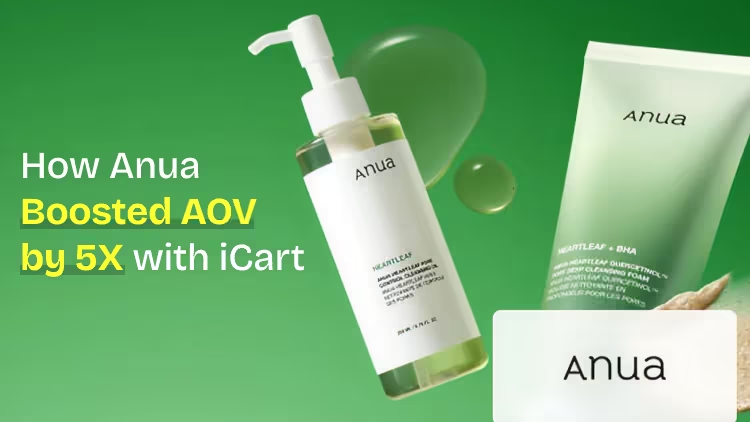
How Anua Unlocked 5X AOV Growth with iCart’s Smart Cart Features
delivery customization Challenges Solutions drive results Scale business delivery customization Challenges Solutions drive results Scale business delivery customization Challenges Solutions drive results Scale business delivery customization Challenges Solutions drive results Scale business Anua is a globally recognized Korean skincare brand known for its minimalist philosophy and focus on gentle yet effective formulations. Built on the idea of simplifying skincare routines, Anua develops products that deliver visible results while avoiding harsh or irritating components, making them suitable for sensitive skin types. Initially using a traditional full cart experience, Anua transitioned to iCart’s side cart solution in August 2025, to create a more seamless and engaging shopping journey. This shift allowed customers to easily explore complementary skincare products without disrupting their browsing flow, making it more intuitive to discover items that fit into a complete routine. By surfacing relevant recommendations directly within the cart, the brand enhanced product visibility across its range. Challenges Before implementing iCart’s side cart solution, Anua faced limitations with their existing full cart experience, which created friction in the customer journey. The traditional cart setup redirected users away from product pages, interrupting their browsing flow and reducing opportunities to explore additional products. As a skincare brand built around routines rather than single-item purchases, this made it difficult to effectively showcase complementary products and encourage customers to build complete regimens. Additionally, the lack of in-cart personalization and strategic upsell opportunities meant that customers were often unaware of related products that could enhance their skincare results. This limited the brand’s ability to increase average order value (AOV) and fully leverage its diverse product range. Anua needed a more dynamic and intuitive cart experience that could seamlessly introduce relevant recommendations while maintaining a smooth and engaging shopping journey. ❌ Cart Value Barriers Low average order value (AOV) due to single-item focus Most customers completed purchases with one primary product instead of building multi-step routines. Cart abandonment near shipping thresholds Customers were not clearly informed or motivated to reach free shipping or discount thresholds. Missed savings opportunities Customers were unaware of potential value in purchasing bundled routines or multiple complementary products. ❌ Absence of Progress-Based Incentives No free shipping or discount progress bar Customers were not motivated to increase their cart value due to lack of visible incentives. Missing tiered rewards system There were no structured milestones (e.g., “Spend more to unlock offers”), reducing upsell opportunities. ❌ Ineffective Cart UI/UX (Pre-Side Cart) Full-page cart disrupted shopping flowCustomers had to leave their browsing journey, increasing friction and drop-offs. No quick add/remove functionality Users couldn’t easily modify their cart or add suggested products without navigating away. Solution To overcome these challenges, Anua implemented iCart’s side cart solution to transform their traditional cart into a high-converting, interactive experience. By replacing the full-page cart with a seamless side cart, the brand ensured that customers could continue browsing while viewing their cart, significantly reducing friction in the shopping journey. Additionally, features like product recommendations & progress bars for free shipping and discounts motivated customers to increase their cart value. By combining personalization, incentive-driven messaging, and a user-friendly interface, Anua successfully turned their cart into a powerful revenue-driving touchpoint rather than just a checkout step. To maximize their cart effectiveness, they implemented two powerful features: ✅ Progress Bar with Multi-Reward Incentives Implemented a tiered progress bar to encourage higher cart value Customers are guided with a clear message like “Add $3.10 to unlock secret offer,” motivating them to continue adding products. Generated over $5M+ in revenue through incentive-driven cart progression Used product-based rewards to align with customer intent Instead of generic discounts, Anua incentivized purchases with relevant skincare items like Dark Spot Pads and mini serums. Built visual motivation for routine expansion As customers add products, they can clearly track progress toward unlocking multiple rewards, encouraging them to build a complete skincare routine. ✅ Product Recommendations Implemented “Frequently Bought Together” recommendations Customers adding a single product (e.g., toner) are shown complementary items like serums, moisturizers, or pads to complete their routine. Generated over 275K revenue through in-cart recommendations Encouraged full skincare regimen building Instead of isolated purchases, the cart suggests step-by-step product combinations aligned with common skincare routines. Increased product discovery at the final stage By surfacing relevant items directly in the cart, Anua ensured customers explore more of their catalog without leaving the checkout flow. Results Achieved in Last 180 Days 22932 Total Store Orders 45101 Total iCart Orders 5X iCart Generated AOV 65.70% Upsell Affected Conversion Rate These improvements reflect a clear shift in customer behavior on Anua’s store. Cart abandonment reduced as shoppers discovered complementary skincare products and felt encouraged to build complete routines. Engagement also increased, with customers interacting more with in-cart recommendations and exploring relevant product pairings. Results & Impact And...Results is Our Main Clarification By implementing iCart’s cart drawer, product recommendations, and progress bar, Anua transformed its cart into a high-performing conversion touchpoint. Shopping Experience Enhancement The improved cart experience encouraged customers to discover complementary products and understand the value of sustainable beauty routines. For instance, the clear presentation of subscription savings alongside one-time purchase options helped customers make more informed decisions about their long-term hair care needs. As Anua continues to optimize its cart experience, the brand is closely monitoring: Routine-based purchasing behavior - tracking how customers move from single items to multi-step regimens Engagement with in-cart recommendations - measuring interaction with suggested products Cart value progression - analyzing how incentives influence higher spending [related_cases_slider] Ready to Write Your Success Story? Try icart App Join successful businesses like Anua and Master your delivery scheduling Delight customers with precise timing Grow your special occasion orders Expand your delivery reach
Read Blog
10 Min • 31 July 2026
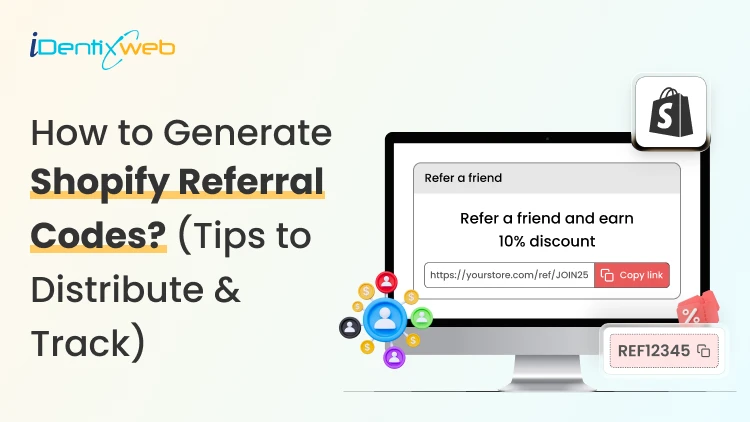
Grow Your Store With Shopify Referral Codes? (Generate, Distribute & Track)
Shopify merchants can run creator affiliate programs through Shopify Collabs, which generates affiliate links and discount codes, tracks attributed sales, and manages commissions. For customer referrals, merchants can manually create a unique discount code for each referrer, add minimum-spend and usage limits, and track resulting orders through discount reports. Automated customer rewards, referral sharing, fraud controls, and advanced attribution generally require a dedicated referral app. A Shopify referral code is one of the cheapest acquisition channels most stores never use. I have set these up for stores doing 40 orders a month and stores doing 4,00, and the setup is far less technical than merchants expect. Here is how referral works in your admin right now, what processes need an app, and how to track whether any of it is making you money. What Is a Shopify referral code? A Shopify referral code is a discount code tied to one specific person, so you know exactly who sent each new customer. A generic code like SUMMER20 tells you nothing about who shared it. A referral code like SAM-15 tells you Sam brought that order in. A referral code can be implemented as a Shopify discount code, but referral platforms may use unique links, customer accounts, or tracking methods. The key difference is that a referral identifier connects the sale to a specific referrer. I will explain the three formats that get mixed up. Referral code. An alphanumeric string the shopper types at checkout. Works for podcasts, in-person events, WhatsApp, and anywhere a link cannot travel. Referral link. A unique URL that attributes visits or purchases to a referrer. A Shopify shareable discount link can automatically apply the discount, while referral apps may use cookies, URL parameters, account matching, or other attribution methods. Discount code. The broad category both of the above sit inside. Run both formats. Links convert better because there is no typing. If you are new to this, my walkthrough on how to create a discount code on Shopify covers the base settings you will need before any of this works. Does Shopify have a referral program? Shopify has no built-in customer-to-customer referral program where your buyers refer their friends. It does have two programs that reward people for referring new merchants to Shopify. One native app that handles affiliate-style referral codes for your store. Three separate things carry the word "referral" in this ecosystem, and merchants confuse them weekly: 1. The Shopify affiliate program This program is for creators, who refer new merchants to Shopify. Eligible affiliates can earn up to $150 USD for a qualified merchant who moves to a full-price Basic, Grow, or Advanced plan. The merchant must start a free trial within 30 days of the qualifying affiliate click, and Shopify currently allows up to 125 days from the start of the trial for the referral to become eligible. The minimum withdrawal balance is $10, reporting and payments are handled through Impact, and Shopify says applications are generally reviewed within five business days. 2. The Shopify partner program This program is for developers, designers, agencies, app companies, and other commerce professionals. Earnings vary by activity and may include merchant-referral revenue share, app or theme revenue, and service income. 3. Your own referral program This is where existing customers refer friends to your store. Shopify’s native discounts and store credit can support a small manual pilot. But an automated customer-to-customer referral program requires an app or custom development. The native tools for merchants Shopify Collabs Shopify Collabs is Shopify's own affiliate marketing app, and it generates unique discount codes and tracking links per creator, tracks the sales attributed to each one, and pays them out. It is available on every Shopify plan except Starter and Retail. Shopify does not charge a monthly Collabs subscription fee, but it currently charges a 2.9% processing fee on automatic commission payments. You can invite creators directly, run an open access program with an instant commission offer, or publish an application page on your online store. If you are eligible for Shopify Flow, you can wire Collabs into automated workflows. For the broader creator strategy, see my guide on finding influencers with Shopify Collabs for merchants. . Native store credit Store credit is a first-party feature in your admin, switched on by default. You issue credit from any customer profile. It applies automatically at checkout for signed-in customers. I see these four limits for this: It only works with new customer accounts. Only the full balance can be applied. Customers cannot spend part of it. The cap is under $15,000 USD per customer account. For stores created on or after May 12, 2025, third-party transaction fees apply to the portion of an order paid with store credit. Plus, stores using Shopify Payments are exempt. Bulk unique code generation Shopify supports bulk unique redeem codes through its Admin API and through third-party bulk-discount apps. In the standard Shopify Admin, merchants can create individual discount codes and export discount data. If you need hundreds or thousands of advocate-specific codes, I would advise using a bulk-discount app or a custom API workflow. How to generate Shopify referral codes (Manual method) Step 1: Choose a discount type Go to Shopify Admin > Discounts > Create discount, then select Amount off products or Amount off orders. Step 2: Create the referral code Under Method, select Discount code and enter a memorable code such as SAM20. Set the discount value, minimum purchase amount, and limit it to one use per customer. Step 3: Save and share Save the discount and send the code to the referrer. You can later track orders and sales generated through that code. Method 2: Shopify Collabs for creator and affiliate referrals Install Collabs. Build your brand profile, set your commission structure as a percentage or a flat amount, decide which products qualify, and publish. Codes and links generate per creator automatically. Attribution is handled by Shopify, so your revenue reporting stays simple. This is best for stores where creators, not customers, drive word of mouth. Method 3: A referral app Referral-app pricing varies more than the monthly subscription alone suggests. Compare order limits, advocate limits, referral revenue fees, fraud controls, integrations, and reward automation before choosing an app. I have compared the main options in detail in my roundup of the best Shopify referral apps in 2026. How to distribute Shopify referral codes Here’s how I distribute Shopify referral codes. Order confirmation page. Peak excitement and zero friction. One line and a copy button works here. Post-delivery email. Post-delivery email. Send it after customers have had enough time to experience the product. This may be seven to ten days for some products, but longer purchase and evaluation cycles may require different timing. Customer account page. Permanent place for the code so people can find it again without digging through email. Packaging insert with a QR code. Physical inserts convert well because the product is in their hands. My guide on creating Shopify QR codes covers the free native options. For email and SMS sequencing, my breakdown of Shopify marketing automation tools covers what to use at each store size.. How to track Shopify referral code performance Discount reports Go to Analytics > Reports, then look for sales by discount report. Shows orders, revenue, and average order value per discount. Compare referral-driven AOV against your store average. Four numbers I always watch: Participation rate. Percentage of customers who claim a code. Share rate. How many of those actually share it? Referral conversion rate. Percentage of referred visitors who buy. Referral CAC. Total rewards paid divided by referred orders. Compare it to your paid ad CAC directly. How to set rewards that do not make losses? Rewards that benefit the referred friend, or both participants, can outperform referrer-only incentives in some situations. Shared rewards will make the recommendation feel more helpful, but the best structure depends on your audience, margins, and product. A one-sided reward makes the referrer feel like they are profiting off a friend. For example, on a $60 order with a 55% gross margin, a 20% friend discount leaves approximately $21 in gross profit before the referrer reward and other costs. After assigning a $20 store-credit reward, the first order is close to break-even before payment fees, shipping, returns, app charges, and support costs. I set these three margin rules: Add a minimum order value so referrals cannot be redeemed on your cheapest SKU. Pay the referrer in store credit, not cash. The reward returns to you. Check your discount combination settings. Shopify lets codes stack with automatic discounts, and a stacked referral code plus a seasonal promo can wipe out a full order's margin. My guide on Shopify discount combinations covers how to set these rules safely. Start small and scale what works A Shopify referral program does not need $200 monthly software. The first thing I would do is to create ten manual codes for your ten best customers and watch the discount report for 30 days. If referred customers convert at a decent rate and your referral CAC beats your ad CAC, the case for a proper app makes itself. A simple referral setup with clear promotion and regular measurement can outperform a more expensive platform that customers rarely see or use. FAQs 1. How can Shopify users set up a referral program? Install a referral app from the Shopify App Store, then configure the user reward, incentive, eligibility rules, sharing methods and fraud controls. Shopify’s native discount tools can create promotional codes, but a referral app is required for unique referral links, automatic rewards, attribution and performance reporting. 2. Is there a referral code for Shopify? Shopify does not offer a referral code that gives every new merchant a discount on a Shopify plan. Approved Shopify Affiliates receive a unique referral link through the Shopify Affiliate Program, while merchants can create their own customer referral codes using Shopify Discounts or a referral app. 3. How to generate referral codes for Shopify? From the Shopify admin, go to Discounts, select Create discount, choose the discount type and enter or generate a code. Set the reward value, eligible products or customers, minimum purchase requirement, usage limit and expiry date. Use a referral app when every user needs a unique code and automated reward tracking. 4. Which is the best referral app for Shopify? ReferralCandy is a strong, dedicated option for referral and affiliate campaigns with attribution, tiered rewards, fraud protection and multiple reward types. Smile is another app that is better suited to merchants who want referrals combined with loyalty points and VIP tiers. 5. Does Shopify have a referral program? Yes. Shopify operates an Affiliate Program through which approved affiliates share unique links and earn commissions for qualified merchants. However, Shopify does not provide a built-in customer refer-a-friend program for individual stores, so merchants must use a referral app or manage codes manually through Shopify Discounts.
9 Min • 4 August 2026
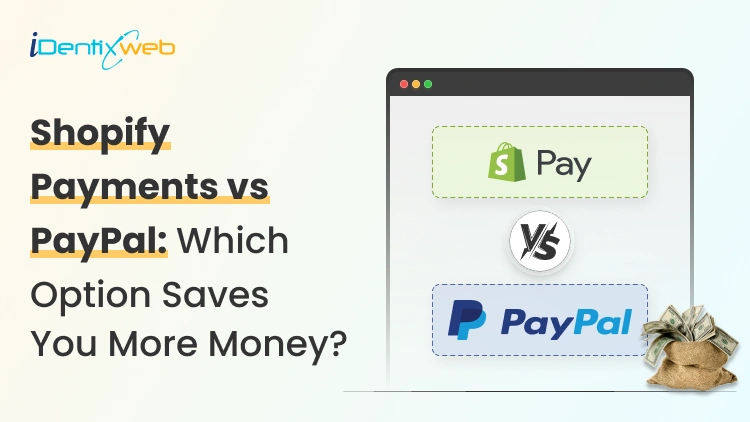
Shopify Payments vs PayPal: Which One Will Cost You Less in 2026?
The difference between Shopify Payments and PayPal can look tiny on a pricing page. Across hundreds or thousands of orders, it can become a serious operating cost. I have seen merchants focus only on the processing rate while overlooking Shopify’s additional transaction fees, PayPal’s pricing structure, currency conversion, and dispute costs. This comparison breaks down the numbers that matter in 2026 so you can see which option protects more of your margin. Shopify Payments vs PayPal: The short answer Shopify Payments is cheaper per order in almost every scenario. It is also the only way to avoid Shopify's extra transaction fee. PayPal costs more but brings buyers who will not enter a card number in a store they have never heard of. This is how I always use both these options. Shopify Payments as your processor with PayPal switched on as a wallet option. Shopify Payments vs PayPal Comparison ComparisonShopify Payments: Card paymentsPayPal Wallet through Shopify PaymentsOnline processing rateStandard cards: 2.9% + 30¢ on Basic, 2.7% + 30¢ on Grow, and 2.5% + 30¢ on Advanced. Premium cards cost 3.5%, 3.3%, and 3.1% + 30¢, respectively. International cards add 1%.Starting at 3.49% + 49¢ on Basic, Grow, and Advanced.Additional transaction feeNone None when PayPal is offered through Shopify Payments. PayPal transactions are excluded from Shopify’s third-party transaction fee when Shopify Payments is active. Dispute or chargeback fee$15 USD, returned if the merchant wins the chargeback.$15 for a standard dispute and $30 for a high-volume dispute.Currency conversion1.5% for US Shopify Payments stores when the payment currency differs from the payout currency.3% for PayPal Wallet through Shopify Payments in the United States. “Around 3% to 4%” is unnecessarily vague for this specific integration.AvailabilityShopify’s current supported-country page lists 40 countries and regions, not 39.PayPal Wallet through Shopify Payments is available only in the United States and France. What Shopify Payments actually costs in 2026 Shopify Payments has no monthly fee and no setup cost. You pay a card processing rate that drops as you move up plans. Shopify Payments Fees Basic: From 2.9% + 30¢ Grow: From 2.7% + 30¢ Advanced: From 2.5% + 30¢ Plus: From 2.25% + 30¢ Chargebacks: Shopify Payments charges US merchants $15 when a customer files a chargeback. The disputed amount and fee are deducted from your account, but both are returned if the card issuer rules in your favour. Shopify lets you submit evidence through the admin, although the final decision is made by the customer’s bank, not Shopify. If you have not activated it yet, my walkthrough on setting up Shopify Payments covers the eligibility checks and bank verification steps. What PayPal actually charges? PayPal’s Fees PayPal and Venmo payments: 3.49% + $0.49 Cards through PayPal Checkout: 2.99% + $0.49 Expanded Checkout card processing: 2.89% + $0.29 PayPal Pay Later: 4.99% + $0.49 International commercial payments: Additional 1.5% Chargebacks and disputes: PayPal account and guest-checkout transactions generally carry a $15 standard dispute fee, which rises to $30 for merchants classified as high-volume dispute sellers. Unbranded credit and debit card transactions can instead carry a $20 chargeback fee, so the cost is not the same across every PayPal payment type. Shopify Payments vs PayPal credit card fees on a real order Let me explain this with a simple example. Take a $75 order, US buyer, US store, Basic plan. Through Shopify Payments: $75 × 2.9% = $2.18, plus 30¢, for a total of $2.48. You keep $72.52. Through PayPal Checkout: $75 × 3.49% = $2.62, plus 49¢, for a total of $3.11. You keep $71.89. The difference is only 63 cents, but if you run 1,000 orders a month, it is $630, or $7,560 a year. There is a scenario where PayPal is better on price, and it is narrow: high-value orders where the percentage matters more than the fixed fee, processed as cards through Expanded Checkout at 2.89% + 29¢. For most Shopify stores selling physical goods at normal price points, that is not the setup you are running. PayPal checkout vs Shopify Payments: Which is better for conversions? PayPal earns its fee with a specific type of buyer. Someone who has never heard of your brand, is shopping on a phone, and does not want to type a 16-digit card number into a store they found through an ad. For that shopper, the PayPal button is the reason the order happens at all. Shopify Payments has Shop Pay. This stores card and shipping details across the Shopify network and lets returning buyers check out in one tap. My guide to Shop Pay as a checkout solution goes deeper on how it fits alongside other wallets. What I would not do is treat the payment method as the only checkout variable. Most stores lose orders to unexpected shipping costs, forced account creation, and slow pages. If your abandonment rate is high, work through the common Shopify checkout mistakes before you start adding gateways. Payouts and cash flow Shopify Payments is faster and more predictable for most established stores. PayPal is faster if you have a PayPal balance and slower to your bank. Payouts will arrive in a Shopify Balance account within one business day of the transaction processing date. New merchants can wait up to five business days. Standard bank payouts run 2 to 5 business days in the US, longer in the UK and EU. PayPal money hits your PayPal balance immediately. Getting it to your bank takes another 1 to 3 days, or you pay a fee for instant transfer. New accounts are where both methods lag. A brand new PayPal account can hold funds for up to 21 days. A high-risk limitation can take 180 days. Shopify has a similar onboarding window. It takes up to 21 calendar days between your first sale and your first payout. My advice is to keep both active. Disputes and chargebacks Shopify wins this one clearly. It charges $15 per chargeback, and PayPal charges $20, and high-dispute accounts get bumped to $30 with no refund. Shopify Protect offers free chargeback protection against fraudulent and unrecognized chargebacks on eligible orders. When an order is marked "Protected," Shopify covers the disputed amount and the chargeback fee automatically, without you filing a response. The conditions are strict and worth reading before you count on it: US-based merchants using Shopify Payments only Shop Pay orders exclusively, not standard Shopify Payments checkout Physical products, fulfilled within the required window, with valid tracking from a supported carrier. It will not cover every dispute. It covers the expensive category well, and it costs nothing to turn on. PayPal counters with Seller Protection, and orders paid through PayPal Wallet on Shopify Payments are eligible for it. The dispute process runs differently, though. You get 20 days to resolve an inquiry with the customer directly before PayPal steps in funds are held during that window, and once a decision is made, you cannot appeal it. Payment Setup Is Part of the Bigger Picture Payment setup also needs to be considered as part of the wider Shopify store configuration. Identixweb helps merchants with Shopify store settings configuration, including payments, checkout, shipping and taxes, so these elements work together properly before the store starts processing orders. Where each one genuinely wins Shopify Payments wins on cost, chargeback, reporting, and operational simplicity. It is the right default for any store in a supported country. PayPal wins on reach. Shopify Payments covers 39 countries and regions. PayPal operates in over 200 countries. If your store is registered in India, Brazil, the UAE, Nigeria, Pakistan, or Indonesia, Shopify Payments wins easily. If you need a third-party gateway, PayPal is one of the stronger ones available. PayPal also wins on buyer familiarity in specific markets and categories. High-consideration purchases, first-time buyers from paid social, and cross-border orders all convert better when a recognised wallet is on the page. If neither fits your situation cleanly, our roundup of the best payment methods for Shopify merchants covers more options. FAQs 1. Does Shopify Payments accept PayPal? Yes, but the setup depends on your country. In the United States and France, PayPal Wallet is integrated directly into Shopify Payments. In other supported countries, PayPal is connected separately through PayPal Express Checkout. 2. Is PayPal better than Shopify? Shopify is an ecommerce platform with its own payment processor, while PayPal is primarily a payment provider. For most Shopify merchants, Payments works better as the primary processor because payments, payouts, disputes, and reporting stay inside Shopify. PayPal remains valuable as an additional checkout option for customers who prefer it. 3. How to add PayPal to Shopify Payments? For US and French stores using Shopify Payments, PayPal is available through the integrated PayPal Wallet rather than the Additional payment methods section. In other countries, go to Settings > Payments > Additional payment methods > PayPal > Complete setup, then sign in to PayPal and approve the connection. 4. How to collect PayPal payments on Shopify? Activate PayPal Wallet or PayPal Express Checkout, after which eligible customers can select PayPal during checkout and pay using their PayPal balance, bank account, or card. US and French PayPal Wallet transactions are managed and paid out through Shopify Payments, while PayPal Express transactions are managed through the connected PayPal account. 5. Is Shopify cheaper than PayPal? For US online payments, Shopify Payments is generally cheaper per transaction. Standard card rates currently start at 2.9% + 30¢ on Basic and decrease on higher plans, while PayPal Wallet rates start at 3.49% + 49¢. Shopify also charges a monthly platform subscription, so the lower-cost option depends on the store’s plan, payment mix, and sales volume. 6. How much does Shopify charge for Payments? For US stores, Shopify Payments’ standard online card rates are currently 2.9% + 30¢ on Basic, 2.7% + 30¢ on Grow, and 2.5% + 30¢ on Advanced. Shopify Plus receives negotiated or more competitive rates. There is no separate setup or monthly Shopify Payments fee beyond the Shopify subscription. 7. How do I avoid Shopify transaction fees? Use Shopify Payments instead of a direct third-party card processor to avoid Shopify’s additional third-party transaction fee. PayPal Express and manual methods are also excluded when Shopify Payments is active.
12 Min • 14 September 2026
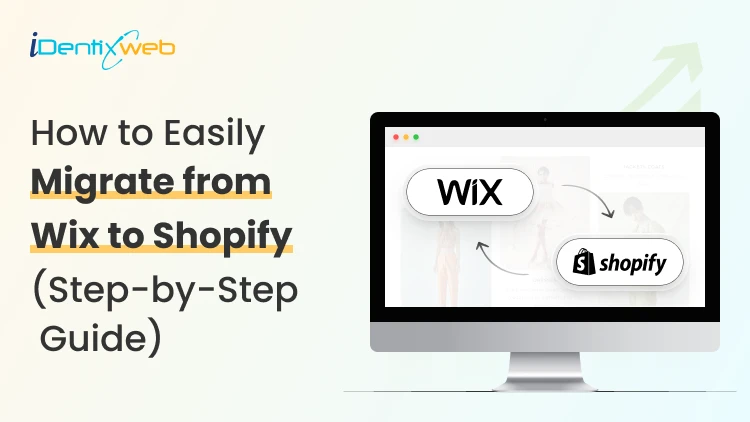
How to Migrate From Wix to Shopify: A Step-by-Step Guide for 2026
A Wix to Shopify migration can be handled manually with CSV files, through a migration app, or by hiring a Shopify expert. Before migrating, audit and back up your Wix store, choose the right migration method, and prepare products, customers, content, and URLs. After migration, rebuild store settings, set up 301 redirects, connect your domain, test checkout and tracking, and monitor SEO performance after launch. I've walked a lot of store owners through a Wix to Shopify migration. People expect the hard part to be moving products. It's not. The hard part is the stuff nobody warns you about: The image links that break The orders that won't import The redirects that decide whether you keep your Google rankings and much more. Get those right, and the move feels easy. Here's how to migrate from Wix to Shopify the way I do it on real projects. What actually transfers from Wix to Shopify (and what doesn't) Store data/featureTransfers to Shopify?What happensProductsYesMove through CSV or a migration appVariants, prices & SKUsYesCan be included with product dataCustomersYesNames, emails, addresses, and tags can be exported and importedProduct imagesPartlyWix exports image URLs, so images should be moved and re-hosted on ShopifyCollectionsNo, not directlyRecreate them in ShopifyOrder historyNot nativelyUse a migration app to import historical ordersTheme & designNoRebuild the storefront using a Shopify themeCustom codeNoRebuild or adapt it for ShopifyWix apps & settingsNoReplace them with Shopify apps or native featuresDiscount codesNoRecreate them in ShopifyProduct reviewsNot directlyMove them using a compatible reviews app such as Judge.me, Loox, or Yotpo Choosing your migration method: Manual, app, or expert Manual CSV migration This is free and gives you full control. You export from Wix, reformat the files to match Shopify's exact column headers, save them as UTF-8, and import. It works well for small catalogs, roughly under 500 products, if you're comfortable with a spreadsheet. A migration app Apps like Matrixify are the ones I choose for bulk work because they handle messy field mapping and let you catch errors before they hit your live store. For order history specifically, tools like LitExtension can automate what the CSV method can't. Hiring a migration agency This is an ideal choice for large or complex stores, or when downtime and lost rankings would cost you more than the project fee. A specialist maps URLs you didn't know were indexed and tests things you'd never think to check. If you'd rather hand it off, that's exactly what our Shopify store setup and migration service is for. Our developers handle the technical details carefully, making sure your store is moved and set up without disrupting how your business operates. How to migrate from Wix to Shopify step by step Step 1: Audit and back up your Wix store Before you move anything, take stock of what is currently on your Wix store. List your products, collections, customers, orders, pages, blog posts, reviews, apps, custom code, and any URLs that already get organic traffic or backlinks. Export copies of your products, contacts, and order data from Wix. I also recommend saving a list of your important URLs, page titles, meta descriptions, and other SEO data so you have something to compare against after migration. Step 2: Set up your Shopify account Build your Shopify store before you start moving data from Wix. Add your basic business information and familiarize yourself with the Shopify admin. Keep your existing Wix store live while you build and test the new store. Build your Shopify store in parallel so customers can continue shopping on Wix until the products, settings, redirects, and checkout are ready. Step 3: Choose your Wix to Shopify migration method The right migration method depends on how much data you have and how complicated your store is. For a smaller catalog, you can migrate Wix to Shopify manually using CSV files, while larger stores may be easier to handle with a migration app or a Shopify migration expert. Step 4: Migrate your products and images Export your products from Wix and prepare the CSV according to Shopify’s product format. Before importing, check how your product options are structured. Wix allows up to 6 product options, while Shopify allows up to 3 option types per product. Shopify supports up to 2,048 variants per product, so the bigger issue is usually how those variants are organized. If a product uses more than three options, you may need to restructure it or move supporting information into Shopify metafields. Product images also need extra attention. A few months ago, I was on a call with a home and kitchen store owner who had already moved her products from Wix and built her new Shopify store over the weekend. Everything looked ready, and she was about to take the Wix site offline. I asked her to check the product images first. The images looked fine, but Shopify was still importing them using URLs hosted through Wix. Taking the old store down too early could have interrupted that process. We kept Wix live until the images had been fully imported and checked the main product pages again before switching over. Since then, I’ve followed one simple rule: don’t take your Wix store offline until you’ve confirmed that your products and images have been successfully imported into Shopify. Before moving on, verify prices, SKUs, variants, inventory, descriptions, and images across a sample of your products. Step 5: Migrate customers and order history Export your customer data from Wix, reformat it using Shopify’s customer CSV template, and import it into the Customers section of your Shopify admin. Check names, email addresses, phone numbers, addresses, tags, and marketing consent carefully before importing. Wix and Shopify structure customer data differently, so even a small formatting issue can create incomplete records. Customer passwords won’t move to Shopify. This is less of a problem now because Shopify deprecated legacy customer accounts in 2026 in favor of passwordless customer accounts. Customers can sign in using a one-time code sent to their email, with additional options such as Shop and passkeys where available. Historical orders need a separate migration method. They don’t come across through Shopify’s standard customer CSV, so if you need old Wix orders inside Shopify, use a migration app such as Matrixify or a dedicated migration service. Step 6: Move pages, blogs, reviews, and other content Once your products and customer data are in place, move the content outside your catalog. For a smaller Wix site, pages and blog posts can often be recreated manually. If you have a large content library, a migration app can make the process faster. Don’t copy only the visible text. Re-upload any images that were hosted on Wix, update internal links so they point to the new Shopify URLs, and recreate important SEO elements such as meta titles, meta descriptions, headings, and image alt text. Reviews also need separate attention because they don’t move through Shopify’s standard product import. Check whether the Shopify review app you plan to use supports importing your existing Wix reviews before launch. Step 7: Build your Shopify theme and configure Store settings Your Wix design does not transfer directly to Shopify, so the storefront needs to be rebuilt using a Shopify theme. Then configure the settings that don't simply come across with your store data. Set up your payment provider, shipping methods and rates, taxes, policies, notifications, and any Shopify apps you need before opening the store to customers. Step 8: Set up Wix-to-Shopify 301 redirects Wix and Shopify use different URL structures, which means many of your existing URLs will change during migration. Create a URL plan that matches each important Wix page with the most relevant new Shopify page instead of sending everything to the homepage. In Shopify, you can create redirects under Content > Menus > View URL Redirects, or import redirects in bulk using a CSV file. Step 9: Connect or transfer your domain Once the Shopify store is ready, connect your existing domain so customers can continue using the same website address. If your domain is managed through Wix, you can update its DNS settings to point it to Shopify while continuing to manage the domain through Wix. You can also transfer an eligible domain to Shopify if you want to manage the domain, billing, and renewal from Shopify instead. Step 10: Test your Shopify store and go live Before launch, place test orders and go through the store exactly as a customer would. Check product pages, navigation, search, checkout, payments, shipping rates, taxes, inventory, discount codes, email notifications, mobile pages, and your most important 301 redirects. Important Wix to Shopify Migration issues 1. Data can change during migration If customers are still ordering from Wix while Shopify is being built, run a final check before launch so recent orders, customers, and inventory changes aren't missed. 2. Wix apps don't transfer Review features such as reviews, subscriptions, forms, loyalty programs, personalization, and marketing tools, then find Shopify replacements where necessary. 3. Protect your SEO Keep your important URLs, set up 301 redirects, update internal links, and make sure valuable pages haven't disappeared during the move. 4. Check your tracking Verify Google Analytics, Search Console, advertising pixels, conversion tracking, and other integrations after launch. Finally, don't delete your Wix store or migration files immediately. Keep access to the old data until you've confirmed that Shopify has everything you need. Protecting your SEO during a Wix to Shopify migration Wix and Shopify use completely different URL structures. Every indexed link breaks the moment you switch unless you redirect it. Here's how the URLs change. Wix products live at yourstore.com/product-page/product-name and Wix blog posts at yourstore.com/post/post-slug. Shopify forces its own prefixes. For example, products sit under /products/ and collections under /collections/. A page with the same name and identical content still gets a brand-new URL on Shopify. So before you go live, build a full map from every old Wix URL to its closest new Shopify URL. Set up a 301 redirect for each important page in your Shopify admin under Content > Menus > View URL Redirects. For a big catalog, upload them in bulk with a spreadsheet through Matrixify. A few rules I hold to on every project: Use 301 redirects, never 302s, because Shopify only supports permanent redirects here, and that's what passes your ranking signal. Avoid redirect chains, where an old URL points to a second URL that points to a third. Point every old URL straight to its final destination. Pay special attention to your blog. Blog posts are often the pages with the most backlinks pointing at them. Once you're live, carry over your title tags, meta descriptions, and image alt text, submit your new sitemap to Google Search Console, and watch for crawl errors for the first month. My full Shopify SEO migration guide covers the redirect and metadata workflow in more depth if you want the complete playbook. What it costs to migrate from Wix to Shopify The cost of moving from Wix to Shopify depends on how much data and custom work your store has. A simple DIY migration may only cost your Shopify subscription and your time. If your store has a large catalog, years of orders, custom features, or important SEO traffic, the cost can be higher because you may need a migration app or professional help. Migration is only one part of the total budget. Read my guide to how much it costs to build a Shopify website in 2026 for a broader cost breakdown. Planning your Wix to Shopify migration? A Wix to Shopify migration is easy once you have a plan. Build your Shopify store fully in parallel, re-host your images before you touch the Wix domain, and treat your 301 redirect as the most important task. If you'd rather not manage every step yourself, that's what a Shopify migration agency is for. Either way, do it in the right order, test everything, and you'll come out with a faster store and your rankings intact. FAQs 1. Is Wix cheaper than Shopify? Wix can be cheaper for smaller websites and basic online stores. Shopify is built specifically for ecommerce and includes more advanced selling features. Your actual cost on Shopify depends on the plan, apps, payment processing, and features your store needs. 2. Why do store owners move from Wix to Shopify? Many store owners move from Wix to Shopify when their ecommerce needs become more complex. Shopify is built specifically for commerce, with a dedicated checkout, Shop Pay, support for major payment methods, a large app ecosystem, and built-in tools for selling across channels such as Instagram, TikTok, Google, and Amazon. 3. Is Shopify like Wix? Shopify and Wix both let you build websites and sell online, but their primary focus is different. Wix is a website builder with basic ecommerce features, while Shopify is a dedicated commerce platform designed for businesses that want to sell and scale, both online and offline. 4. How to migrate from Wix to Shopify? You can migrate from Wix to Shopify by exporting your products and customers from Wix and importing them into Shopify using CSV files, Shopify’s Store Migration app where available, or a third-party migration app. For historical orders, Shopify recommends using apps such as LitExtension, Cart2Cart, EZ Importer, or MigrationPro, then rebuilding your storefront, setting up redirects, and testing products, checkout, shipping, payments, and SEO before making the Shopify store live. 5. Can you use Shopify with Wix? Yes. Shopify lets you create a Buy Button or product collection and embed it on a Wix website using Wix's HTML code element, allowing customers to purchase Shopify products from your Wix site.
Vineet Nair
12 Min • 18 September 2026
33 Views
Vineet Nair
11 Min • 15 September 2026
47 Views
Vineet Nair
12 Min • 14 September 2026
59 Views
Vineet Nair
10 Min • 27 August 2026
93 Views
Vineet Nair
10 Min • 27 August 2026
86 Views
Vineet Nair
10 Min • 21 August 2026
107 Views
Vineet Nair
7 Min • 19 August 2026
100 Views

Vineet Nair
10 Min • 14 August 2026
116 Views
Vineet Nair
10 Min • 12 August 2026
111 Views
Vineet Nair
9 Min • 7 August 2026
120 Views
Vineet Nair
9 Min • 4 August 2026
120 Views
Vineet Nair
8 Min • 31 July 2026
114 Views