Author: Bhavesha Ghatode
Gather knowledge about the latest insights, updates, tips, and tricks in the Ecommerce industry.

5 Min • 20 March 2026
How Anua Unlocked 5X AOV Growth with iCart’s Smart Cart Features
delivery customization Challenges Solutions drive results Scale business delivery customization Challenges Solutions drive results Scale business delivery customization Challenges Solutions drive results Scale business delivery customization Challenges Solutions drive results Scale business Anua is a globally recognized Korean skincare brand known for its minimalist philosophy and focus on gentle yet effective formulations. Built on the idea of simplifying skincare routines, Anua develops products that deliver visible results while avoiding harsh or irritating components, making them suitable for sensitive skin types. Initially using a traditional full cart experience, Anua transitioned to iCart’s side cart solution in August 2025, to create a more seamless and engaging shopping journey. This shift allowed customers to easily explore complementary skincare products without disrupting their browsing flow, making it more intuitive to discover items that fit into a complete routine. By surfacing relevant recommendations directly within the cart, the brand enhanced product visibility across its range. Challenges Before implementing iCart’s side cart solution, Anua faced limitations with their existing full cart experience, which created friction in the customer journey. The traditional cart setup redirected users away from product pages, interrupting their browsing flow and reducing opportunities to explore additional products. As a skincare brand built around routines rather than single-item purchases, this made it difficult to effectively showcase complementary products and encourage customers to build complete regimens. Additionally, the lack of in-cart personalization and strategic upsell opportunities meant that customers were often unaware of related products that could enhance their skincare results. This limited the brand’s ability to increase average order value (AOV) and fully leverage its diverse product range. Anua needed a more dynamic and intuitive cart experience that could seamlessly introduce relevant recommendations while maintaining a smooth and engaging shopping journey. ❌ Cart Value Barriers Low average order value (AOV) due to single-item focus Most customers completed purchases with one primary product instead of building multi-step routines. Cart abandonment near shipping thresholds Customers were not clearly informed or motivated to reach free shipping or discount thresholds. Missed savings opportunities Customers were unaware of potential value in purchasing bundled routines or multiple complementary products. ❌ Absence of Progress-Based Incentives No free shipping or discount progress bar Customers were not motivated to increase their cart value due to lack of visible incentives. Missing tiered rewards system There were no structured milestones (e.g., “Spend more to unlock offers”), reducing upsell opportunities. ❌ Ineffective Cart UI/UX (Pre-Side Cart) Full-page cart disrupted shopping flowCustomers had to leave their browsing journey, increasing friction and drop-offs. No quick add/remove functionality Users couldn’t easily modify their cart or add suggested products without navigating away. Solution To overcome these challenges, Anua implemented iCart’s side cart solution to transform their traditional cart into a high-converting, interactive experience. By replacing the full-page cart with a seamless side cart, the brand ensured that customers could continue browsing while viewing their cart, significantly reducing friction in the shopping journey. Additionally, features like product recommendations & progress bars for free shipping and discounts motivated customers to increase their cart value. By combining personalization, incentive-driven messaging, and a user-friendly interface, Anua successfully turned their cart into a powerful revenue-driving touchpoint rather than just a checkout step. To maximize their cart effectiveness, they implemented two powerful features: ✅ Progress Bar with Multi-Reward Incentives Implemented a tiered progress bar to encourage higher cart value Customers are guided with a clear message like “Add $3.10 to unlock secret offer,” motivating them to continue adding products. Generated over $5M+ in revenue through incentive-driven cart progression Used product-based rewards to align with customer intent Instead of generic discounts, Anua incentivized purchases with relevant skincare items like Dark Spot Pads and mini serums. Built visual motivation for routine expansion As customers add products, they can clearly track progress toward unlocking multiple rewards, encouraging them to build a complete skincare routine. ✅ Product Recommendations Implemented “Frequently Bought Together” recommendations Customers adding a single product (e.g., toner) are shown complementary items like serums, moisturizers, or pads to complete their routine. Generated over 275K revenue through in-cart recommendations Encouraged full skincare regimen building Instead of isolated purchases, the cart suggests step-by-step product combinations aligned with common skincare routines. Increased product discovery at the final stage By surfacing relevant items directly in the cart, Anua ensured customers explore more of their catalog without leaving the checkout flow. Results Achieved in Last 180 Days 22932 Total Store Orders 45101 Total iCart Orders 5X iCart Generated AOV 65.70% Upsell Affected Conversion Rate These improvements reflect a clear shift in customer behavior on Anua’s store. Cart abandonment reduced as shoppers discovered complementary skincare products and felt encouraged to build complete routines. Engagement also increased, with customers interacting more with in-cart recommendations and exploring relevant product pairings. Results & Impact And...Results is Our Main Clarification By implementing iCart’s cart drawer, product recommendations, and progress bar, Anua transformed its cart into a high-performing conversion touchpoint. Shopping Experience Enhancement The improved cart experience encouraged customers to discover complementary products and understand the value of sustainable beauty routines. For instance, the clear presentation of subscription savings alongside one-time purchase options helped customers make more informed decisions about their long-term hair care needs. As Anua continues to optimize its cart experience, the brand is closely monitoring: Routine-based purchasing behavior - tracking how customers move from single items to multi-step regimens Engagement with in-cart recommendations - measuring interaction with suggested products Cart value progression - analyzing how incentives influence higher spending [related_cases_slider] Ready to Write Your Success Story? Try icart App Join successful businesses like Anua and Master your delivery scheduling Delight customers with precise timing Grow your special occasion orders Expand your delivery reach
Read Blog
5 Min • 18 July 2026
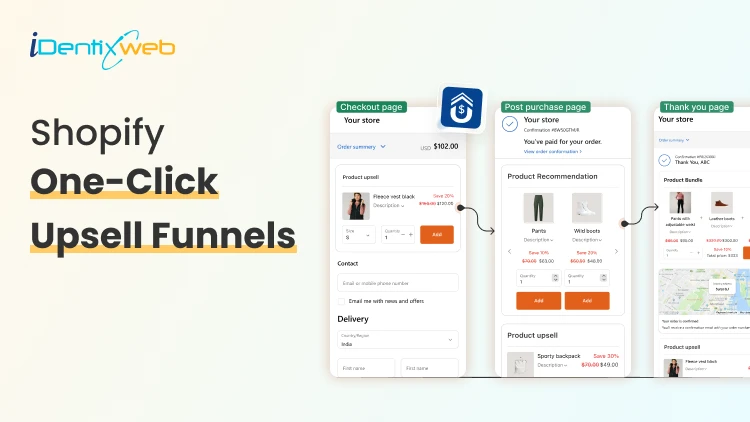
Shopify One-Click Upsell Funnels: 7 Proven Frameworks to Increase Revenue Per Order
You spend all day driving traffic to your store. The visitor lands, adds one product, checks out. Order confirmed. Thank you page. Done. That last step is where most stores quietly leave money on the table. A Shopify one click upsell fixes that. It shows the shopper one more offer right after they pay because there is no re-entering card details, no second checkout. One tap and the order grows. This post walks through 7 Shopify upsell funnel frameworks that work in 2026. What is a Shopify one click upsell? A Shopify one-click upsell is a post-purchase feature that lets customers add an additional item or upgrade to their cart after they check out, but before the final thank you page. The customer accepts with a single tap. No re-entering card info. No second checkout. 7 Proven Shopify One Click Upsell Funnels to Increase AOV Not every store needs every framework. Pick the ones that match your catalog and your average cart. 1. Complementary Product Funnel This shopify one click upsell offers a related product that matches the main purchase. A good funnel here should keep the add-on price low enough to feel like an easy yes. Example:Phone → Phone caseCamera → Memory cardCoffee maker → Coffee filters 2. Upgrade Funnel This upsell funnel should clearly explain why the upgraded version is better. It works well when the customer only needs to pay the difference and it’s best for premium product tiers. Example: Basic hoodie → premium hoodieSmall shampoo → salon-size bottle 3. Bundle Funnel This funnel turns one product into a bundle offer. It helps raise order value by giving shoppers a better deal on multiple products. This shopify bundle funnel is great for beauty, fashion, and home products. Example: Bought mascara → Offer mascara + eyeliner + primer bundle Want to create this type of shopify upsell funnel without making the post-purchase experience complicated? SellMore helps Shopify merchants build targeted funnels which you can show from checkout page to order status page. 4. The Stock-up Funnel The shopper just bought one bottle. You offer three more at a discount. Or you offer the 3-month bundle. BeeFriendly Skincare uses this exact Shopify one click upsell play. This funnel is best for products people use again and again, like skincare, coffee, supplements, or pet food. 5. The free shipping threshold funnel The shopper's order is $42. Your free shipping kicks in at $50. You offer a $12 add-on that pushes them over. They already know shipping is coming. Getting it free feels like a win. The add-on almost pays for itself in their head. This is one of the simplest funnels to run because the math is easy to explain in one sentence: "Add this and get free shipping." 6. The subscription conversion funnel The buyer paid full price. You show them the subscribe-and-save option right after. "Get this every month for 15% off." Same product, recurring order, lower price. Turn a one-time buyer into recurring revenue. 7. The category cross-sell funnel Different from a complementary add-on. This one moves the shopper into a category they haven't tried. Bought a face serum → try the eye cream. Bought running shoes → check out the recovery Conclusion A successful upsell strategy is not about showing more products; it is about presenting the right offer at the right moment. Whether you use upgrades, bundles, subscriptions, free-shipping offers, or downsells, each funnel should feel relevant and easy for the customer to accept. Start with one shopify one click upsell funnel that matches your product type and average order value. Track its acceptance rate, revenue per offer, and customer response, then improve the offer based on real performance. A simple, well-targeted funnel will usually deliver better results than multiple aggressive offers that interrupt the post-purchase experience. Frequently Asked Questions 1. What is a one-click upsell on Shopify? A one-click upsell on Shopify is an offer shown right after checkout, before the thank-you page. The shopper taps once to accept, and the item is added using the payment already on file. No re-entering card details. 2. Does Shopify have one-click upsell built in? Not out of the box. Shopify supports one-click post-purchase offers through Checkout Extensibility, but you need an app or a custom build to actually create and run the offers. Most stores use an app like SellMore to skip the code. 3. What's the difference between a one-click upsell and a thank-you page upsell? A one-click upsell shows on the post-purchase page between payment and the thank-you page one tap, no re-entry. A thank-you page upsell shows on the order confirmation page after the thank-you loads and usually requires a second checkout. Both work; the one-click version converts higher because the friction is gone. 4. How many one-click upsell offers should I show per order? One primary offer, plus one downsell if they decline. Chaining more than that starts to feel pushy and take rates fall off.
10 Min • 1 July 2026
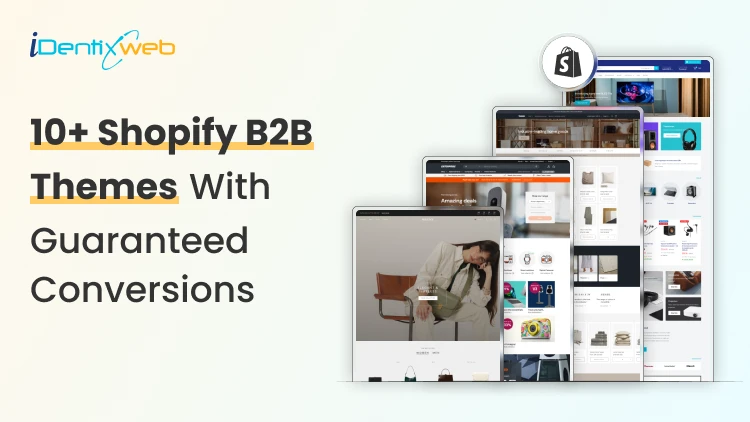
Best B2B Shopify Theme for 2026: Free and Paid Options for Wholesale Brands
Picking the wrong B2B Shopify theme can negatively impact your wholesale operation. I have seen it happen a lot of times this year. The good news is that Shopify's B2B ecosystem has grown significantly in 2026. B2B features like company profiles, custom catalogs, and volume pricing are no longer only for Shopify Plus. Merchants on Basic, Grow, and Advanced plans can now access many native wholesale tools directly. Your theme choice, though, still matters. The right B2B Shopify theme creates a buying experience that business customers trust and return to. Being a Shopify expert, I have tried and tested many wholesale themes. In this article, I will add the best ones that have brought sales to my clients over the years. 10+ features every B2B Shopify theme must have 1. Fast predictive search and faceted filtering Wholesale buyers search by SKU, variant, category, and spec. A theme without strong filtering wastes their time and yours. 2. Bulk add-to-cart or quick order list Buyers placing orders of 200+ units cannot add items one by one. A quick order form or table view is essential. 3. Login-gated pricing display Wholesale pricing should only be visible to approved buyers. The theme must support hiding prices or showing custom prices based on customer account status. 4. Volume pricing table display The theme should surface pricing tiers clearly on product pages. Buyers need to see how the price changes at 10, 50, and 500 units without asking a sales rep. 5. App compatibility for wholesale workflows Confirm the theme works with the wholesale apps you plan to use. Some B2B Shopify themes have conflicts with third-party pricing or quick order apps. Checkout my complete breakdown on the best Shopify wholesale apps for B2B merchants in 2026. Best B2B Shopify themes for 2026 Trade: Best free B2B Shopify theme Developer: Shopify | Price: Free | Best for: New and early-stage wholesale stores Trade is the only free theme on the Shopify Theme Store built specifically for B2B merchants. Shopify designed it from scratch around wholesale workflows. The layout is clean, and product grids load fast. I love how its navigation is structured for catalog browsing. For merchants starting their Shopify wholesale business without a large budget, Trade is the most logical starting point. Key strengths: Built-in quick order form, compatibility with Shopify's native B2B features (company profiles, volume pricing, quantity rules), and customizable contact forms for capturing wholesale account inquiries. Rating: 31% Hyper: Best overall B2B Shopify theme Developer: FoxEcom | Price: $400 | Best for: High-growth wholesale and hybrid B2B stores For me, this theme is built around three problems that kill wholesale conversions: Buyers who take too many clicks to evaluate products Pricing tiers that are invisible until checkout Catalog structures that break down at high SKU counts. Hyper solves the first problem with collection list grids and featured product tabs that let buyers evaluate multiple items. Comparison tables for product specifications sit inside those category cards, reducing the back-and-forth that wastes buyers' time. The second problem is addressed through profile-based pricing display, which shows each buyer their specific pricing tier immediately on login. For distributors managing thousands of products, the semantic search and advanced filtering handle SKU discovery at scale. Key strengths: Native bulk ordering, minimum order enforcement, quick order forms, multi-currency support, volume pricing display, and cart drawer controls that are best-in-class. Rating: 99% Warehouse: Best Shopify B2B theme for large catalogs Developer: Maestrooo | Price: $320 | Best for: Distributors, manufacturers, and industrial suppliers with 1,000+ SKUs Warehouse is built to handle large catalogs. Enterprises managing tens of thousands of SKUs, complex variant structures, and multi-category inventories consistently name Warehouse as the most operationally reliable theme for their scale. Key strengths: The collection page experience is the standout feature. Advanced filtering, predictive search, sticky navigation, and mega menus with promotional tiles work together to give wholesale buyers fast, organized product discovery. I think where Warehouse requires extra work is in customer-group pricing and login gating. The theme does not include native controls for these. You need Shopify's B2B features or a dedicated Shopify B2B pricing app to implement account-specific pricing on top of the Warehouse foundation. Rating: 85% Enterprise: Best Shopify theme for hybrid B2B + DTC stores Developer: Clean Canvas | Price: $420 | Best for: Brands running retail and wholesale from one storefront Enterprise solves a specific problem: merchants who sell to consumers and wholesale buyers from the same store without wanting to build two separate storefronts. The theme handles both use cases in a single layout. Key strengths: Conversion-focused merchandising combines well with bulk ordering tools. This theme also integrates smoothly with Shopify B2B apps for account-level pricing, company profiles, and custom catalog visibility. For brands using Shopify Plus or Advanced as their plan, Enterprise works well on both, though Plus gives access to the full native B2B feature set. Rating: 94% Normcore: Best minimalist Shopify wholesale theme Developer: SalesHunterThemes | Price: $320 | Best for: B2B sellers with focused product lines and repeat buyers Normcore proves that a minimalist theme can support wholesale operations. Its setup is organized around repeat purchasing rather than new buyer discovery. Key strengths: Quick order lists and bulk add-to-cart are built in, which removes the need for third-party order apps. The mobile experience is optimized for wholesale browsing. For B2B stores where buyers return weekly or monthly with predictable orders, Normcore's layout reduces cognitive load and speeds up checkout. Rating: 100% Ignite: Best Shopify B2B theme for search-first stores Developer: FoxEcom | Price: $360 | Best for: Hybrid B2B stores with dense, specification-heavy catalogs Ignite follows a marketplace-style layout similar to how Amazon organizes product discovery. This helps buyers navigate through filters and structured product grids. For B2B stores where buyers know exactly what they need and want to find it in three clicks, Ignite is the most efficient layout available. Key strengths: The Enhanced Search feature handles dense catalogs with strong product title structuring and category hierarchies. SEO-optimized product pages and collection structures make Ignite one of the better themes for organic visibility alongside B2B functionality. Rating: 100% Prestige: Best Shopify Plus wholesale theme for premium brands Developer: Maestrooo | Price: $400 | Best for: High-end brands running premium wholesale alongside DTC Prestige combines the benefits of both luxury presentation and B2B function. Most wholesale themes sacrifice design quality for operational efficiency. Prestige does not make that trade-off. Key strengths: High-resolution imagery, editorial layouts, and refined typography are combined with full Shopify B2B app integration and tiered pricing support. Rating: 91% Keystone: Best paid Shopify B2B theme for wholesale-first stores Developer: Brickspace Lab | Price: $440 | Best for: Wholesale stores that want built-in B2B selling tools without depending too much on extra apps Keystone is built specifically around B2B storefronts, bulk buying, and account-driven selling. It has a built-in quick ordering, account limits, order minimums, upsells, bundles, and product recommendations. Key strengths: Built-in quick order list, order minimum support, account limits, slide-out cart, sticky cart, product filtering, enhanced search, mega menu, swatch filters, customizable contact forms, and Shopify Plus quantity pricing support. Rating: 100% Canopy: Best Shopify B2B theme for large carts and inventory-heavy stores Developer: Clean Canvas | Price: $420 | Best for: Wholesale stores, food suppliers, retail distributors, and merchants with large inventories Canopy is a strong option for B2B stores where buyers usually add multiple products to the cart in one session. It is Amazon-inspired, feature-rich, and optimized for large-scale selling, with a prominent search bar and always-visible cart sidebar for stores with large carts and inventories. Key strengths: Prominent search, advanced product filters, predictive search, quick order list, quick view, sticky cart, slide-out cart, mega menu, product filtering and sorting, promo tiles, stock counter, and recommended products. Rating: 95% Xtra: Best affordable premium B2B Shopify theme Developer: Someone You Know | Price: $100 | Best for: Small and mid-sized B2B stores that want premium features at a lower cost For merchants who want more than a free theme but do not want to spend $300–$400 upfront, Xtra is a practical choice. It is especially useful for stores that need quick ordering, product specifications, upsells, and strong catalog navigation without adding too many third-party apps. Key strengths: Quick order list, bulk upsells, quick view, product specifications, slide-out cart, sticky cart, product filtering, enhanced search, mega menu, swatch filters, recommended products, countdown timer, and Shopify Plus quantity pricing support. Rating: 98% Empire: Best marketplace-style Shopify B2B theme for large catalogs Developer: Pixel Union | Price: $360 | Best for: Large catalog stores, industrial suppliers, electronics sellers, and marketplace-style B2B storefronts Empire is another theme that is built for big catalogs. Shopify positions it as a theme optimized for large catalogs with advanced filters, shoppable images, product comparison, and a bold mega menu. That makes it useful for B2B stores where buyers need to move through multiple categories, compare products, and find exact items quickly. Key strengths: Advanced product filtering, enhanced search, mega menu, product comparison, quick order list, quick view, product badges, promo tiles, recommended products, slide-out cart, sticky header, swatch filters, and multi-currency/multi-language support. Rating: 79% Read my complete breakdown on things to look out for before choosing a Shopify theme this year. Choose the right B2B Shopify theme in 2026 The B2B Shopify theme landscape in 2026 is better than it has ever been. The key shift worth mentioning this year is that B2B functionality on Shopify is no longer only for Plus merchants. The platform has opened up enough that merchants on standard plans can run wholesale operations with the right theme. Your theme choice is about finding the structure that matches your buyers' behavior, not about finding the most feature-rich option on the market. FAQs 1. What is the best free B2B Shopify theme? Trade is the best free B2B Shopify theme. It is built by Shopify specifically for wholesale merchants and includes a quick order form, login-gating support, and compatibility with Shopify's native B2B features. 2. Which Shopify wholesale theme is best for large catalogs? Warehouse by Maestrooo is the most reliable Shopify wholesale theme for stores with large product catalogs. Its advanced filtering, predictive search, mega menus, and high-speed collection pages are built to handle thousands of SKUs without degrading the buyer experience. 3. Do I need Shopify Plus to use a B2B theme effectively? No. As of 2026, Shopify's native B2B features, including company profiles, custom catalogs, and volume pricing, are available on Basic, Grow, and Advanced plans. Most B2B themes work well on all plan levels. 4. How much does a good Shopify B2B theme cost? Free themes like Trade are available at no cost. Premium B2B Shopify themes range from $320 (Warehouse, Normcore) to $400 (Hyper, Enterprise, Prestige). These are one-time fees with lifetime licenses for the purchasing store.
8 Min • 20 July 2026
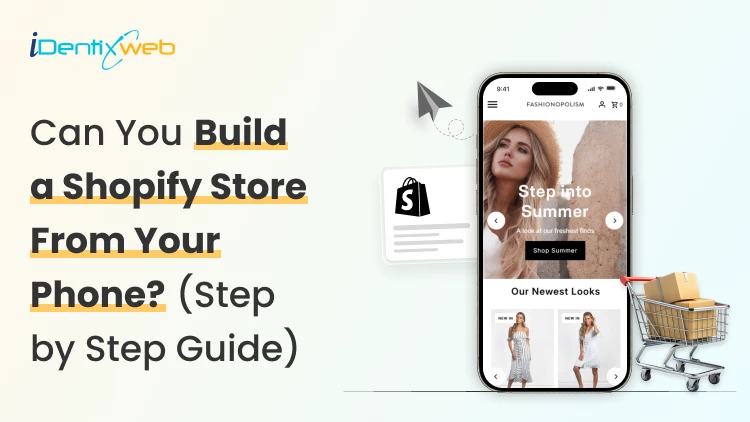
Can You Make a Shopify Store on Your Phone? Yes. (Step-by-Step Guide)
Yes, you can build and launch a Shopify store from your phone. The Shopify mobile app lets you add products, customize your theme, create pages, manage menus, configure payments, review orders, and track performance. You can also make theme changes through Shopify’s mobile online store editor. You can complete the setup and start accepting orders from an iPhone or Android phone. Still, I would not treat a phone as the perfect tool for every Shopify task. From working on Shopify store setups, I have found that mobile works well for launching and everyday management. Desktop is more comfortable for custom code, large catalogs, complex apps, and detailed testing. This guide explains how to create your store from your phone and where you may want a larger screen. Does Shopify have a mobile app? Yes. Shopify has an official mobile app for iOS and Android. The merchant app is designed for store owners and staff. It lets you manage products, orders, inventory, customers, analytics, payments, fulfillment, and parts of your online store. Shopify also provides a mobile theme editor for changing theme settings. How to make a Shopify store on your phone? Step 1: Download the Shopify mobile app Open the Apple App Store or Google Play Store and search Shopify. Open the app after installation. Sign in if you already have an account, or follow the registration process to create one. The app itself is free to download. Running an active Shopify store requires a Shopify subscription after the applicable trial or promotional period. Based on your budget, there are different types of Shopify Plans. Review my Shopify pricing guide before choosing one. Step 2: Create the store and add business details Follow the onboarding questions about your business, what you plan to sell, and where you want to sell. After the store is created, open: Menu > Settings Review the following details: Store name Legal business name Business address Store currency Time zone Contact information Order ID format Measurement units I recommend checking the currency and business location twice. They are easy to overlook during a fast mobile setup and can create extra work later. Step 3: Choose and customize a theme From the Shopify app, go to: Menu > Online Store > Edit Shopify’s mobile theme editor lets you change theme settings. You can add, remove, edit, and rearrange content from your phone. Start with a free Shopify theme if you are building your first store. Keep the initial homepage simple. I would recommend Dawn. Add your logo, fonts, colors, and images. Preview each section as you work. A common mistake is trying to fill every available section. I prefer a shorter homepage with a clear shopping path. A focused layout is easier to review on a phone and easier for customers to use. Step 4: Create your essential pages In the app, go to: Menu > Online store > pages Create the pages your customers need. Most new stores should have: About Us Contact Us Shipping Policy Return and Refund Policy Privacy Policy Terms of Service Frequently Asked Questions Keep the text readable on a small screen. Use short paragraphs, clear headings, and useful links. Step 5: Build the navigation Go to: Menu > Content > Menus Create a simple main menu and footer menu. A basic main menu might include: Home Shop Collections About Contact The footer can hold policy pages, FAQs, account links, and contact details. From experience, navigation is the first area I check on a new Shopify store. A good homepage cannot help much if customers cannot quickly reach products. Step 6: Add products from your phone Tap the Products icon in the Shopify app, then create a product. Add: Product title Description Photos or videos Price Inventory quantity SKU Weight Variants Product category Tags Collections Search engine listing I find it convenient to upload product images from my phone's camera. You can take a photo, crop it, and add it to the product without transferring files to a computer. Shopify lets merchants create, edit, preview, organize, publish, archive, and delete products through its mobile app. Read my guide on how to add products to Shopify for a detailed workflow on adding products. Step 7: Set up payments Go to: Menu > Settings > Payments The payment methods available depend on your business location and eligibility. Complete the requested business, identity, banking, and payout details. Use information that matches your legal and banking records. See my breakdown on how to set up Shopify Payments for a simple walkthrough. Step 8: Configure shipping, delivery, and taxes Open: Menu > Settings > Shipping and delivery Review your shipping profiles, zones, rates, packages, local delivery, and pickup settings. A basic setup may use: Flat-rate shipping Free shipping above a minimum order value Weight-based rates Price-based rates Local delivery Store pickup Carrier-calculated rates when supported Our guide on managing shipping and delivery in Shopify explains the broader setup. Step 9: Connect a domain Shopify gives your store a myshopify.com address. You can use it during setup, but a custom domain usually looks more professional. Go to: Menu > Settings > Domains From this area, you can review your Shopify domain and connect or manage a custom domain. Shopify also provides mobile controls for managing the store’s myshopify.com domain. Choose a name that is short, easy to type, and close to your brand. Changing a domain after launch will impact your existing URLs, marketing links, and search visibility can be affected. Read my guide on changing a Shopify store name and domain before making a major change. Step 10: Test the store before launch Do not skip testing because you built the store on the same phone customers may use. Check the store as a shopper, not as the owner. Test: Homepage loading Menu links Collection pages Product variants Product images Add-to-cart button Cart totals Discount codes Shipping rates Payment flow Confirmation emails Contact forms Policy links Account login Store search I prefer placing at least one full test order before launch. Read my simple guide on placing test orders in Shopify to do exactly that. Step 11: Remove the password and start selling When the store is ready, go to: Menu > Online Store Open the password protection settings and remove the storefront password. Your Shopify store is now open to customers. What can you manage from the Shopify mobile app? The mobile app is useful after launch. Shopify currently supports many daily store tasks from mobile. TaskGood on a phone?My recommendationAdd or edit a productYesGood for small catalogs and quick updatesUpload product photosYesOne of the best mobile workflowsCheck orders and salesYesIdeal for daily monitoringCapture payments and fulfill ordersYesUseful while away from a deskAdjust inventoryYesGood for quick stock correctionsEdit theme sections and blocksYesFine for basic layout changesCreate pages and menusYesGood for short content and simple navigationReview analyticsYesGood for quick checksConfigure a complex appSometimesDesktop is usually easierEdit theme codeNot idealUse a desktop for accuracy and testingImport or edit hundreds of productsNot idealUse desktop tools and bulk workflowsPerform detailed quality assuranceLimitedTest on several devices and browsers Shopify has also made Sidekick available on mobile through text and voice. It can help answer questions and complete supported admin tasks. What I won’t recommend doing on a phone? Custom theme code Liquid, CSS, JavaScript, and structured data require careful editing. A small typing mistake can affect the storefront. Bulk product work Adding five products from a phone is manageable. Cleaning hundreds of rows, variants, SKUs, and prices is much easier on a desktop. Detailed app configuration Many Shopify apps open inside the mobile admin, but their dashboards are difficult to view on a phone screen. Long-form content Writing detailed product descriptions, policy pages, and SEO content is slower on a phone. Formatting errors are also harder to notice. Full store testing Your phone shows one screen size. Customers may use different phones, tablets, laptops, and desktop monitors. Test the store across more than one device. Final verdict Can you make a Shopify store on your phone? Yes. For a small and straightforward store, that is everything you need to start. I see mobile as the fastest route to a working first version. Once the store becomes more complex, a desktop gives you better control. Need help turning the mobile setup into a polished storefront? Identixweb can help with Shopify store setup, theme customization, app configuration, and technical improvements when the project outgrows a phone-based workflow. FAQs 1. Can I create a Shopify store entirely from my phone? Yes. You can use the Shopify mobile app to create and manage a basic online store, add products, customize theme content, set up payments, configure shipping, and launch. Advanced development and large catalog work are usually easier on a desktop. 2. Does Shopify have a mobile app? Yes. Shopify offers an official merchant app for iOS and Android. It supports store management, products, orders, inventory, analytics, payments, fulfillment, and mobile theme editing. 3. Is the Shopify mobile app free? Yes, the app is free to download. You still need an eligible Shopify plan to keep the online store active after the applicable trial or promotional period. 4. Can I edit my Shopify theme from my phone? Yes. Shopify’s mobile theme editor lets you change theme settings and add, remove, edit, or rearrange sections and blocks. I recommend using a desktop for custom codes. 5. Can I add products to Shopify using my phone? Yes. You can add product titles, descriptions, images, prices, inventory, variants, tags, collections, and other details through the Shopify app.

Bhavesha Ghatode
August 22, 2025
937 Views

Bhavesha Ghatode
August 22, 2025
900 Views
Bhavesha Ghatode
August 20, 2025
854 Views
Bhavesha Ghatode
August 20, 2025
834 Views
Bhavesha Ghatode
June 14, 2025
1403 Views
Bhavesha Ghatode
August 7, 2025
927 Views
Bhavesha Ghatode
August 18, 2025
686 Views
Bhavesha Ghatode
August 19, 2025
882 Views
Bhavesha Ghatode
August 11, 2025
953 Views
Bhavesha Ghatode
August 15, 2025
1036 Views
Bhavesha Ghatode
August 15, 2025
973 Views

Bhavesha Ghatode
August 14, 2025
935 Views