

Most Viewed Blogs
Gather knowledge about the latest insights, updates, tips, and tricks in the Ecommerce industry.

5 Min • 20 March 2026
How Anua Unlocked 5X AOV Growth with iCart’s Smart Cart Features
delivery customization Challenges Solutions drive results Scale business delivery customization Challenges Solutions drive results Scale business delivery customization Challenges Solutions drive results Scale business delivery customization Challenges Solutions drive results Scale business Anua is a globally recognized Korean skincare brand known for its minimalist philosophy and focus on gentle yet effective formulations. Built on the idea of simplifying skincare routines, Anua develops products that deliver visible results while avoiding harsh or irritating components, making them suitable for sensitive skin types. Initially using a traditional full cart experience, Anua transitioned to iCart’s side cart solution in August 2025, to create a more seamless and engaging shopping journey. This shift allowed customers to easily explore complementary skincare products without disrupting their browsing flow, making it more intuitive to discover items that fit into a complete routine. By surfacing relevant recommendations directly within the cart, the brand enhanced product visibility across its range. Challenges Before implementing iCart’s side cart solution, Anua faced limitations with their existing full cart experience, which created friction in the customer journey. The traditional cart setup redirected users away from product pages, interrupting their browsing flow and reducing opportunities to explore additional products. As a skincare brand built around routines rather than single-item purchases, this made it difficult to effectively showcase complementary products and encourage customers to build complete regimens. Additionally, the lack of in-cart personalization and strategic upsell opportunities meant that customers were often unaware of related products that could enhance their skincare results. This limited the brand’s ability to increase average order value (AOV) and fully leverage its diverse product range. Anua needed a more dynamic and intuitive cart experience that could seamlessly introduce relevant recommendations while maintaining a smooth and engaging shopping journey. ❌ Cart Value Barriers Low average order value (AOV) due to single-item focus Most customers completed purchases with one primary product instead of building multi-step routines. Cart abandonment near shipping thresholds Customers were not clearly informed or motivated to reach free shipping or discount thresholds. Missed savings opportunities Customers were unaware of potential value in purchasing bundled routines or multiple complementary products. ❌ Absence of Progress-Based Incentives No free shipping or discount progress bar Customers were not motivated to increase their cart value due to lack of visible incentives. Missing tiered rewards system There were no structured milestones (e.g., “Spend more to unlock offers”), reducing upsell opportunities. ❌ Ineffective Cart UI/UX (Pre-Side Cart) Full-page cart disrupted shopping flowCustomers had to leave their browsing journey, increasing friction and drop-offs. No quick add/remove functionality Users couldn’t easily modify their cart or add suggested products without navigating away. Solution To overcome these challenges, Anua implemented iCart’s side cart solution to transform their traditional cart into a high-converting, interactive experience. By replacing the full-page cart with a seamless side cart, the brand ensured that customers could continue browsing while viewing their cart, significantly reducing friction in the shopping journey. Additionally, features like product recommendations & progress bars for free shipping and discounts motivated customers to increase their cart value. By combining personalization, incentive-driven messaging, and a user-friendly interface, Anua successfully turned their cart into a powerful revenue-driving touchpoint rather than just a checkout step. To maximize their cart effectiveness, they implemented two powerful features: ✅ Progress Bar with Multi-Reward Incentives Implemented a tiered progress bar to encourage higher cart value Customers are guided with a clear message like “Add $3.10 to unlock secret offer,” motivating them to continue adding products. Generated over $5M+ in revenue through incentive-driven cart progression Used product-based rewards to align with customer intent Instead of generic discounts, Anua incentivized purchases with relevant skincare items like Dark Spot Pads and mini serums. Built visual motivation for routine expansion As customers add products, they can clearly track progress toward unlocking multiple rewards, encouraging them to build a complete skincare routine. ✅ Product Recommendations Implemented “Frequently Bought Together” recommendations Customers adding a single product (e.g., toner) are shown complementary items like serums, moisturizers, or pads to complete their routine. Generated over 275K revenue through in-cart recommendations Encouraged full skincare regimen building Instead of isolated purchases, the cart suggests step-by-step product combinations aligned with common skincare routines. Increased product discovery at the final stage By surfacing relevant items directly in the cart, Anua ensured customers explore more of their catalog without leaving the checkout flow. Results Achieved in Last 180 Days 22932 Total Store Orders 45101 Total iCart Orders 5X iCart Generated AOV 65.70% Upsell Affected Conversion Rate These improvements reflect a clear shift in customer behavior on Anua’s store. Cart abandonment reduced as shoppers discovered complementary skincare products and felt encouraged to build complete routines. Engagement also increased, with customers interacting more with in-cart recommendations and exploring relevant product pairings. Results & Impact And...Results is Our Main Clarification By implementing iCart’s cart drawer, product recommendations, and progress bar, Anua transformed its cart into a high-performing conversion touchpoint. Shopping Experience Enhancement The improved cart experience encouraged customers to discover complementary products and understand the value of sustainable beauty routines. For instance, the clear presentation of subscription savings alongside one-time purchase options helped customers make more informed decisions about their long-term hair care needs. As Anua continues to optimize its cart experience, the brand is closely monitoring: Routine-based purchasing behavior - tracking how customers move from single items to multi-step regimens Engagement with in-cart recommendations - measuring interaction with suggested products Cart value progression - analyzing how incentives influence higher spending [related_cases_slider] Ready to Write Your Success Story? Try icart App Join successful businesses like Anua and Master your delivery scheduling Delight customers with precise timing Grow your special occasion orders Expand your delivery reach
Read Blog
12 Min • 19 November 2019
Misconception on Why Shopify is bad & Why 95% of Shopify Stores Fail
Shopify is not the real reason most online stores struggle. Store failure usually happens when the basics are weak, such as poor niche selection, low-margin products, a low-trust storefront, shipping issues, weak customer service, poor theme optimization, and a lack of marketing. The platform can support growth well, but long-term results depend on how well the store is planned, presented, and managed. Starting an online store will be a dream for newbies, but many of them wonder why Shopify is bad for so many of them. According to StoreLeads, there are nearly 2.9 million live Shopify stores worldwide as of July 2026, and Shopify merchants generated $100.7 billion in GMV in Q1 2026 alone (Shopify's Q1 2026 SEC filing). With that many stores competing for attention, it's fair to ask why Shopify stores fail and what the real Shopify success rate looks like. Here's the honest answer: Shopify has never published an official success or failure rate for its stores, and no independent research body has either. The "90–95% fail" figure isn't backed by a named study. I know that you don't want to be amongst those who fail in their eCommerce business. This is the reason why I am writing this blog for you so that at least there will be a 1% decrease in the failure chart. Don't worry, this blog will give you all the answers along with a few tips to avoid the mistakes that lead your store to fail. Why Shopify is bad? Actual reasons merchants think While Shopify is popular, some people on the other side think that it might not be suitable for their business needs. They even ask, 'Is Shopify Legit?' Here are some reasons people think why Shopify is bad for their business: Pricing High cost is something you will read in many Shopify reviews. Shopify has subscription fees, and due to the tiered pricing structure, some small businesses can't afford them. For some merchants, the basic plan might be affordable, but as their stores grow, the costs can add up. To address this issue, Shopify offers a Shopify 1 dollar trial. This makes it easier for beginners to try the platform. As of 2026, Shopify's core plans run Basic ($39/month), Grow ($105/month), and Advanced ($399/month). Shopify Plus, built for larger merchants, starts at $2,300+/month. On top of the subscription, stores that skip Shopify Payments pay an added transaction fee. 2% on Basic, 1% on Grow, 0.6% on Advanced. This goes away once you switch to Shopify's own payment processor. For a full plan-by-plan breakdown, see my guide to Shopify pricing plans for 2026. App dependency Stores must install Shopify apps to extend their functionality or add more features. Relying on these third-party apps can increase your store's monthly expenses. Data hosting Shopify is a hosted platform, so you will not have full control over the website server. So, sometimes, this can be a limitation for merchants who have specific server requirements. Learning curve Some Shopify reviews point out that the setup and learning processes can be complex for those with a non-technical background. So, because of all these reasons, some people wonder why Shopify is bad and step back from using Shopify. What is the Shopify success rate now? What I can say with real numbers: Shopify now hosts nearly 2.9 million live stores worldwide (Source: StoreLeads, July 2026), up from about 2.4 million just two years earlier. Shopify merchants generated $100.7 billion in GMV in Q1 2026 alone, and cumulative merchant sales on the platform have crossed $1.7 trillion since Shopify's founding (Source: Shopify Q1 2026 investor update). U.S. Bureau of Labor Statistics data shows about 22% of new U.S. businesses close within their first year, and roughly half close within five years (Source: Commerce Institute). Shopify store success rate tends to follow this same general small-business pattern rather than a platform-specific one. In practice, your store's success rate depends on niche, product margins, and marketing budget. If you're setting up shop for the first time, go through my guide to building a Shopify store in 2026. Is Shopify bad for SEO? No, Shopify is not bad for SEO. It handles many technical SEO basics automatically, including canonical tags, SSL certificates, sitemap.xml and robots.txt files. Shopify-supported themes also include structured data that helps search engines understand important product information such as price and availability. You can edit the page title, meta description and URL handle for products, collections, pages and blog posts. Shopify also lets you add image alt text, create URL redirects and submit your sitemap through Google Search Console. These features give most store owners enough control to build a strong SEO foundation without editing complex code. The problem is that Shopify does not optimize the entire store for you. A poorly coded theme, unnecessary apps or custom code can create missing title tags, duplicate SEO elements and slower pages. Shopify’s own documentation notes that apps and theme customizations can sometimes interfere with title tags and H1 headings. From my experience working with Shopify stores, most SEO problems come from the way the store is built and managed. Thin product descriptions, copied supplier content, weak collection pages, poor internal linking, oversized images and too many app scripts can all make it harder to rank. Why Shopify stores fail? Are you also wondering why Shopify stores fail or why Shopify is bad? Just like any other business, online stores on Shopify can also fail sometimes, and because of that, Shopify's success rate can also go down. Here are some of the common reasons to know why Shopify stores fail: Lack of buying options Being an online store the very first step to make sure is about the shopping experience for your customers. If your store doesn't provide any customization options, then your customers will go elsewhere. They will look at other stores that offer more customized buying options. So to avoid this, you can offer special discounts, upsell and cross-sell items, product recommendations & bundles, etc. To do this you don't need to worry of applying as there is an amazing all-in-one Shopify app for you called iCart Cart Drawer Cart Upsell for you. Most carts only show products... iCart can show revenue-boosting offers. Try Free Till 100 Orders Wrong dropshipping niche One of the main reasons for the failure of your Shopify store. People just don’t have the patience to understand their niche before they start opening stores. You should invest your time in niche research if you want to achieve your long-term goals. I will tell you the main mistake that people make every time. They look for the trending niche and jump into it. I think this is the main reason why most of the Shopify store fails. Those niches might not have a large audience. Remember, you are forgetting about your groundwork that will lead to success. Spend more time identifying your niche. No one can help you in identifying your niche; instead, you should find it by yourself. A few of the niches are gardening, sports, fashion, etc. Try to find a niche in which you can move forward, i.e. which has less competition and a large audience. Analyse your Shopify data for better research. Choice of bad products Although you may have chosen the right niche until and unless there is no success or growth in your business if you don’t choose the right products on your store that people want. If you want your store to be unique then sell products something unique which leads to a wow factor. This wow-factor contains few things like security, love, etc. You need to be customer-centric for some time to understand their need for products that they will be in search of and what they like to buys. An e-commerce quiz can help in gathering information about products your customers want and need. Product margin is going down Lots of people afraid to keep their margins high because they think that who would buy this for high margins. Remember that low margins lead you to failure, not a success. But in a case like if you are selling the product with a low margin and there are no ways to improve it then change the product instead of thinking why Shopify is bad. To quickly know which product margin is going down, try Shopify analytics tools like TrueProfit. This would be simple for you. Lack of mobile application for users Almost most of the eCommerce sales are gained completely on mobile devices. As mobile users are increasing nowadays, you should offer your customers Shopify Mobile Apps so that they can easily buy their favourite products from their mobile phones. Low-quality shop Just imagine that you are searching for cool toys or pets and if you reach that site but notice that the spelling is incorrect. Apart from that, the images are of low quality and fonts vary on each page. Obviously, you will think that it is an impostor store or it’s a fraud store. Remember that this type of issue can lead to a low trust of your valuable customers. This leads to the failure of your newly started store. Customers are not returning back Customers don’t come is another reason why Shopify stores fail. If they had a great experience they will surely come back to you and may not if the experience was negative. To improve customer return rate and to win their hearts provide services that satisfy their requirements. And in any case, they may contact you for any support then try to reply to them at the earliest. Don’t wait for 2-3 days to reply to them. Problem in shipping The shipping problem is the second biggest reason for store failure. It often happens with your suppliers that sometimes they are so overloaded that orders get skipped or missed. So personally, I would recommend you to sell products that are more demand in the market and those products which customers can't get from the local store. Poor customer service The most important thing is attracting new customers to our store and to offer them great services with the highest satisfaction. Create an FAQ page, so that they can get their queries cleared. Make it easy for customers to contact you. Give them 24/7 customer support. Make sure that every time they come to you with questions, reply to them at the earliest and be polite to them. By doing these things you can avoid the problem of poor customer service. Poor optimization of your Shopify theme Most of the Shopify stores fail due to a lack of conversion tactics and not gaining more sales. From my personal experience, I would suggest the Booster Theme as it will help you to improve conversions. This theme is very simple and elegant which is designed to be highly optimized for improving sales. Why don’t you go for Booster Theme instead of using a free theme? Choosing the right theme can make or break your store’s success. Check out this Shopify Theme Selection Guide to find the perfect fit for your brand! Lack of marketing No other way is better than promoting your store by social media marketing. I have seen a lot of people giving youtube ads, Facebook ads, posting stories on Instagram, etc. All that they are doing in this is promoting their brand and attracting new visitors to their store. All you have to do is to get your visitors converted into valuable customers. Learn the answer to the question Is Shopify legit? to get your business online faster. Why Shopify is bad? It’s not but... No ecommerce platform is bad until you sign up to something that's not a part of your business goal. If you read Shopify reviews carefully, you will get one thing clear: Stores fail when fundamentals slip. Understand the above-mentioned steps and avoid doing all these pieces of stuff for the success of your store. Start selling unique products that are in demand and be a part of the history of success in the ecommerce world. FAQs 1. Is Shopify bad? No, Shopify is not a bad ecommerce platform. It is a reliable hosted solution with built-in tools for storefront design, payments, inventory, order management and multichannel selling. But it may not suit businesses that need complete control over their hosting or backend. 2. How does Shopify work? Shopify lets you create an online store, add products, choose a theme, connect payment methods and configure shipping without managing your own hosting. When customers place orders, you can process payments, update inventory, issue refunds and manage fulfilment through the Shopify admin. 3. Why is Shopify bad? Some merchants dislike Shopify because subscription, premium theme and app costs can add up as their store becomes more complex. Shopify will also charge third-party transaction fees when an external payment provider is used, while advanced checkout customization can require apps, development work or Shopify Plus. 4. What percent of Shopify stores fail? US government data shows one-year survival rates for new business establishments have ranged from 71.4% to 84.6%. There’s no official Shopify estimate, but basic industry standards have a 90 to 95% failure rate. 5. Is Shopify worth it? Shopify is worth it for merchants who want an easy-to-manage store, secure hosting, integrated payments and access to more than 16,000 apps. The Basic plan currently costs $39 per month or $29 per month when billed annually in the US. Merchants should also budget for payment processing, themes and any paid apps they need. 6. Is Shopify bad for SEO? No, Shopify is not bad for SEO because it automatically provides canonical tags, SSL security, sitemap.xml, robots.txt and structured data support. However, rankings still depend on your content, site speed, internal linking and technical setup. Poorly coded themes or too many apps can reduce performance.
18 Min • 17 July 2021
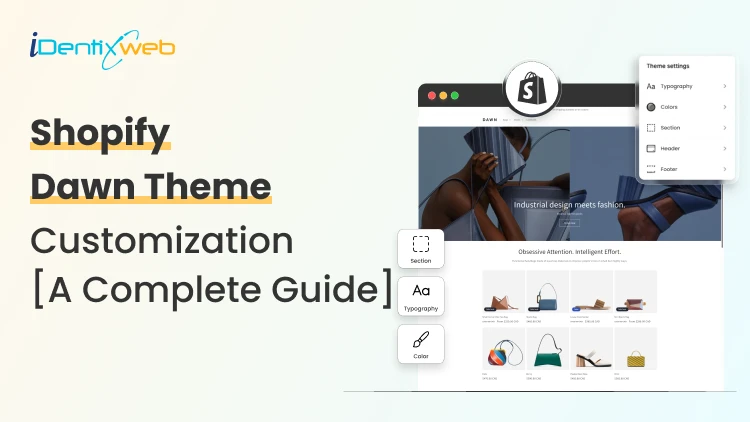
Dawn Theme Shopify Guide: Theme Customization, Template Preview, Demo
After Shopify introduced online store 2.0, everyone is excited about the Dawn Theme. You might be wondering, “There are already tons of themes available for your online store in the Shopify theme store. So why did Dawn come into the picture?” Let’s learn more about this theme and discover how you can enhance the shopping experience for your site visitors using Shopify Dwan Theme. Dawn Theme Shopify: All About an Introduction The “Dawn Theme Shopify” is specially built for better performance, flexibility, and ease of use. The best thing about Shopify Dawn is that it utilizes all the new features available in online store 2.0, which was announced at Shopify Unite 2021. After replacing the debut theme, Shopify Dawn will become the default theme for newly created Shopify stores. This indicates that something is inspiring about this theme. Until now, Debut has been one of the most widely used themes. If you are already a Debut theme user, you might be excited to know which theme is better. Also check out this blog on Dawn Theme vs Debut Theme: Which Theme You Should Select Add a Conversion-Optimized Cart Drawer to Dawn for Free Customizing Dawn to add in-cart upsells manually means hours of theme code editing. iCart Cart Drawer Cart Upsell drops all of those features into your Dawn theme with no code. Most carts only show products... iCart can show revenue-boosting offers. Try Free Till 100 Orders It works as a sticky cart drawer, popup, or a full cart page (your choice), and adds AI-powered product upsells, multi-tier progress bars, BOGO offers, volume discounts, and free-gift triggers directly to your cart experience. Dawn's design language stays intact. iCart's drag-and-drop editor matches your colors and fonts automatically. What Are the Key Features of Dawn Theme Shopify? Let’s explore the fantastic features of the Shopify dawn theme: An Open Source Theme Shopify 2.0 Dawn theme is the first open-source Shopify design open source theme. It is built with semantic markup with HTML and CSS to create great experiences on all browsers. So if you want to give your Shopify store a new design, then Dawn is the best theme for you. Yes, you can customize it and make it more attractive for your customers by adding useful and fully-featured Shopify apps like iCart Cart Drawer Cart Upsell to give better shopping options. Offers Better Performance When we say about, we mostly mean it by speed. The dawn theme is 35% faster in loading websites than the Debut theme - the best theme of Shopify themes. It automatically removes all the unnecessary or unused scripts or codes from the theme templates. Therefore it loads faster when compared to other themes. If you choose the dawn theme for your store then you automatically choose better performance for your store visitors. Easy to Use The sections are made global in Online Store 2.0. Therefore, not only the homepage, if you want to customize your product page, blog page, collection page, or any page, you can easily do that. Using metafields, Shopify makes it easy for you to manage your content. More Flexible The App block lets you move the app anywhere on the page without touching the theme files. Besides, the section and blocks offer great flexibility to your store design and content. You can now connect the dynamic data source to your store using Shopify metafields. Stellar Made for Dawn to Solve Delivery Scheduling For florists, bakeries, food brands, gift shops, and grocery stores Dawn alone doesn't solve the delivery scheduling problem. Losing orders because buyers want flexible delivery? A simple calendar at checkout fixes that. Start Your Free Plan Stellar Delivery Date & Pickup fills the gap. It adds a styled date picker, time slot selector, and pickup option directly to your Dawn-themed product pages without touching theme code. Florists, bakeries, and food sellers running Dawn typically see a 20–30% drop in pre-purchase abandonment after installing Stellar. What's New in Dawn Theme Shopify Editor We will explore Dawn's editor. If your store uses a different version of the Dawn theme, the options and editor layout mentioned in this guide may vary. If you have not updated your version yet, it’s time to update and take advantage of the newly launched features of the theme. As you can see, I am ready to start our journey with the Dawn theme editor. Let’s get started! By clicking on the Customize button, you would be able to enter the theme editor. Here, you can witness a drastic change in the template editor of the dawn theme. The Dawn theme template editor is categorized into 3 parts: Left Panel The left panel displays the layout or structure that reflects the sequence of sections on your store page. Here, you can quickly locate each section on the page and add sections or blocks (inside the sections) whenever needed. By default, it shows the layout of the homepage. You can change the template using the drop-down menu above the preview section. Preview Section The theme template editor offers the preview section with three different preview options: (1) Mobile (2) Desktop (3) Full-screen. Right Panel It is the place where you actually customize your store or theme template. When you select any section in the left panel, all the options under that section will appear on the right panel. Check out 25 Best Shopify Dawn Theme Examples Dawn Theme Shopify Customization I know your goal is to get listed among the top 10 Shopify stores or the 10 best eCommerce websites. To achieve this, you must explore every corner of the theme template editor and experiment with your creativity. Do check Why 95% Shopify Store Fails Before customizing the theme, let’s examine the page templates already available in Dawn. Pre-requisites: Create pages: About us, FAQ, Terms of use, Blog (optional). Add Products to your store. Add some collections and add products to them. Main menu: Link the main categories to the menus and the FAQ page. I would suggest you remove the Home menu. Footer menu: Link About us, Contact, Terms of use, Blog pages to footer menus. You can also link the collections here. Template Pages To open the list of page templates, click on the templates drop-down list above the preview. Home page Product Collections Collections list Pages Blogs Blog Posts Cart Checkout Contact Classic customer accounts Others Pages Dawn theme Shopify: All About the Home Page The homepage creates the first impression of your store. Therefore, it requires more focus. Let’s start step-by-step customization: Announcement Bar The announcement bar is designed to greet site visitors with an enticing offer that inspires them to purchase. The new theme updates of Online Store 2.0 allow you to add multiple announcement bars to your store. How to Customize the Announcement Bar section: Steps to Follow 1. Click the arrow beside the Announcement Bar on the left panel. 2. Select the Announcement Bar and set the color scheme, and adjust the necessary settings using the available options for the announcement bar. 3. You can also use Custom CSS to add styles to this section. To further customize the announcement bar, follow these steps: 1. Click on the inner option of the announcement bar and go to the right panel. 2. Enter the announcement text and an optional link. 3. (Optional) Click on "Add Announcement" to create a new announcement bar. 4. Save the button once you’re done with the changes. You can create up to 12 announcement bars according to your requirements and enable or disable them by clicking on the eye icon beside the announcement, depending on the offer you want to show to your visitors. Header The header section is a tiny space including the store name or logo and important links to other pages on your store. Therefore, make sure to add main links and organize them precisely. How to Customize the Header Section: Steps to Follow 1. Choose one of the four available options for positioning your logo. 2. Go to the theme settings to upload your logo image. This will replace the store name text with the picture. 3. Click the "Select" menu to customize and create drop-down menus if needed. 4. Select the sticky option to keep the header visible on the screen as users scroll. 5. If you want to display a separator line, keep the "Show separator line" option enabled. 6. Select the color scheme that best matches your store's branding. 7. Activate the option to show your website in different languages for various countries. 8. Adjust the logo position for the mobile layout. 9. Fine-tune the spacing and section padding to ensure a polished look. 10. Click the Save button to apply your customizations. Note: You can skip the text or button in the Image banner section. Want a seamless Shopify header that enhances your store’s look? Check out this Shopify Header Customization Guide for a step-by-step walkthrough! I have modified the header section. Here’s how it will look: Image Banner This section helps you show the big picture of your brand to your customers. Dawn theme shopify theme enhances the banner's impact by allowing you to add multiple images to a single image banner. You can also add multiple Image Banners to your site. The image banner size of 1600 x 1050 px can work better with the desktop. Steps to customize the Image Banner Section: You can also add multiple image banners to your site. An image banner size of 1600 x 1050 px works well for desktop displays. How to Customize the Banner Section: Steps to Follow 1. Click the "Select Image" button to upload the first image for the banner. 2. If desired, add a second image to the banner (optional). 3. Adjust the opacity of the image overlay as needed. 4. Check the "Adapt section height to the first image size" option if you want the section height to match the size of the first image. 5. Adjust the text position for desktop and enable "Show container" if you want to display it. 6. Customize the content position and color scheme for desktop view. 7. Apply animation effects to the image if desired. 8. Adjust the content alignment for mobile view. 9. Click on the heading under the image banner in the left panel and set the heading in the right panel. 10. Update the text in the image banner section as needed. 11. If desired, click the "Add Block" button to include additional text blocks. 12. Save button to apply your customizations. Let’s see how the image banner looks: Featured Collection The Featured Collection section helps us to showcase the best or trending products to the store visitors. You can also use it to show product collections. How to customize the features collection section: steps to follow 1. Update the heading to reflect the specific collection if desired. 2. Choose the size of the heading to fit your design. 3. Include a description for the featured collection section. 4. Toggle "Show collection from the admin" to make the collection visible. 5. Customize the style of the description text. 6. Choose the collection to display related products in the section. 7. Specify the number of products to show, with a maximum limit of 25. 8. Choose the number of product columns to display on the desktop, up to 5 columns. 9. Enable the option to make products full-width, if desired. 10. If the collection has more products, enable the “View All” button to display all products when clicked. 11. Turn on the carousel feature for desktop view if you want a sliding product display. 12. Select a color scheme for the featured collection section. 13. Adjust settings for the product card, including image ratio and shape. 14. Enable the "Show second image on hover" option to change the image when users hover over the product. 15. Check the option to display vendor information on the products. 16. Enable the option to show product ratings if desired. 17. Enable the quick add button option for faster product additions. 18. Choose the number of product columns to display on mobile, with a maximum of 2 columns. 19. Check the "Enable swipe on mobile" option to allow users to swipe through products in mobile view instead of scrolling. 20. Fine-tune the padding for the section to fit your design needs. 21. Save button to apply your customizations. Let’s check the output- Image with text This section can help you to make your store informative for your customers. You can describe something about your brand or new product category, etc. Steps to customize the Image with text Section: 1. Click the Image with text section on the left panel.2. Go to the right panel and add the image in the section by clicking the Select image button.3. Set the image height, width, and position.4. Select the content position you want to show in desktop or mobile.5. Set the content layout and add the color scheme you want to give for the section.6. You can add image animation to make your section more impressive.7. Set the content alignment for the mobile layout.8. Adjust the section padding9. Click on the Save button to save the changes.Note: You can skip the text or button in the Image with text. Let’s check the output of the image with the text section: Footer The footer section is part of your site, providing a consistent place for important links and information. Adding key links here improves navigation and helps visitors easily access critical pages such as contact information, privacy policies, and site maps. How to customize the footer section: steps to follow 1. Select the Color Scheme: Choose a suitable color scheme for your store's footer. 2. Keep the "Show email signup" option checked if you want customers to subscribe to newsletters and promotional emails. 3. Enable the "Follow on Shop" option to allow customers to follow your store on the Shop app from your storefront. 4. If you have social media accounts, enable the "Show social media icons" option to display them in the footer. To add social media accounts, go to Theme Settings > Social Media. 5. Keep the "Enable country/region selector" option checked to let visitors choose their region. 6. Enable the language selector to allow visitors to choose their preferred language. 7. Enable the "Show payment icons" option to display all payment icons added to your store. 8. Add links to your privacy policy if applicable. 9. Fine-tune the spacing and section padding to fit your design needs. 10. Save button to apply your customizations. This is how I have customized the footer section of my store. We have explored the default sections included in the Dawn theme Shopify homepage. You can add more sections anywhere in your store using the “Add Section” option.Let’s explore all the theme sections available in the Shopify Dawn theme. Dawn theme Shopify: Theme Sections When you click "Add Section" in the left panel of the theme editor, you'll find a variety of theme sections available for your store. These include Featured Collections, Featured Products, Collection Lists, rich text, Images with Text, Image Banners, Slideshows, Collages, Multicolumns, Multirows, Collapsible Content, Email Signups, Contact Forms, Videos, Blog Posts, Custom Liquids, and Pages. These theme sections are accessible across all store pages, thanks to Shopify’s Online Store 2.0! Checkout our blog on Top Shopify 2.0 Themes: Overview, Features & Review Product Pages in Dawn Theme Shopify Shopify’s default product page is quite impressive as it consists of almost everything you may want to have on your product page. In case you need a different layout, you can create your own using the Create template option. As shown in the image above, two additional sections are available beyond the Home page. Here’s a detailed look at these sections: Product Information This section gives you all access to the product block so that you can easily choose which block to show and where to show it without editing the code. You can add three more blocks to this section by clicking the Add block option. Related products This block allows you to show related products to the visitors when they explore any product. You can also customize the product details in the product recommendation section from the right panel. Collection Page in Dawn theme Shopify The collection page displays all products within a particular collection. This template includes two additional sections beyond those found on the Home page. Let’s explore these sections in detail below: Collection Banner The image you uploaded while creating the collection will be displayed as the collection banner. Product Grid The product grid section offers various options for customizing the product list. You can adjust the settings according to your requirements to enhance the display and functionality of your product grid. Collection List in Dawn theme Shopify This page displays all the collections you have created in your store in a grid layout. On the right panel, you will find options to customize the collection list page to fit your store's needs and design preferences. Contact Page The contact page has two sections by default: Page and Contact Form. You can add other sections to this page based on your store's requirements. Blogs Page The blog page on your online store is the perfect place to showcase all your blog posts to visitors who enjoy reading. This page automatically organizes the blog posts, making it easy for readers to browse the content based on the number of blogs you have published. Blog Posts Users will be redirected to the designated blog post page when they open any blog post. This page is specifically designed to display the content of individual blog posts in an organized and reader-friendly manner. Cart Page The cart page displays the products users have added to their shopping cart. This page is a step in the online shopping experience, allowing customers to review their selected items before checkout. Users can view detailed information about each product on the cart page, including the name, price, quantity, and any chosen options, such as size or color. In the Shopify Dawn theme, you can modify the cart page where you can add featured collections as product recommendations or upsell at the bottom of the Subtotal section. It saves you from spending on apps. Are you looking for more upselling or cross-selling options to increase your store revenue? Then, you should add the iCart Shopify app to your store. The iCart Upsell app has many unique features, including product upsells, cross-sells, discount tiers, time-sensitive offers, product bundles, and much more! Checkout Page The checkout page offers no sections, but you can customize it at Theme Settings > Checkout. Classic customer accounts Here, you get the page templates related to Customer accounts, such as customer account, customer activated account, customer address, customer login, customer order, customer register, and customer reset password. Others Page templates Here, you get the page templates for Password, 404 Page, Search, and Gift Card, along with the default layout and theme template customizing options available for each page. Password 404 Page Search Gift Card Theme Settings If you have built your online store with Shopify before, you might be familiar with the Theme Settings available in Shopify’s theme template editor. Shopify allows you to customize the theme template from one place: Theme Settings. You can find all the controls for your theme template here. Logo: This section allows you to add the logo and favicon image. Buttons: From this section, you can change the border and shadow of the buttons in your theme. Variant pills: This section provides options to display your product variants. Inputs: You can set the border and shadow of the inputs from this section. Product cards: This section allows you to change the style, alignment, and color scheme of the product cards. Collection cards: This section allows you to change the style, alignment, and color scheme of the collection cards. Blog cards: This section allows you to change the style, alignment, and color scheme of the blog cards. Content containers: This section allows you to change and customize the content containers. Media: This option allows you to change the appearance of media. Dropdowns and pop-ups: This option allows you to change the look of dropdowns. Affects areas like navigation dropdowns, pop-up modals, and cart pop-ups. Drawers: This section gives you customization options for the drawers. Badges: This section lets you change the position and color scheme of badges. Brand information: You can add a brand description to your store’s footer with an image. Cart: This section allows you to change the type of the cart. Custom CSS: This option allows you to add custom styles to your entire online store. This guide concludes here. I hope you’ve found some valuable insights to enhance your store. For more in-depth information and tips, explore our blog section.
10 Min • 13 October 2021
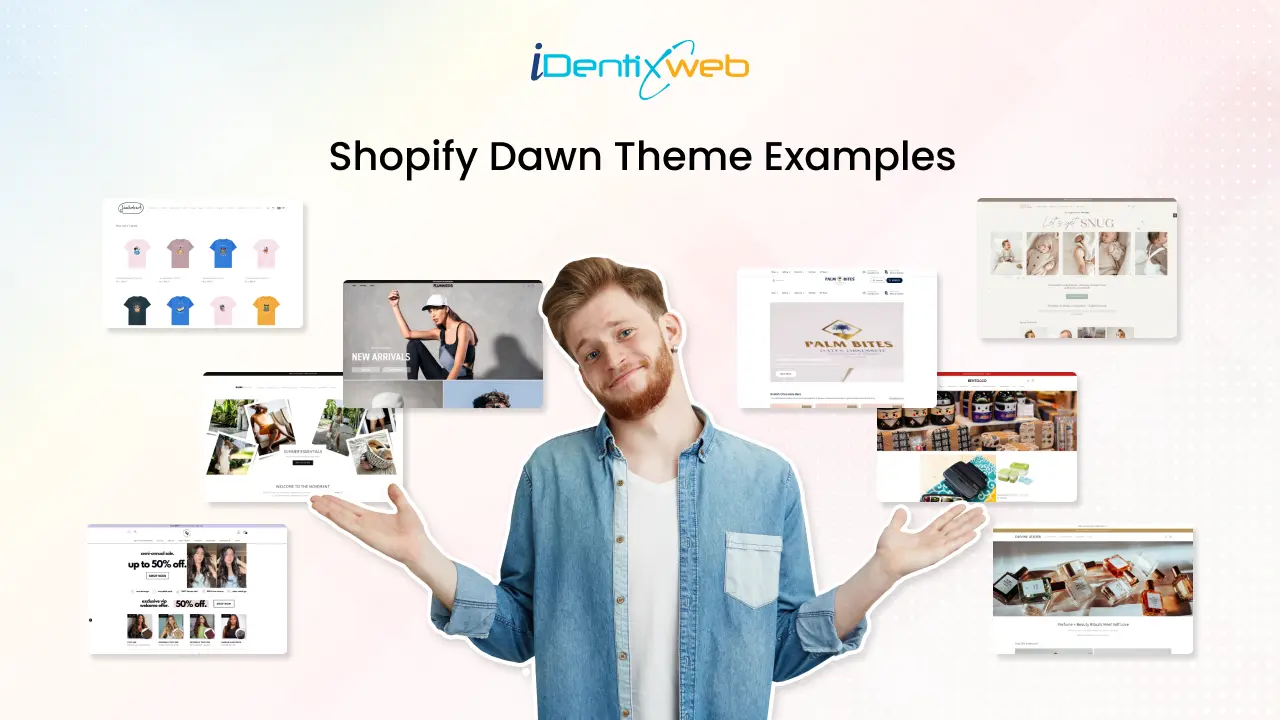
25 Best Shopify Dawn Theme Examples
Were you in search of some inspiring Shopify Dawn theme examples for your Shopify store? You have landed in the right place. Every merchants dream is to make their store unique from others. Customization is the first step to achieve this and that too from design to development. The first thing that attracts a new visitor to your store will be your storefront or the design. Do you want a conversion-optimised and attractive landing page? If yes, the first thing to do is personalize your design and improve the user experience of your store. This should be started from selecting a top-notch Shopify theme. There are many best Shopify themes available, but the Dawn Shopify theme stands first. You can fully rely on the Dawn theme because of its powerful features, flexibility and performance. In this blog, we will see some of the top Shopify website examples using the Dawn Shopify theme. What is the Shopify Dawn Theme? The Shopify Dawn theme is one of the most popular themes among many Shopify merchants. Dawn serves as the default theme for all Shopify stores when they initially set up their storefront. Dawn theme Shopify is a minimalist theme that lets product images take center stage. It has a clean & sleek design, speed and great flexibility. Dawn Shopify theme can be used for all types of businesses. It has vast customization options that can help you to achieve your desired vision. We have created a list of 25 exemplary Shopify website examples using the Dawn Shopify theme. If you're curious about the theme behind a Shopify store or want to know which Dawn theme your competitor uses, tools like the Shopify Theme Detector in the Koala Inspector extension can help. It's a quick way to see how other stores customise themes and get inspiration for your site. One of the key features of Dawn is that it is completely free. This makes it ideal as a starter theme if you are building your store from the ground up. Want More Than the Default Dawn Theme? Let’s Talk → → Key Features of Dawn Theme Shopify Quick & Simple Setup As Dawn is the default theme, the setup is also very easy with minimal steps. It allows you to launch your store quickly without having any big efforts. Better Performance Dawn theme Shopify provides better performance compared to other themes. The Dawn theme is 35% faster in loading websites than the Debut theme. Flexibility In Dawn theme, you will get full flexibility to customize the theme as per your business requirements and goals. The App block lets you move the app anywhere on the page without touching the theme files. Besides, the section and blocks offer great flexibility to your store design and content. You can also connect the dynamic data source to your store using Shopify metafields. Mega Menu As Dawn provides a multi-level mega menu, you can create a navigation menu with dropdowns. This feature can be used especially for product categories or sub categories. You can refer to other Shopify Dawn theme examples to implement this in your store. Sticky Header The Dawn theme has a sticky header which will be sticked at top of the page even when user scrolls down your website. Want to customize your Shopify header for a better user experience? Check out this Shopify Header Customization Guide for step-by-step instructions! Why you Should Choose Dawn Theme? When selecting the best theme, Shopify dawn theme always stands unique. The Dawn theme is designed with a clean, minimalist aesthetic that highlights your products beautifully. And top of that, Shopify Dawn theme provides lots of customization options and any non-technical person can easily handle it. Below are a few reasons why you should choose Dawn theme for your Shopify store: Modern & minimalist design Flexible customization options Optimized for speed Mobile-first design SEO-friendly If you're just starting out, pairing the Dawn theme with the Shopify 3 months for $1 deal is a smart way to explore the platform affordably. Still, you may need some store examples to imagine your store with the Dawn theme. So, let’s begin with our list of 25 best Shopify Dawn theme examples. Best 25 Shopify Dawn Theme Examples Dawn theme has inspired many stores worldwide in launching their stores easily. After the launch of Online Store 2.0, Dawn theme Shopify was the first Shopify 2.0 theme so it has all the latest features. Here we have found out some of the best Shopify Dawn theme examples for you: Want to explore Shopify 2.0 themes? Do check this blog on Best Shopify 2.0 Themes: Overview, Features & Review Runners Athletics Store Category: Sports / Apparel / Accessories Runners Athletics sells Running Sunglasses & Running Hats. This Shopify store has smartly designed with short and simple navigation and clean images. They have focused more to educate their visitors about the benefits and features of their products. Wonder Noah Store category: Fashion & apparel Sells a huge catalog of clothing basics and streetwear-style apparel like tees, sweatshirts, pants, and outerwear. Belchic Store category: Fashion & apparel (Lolita/J-fashion) An online fashion store focused on cute/Japanese-inspired styles, including Lolita dresses, outerwear, and accessories. Improve the Delivery Experience on Your Dawn Store Dawn gives your Shopify store a user-friendly design, but customers still need clear delivery options before they place an order. With Stellar Delivery Date & Pickup, merchants can offer delivery date selection, store pickup, time slots, cutoff times, and unavailable date blocking. This helps customers choose a suitable delivery option and helps merchants manage orders more smoothly. Losing orders because buyers want flexible delivery? A simple calendar at checkout fixes that. Start Your Free Plan If they are buying food, flowers, gifts, groceries, or local products, delivery timing can directly affect their purchase decision. Harry Chad Ent Store category: Jewelry & watches A fine jewelry retailer that sells jewelry and also offers services like repair/restoration (including Rolex-related servicing). Eat Lume Store category: Food & grocery Sells artisan, wellness-positioned granola (including gluten-free options) and variety packs. Maddaloni Store category: Jewelry & watches Offers fine jewelry and luxury watches, with a big focus on engagement rings, wedding bands, and loose diamonds. Body Basics Store category: Fitness equipment Sells commercial and home gym equipment like treadmills, bikes, racks, and strength machines. Looking to elevate your store’s visuals and scale up? Check out Blum - a Shopify theme crafted for standout fashion brands. ULX Store Category: Accessories / Business equipment & supplies ULX sells premium leather products like desk mats, wallets, duffel bags, watches, MacBook sleeves, and many more. The classy and stylish storefront makes it one of the best Shopify Dawn theme examples. MD Complete Store Category: Beauty & Fitness / Face & Body Care MD Complete offers professional skincare products to resolve or repair lines, dark spots, firmness, eye puffiness, crepe, acne, and radiance. The store is quite simple yet impactful and offers a great knowledge about the brand and products. Jimbobart Store Category: Home & Garden / Kitchen & Dining / Arts & Crafts Jimbobart sells animal-printed products by James Ward. Inspired by his love for drawing animals and birds, James creates original illustrations on ceramics, homeware, clothing, and artwork. Really Well Made Store category: Home & living (furniture/lighting) A UK retailer stocking modern, Scandinavian-influenced furniture, lighting, and home accessories. Rocco & The Fox Store Category: Clothing & Accessories Rocco & The Fox offers a wide range of high-quality and modern baby + toddler apparel. The store has a muted background that gives a vintage and sophisticated look to the store. Berlinger Store category: Jewelry Sells handmade, vintage-inspired engagement and wedding rings (and fine jewelry) made by their Los Angeles team. Plunge Store category: Wellness & recovery equipment Sells cold plunge tubs/ice baths and saunas for home and business use. Headphones Store category: Consumer electronics (audio) Online retailer for headphones and home audio gear, plus buying guides and education content. Wood Wood Toys Store Category: Toys & Hobbies Wood Wood Toys is an online toy shop where you can find new and refurbished wooden, educational and Montessori toys for babies and children. They have created a Shopify store that can easily impress anyone who enters their site. Audioselect Store category: Consumer electronics (Hi-Fi audio) German audio retailer selling Hi-Fi electronics, speakers, headphones, amps/DACs, cables, and related gear. Olivine Atelier Store Category: Beauty & Fitness Olivine Atelier sells handcrafted perfumes and beauty products. Similar to the brand name and products, the store design is also made beautiful and flawless for online shoppers. Cards For All People Store Category: Games Cards For All People is an awesome online store for card game lovers. The super-easy navigation will help you find cool and stylish cards for your casual party games. Wigs Store category: Beauty & personal care Sells wigs (human hair and synthetic), plus hair toppers and wig care products from major brands. The Dress Outlet Store category: Fashion & apparel Sells formalwear like prom dresses, evening gowns, and special-occasion dresses across many styles and price points. Plum Diamonds Store Category: Jewelry Focuses on lab-grown diamond rings and fine jewelry, including customizable engagement rings and lab diamond pieces. BLANK Wardrobe Store Category: Clothing & Accessories BLANK Wardrobe is a lifestyle brand that features women's apparel and accessories like bags, jewelry, hats, and scarves. They have used simple fonts and colors but that enhances the look of the store. Night Vision Universe Store Category: : Outdoor/gear (optics) Sells night vision and thermal optics like rifle scopes, monoculars, and related gear as an authorized dealer. Building a brand on Shopify? Let’s make it sell better. Identixweb helps apparel stores launch faster and scale smarter with the right tech and growth systems. You can get help with: Store setup and performance improvements Custom Shopify features and apps Integrations that remove manual work Automation that brings repeat purchases 👉 Schedule a free consultation Conclusion We hope the above mentioned Shopify Dawn theme examples might have helped you to gather some design ideas for your store. This is how the Dawn theme Shopify helps out the Shopify merchants to craft beautiful and prosperous online stores. Last but not least, we have a small tip for you before getting started with the design. Put yourself in the shoes of customer and think what attracts a new customer. This will help you to customize your design as per your customer needs and get more conversions! FAQs 1. What is the Shopify Dawn theme? Dawn is Shopify’s minimalist, starter Online Store 2.0 theme that Shopify maintains as a modern baseline for storefronts. It also serves as a reference theme for developers because Shopify publishes its source code and updates it over time. 2. Is the Shopify Dawn theme free? Yes, Dawn is a free theme in the Shopify Theme Store. 3. Which is the most popular free Shopify theme? Dawn is widely considered the most popular free Shopify theme because Shopify uses it as a default-style starting point for Online Store 2.0. A large number of new Shopify stores use Dawn to build their storefront. 4. Which are the best Shopify Dawn theme examples? A few solid examples often cited include Irresistible Me, Bubble Tea Club, PYUA, Palm Bites, Tropii Loungewear, and ULX. 5. Should you pay for a Shopify theme? Pay for a theme when you want a very specific look, built-in features (like advanced filtering or mega menus), and you want to reduce custom development time. Stick with Dawn when you want speed, flexibility, and a clean foundation, then invest the budget into branding, conversion improvements, and only the customizations you actually need.

Bhavesha Ghatode
7 Min • 29 May 2026
3901 Views
Bhavesha Ghatode
2 Min • 29 May 2026
2593 Views
Sagarika Das
18 Min • 24 September 2026
92709 Views
Sagarika Das
10 Min • 10 September 2026
33258 Views
Sagarika Das
5 Min • 9 February 2026
17225 Views
Sagarika Das
12 Min • 24 September 2026
13439 Views