








Shopify product metafields help you add extra product details that Shopify’s default fields don’t cover, such as size guides, ingredients, materials, specifications, warranty details, or care instructions. They make your product pages more informative and help you manage custom product data in a structured way. To add one, go to Shopify admin > Settings > Metafields and metaobjects > Products, then click Add definition. Add the metafield name, choose the right data type, set optional rules, and click Save.
Do you need to hire Shopify experts to add custom product fields?
Or use the Shopify apps to create product metafields?
Now, you don’t need any of these.
Yes, you heard that right. With Shopify Metafields, you can easily add various custom metafields for your products.
Creating the Shopify Product Metafields is quite an easy process.
This tutorial will help you add metafields to Shopify products and display them on your online store within 1 hour!
What Are Product Metafields in Shopify?
Product metafields in Shopify are custom fields that let you store extra product information that the default Shopify fields (title, description, price, images) don't cover.
Think of details like material, care instructions, warranty length, country of origin, fit notes, or a downloadable spec sheet, anything specific to your catalog that doesn't fit the standard template.
If you've ever opened a product in your Shopify admin and seen an empty "Metafields" box near the bottom of the page and wondered what it's for, that box is exactly where these custom values live.
The ‘values’ box you see is simply the input area for whatever metafield definitions you've set up: Text, a number, an image, a date, and so on. Until you create a definition, the box stays empty.
Using custom product metafields, you can add personalized, structured content to products based on their category and build higher-converting product pages without touching the core theme code.
In my experience setting these up for stores, the biggest win is consistency: instead of stuffing everything into the description, each detail gets its own field that you can display, filter, and reuse across products.
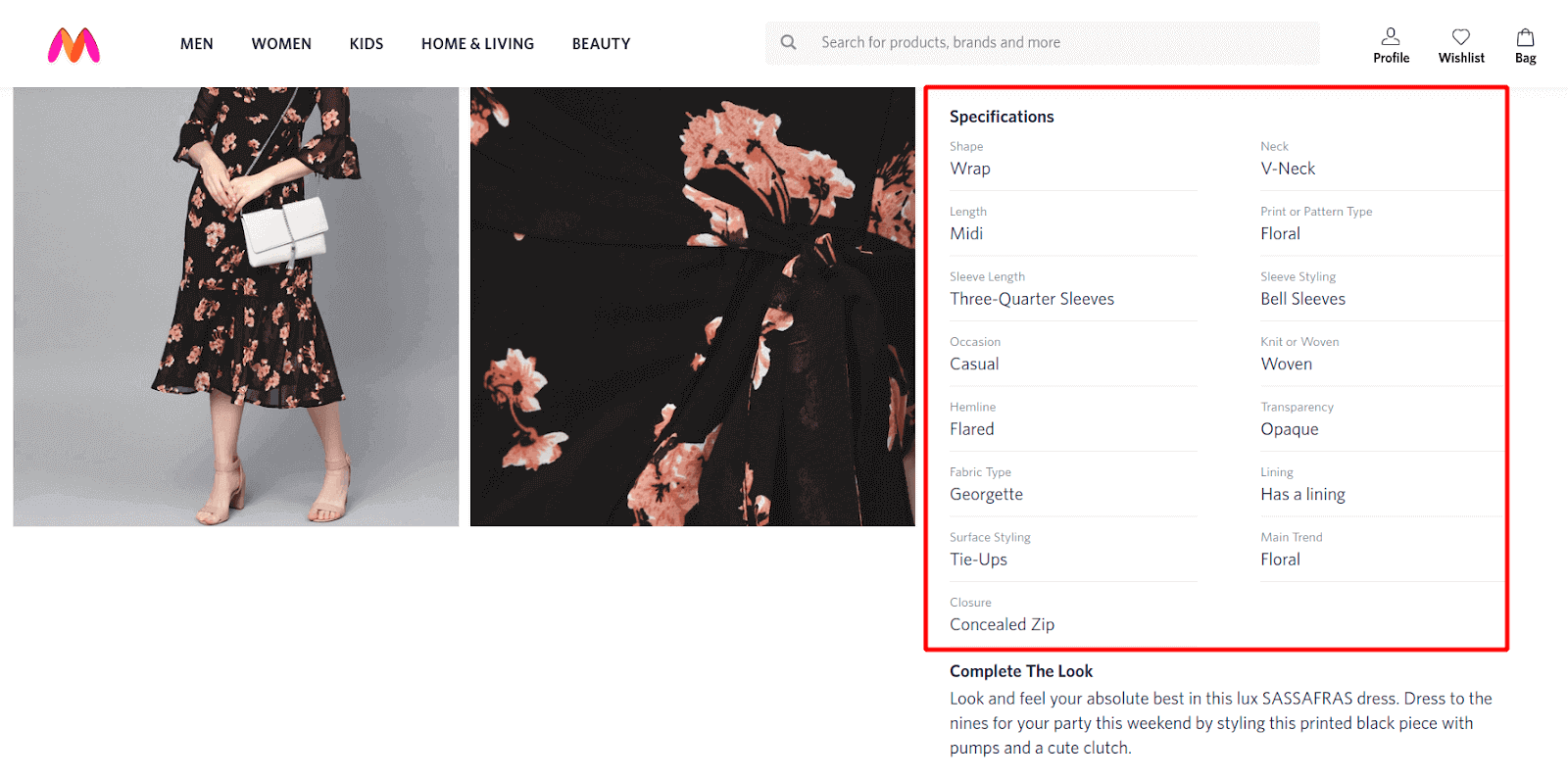
Source: Myntra
Types of Shopify Product Metafields (and when to use each)
When you create a metafield, Shopify asks you to pick a content type. This controls what kind of value the field can store and how it's validated. Choosing the right type up front saves you from redoing definitions later.
| Content type | Best used for |
| Single line / Multi-line text | Material, care instructions, short specs, badges |
| Integer / Decimal | Weight, dimensions, thread count, capacity |
| Dimension / Volume / Weight | Measurements with units (e.g. 12 cm, 500 ml) |
| Date / Date and time | Launch dates, warranty expiry, "available from" |
| True or false (Boolean) | Vegan, handmade, gift-wrap eligible flags |
| Color | Swatch colors tied to a variant |
| File reference | Spec sheets (PDF), size charts, extra images |
| URL | Linking to a brand page or external resource |
| Product / Variant reference | "Pairs well with", related products, bundles |
| JSON | Structured data for apps and advanced theming |
Each type also supports list versions (e.g. a list of text values or a list of product references) when you need to store more than one value in a single field.
Standard vs. custom definitions: Shopify offers ready-made standard definitions for common needs (like color, material, or care guide). Pick one of these, and you skip naming, content type, and validation themes and apps recognize them automatically.
Create a custom definition only when no standard option fits your data.
How to add Product Metafields in Shopify?
Step 1: Log in to Your Shopify Admin
Start by logging in to your Shopify admin account. This is where you can manage your store settings, products, metafields, and other custom data.
Step 2: Open Metafields and Metaobjects
From your Shopify admin, go to Settings > Metafields and metaobjects.
In some Shopify admin views, you may also see this under Settings > Custom data.
Step 3: Select Product Metafields
In the metafield definitions section, select Products.
This tells Shopify that the metafield you are creating will be used specifically for product-level information.
Step 4: Add a New Definition
Click Add definition to create a new product metafield.
A metafield definition works like a template that controls what type of information can be added to products.
Step 5: Enter the Metafield Name
In the Name field, enter a clear name for your metafield, such as “Material,” “Product Care,” “Size Guide,” or “Warranty Information.”
If Shopify suggests a matching standard definition, you can select it instead of creating a custom one.
Step 6: Review the Namespace and Key
Shopify will automatically generate the Namespace and key based on the metafield name.
You can keep it as it is or edit it to make it more meaningful and easier to identify later.
Step 7: Select the Metafield Type
Click Select type and choose the type of data this metafield will store.
For example, you can choose text, number, URL, file, image, date, measurement, or another supported data type.
Step 8: Choose Single Value or List of Values
By default, Shopify stores one value in a metafield.
If you want to add multiple values, click One value and select List of values.
Step 9: Add a Description
Click Add description if you want to explain what kind of information should be entered in this metafield.
This is helpful for store teams who manage product data regularly.
Step 10: Set Validation Rules
If validation options are available for the selected type, configure them as needed.
For example, you can set character limits, minimum or maximum numbers, accepted file types, or other rules depending on the metafield type.
Step 11: Enable Storefront Access
Select Storefronts only if you want this metafield to be available to custom storefronts through the Storefront API.
This is usually needed for headless or custom storefront setups.
Step 12: Enable Smart Collection Access
Select Smart collections if you want Shopify to use this metafield for smart collection conditions.
This can help you automatically group products based on metafield values.
Step 13: Pin or Unpin the Definition
Shopify pins metafield definitions by default, which means they appear in the product admin area.
If you don’t want this metafield to appear automatically in the product admin, click Definition pinned to unpin it.
Step 14: Save the Metafield Definition
Click Save to create the product metafield definition. After saving, you can open individual products and start adding values to this metafield.
Don’t Just Add Product Data. Use It to Sell Smarter
Once your product details are structured with metafields, the next step is creating smarter shopping experiences.
With iCart, Shopify merchants can show relevant upsells, cross-sells, and cart offers that encourage customers to add more before checkout.
Adding values to Shopify Product Metafields
Once you’ve successfully created the metafield definitions and pinned them, you may notice the metafields have been added to the parts of your store (Shopify admin) where it belongs.
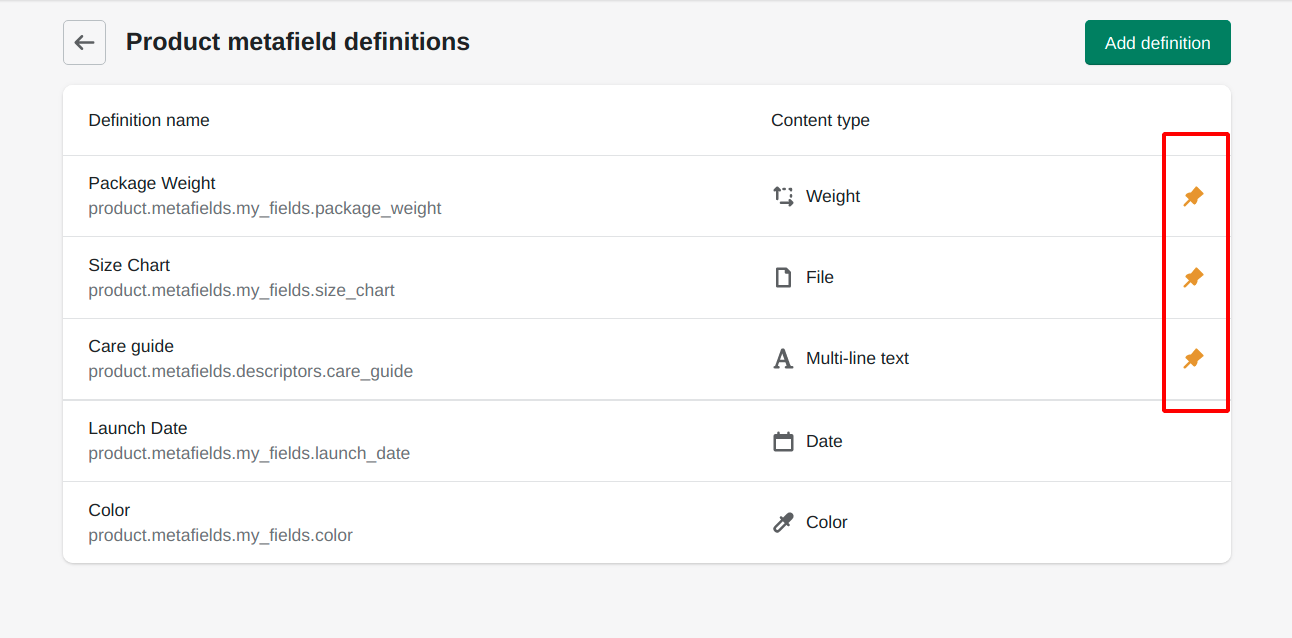
For example, I’ve added 5 metafield definitions in “Products” as you can see in the above image. But only 3 from 5 metafields definitions are pinned. So, it will be added to all the products (Shopify admin) automatically. To better understand, see the below image.
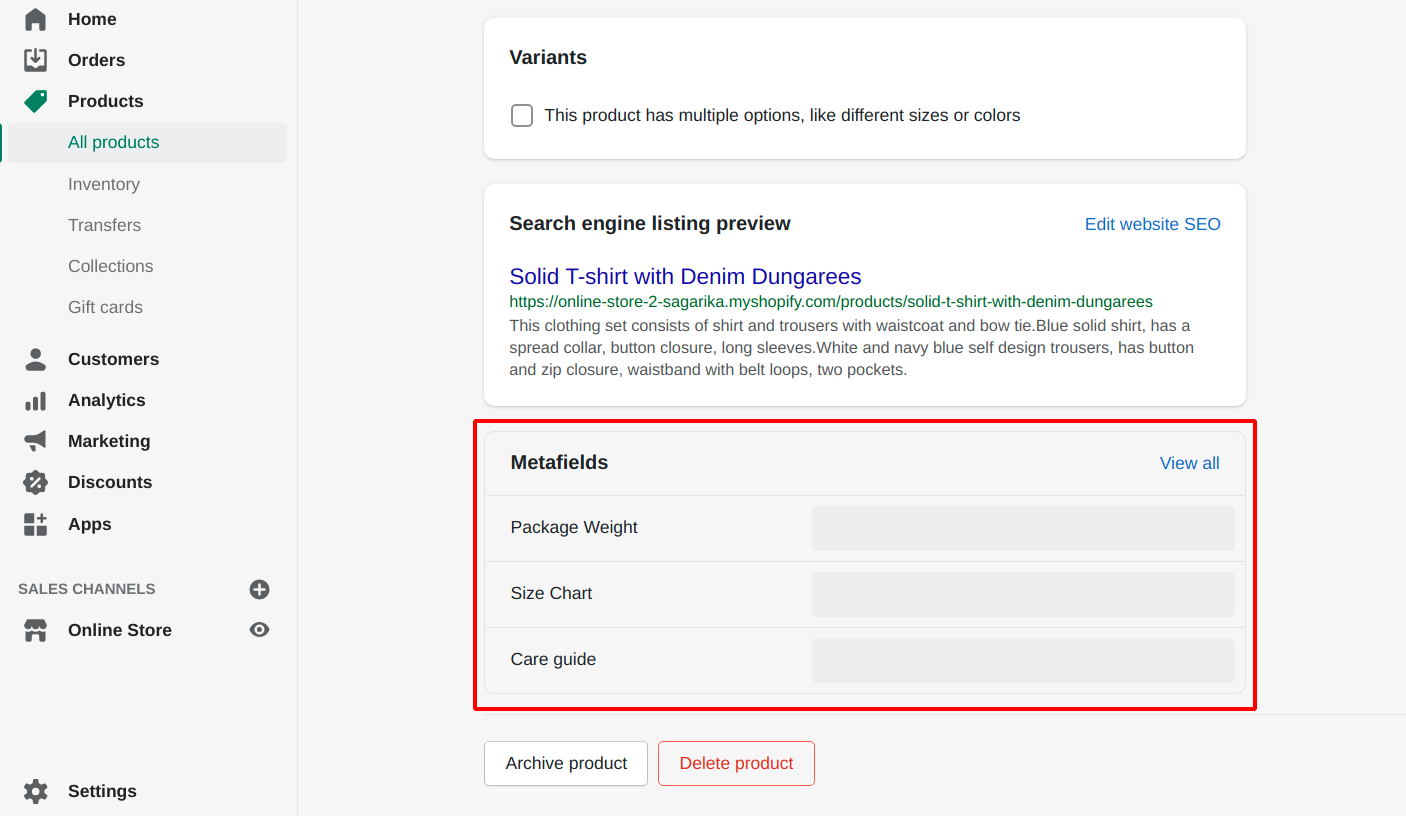
You need to click on the “View all” link to see all the metafields that are available for the product.
To add value to the metafields in the Shopify store, you need to enter the value according to the content type on the metafield row.
Step 1: Click on the empty space beside the metafields name.
Step 2: Based on the type or format of the value, it will provide you the option to feed the value such as text box, image browse button, color picker, date & time selector, etc. Add the value there.
Step 3: Click on the Save button.
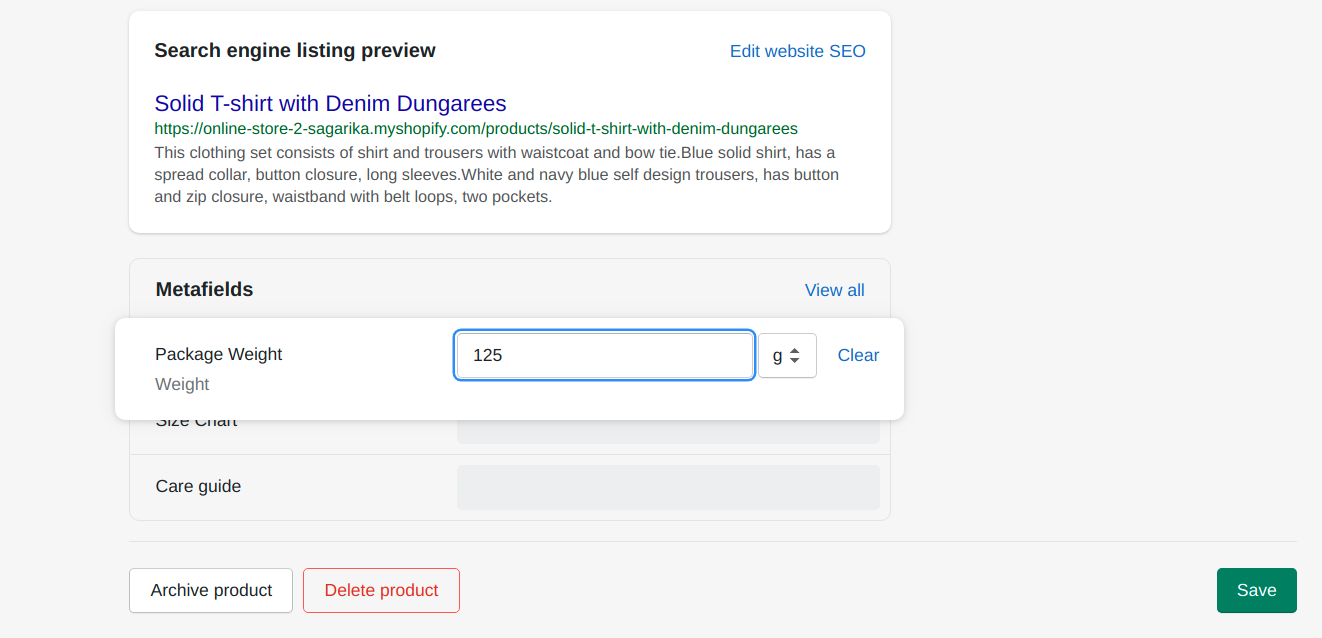
In the same way, you can add values to the other metafields, also in other products.
Displaying Product Metafields in Shopify
After adding values to the metafields, you can show those data on your online store in many ways and offer an amazing shopping experience to your site visitors. Let’s begin with displaying metafields to your Shopify store.
To make the metafields visible on your website, you need to connect the existing metafields to your current store theme.
Follow the steps to connect the metafields to your store theme:
Step 1: From the Shopify admin, go to Online Store > Theme.
Step 2: Go to the theme editor by clicking on the Customize button on your current store theme.
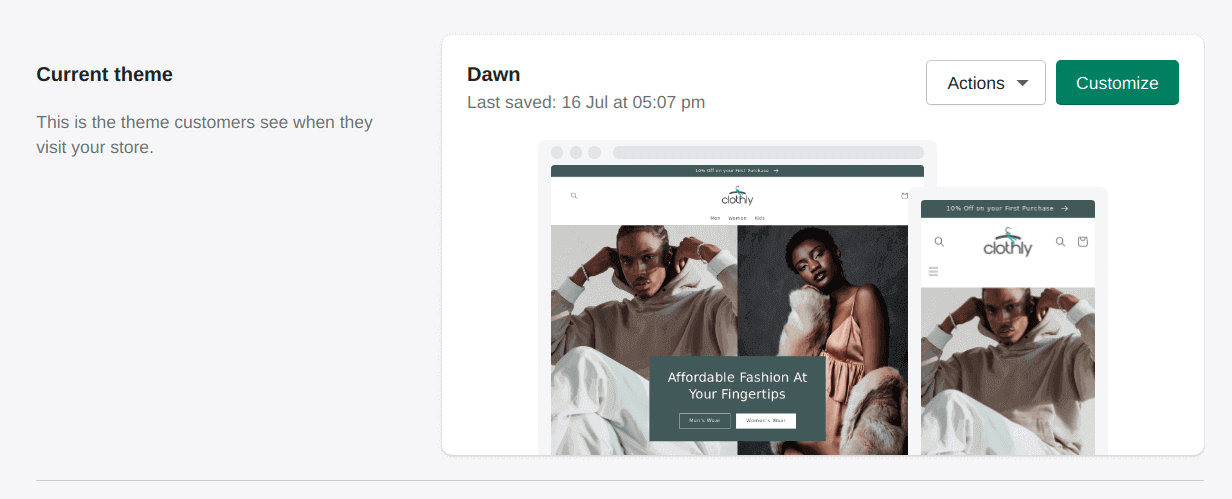
Step 3: Open the page template where you want to display the metafields value, e.g. Product page.
Step 4: Add a block or section to the page where you wish to show the metafield values. The blocks or sections that support inserting dynamic sources will allow you to add up to 20 metafields in each block or section.
Step 5: Click on the Connect dynamic source icon 
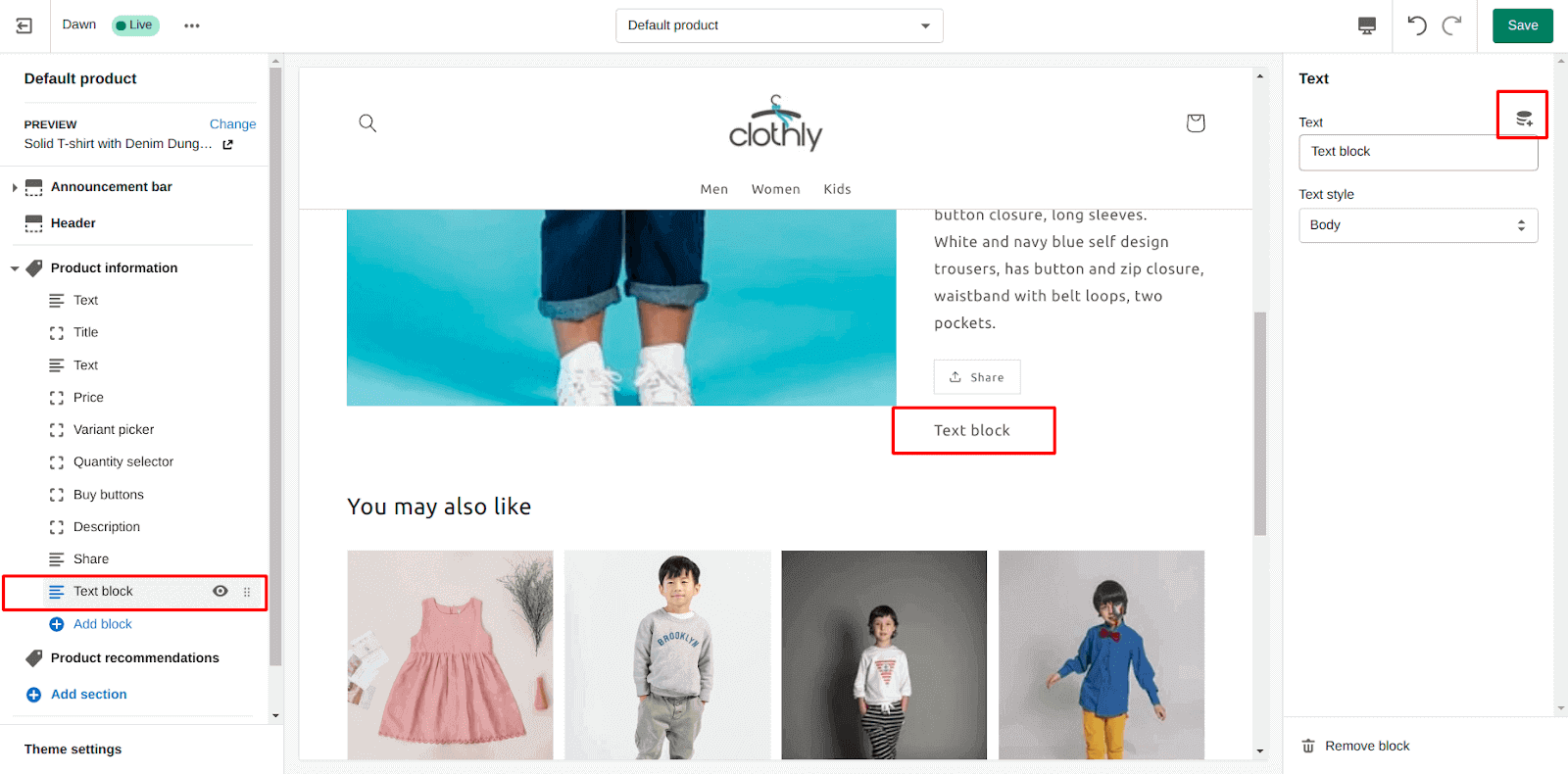
Step 6: Select the metafield you want to connect to the block or section. You can also add new metafield definitions by clicking on Add metafield.
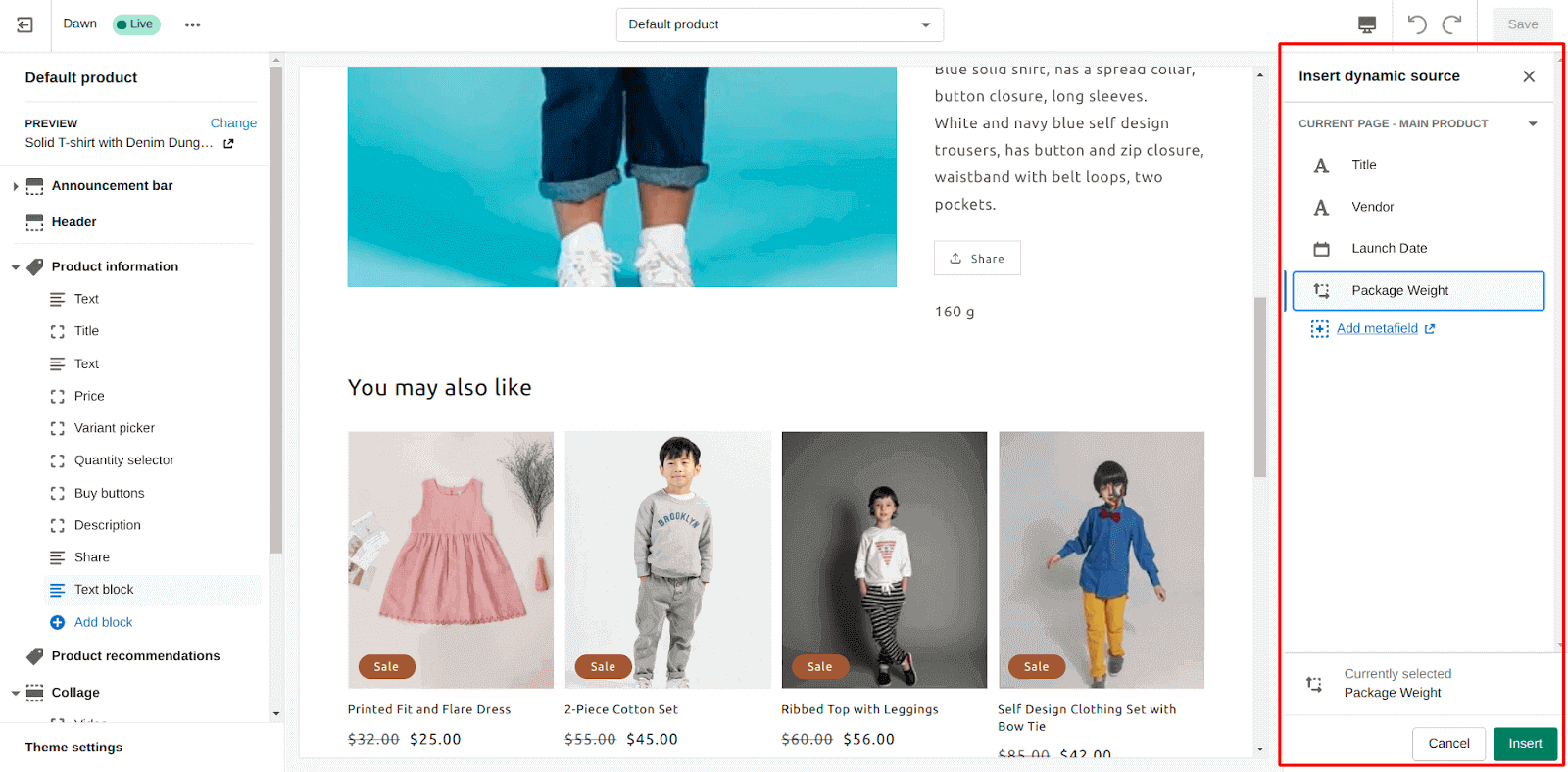
Step 7: Click on the Insert button.
Step 8: Add text to represent the metafield value in a better way.
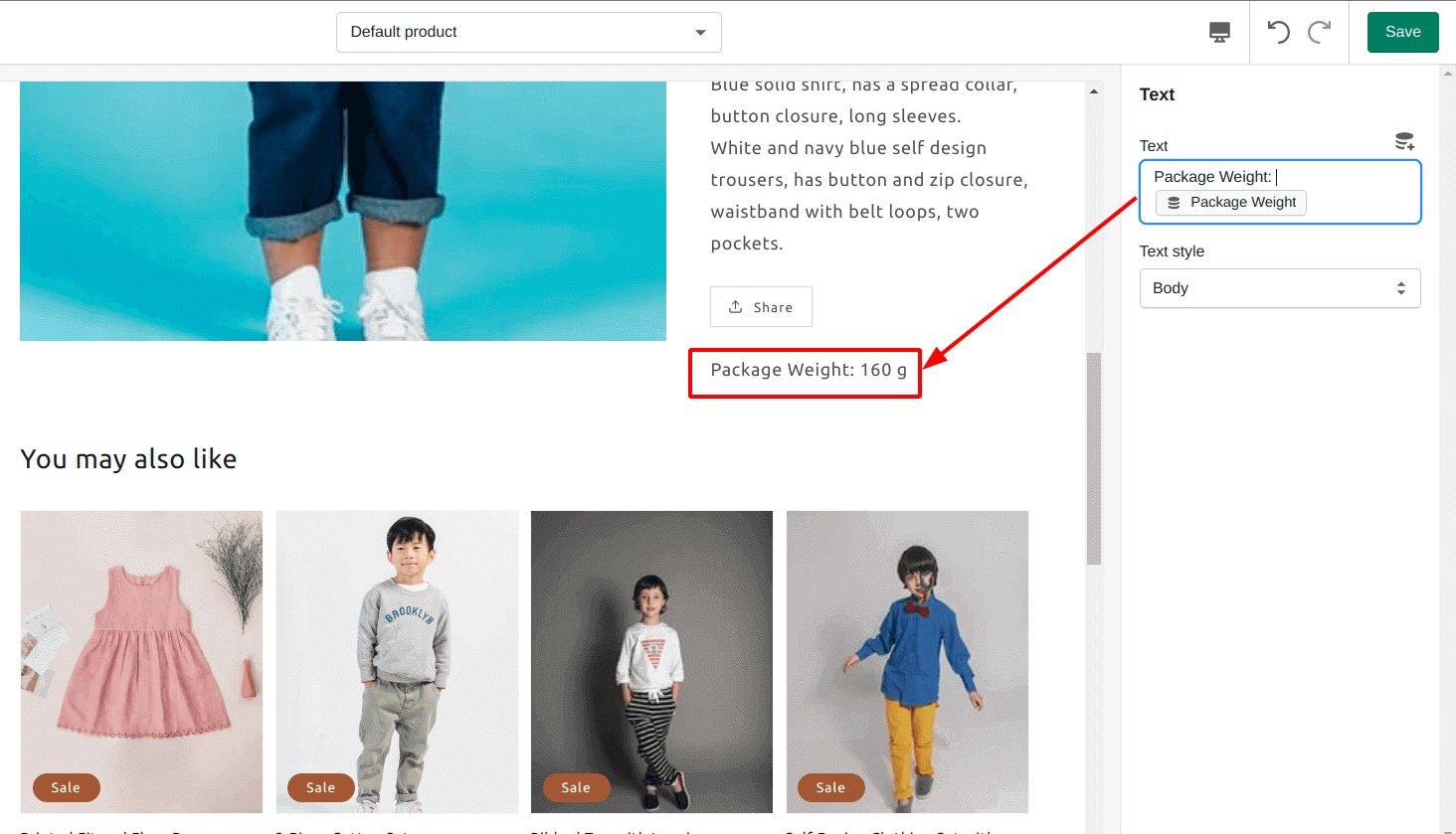
Step 9: Hit the Save button.
Yay!! We did it well. Now, you can add more metafields to your store theme like this and make your online store stand out from the crowd.
Metafields vs. product description: What goes where?
A common question from store owners is whether to just put extra details in the product description.
The short answer: use the description for the persuasive, narrative copy that sells the product, and use metafields for the structured facts shoppers scan for dimensions, materials, compatibility, and care.
Structured metafields are reusable across your theme, can power filters in your collections, and display consistently on every product.
To wrap it up
That's the full process. Defining your metafields, adding values, and connecting them to your theme. Once these are in place, you can design high-converting product pages that give shoppers exactly the details they're looking for.
If you want to take your product pages further, my guides on product personalization in Shopify and Shopify store management are good next reads.
FAQs
1. What are product metafields in Shopify?
Product metafields in Shopify are custom fields that let you store and display additional product information beyond Shopify’s default fields. As a Shopify expert, I recommend using metafields to create richer product pages while keeping product information organized and easy to manage.
2. What does the "Values" box mean on a Shopify product page?
The metafields/values box in the product admin is where you enter custom data for fields you've already defined under Settings > Metafields. If it's empty, it means no metafield definitions are pinned to your products yet.
3. What are product metafields used for in Shopify?
They store extra structured product details like material, dimensions, warranty, or spec sheets that the standard Shopify fields don't cover, so you can display, filter, and reuse them across your store.
4. Do I need an app or a developer to add product metafields?
No. Since Shopify 2.0, you can create metafield definitions, add values, and display them through the theme editor's dynamic sources. No code or third-party app required.
5. How many metafields can I display in one theme section?
Theme blocks and sections that support dynamic sources let you add up to 20 metafields per block or section.
6. What's the difference between a standard and a custom metafield definition?
Standard definitions are pre-built by Shopify for common attributes and are recognized automatically by themes and apps. Custom definitions are ones you create yourself when no standard option fits your data.





About the author
Sagarika Das
Sagarika Das is a content writer with a passion for the ecommerce world. She crafts engaging, SEO-friendly content that helps online businesses connect with customers and grow.