



If you're planning to migrate Volusion to Shopify, you're joining a long line of store owners making the same call in 2026.
My guide walks through exactly how to migrate from Volusion to Shopify, backup through launch, in 10 steps. Every step reflects Shopify's current platform: its higher variant limits, its built-in AI tools, and the apps that actually still support Volusion as a source cart.
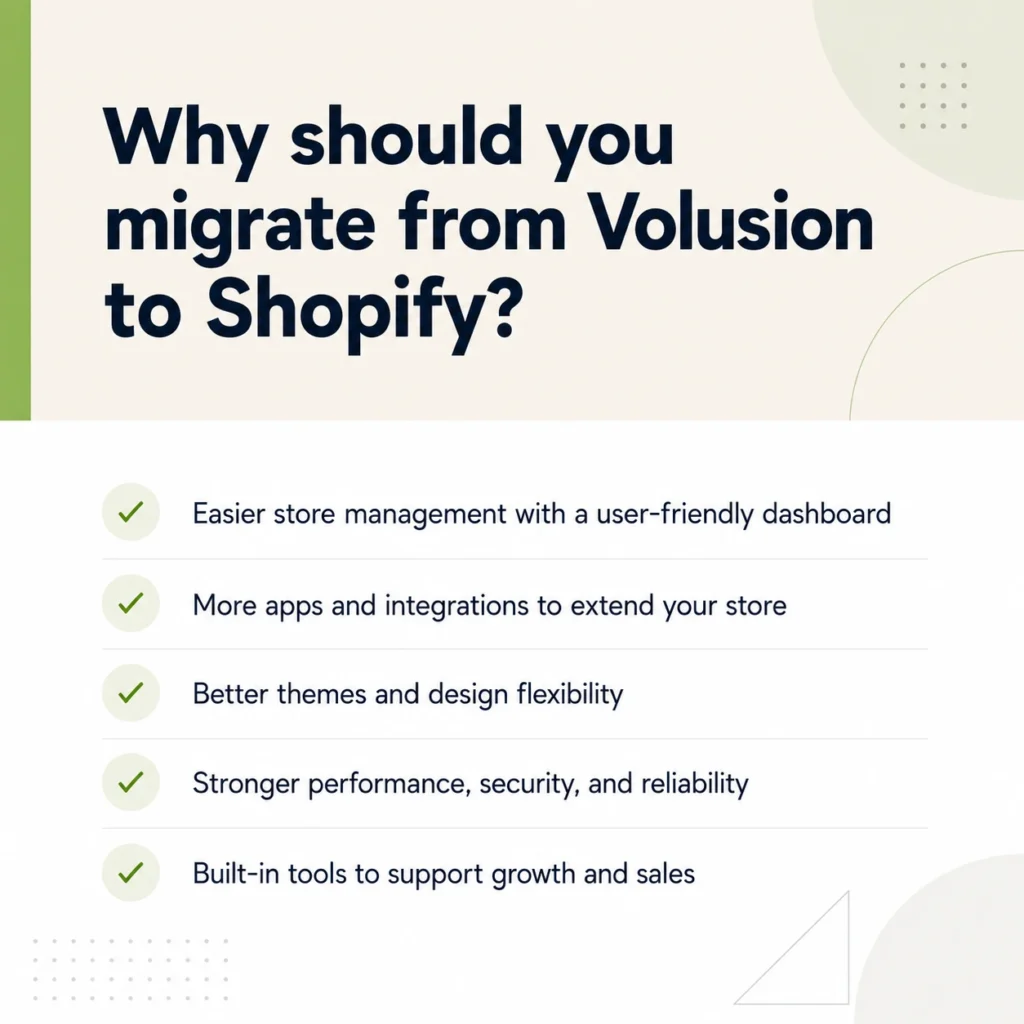
Why store owners are leaving Volusion for Shopify in 2026
Volusion still runs real stores, but its growth has stalled while Shopify's has not. A few concrete events explain why so many merchants are migrating from Volusion to Shopify right now, and none of this is marketing spin.
In September 2019, attackers planted malicious code across roughly 6,589 Volusion-hosted stores that skimmed customer card data during checkout. Volusion confirmed the incident, notified affected merchants, and the stolen records later turned up for sale on the dark web.
You can read about this incident here [Source]
Volusion still runs a smaller app ecosystem and a shrinking base of active stores, while Shopify's app store has grown past 16,000 apps and now ships a major platform update, called an Edition, twice a year.
None of this makes Volusion unusable today. It means the gap between the two platforms is wider in 2026 than it was a few years ago.
Step 1: Audit and back up your Volusion store
Back up every piece of store data before you touch anything else.
Volusion keeps its export tools under Inventory, then Import/Export, in the admin dashboard.
Export products, categories, customers, orders, and any content pages as CSV files. Check the row counts against what you see in the admin before moving on.
Standard exports often skip embedded images, so pull your full media library separately over FTP. Grab your theme files too. You won't reuse them on Shopify, but they're a useful visual reference while you rebuild your design later.
Before you move to step two, confirm you have:
- CSV exports of products, categories, customers, orders, and pages
- A full FTP download of your media and image library
- Exported files of your current theme and layout
- A list of every third-party app, script, or integration connected to your Volusion store
- Your domain registrar login.
Store these backups in a local drive and a cloud folder.
Step 2: Create your Shopify account and pick a plan
Set up your Shopify account before you install any migration tool. Most tools need a live Shopify store to connect to.
Match your plan to your order volume and catalog size for this year.
Shopify's current lineup runs from Starter. This is built for social-only selling with no full storefront. Basic, Grow, and Advanced, and up to Plus are for larger, multi-brand, or B2B operations.
Once you pick a plan, set your store name, currency, time zone, and units of measurement to match your existing Volusion configuration.
Install a free, lightweight theme for now. You'll pick your real theme in step seven, once you fill in your data, and you can see how it actually looks with real products.
Step 3: Choose how you'll migrate Volusion to Shopify
There are three realistic ways to migrate Volusion to Shopify:
- Do it yourself with CSV files
- Use a migration app
- Hire an agency.
The right choice depends on your catalog size, budget, and how much risk you're willing to carry yourself.
Shopify's own free Store Importer app doesn't include Volusion. So a Volusion migration always needs either a hand-built CSV import, a dedicated migration app, or outside help.
Manual CSV migration
This works if your catalog is small and simple, under a couple hundred products. You reformat your Volusion exports to match Shopify's product, customer, and order CSV templates, then upload them through Shopify's importer.
It costs nothing but your time, and it gives you full control over every field along the way.
A migration app
I have tried both LitExtension and Cart2Cart. They are both available directly on the Shopify App Store. You connect your Volusion store, choose what you want to move, run a free demo, then launch the full migration while your Volusion store stays live.
I would also advice to have a look at Matrixify if you're comfortable with spreadsheets..
A migration agency
This is the only option if your store has a thousand products, custom integrations, or your SEO traffic is too valuable.
If you want expert help instead of managing every technical step yourself, you can work with Shopify migration experts like Identixweb. Their team helps ecommerce brands migrate with a structured approach, so your store data, design, functionality, and SEO value are handled carefully during the transition.
This option costs more than doing it yourself or using a migration app. But it also reduces the risk of broken data, missed redirects, checkout issues, and post-migration errors.
| Method | Best for | Typical cost | Hands-on time |
| Manual CSV | Under 200 products, a simple catalog | Free, your time only | High |
| Migration app | 200 to a few thousand products | Roughly $100 to $500, more with add-ons | Low to medium |
| Agency | Large or complex catalogs, custom apps | Project-based, varies by scope | Very low |
Step 4: Migrate your product catalog and collections
Move products before anything else in your data set, since customers, orders, and reviews all reference product records behind the scenes.
Whichever method you choose in step three, map every Volusion field to its Shopify equivalent. This includes title, description, SKU, price, weight, inventory quantity, images, and variants.
Volusion categories become Shopify collections, and subcategories need to become tags or a nested collection structure
Shopify raised its per-product variant limit to 2,048 in late 2025. This comes with a cap of three option types per product.
Run a small test batch first. Ten to twenty products across different categories, checked field by field before you commit to the full catalog. Confirm that variant combinations, prices, and image order all landed correctly, and that product descriptions didn't pick up stray HTML from Volusion's editor.
Step 5: Migrate customers, orders, and reviews
Customer and order data carry more risk than product data. This is why I always plan for a few manual workarounds here.
Volusion stores customer passwords in an encrypted format that Shopify can't read, so passwords never migrate directly.
Your customers will need to reset their passwords the first time they log in to the new store. Order history moves more cleanly: order IDs, line items, totals, and status can all transfer. You should decide upfront whether to preserve your original order numbers or let Shopify assign new ones going forward.
Product reviews need special handling too. Shopify doesn't ship with a native reviews feature, so migrated review content needs a reviews app installed and configured before the reviews themselves land anywhere a customer can actually see them. Confirm your review app of choice supports bulk import before you migrate, or you'll end up pasting reviews back in one at a time.
Step 6: Configure payments, shipping, tax, & checkout
Set up your store's operational settings before going live, since orders placed against unfinished settings create refunds.
Turn on Shopify Payments if you're eligible in your country, since it removes the extra transaction fee Shopify charges when you use a third-party processor instead.
Rebuild your shipping zones and rates to match what customers saw on Volusion. If Volusion was handling tax calculation for you automatically, confirm Shopify's tax settings are actually configured before your first sale.
Checkout customization is limited on Basic, Grow, and Advanced, and opens up considerably on Plus. Don't upgrade your Shopify plan until you've confirmed you'll actually use it.
Step 7: Rebuild your theme, design, and content pages
Your Volusion theme won't transfer to Shopify in any form, so plan on rebuilding your design.
Start from a free theme like Dawn if you want something fast, clean, and well-supported. My Dawn theme customization guide walks through the setup if you go that route.
Rebuild your key content pages next: About, Contact, FAQ, shipping policy, return policy, and any blog content you migrated over earlier.
These pages carry trust signals for both customers and Google, so don't leave them half-finished.
This is also where Shopify's built-in AI tools genuinely save time. Sidekick can rewrite old product descriptions into something more current, generate SEO metadata, and suggest product tags from your images.
It can also help you set up collections, draft policy pages, or answer platform questions. Both are free on every plan, so there's no real reason to skip them during a rebuild like this.
Step 8: Protect your SEO with redirects and metadata
Redirects are what stand between your migration and a traffic crash. Every URL on your Volusion store is about to change, whether you want it to or not.
Shopify forces specific URL prefixes onto your content: products live under /products/, collections under /collections/, standalone pages under /pages/, and blog posts under /blogs/.
So even a page with an identical name and identical content gets a new URL once it's on Shopify.
Before launch, build a complete map from every old Volusion URL to its closest matching new Shopify URL. Set up 301 redirects for each one inside the admin. Shopify only supports 301 redirects through this feature, not 302s.
Carry over your title tags, meta descriptions, header structure, and image alt text wherever you can.
Step 9: Test everything before you go live
Test your new Shopify store with the same seriousness you'd give a brick-and-mortar store launch.
Place real test orders using every payment method you plan to accept, on both mobile and desktop. Check that order confirmation emails arrive, inventory counts drop correctly after a purchase, and any subscription or upsell flow behaves the way it should.
Step 10: Handle the first 30 days after launch
Your work isn't done at launch. I have experienced that most of the problems that actually cost money show up in the first month.
Watch Google Search Console daily for the first two weeks. Check for 404 errors, redirect issues, and any sudden drop in indexed pages.
Submit your new Shopify sitemap the moment you go live. Keep an eye on checkout completion rates and shipping cost complaints.
Common Volusion to Shopify migration mistakes to avoid
- Skipping the backup: Merchants who skip a full backup are the ones who lose data when a migration happens.
- Forgetting encrypted passwords. Customers who can't log in on day one, with no warning email, will generate angry support tickets. Sending a two-line email would have prevented it.
- Incomplete redirects. A redirect map that covers products but forgets blog posts and old category pages leaves dozens of dead pages in your store.
- Launching without a test order. Pushing live without placing a real order first means you find checkout bugs after a customer already has.
- Ignoring third-party integrations. ERPs, email platforms, and custom scripts rarely move over automatically. Discovering that after launch is far more disruptive than checking beforehand.
- Rebuilding the theme last. Leaving design for the final weekend before launch almost always means shipping half-finished policy pages and a homepage nobody has proofread.
Over to you…
Volusion did its job for a long time, but 2026 store owners need a platform that keeps shipping new features.
A well-planned Volusion to Shopify migration protects the data, customers, and SEO you've already built.
Work through these 10 steps in order, and test everything in step nine before you touch your DNS settings. If you take these steps seriously, you can migrate Volusion to Shopify without losing momentum. Store owners who skip steps are usually the ones writing panicked posts in a Shopify forum a month later.
FAQs
1. How long does it take to migrate from Volusion to Shopify?
A small catalog with a few hundred products often takes a few days to a week using a migration app. Larger catalogs, custom integrations, or agency-led migrations can run several weeks once you include testing and SEO validation.
2. Will migrating from Volusion to Shopify hurt my SEO?
It can cause a short-term dip if redirects or metadata are handled poorly. But it won't cause lasting damage if you map every URL, set up 301 redirects, and preserve your existing titles and descriptions. Most stores stabilize within a few weeks of a clean migration.
3. Can I keep my Volusion store running during the migration?
Yes. Migration apps like LitExtension and Cart2Cart pull data from your live Volusion store without taking it offline. This way, you can keep selling right up until you switch your domain over to Shopify.
4. What happens to my customers' passwords when I migrate?
They don't transfer. Volusion encrypts passwords in a way Shopify can't decode. So every customer needs to reset their password the first time they log in to your store. Send a heads-up email before launch to cut down on support tickets.
5. Do I need a developer to migrate Volusion to Shopify?
Not necessarily. A small, simple catalog can move with a migration app and no code at all. A developer or agency becomes worth the cost once you're dealing with thousands of products, custom Volusion features, or an SEO footprint you can't afford to risk.
6. How much does a Volusion to Shopify migration cost?
A DIY CSV migration costs nothing but your time. Migration apps typically run somewhere between $100 and $500 for a mid-sized catalog, more with add-ons like redirects or extended fields. Agency-led migrations are quoted per project based on scope.

About the author
Vineet Nair
Vineet is an experienced content strategist with expertise in the ecommerce domain and a keen interest in Shopify. He aims to help Shopify merchants thrive in this competitive environment with technical solutions and thoughtfully structured content.