

Uncategorized
Gather knowledge about the latest insights, updates, tips, and tricks in the Ecommerce industry.

5 Min • 29 April 2026
How Anua Unlocked 5X AOV Growth with iCart’s Smart Cart Features
delivery customization Challenges Solutions drive results Scale business delivery customization Challenges Solutions drive results Scale business delivery customization Challenges Solutions drive results Scale business delivery customization Challenges Solutions drive results Scale business Anua is a globally recognized Korean skincare brand known for its minimalist philosophy and focus on gentle yet effective formulations. Built on the idea of simplifying skincare routines, Anua develops products that deliver visible results while avoiding harsh or irritating components, making them suitable for sensitive skin types. Initially using a traditional full cart experience, Anua transitioned to iCart’s side cart solution in August 2025, to create a more seamless and engaging shopping journey. This shift allowed customers to easily explore complementary skincare products without disrupting their browsing flow, making it more intuitive to discover items that fit into a complete routine. By surfacing relevant recommendations directly within the cart, the brand enhanced product visibility across its range. Challenges Before implementing iCart’s side cart solution, Anua faced limitations with their existing full cart experience, which created friction in the customer journey. The traditional cart setup redirected users away from product pages, interrupting their browsing flow and reducing opportunities to explore additional products. As a skincare brand built around routines rather than single-item purchases, this made it difficult to effectively showcase complementary products and encourage customers to build complete regimens. Additionally, the lack of in-cart personalization and strategic upsell opportunities meant that customers were often unaware of related products that could enhance their skincare results. This limited the brand’s ability to increase average order value (AOV) and fully leverage its diverse product range. Anua needed a more dynamic and intuitive cart experience that could seamlessly introduce relevant recommendations while maintaining a smooth and engaging shopping journey. ❌ Cart Value Barriers Low average order value (AOV) due to single-item focus Most customers completed purchases with one primary product instead of building multi-step routines. Cart abandonment near shipping thresholds Customers were not clearly informed or motivated to reach free shipping or discount thresholds. Missed savings opportunities Customers were unaware of potential value in purchasing bundled routines or multiple complementary products. ❌ Absence of Progress-Based Incentives No free shipping or discount progress bar Customers were not motivated to increase their cart value due to lack of visible incentives. Missing tiered rewards system There were no structured milestones (e.g., “Spend more to unlock offers”), reducing upsell opportunities. ❌ Ineffective Cart UI/UX (Pre-Side Cart) Full-page cart disrupted shopping flowCustomers had to leave their browsing journey, increasing friction and drop-offs. No quick add/remove functionality Users couldn’t easily modify their cart or add suggested products without navigating away. Solution To overcome these challenges, Anua implemented iCart’s side cart solution to transform their traditional cart into a high-converting, interactive experience. By replacing the full-page cart with a seamless side cart, the brand ensured that customers could continue browsing while viewing their cart, significantly reducing friction in the shopping journey. Additionally, features like product recommendations & progress bars for free shipping and discounts motivated customers to increase their cart value. By combining personalization, incentive-driven messaging, and a user-friendly interface, Anua successfully turned their cart into a powerful revenue-driving touchpoint rather than just a checkout step. To maximize their cart effectiveness, they implemented two powerful features: ✅ Progress Bar with Multi-Reward Incentives Implemented a tiered progress bar to encourage higher cart value Customers are guided with a clear message like “Add $3.10 to unlock secret offer,” motivating them to continue adding products. Generated over $5M+ in revenue through incentive-driven cart progression Used product-based rewards to align with customer intent Instead of generic discounts, Anua incentivized purchases with relevant skincare items like Dark Spot Pads and mini serums. Built visual motivation for routine expansion As customers add products, they can clearly track progress toward unlocking multiple rewards, encouraging them to build a complete skincare routine. ✅ Product Recommendations Implemented “Frequently Bought Together” recommendations Customers adding a single product (e.g., toner) are shown complementary items like serums, moisturizers, or pads to complete their routine. Generated over 275K revenue through in-cart recommendations Encouraged full skincare regimen building Instead of isolated purchases, the cart suggests step-by-step product combinations aligned with common skincare routines. Increased product discovery at the final stage By surfacing relevant items directly in the cart, Anua ensured customers explore more of their catalog without leaving the checkout flow. Results Achieved in Last 180 Days 22932 Total Store Orders 45101 Total iCart Orders 5X iCart Generated AOV 65.70% Upsell Affected Conversion Rate These improvements reflect a clear shift in customer behavior on Anua’s store. Cart abandonment reduced as shoppers discovered complementary skincare products and felt encouraged to build complete routines. Engagement also increased, with customers interacting more with in-cart recommendations and exploring relevant product pairings. Results & Impact And...Results is Our Main Clarification By implementing iCart’s cart drawer, product recommendations, and progress bar, Anua transformed its cart into a high-performing conversion touchpoint. Shopping Experience Enhancement The improved cart experience encouraged customers to discover complementary products and understand the value of sustainable beauty routines. For instance, the clear presentation of subscription savings alongside one-time purchase options helped customers make more informed decisions about their long-term hair care needs. As Anua continues to optimize its cart experience, the brand is closely monitoring: Routine-based purchasing behavior - tracking how customers move from single items to multi-step regimens Engagement with in-cart recommendations - measuring interaction with suggested products Cart value progression - analyzing how incentives influence higher spending [related_cases_slider] Ready to Write Your Success Story? Try icart App Join successful businesses like Anua and Master your delivery scheduling Delight customers with precise timing Grow your special occasion orders Expand your delivery reach
Read Blog
9 Min • 25 August 2025
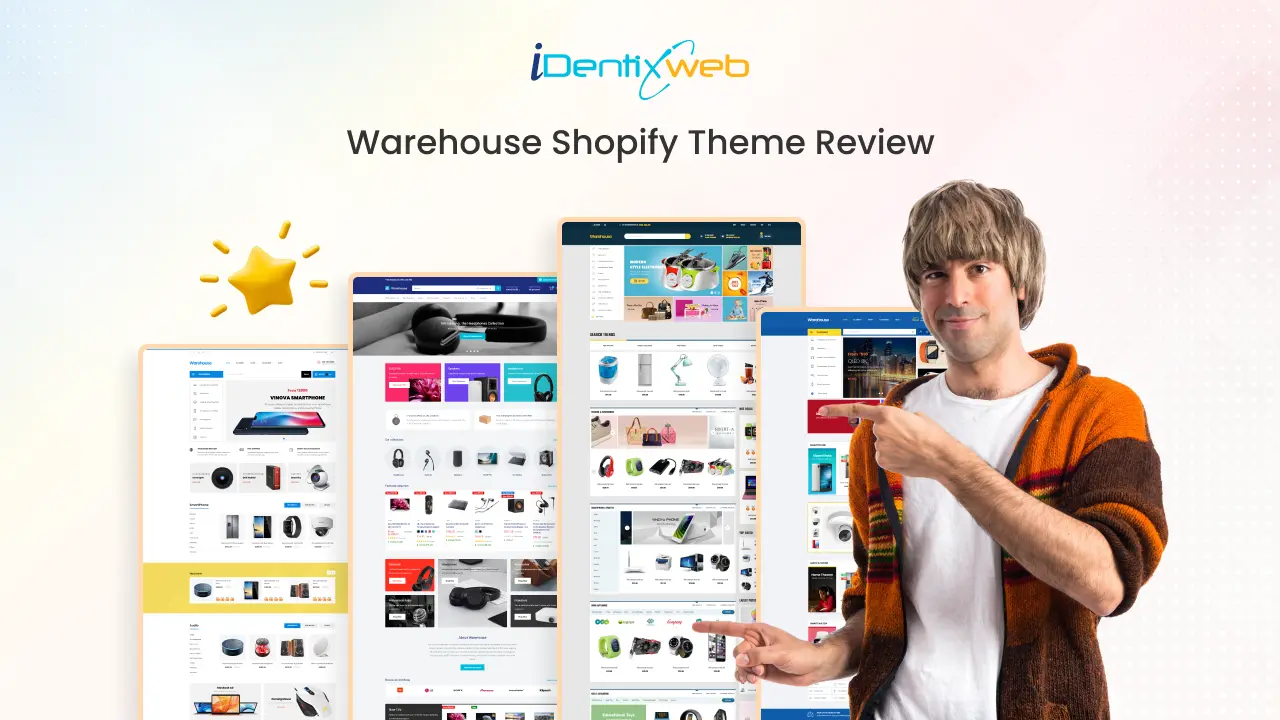
Warehouse Shopify Theme Review: Features, Pros & Cons
Your store's design is one of the first things that potential customers will notice. The right theme can make a significant difference in both the aesthetic appeal and functionality of your store. If you run a business that involves extensive inventories, shipping, or even warehouse-related products, selecting the right theme becomes crucial. One such option is the Warehouse Shopify theme. It is specifically tailored for businesses dealing with extensive catalogs and inventory-heavy operations. This guide will walk you through why the Warehouse theme is an ideal choice, the features it offers, and how it can boost your store’s performance. Warehouse Shopify Theme Overview The Warehouse Shopify theme is a robust, customizable theme designed to help businesses with extensive product catalogs or warehouses efficiently showcase their inventory. It’s an ideal solution for companies that need a clean, easy-to-navigate interface while still showcasing a wide range of products. The Warehouse Shopify Theme offers over 25+ customizable sections, providing a robust and feature-rich design that encourages higher sales and a seamless shopping experience Developed by Maestrooo, a renowned Shopify theme developer with a strong portfolio including themes like Prestige and Symmetry, the Warehouse theme is actively maintained and supported. Maestrooo provides comprehensive release notes and detailed documentation for users, ensuring smooth setup, customization, and ongoing support. Are you in search of the best free Shopify theme? Here’s a comprehensive guide to the Dawn Shopify theme, along with real store examples to help you understand its potential. Warehouse Shopify Theme Pricing The Warehouse Shopify Theme is a premium theme designed for stores with extensive product catalogs. One-Time Purchase: $320USD (via the Shopify Theme Store) Includes: Full access to all theme features, responsive design, advanced customization options, and support from Shopify. Additional Costs: Optional apps or third-party integrations may have extra charges depending on your store’s needs. Who Should Use the Warehouse Shopify Theme? The Warehouse Shopify Theme is ideal for merchants with large inventories who need a clean, organized, and highly navigable store. Here’s a breakdown of who can benefit the most: Promotion-Focused Stores Stores that specialize in flash sales or frequent promotions will find the Warehouse theme incredibly useful. It offers features such as in-menu promotions and prominent promo banners, making it easy to highlight discounts, limited-time offers, or special deals right on the homepage. This functionality is perfect for merchants aiming to boost urgency and drive immediate sales. High-Volume Stores For businesses with large product catalogs and a significant volume of transactions, the Warehouse theme provides an efficient and smooth browsing experience. It ensures that products are neatly organized, and the site performs optimally even under high traffic and multiple transactions. This makes it an excellent choice for high-volume stores that prioritize speed and reliability, ensuring that the customer experience remains seamless. Electronics Retailers The Warehouse theme is perfectly suited for electronic retailers who need to showcase tech gadgets in a visually appealing and detailed manner. With support for high-resolution images and product videos, this theme helps merchants display their electronics in a way that captures attention, ensuring that potential customers get a clear view of the products' features and quality. Homeware Stores Homeware stores dealing with large inventories of furniture, decor, and kitchenware will find the Warehouse theme ideal for clean and organized presentation. Its ability to categorize and display a vast array of products in an orderly, easily navigable way ensures that customers can browse your collections without feeling overwhelmed. This is especially helpful for stores that carry a wide variety of home goods. Multi-Category Clothing Stores Stores offering a diverse range of apparel categories can greatly benefit from the Warehouse theme’s robust navigation and advanced filtering options. Whether selling men’s, women’s, or children’s clothing, or offering accessories, shoes, and other apparel-related items, the theme helps customers easily navigate through various categories, making shopping convenient and efficient. Looking for the best Shopify themes for your clothing store? Explore our top picks for Shopify clothing store themes that are optimized for style, functionality, and customer experience. Dropshippers The Warehouse Shopify Theme is ideal for dropshippers, offering a fast-loading, mobile-responsive design that ensures a smooth shopping experience for customers on any device. Starting a dropshipping business? Dive into our in-depth guide for dropshipping beginners and learn everything you need to know to succeed in the world! The Warehouse Shopify Theme comes with three beautifully designed presets, each tailored to help merchants uniquely present their products and promotions. Explore the 3 Presets of the Warehouse Shopify Theme These presets give you flexibility in layout and design without needing extensive customization, making it easier to launch your store quickly. 1. Mesh The Mesh preset is ideal for stores with a modern and clean aesthetic. It features a minimalist grid layout that highlights products efficiently, allowing customers to focus on what matters most: your catalog. Its smart use of white space and subtle typography ensures a professional look, perfect for tech, lifestyle, or accessory stores. 2. Wood The Wood preset brings a warm, organic feel to your store. With earthy tones and natural textures, it’s perfect for stores selling home goods, furniture, or artisanal products. The design emphasizes product storytelling, helping customers connect with your brand’s personality and quality craftsmanship. 3. Warehouse The Warehouse preset is tailored for extensive catalogs and inventory-heavy stores. It focuses on product organization, advanced filtering, and clear navigation, ensuring customers can browse hundreds of products effortlessly. This preset is ideal for retailers with extensive inventories who want a professional, no-nonsense shopping experience. Features of the Warehouse Shopify Theme The Warehouse Shopify Theme is packed with powerful features designed to help merchants manage large inventories while providing an engaging and seamless shopping experience. 1. Tailored for Large Catalogs The Warehouse Theme is specifically built to handle extensive product catalogs efficiently. Its advanced collection pages allow you to organize, display, and filter thousands of products, making it easy for customers to browse without feeling overwhelmed. 2. Predictive Search Enhance navigation and conversions with predictive search functionality. As customers type in the search bar, the theme suggests relevant products instantly, helping users find what they’re looking for faster. 3. Adaptable Layout The theme’s flexible layout allows it to suit any type of store, whether you sell clothing, electronics, home decor, or niche products. You can customize homepage sections, product grids, and collection layouts to match your brand’s style. 4. Optimized for Performance Speed and efficiency are built into the Warehouse Theme. With expertly-written, lightweight code, your store loads quickly across all devices, reducing bounce rates and improving customer satisfaction. 5. Trust Badge Cards Build credibility with trust badges that reassure customers about security and reliability. These visual indicators help boost customer confidence and increase conversions. 6. Custom Promotion Tiles Highlight discounts, deals, and limited-time offers with custom promotion tiles. These visually prominent sections encourage shoppers to take advantage of your special promotions. 7. Stock Level Indicator Keep customers informed about product availability. Visual cues indicate whether items are in stock, running low, or out of stock, reducing frustration and increasing trust. 8. Mega Menu Improve navigation for large stores with a robust mega menu. Organize product categories and subcategories in a clean, visually appealing way for a better shopping experience. 9. Speed-Tested and Approved The Warehouse Theme undergoes rigorous speed testing across devices and networks, ensuring optimal performance and fast browsing for all visitors. 10. Multi-Lingual Support Expand your global reach by creating a multilingual storefront. The Warehouse Theme supports multiple languages, catering to customers from different regions seamlessly. Warehouse Shopify Theme: Pros and Cons Pros Handles large product catalogs efficiently with advanced filtering and collection layouts. Fast-loading and optimized for performance across all devices. Predictive search improves navigation and helps customers find products quickly. Flexible and customizable layouts for homepage, product pages, and collections. Trust badge cards and promotion tiles boost credibility and sales. Mega menu support simplifies navigation for stores with many categories. Multi-lingual support allows reaching global audiences. Cons Premium pricing at $320, which may be high for small or new stores. Advanced features may have a learning curve for beginners. Some functionalities require additional paid apps. Features available in this theme are not typically found in Shopify free themes. How to Install the Warehouse Shopify Theme Step 1. Visit the Shopify Theme Store and search for Warehouse. Step 2. If you don’t have a Shopify account, register one.Step 3. Click Try theme to preview it and install it on your Shopify admin panel. Step 4. In your Shopify admin, go to Online Store > Themes.Step 5. Find the Warehouse theme and click Customize to open the Theme Editor.Step 6. Adjust layouts, colors, fonts, and homepage sections to match your brand.Step 7. Preview the changes to ensure everything looks perfect on desktop and mobile.Step 8. Once satisfied, purchase the theme for $320 (one-time fee) to unlock full access.Step 9. Click Publish to make your customized Warehouse theme live on your store. As Shopify experts we can help you launch a store with the Warehouse theme, ensuring a high-performing and user-friendly experience. Conclusion: Why Choose the Warehouse Shopify Theme Choosing the right warehouse Shopify theme is essential to ensuring that your store is functional, attractive, and capable of handling large inventories. Whether you choose a Shopify Warehouse theme or a free Shopify theme, you can be confident that both offer excellent user experience and performance for your online store. For businesses looking to scale and manage a significant inventory, the Warehouse theme Shopify is a top contender, offering the best balance of design, performance, and customization. Explore our reviews on top Shopify themes, Prestige Shopify theme review Empire Shopify theme review Impact Shopify theme review Impulse Shopify theme review Ella Shopify theme review Symmetry Shopify theme review FAQs Warehouse Shopify Theme 1. Is the Warehouse theme mobile-friendly? Yes, the Warehouse Shopify Theme is fully responsive, meaning it’s optimized for mobile devices and ensures a smooth browsing experience on smartphones and tablets. 2. Can I customize the Warehouse Shopify Theme?Absolutely! The Warehouse Shopify Theme offers flexible customization options through the Theme Editor, allowing you to adjust layouts, colors, fonts, and product displays to match your brand's style. 3. Does the Warehouse theme support multi-lingual stores?Yes, the Warehouse Shopify Theme supports multi-lingual capabilities, making it easy to cater to international audiences by offering multiple language options. 4. Is the Warehouse Shopify Theme SEO-friendly?Yes, the Warehouse theme is built with SEO best practices in mind, including clean code, optimized images, and structured data to help improve your store’s visibility in search engine results. 5. Does the Warehouse theme include support?Yes, when you purchase the Warehouse Shopify Theme, you get access to Shopify support, and you can also get assistance with customization and theme setup.
6 Min • 22 September 2025
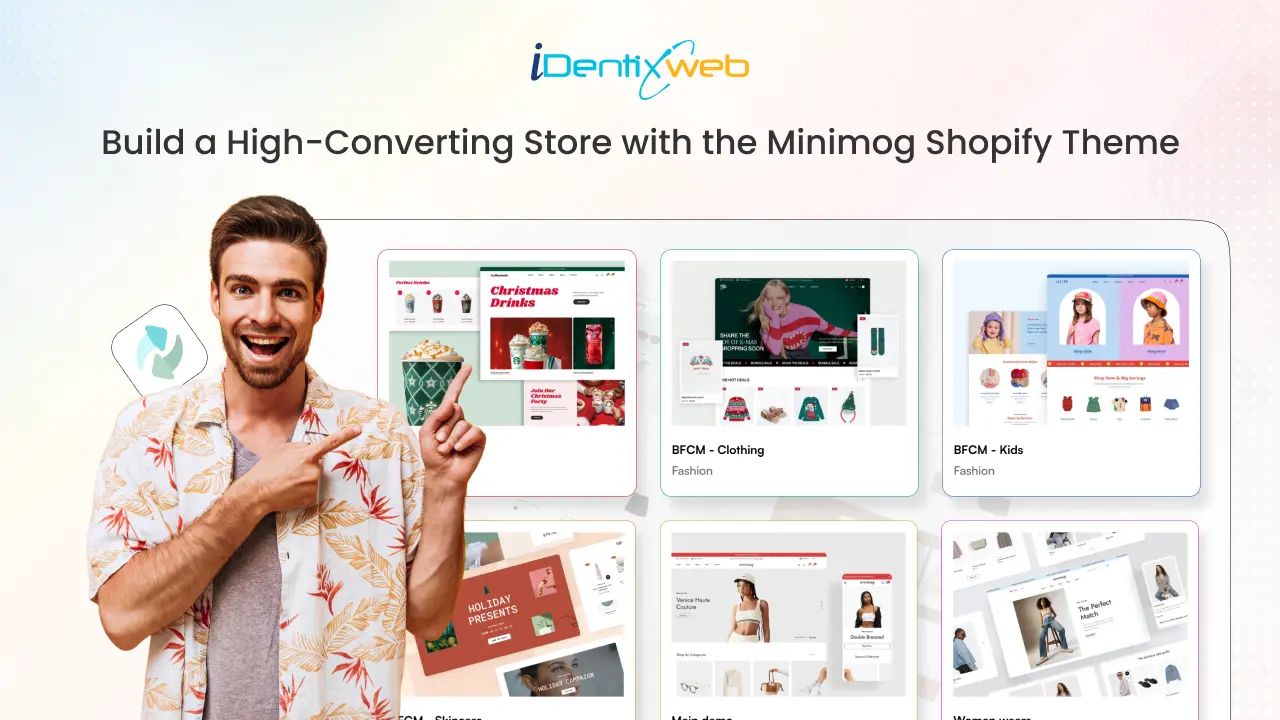
Minimog Shopify Theme Review: Features, Pros, and Cons
As more businesses transition online, store owners are constantly looking for a theme that offers both flexibility and the functionality needed to manage their stores efficiently. The Minimog Shopify theme has emerged as a go-to option for many merchants due to its sleek design, powerful features, and flexibility. If you're considering the Minimog theme for your ecommerce store, let’s dive into its features, key benefits, and potential downsides to help you decide if it's the right choice for your business. What You Need to Know About the Minimog Shopify Theme The Minimog Shopify theme is designed to meet the needs of a variety of businesses. Its clean and modern design makes it ideal for e-commerce stores across multiple industries, including fashion, electronics, furniture, beauty, and more. The theme offers extensive customization options, allowing store owners to tailor the store's appearance and functionality to their specific needs. Minimog provides over 85+ high-converting demos, allowing you to launch your store quickly and efficiently. Whether you're in clothing, fashion, art, or photography, Minimog has a demo tailored to your industry, ensuring you get the perfect start for your online business. Why Minimog is a Great Choice: 12,000+ sales 4.97 star rating with over 700+ reviews Trusted by 4,000+ Shopify merchants Minimog Shopify Theme Pricing & What’s Included The Minimog Shopify theme is priced at $88, a reasonable price for businesses looking to take their online stores to the next level without breaking the bank. The price includes: The theme file 6 months of support (extendable for an additional $27.38 for another 12 months) Access to demo content Lifetime updates Note: The Minimog theme is fully responsive, ensuring that your store performs well on all devices, including desktop, mobile, and tablets. It’s compatible with all major browsers like Chrome, Safari, and Firefox. Who Should Use the Minimog Shopify Theme? Fashion & Apparel Retailer If you're running a fashion or clothing store, Minimog provides modern, stylish layouts that can showcase your products beautifully. It’s designed to display your apparel and accessories in a visually appealing way. Want to start your own online clothing business? Our step-by-step guide will walk you through everything you need to know. Start an Online Clothing Business. Electronics & Gadgets Retailers With its product image zoom and detailed product pages, Minimog is an excellent choice for electronics stores where high-quality visuals and product information are crucial. Beauty & Health The theme’s clean design, product pages, and stunning imagery make it a great choice for beauty, skincare, and wellness brands that want to engage customers with their products. Home Decor & Furniture For stores selling furniture and home goods, the ability to display large images and detailed product descriptions makes Minimog a solid choice for showcasing your offerings. Key Features of the Minimog Shopify Theme Minimog comes packed with features that enhance both the user and store owner experience: Responsive DesignEnsures that your store is mobile-friendly and looks great on any device. Multiple Layout OptionsChoose between grid, list, or masonry layouts to match your brand's aesthetic. Advanced Product Filtering Allows customers to filter products by price, size, color, and more, making it easier to navigate through your inventory. Customizable Mega MenuA dynamic navigation menu that can display dropdowns with images, labels, and links for better navigation. Product SwatchesDisplay product variations (color, size) in an engaging way with product swatches. Product Quick ViewLet customers quickly view product details without leaving the current page. AJAX Add to CartQuick, seamless addition of products to the cart without reloading the page. Customizable Homepage SectionsEasily modify the homepage layout to feature your products, promotions, and other important content. SEO OptimizedBuilt with SEO best practices to help your store rank higher in search engines. Customizable Color SchemesChange the theme's colors to align with your brand’s visual identity. Product ReviewsIntegrates product reviews directly on the product page, helping build customer trust and boost conversion rates. Social Media IntegrationConnect your store with social media platforms to drive more traffic and increase your store's visibility. Newsletter PopupGather leads and build your email list with a customizable newsletter popup. Advanced BloggingEngage your audience and improve SEO through the built-in blogging platform. Looking to boost sales on your Shopify store? Discover our guide on building a high-converting Shopify store that transforms visitors into loyal customers. How to Install the Minimog Theme on Your Shopify Store Here’s how you can quickly get the Minimog theme up and running on your Shopify store: 1. Purchase the Minimog Theme Go to ThemeForest: Visit the ThemeForest website. Search for Minimog Shopify Theme: In the search bar, type “Minimog Shopify theme” and select it from the results. Choose the License: Pick the regular license (priced at $88), which includes the theme file, 12 months of support, and lifetime updates. Finalize Your Purchase: Create an account (if you don't have one) and follow the steps to complete your purchase. Download the Theme: After purchasing, go to your ThemeForest account, find the Downloads section, and download the theme file. 2. Install the Theme Log into your Shopify account. Go to Online Store > Themes in your dashboard. Click Upload Theme and select the downloaded theme file. After the upload, click Actions > Publish to make the theme live on your store. Pros and Cons of the Minimog Shopify Theme Pros Fully responsive, works across all devices Multiple layout and customization options Built-in product swatches, quick view, and advanced filtering SEO optimized for better search engine rankings User-friendly for both beginners and experienced developers Regular updates and excellent support Cons As a premium theme, it comes at a higher cost compared to free or basic paid themes Some advanced customization features may require knowledge of CSS or coding Limited support for third-party app integrations (though this is being improved) Conclusion: Should You Choose the Minimog Shopify Theme? The Minimog Shopify theme is a fantastic option for merchants who need a flexible, feature-rich theme that doesn’t compromise on aesthetics. It’s perfect for a wide range of industries, including fashion, electronics, beauty, and home decor. With its customization options, user-friendly interface, and strong performance, Minimog is ideal for those looking to create a professional, high-performing Shopify store. Explore More Shopify theme options to grow your online store below. Prestige Shopify theme review Empire Shopify theme review Impact Shopify theme review Impulse Shopify theme review Ella Shopify theme review Symmetry Shopify theme review Warehouse Shopify Theme Focal Shopify Theme Shopify Pipeline Theme FAQs Minimog Shopify Theme 1. What industries is the Minimog theme best suited for?Minimog is perfect for a variety of industries, including fashion, beauty, electronics, and home decor, thanks to its modern design and customizable features. 2. Is customer support included in the Minimog theme?Yes, the theme comes with 6 months of support included. Additional support can be purchased if needed. 3. Can I customize the Minimog theme?Yes, you can fully customize the theme, including layout changes, color schemes, fonts, and advanced options like custom CSS. 4. Is the Minimog Shopify theme responsive?Yes, Minimog is fully responsive, ensuring that your store looks great on any device. 5. Is Minimog theme free?No, Minimog is a premium Shopify theme available for purchase.
4 Min • 29 July 2025
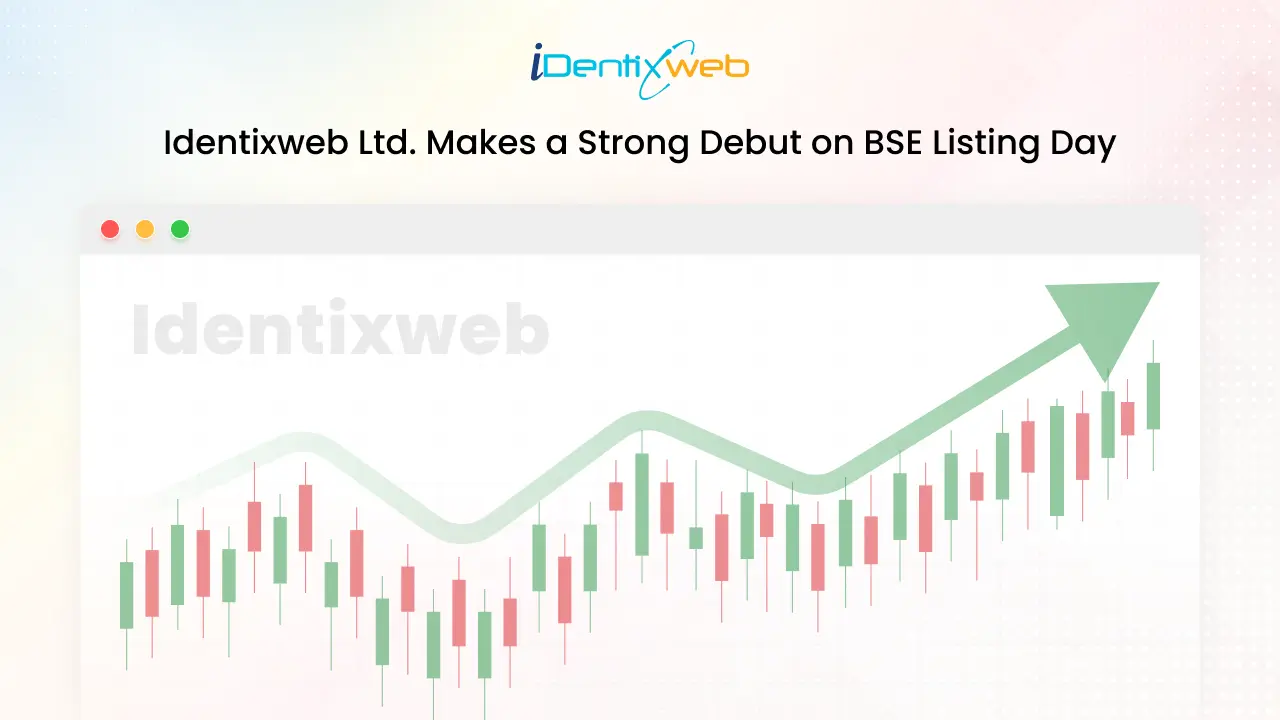
Historic Moment For Identixweb Limited A Successful Debut on BSE Listing Day!
Identixweb Limited, one of India’s most innovative IT solutions provider, marked a significant milestone with its historic & successful BSE listing on Thursday, 3rd April 2025. The dignitaries present at this milestone event included Mr. Priyank Savani, chairman and managing director of Identixweb Limited; Mr. Ankur Lakhani, Whole Time Director of Identixweb Limited; Mr. Ajay Savani, Founder & Director of Munim ERP Private Limited - our subsidiary; CA Nikhil Shah, Founder of Beeline Capital Advisors Private Limited; Tejas Patel, Associate Manager of BSE Ltd; Shri Maheshbhai Savani from PP Savani Group; Dr. Faruk G Patel, Chairman and Managing Director of The KP Group of Companies; Shri Ramesh Vagasiya, Chairman at Axanoun Investment Services; and Mr. Chirag Nakrani, Founder and CEO of Rayzon Solar. Identixweb made a strong debut on the BSE stock listing with a gain of 6.94%, signaling a strong investor interest in the Identixweb stock market performance. Identixweb is backed by excellent growth enablers, and its future is aligned with a flourishing IT sector. With the Union Budget 2025-26 sanctioning ₹ 2000 Crore to accelerate IT infrastructure in India, the IT industry is expected to contribute 10% of the country’s GDP by 2026. Identixweb is poised to be a major player in this incredible growth. The BSE listing program was a resounding success. Our co-founders especially expressed some encouraging words. Speaking at the BSE listing program, Mr Priyank Savani, chairman and managing director at Identixweb Ltd, said, “From a simple idea to becoming a BSE-listed company, this moment is the result of years of hard work and dedication. I also feel proud to be a part of Munim ERP Private Limited, an Identixweb subsidiary. As we progress, the future of Identixweb looks promising, with exciting opportunities to innovate and redefine the IT landscape.” Also at the BSE listing program was Mr. Ankur Lakhani, Director at Identixweb Ltd, “I want to take a moment to thank our Identixweb team, who worked day and night to make this happen. We believe learning never stops. Our team stays updated with the latest technologies by attending tech workshops and boot camps to provide better solutions to our customers. We are also committed to integrating AI into our services to create innovative solutions for the future.” The path to stock market success began with a simple vision. From Humble Beginnings To BSE Listing Identixweb’s history is unique. Two classmates founded it in 2017 with a vision to transform the IT industry using innovative solutions. In our journey of over a decade, we have pioneered web applications, moving beyond traditional static applications to modern dynamic infrastructure. Identixweb provides SaaS-based digital product solutions. It offers e-commerce development, web applications, UI/UX design, customized software development, maintenance, and support. Identixweb has a key focus on Shopify app development. Our products include more than 10 Shopify apps tailored to meet the requirements of 12,000+ Shopify stores. Embodying cutting-edge technology and digital excellence, Identixweb has contributed to some of the significant changes that have led to India’s emergence as a global leader in information technology. As Identixweb marks its BSE listing, we also want to spotlight Munim, our solution to empowering Indian businesses financially. Munim, India’s premier GST compliance software, is also part of our portfolio. Munim is aligned with Identixweb’s vision of enabling the exponential growth of Indian businesses through seamless financial management. Munim generates more than 100,000 invoices every month. It caters to more than 15,000 customers across industries, delivering measurable financial impact through strong experience in financial support and services. This outstanding Identixweb stock market performance is just the beginning. The Road Ahead The Identixweb public listing has generated a strong buzz among investors. Many are eager to participate in the company’s next phase of growth. In the next five years, we plan to expand our portfolio to include innovative products and new industries. We now embark on a new journey with a successful BSE listing behind us. We aim to drive stock market success while capitalizing on the transformative shifts in the IT industry.
Sajini Annie John
6 Min • 22 April 2026
211 Views
Sajini Annie John
2 Min • 16 April 2026
218 Views
Sajini Annie John
5 Min • 27 March 2026
293 Views
Bhavesha Ghatode
6 Min • 22 September 2025
825 Views
Bhavesha Ghatode
5 Min • 16 September 2025
765 Views
Bhavesha Ghatode
9 Min • 25 August 2025
1050 Views
Bhavesha Ghatode
7 Min • 20 August 2025
904 Views
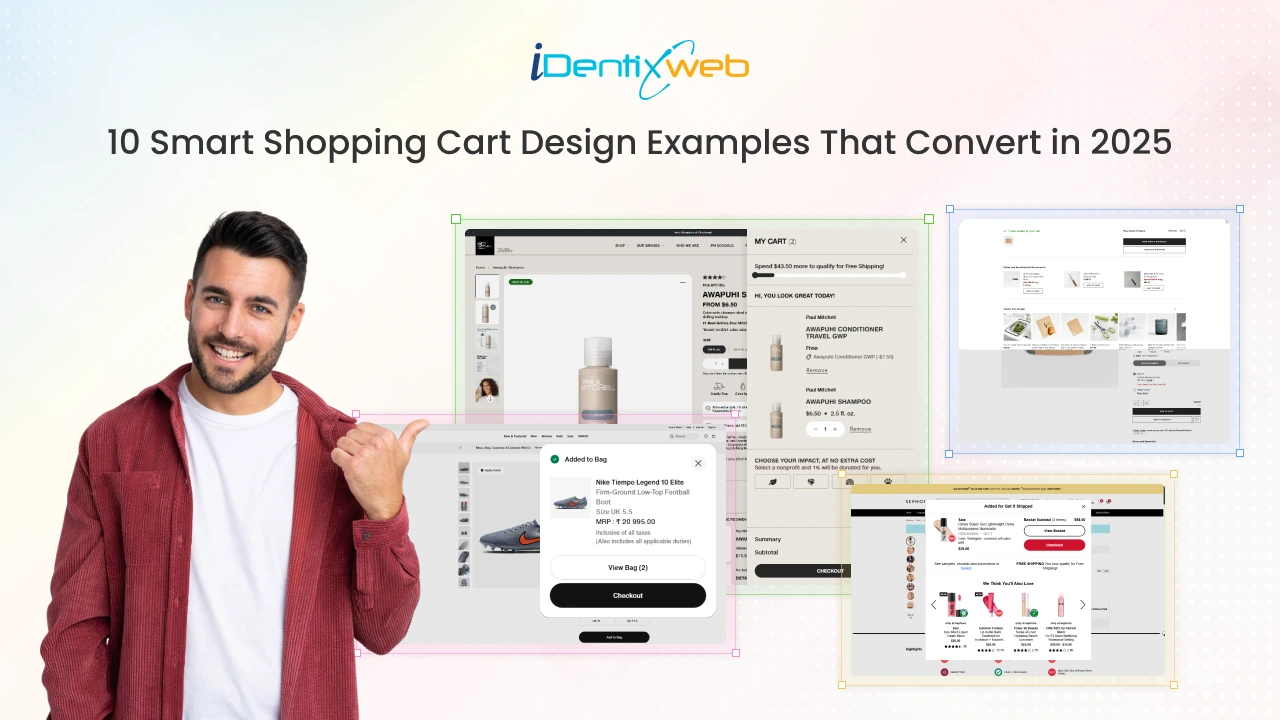
Vineet Nair
9 Min • 23 January 2026
1198 Views
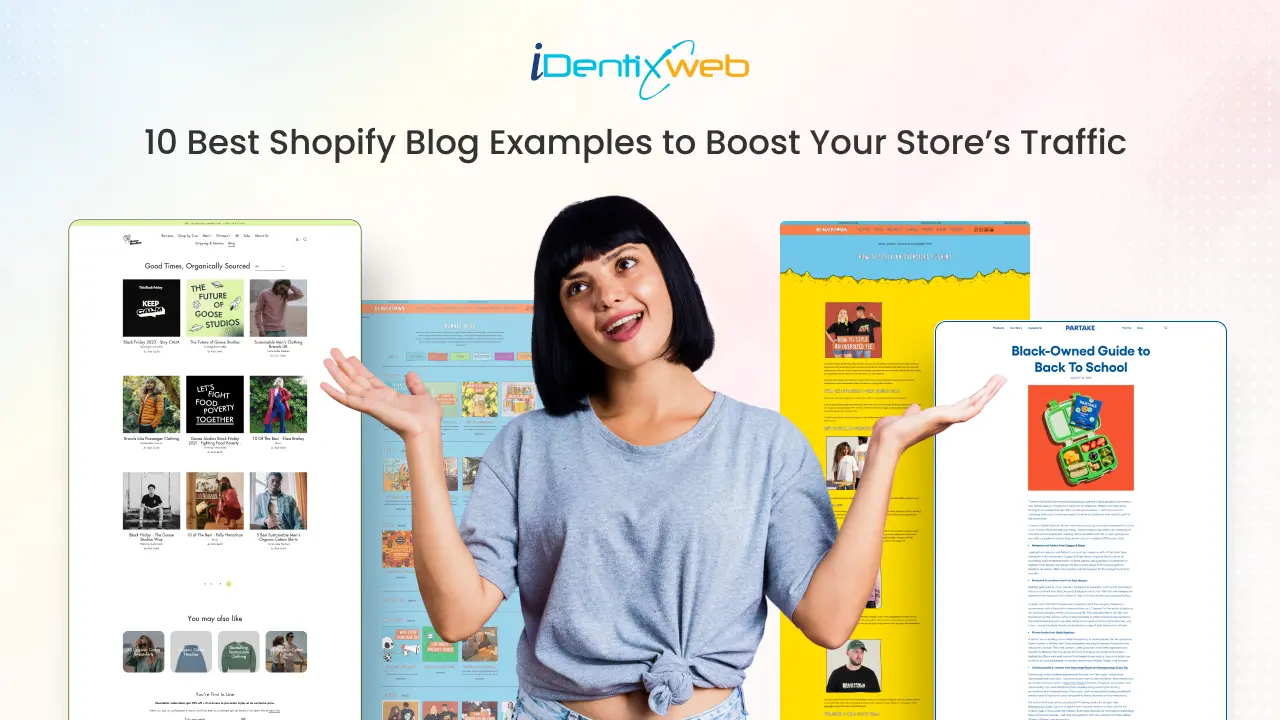
Vineet Nair
8 Min • 15 July 2025
1071 Views

Vineet Nair
9 Min • 12 February 2026
2275 Views
Vineet Nair
4 Min • 29 July 2025
1393 Views

Bhavesha Ghatode
11 Min • 12 February 2026
1898 Views