

Shopify Apps
Gather knowledge about the latest insights, updates, tips, and tricks in the Ecommerce industry.

5 Min • 29 April 2026
How Anua Unlocked 5X AOV Growth with iCart’s Smart Cart Features
delivery customization Challenges Solutions drive results Scale business delivery customization Challenges Solutions drive results Scale business delivery customization Challenges Solutions drive results Scale business delivery customization Challenges Solutions drive results Scale business Anua is a globally recognized Korean skincare brand known for its minimalist philosophy and focus on gentle yet effective formulations. Built on the idea of simplifying skincare routines, Anua develops products that deliver visible results while avoiding harsh or irritating components, making them suitable for sensitive skin types. Initially using a traditional full cart experience, Anua transitioned to iCart’s side cart solution in August 2025, to create a more seamless and engaging shopping journey. This shift allowed customers to easily explore complementary skincare products without disrupting their browsing flow, making it more intuitive to discover items that fit into a complete routine. By surfacing relevant recommendations directly within the cart, the brand enhanced product visibility across its range. Challenges Before implementing iCart’s side cart solution, Anua faced limitations with their existing full cart experience, which created friction in the customer journey. The traditional cart setup redirected users away from product pages, interrupting their browsing flow and reducing opportunities to explore additional products. As a skincare brand built around routines rather than single-item purchases, this made it difficult to effectively showcase complementary products and encourage customers to build complete regimens. Additionally, the lack of in-cart personalization and strategic upsell opportunities meant that customers were often unaware of related products that could enhance their skincare results. This limited the brand’s ability to increase average order value (AOV) and fully leverage its diverse product range. Anua needed a more dynamic and intuitive cart experience that could seamlessly introduce relevant recommendations while maintaining a smooth and engaging shopping journey. ❌ Cart Value Barriers Low average order value (AOV) due to single-item focus Most customers completed purchases with one primary product instead of building multi-step routines. Cart abandonment near shipping thresholds Customers were not clearly informed or motivated to reach free shipping or discount thresholds. Missed savings opportunities Customers were unaware of potential value in purchasing bundled routines or multiple complementary products. ❌ Absence of Progress-Based Incentives No free shipping or discount progress bar Customers were not motivated to increase their cart value due to lack of visible incentives. Missing tiered rewards system There were no structured milestones (e.g., “Spend more to unlock offers”), reducing upsell opportunities. ❌ Ineffective Cart UI/UX (Pre-Side Cart) Full-page cart disrupted shopping flowCustomers had to leave their browsing journey, increasing friction and drop-offs. No quick add/remove functionality Users couldn’t easily modify their cart or add suggested products without navigating away. Solution To overcome these challenges, Anua implemented iCart’s side cart solution to transform their traditional cart into a high-converting, interactive experience. By replacing the full-page cart with a seamless side cart, the brand ensured that customers could continue browsing while viewing their cart, significantly reducing friction in the shopping journey. Additionally, features like product recommendations & progress bars for free shipping and discounts motivated customers to increase their cart value. By combining personalization, incentive-driven messaging, and a user-friendly interface, Anua successfully turned their cart into a powerful revenue-driving touchpoint rather than just a checkout step. To maximize their cart effectiveness, they implemented two powerful features: ✅ Progress Bar with Multi-Reward Incentives Implemented a tiered progress bar to encourage higher cart value Customers are guided with a clear message like “Add $3.10 to unlock secret offer,” motivating them to continue adding products. Generated over $5M+ in revenue through incentive-driven cart progression Used product-based rewards to align with customer intent Instead of generic discounts, Anua incentivized purchases with relevant skincare items like Dark Spot Pads and mini serums. Built visual motivation for routine expansion As customers add products, they can clearly track progress toward unlocking multiple rewards, encouraging them to build a complete skincare routine. ✅ Product Recommendations Implemented “Frequently Bought Together” recommendations Customers adding a single product (e.g., toner) are shown complementary items like serums, moisturizers, or pads to complete their routine. Generated over 275K revenue through in-cart recommendations Encouraged full skincare regimen building Instead of isolated purchases, the cart suggests step-by-step product combinations aligned with common skincare routines. Increased product discovery at the final stage By surfacing relevant items directly in the cart, Anua ensured customers explore more of their catalog without leaving the checkout flow. Results Achieved in Last 180 Days 22932 Total Store Orders 45101 Total iCart Orders 5X iCart Generated AOV 65.70% Upsell Affected Conversion Rate These improvements reflect a clear shift in customer behavior on Anua’s store. Cart abandonment reduced as shoppers discovered complementary skincare products and felt encouraged to build complete routines. Engagement also increased, with customers interacting more with in-cart recommendations and exploring relevant product pairings. Results & Impact And...Results is Our Main Clarification By implementing iCart’s cart drawer, product recommendations, and progress bar, Anua transformed its cart into a high-performing conversion touchpoint. Shopping Experience Enhancement The improved cart experience encouraged customers to discover complementary products and understand the value of sustainable beauty routines. For instance, the clear presentation of subscription savings alongside one-time purchase options helped customers make more informed decisions about their long-term hair care needs. As Anua continues to optimize its cart experience, the brand is closely monitoring: Routine-based purchasing behavior - tracking how customers move from single items to multi-step regimens Engagement with in-cart recommendations - measuring interaction with suggested products Cart value progression - analyzing how incentives influence higher spending [related_cases_slider] Ready to Write Your Success Story? Try icart App Join successful businesses like Anua and Master your delivery scheduling Delight customers with precise timing Grow your special occasion orders Expand your delivery reach
Read Blog
12 Min • 30 March 2026
Top Frequently Bought Together Shopify Apps Can Drive More Sales
As a busy ecommerce entrepreneur, finding the best Frequently Bought Together apps for your Shopify store can be time-consuming. To save you the hassle, we’ve curated a list of the top apps that can help increase your Average Order Value (AOV). These apps recommend complementary products, enhance the shopping experience, and drive more sales. By bundling related items and offering smart discounts, they boost revenue while improving customer satisfaction. In this article, we’ll cover the best free and paid Shopify apps for Frequently Bought Together, with details on their features, pricing, and reviews to help you choose the right one for your store. Best frequently bought together apps: A quick view App NameKey FeaturesPricing PlanRatingFrequently Bought Together CBBAI-powered recommendations, customizable design, automatic + manual suggestions$19.99/month4.9 (1000+ reviews)iCart Cart Drawer Cart UpsellIn-cart upsell and cross-sell, sticky cart drawer, no-code drag-and-drop customizationFirst 100 orders free for lifetime, then $9/month, $19/month, $29/month4.7 (400+ reviews)Upsell & Cross Sell — SelleasyAmazon-style FBT bundles, customizable recommendation display, automated upselling and cross-selling rulesFree to install, then $9/month, $19/month, $29/month4.9 (2000+ reviews)Also Bought CBBAI-driven recommendations, customizable widget design, recommendations on product and cart pages$19.99/month4.8 (300+ reviews)Essential Upsell & Cross SellOne-click upsell and cross-sell offers, product + cart page integration, post-purchase upsell optionsFree plan available, then $9.99/month, $19.99/month, $39.99/month5 (2000+ reviews)Frequently Bought Together FTAutomated product recommendations, product bundle builder, auto discounts like quantity breaks and free giftsFree plan available, then $15/month, $45/month4.5 (300+ reviews)GLO Related Products, UpsellSmart recommendations, FBT widget with 3 styles, automatic discountsFree plan available, Pro at $9.904.9 (200+ reviews)Wiser - AI Upsell & Cross SellAI-powered suggestions, post-purchase and checkout upsells, in-cart upsell with progress barFree plan available, then $9/month, $19/month, $49/month4.9 (500+ reviews)BST-Frequently Bought TogetherAI-driven recommendations, manual bundles, in-depth analyticsFree plan available, then $24.99/month, $39/month5 (50+ reviews)Frequently Bought Together ICAutomatic + manual recommendations, related products, four types of automatic discounts$4.99/month, $5.99/month, $6.99/month5 (10+ reviews) What is Frequently Bought Together? Frequently Bought Together is a sales strategy and feature used by ecommerce platforms, including Shopify, to recommend additional products that customers are likely to purchase alongside the item they are currently viewing or adding to their cart. This technique boosts the Average Order Value (AOV) by encouraging customers to purchase complementary products, thereby increasing sales for the store. Typically, these recommendations are based on data-driven insights or AI that analyze previous customer behavior and shopping trends. The feature is often implemented through apps or built-in Shopify tools, showing suggestions such as "Customers also bought" or "Frequently bought with" directly on product pages or at checkout. By offering these product bundles, stores enhance the shopping experience, help customers discover relevant products, and drive more revenue. Top 10 Shopify Apps For Frequently Bought Together Now that we've covered the key features, pricing, and reviews of these apps, let's take a closer look at each one. 1. Frequently Bought Together CBB Frequently Bought Together CBB uses advanced AI to recommend products commonly purchased together, helping increase your store’s Average Order Value (AOV). Displaying these relevant product suggestions at checkout makes it easy for customers to discover and add more items to their cart, driving more sales. Pricing Plans: $19.99/month Key Features AI-powered recommendations that automatically suggest products based on customer purchasing behavior. Seamless integration with Shopify for quick and easy setup. Customizable design to match your store’s theme. Option for both automatic AI-driven suggestions and manually curated recommendations. Real-time product suggestions displayed at checkout to encourage impulse purchases. Rating: 4.9 (1000+ reviews) 2. iCart Cart Drawer Cart Upsell iCart is the best Shopify upsell app designed to enhance your store's sales by increasing conversions and Average Order Value (AOV). It comes with features like a slide cart, a pop-up cart, upsells, product bundles, smart recommendations, and a progress bar, all working together to drive more purchases and improve the overall shopping experience. Pricing Plans: Free trial0-100 orders101-200201-500First 100 orders are free for lifetime$9/month$19/month$29/month Key Features Show a free shipping bar to encourage more items in the cart. Drive additional sales with in-cart upsell and cross-sell options. Enhance cart visibility with a sticky cart drawer that stays in view. Offer enticing discounts, like free gifts with purchase, to boost conversions. Easily customize your store with a no-code, drag-and-drop interface. Rating: 4.7 (400+ reviews) Boost sales with the best Shopify apps for upsells and cross-sells , and increase AOV by recommending relevant products at checkout. 3. Upsell & Cross Sell — Selleasy Selleasy's app helps you easily add upsell and cross-sell offers across your Shopify store, including product pages, the cart, and checkout. By suggesting complementary items based on the customer’s selections, encourages them to purchase more, increasing your store’s revenue. Pricing Plans Freemium Tier IFreemium Tier IIFreemium Tier IIIFreemium Tier IVFree to install$9/ month$19/ month$29/ month Key Features Amazon-style “Frequently Bought Together” product upsell bundles Compatible with both individual and bundled products. Optimized offers that drive higher conversion rates. Customizable display for product recommendations to fit your store’s design. Automated upselling and cross-selling rules for hassle-free promotion. Rating: 4.9 (2000+ reviews) 4. Also Bought CBB The Also Bought app provides a smart recommendation engine that suggests products frequently purchased with the current item. It helps increase sales by showing customers relevant, complementary products, driving higher conversion rates. This app mimics Amazon's successful "Customers Who Bought This Item Also Bought" widget, leveraging advanced AI trained on extensive datasets to provide accurate recommendations for your Shopify store. Pricing Plans: $19.99/month Key Features AI-driven product recommendations based on your store’s sales history, new orders, and product updates in real-time. Easy integration with Shopify for quick setup. Fully customizable widget design to match your store’s branding. Supports upselling and cross-selling with various recommendation types, including automatic, manual, by type, or by collection. One-click install with out-of-the-box style integration for most popular themes. High availability, ensuring seamless operation even during traffic peaks like BFCM. Customizable UI for easy adjustments to text, colors, sizes, and styles. Display recommendations on both product pages and the cart page. Rating: 4.8 (300+ reviews) 5. Essential Upsell & Cross Sell The Essential Upsell & Cross Sell app offers a simple yet powerful way to boost your store's conversions by displaying relevant product recommendations at the right time. This app helps you increase your Average Order Value (AOV) by showcasing upsell and cross-sell offers on product pages and the cart page. It also supports customizable pop-up windows, post-purchase upsell discounts, and automatic promotions to drive more sales. Pricing Plans FreeStarter Essential Professional Plan available $9.99/month$19.99/month $39.99/month Key Features One-click upsell and cross-sell offers for easy customer engagement. Integration with both product pages and cart pages for maximum visibility. Customizable pop-up windows to highlight recommended products. Display frequently bought together (FBT) items, related products, and product add-ons. Post-purchase upsell and cross-sell opportunities with "buy X, get Y" bundles and product add-ons. Automatic discounts on upsell and "also bought" products to encourage purchases. Product page upsell and cross-sell widgets, including one-click add-to-cart and BOGO (Buy One Get One) bundles. Rating: 5 (2000+ reviews) 6. Frequently Bought Together FT Frequently Bought Together FT seamlessly integrates with your Shopify store to suggest products that are often purchased together, automating the recommendation process for a smoother shopping experience. By leveraging AI-driven product suggestions, it boosts Average Order Value (AOV) and enhances customer satisfaction by offering relevant and timely product recommendations. Pricing Plans FreePremium Premium for Plus Plan available $15/month $45/month Key Features Automated product recommendations based on customer behavior and order data. Supports Shopify’s product variants for more accurate recommendations. Customizable widget appearance to match your store’s theme and branding. AI-driven upsell and cross-sell recommendations to increase conversion rates. Frequently bought together (FBT) features like "Buy Together", "Buy With", and product add-ons. Product page and section builders for creating high-converting, sales-driven pages quickly. Product bundle builder to showcase "You May Also Like", recommended, and related products. Auto discounts like quantity breaks, volume discounts, free gifts, and discount combinations to encourage more purchases. Rating: 4.5 (300+ reviews) Explore effective cross-selling examples , to boost your sales and enhance your customer experience. Learn proven strategies to recommend the right products at the right time! 7. GLO Related Products, Upsell GLO Related Products is an intelligent cross-sell and upsell app that provides personalized product recommendations based on customer browsing behavior and past purchases. It helps you increase sales by showing highly relevant product suggestions throughout your store, including the product page, cart, checkout, and thank you page. Pricing Plans FreeProPlan available $9.90 Key Features Smart product recommendations based on customer behavior and previous purchases. Customizable layout to match your store's design. Automated upsell pop-ups that display at key moments. Product recommendations on product pages, cart page, checkout, thank you page, and more. Frequently bought together widget with 3 styles Amazon-style, line, and grid. Manual recommendations based on handpicked products. Upsell options like "You May Also Like," "Also Bought," and trending products. Personalized product recommendations like recently viewed items and a product slider. Automatic discounts for customers who add recommended products to their cart. Rating: 4.9 (200+ reviews) 8. Wiser ‑ AI Upsell & Cross Sell Wiser is an AI-powered upsell and cross-sell app that predicts the best product recommendations for each customer. Designed to increase sales, it showcases personalized suggestions across your Shopify store, from product pages to checkout and post-purchase. Wiser’s intelligent product suggestions help boost Average Order Value (AOV) by presenting items that customers are most likely to buy. Pricing Plans Free 51-100 orders 101-300 orders301-500 ordersPlan Available $9/month$19/month$49/month Key Features AI-powered product suggestions to increase conversions with personalized recommendations.. Advanced targeting options for specific customer groups. Customizable pop-ups and widgets to fit your store’s design. Show frequently bought together product bundles with discounts and best sellers. Boost AOV with post-purchase upsells, checkout upsells, product addons, and collection recommendations. Advanced drawer cart with in-cart upsell options and a progress bar to encourage more purchases. Dynamic email recommendations, search and filters to enhance customer engagement. Create custom quizzes and easily integrate via APIs for personalized experiences. Rating: 4.9 (500+ reviews) Establish lasting customer relationships with effective engagement strategies , Enhance loyalty, improve satisfaction, and boost conversions. 9. BST‑Frequently Bought Together BST’s app provides automatic recommendations for frequently bought together products, designed to increase your store's Average Order Value (AOV). It works seamlessly across product pages and checkout, helping you drive sales by suggesting complementary items to customers. The app is powered by AI, offering both automatic and manual bundle options, along with customizable widgets that seamlessly integrate with your store's branding. Pricing Plans FreeCore plan Pro Plan Plan available $24.99/month $39/month Key Features AI-driven product recommendations based on customer behavior to boost conversions. Customizable widgets that seamlessly integrate with your store's theme. Works with both individual and variant products to provide accurate recommendations. Mobile-first design that ensures an optimized experience for all devices. Manual bundle options for creating curated product recommendations. Bundle discounts to incentivise customers to purchase more items. Seamless Shopify integration for easy setup with your store. In-depth analytics to track performance and monitor customer purchasing trends. Rating: 5 (50+ reviews) 10. Frequently Bought Together IC Frequently Bought Together IC recommends products that are commonly bought with a customer’s current selection, helping increase your store's Average Order Value (AOV). With easy integration and a simple setup, this app shows relevant product suggestions, boosting sales by encouraging customers to add more items to their cart. It also includes features like related products and automatic discounts to enhance the shopping experience. Pricing Plans StaterProfessionalEnterprise$4.99/month$5.99/month$6.99/month Key Features Automatic and manual product recommendations to show relevant products. Customizable widget design to match your store’s theme. Easy Shopify integration for a quick and smooth setup. Increase AOV with upselling and cross-selling recommendations. Related Products feature to display similar items across your store. User-friendly with manual product selector and automatic algorithm. Four types of automatic discounts (percentage, fixed amount, cheapest item for FBT). Advanced customization options, including hiding FBT on product pages and excluding products. Show ratings from popular review apps to build trust. Rating: 5 (10+ reviews) Looking for more free apps? Discover top Shopify apps to enhance your store’s functionality, boost sales, and improve customer experience, all at no cost! Final Thoughts: Best Frequently Bought Together Apps for Shopify Incorporating a "Frequently Bought Together" app into your Shopify store is a powerful way to increase your Average Order Value (AOV) and enhance the overall shopping experience. By offering relevant product recommendations at the right time, you can boost conversions, drive more sales, and keep your customers engaged. Choose the right Frequently Bought Together Shopify app for your store to unlock more sales and grow your business efficiently. Need a Custom Shopify App? We’re experts in Shopify Custom App Development and can create a tailored solution to meet your store’s unique needs. Let us know how we can help you enhance your store’s performance today. FAQs for Best Frequently Bought Together Shopify Apps 1. How does the Frequently Bought Together algorithm work?The algorithm uses data from past customer transactions to identify products commonly bought together. It then suggests these complementary products to customers, either on product pages or at checkout, to encourage additional purchases. 2. What factors influence the product recommendations in the Frequently Bought Together algorithm?The algorithm considers factors like past customer purchase behavior, item popularity, seasonality, customer browsing patterns, and similar product characteristics to make accurate recommendations. 3. Can I manually adjust the product recommendations?Yes, many Frequently Bought Together apps allow you to manually curate product recommendations, giving you control over which items are suggested to customers alongside their purchases. 4. Does the algorithm work for all product types?Yes, the algorithm can be applied to both individual products and product variants. It works effectively across a wide range of categories, from fashion to electronics, as long as there is sufficient transaction data. 5. Can the Frequently Bought Together algorithm increase sales?Absolutely! By suggesting relevant products at key moments, such as checkout, the algorithm encourages customers to add more items to their cart, directly boosting Average Order Value (AOV) and overall sales.
5 Min • 28 May 2026
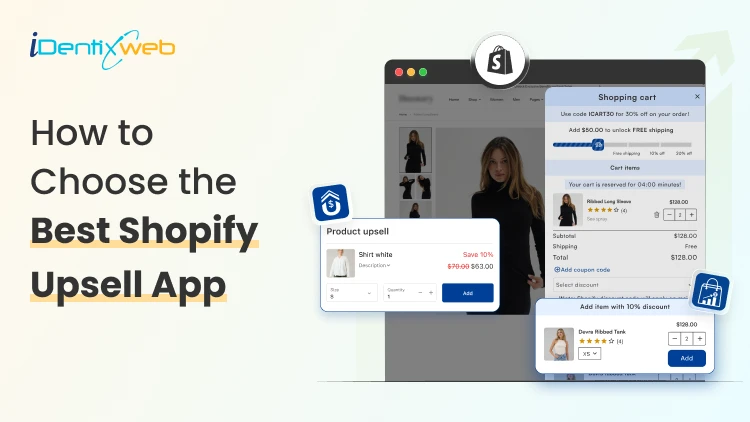
How to Choose the Best Shopify Upsell App for Your Store (9 Decision Factors That Impact ROI)
Are you making the most out of every single visitor that comes to your store? Most Shopify merchants focus almost entirely on getting more traffic. But the real revenue lever? It's often right there in your existing checkout flow, hidden in plain sight. That's exactly where the best Shopify upsell app comes in. But here's the catch: not every Shopify upsell app is built the same. In this guide, we will see 9 key decision factors that separate a high-ROI upsell app from one that just sits there collecting dust. The 9 Decision Factors That Determine ROI From Your Shopify Upsell App Before you install any app from the Shopify App Store, run it through these 9 filters. They're the factors that will determine whether your upsell app earns its keep or just adds noise to your store. Decision FactorWhat It MeansWhy It Impacts ROIUpsell PlacementWhere offers appear (cart, product, post-purchase)Wrong placement = ignored offersTrigger LogicRules that fire an upsell offerIrrelevant triggers = poor conversionsAOV ImpactAverage order value lift potentialCore ROI metric - track weeklyA/B TestingAbility to test offer variantsNo testing = leaving money on tableAnalyticsRevenue, CTR, conversion reportingBlind decisions without good dataStore SpeedPage load impact after app installSlow store = higher bounce rateDesign CustomizationMatch your brand look and feelJarring UI reduces trust & CTRPricing ModelFlat fee vs revenue shareRevenue share hurts at scaleSupport QualityResponse time and helpfulnessBad support = expensive downtime 1. Upsell Placement Options Placement is everything. An upsell shown at the wrong moment feels like an interruption. Shown at the right moment, it feels like a helpful suggestion. The best Shopify upsell apps give you multiple placement options: Product page upsells (before add-to-cart) Cart drawer or cart page upsells Checkout page upsells (available with Shopify Plus) Post-purchase / Thank You page upsells Order status page upsells For most stores, in-cart and post-purchase placements deliver the highest conversion rates because shoppers are already committed to buying. So, if you want a better app for that then you can try iCart & SellMore app because compared to other apps it is affordable and at the same time these apps provide multiple features to boost AOV & conversions. 2. Trigger Logic & Targeting Rules Showing the right upsell to the right customer at the right time is the whole game. A Shopify upsell app with smart trigger logic lets you set rules like: Show this upsell only when Cart contains Product X Trigger this offer when cart value exceeds $50 Display this bundle only to first-time visitors Upsell Product B specifically to buyers of Product A The more granular the targeting, the better your conversion rate. Apps with basic "show to everyone" logic will always underperform compared to apps that let you build conditional, product-specific rules. Irrelevant upsells don't just fail to convert, they actively annoy customers. 3. AOV Impact Your Average Order Value (AOV) is the clearest indicator of how well your upsell strategy is working. When evaluating an app, check its case studies and Shopify App Store reviews specifically for mentions of AOV improvement. Real merchant results are more reliable than vendor marketing claims. 4. A/B Testing Capabilities Even the best upsell offer can be made better. A/B testing lets you compare two versions of an upsell and see which one converts more. Without A/B testing, you're essentially guessing. With it, you're making data-driven decisions that compound over time. Ask these questions before choosing an app: Does the app support split testing of upsell offers? Can you test different placements against each other? Are test results presented clearly in a dashboard? 5. Analytics & Reporting Revenue is the goal, but you need data to get there reliably. The best Shopify upsell apps give you a clean dashboard showing: Total upsell revenue generated Click-through rate (CTR) on each offer Conversion rate by offer and placement AOV before and after upsell implementation Top-performing offers and products An app with great analytics allows you to double down on what works and cut what doesn't 6. Store Speed Impact Here's something merchants often overlook: upsell apps run JavaScript on your store. A poorly coded app can add hundreds of milliseconds to your page load time and that adds up fast. Before installing any app, check: GTmetrix or PageSpeed Insights scores after installation Whether the app uses lazy loading for its scripts Reviews on the Shopify App Store mentioning speed/performance 7. Design Customization Upsell popups and widgets that look out of place are a trust signal problem. Shoppers are sharp, they notice when something looks bolted on. The best Shopify upsell apps give you: Custom color, font, and button styling Fully responsive mobile design Control over popup timing and animation Drag-and-drop or code-level layout editing Always check if the app has design customization options before committing. 8. Pricing Model Most Shopify upsell apps charge in one of two ways: a flat monthly fee, or a percentage of the revenue generated through the app. Both models have tradeoffs. ModelBest ForWatch Out ForFlat Monthly FeePredictable costs, scales well at high revenueFixed cost even during slow monthsRevenue ShareLow upfront risk for new storesGets expensive fast as revenue grows 9. Support Quality Even the best-coded Shopify apps occasionally run into issues like theme conflicts, display bugs, feature questions. Responsive, knowledgeable support is what separates a minor hiccup from a full revenue-impacting outage. Before choosing an app, check: Average response time mentioned in reviews Whether live chat or email support is available If there's a help documentation library How the developer responds to negative reviews in the App Store Final Thoughts: Choosing the Best Shopify Upsell App Run every shortlisted app through the 9 decision factors in this guide - placement, trigger logic, AOV impact, A/B testing, analytics, speed, design, pricing, and support. Those 9 filters will cut through the noise and point you to the right choice.
1 Min • 15 April 2026
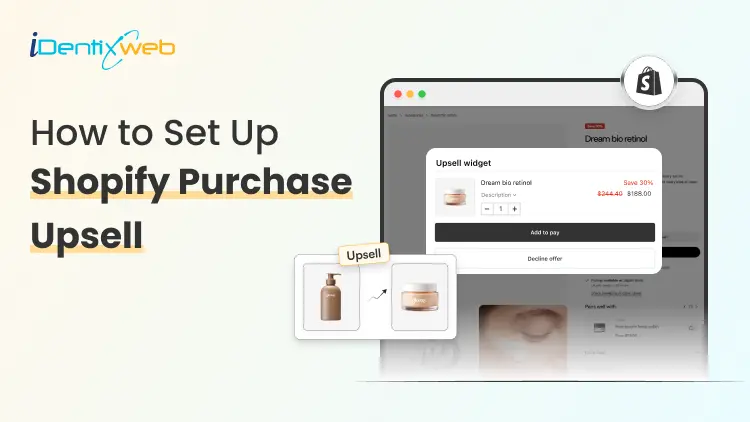
How to Set Up Shopify Post Purchase Upsell (No Coding Needed)
Setting up a Shopify post purchase upsell involves installing a dedicated upsell app, enabling it within your checkout settings, and creating a funnel that presents a targeted, one-click offer immediately after payment but before the thank-you page. This approach allows customers to add additional products to their order without re-entering payment details, making the process seamless and highly effective for increasing average order value. In this guide, you’ll learn how to set up Shopify post-purchase upsells without any coding, along with shopify post purchase upsell strategies to maximize conversions and boost your store’s revenue. What is a Shopify post purchase upsell? A Shopify post purchase upsell is an offer shown to your customer after they've completed checkout but before they leave your store. It's a one-click offer that says: "Hey, would you also like this?" Because payment details are already captured, customers can accept the offer with a single tap. No re-entering card numbers. No second checkout. Just one click and the item is added to their order.
Sajini Annie John
4 Min • 8 January 2026
315 Views
Bhavesha Ghatode
12 Min • 30 March 2026
930 Views
Bhavesha Ghatode
16 Min • 27 August 2025
889 Views
![Top 10 Shopify Product Reviews App in 2026 [Tried & Tested]](https://www.identixweb.com/wp-content/uploads/2025/08/12-08-Tue-Blog-Top-10-Shopify-Product-Reviews-App-in-2025-Tried-Tested-.webp "Top 10 Shopify Product Reviews App in 2026 [Tried & Tested]")
Vineet Nair
9 Min • 21 July 2026
1053 Views
Bhavesha Ghatode
12 Min • 16 January 2026
960 Views
Bhavesha Ghatode
11 Min • 6 February 2026
1005 Views
Bhavesha Ghatode
12 Min • 23 June 2026
1104 Views
Bhavesha Ghatode
10 Min • 23 March 2026
1013 Views
Bhavesha Ghatode
14 Min • 14 May 2026
1109 Views
Vineet Nair
11 Min • 11 August 2026
1144 Views
Bhavesha Ghatode
13 Min • 23 January 2026
1327 Views
![How to Add Estimated Delivery Date and Time on Shopify [Updated 2026]](https://www.identixweb.com/wp-content/uploads/2024/11/26-11-Wed-Blog-How-to-Show-Estimated-Delivery-Date-Time-on-Shopify_.webp "How to Add Estimated Delivery Date and Time on Shopify [Updated 2026]")
Bhavesha Ghatode
6 Min • 23 January 2026
2351 Views