

Author: Vineet Nair
Gather knowledge about the latest insights, updates, tips, and tricks in the Ecommerce industry.
5 Min • 20 March 2026
How Anua Unlocked 5X AOV Growth with iCart’s Smart Cart Features
delivery customization Challenges Solutions drive results Scale business delivery customization Challenges Solutions drive results Scale business delivery customization Challenges Solutions drive results Scale business delivery customization Challenges Solutions drive results Scale business Anua is a globally recognized Korean skincare brand known for its minimalist philosophy and focus on gentle yet effective formulations. Built on the idea of simplifying skincare routines, Anua develops products that deliver visible results while avoiding harsh or irritating components, making them suitable for sensitive skin types. Initially using a traditional full cart experience, Anua transitioned to iCart’s side cart solution in August 2025, to create a more seamless and engaging shopping journey. This shift allowed customers to easily explore complementary skincare products without disrupting their browsing flow, making it more intuitive to discover items that fit into a complete routine. By surfacing relevant recommendations directly within the cart, the brand enhanced product visibility across its range. Challenges Before implementing iCart’s side cart solution, Anua faced limitations with their existing full cart experience, which created friction in the customer journey. The traditional cart setup redirected users away from product pages, interrupting their browsing flow and reducing opportunities to explore additional products. As a skincare brand built around routines rather than single-item purchases, this made it difficult to effectively showcase complementary products and encourage customers to build complete regimens. Additionally, the lack of in-cart personalization and strategic upsell opportunities meant that customers were often unaware of related products that could enhance their skincare results. This limited the brand’s ability to increase average order value (AOV) and fully leverage its diverse product range. Anua needed a more dynamic and intuitive cart experience that could seamlessly introduce relevant recommendations while maintaining a smooth and engaging shopping journey. ❌ Cart Value Barriers Low average order value (AOV) due to single-item focus Most customers completed purchases with one primary product instead of building multi-step routines. Cart abandonment near shipping thresholds Customers were not clearly informed or motivated to reach free shipping or discount thresholds. Missed savings opportunities Customers were unaware of potential value in purchasing bundled routines or multiple complementary products. ❌ Absence of Progress-Based Incentives No free shipping or discount progress bar Customers were not motivated to increase their cart value due to lack of visible incentives. Missing tiered rewards system There were no structured milestones (e.g., “Spend more to unlock offers”), reducing upsell opportunities. ❌ Ineffective Cart UI/UX (Pre-Side Cart) Full-page cart disrupted shopping flowCustomers had to leave their browsing journey, increasing friction and drop-offs. No quick add/remove functionality Users couldn’t easily modify their cart or add suggested products without navigating away. Solution To overcome these challenges, Anua implemented iCart’s side cart solution to transform their traditional cart into a high-converting, interactive experience. By replacing the full-page cart with a seamless side cart, the brand ensured that customers could continue browsing while viewing their cart, significantly reducing friction in the shopping journey. Additionally, features like product recommendations & progress bars for free shipping and discounts motivated customers to increase their cart value. By combining personalization, incentive-driven messaging, and a user-friendly interface, Anua successfully turned their cart into a powerful revenue-driving touchpoint rather than just a checkout step. To maximize their cart effectiveness, they implemented two powerful features: ✅ Progress Bar with Multi-Reward Incentives Implemented a tiered progress bar to encourage higher cart value Customers are guided with a clear message like “Add $3.10 to unlock secret offer,” motivating them to continue adding products. Generated over $5M+ in revenue through incentive-driven cart progression Used product-based rewards to align with customer intent Instead of generic discounts, Anua incentivized purchases with relevant skincare items like Dark Spot Pads and mini serums. Built visual motivation for routine expansion As customers add products, they can clearly track progress toward unlocking multiple rewards, encouraging them to build a complete skincare routine. ✅ Product Recommendations Implemented “Frequently Bought Together” recommendations Customers adding a single product (e.g., toner) are shown complementary items like serums, moisturizers, or pads to complete their routine. Generated over 275K revenue through in-cart recommendations Encouraged full skincare regimen building Instead of isolated purchases, the cart suggests step-by-step product combinations aligned with common skincare routines. Increased product discovery at the final stage By surfacing relevant items directly in the cart, Anua ensured customers explore more of their catalog without leaving the checkout flow. Results Achieved in Last 180 Days 22932 Total Store Orders 45101 Total iCart Orders 5X iCart Generated AOV 65.70% Upsell Affected Conversion Rate These improvements reflect a clear shift in customer behavior on Anua’s store. Cart abandonment reduced as shoppers discovered complementary skincare products and felt encouraged to build complete routines. Engagement also increased, with customers interacting more with in-cart recommendations and exploring relevant product pairings. Results & Impact And...Results is Our Main Clarification By implementing iCart’s cart drawer, product recommendations, and progress bar, Anua transformed its cart into a high-performing conversion touchpoint. Shopping Experience Enhancement The improved cart experience encouraged customers to discover complementary products and understand the value of sustainable beauty routines. For instance, the clear presentation of subscription savings alongside one-time purchase options helped customers make more informed decisions about their long-term hair care needs. As Anua continues to optimize its cart experience, the brand is closely monitoring: Routine-based purchasing behavior - tracking how customers move from single items to multi-step regimens Engagement with in-cart recommendations - measuring interaction with suggested products Cart value progression - analyzing how incentives influence higher spending [related_cases_slider] Ready to Write Your Success Story? Try icart App Join successful businesses like Anua and Master your delivery scheduling Delight customers with precise timing Grow your special occasion orders Expand your delivery reach
Read Blog
10 Min • 14 August 2026
Shopify for Wineries: Features, Costs, Themes, and Examples for Selling Wine
Shopify gives wineries the core tools to sell wine online and in person, including a customizable storefront, secure checkout, Shopify POS, local pickup, subscriptions, and app integrations. Wine stores should also add age verification, product filtering, cross-selling, recommendations, memberships, wine clubs, and product allocations. Advanced wine-specific compliance, shipping rules, and club management typically require dedicated third-party apps alongside Shopify. If you're looking at Shopify for your winery in 2026, chances are you're trying to work out whether Shopify can handle the way a wine business operates. That means more than selling bottles online. You have age verification, state-by-state shipping restrictions, carrier requirements, wine clubs, subscriptions, POS, and compliance tools. I've spent the last few years working with Shopify wine stores, wine-specific apps, shipping requirements, carrier rules, and the limitations wineries are most likely to run into. In this guide, I'm breaking down what Shopify for wineries actually costs, what you'll need to make it work, and where it still falls short before you commit to a migration. Can I sell wine on Shopify? Yes, and Shopify publishes the rules You can sell wine on Shopify. Shopify maintains a dedicated alcohol compliance page in its Help Center covering the US, Canada, the EU, the UK, Australia, and New Zealand. For US merchants, Shopify lists four common requirements: Acquire and maintain every license needed to produce, market, sell, and deliver your products. Stay in full compliance with license requirements, including record-keeping. Run effective age verification so alcohol can't be bought or received by anyone under 21. Ship in full compliance with the laws of both your state and your customer's state. California sellers can also display a Prop 65 alcohol warning through Shopify's product disclosures feature. If you're new to the platform generally, my beginner's guide to how Shopify works covers the basics before you start your wine store. Selling wine on Shopify: The real monthly cost A Shopify wine store with one tasting room can realistically run $140 to $370+ a month in software before card fees. The Shopify plan itself is one of the smaller line items. Compliance can become the highest cost. Here's how the stack builds up on current 2026 US pricing: Shopify Basic is $19/month, or $14 billed annually. Grow is $52/month, or $39 annually. Advanced is $399/month, or $299 annually. Shopify's standard POS features are included with its plans. POS Pro is $89/month per location, or $79/month with annual billing. DRINKS ASSURE, the established alcohol tax and compliance app, is $250/month plus 1% of sales above $25,000. This comes with custom pricing above $200,000 in monthly sales and extra fees for third-party age verification. Wineport, a newer DTC wine compliance app. This runs $49/month for a single winery or $99/month for multi-brand, with a 15-day trial and agency-verified excise rates for 44+ states. Shopify's native Subscriptions app is free, which can cover straightforward recurring wine orders but isn't a replacement for a full winery-specific club and hospitality platform. Shopify for wineries: Online sales features you should have Wine subscriptions and recurring orders Shopify’s free Subscriptions app can handle straightforward recurring wine purchases, making it useful for repeat orders or simple subscription programs. Age verification Age-verification features can help stop underage visitors from entering the storefront. Wineries may need dedicated verification tools or checkout validation rules. Local pickup and tasting room sales If you sell both online and from a physical winery or tasting room, Shopify supports local pickup and Shopify POS. Product filtering and wine discovery Wine shoppers often browse by type, vintage, collection, price, or other bottle attributes. Strong product filtering and search make it easier for customers to find the right wine. Wine clubs, memberships, and allocations More established wineries may need features beyond basic subscriptions, including member pricing, loyalty tiers, club benefits, product allocations, and referrals. Shopify can support these through third-party apps like Winehub Commerce. Does the age-verification pop-up work? That pop-up asking visitors whether they're 21 is useful as a storefront warning. But it isn't the same thing as verifying someone's age. Most age-verification apps simply remember that a visitor clicked "Yes" using a cookie. That becomes even less reliable when customers reach checkout through custom storefronts. For rules that actually need to stop an order, Shopify's stronger option is Cart and Checkout Validation Functions. These validations run on Shopify's servers and can block checkout when a requirement isn't met. Shopify even lists age or ID verification as a use case. If you're building custom checkout rules yourself, my guide to how Shopify Functions work covers the architecture for customizing checkout. Best Shopify wine store examples for inspiration Splash Wines What I liked about Splash Wines is how quickly the store gets the important details out of the way. Its welcome pop-up asks visitors to select where they are shipping and confirm that they are 21 or older before they start shopping. The main navigation is also very purchase-focused, with options such as Curated Cases, Build Your Own Case, and Subscriptions. Robert Mondavi Winery The Robert Mondavi Winery store feels more like a premium winery experience than a typical ecommerce site. I liked how the navigation keeps things simple with Story, Shop, Visit, and Club, making it easy for someone to move between buying wine and exploring the physical winery experience. The homepage also gives equal importance to the brand story, estate visits, wine collection, and wine club. The Prisoner Wine Company What stands out about The Prisoner Wine Company is its bold, product-first approach. The homepage moves visitors quickly from its seasonal message into Best Sellers, with clear labels such as Best Seller, Exclusive, and New Release. I also liked how ecommerce and the winery experience are connected. Alongside wine shopping, visitors can explore tastings, events, and pairing experiences. SommPicks SommPicks does a great job with navigation for a store carrying a very large wine catalogue. Shoppers can browse by wine type, country, region, producer, and vintage, while the search bar specifically encourages searches by wine, region, or producer. I particularly liked the separate Producer Index and Vintage Index, which make exploring thousands of wines much easier. Choosing a Shopify wine theme Shopify's own Theme Store now has a theme built specifically with wineries in mind. Vincent Vincent, particularly its Oakland preset, is designed for wineries, vineyards, liquor, and wine stores and currently costs $340 USD. It includes a built-in age verifier without requiring a separate app and supports taste charts to make wine discovery easier. Area Area’s Winery preset comes with a built-in age verifier and advanced product filtering and search, both useful for wine stores. It also supports in-store pickup, which is useful for wineries selling both online and from a tasting room. Price: $100 USD Local Local’s Lively preset is designed specifically with food, beverage, and local retail businesses in mind. Its age verifier adds a 21+ entry check, while cross-selling and recommended products can help wineries suggest another bottle, complementary product, or gift alongside the shopper’s original choice Price: $380 USD Loka Pour is a wine-focused preset designed for wine, champagne, and premium bottle brands. Its age verifier gives wineries a built-in age-gate option, while product filtering and wine-focused collection layouts make it easier for shoppers to browse bottles by attributes such as vintage or collection. Price: $140 USD What Shopify can't do for a wine store? Shopify can run the storefront, checkout, and POS side of a wine business. But some of its biggest discovery channels still have limits around alcohol. Start with Shop. Age-restricted products, including alcohol, are prohibited on the Shop app. Your winery can still sell wine through its own Shopify storefront, but those products aren't eligible to be sold through Shop. Shopify's Agentic Storefronts can send eligible catalog data to ChatGPT, Microsoft Copilot, Google AI Mode, and Gemini. But each destination applies its own product rules. For example, OpenAI currently prohibits age-restricted products such as alcohol from ChatGPT commerce, and Google also excludes products requiring ID verification, including alcohol and tobacco, from direct purchases in AI Mode and Gemini. My breakdown of the Shopify Spring '26 Edition covers how Agentic Storefronts and the wider Catalog infrastructure work. The Right Setup Goes Beyond the Theme For wineries, the final Shopify setup often involves combining the storefront with apps and custom configurations for subscriptions, pickup, shipping, age verification and other wine-specific requirements. Identixweb provides Shopify store design and development around these operational needs instead of relying only on a standard theme setup. Before you launch: Wine compliance basics Shopify lets you sell wine online, but your winery is responsible for meeting the alcohol laws that apply where you operate and ship. Before launching, make sure you have the required licenses, age-verification process, and shipping setup for the states or regions you serve. Wine shipping rules can vary by location, and carriers such as UPS and FedEx also have specific requirements for licensed alcohol shippers. Once you're choosing carriers, my roundup of Shopify shipping apps covers label printing, shipping workflows, and carrier-calculated rates inside Shopify. Shopify for wineries: Deciding before December Shopify makes the most sense when you want more design freedom, a flexible app stack, and costs that don't rise as sharply with DTC revenue. I would ask three things before starting my Shopify wine shop What's your DTC revenue? How complex is your wine club? And who will own compliance when state rules change? Get your permits and compliance setup sorted before worrying about the perfect theme. A beautiful Shopify store is no help if your shipping rules aren't ready on launch day. FAQs 1. Can I sell wine on Shopify? Yes. Shopify allows alcohol sales, but you are responsible for meeting the licensing, age-verification, shipping, record-keeping, and other legal requirements in every jurisdiction where you sell. Alcohol products are prohibited from the Shop sales channel, so wine should be sold through your Shopify storefront. 2. What are some online sales features if I open a Shopify winery? A Shopify winery can use subscriptions for recurring wine orders, in-store pickup, Shopify POS, product filtering, cross-selling, recommended products, and age-verification features through compatible themes and apps. 3. Is Shopify good to start a wine store? Yes, especially if you want control over your storefront design, ecommerce experience, POS, and app integrations. The con is that Shopify is not winery-compliance software by itself, so you still need the right licenses, age-verification setup, shipping rules, and a dedicated compliance solution. 4. Which are the best Shopify wine themes to start my store? Three strong options in the Shopify Theme Store are Area – Winery ($100), Local – Lively ($380), and Loka – Pour ($140). All three include built-in age verifiers. Area focuses on conversion and product discovery. Local is strong for wineries combining ecommerce with physical locations, and Pour is designed specifically around wine and champagne merchandising. 5. What is Shopify Winehub Commerce? Winehub Commerce is a third-party Shopify app, built specifically for wine and beverage DTC businesses. It adds wine clubs, subscriptions, loyalty and membership tiers, product allocations, referrals, Shopify POS integration, and integrations with services such as ShipCompliant.
10 Min • 27 August 2026
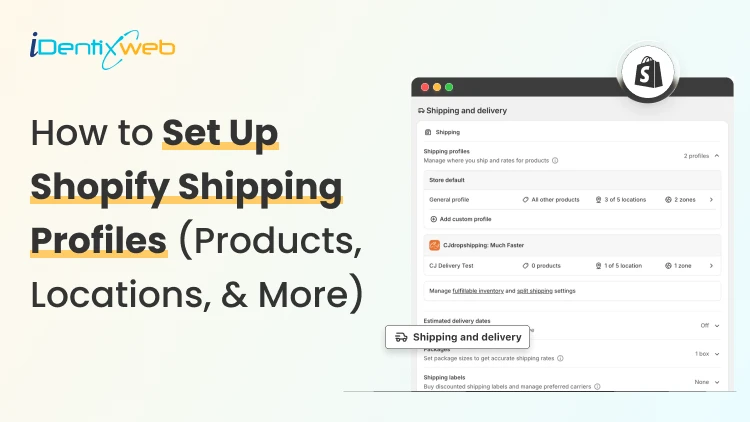
How to Set Up Shopify Shipping Profiles (Products, Locations, & More)
To set up a custom shipping profile in Shopify, go to Shopify Admin → Settings → Shipping and delivery → Shipping profiles → Add custom profile. Add the required products or variants, assign fulfillment locations, create shipping zones, and configure shipping rates based on your requirements. Custom shipping profiles help merchants manage different shipping rules for products like fragile, heavy, oversized, or region-specific items without affecting their entire catalog. Shipping gets complicated when you can't treat every product the same way. A T-shirt, glass vase, and 20-pound bag of pet food might all sit in the same Shopify store. But charging the same shipping rate for each can hurt your margins. Shopify shipping profiles solve this by grouping products with similar shipping needs. It controls where they ship from, where they can ship to, and what customers pay. This guide covers products, variants, fulfillment locations, shipping zones, rates, multiple warehouses, and the checkout issues merchants should test before going live. What Are Shopify Shipping Profiles? Shopify defines a shipping profile as a set of shipping rules for specific products and locations. Stores get a General shipping profile by default, while custom profiles handle products that need different rates. Shipping profileBest forWhat happensGeneral shipping profileProducts using the same shipping ratesProducts stay here unless moved to a custom profileCustom shipping profileFragile, oversized, heavy, or other special productsSelected products or variants get their own locations, zones, and rates Shopify currently allows up to 99 custom shipping profiles for stores using the shipping-profile system. A product or variant can belong to only one profile at a time. Adding it to another profile automatically removes it from the previous one. When do you need a custom shipping profile? You need a custom shipping profile when certain products need different shipping rules from the rest of your catalog. I will explain this better with a few examples below: Furniture or oversized products: Use a separate profile when these products need higher flat rates or special delivery charges. Fragile items: Create one when products such as glassware require extra packaging and higher shipping costs. Heavy products: Use a separate profile if shipping charges need to be calculated differently based on weight. Products sold only in selected regions: Use a separate profile when certain items should ship only to specific countries, states, or regions. Products with free shipping: Create a profile when only selected products should qualify for a $0 shipping rate. Products needing carrier-calculated rates: Use a separate profile when only certain products need live carrier rates instead of your standard flat rates. If most products follow the same shipping rules, keep them in the General shipping profile and create custom profiles only where there is a real difference in cost, location, or delivery requirement. What to prepare before setting up a shipping profile Before creating a profile, I normally map these four things. 1. Products Decide which products or variants genuinely need different shipping treatment. For example, a home decor store will keep cushions and small accessories in the General profile. They move large mirrors into a custom profile because they require protective packaging and higher shipping charges. 2. Fulfillment locations Check where the products are stocked and fulfilled. Locations can represent warehouses, retail stores, fulfillment partners, and other order origins. When a shipping profile is created, eligible online-fulfillment locations are added to it. Locations can share one location group when they use the same zones and rates, or be separated when shipping rules differ. 3. Shipping zones A shipping zone is a group of countries or regions that share shipping rates. You might create zones such as Domestic, Canada, Europe, or selected international countries. Want to sell internationally? Here’s my breakdown of international shipping on Shopify for merchants in 2026. 4. Shipping rates Shopify supports flat rates, order-value-based rates, weight-based rates, carrier or app-calculated rates, and free shipping. Shipping in Shopify can be complicated. Here are my top Shopify shipping strategies to increase sales in 2026. How to create a Shopify shipping profile step by step Step 1: Open Shipping and Delivery From the Shopify admin, go to: Settings > Shipping and delivery Under Shipping profiles, you will see the General profile and any existing custom profiles. Step 2: Create a custom shipping profile Click Add custom profile and enter a clear name, such as: Heavy Products Fragile Items Furniture Free Shipping Products US Warehouse Products Step 3: Add products or variants You can also see the Products section just below the Profile name section. A product or variant can belong to only one shipping profile at a time. This becomes especially useful when only certain variants need different shipping rules, while the rest of the product can stay in the General profile. For example, a merchant selling framed prints might keep the standard-size variants in the General profile. They will move only the oversized frame variant into a custom profile if it needs higher shipping charges, different packaging, or a different fulfillment method. Step 4: Configure fulfillment locations Review Fulfillment locations. If several warehouses should use the same zones and prices, keep them in the same location group. If one warehouse needs different rules, separate it. For example: New York: United States Each location group can have its own zones and rates. Step 5: Create shipping zones For each location group, click Add zone, name it, select the countries or regions, and click Done. For example, a US merchant may create a West Coast zone for California, Oregon, and Washington with a lower shipping rate. They may place Alaska and Hawaii in a separate zone because delivery there costs more. Separate zones help merchants charge rates that better reflect the actual cost of shipping to different regions. Build zones around actual delivery coverage and cost. If certain regions are significantly more expensive to serve, separate rates will be more practical. Step 6: Add shipping rates Inside each zone, click Add shipping option and choose the rate type. Flat rate: Charge one fixed amount, such as $7 for Standard Shipping. This works well when shipping costs are predictable. Order amount-based rate: Change shipping by cart value. A store could charge $8 below $50, $5 from $50 to $99.99, and offer free shipping from $100. Weight-based rate: Charge according to shipment weight. This suits food, hardware, liquids, bulk goods, and similar products. Make sure product weights are accurate, and your tiers cover the full expected weight range. Carrier or app-calculated rate: Let an eligible carrier or app calculate shipping from information such as weight, destination, and package details. Step 7: Save and test Click Save, then place test orders using realistic combinations: A product from the General profile A product from a custom profile Products from two profiles Products fulfilled from different locations Different domestic or international addresses Orders above and below free-shipping thresholds Free shipping can be a great tool to increase conversions. Here’s my complete guide to Shopify free shipping strategies for merchants. Need Help Configuring Your Shopify Shipping Settings? As product catalogs, fulfillment locations, shipping zones, and rate rules grow, managing everything accurately can become difficult. For example, a merchant may sell standard products from one warehouse, oversized items from another, and charge different rates for Alaska and Hawaii. If these rules are not configured properly, customers may see the wrong rate, duplicate charges, or no suitable shipping option at checkout. That’s where Identixweb can help. Our Shopify Store Settings Configuration service helps merchants configure complex shipping, payment, tax, and checkout settings so everything works correctly together. What happens when products come from different profiles? I get this question a lot. Under the current shipping-profile system, Shopify can combine shipping rates when an order contains products from different profiles or requires different location groups. Example: ProductProfile shipping rateT-shirt$4Fragile mug$7Possible combined charge$11 In this case, the customer may see an $11 shipping charge at checkout because Shopify is combining the applicable rates from both profiles. The setup may be technically correct, but the final charge can still feel high to the customer. That’s why merchants should test mixed-profile orders before going live, especially when customers commonly buy products from different profiles together. This helps confirm that the final shipping cost is reasonable and avoids unexpected checkout charges. Common Shopify shipping profile mistakes I see #1 Creating too many profiles This is the most common mistake I encounter with merchants. More profiles do not automatically improve shipping. Start with the General profile and add a custom profile only when a real cost, destination, or fulfillment difference exists. #2 Ignoring mixed-cart costs A rate that looks reasonable for one item but when the customer adds another item with a different profile, the shipping rates increase. Always test mixed carts before creating a profile. #3 Using inaccurate weights Weight-based and calculated rates depend on accurate product data. Incorrect weights can lead to inaccurate checkout charges. #4 Creating zones without checking markets A country appearing in a shipping zone is not enough if that country is not in an active market. Set up Shopify shipping profiles the right way A well-planned Shopify shipping profile helps merchants charge more accurate shipping rates without making fulfillment unnecessarily complicated. The key is to group products only when their shipping costs, destinations, or fulfillment requirements are genuinely different. Start simple, test mixed-product carts, review location-based rates, and update profiles whenever products, warehouses, or shipping costs change. A clean setup makes checkout easier for customers and shipping easier to manage as the store grows. FAQs 1. How to add products to a shipping profile in your Shopify store? Go to Settings > Shipping and delivery > Shipping profiles, open or create a custom profile, and select the products you want to add from the Products section. A product or variant can belong to only one shipping profile at a time, so adding it to a custom profile automatically removes it from its previous profile. 2. What is the difference between a general and custom shipping profile? The General shipping profile is Shopify's default profile and automatically applies to products that aren't assigned to a custom profile. A custom shipping profile is used when certain products need different shipping rates, zones, or fulfillment rules, such as fragile, heavy, or oversized items. 3. Can I offer free shipping for any selected products? Yes. To offer free shipping only on selected products, add those products to a custom shipping profile and create a flat shipping rate with the price set to $0 or enable free shipping for that rate. 4. Does shipping increase when customers buy two products in different shipping profiles? Yes. When products from different shipping profiles are purchased together, Shopify combines their applicable shipping rates and displays one total rate at checkout, which will make the final shipping charge higher. 5. Should I use flat or carrier-calculated shipping rates in Shopify? Use flat rates when shipping costs are predictable, and you want a simple, consistent checkout experience. Use carrier-calculated rates when costs vary significantly by destination, package weight, dimensions, or delivery speed.
8 Min • 31 July 2026
Complete Guide to Shopify Inventory Forecasting to Manage Cash Flow (+ Tools)
Shopify inventory forecasting is the process of estimating how much stock each product will need and when it should be reordered using sales history, supplier lead times, promotions, and current inventory levels. Accurate forecasting helps merchants avoid stockouts, reduce excess inventory, and keep more cash available for business expenses. Tools such as Sidekick, Prediko, Inventory Planner, and Assisty can automate inventory forecasting. If your ROI feels lower even when sales are good, your stock is usually the reason. Cash you've spent on inventory is cash you can't spend on ads, payroll, or the next order. Shopify inventory forecasting is working out how much stock you need and when to order it, so less of your money sits on a shelf. One thing worth knowing before anything else: Stocky, the free forecasting and purchase order app that came with Shopify POS Pro, stops working on August 31, 2026. If you order stock through Stocky, you've got a few weeks to sort out a replacement. What is Shopify inventory forecasting? Shopify inventory forecasting means predicting how many units of each product you'll sell over a future period. You use your sales history, supplier lead times, and whatever promotions you have planned. What you're after isn't the forecast itself. It's a list of purchase orders with dates and amounts against them. A forecast that never turns into an order hasn't done anything for you. Forecasting is really a cash question This is my philosophy: Stock is the biggest cheque you write and the slowest one to come back. You pay a deposit today, pay the balance six weeks later, pay duty when it lands, and only then do the units start selling. Every forecasting choice you make is a choice about how long your money is stuck. Two numbers tell you whether that's under control. Your cash conversion cycle The cash conversion cycle counts the days between paying your supplier and getting paid by your customer. CCC = Days Inventory Outstanding + Days Sales Outstanding − Days Payables Outstanding Days Inventory Outstanding is (Average inventory ÷ COGS) × 365. If you hold $120,000 of stock on average against $480,000 of annual COGS, that's 91 days. Days Sales Outstanding is quick for a normal Shopify store, since Shopify Payments in the US settles in about 2 to 5 business days. It climbs once you add wholesale on Net 30 or marketplaces with their own payout cycles. Days Payables Outstanding is how long your supplier lets you wait. On Net 30, that's 30. So: 91 + 3 − 30 = 64 days. Your money is tied up for a bit over two months on every dollar you put into stock. Most DTC brands land somewhere between 60 and 120 days, and under 60 is doing well. Pull these reports before you do anything else Go to Analytics > Reports and filter by Inventory. I look at four main reports here for forecasting. ABC product analysis grades every variant by how much revenue it brings in. A-grade products are the ones making up 80% of your revenue, B-grade the next 15%, C-grade the last 5%. It's worth knowing that the window is fixed for the last 28 days and you can't change it. If you sell seasonal products, run it at a few different points in the year instead of trusting one snapshot. Products by days of inventory remaining gives you days of stock left per variant, worked out from your average daily sales over the last 28 days. This is the best way to spot what's going to run out before your next delivery lands. Products by sell-through rate shows what share of available stock you sold in a period. There's about a two-day processing delay on it, so the newest data you can see is never today's. Month-end inventory value multiplies cost per item by ending quantity, which gives you your inventory cash position over time, and it's the number you need for the DIO calculation above. For a full walk-through of every report and what the columns mean, see my guide on how to pull a Shopify inventory report in 2026. How to do a Shopify inventory forecast? Clean up your sales history first Sales history and demand history aren't the same thing. Take out days when a product was out of stock, because zero sales that day tells you about your supply, not your demand. Check your product codes while you're in there. If one product exists under three different SKUs because of an old migration, you're splitting one demand pattern into three weak ones, and every forecast after that will be wrong. My guide on setting up SKUs in Shopify covers a naming system that survives growth. Split the catalogue with ABC Don't treat every product the same. Pull the ABC report and give each grade a different level of attention. A-grade products get looked at weekly and get tight reorder points. B-grade products get a monthly check. C-grade products get simple rules and a look every quarter. Create cash calendar Here’s something I do. Take each purchase order you're planning and put its payments on a calendar with real dates against them. An overseas order has four separate payments going out: the supplier deposit, often 30% up front, the balance when it ships, the freight, and then duty and customs when it lands. Lay twelve weeks out in a spreadsheet, one row per payment, and put your expected Shopify payouts in as money coming in. If any week goes red, you move an order, split it, or go back to your supplier about terms. Doing that once a month heads off nearly every cash crunch I see. Pre-orders flip the timing in your favour, since you're collecting money before you place the supplier order. You also get a real demand signal instead of a guess, which is worth almost as much. My walkthrough on setting up pre-orders on Shopify covers the setup and the apps. AI inventory forecasting on Shopify AI inventory forecasting on Shopify uses machine learning to find patterns across your sales history and outside signals that a spreadsheet formula would miss. It handles hundreds of products at once, retrains itself as new sales come in, and picks a different model per product without you telling it to. A model can spot that a product spikes three weeks after a particular campaign, or that two of your products eat into each other, without you knowing to look for it. Where I see it failing is bad data. Feed it sales history full of stockout periods, untracked variants and missing cost figures, and you'll get numbers that are wrong. Clean the inputs first. Sidekick sits in your admin. It can answer stock questions, flags what needs reordering and drafts the PO. It won't replace a proper demand planning tool if your forecasting is genuinely complicated. Inventory forecasting tools worth looking at in 2026 Prediko is a Shopify-native tool with SKU-level twelve-month forecasts, a buying table that tells you what to restock, a purchase order calendar and raw materials tracking. Pricing scales with your GMV from around $49 a month. Good fit for growing DTC brands. Inventory Planner This is a free-to-install app by Sage with usage-based pricing after that. It is strong on multi-location planning and automated replenishment. Cogsy This app is built around scenario modelling rather than one forecast. You can see where your stock lands under different growth assumptions. Assisty Assisty has AI forecasting and automated PO generation. Often the pick for people who want something that works without a long setup project. My guide to building a Shopify tech stack covers how the inventory category fits in your app stack. Where to start with forecasting in 2026 Shopify inventory forecasting gets much less complicated once you stop treating it as a math problem. Pull your ABC report and your days-of-stock report. Work out your cash conversion cycle. Redo safety stock on your ten biggest products. Most stores free up a decent chunk of money from that alone. FAQs 1. How to fix inventory not tracked in Shopify? Open Shopify Admin > Products, select the product or variant, and enable Track quantity in the Inventory section. Assign the correct stocking location, enter the available quantity, and save. For multiple products, use Products > Inventory or the bulk editor to enable tracking. 2. How do I add inventory to my Shopify store? Go to Products > Inventory, choose the relevant location, and enter the stock amount using Set to or Adjust by. You can also update quantities from an individual product or variant page, or import inventory in bulk using a CSV file. 3. Which is the best Shopify forecasting app? Prediko is currently a strong all-round option for growing Shopify brands, offering AI sales forecasting, purchase orders, inventory transfers, bundle planning, reports, and integrations with warehouses and 3PLs. Assisty is another great option with forecast demand with AI to predict future sales. 4. How much does Shopify forecasting cost? Shopify’s native demand-forecasting assistance through Sidekick costs nothing because Sidekick is included with Shopify plans. However, features and usage limits can vary. Dedicated forecasting apps cost extra; for example, Prediko currently starts at $49 per month, while simpler tools such as Assisty start at $19 per month. 5. Is Shopify good for inventory management? Yes. Shopify is suitable for most small and growing retailers. This is because it supports inventory tracking, location-based stock levels, adjustments, transfers, purchase orders, suppliers, sell-through reporting, and inventory-remaining insights.
Vineet Nair
October 29, 2025
832 Views
Vineet Nair
September 18, 2026
54 Views
Vineet Nair
September 15, 2026
68 Views
Vineet Nair
September 14, 2026
80 Views

Vineet Nair
July 10, 2025
1578 Views
Vineet Nair
August 27, 2026
108 Views
Vineet Nair
August 27, 2026
103 Views
Vineet Nair
August 14, 2026
130 Views
Vineet Nair
August 19, 2026
112 Views
Vineet Nair
August 21, 2026
123 Views
Vineet Nair
August 7, 2026
136 Views
Vineet Nair
August 12, 2026
122 Views