

Author: Erika Rykun
Gather knowledge about the latest insights, updates, tips, and tricks in the Ecommerce industry.

5 Min • 20 March 2026
How Anua Unlocked 5X AOV Growth with iCart’s Smart Cart Features
delivery customization Challenges Solutions drive results Scale business delivery customization Challenges Solutions drive results Scale business delivery customization Challenges Solutions drive results Scale business delivery customization Challenges Solutions drive results Scale business Anua is a globally recognized Korean skincare brand known for its minimalist philosophy and focus on gentle yet effective formulations. Built on the idea of simplifying skincare routines, Anua develops products that deliver visible results while avoiding harsh or irritating components, making them suitable for sensitive skin types. Initially using a traditional full cart experience, Anua transitioned to iCart’s side cart solution in August 2025, to create a more seamless and engaging shopping journey. This shift allowed customers to easily explore complementary skincare products without disrupting their browsing flow, making it more intuitive to discover items that fit into a complete routine. By surfacing relevant recommendations directly within the cart, the brand enhanced product visibility across its range. Challenges Before implementing iCart’s side cart solution, Anua faced limitations with their existing full cart experience, which created friction in the customer journey. The traditional cart setup redirected users away from product pages, interrupting their browsing flow and reducing opportunities to explore additional products. As a skincare brand built around routines rather than single-item purchases, this made it difficult to effectively showcase complementary products and encourage customers to build complete regimens. Additionally, the lack of in-cart personalization and strategic upsell opportunities meant that customers were often unaware of related products that could enhance their skincare results. This limited the brand’s ability to increase average order value (AOV) and fully leverage its diverse product range. Anua needed a more dynamic and intuitive cart experience that could seamlessly introduce relevant recommendations while maintaining a smooth and engaging shopping journey. ❌ Cart Value Barriers Low average order value (AOV) due to single-item focus Most customers completed purchases with one primary product instead of building multi-step routines. Cart abandonment near shipping thresholds Customers were not clearly informed or motivated to reach free shipping or discount thresholds. Missed savings opportunities Customers were unaware of potential value in purchasing bundled routines or multiple complementary products. ❌ Absence of Progress-Based Incentives No free shipping or discount progress bar Customers were not motivated to increase their cart value due to lack of visible incentives. Missing tiered rewards system There were no structured milestones (e.g., “Spend more to unlock offers”), reducing upsell opportunities. ❌ Ineffective Cart UI/UX (Pre-Side Cart) Full-page cart disrupted shopping flowCustomers had to leave their browsing journey, increasing friction and drop-offs. No quick add/remove functionality Users couldn’t easily modify their cart or add suggested products without navigating away. Solution To overcome these challenges, Anua implemented iCart’s side cart solution to transform their traditional cart into a high-converting, interactive experience. By replacing the full-page cart with a seamless side cart, the brand ensured that customers could continue browsing while viewing their cart, significantly reducing friction in the shopping journey. Additionally, features like product recommendations & progress bars for free shipping and discounts motivated customers to increase their cart value. By combining personalization, incentive-driven messaging, and a user-friendly interface, Anua successfully turned their cart into a powerful revenue-driving touchpoint rather than just a checkout step. To maximize their cart effectiveness, they implemented two powerful features: ✅ Progress Bar with Multi-Reward Incentives Implemented a tiered progress bar to encourage higher cart value Customers are guided with a clear message like “Add $3.10 to unlock secret offer,” motivating them to continue adding products. Generated over $5M+ in revenue through incentive-driven cart progression Used product-based rewards to align with customer intent Instead of generic discounts, Anua incentivized purchases with relevant skincare items like Dark Spot Pads and mini serums. Built visual motivation for routine expansion As customers add products, they can clearly track progress toward unlocking multiple rewards, encouraging them to build a complete skincare routine. ✅ Product Recommendations Implemented “Frequently Bought Together” recommendations Customers adding a single product (e.g., toner) are shown complementary items like serums, moisturizers, or pads to complete their routine. Generated over 275K revenue through in-cart recommendations Encouraged full skincare regimen building Instead of isolated purchases, the cart suggests step-by-step product combinations aligned with common skincare routines. Increased product discovery at the final stage By surfacing relevant items directly in the cart, Anua ensured customers explore more of their catalog without leaving the checkout flow. Results Achieved in Last 180 Days 22932 Total Store Orders 45101 Total iCart Orders 5X iCart Generated AOV 65.70% Upsell Affected Conversion Rate These improvements reflect a clear shift in customer behavior on Anua’s store. Cart abandonment reduced as shoppers discovered complementary skincare products and felt encouraged to build complete routines. Engagement also increased, with customers interacting more with in-cart recommendations and exploring relevant product pairings. Results & Impact And...Results is Our Main Clarification By implementing iCart’s cart drawer, product recommendations, and progress bar, Anua transformed its cart into a high-performing conversion touchpoint. Shopping Experience Enhancement The improved cart experience encouraged customers to discover complementary products and understand the value of sustainable beauty routines. For instance, the clear presentation of subscription savings alongside one-time purchase options helped customers make more informed decisions about their long-term hair care needs. As Anua continues to optimize its cart experience, the brand is closely monitoring: Routine-based purchasing behavior - tracking how customers move from single items to multi-step regimens Engagement with in-cart recommendations - measuring interaction with suggested products Cart value progression - analyzing how incentives influence higher spending [related_cases_slider] Ready to Write Your Success Story? Try icart App Join successful businesses like Anua and Master your delivery scheduling Delight customers with precise timing Grow your special occasion orders Expand your delivery reach
Read Blog
8 Min • 29 July 2026
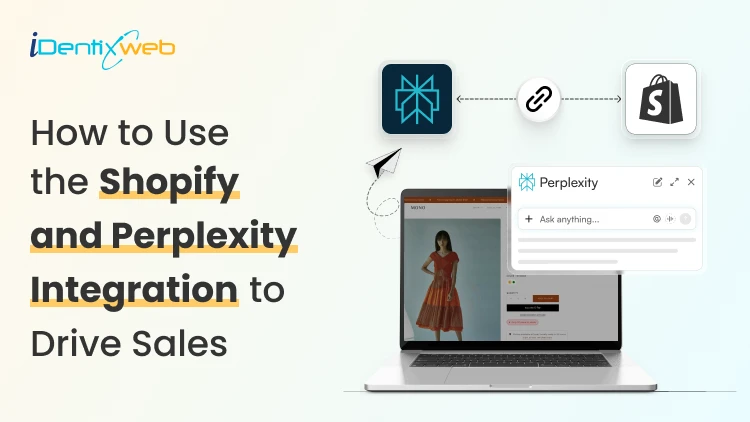
How to Use the Shopify and Perplexity Integration to Drive Sales?
Buyers have stopped going to Google and searching for products to buy. They ask Perplexity and other AI platforms one question and buy whatever it recommends. The Perplexity Computer Shopify connection now works in two directions: Your catalog can appear inside Perplexity answers, Perplexity Computer can run store tasks on your behalf. Most merchants have set up neither, which is exactly why I’m adding this guide. What does the Shopify and Perplexity integration mean? Perplexity and Shopify connect in two separate ways. One is a sales channel. The other is an agent that works inside your store data. The sales channel side is Perplexity Shopping. Your product data reaches Perplexity through Shopify Catalog, and shoppers see products with images, pricing, and review summaries inside the answer. The agent side is Perplexity Computer. Computer connects to hundreds of tools, and Shopify is one of them. You give it a task in plain language, it breaks the job into subtasks across multiple models, and it delivers finished work. How does Perplexity decide which products to recommend? Perplexity pulls product data from retailer feeds, merchant sites, and reviews, then builds its answer. For Shopify merchants, Shopify Catalog automatically syncs your product data to connected AI platforms, including Perplexity, ChatGPT, and Google AI Mode. Product information is more important. If a SKU has no GTIN, a vague description, and four reviews, Perplexity has almost nothing to work with, and it will favour a competitor with complete data. I look for three signals. Structured product data. Product identifiers, Google product category, materials, dimensions, and accurate price and availability. Review depth. Perplexity summarizes pros and cons from customer reviews. Contextual descriptions. A spec list tells the model what the product is made of. A description that names the buyer and the use case tells it who the product is for. Shopify’s own insight says that AI-referred shoppers convert at almost 50% higher rate than organic. Set up the Perplexity and Shopify connection step by step 1. Run an agentic readiness check Shopify has a free tool to check if your product page is ready for AI-selling. Do an agentic readiness check first. 2. Confirm Shopify Catalog is populated Catalog is the delivery mechanism. It syndicates whatever sits in your product records, so incomplete records travel straight into AI answers as incomplete records. 3. Open Agentic Storefronts in your Shopify admin Catalog makes products discoverable. Go to Settings > Sales Channels, and review each AI channel individually. Agentic has been rolled out for merchants this year. 4. Add Perplexity Make Perplexity a sales channel in Agentic. You can also add other AI platforms like Copilot and ChatGPT. 5. Let AI crawlers through Check robots.txt and any bot-blocking rules in your CDN or security app. Blocking AI crawlers will impact your sales significantly when customers are searching for your product on AI platforms. 6. Test with real buyer prompts Pick fifteen questions your customers actually ask, run them in Perplexity, and note where you appear and where a competitor does. I do this every week for stores that I’m working for. Manual testing gives you ground truth that no dashboard provides yet. If you are working through the same setup for OpenAI's ecosystem, my ChatGPT Shopify integration guide covers Instant Checkout and the merchant application side in detail. Optimize your Shopify store for AI search engines like Perplexity and SearchGPT The work that helps you optimize your Shopify store for AI search engines like Perplexity and SearchGPT is the same, which is the good news. Start with product pages. Replace generic claims with specifics a model can extract: who it suits, what problem it solves, what size or spec range it covers, and how it compares to the obvious alternative. Add a short FAQ block to product and collection pages, with the question as a heading and the answer in two or three sentences. Mark it up with an FAQ schema. Collection pages deserve real text. A collection with a title and nothing else gives Perplexity no reason to understand your products. Write a minimum of 150 words explaining what belongs in the collection and who buys from it. In my experience in 2026, comparison content is the strongest lever most stores ignore. Buying guides, category comparisons, and honest product versus product pages match the exact shape of questions people bring to AI search. My full walkthrough on answer engine optimization for Shopify stores breaks down the schema types, FAQ patterns, and topical clusters worth building first. What does the Perplexity Computer Shopify connector do for merchants? The Perplexity Computer Shopify connector gives an agent read and write access to your store data. You enable it once from the Connectors panel and complete OAuth. Computer treats work as tasks rather than chats. You describe an outcome, it plans the subtasks, routes each one to a suitable model, and hands back a finished deliverable. Tasks can run on a schedule whether or not your laptop is open. Here are the five tasks I always set up first: Weekly catalog gap audit. Ask it to list every product missing a GTIN, product category, or description longer than a set word count. An updated catalog is the biggest factor in AI visibility. Bulk description rewrites. Feed it your brand voice rules and let it draft AI-readable descriptions for your products. Review everything before publishing. Competitor price and positioning monitoring. Set a recurring task that checks competitors and flags where you are underperforming. Review mining. Have it read recent reviews, add the common reviews together, and turn them into FAQ entries for the matching product pages. Monday morning report. Orders, refunds, stock risks, and the best-sellers, delivered as a document before you open the admin. Turn High-Intent AI Traffic Into Bigger Orders Visitors arriving from AI search platforms are often ready to buy, making the cart the perfect place to increase order value. Most carts only show products... iCart can show revenue-boosting offers. Try Free Till 100 Orders iCart Cart Drawer Cart Upsell helps you convert that intent with relevant upsells, product bundles, and free-shipping progress bars built directly into the cart. Measure whether Perplexity is actually driving sales I track these four things for Perplexity and any other AI platforms when it comes to tracking sales. Citation rate. Your appearance counts across your fifteen test prompts, checked monthly. Referral sessions from perplexity.ai in GA4, segmented separately from other AI referrers. PayPal Instant Buy orders, reconciled against your Shopify revenue so nothing goes uncounted. Catalog completeness, as a percentage of SKUs with full required fields. It is the leading indicator for everything above. Movement in citation rate usually shows up thirty to sixty days after catalog fixes land. Judge the channel on that timeline, not on week two. Where to start this week Perplexity Computer for Shopify work pays off fastest when you focus on what you want. Run the readiness check, fix your best-sellers, add it as a sales channel, and set one recurring Computer task to update your catalogue. The merchants who benefit from AI recommendations right now are the ones whose product data is clean when the channel opens. FAQs 1. What is the Perplexity Computer Shopify connector? The Perplexity Computer Shopify connector is an integration that lets Perplexity's agent platform read and act on your Shopify store data. You enable it from the Connectors panel in Computer. Once connected, you can assign store tasks such as auditing product data, drafting descriptions, or generating sales reports. 2. What is the price of Perplexity Computer to run a Shopify store? The Computer is available to Perplexity Pro, Max, and Enterprise subscribers. Pro subscribers receive full access, while Max subscribers get monthly credits and higher spend limits. Pro is priced at $20/month, and Max costs $200/month. 3. How is optimizing for Perplexity different from optimizing for ChatGPT or SearchGPT? The underlying work overlaps almost entirely. Complete structured data, genuine reviews, contextual descriptions, and FAQ content improve visibility across Perplexity, ChatGPT, and Google AI Mode. The differences sit in checkout infrastructure and opt-in requirements, not in content strategy. 4. How long before the Shopify and Perplexity integration shows results? Expect thirty to sixty days between catalog improvements and a measurable change in citation rate. Feed syndication is fast, but AI engines need time to re-crawl, re-evaluate, and accumulate review signals before they start recommending a store consistently. 5. Can Perplexity Computer make changes to my store without approval? It can if you grant write scope and do not require confirmation. Configure Computer to check in before executing write actions, start with read-only reporting tasks, and expand permissions only after you trust the output.
12 Min • 14 September 2026
How to Migrate From Wix to Shopify: A Step-by-Step Guide for 2026
A Wix to Shopify migration can be handled manually with CSV files, through a migration app, or by hiring a Shopify expert. Before migrating, audit and back up your Wix store, choose the right migration method, and prepare products, customers, content, and URLs. After migration, rebuild store settings, set up 301 redirects, connect your domain, test checkout and tracking, and monitor SEO performance after launch. I've walked a lot of store owners through a Wix to Shopify migration. People expect the hard part to be moving products. It's not. The hard part is the stuff nobody warns you about: The image links that break The orders that won't import The redirects that decide whether you keep your Google rankings and much more. Get those right, and the move feels easy. Here's how to migrate from Wix to Shopify the way I do it on real projects. What actually transfers from Wix to Shopify (and what doesn't) Store data/featureTransfers to Shopify?What happensProductsYesMove through CSV or a migration appVariants, prices & SKUsYesCan be included with product dataCustomersYesNames, emails, addresses, and tags can be exported and importedProduct imagesPartlyWix exports image URLs, so images should be moved and re-hosted on ShopifyCollectionsNo, not directlyRecreate them in ShopifyOrder historyNot nativelyUse a migration app to import historical ordersTheme & designNoRebuild the storefront using a Shopify themeCustom codeNoRebuild or adapt it for ShopifyWix apps & settingsNoReplace them with Shopify apps or native featuresDiscount codesNoRecreate them in ShopifyProduct reviewsNot directlyMove them using a compatible reviews app such as Judge.me, Loox, or Yotpo Choosing your migration method: Manual, app, or expert Manual CSV migration This is free and gives you full control. You export from Wix, reformat the files to match Shopify's exact column headers, save them as UTF-8, and import. It works well for small catalogs, roughly under 500 products, if you're comfortable with a spreadsheet. A migration app Apps like Matrixify are the ones I choose for bulk work because they handle messy field mapping and let you catch errors before they hit your live store. For order history specifically, tools like LitExtension can automate what the CSV method can't. Hiring a migration agency This is an ideal choice for large or complex stores, or when downtime and lost rankings would cost you more than the project fee. A specialist maps URLs you didn't know were indexed and tests things you'd never think to check. If you'd rather hand it off, that's exactly what our Shopify store setup and migration service is for. Our developers handle the technical details carefully, making sure your store is moved and set up without disrupting how your business operates. How to migrate from Wix to Shopify step by step Step 1: Audit and back up your Wix store Before you move anything, take stock of what is currently on your Wix store. List your products, collections, customers, orders, pages, blog posts, reviews, apps, custom code, and any URLs that already get organic traffic or backlinks. Export copies of your products, contacts, and order data from Wix. I also recommend saving a list of your important URLs, page titles, meta descriptions, and other SEO data so you have something to compare against after migration. Step 2: Set up your Shopify account Build your Shopify store before you start moving data from Wix. Add your basic business information and familiarize yourself with the Shopify admin. Keep your existing Wix store live while you build and test the new store. Build your Shopify store in parallel so customers can continue shopping on Wix until the products, settings, redirects, and checkout are ready. Step 3: Choose your Wix to Shopify migration method The right migration method depends on how much data you have and how complicated your store is. For a smaller catalog, you can migrate Wix to Shopify manually using CSV files, while larger stores may be easier to handle with a migration app or a Shopify migration expert. Step 4: Migrate your products and images Export your products from Wix and prepare the CSV according to Shopify’s product format. Before importing, check how your product options are structured. Wix allows up to 6 product options, while Shopify allows up to 3 option types per product. Shopify supports up to 2,048 variants per product, so the bigger issue is usually how those variants are organized. If a product uses more than three options, you may need to restructure it or move supporting information into Shopify metafields. Product images also need extra attention. A few months ago, I was on a call with a home and kitchen store owner who had already moved her products from Wix and built her new Shopify store over the weekend. Everything looked ready, and she was about to take the Wix site offline. I asked her to check the product images first. The images looked fine, but Shopify was still importing them using URLs hosted through Wix. Taking the old store down too early could have interrupted that process. We kept Wix live until the images had been fully imported and checked the main product pages again before switching over. Since then, I’ve followed one simple rule: don’t take your Wix store offline until you’ve confirmed that your products and images have been successfully imported into Shopify. Before moving on, verify prices, SKUs, variants, inventory, descriptions, and images across a sample of your products. Step 5: Migrate customers and order history Export your customer data from Wix, reformat it using Shopify’s customer CSV template, and import it into the Customers section of your Shopify admin. Check names, email addresses, phone numbers, addresses, tags, and marketing consent carefully before importing. Wix and Shopify structure customer data differently, so even a small formatting issue can create incomplete records. Customer passwords won’t move to Shopify. This is less of a problem now because Shopify deprecated legacy customer accounts in 2026 in favor of passwordless customer accounts. Customers can sign in using a one-time code sent to their email, with additional options such as Shop and passkeys where available. Historical orders need a separate migration method. They don’t come across through Shopify’s standard customer CSV, so if you need old Wix orders inside Shopify, use a migration app such as Matrixify or a dedicated migration service. Step 6: Move pages, blogs, reviews, and other content Once your products and customer data are in place, move the content outside your catalog. For a smaller Wix site, pages and blog posts can often be recreated manually. If you have a large content library, a migration app can make the process faster. Don’t copy only the visible text. Re-upload any images that were hosted on Wix, update internal links so they point to the new Shopify URLs, and recreate important SEO elements such as meta titles, meta descriptions, headings, and image alt text. Reviews also need separate attention because they don’t move through Shopify’s standard product import. Check whether the Shopify review app you plan to use supports importing your existing Wix reviews before launch. Step 7: Build your Shopify theme and configure Store settings Your Wix design does not transfer directly to Shopify, so the storefront needs to be rebuilt using a Shopify theme. Then configure the settings that don't simply come across with your store data. Set up your payment provider, shipping methods and rates, taxes, policies, notifications, and any Shopify apps you need before opening the store to customers. Step 8: Set up Wix-to-Shopify 301 redirects Wix and Shopify use different URL structures, which means many of your existing URLs will change during migration. Create a URL plan that matches each important Wix page with the most relevant new Shopify page instead of sending everything to the homepage. In Shopify, you can create redirects under Content > Menus > View URL Redirects, or import redirects in bulk using a CSV file. Step 9: Connect or transfer your domain Once the Shopify store is ready, connect your existing domain so customers can continue using the same website address. If your domain is managed through Wix, you can update its DNS settings to point it to Shopify while continuing to manage the domain through Wix. You can also transfer an eligible domain to Shopify if you want to manage the domain, billing, and renewal from Shopify instead. Step 10: Test your Shopify store and go live Before launch, place test orders and go through the store exactly as a customer would. Check product pages, navigation, search, checkout, payments, shipping rates, taxes, inventory, discount codes, email notifications, mobile pages, and your most important 301 redirects. Important Wix to Shopify Migration issues 1. Data can change during migration If customers are still ordering from Wix while Shopify is being built, run a final check before launch so recent orders, customers, and inventory changes aren't missed. 2. Wix apps don't transfer Review features such as reviews, subscriptions, forms, loyalty programs, personalization, and marketing tools, then find Shopify replacements where necessary. 3. Protect your SEO Keep your important URLs, set up 301 redirects, update internal links, and make sure valuable pages haven't disappeared during the move. 4. Check your tracking Verify Google Analytics, Search Console, advertising pixels, conversion tracking, and other integrations after launch. Finally, don't delete your Wix store or migration files immediately. Keep access to the old data until you've confirmed that Shopify has everything you need. Protecting your SEO during a Wix to Shopify migration Wix and Shopify use completely different URL structures. Every indexed link breaks the moment you switch unless you redirect it. Here's how the URLs change. Wix products live at yourstore.com/product-page/product-name and Wix blog posts at yourstore.com/post/post-slug. Shopify forces its own prefixes. For example, products sit under /products/ and collections under /collections/. A page with the same name and identical content still gets a brand-new URL on Shopify. So before you go live, build a full map from every old Wix URL to its closest new Shopify URL. Set up a 301 redirect for each important page in your Shopify admin under Content > Menus > View URL Redirects. For a big catalog, upload them in bulk with a spreadsheet through Matrixify. A few rules I hold to on every project: Use 301 redirects, never 302s, because Shopify only supports permanent redirects here, and that's what passes your ranking signal. Avoid redirect chains, where an old URL points to a second URL that points to a third. Point every old URL straight to its final destination. Pay special attention to your blog. Blog posts are often the pages with the most backlinks pointing at them. Once you're live, carry over your title tags, meta descriptions, and image alt text, submit your new sitemap to Google Search Console, and watch for crawl errors for the first month. My full Shopify SEO migration guide covers the redirect and metadata workflow in more depth if you want the complete playbook. What it costs to migrate from Wix to Shopify The cost of moving from Wix to Shopify depends on how much data and custom work your store has. A simple DIY migration may only cost your Shopify subscription and your time. If your store has a large catalog, years of orders, custom features, or important SEO traffic, the cost can be higher because you may need a migration app or professional help. Migration is only one part of the total budget. Read my guide to how much it costs to build a Shopify website in 2026 for a broader cost breakdown. Planning your Wix to Shopify migration? A Wix to Shopify migration is easy once you have a plan. Build your Shopify store fully in parallel, re-host your images before you touch the Wix domain, and treat your 301 redirect as the most important task. If you'd rather not manage every step yourself, that's what a Shopify migration agency is for. Either way, do it in the right order, test everything, and you'll come out with a faster store and your rankings intact. FAQs 1. Is Wix cheaper than Shopify? Wix can be cheaper for smaller websites and basic online stores. Shopify is built specifically for ecommerce and includes more advanced selling features. Your actual cost on Shopify depends on the plan, apps, payment processing, and features your store needs. 2. Why do store owners move from Wix to Shopify? Many store owners move from Wix to Shopify when their ecommerce needs become more complex. Shopify is built specifically for commerce, with a dedicated checkout, Shop Pay, support for major payment methods, a large app ecosystem, and built-in tools for selling across channels such as Instagram, TikTok, Google, and Amazon. 3. Is Shopify like Wix? Shopify and Wix both let you build websites and sell online, but their primary focus is different. Wix is a website builder with basic ecommerce features, while Shopify is a dedicated commerce platform designed for businesses that want to sell and scale, both online and offline. 4. How to migrate from Wix to Shopify? You can migrate from Wix to Shopify by exporting your products and customers from Wix and importing them into Shopify using CSV files, Shopify’s Store Migration app where available, or a third-party migration app. For historical orders, Shopify recommends using apps such as LitExtension, Cart2Cart, EZ Importer, or MigrationPro, then rebuilding your storefront, setting up redirects, and testing products, checkout, shipping, payments, and SEO before making the Shopify store live. 5. Can you use Shopify with Wix? Yes. Shopify lets you create a Buy Button or product collection and embed it on a Wix website using Wix's HTML code element, allowing customers to purchase Shopify products from your Wix site.
7 Min • 19 August 2026
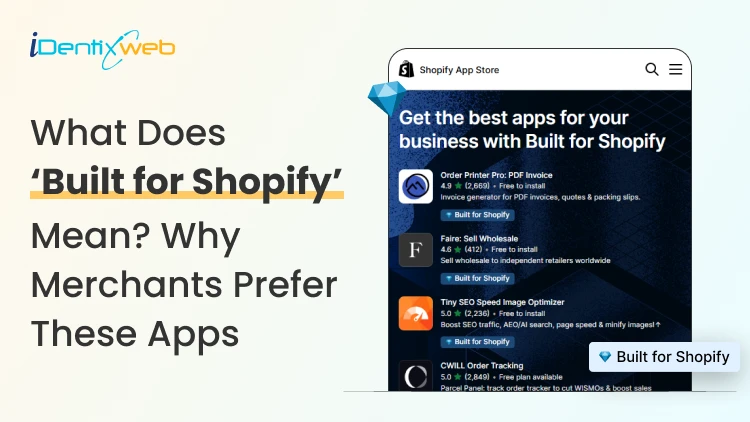
Built for Shopify Apps Benefits: What Merchants Gain from the Badge
Built for Shopify apps give merchants a stronger quality signal when choosing apps. They are evaluated against Shopify’s standards for performance, design, integration, usability, and ongoing compliance. Benefits for 'Built for Shopify' apps include smoother admin workflows, simple storefront integration, better performance safeguards, and easier app discovery. The Shopify App Store gives merchants thousands of ways to add features that Shopify does not provide by default. The difficult part is deciding which app to install to make your life easier. That is where the Built for Shopify badge helps. It is Shopify's highest level of recognition for apps that meet its quality standards. Built for Shopify apps have their benefits, but it's more than that. That being said, I would not just choose an app because it has the badge. I would use it as a strong first filter, then compare functionality, pricing, reviews, support, permissions, and compatibility. What does Built for Shopify mean? Built for Shopify, often shortened to BFS, is Shopify's quality program for apps distributed through the Shopify App Store. Apps that earn the status must meet requirements such as performance, integration, design, App Store compliance, merchant adoption, reviews, and category-specific criteria. Shopify describes Built for Shopify as the highest level of recognition and achievement an app can reach. The badge appears on qualifying app listings and app cards in search results and category pages. Merchants can also filter App Store results to show only Built for Shopify apps. Above is an app, Delivery Date & Pickup Stellar. You can see it has a Built for Shopify badge just below its name. I’ve worked closely with Shopify merchants and been involved in developing Shopify apps around real store requirements. I know how much difference a well-built app can make to day-to-day store management. Built for Shopify apps: Benefits for merchants 1. You get a faster way to shortlist better apps Several apps offer similar features. The Built for Shopify badge helps you to filter apps that are helpful in a specific category. Instead of comparing every app only by listing content, pricing, and reviews, you can use the badge to quickly identify apps that meet Shopify's standards. It makes the selection process much easier. 2. You reduce the risk of choosing an app that hurts store performance Every app you install can affect your storefront or Shopify admin experience. Built for Shopify apps must meet Shopify's performance requirements. This includes limits around storefront and admin Web Vitals. For you as a merchant, this means the app has been evaluated against measurable performance standards rather than relying only on the developer's claims. 3. You get an app that feels more familiar inside Shopify Built for Shopify apps are expected to follow Shopify's UX and design standards. This includes clear navigation, responsive layouts, familiar controls, and admin behavior. For you, that can mean less time figuring out where settings are located and a smoother experience for team members navigating through the admin panel. 4. You can manage more of the app without leaving Shopify One of the biggest benefits of choosing a Built for Shopify app is better Shopify integration. Shopify expects the primary functionality of an embedded BFS app to work inside the Shopify admin where applicable. That means you are less likely to depend on completely separate dashboards for everyday tasks. If you use multiple apps, this will make daily store management more organized and easier to follow. 5. You get cleaner storefront installation and removal Apps that add storefront features can create problems if they make unnecessary changes to your theme. Built for Shopify requirements encourage apps to use Shopify's current extension architecture, including theme app extensions. These extensions are made to integrate more easily with themes and are removed when the app is uninstalled. For you, that means less risk of being left with unnecessary storefront elements after removing an app. 6. You choose apps that already have real merchant usage An app cannot qualify for the Built for Shopify badge without meeting Shopify's merchant adoption and review requirements. That means the app must already have real usage across active stores before it can earn the badge. For you, this provides confidence that the app has been used by actual merchants. 7. You get a quality signal that Shopify continues to review The Built for Shopify badge does not stay forever with the app. Shopify continues to monitor requirements and reviews BFS apps over time. If an app stops meeting the requirements, it can lose its status. This makes the badge more useful because it reflects ongoing compliance with Shopify's standards. Built for Shopify requirements merchants should understand AreaWhat Shopify checksWhy it matters to merchantsPrerequisitesApp Store compliance, Partner standing, installs, reviews, recent ratingGives Shopify merchant usage and quality signals to evaluatePerformanceAdmin Web Vitals, storefront impact, relevant checkout performancePlaces measurable limits around app performanceIntegrationEmbedded workflows, App Bridge, Shopify-based processesKeeps important workflows connected to ShopifyDesignFamiliar UX, responsive layouts, clear navigationMakes everyday app use more predictableCategory criteriaRequirements specific to an app's functionChecks whether apps use Shopify's expected functionality for their categoryOngoing complianceAutomated checks and recurring reviewsRequires apps to continue meeting current standards The exact criteria depend partly on what the app does. For example, a product review app does not necessarily have the same functional requirements as a fulfillment, subscription, returns, or product bundles app. This is why I would avoid one checklist as the complete BFS standard. Shopify maintains detailed developer documentation and updates category criteria as its platform changes. Should I install only ‘Built for Shopify’ apps I will advise this to merchants: A Built for Shopify app is not always the right choice for your store. It might lack an important feature, cost more than your budget, or request permissions you do not want to grant. The badge also should not be interpreted as a guarantee of perfect support, zero bugs, higher conversion rates, stronger SEO rankings, or specific revenue growth. Those outcomes are outside the scope of what Shopify says the BFS badge certifies. I’m also not saying a non-BFS app is automatically a bad app. A newer app might not yet meet the standard for the BFS badge, but it can definitely help your store grow. If budget is a major factor, compare options in my guide to free Shopify apps rather than choosing by badge alone. How to find Built for Shopify apps The simplest method is to look for the Built for Shopify badge on an app listing. You can also use the BFS filter on Shopify App Store search and category pages. That badge should be visible directly on the App Store listing, which makes it easy to verify before installing. Final takeaway The strongest benefit of Built for Shopify apps is the standards behind the badge. Shopify evaluates qualifying apps for performance, design, integration, merchant adoption, App Store compliance, and relevant category requirements. It also reviews these apps over time instead of giving a permanent badge. For merchants, I would use the badge as a shortcut to a better shortlist, not as permission to skip due diligence. Start with BFS apps when suitable options exist, then compare feature fit, permissions, reviews, pricing, support, and compatibility before making the final choice. At Identixweb, we provide Shopify app development services for merchants who need functionality that an existing public app cannot fully cover. FAQs 1. What does Built for Shopify mean? The Built for Shopify badge identifies Shopify apps that meet Shopify's highest quality standards. Shopify evaluates qualifying apps across performance, design, integration, prerequisites, and relevant category-specific requirements. 2. What are the main Built for Shopify requirements? Current requirements include Shopify App Store compliance, good Partner standing, merchant adoption and review criteria, performance thresholds, Shopify admin integration, design standards, simple installation practices, and category-specific rules. 3. Can an app lose the Built for Shopify badge? Yes. Shopify reviews BFS apps and monitors several requirements on an ongoing basis. Apps that stop meeting the criteria and fail to correct the issues can lose Built for Shopify status. 4. Are Built for Shopify apps always better than non-BFS apps? Not in every situation. The badge is a strong quality signal, but merchants should still compare features, pricing, support, permissions, integrations, reviews, and compatibility before choosing an app.

Erika Rykun
December 31, 2022
6224 Views