







To choose a Shopify theme, start by matching the theme to your brand style, your catalog size, and the features you actually need (like a slide-out cart, filters, or mega menus) so you avoid installing extra apps later. Use the Shopify Theme Store filters to narrow options by industry, style, and budget, then preview your top picks with your own products and test them on mobile for speed and clarity. Finally, check reviews and developer support, and publish only after the theme passes your review checklist.
When a customer lands on your Shopify store, they judge your store in a single glance. From your colors and design to your functionality and the theme you use.
Choosing the right Shopify theme makes your products look better, loads fast on mobile, and gives you key features without forcing you to install ten extra apps.
So let's make this guide on how to choose a Shopify theme practical and simple, even if you are building your first store.
By the end, you'll know exactly how to choose a Shopify theme that fits your brand, budget, and catalog, plus a clear Shopify theme review checklist to test any theme before you publish it.

Factors to consider before picking a theme
Knowing how to choose a Shopify theme starts long before you open the Shopify Theme Store. Run through these factors first, because they turn "how to choose the best Shopify theme" from a guessing game into a simple checklist.
1) Brand fit: Does it "feel" like your store?
A theme should match your vibe the moment someone lands on your homepage.
If you sell premium products, you need clean spacing, strong typography, and big visuals. If you sell fun or trendy items, you need bold sections, badges, and punchy layouts.
Quick check:
- Does the homepage style match your brand (minimal, bold, luxury, or playful)?
- Can you highlight your best sellers without confusing customers?
- Does it support the kind of visuals you use (big images, video, lifestyle shots)?
2) List out your products and product categories
It's important to sort out the total number of products or categories you want to show in your store first. Here's why.
Themes behave very differently with 15 products vs. 1,500 products. With a larger catalog, shoppers need fast ways to narrow options. With a small catalog, you need strong storytelling and product pages that sell.
If you have fewer products, choose a simpler theme rather than one packed with elements and features that can confuse both you and your visitors.
- Selling a single product? Feature it on the homepage.
- Planning to sell more? Pick a theme that supports a small product selection on the homepage.
What to look for in big catalogs
- Strong collection layouts
- Filters and sorting that feel easy
- Search that helps people find products quickly
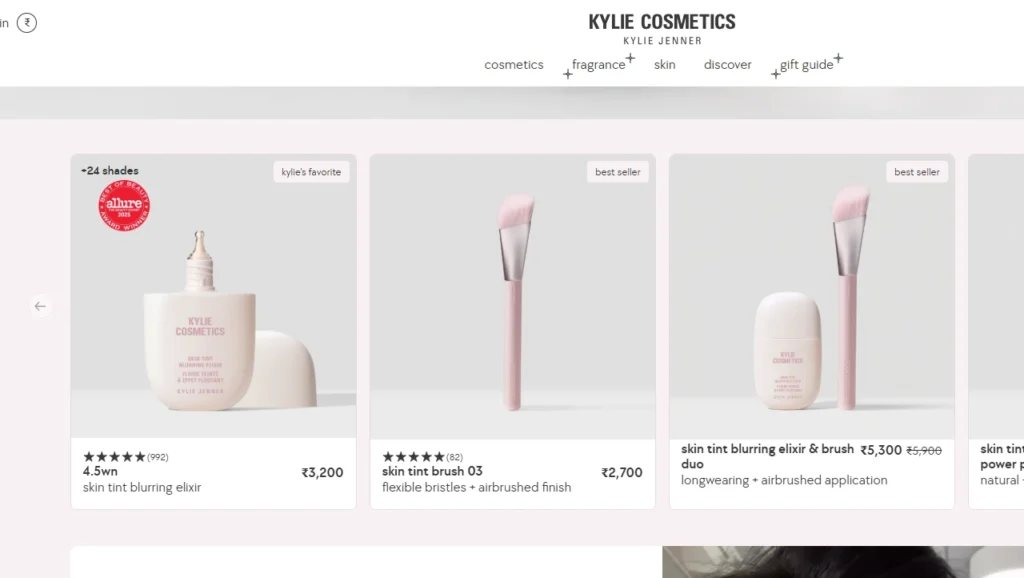
Source: Kylie Cosmetics with a large catalog.
What to look for in small catalogs
- Strong product page layout
- Sections for story, reviews, FAQs, and trust blocks
- Visual-first design that sells the "why"
3) UX features that reduce app overload
New merchants often install apps to fix what their theme should already handle. A better theme saves you money and keeps your store lighter.
Features worth prioritizing:
- Slide-out cart functionality
- A clean cart experience that encourages checkout
- Video support on product pages
- Mega menu support if you have lots of categories (mega menus show many links in a multi-column layout)
- Strong collection filters and sorting for discovery
- Cross-sell or "recommended products" sections to raise average order value
Want a higher AOV without bloating your theme?
Install iCart Cart Drawer Cart Upsell and add slide-out cart upsells in minutes.
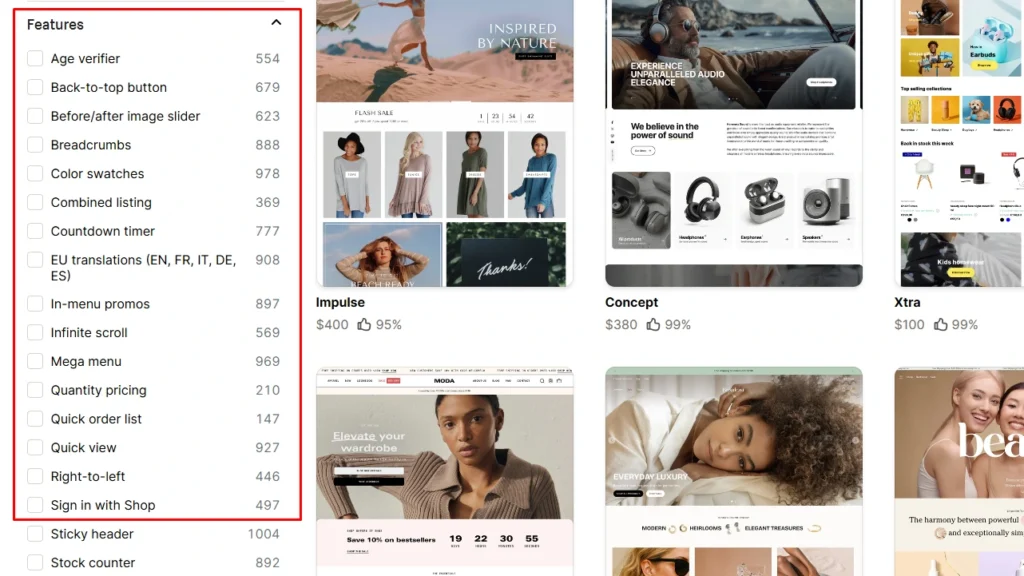
4) Test whether the theme matches the features you need
Before selecting a theme, list out the features you plan to use in your store, then compare that list against what each theme offers.
Once you have your list, search the Shopify Theme Store for the theme that satisfies most of your requirements and fits your brand.
If a theme has only one feature you like while the rest are missing, skip it and choose the theme that covers most of your must-haves. You can always have a single missing feature built later by a Shopify developer.
5) Check your content
One of the main factors to note before picking a theme is analyzing your content. Make a list of the text, images, and videos you plan to use in your store.
Then go to the Shopify Theme Store and match a theme to those needs. If a theme takes a picture-first approach and offers little room for written content, move on to another. If none fit perfectly, list your features and find the closest match.
6) Performance: speed and mobile experience
Speed matters because slow pages lose attention and sales. Shopify recommends using an up-to-date, optimized theme, and it warns that heavy animations can slow pages, so compare performance before and after turning effects on.
Responsive themes are essential in 2026, as almost half of Shopify traffic now comes from mobile devices.
Performance checklist:
- Choose a theme known for performance and keep it updated
- Avoid too many sliders, transitions, and "fancy" effects if you want speed
- Test mobile first, because most new stores get heavy mobile traffic
The good news: Shopify's themes are already optimized for desktop and mobile, so you don't have to worry as much here.
7) Customization: Can you edit without code?
You should be able to update your chosen theme without touching code. Shopify's theme editor lets you preview changes and rearrange content using sections and blocks, flexible building pieces you can move around.
Look for:
- Drag-and-drop sections that let you move content around
- Enough templates or flexible layouts for product pages and collections
- Settings for fonts, colors, buttons, and spacing so you can match your brand fast
8) Compatibility and scalability
Your theme should play nicely with the apps you actually plan to use (upsell, reviews, email capture, subscriptions, delivery dates, and so on).
If you plan to grow into more products or collections, choose a theme that won't break when your catalog expands.
Ask yourself:
- Will the theme support the layouts I'll need 6 months from now?
- Does it keep my store clean even after adding apps and content?
9) Budget and support
Free themes can work really well, especially if you are a new store and want solid performance right away.
Paid themes often give you more built-in sections, more templates, and developer support, which helps if you want a more "ready-made" premium look.
Tips if you're on a budget:
- Check whether the theme developer provides documentation and support access from your admin.
- Remember: third-party theme developers usually don't do custom work for you, so you may still need a Shopify Partner for bigger changes.
How to find the right Shopify theme for an online store
Now that you know the factors, here is exactly how to choose a Shopify theme using the Theme Store, and how to find the right Shopify theme for an online store, step by step.
Step 1: Start inside the Shopify Theme Store
Shopify lets you sort themes by industry or by collection style. Shopify also notes that no theme is locked to one industry, so you can pick what fits your brand, not just your category.
Do this:
- Filter by industry to narrow options fast
- Filter by style or collection type if you want a specific vibe
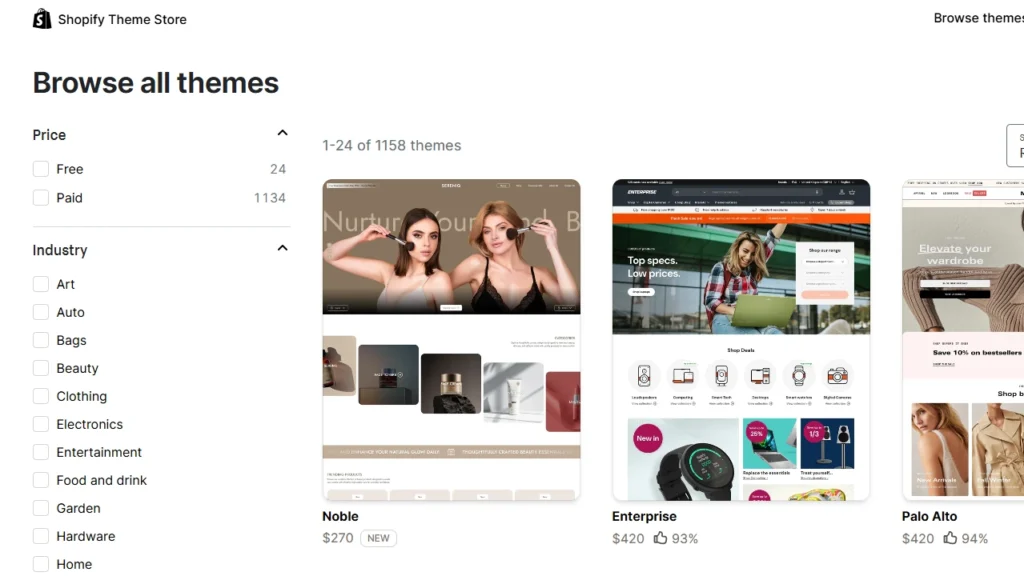
All these options and more are available on the left side panel.
Step 2: Preview and test with your products (your Shopify theme review checklist)
Shopify lets you preview any theme and customize it in the theme editor. You can even try a paid theme in your Shopify admin before buying, and Shopify saves your customizations if you decide to purchase later.
Run this Shopify theme review checklist before you commit to a paid theme:
- Add 5 to 10 real products with real images
- Build 2 to 3 collections and test filters and sorting
- Open your store on mobile and check the menu and navigation, product page clarity, and the cart and checkout flow
- Keep an eye on speed, and turn off effects that slow things down
This is also the stage to customize a store theme that best fits your brand, then take a screenshot of your final theme so you can compare layouts side by side before publishing.
Step 3: Read reviews and real merchant feedback
What do you do before buying anything online? You read the reviews and ratings first.
Do the same before picking a theme. Check the theme's reviews and what other merchants say about their experience, and let that guide your decision.
Support is a major factor that can save you the cost of hiring someone to fix things. Shopify themes give you access to Shopify's theme support team, so you're never on your own.
Take your time before choosing a Shopify theme
There you have it, the complete process for how to choose a Shopify theme for your online store, from brand fit and catalog size to performance, customization, and budget.
Run every option through the Shopify theme review checklist above, test it with your own products, and you'll know exactly how to choose the best Shopify theme for your brand.
FAQs
1. How to choose a Shopify theme for your online store?
Browse the Shopify Theme Store and use its search bar or filters to find a theme with the look and features your store needs (for example, a slideshow or product filters). Try both free and paid themes, read their details (included features and developer support), and test each one with your own products to make sure it matches your brand.
2. How do I change my Shopify theme?
In your Shopify admin, go to Online Store > Themes, find the theme you want in your library, and click Publish. Your store will switch to that theme, and your old theme will move to the library so you can switch back later.
3. Should I choose a free or paid Shopify theme?
Free themes are a great way to start for a new or small store because they cost nothing and cover all the basics. Paid themes (a one-time cost typically around $180–$400) usually offer more built-in features and design flexibility, which becomes worth it as your store grows.
4. Which Shopify theme should I start with?
Shopify usually starts new stores on a default free theme called Dawn, which gives you a clean, simple design to begin with. You can customize Dawn to match your brand and later publish another theme (free or paid) if you find one you like better. Learn more in my complete Shopify Dawn theme guide.
5. Are Shopify themes a one-time purchase?
Yes. Paid Shopify themes require a one-time purchase fee, and then you own the theme for your store. Free themes cost nothing, so you can keep using or switching them without making a purchase.



About the author
Sajini Annie John
Meet Sajini, a seasoned technical content writer with a passion for e-commerce and expertise in Shopify. She is committed to helping online businesses to thrive through the power of well-crafted content.