






Start by creating a free Pinterest Business Account or converting your existing personal profile. Next, log in to Shopify, find the Pinterest app in the Shopify App Store, and select **Add app**. Follow the prompts to sign in to Pinterest and grant the necessary permissions. Once connected, finish the setup to claim your website, install the Pinterest tag, and automatically sync your Shopify product catalog with Pinterest.
Do you know, according to the latest Storeleads data, Pinterest is among the top 5 social media platforms used by Shopify stores.
And why not?
People arrive on it searching for what they want, and a huge share of that intent is commercial.
I went through the current setup end to end and checked every step against Pinterest's own documentation and Shopify's deprecation timeline.
Here is what the integration does in 2026, how to link the two accounts properly, and the three or four bits of advice you need to sell.
Why is Pinterest worth a Shopify store owner's time?
Pinterest behaves like a visual search engine. For a new or small Shopify store, this is huge. Unbranded search is the whole opportunity for new stores. Nobody is searching for your brand yet. They are searching for the problem your product solves.
The other thing worth knowing is longevity. A pin keeps surfacing in search and related pins long after you publish it.
That behaviour makes Pinterest important for SEO. This is why I treat it as a channel that helps with growth over time.
What does the Pinterest for Shopify app do?
The Pinterest for Shopify app is free to install, built and maintained by Pinterest Inc on the Shopify App Store.
Here is what happens the moment you install & connect:
- Your domain gets claimed on Pinterest. No meta tag, no DNS record, no waiting.
- The Pinterest tag and the Conversions API get installed. You get browser side and server side tracking without customizing theme files.
- Your Shopify product feed connects to Pinterest. Your catalog becomes a Pinterest data source.
- Product Pins get generated from that feed. Price and availability stay current instead of going stale.
What the Pinterest for Shopify app does not do?
The app syncs data and installs tracking. It does not design pins, schedule content, write keyword rich descriptions, or build boards for you.
Every store I have seen struggle on Pinterest installed the app, watched Product Pins auto generate, and then stopped. Auto generated Product Pins won’t help you get sales.
How do I link my Shopify store to Pinterest?
Step 1: Create a Pinterest Business account
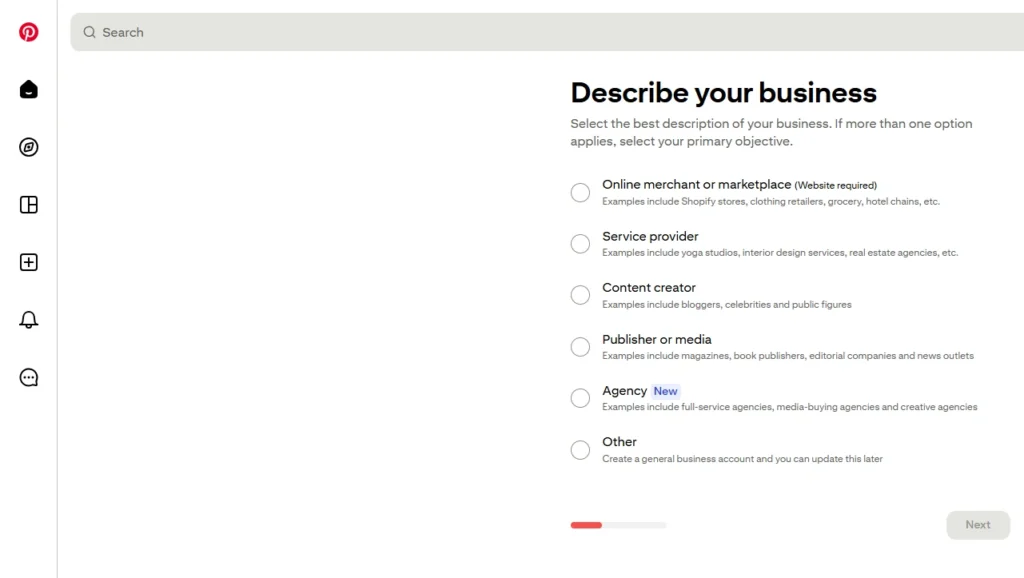
You need a Pinterest business account before connecting your store.
You can either create a new business account or convert your existing personal account. Add your store name, logo, website URL and a short business description so Pinterest can clearly identify your brand.
Step 2: Install the official Pinterest app
Log in to your Shopify Admin and go to:
Settings > Apps and sales channels > Shopify App Store
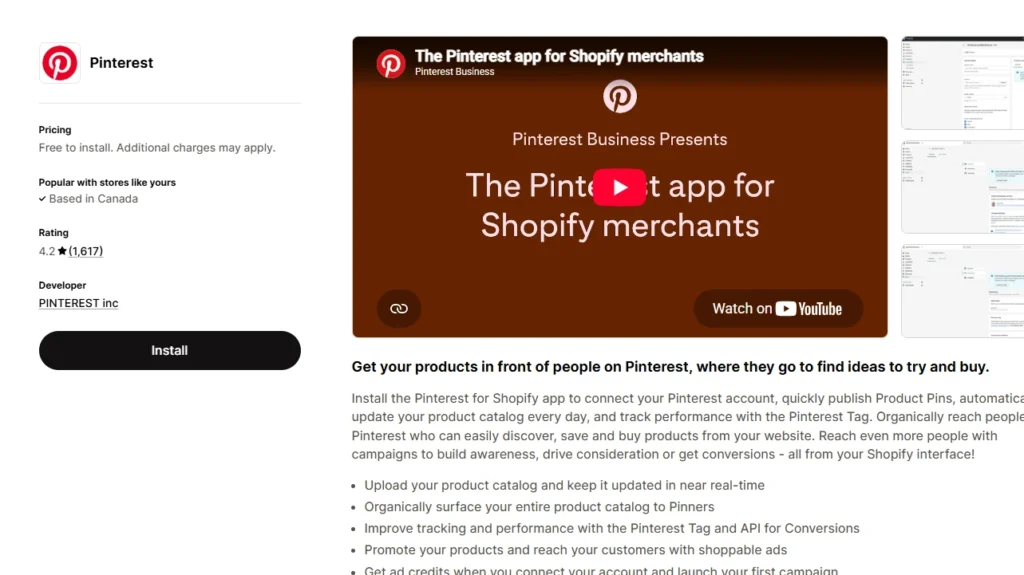
Click Install, review the permissions and approve the installation. Pinterest should then appear in your Shopify Admin as an app or sales channel.
Step 3: Connect your Pinterest account
Open the Pinterest channel inside Shopify and click Connect Pinterest account. A Pinterest login window will appear.
Log in using the account that owns your Pinterest business profile. Select the correct Pinterest business account and advertiser account, then approve the connection.
Step 4: Let Pinterest claim your website
The Shopify integration should automatically claim your Shopify website on Pinterest.
You can check this inside your Pinterest settings under Claimed accounts or Claimed websites. Your Shopify domain should appear there after the connection is completed.
Step 5: Allow your products to sync
Once the accounts are connected, Pinterest will create a product catalog using the information from your Shopify store.
Active Shopify products will automatically become Product Pins on Pinterest.
Step 6: Update your inventory
Once connected, when you update the pricing, description, images, and other details in the Shopify inventory, it will automatically get updated in the product pins.
Shopify Pinterest integration: What to verify after you connect
Feed timing
Your Shopify product feed updates every 24 hours. Your Shopify collections sync every 48 hours and land in Pinterest as product groups.
If you launched a collection yesterday and it is missing, wait another day before troubleshooting.
Product groups
Open Catalogs and product groups in your Pinterest business account and confirm your collections came through with the right products in them.
Broken product groups make catalog sales campaigns useless later.
Multiple markets
If you use Shopify Markets for different countries and currencies, you can create separate Pinterest feed profiles to match.
Each feed profile needs to be active and have a domain associated with it.
Out of stock behaviour
If a product is part of an active Pinterest campaign, Pinterest will keep promoting it even after it sells out on Shopify.
Pausing that spend is on you, so update your campaigns when inventory runs down.
Merchant guidelines
Your site needs easy to find contact details, a shipping policy, and a refund policy.
Catalogs get rejected for missing these more often than for anything to do with the products.
How to add a Pinterest HTML tag to Shopify?
Step 1
Log in to your Pinterest business account on desktop.
Step 2
Click the chevron in the top right and select Settings.
Step 3
Click Link to Pinterest in the left navigation.
Step 4
Click Claim next to Websites, then copy the code under the Add HTML tag.
Step 5
In Shopify, go to Online Store > Themes, click the ellipsis next to Customize, and select Edit code.
Step 6
Open theme.liquid, paste the tag just above the closing </head>, and save.
Step 7
Return to Pinterest, enter your store URL, and click Verify.
How to add Pinterest button to Shopify so visitors pin for you
The best way to add a Pinterest button to a Shopify store is to use Pinterest Save Button by RoarTheme.
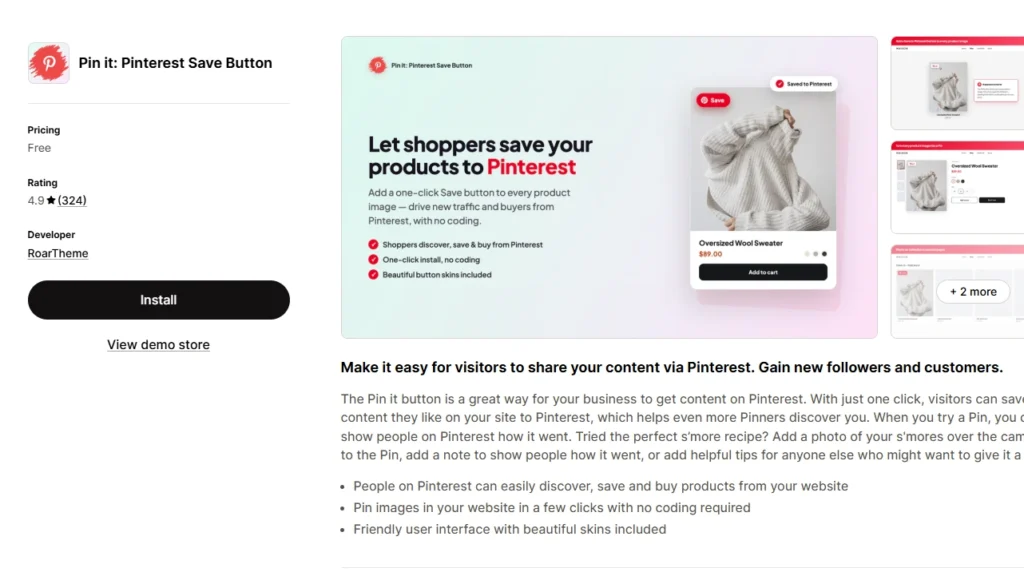
It is free, works with current Shopify themes, and installs without code.
Types of pins that matter for Shopify stores
There are basically 3 types of pins in Pinterest.
- Image pins
- Video pins
- Rich pins
Rich pins pull metadata straight from your site so your pins stay accurate without manual editing. There are three further types of rich pins: Product, Article, and Recipe.
Product Rich Pins matter most for Shopify. They keep live pricing and availability on the pin, which is what stops shoppers from clicking through to a sold out item.
How does Pinterest SEO work for Shopify stores?
If you treat Pinterest like a search engine, your organic reach will increase. Keywords belong in your pin titles, pin descriptions, board names, board descriptions, and your product feed metadata, because Pinterest reads all of them.
This is a practical routine that I always follow:
- Research with Pinterest Trends and the search bar. Type a seed term into Pinterest search and read the suggested tiles that appear underneath. Those are real queries.
- Name boards after searches. "Small Space Living Room Ideas" is much better than"Cosy Vibes."
- Write pin descriptions for humans who search. Two or three sentences with the natural phrasing someone would actually type.
- Fix your feed metadata. Product titles and descriptions in your Shopify catalog become the text Pinterest indexes. If your titles are not strong, they won’t appear in searches.
- Publish fresh pins consistently. Pinterest favours new content over the same image repeatedly. This is why the old bulk repinning strategy won’t work in 2026.
Best Pinterest marketing tools for Shopify stores
I just use four tools for marketing when I’m using Pinterest for Shopify stores.
- Pinterest Trends shows real search volume and seasonality by region, which tells you when to publish rather than what to guess.
- Pinterest Analytics shows saves, outbound clicks, and top pins.
- Pinterest Ads Manager handles campaigns and conversion reporting.
- The Pinterest for Shopify app does your catalog and tracking. That combination costs nothing.
Get real results from Pinterest for Shopify this year
Pinterest for Shopify is a two part job.
The app handles the day-to-day operations. It cannot give you the reason for someone to save your PIN, and that is the half that actually decides whether the channel earns its place.
If you do three things this month, make them these.
- Install the app and confirm the catalog and tag are live.
- Audit your checkout tracking.
- Publish ten vertical pins built around real Pinterest searches.
FAQs
1. Does Pinterest integrate with Shopify?
Yes. The official Pinterest for Shopify app connects your Shopify store to a Pinterest business account. It also automatically claims your website, installs the Pinterest Tag and Conversions API, syncs your product feed, and creates Product Pins. Availability may depend on the country where your business is registered.
2. How do I link my Shopify store to Pinterest?
Create a Pinterest business account and advertiser account. Install the Pinterest for Shopify app from the Shopify App Store and follow the on-screen connection steps. You must be the Pinterest account owner, and you should remove any manually installed Pinterest Tag first to avoid duplicate tracking.
3. How to make money on Pinterest with Shopify?
Connect your Shopify catalog to Pinterest, create keyword-optimized Pins, tag relevant products, and use organic Product Pins or Shopping Ads to send shoppers to your product pages. You earn money when Pinterest visitors complete purchases through your Shopify store.
4. How to add a Pinterest button to Shopify?
The easiest option is to install a Shopify app such as Pin it: Pinterest Save Button, which adds a customizable Pinterest Save button to product and collection images without coding. You can also use Pinterest’s Save Add-On builder and manually add the generated code to your Shopify theme, but duplicate your theme before editing theme.liquid.
5. How to add a Pinterest HTML tag to Shopify?
In Pinterest, go to Settings > Link to Pinterest > Claim > Websites and copy the HTML verification tag. In Shopify, open Online Store > Themes > Edit code > theme.liquid, paste the tag inside the <head> section before </head>, save the file, and return to Pinterest to verify your store URL.
6. How to claim the Shopify website on Pinterest?
The easiest method is to install the Pinterest for Shopify app, which claims the connected domain automatically. For manual verification, Pinterest lets you add an HTML tag to theme.liquid or add a Pinterest TXT record to your domain’s DNS settings; note that a website can be claimed by only one Pinterest account at a time.



About the author
Vineet Nair
Vineet is an experienced content strategist with expertise in the ecommerce domain and a keen interest in Shopify. He aims to help Shopify merchants thrive in this competitive environment with technical solutions and thoughtfully structured content.