Gather knowledge about the latest insights, updates, tips, and tricks in the Ecommerce industry.
5 Min • 20 March 2026
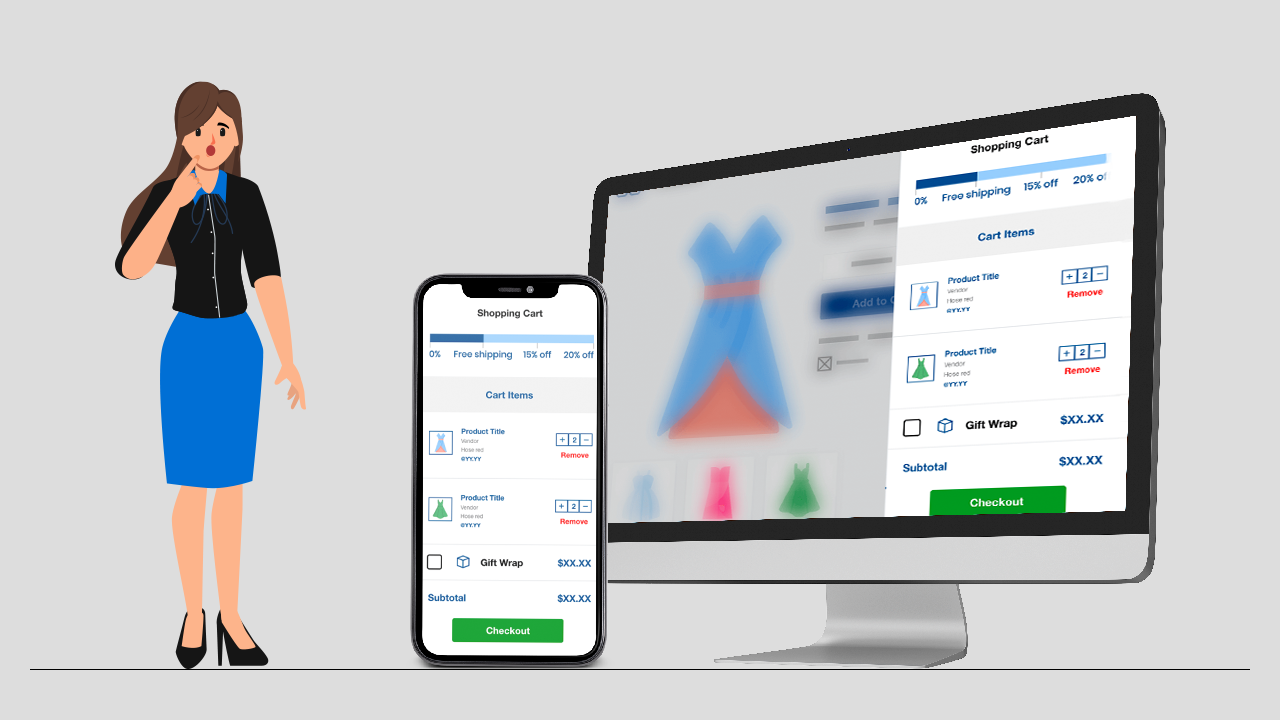
delivery customization Challenges Solutions drive results Scale business delivery customization Challenges Solutions drive results Scale business delivery customization Challenges Solutions drive results Scale business delivery customization Challenges Solutions drive results Scale business Anua is a globally recognized Korean skincare brand known for its minimalist philosophy and focus on gentle yet effective formulations. Built on the idea of simplifying skincare routines, Anua develops products that deliver visible results while avoiding harsh or irritating components, making them suitable for sensitive skin types. Initially using a traditional full cart experience, Anua transitioned to iCart’s side cart solution in August 2025, to create a more seamless and engaging shopping journey. This shift allowed customers to easily explore complementary skincare products without disrupting their browsing flow, making it more intuitive to discover items that fit into a complete routine. By surfacing relevant recommendations directly within the cart, the brand enhanced product visibility across its range. Challenges Before implementing iCart’s side cart solution, Anua faced limitations with their existing full cart experience, which created friction in the customer journey. The traditional cart setup redirected users away from product pages, interrupting their browsing flow and reducing opportunities to explore additional products. As a skincare brand built around routines rather than single-item purchases, this made it difficult to effectively showcase complementary products and encourage customers to build complete regimens. Additionally, the lack of in-cart personalization and strategic upsell opportunities meant that customers were often unaware of related products that could enhance their skincare results. This limited the brand’s ability to increase average order value (AOV) and fully leverage its diverse product range. Anua needed a more dynamic and intuitive cart experience that could seamlessly introduce relevant recommendations while maintaining a smooth and engaging shopping journey. ❌ Cart Value Barriers Low average order value (AOV) due to single-item focus Most customers completed purchases with one primary product instead of building multi-step routines. Cart abandonment near shipping thresholds Customers were not clearly informed or motivated to reach free shipping or discount thresholds. Missed savings opportunities Customers were unaware of potential value in purchasing bundled routines or multiple complementary products. ❌ Absence of Progress-Based Incentives No free shipping or discount progress bar Customers were not motivated to increase their cart value due to lack of visible incentives. Missing tiered rewards system There were no structured milestones (e.g., “Spend more to unlock offers”), reducing upsell opportunities. ❌ Ineffective Cart UI/UX (Pre-Side Cart) Full-page cart disrupted shopping flowCustomers had to leave their browsing journey, increasing friction and drop-offs. No quick add/remove functionality Users couldn’t easily modify their cart or add suggested products without navigating away. Solution To overcome these challenges, Anua implemented iCart’s side cart solution to transform their traditional cart into a high-converting, interactive experience. By replacing the full-page cart with a seamless side cart, the brand ensured that customers could continue browsing while viewing their cart, significantly reducing friction in the shopping journey. Additionally, features like product recommendations & progress bars for free shipping and discounts motivated customers to increase their cart value. By combining personalization, incentive-driven messaging, and a user-friendly interface, Anua successfully turned their cart into a powerful revenue-driving touchpoint rather than just a checkout step. To maximize their cart effectiveness, they implemented two powerful features: ✅ Progress Bar with Multi-Reward Incentives Implemented a tiered progress bar to encourage higher cart value Customers are guided with a clear message like “Add $3.10 to unlock secret offer,” motivating them to continue adding products. Generated over $5M+ in revenue through incentive-driven cart progression Used product-based rewards to align with customer intent Instead of generic discounts, Anua incentivized purchases with relevant skincare items like Dark Spot Pads and mini serums. Built visual motivation for routine expansion As customers add products, they can clearly track progress toward unlocking multiple rewards, encouraging them to build a complete skincare routine. ✅ Product Recommendations Implemented “Frequently Bought Together” recommendations Customers adding a single product (e.g., toner) are shown complementary items like serums, moisturizers, or pads to complete their routine. Generated over 275K revenue through in-cart recommendations Encouraged full skincare regimen building Instead of isolated purchases, the cart suggests step-by-step product combinations aligned with common skincare routines. Increased product discovery at the final stage By surfacing relevant items directly in the cart, Anua ensured customers explore more of their catalog without leaving the checkout flow. Results Achieved in Last 180 Days 22932 Total Store Orders 45101 Total iCart Orders 5X iCart Generated AOV 65.70% Upsell Affected Conversion Rate These improvements reflect a clear shift in customer behavior on Anua’s store. Cart abandonment reduced as shoppers discovered complementary skincare products and felt encouraged to build complete routines. Engagement also increased, with customers interacting more with in-cart recommendations and exploring relevant product pairings. Results & Impact And...Results is Our Main Clarification By implementing iCart’s cart drawer, product recommendations, and progress bar, Anua transformed its cart into a high-performing conversion touchpoint. Shopping Experience Enhancement The improved cart experience encouraged customers to discover complementary products and understand the value of sustainable beauty routines. For instance, the clear presentation of subscription savings alongside one-time purchase options helped customers make more informed decisions about their long-term hair care needs. As Anua continues to optimize its cart experience, the brand is closely monitoring: Routine-based purchasing behavior - tracking how customers move from single items to multi-step regimens Engagement with in-cart recommendations - measuring interaction with suggested products Cart value progression - analyzing how incentives influence higher spending [related_cases_slider] Ready to Write Your Success Story? Try icart App Join successful businesses like Anua and Master your delivery scheduling Delight customers with precise timing Grow your special occasion orders Expand your delivery reach
Read Blog
6 Min • 14 April 2026
To set up Shopify automatic discounts, go to Shopify admin > Discounts > Create discount, choose the discount type, and select Automatic discount as the method. Then set the value, conditions, eligibility, dates, and test it in the cart before launching. To maximize sales, keep the offer simple, tie it to a clear goal like higher AOV or better conversion, and make sure shoppers can understand the offer instantly. I have worked with many Shopify merchants who make the same mistake with discounts. They either avoid them completely or set them up incorrectly. The better move is to keep the discount offer automatic and make it easy for shoppers to claim. That is why I like Shopify automatic discounts for stores. They remove extra steps at checkout and make the offer feel instant. Shopify automatic discounts apply in the cart and at checkout when a customer meets the rules you set. In this guide, I will explain how to set up Shopify auto discounts and their benefits for merchants. What Are Shopify Automatic Discounts? A Shopify automatic discount is where the customer does not need to type a code. The discount appears automatically once the cart matches your conditions. This matters because fewer steps mean less friction. It is also a simple way to run storewide promotions, cart-value incentives, or simple Shopify bundles. Shopify currently supports amount off, free shipping, buy X get Y, and app-based automatic discounts. Let’s see how to set it up in your Shopify admin. Step 1: Go to your Discounts section From your Shopify admin, open Discounts and click Create discount in the top-right corner. Step 2: Choose the right discount type Shopify lets you create automatic discounts for Amount off products, Buy X Get Y, Amount off order, and Free shipping. I pick the discount type based on goals. Step 3: Select “Automatic discount” as the method Once you pick the discount type, Shopify gives you a method choice. Choose Automatic discount. Then add a title. That title shows to customers in the cart and at checkout. For example, “Free shipping over $75” Step 4: Set the discount value and the remaining criteria Now set the actual offer. That could be a percentage off, a fixed amount off, free shipping, or a buy X get Y structure. Then choose where it applies: all products, specific products, or specific collections. For new stores, I like starting narrow unless the promotion is part of a sitewide launch. It gives you more control and protects your margins. You also need to set up the remaining criteria, like eligibility, minimum purchase requirements, combinations, and active dates. Step 5: Save it and test it in the cart Test the automatic discount as a customer. Add the qualifying items to the cart yourself and confirm the discount appears the way you planned. Apps help when Shopify’s native rules feel too basic When Shopify’s default discount setup starts to feel limited, I’d look at Shopify discount code apps like iCart Cart Drawer Cart Upsell. This app lets you turn the cart into a stronger conversion point with cart upsells, cross-sells, product bundles, cart discounts, progress bars, and countdown timers. That makes it a smart fit for stores that want to increase AOV with more engaging pre-purchase offers, not just run a simple discount. Automatic discounts VS discount codes: The difference BasisShopify automatic discountsDiscount codesHow they workApply automatically when the cart meets the set conditionsCustomers must enter the code at checkoutBest use caseBest for public promotions like free shipping or cart-value offersBest for targeted campaigns like email, influencer, or limited-use offersCustomer effortVery low because no code is neededSlightly higher because the customer has to apply the codeControl levelBetter for simple and broad promotionsBetter for tighter control, unique offers, and campaign trackingUsage limitsLimited to active automatic discount setupsCan be restricted with rules like one use per customer Features and Benefits of Shopify Automatic Discounts Easy for customers to use The biggest benefit is ease. Customers do not need to remember a code or enter anything at checkout. The discount applies automatically when the cart matches the conditions, which makes the shopping experience smoother. Better for broad promotions Shopify automatic discounts work well for public-facing offers like free shipping deals, holiday promotions, and simple cart-based offers. Shorter path to purchase From my experience, automatic discounts work well because they remove one more step from checkout. When shoppers see the discount applied on its own, they check out faster. Improve conversion A clear automatic discount can make it easier for a customer to complete the purchase. This helps to improve your Shopify conversion rate. Increase AOV Automatic discounts also help increase AOV when they are tied to a minimum cart value. Offers like free shipping above a certain amount or money off above a threshold can push customers to add more to the cart. Things to keep in mind when applying Shopify's automatic discounts Shopify automatic discounts come with a few limits Shopify allows up to 25 active automatic discounts, including app-based discounts. Also, automatic discounts created in the Shopify admin do not work on the post-purchase page. For in-store use, they only apply on Shopify POS when you have POS Pro enabled. Automatic discounts are not always the right choice If you need more control, better channel tracking, or unique codes for a campaign, discount codes usually make more sense than an automatic offer. Discount codes work better for targeted campaigns. My final take on Shopify's automatic discounts Automatic discounts are one of the easiest ways to run a promotion without adding checkout friction. Keep the offer simple, make sure it has a single goal and test it before you push traffic. FAQs 1. Does Shopify offer discount codes? Yes. Shopify lets you create both discount codes and automatic discounts. 2. How to create one time discount code on Shopify? Go to Shopify admin → Discounts → Create discount, choose the discount type, and select Discount code as the method. Then create the code and use Shopify’s usage limits to control how often it can be redeemed. 3. How to create a discount code on Shopify? Open Discounts in your Shopify admin, click Create discount, and choose the type of offer you want to run. After that, select Discount code, enter the code, set the discount value, rules, dates, and save it. 4. How to automatically apply a discount at checkout on Shopify? Create an automatic discount from the Discounts section in Shopify admin and choose the type, such as amount off, free shipping, or buy X get Y. The discount will apply automatically when the customer’s cart meets the rules you set. 5. Which is the best Shopify discount code app? For stores that want stronger cart-based promotions, I’d recommend iCart. It is Built for Shopify and supports cart discounts, upsells, cross-sells, bundles, progress bars, countdown timers, and slide cart layouts

5 Min • 11 April 2026
To make products view only on Shopify and disable the Add-to-Cart button, you have three main options. Use the Shopify Theme Editor, edit your theme's Liquid or use a third-party Shopify app that enables Shopify catalog mode or browse-only functionality store-wide. By default, Shopify is built for selling but not every store needs customers to buy instantly. Whether you're showcasing a wholesale catalog, launching products soon, or offering custom orders, you may want visitors to browse without seeing the “Add to Cart” button. This guide walks you through every method to make products view only on Shopify - from zero-code theme editor tricks to Liquid code customizations. You'll know exactly which method fits your store by the time you finish reading. Why Would You Want to Make Products View Only on Shopify? Shopify is built to sell. Every default template, every button placement, every checkout flow - it's all optimized for conversions. But not every merchant wants that for every product, every visitor, every time. Wholesale / B2B Catalog Show your product range to retail buyers without letting retail customers place direct orders. Coming Soon Collections Build excitement and let visitors browse upcoming products before your official launch date. Custom / Made-to-Order For bespoke products, you need customers to contact you first not add to cart blindly. Sold Out / Archived Items Keep sold-out products visible for brand history or SEO without misleading buyers. Login-Gated Purchasing Let guests browse freely but require account login or approval before buying. The common thread? You want your store to function as a Shopify browse only store or at least partially, for certain products. Let's get into how to do that. How to make products view only on shopify Method 1 - Theme Editor: Create a "Not-For-Sale" Product Template This is the most recommended approach for most Shopify merchants, especially those without coding experience. In your Shopify admin, navigate to Online Store > Themes. Find your active theme and click Customize. Click the Home page dropdown at the top of the editor, then navigate to Products > Default product. Click the + Create template button. Name it something clear like "not-for-sale" or "view-only". Click Create template. In the Template > Product information section, hover over the Buy buttons block and click the eye icon to hide it. Click Save. Now go to Products in your Shopify admin, open each product you want to make view-only, scroll to the Online store section, and change the Theme template to your new template (e.g., "view-only"). ⚡ Pro Tip Need to assign this template to many products at once? Use bulk editing: select all products → Bulk edit → Add the "Template" column → Set them all to your new template in one go. Massive time-saver. Method 2 - Edit Shopify Liquid Code If you want smarter control like hiding the add-to-cart button for an entire collection, for products tagged a certain way, or based on a metafield, you'll want to edit your Liquid code directly. This is the most common use case. You add a tag (e.g., view-only) to any product in Shopify admin, and the Liquid code hides the buy button for tagged products automatically. Step 1: Go to Online Store > Themes > Actions > Edit code. Step 2: Find your product template file. Depending on your theme, this may be: templates/product.liquid sections/main-product.liquid sections/product-template.liquid Step 3: Find the Add-to-Cart form section and wrap it in this Liquid conditional: Liquid {% comment %} Hide Add to Cart for tagged products {% endcomment %} {% unless product.tags contains 'view-only' %} <!-- Your existing Add to Cart / Buy Now button code here --> {{ form | payment_button }} <button type="submit">Add to cart</button> {% endunless %} Step 4: Save the file. Now, go to any product in your admin and add the tag view-only. That product's page will no longer show the Add-to-Cart button while all other products remain unaffected. Conclusion Making your Shopify products view-only is a practical way to control how customers interact with your store. Whether you're running a wholesale catalog, preparing for a launch, or handling custom orders, disabling the Add-to-Cart button helps you guide the buying experience on your terms. The best method ultimately depends on your needs and technical comfort level, but both approaches give you the flexibility to turn your store into a browse-only experience whenever required. Frequently Asked Questions 1. Does Shopify have a built-in "view only" mode? No. Shopify does not have a native view-only toggle or checkbox in its admin. 2. Will hiding the Add-to-Cart button affect my SEO? No, hiding the purchase button does not affect how Google indexes your product page. The page remains fully crawlable. In fact, keeping product pages live (without the buy button) is often better for SEO than deleting products entirely. 3. Can I make view-only products available for specific customers only? Yes. This is best handled through a Shopify app like Locksmith or B2B Wholesale Club. These apps allow you to show or hide the Add-to-Cart button based on customer tags, account status, or login perfect for Shopify login to purchase setups.

6 Min • 31 March 2026
Here's the situation most new Shopify merchants find themselves in: Your store isn't live yet. And you already have people friends, followers, potential buyers who want to know when they can shop from you. What do they see when they visit your store URL right now? If it's a blank screen, a Shopify "store not ready" page, or worse a password-protected default page with zero context you're already losing potential customers before your store has earned a single dollar. A coming soon Shopify page changes that completely. It tells visitors: We're real. We're coming. Don't miss it. This guide is written for merchants who want to do it right from day one. What Is a Coming Soon Shopify Page? A coming soon Shopify page (also called a pre-launch page or under construction page) is a temporary front-facing page that visitors see before your store is officially open. Instead of letting people hit a dead end, you give them something to engage with. At minimum, a good Shopify coming soon page includes: A clear message that the store is launching soon A countdown timer or expected launch date An email capture form to collect leads Your brand name, logo, and a strong tagline Social media links or a way to follow your journey At its best, a coming soon page is your first marketing asset, something that builds excitement, collects pre-launch emails, and makes your actual launch day significantly more profitable. Why a Coming Soon Page Matters 1. It Captures Pre-Launch Email Subscribers Email marketing consistently delivers the highest ROI of any digital channel some studies cite $36 for every $1 spent. A coming soon page with an email opt-in form lets you build that list before launch. When you go live, you're not starting from zero you're sending launch-day emails to people who already raised their hand. 2. It Signals Legitimacy Customers are skeptical of new online stores. A professional, branded coming soon page immediately tells visitors: this isn't a fly-by-night operation. You've invested in a domain, you have branding, and you have a real launch planned. That trust signal matters. 3. It Gives You Something to Promote Running pre-launch ads? Posting on Instagram? Emailing your personal network? You need somewhere to send people. A coming soon page gives you a real destination, something worth clicking and something worth sharing. 4. It Protects Your Brand During Development While you're still building out product pages and policies, your coming soon page keeps random visitors from seeing an incomplete store. No more awkward "dummy product" pages or placeholder text accidentally going public. How to Set Up a Coming Soon Shopify Page: Step-by-Step 1. Go to the Shopify App Store and search "coming soon page" 2. Install your preferred app and grant necessary permissions. Here we will show about LaunchX app. 3. After installing the app, complete the onboarding steps. 4. Go to the app settings and enable the app. 5. You will get a set of pre-built templates. You can go with it and customize the template. 6. Editor will open up with preview of the template and interface to edit the template. You can customize the template based on your needs. 7. Preview on both desktop and mobile before publishing. And save the changes. 8. You can also make the coming soon page password protected from the general settings. Enable the password protection and add your required options in it using the fields given as shown below: Common Mistakes Merchants Make With Coming Soon Pages 1. Launching without any email capture The entire point of a pre-launch page is to build a list. If you don't have a form, you have a dead end. 2. No early-bird incentive Asking someone to give you their email "just because" is a hard sell. Give them a concrete reason: early access, a discount, free shipping, or exclusive bonuses. 3. Forgetting mobile Preview your coming soon page on your phone before going live. If the form is broken, the text is cut off, or the countdown is invisible; fix it. 4. Being too vague about what you sell "Something amazing is coming" tells visitors nothing. Be specific about your product category and your unique angle. 5. Not promoting the page A coming soon page sitting unpromoted on the internet collects zero leads. Share it on your personal social channels, run a small ad campaign, post in relevant communities drive traffic to it. 6. Not having a launch date A countdown timer with a real date creates urgency. "Launching soon" creates nothing. Pick a date and commit to it. Final Thoughts Here's the uncomfortable truth: you'll never feel completely ready to launch. There will always be one more product to add, one more page to polish, one more thing to figure out. That's exactly why your coming soon Shopify page should go live the moment you have a domain and a clear value proposition even if your store is weeks away from opening. Start with a coming soon page. Build your list and make your launch matter. Frequently Asked Questions 1. Can I have a coming soon page on Shopify without disabling my whole store? Yes. Shopify's password protection feature keeps your store private while your coming soon page (or the built-in password page) is visible to the public. If you use an app or a custom page, you can route all public traffic to the coming soon page while your full store remains password-protected and accessible only to you. 2. How long should I keep my coming soon page up? There's no universal rule, but 2–6 weeks is a common pre-launch window. Long enough to build a meaningful email list and generate buzz, short enough that you don't lose momentum or overpromise a launch date you can't keep. 3. Will my coming soon page hurt my SEO? A well-set-up coming soon page won't significantly hurt your SEO, especially since you're in a pre-launch state with little to no existing rankings. That said, use proper meta titles and descriptions on the page. Don't let it stay live long after launch, and use a 302 (temporary) redirect if needed so Google knows the page will change.
Journi Zoie
5 Min • 7 May 2024
3986 Views
Bidisha Saha
5 Min • 2 May 2024
4157 Views
Bidisha Saha
7 Min • 26 April 2024
4167 Views
Bidisha Saha
6 Min • 23 April 2024
4251 Views
Sajini Annie John
4 Min • 19 April 2024
4350 Views
Bidisha Saha
5 Min • 16 April 2024
4381 Views
Srdjan Gombar
10 Min • 11 April 2024
4283 Views
Bidisha Saha
5 Min • 9 April 2024
4516 Views
Bidisha Saha
5 Min • 5 April 2024
4281 Views
Sajini Annie John
5 Min • 3 April 2024
4266 Views
Bidisha Saha
10 Min • 27 March 2024
4705 Views
Sajini Annie John
6 Min • 22 March 2024
6293 Views
Our website uses cookies to enhance your browsing experience and offer personalized services. For more information about the cookies we use, please refer to our Privacy Policy.
Accept Reject