



Images are always the heaviest thing on a Shopify page. Loading every one of them the moment a page opens is what affects the store’s speed.
Shopify lazy load is the fix. It tells the browser to download images only as a shopper scrolls toward them. The first screen loads fast, and your visitors stop staring at a blank layout.
I have helped design enough Shopify stores to know the mistakes owners make during optimization. I will walk you through the whole thing the way I actually do it.
You will learn what lazy loading is, how to check what your theme already does, and how to enable lazy loading in your store.
What is lazy loading?
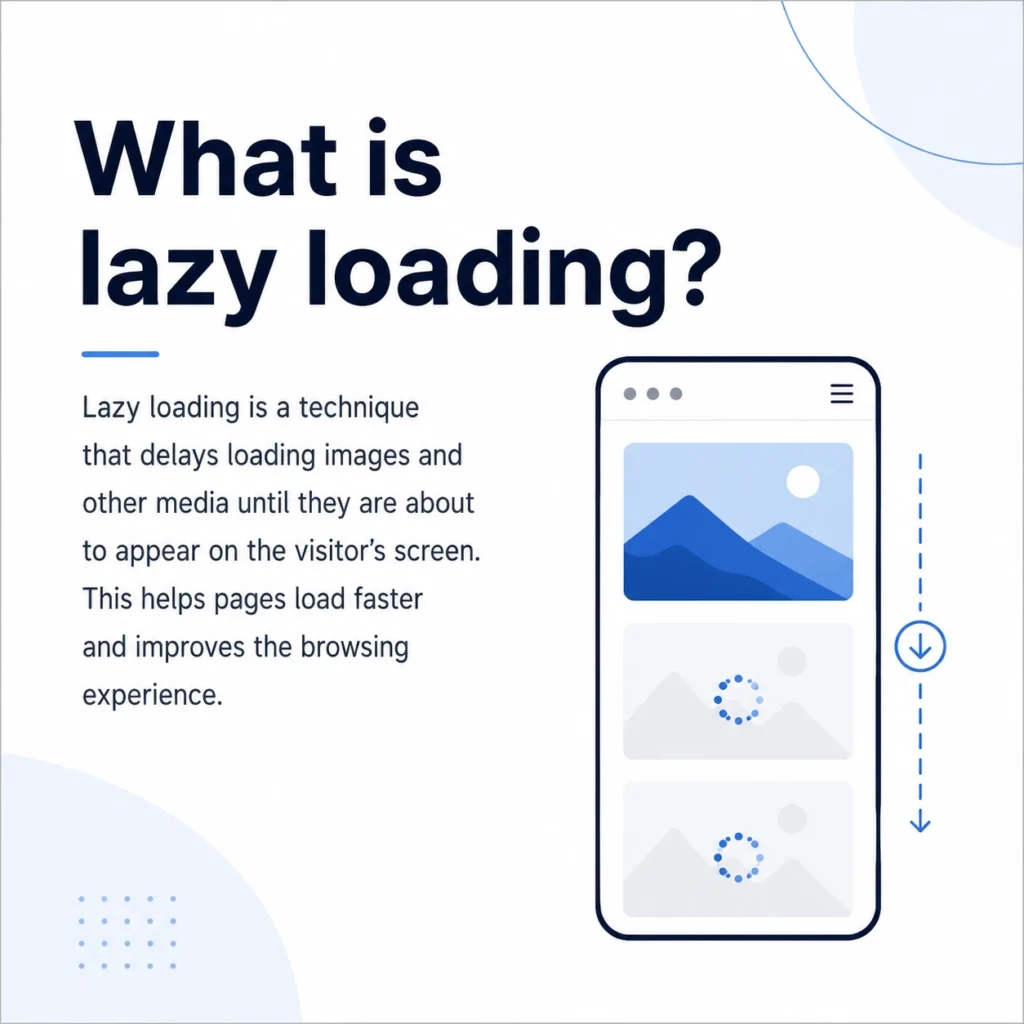
Lazy loading is a technique that delays loading images, videos, and other heavy files until they are about to appear on screen.
Instead of fetching every image the instant a page opens, the browser downloads only what a visitor can see, then pulls in the rest as they scroll. Less to download up front means a faster store speed and lower data usage, which matters most on mobile.
When a page loads, the browser reads the HTML and queues every <img> tag for download.
Grabbing all of them at once slows everything down. Lazy loading tells the browser to hold off on the images below the fold, the ones a shopper cannot see yet.
One thing worth knowing is that you no longer need to be technical to enable lazy loading. But there are a few things I do before I add lazy loading in the store.
First, check if your Shopify theme already lazy loads
Most themes built on Online Store 2.0, including Dawn, Craft, Sense, and Refresh, ship with lazy loading on below-the-fold images by default.
Adding it again on top duplicates the attribute.
Here is the 20-second check I do:
- Open a collection or product page that has images below the fold.
- Right-click any image you have to scroll to reach, then click Inspect.
- Look at the <img> tag in the panel that opens. If you see lazyload and you did not add it yourself, your theme already handles it.
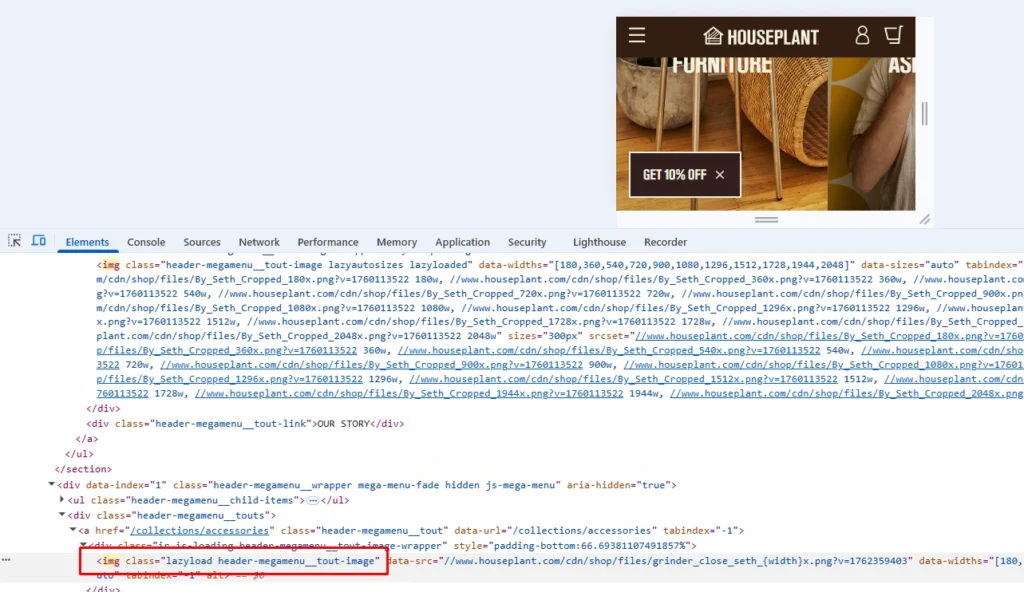
Here's how I checked if lazy loading is enabled in the Shopify store, Houseplant.
So if your theme is modern and you have already added lazy load, leave it alone. If you are on an older theme or building custom sections, here’s how you can set it up.
How to set up Shopify lazy load in your theme?
If your theme does not lazy load, or you are editing custom sections, you add the loading="lazy" attribute to the image tags in your Liquid files.
The best method in 2026 is to render images with Shopify's image_tag filter, which handles lazy loading, responsive sizing, and dimensions for you.
Whatever route you take, duplicate your theme first, so you have a safe rollback if something breaks.
Go to Online Store > Themes, click Actions next to your live theme, and choose Duplicate. Work on this copy.
To enable lazy loading in Shopify across the whole store, you edit the theme's section and snippet files. Go to Online Store > Themes > Actions > Edit code, then search your files for <img. Common places to look:
- snippets/card-product.liquid for the product cards used across collections and recommendations
- sections/featured-collection.liquid for homepage product rows
- sections/main-collection-product-grid.liquid for collection page grids
Add loading="lazy" to the image tags that render below-the-fold content, then save and preview.
For example: <img src="{{ section.settings.image | image_url: width: 800 }}" loading="lazy" alt="Product Image">
Which images should you lazy load?
The one rule that matters most: do not lazy load anything a shopper sees the instant the page opens.
Below are the images you should definitely add the lazy load attribute.
- Product gallery images
- Recommended and recently viewed products
- Blog body images
- Footer images and badges
Lazy loading and Core Web Vitals in 2026
Core Web Vitals are Google’s way of measuring how fast, stable, and responsive your Shopify store feels to visitors.
Google currently measures three main Core Web Vitals:
1. Largest Contentful Paint (LCP)
LCP measures how quickly the main content at the top of the page appears. This is often your hero banner, product image, or large heading.
A good LCP score is under 2.5 seconds.
Your main hero image should not be lazy-loaded because customers need to see it immediately. Instead, load the hero image normally and lazy-load images farther down the page.
2. Cumulative Layout Shift (CLS)
CLS measures whether content unexpectedly moves while the page is loading.
A good CLS score is under 0.1.
For example, a customer may try to tap a product button, but an image suddenly loads above it and pushes the button downward. This creates a frustrating shopping experience.
3. Interaction to Next Paint (INP)
INP measures how quickly your store responds after a customer clicks, taps, or interacts with something.
A good INP score is under 200 milliseconds.
Check your scores by visiting ‘pagespeed.web.dev’ and entering your store URL.
What this means for your Shopify store
Lazy loading works best when you:
- Load hero images and other above-the-fold content immediately.
- Lazy-load product images and content farther down the page.
- Add width and height values to prevent layout movement.
- Avoid loading too many large images at the same time.
- Test important pages after making changes.
In my experience, collection pages often benefit the most because they usually contain many product images.
Do you need a lazy load Shopify app?
For images alone, you usually do not need an app. Native browser lazy loading works everywhere, and Shopify's image_tag filter applies it for you.
Where a lazy load Shopify app earns its place is in bundling. The good ones compress files, add video facades, defer non-critical scripts, and fix Core Web Vitals. This is useful if you do not want to touch code.
My honest take after doing this for a living: reach for native lazy loading first, add a well-reviewed speed app only if you need the extra features.
If you do want apps for this. I would recommend 3 that I have worked with.
1. Tiny SEO Speed Image Optimizer
Tiny SEO offers lazy loading alongside image compression, resizing, alt-text optimization, broken-link management, and other SEO tools. It is a suitable option for merchants looking for an all-in-one image and store optimization app.
2. Avada AI SEO Suite Optimizer
Avada combines lazy loading with image optimization, code minification, SEO audits, structured data, and redirects. It can be useful for merchants who want to improve both store speed and technical SEO from one dashboard.
3. WEBP Image Optimizer+Speed SEO
This app compresses images, converts JPG and PNG files to WebP, and provides built-in lazy loading. It is worth considering if large image files are the main reason your product or collection pages load slowly.
How to test that lazy loading is working
Start with DevTools:
- Open a page with below-the-fold images, right-click, and choose Inspect.
- Go to the Network tab and, if you like, filter by Img.
- Refresh the page and scroll slowly from the top.
- If image requests fire as you scroll instead of all at once, lazy loading is working.
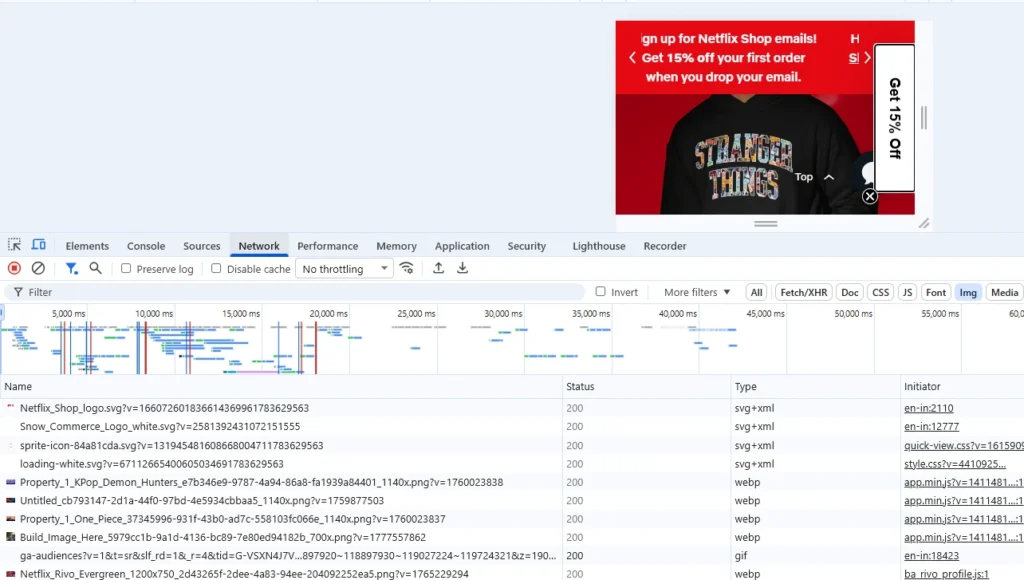
I tested it on Netlfix.shop, which is Netflix’s merch store built on Shopify
Get Shopify lazy load right
Get lazy load in your Shopify store right by letting your theme and the image_tag filter handle the media.
Check what your theme already does before you write a single line of code, test with DevTools and PageSpeed Insights. Reach for an app or a developer when you genuinely need more than images handled.
FAQs
1. Does Shopify lazy load images by default?
Most modern Online Store 2.0 themes apply loading="lazy" to below-the-fold images automatically. Older themes may not. To confirm, right-click an image you have to scroll to see, choose Inspect, and check the <img> tag for loading="lazy".
2. How to lazy load images in Shopify?
Shopify themes usually support lazy loading through the loading="lazy" attribute or the Shopify image_tag Liquid filter. To add lazy loading manually, go to Shopify Admin → Online Store → Themes → … → Edit code, open the relevant section or snippet, and find the image code. Add loading="lazy" to a standard image tag—<img src="image.jpg" loading="lazy" width="800" height="600">—or use Shopify Liquid: {{ image | image_url: width: 800 | image_tag: loading: 'lazy' }}
3. What is lazy loading?
Lazy loading is a technique that delays loading images and other media until they are close to appearing on the customer’s screen. It reduces the amount of content loaded initially, helping Shopify pages open faster and use less bandwidth.
4. Which is the best lazy load Shopify app?
Tiny SEO Speed Image Optimizer is one of the best lazy-loading apps for Shopify because it combines smart lazy loading with image compression, resizing, alt-text optimization, and other speed features.


About the author
Vineet Nair
Vineet is an experienced content strategist with expertise in the ecommerce domain and a keen interest in Shopify. He aims to help Shopify merchants thrive in this competitive environment with technical solutions and thoughtfully structured content.