



You may have experienced your Shopify store loading slowly just after you have installed a few apps. But owners need apps to run their store.
Maybe the store needs product reviews, or they need upselling, a chatbot, a loyalty program, or an analytics app.
Individually, each one solves a problem. But after a few installations, the store suddenly feels heavier. Product pages take longer to appear, buttons respond slowly, or content jumps around while loading.
This is common when I audit Shopify stores, but I just don't immediately start deleting apps.
If you're wondering why Shopify is so slow after adding apps, the first step is to identify what changed on the storefront.
Shopify itself lists installed apps, theme code, and manually added third-party code among the major factors that can affect online-store performance.
The right approach is to identify what is actually slowing the store, decide whether the app provides enough business value, and then optimize, or remove it.
TL;DR: What should you check first?
If a Shopify store became slow after installing apps, check:
- Whether the slowdown started at the same time as an app installation
- Which apps load JavaScript or CSS on the storefront
- Whether apps are loading on pages where they aren't needed
- Whether multiple apps perform the same function
- Whether app widgets are causing layout shifts
- Whether previously removed apps left legacy code in the theme
There is no number on how many apps a merchant can use. I have seen stores with revenue > $1M use more than 20 apps. What matters is what those apps load and how efficiently they do it.
First, I would confirm that the apps are the problem
It's always easy to blame the newest app for a slow store.
But a Shopify store can load slowly for several reasons at the same time. A theme update, new tracking pixel, oversized media, extra theme sections, or manually added JavaScript.
Start with Shopify's own performance data.
Go to:
Shopify Admin → Online Store → Themes
The Themes page includes a performance metric summary for the store's Core Web Vitals. More detailed performance reports are available under:
You may not be able to see it if:
- Your online store is password-protected.
- The store does not yet have enough real visitor traffic to generate the metrics.
- You are trying to access the detailed reports without the required Reports staff permission.
The detailed reports are available through:
Shopify Admin → Analytics → Reports
From there, you can search for:
- Largest Contentful Paint
- Interaction to Next Paint
- Cumulative Layout Shift
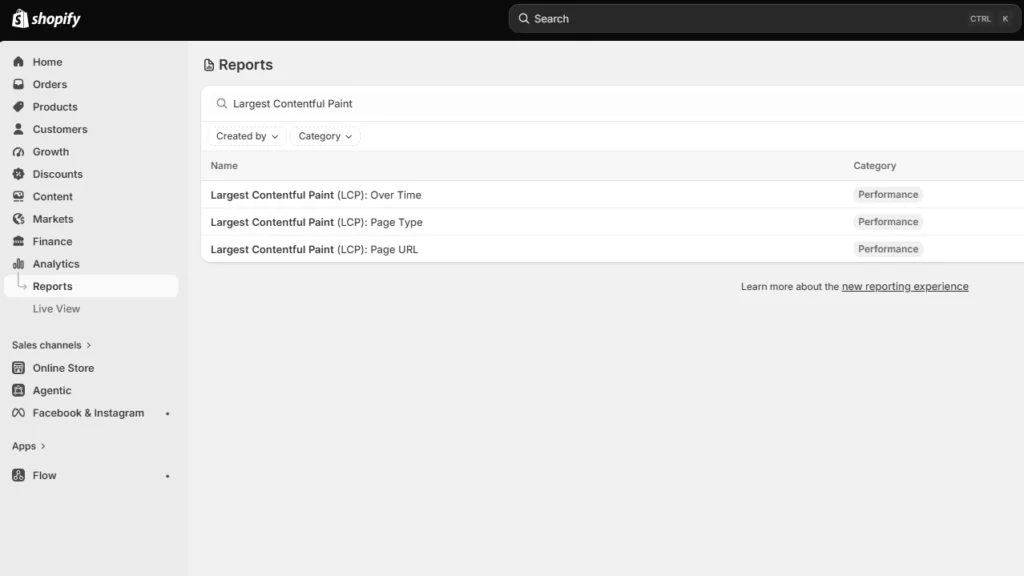
Shopify's Web Performance reports can show performance over time, by page URL, and by page type.
They also provide info on changes such as app installations, theme updates, and new code. This makes the report particularly useful when investigating a recent slowdown.
One limitation is that this isn't instant monitoring. Shopify says Web Performance data can be delayed by up to 36 hours, so don't expect a change made five minutes ago to immediately appear in the real-user report.
Know the three performance metrics that matter
Shopify currently uses the same three Core Web Vitals Google focuses on: LCP, INP, and CLS.
| Metric | What It Measures | Good Target | What Apps Can Affect |
| LCP | How quickly the main visible content loads | ≤ 2.5 seconds | Render-blocking scripts, stylesheets, slow widgets, third-party resources |
| INP | How quickly the page responds after interaction | ≤ 200 ms | Heavy JavaScript, long-running tasks, multiple interactive widgets |
| CLS | How much content unexpectedly shifts | ≤ 0.1 | Late-loading banners, reviews, popups, badges or other widgets |
You can check the target number by clicking each report I have mentioned earlier.
Here’s my checklist on whether you feel Shopify app bloat in your current store.
The complete checklist if you have Shopify App bloat
1. Separate the apps that load on the storefront or backend
Not every Shopify app slows down the storefront.
Some apps operate almost entirely inside Shopify Admin or in backend workflows. Others directly add content, JavaScript, CSS, tracking, popups, recommendations, reviews, or widgets to customer-facing pages.
Start by separating installed apps into two groups:
Storefront-impacting apps
Examples of these apps include reviews, upsells, chat, personalization, recommendations, subscriptions, popup tools, search widgets, badges, analytics, and visual merchandising features.
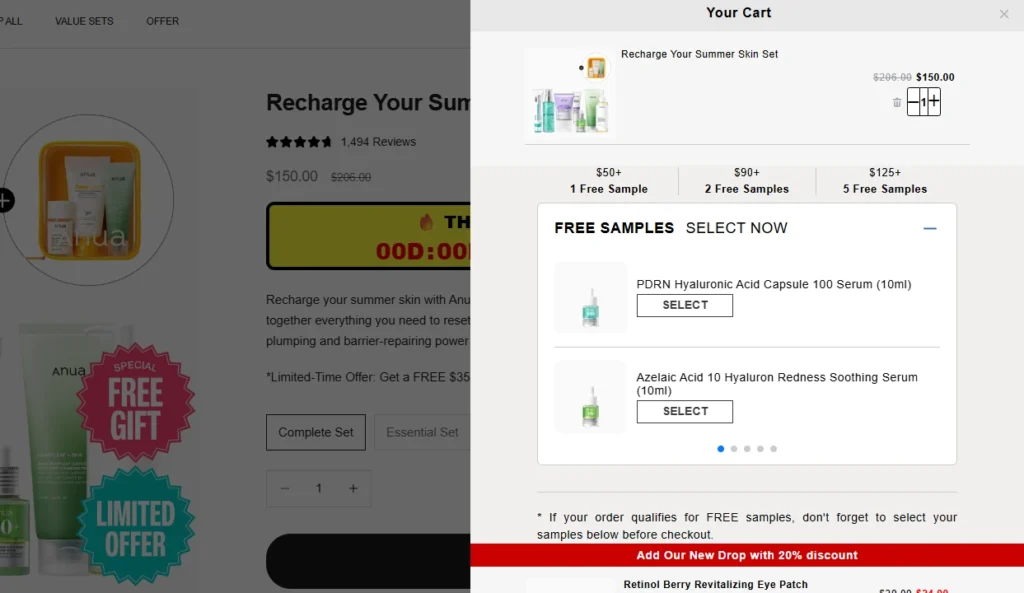
For example, Anua, a Korean Skincare brand, uses iCart, an upsell app, to show upselling products in their cart.
Backend/admin apps
Examples might include certain reporting, inventory, workflow, fulfillment, or administrative tools that don't need to render customer-facing code.
This immediately narrows down where to investigate.
2. Look for too much JavaScript
JavaScript is one of the first places I check if I feel too many apps are slowing down your store.
Apps can use JavaScript for:
- Recommendations
- Sliders
- Popups
- Cart drawers
- Reviews
- Personalization
- Chat
- Analytics
- Event tracking
- Dynamic discounts
- Interactive widgets
None of these features are bad, but Shopify states that poor INP is often caused by too much JavaScript coming from theme code, app code, third-party code, or tag managers.
How to check it
Open Chrome DevTools and inspect the Performance and Network panels.
Look for:
- Long-running JavaScript tasks
- Unusually large script files
- The same third-party library loaded more than once
If you notice these issues but the fixes involve editing theme code, it may be time to involve a developer. Small changes made without knowing how an app or theme works can sometimes affect store functionality or customer experience.
A Shopify developer can help identify which scripts are necessary, remove unnecessary code safely, and optimize store performance.
At Identixweb, we provide Shopify Speed Optimization Services to help merchants improve store performance without compromising the features their customers rely on.
3. Check whether apps load on pages where they aren't needed
This is one of the most important checks I do.
Imagine a product-review app.
The full reviews widget may matter on product pages. But does all its JavaScript need to load on the homepage, blog articles, contact page, cart page, and every collection?
The same question applies to:
- Product recommendations
- Size charts
- Wishlist tools
- Product badges
- Delivery widgets
- Cart tools
- Popup tools
Ask your developer:
Does this app load storefront assets globally or only where its functionality is used?
That question can reveal a lot about how efficiently the app was built.
4. Review your app embeds
Go into the Shopify Admin > Online Store > Edit Theme > App Embeds
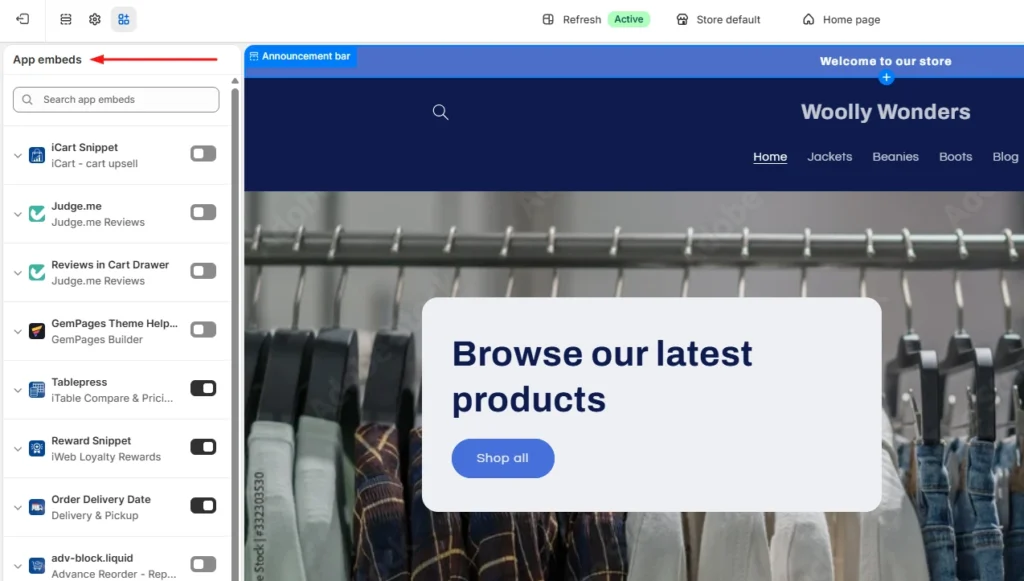
App embed blocks are commonly used for functionality such as:
- Chat bubbles
- Product badges
- Analytics
- Tracking
- SEO integrations
- Floating storefront elements
You can activate or deactivate individual app embeds from the Theme Editor.
Before disabling any app embed, check its features and how it affects customer experience, tracking, or store operations. Review the app name, understand its purpose, and confirm whether it is connected to tools like analytics.
If you are unsure, test the change on a duplicate theme first instead of turning it off directly on your live store.
An embed may power tracking, accessibility features, consent management, or another business-critical function.
Instead, identify what each embed does and test changes individually.
5. Look for multiple apps doing the same job
App overlap is the most common problem I encounter that slows down the store.
For example, a store might have:
- An email app with a popup
- A separate popup app
Each tool may have been added at a different point in the store's growth.
For each installed app, document:
Business purpose → feature actually used → storefront resources → monthly cost → overlapping apps
Then decide whether one well-built tool could replace two or three separate apps.
6. Check whether an app is causing layout shifts
Have you ever opened a product page and watched this happen?
The title appears first, then the reviews widget loads, and after that a promotional bar appears.
That is called a layout shift. Shopify considers a CLS of 0.1 or lower good.
Late-loading app elements such as banners, reviews, badges, recommendations, and widgets can contribute to CLS when the page hasn't reserved enough space for them. Ask your developer to check apps that contribute to CLS.
7. Don't assume the app is the only problem
Sometimes an app gets blamed because it was the most visible recent change.
But Shopify identifies three major areas merchants should examine:
- Theme code
- Installed apps
- Manually added third-party code such as tag managers and tags.
For example, you may install an app and simultaneously add a Meta pixel or add another analytics script through GTM.
If speed drops, the app could be only one part of the problem.
A safe way to audit Shopify apps
Don't uninstall five apps and then check CoreWebVitals. Even if the score improves, you won't know which change caused it.
Use this process instead.
Step 1: Record a baseline
Measure the CWV performance for:
- Homepage
- Collection page
- Popular product page
Step 2: Back up your theme
Duplicate the current theme before touching theme files or legacy app integrations.
Step 3: Test one app at a time
Where possible, disable an app embed or storefront feature individually. Keep everything else unchanged.
Step 4: Run several tests
This is what you want from your developer. Do not make a decision based on a single score.
Shopify warns that a single Lighthouse run can vary by 5–10 points because of CPU and network conditions and recommends comparing median results from multiple runs.
Step 5: Compare the right metric
- If the page loads slowly, investigate LCP.
- If clicks feel delayed, investigate INP.
- If widgets move content around, investigate CLS.
Step 6: Remove or combine only after confirming the cause
If an app provides little value, duplicates functionality, and creates measurable storefront overhead, then removal becomes a much easier business decision.
Can't find which app is slowing your Shopify store?
When multiple apps, theme changes, and third-party scripts are affecting your storefront, finding the exact cause of slow performance can be difficult.
Identixweb’s Shopify Store Performance and Speed Optimization service helps identify performance bottlenecks, reduce unnecessary code and scripts, and improve storefront speed without removing functionality your store still needs.
FAQs
1. Can installing too many Shopify apps make a store slower?
Yes, particularly when an app adds customer-facing JavaScript, CSS, third-party requests, widgets, or tracking code. However, not every app affects the storefront, so the app's integration and resources matter more than simply whether it is installed.
2. What is a good Shopify speed score?
Rather than relying on one speed score, merchants should monitor Shopify's Core Web Vitals. Shopify considers LCP of 2.5 seconds or less, INP of 200 ms or less, and CLS of 0.1 or less good performance thresholds.
3. How many Shopify apps are there?
There isn't a useful universal number. A smaller number of poorly chosen apps will still create problems. Audit what each app loads, where it loads, and the value it provides instead of relying on app count alone.
4. How can I tell which Shopify app is slowing my store?
Start with Shopify's Web Performance reports, then test the same homepage, product, and collection pages while disabling one storefront app feature or embed at a time.
5. Does uninstalling a Shopify app remove all its code?
Not always. Older or manually integrated apps can leave theme changes behind. For apps built with Theme App Extensions, Shopify says that the app code is removed when the app is uninstalled.



About the author
Vineet Nair
Vineet is an experienced content strategist with expertise in the ecommerce domain and a keen interest in Shopify. He aims to help Shopify merchants thrive in this competitive environment with technical solutions and thoughtfully structured content.