





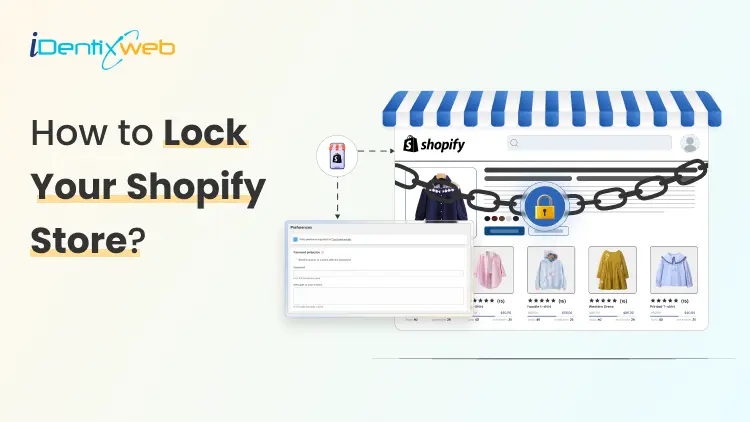

To lock your Shopify store, go to Shopify admin > Online Store > Preferences, turn on Password protection, set a password, and Save.
Sometimes you do not want customers to browse your store yet.
Maybe you are still building pages. Or want only VIP customers to access it easily.
In those moments, locking the storefront saves you from a bad first impression. It also helps you control who can access the store.
The good news is that you can turn on the password protection feature in Shopify.
In this blog, I will walk you through how to put a password on your Shopify store and when you should do it.
How to Lock Shopify Store - Step-by-step Guide
Step 1: Go to preferences
From your Shopify admin panel, click on Online store > Preferences

Step 2: Go to preferences
Scroll down to the section called Password protection. Here, enable the box ‘Restrict access to visitors with the password’

Step 3: Set the password and the message
Set a strong Shopify storefront password to lock your store for visitors. You can also add a message that your visitors want to read.
For example, if you can add ‘Coming Soon’, ‘Only for VIP’ or ‘Website is Under Maintenance.’
This is good to manage customer expectations and make your store look professional.
Step 4: Click ‘Save’
Hit Save, and you have locked your store with a password.
Can you Lock Specific Contect like a Collections Page?
Yes. Shopify doesn’t offer a built-in way to lock or password-protect a specific collection page.
The native password feature applies to the entire storefront, which means you can’t restrict access to just one collection using Shopify settings alone.
If you want to lock a collection, you’ll need a dedicated Shopify app like Locksmith or Sami B2B Password.
This approach works well for VIP collections, wholesale products, or members-only access without locking the whole store.
When to Lock Your Shopify Store?
- Before launch: Keep your store locked while you build excitement, tease what’s coming, and collect emails from interested visitors.
You can use Shopify apps like LaunchX to customize your store with pre-built templates. It builds excitement for your customers while you collect leads.
- During maintenance: Temporarily lock the store when you’re making updates or fixing issues, so customers don’t run into a broken buying experience.
- VIP or exclusive access: Open the store only for selected customers, early supporters, or members to create a sense of exclusivity.
- Inventory or capacity limits: Lock the store when stock is running low or when you can’t handle more orders, helping you avoid fulfillment issues.
More 'How to Shopify' Articles:
- How to check the gift card balance of your Shopify store?
- How to set up markets on Shopify?
- How to renew your expired Shopify domain?
- How to fix Shopify SSL pending?
Conclusion: Know When & How to Lock Shopify Store
Lock your Shopify store when you are still setting things up or making design changes. It also makes sense when you want a pre-launch phase to collect emails and control access.
Just remember that Shopify’s built-in option locks the entire storefront. If you want to lock any specific pages, you need to install Shopify apps that are dedicated to this task.
FAQs
1. How to put a password on Shopify store?
Go to Shopify admin > Online Store > Preferences. In Store access, turn on Password protection, set a storefront password, and save.
2. How do I find my Shopify password?
To find your Shopify admin login password, you can’t “view” it; you need to reset it using Forgot password? on the login screen. If you mean your storefront password, you can view/change it in Online Store > Preferences > Password protection.
3. How to lock Shopify store?
Locking your store means enabling the password page so visitors can’t browse or buy without the password. Do it from Online Store > Preferences > Password protection, then save.
4. When should you lock your Shopify store?
You should lock it before launch to build hype and collect emails on the password page. You can also lock it during maintenance when you’re making changes and don’t want customers to encounter errors while shopping.
5. Can you password-protect a collection on Shopify?
Not natively, Shopify’s built-in password protection applies to the entire online store, not a single collection. To lock only a collection, you need a dedicated Shopify app like Locksmith.




About the author
Vineet Nair
Vineet is an experienced content strategist with expertise in the ecommerce domain and a keen interest in Shopify. He aims to help Shopify merchants thrive in this competitive environment with technical solutions and thoughtfully structured content.