







Go to Markets, from the admin panel and click Create market, name it, and select the region you want to include, then save it. You can customize the products, currency, shipping, domain, and taxes & duties.
Shopify Markets lets you sell to different countries or customer groups from one Shopify store.
Instead of creating multiple stores, you create “markets” like the US, Canada, Europe, and Shopify shows shoppers the right version of your store.
In each market, you can localize the shopping experience with the right currency, language, domain, pricing rules, and product availability. That way, your storefront feels local while you manage everything from one admin.
In this guide, you’ll learn what Markets is and how to set it up step by step, so you can start selling globally.
What are Markets on Shopify?
Shopify Markets is the tool in your Shopify admin where you group customers by country/region, and then manage each group from one dashboard.
Inside each market, you control what customers see and how they check out. For example, each market can be set up with a separate theme, catalogue, language, and currency. This helps you sell better in different markets based on your customer preferences.
How to Set up Markets on Shopify?
Step 1: Go to Markets in your admin panel
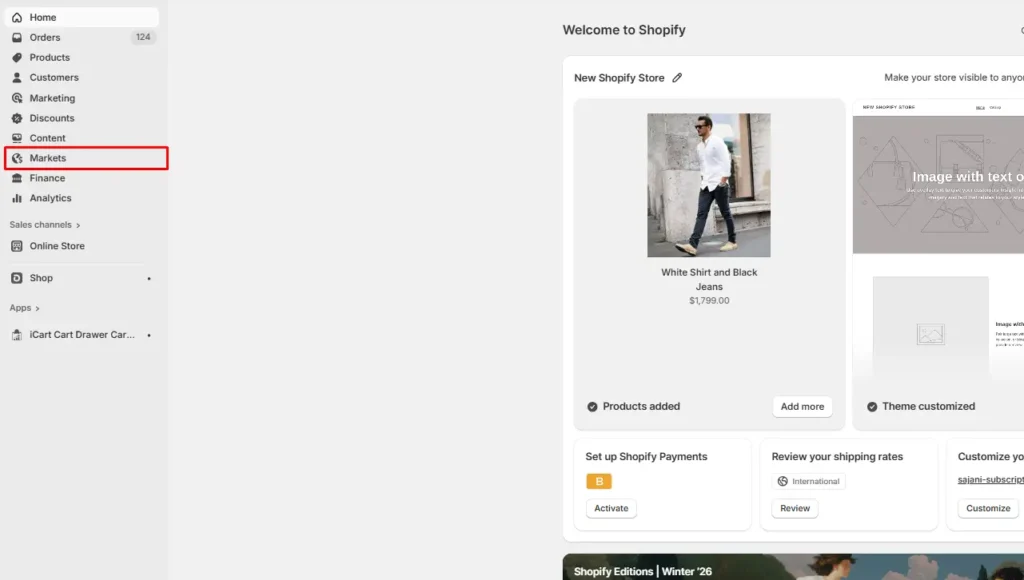
Log in to your Shopify admin panel and navigate to Markets > Create market.
Step 2: Set up your market details
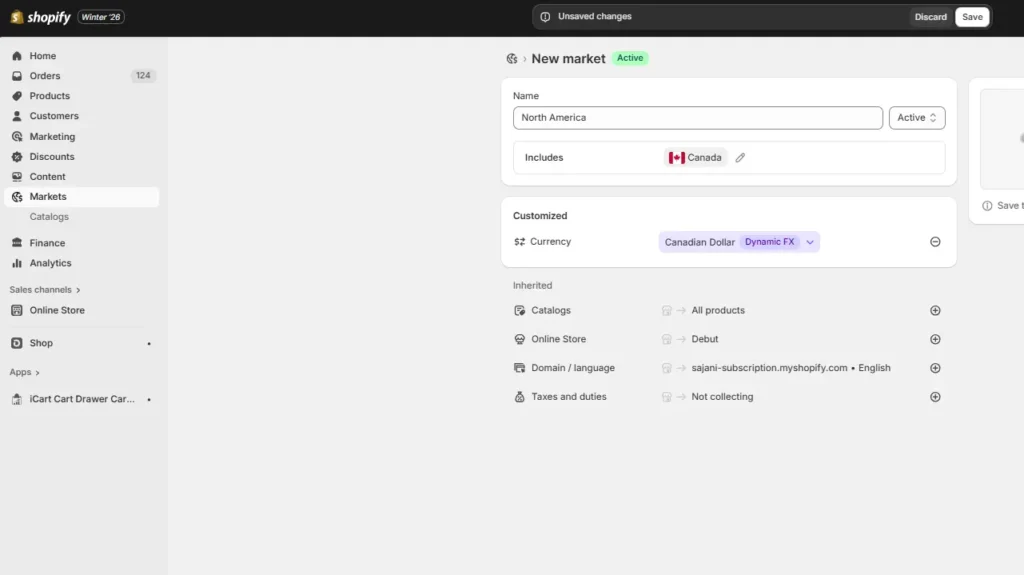
The next step is to enter details regarding your new market. You can include the name of the market and the regions included in the market.
Choose a name that goes with your market. For example, the name can be ‘North America’, and the region included can be ‘Canada’
Step 3: Edit your market settings
You can configure the settings for your market, like currency, catalogue, theme, domain, and taxes & duties. Once you have configured your settings, click Save.
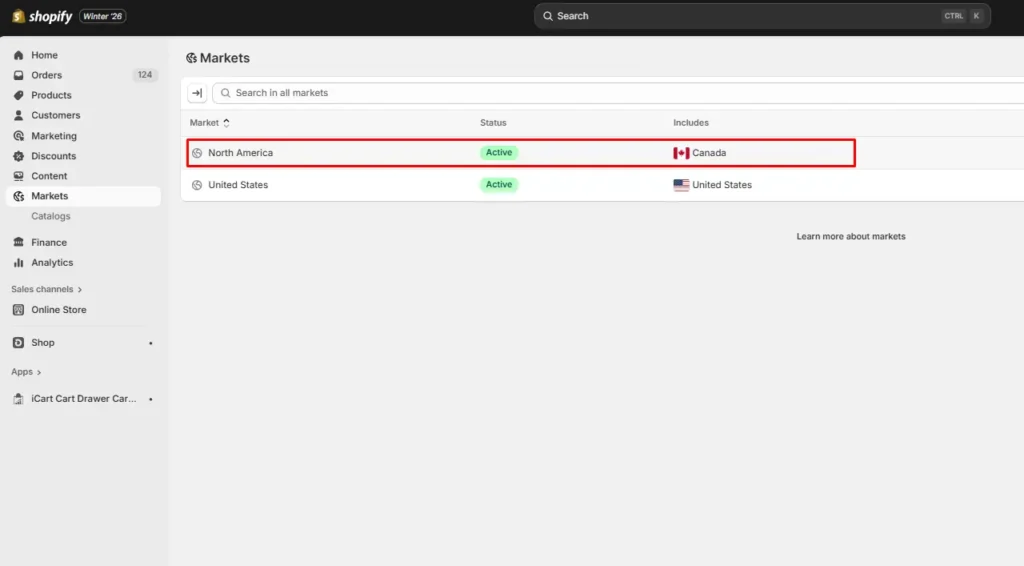
You can check if the newly created market is active by clicking on the Markets section again.
How does Shopify Markets work?
- When a customer visits your store, I automatically see the version meant for my country or region.
- Your customers can browse in a language that feels familiar to them.
- When a customer lands on your store, they see prices in their local currency.
- The store link (domain or subfolder) matches their region, so they feel more confident that they are at the right place.
- The customers only see products that you sell and ship to their location, so you do not waste time.
In Conclusion: Use Markets to Sell Better Internationally
Shopify Markets makes it easier to grow without spinning up multiple stores. You keep one admin, one product catalog, and one operations flow, while still giving different regions a localized shopping experience.
Once you set up your markets, keep optimizing them. Review pricing rules, shipping, taxes, and product availability for each market. Small tweaks here usually create the biggest lift in conversion and fewer support issues.
If you plan to expand further, start with your highest-demand regions first. Then add new markets step by step as you learn what your customers in each location actually want.
FAQs on Shopify Markets
1. How does Shopify Markets work?
Shopify Markets lets you group customers into markets (like the US, Canada, Europe, or custom regions). When someone visits your store, Shopify detects your market condition to show the right localized version, like the correct currency, language, and domain, while also applying your market-specific rules, such as price adjustments and product availability, all from one dashboard.
2. What are markets in Shopify?
Markets are customer groups you define in Shopify by country or region, so you can sell different products to each group from one store.
3. How can I customize my Shopify markets?
You can customize each market’s currency, products and pricing, online store theme, shipping, domain and language, and duties and taxes.
4. How to set up Shopify markets?
Go to Markets, click Create market, name it, and select the region you want to include, then save it. You can customize the products, currency, shipping, domain, and taxes & duties
5. How to remove markets on Shopify?
Go to Markets from your admin panel, open the market, click More actions, then choose Delete market and confirm.



About the author
Vineet Nair
Vineet is an experienced content strategist with expertise in the ecommerce domain and a keen interest in Shopify. He aims to help Shopify merchants thrive in this competitive environment with technical solutions and thoughtfully structured content.