





Shopify gift cards are one of the most underutilized tools for increasing sales, in my opinion.
You sell digital gift cards, offer physical cards at a POS counter, or integrate them into Apple Wallet with a scannable QR code. Shopify's built-in gift card feature covers all of it, on every plan.
In this guide, I will walk you through how to add gift cards to Shopify, how to customize and upload your gift card design, and the difference between digital and print gift cards.
How do Shopify gift cards work?
When a customer buys a Shopify gift card from your store, Shopify generates a unique code and delivers it by email or SMS.
That code can be entered at checkout to pay for any order. If the balance on the gift card doesn't cover the full order amount, the customer is simply prompted to add another payment method.
A few important mechanics worth knowing in 2026:
- Multiple gift cards can be used on a single order.
- Gift cards can be combined with discount codes. This way, a customer can use both at checkout without any extra setup on your end.
- The remaining balance carries over to future orders. The card doesn't expire or reset after a partial use.
- Gift cards work across all your Shopify sales channels. Online store, POS, and any channel that uses Shopify checkout.
- Store currency gift cards can be redeemed in any currency through automatic conversion at checkout. If you sell in multiple markets, you can also create local currency gift cards and optionally enable cross-currency redemption.
- Gift cards cannot be used to purchase another gift card. This is a platform-level restriction.
If you use Shopify POS, customers can purchase a gift card in person and later redeem it on your online store. Gift cards and gift card products created in your admin and in the POS app are fully interchangeable.
How to create a gift card in Shopify? (The standard process)
Shopify gives you two ways to create gift cards, and they serve different purposes. Let me first give you the steps for the standard way to add a gift card.
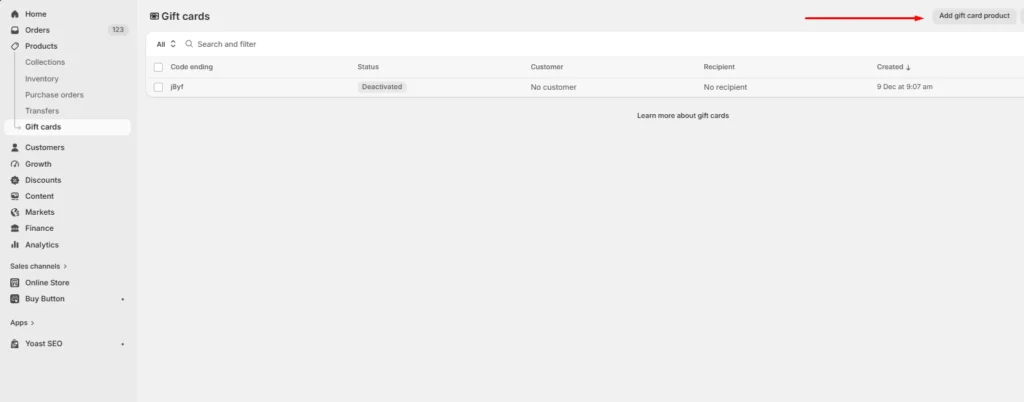
Step 1: From your Shopify admin, go to Products > Gift Cards.
Here click on Add a gift card product.
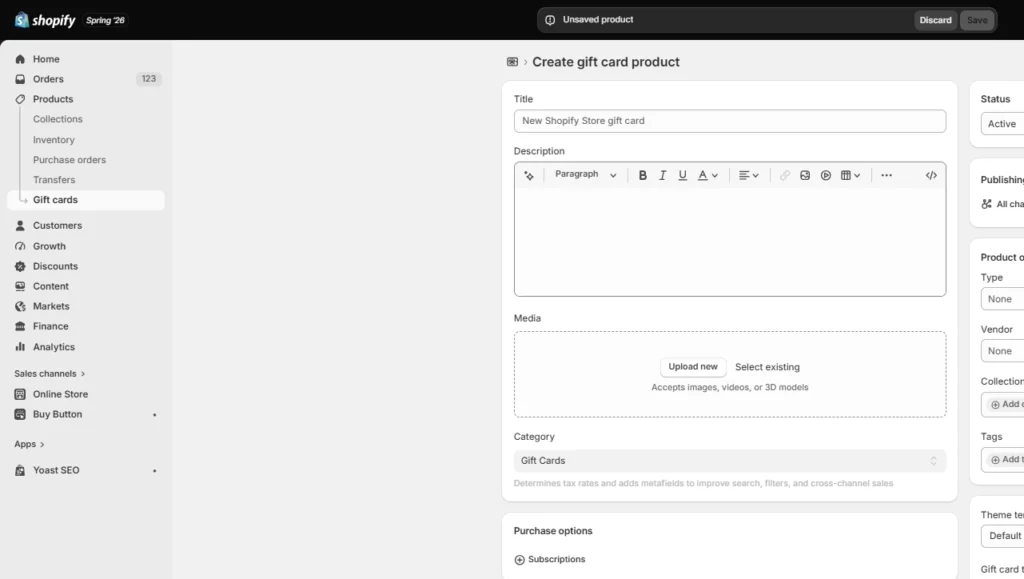
Step 2: Add the title, description, and media
Fill in the product Title (e.g., "Store Gift Card"), Description, and upload a Media image for the product page.
Step 3: Fill in your denominations
Under Denominations, set your price tiers. Each denomination saves as a separate variant.
Click Add denomination to add more options. You can set any amount from $0.01 up to $10,000 USD (the maximum for gift card products).
Step 4: Configure your currency
Configure the Currency defaults to your store currency. If you sell across markets, you can create local currency gift cards here.
Optionally, choose whether to enable cross-currency redemption (this setting cannot be changed after the card is created).
Step 5: Customize the Search engine listing preview
I always customize this because it helps the gift card that I create to appear in search results with custom meta text.
Step 6: Make it live or schedule
Under Sales channels and apps, set where the gift card is published and whether it goes live immediately or on a scheduled date.
Step 7: Click Save gift card product.
Save your gift card, and it is live on your store
You can also generate a gift card and send it to a specific customer without them paying for it. Here’s how.
How to create a gift card in Shopify? (For specific customers)
Step 1: Create your gift card
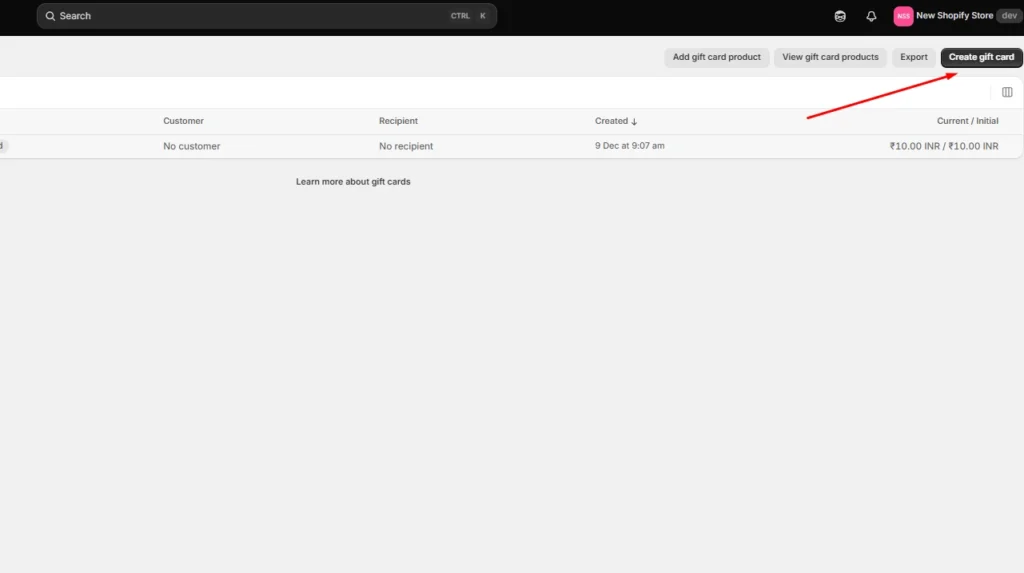
From your Shopify admin, go to Products > Gift Cards. Click Create gift card.
Step 2: Enter the Initial value
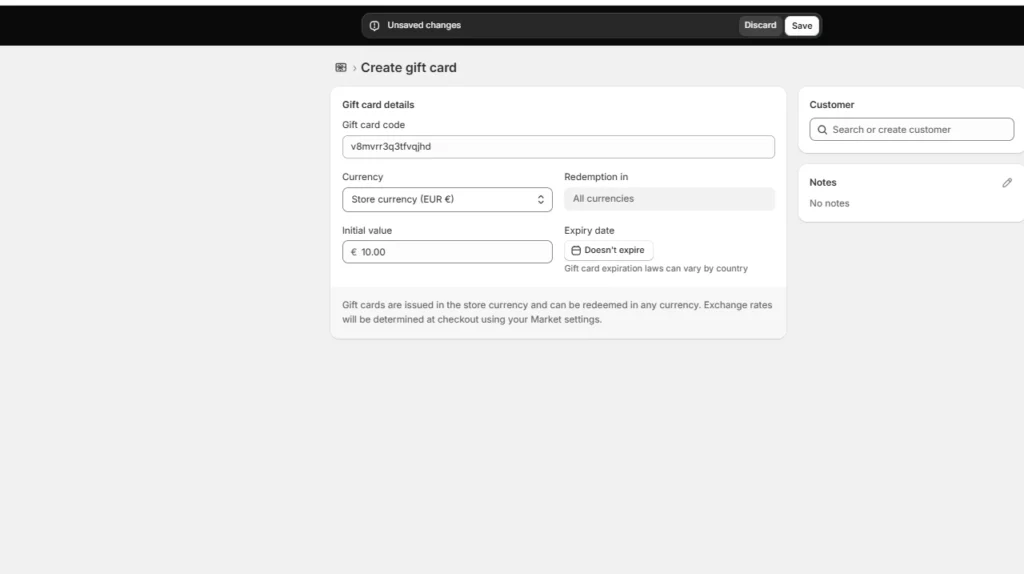
This can be up to $2,000 USD for directly issued cards.
Step 3: Optionally set a Currency
You can also configure cross-currency redemption here
Step 4: Edit the Customer field
In the Customer field, search for or create a customer. If they have an email address on file, the card is sent via email. If only a phone number is available, Shopify sends it via SMS.
Step 5: Add an expiration date
Optionally add an Expiration date and an Internal note for your records (the note is not visible to customers).
Step 6: Preview your email or SMS
Click Preview email to check how it looks, then click Send email or Send SMS to deliver.
Shopify digital gift card vs. physical gift card
Shopify supports both digital and physical gift cards, and you can run both simultaneously.
- Digital gift cards are the default. When a customer purchases one or when you issue one manually, Shopify generates a unique code and delivers it by email or SMS. The recipient enters that code at checkout.
- Physical (print) gift cards work differently. You can print cards with barcodes or QR codes and sell them in a physical location through Shopify POS.
However, online orders are not automatically linked to the QR code or barcode of a pre-printed physical gift card. Physical gift cards need to be activated and linked in your system through POS or by working with a third-party gift card printing service that integrates with Shopify's backend.
| # | Digital gift card | Physical gift card |
| Delivery | Email or SMS | In-store / printed |
| Cost to produce | Free | Printing costs apply |
| Activation | Instant | Requires POS or manual setup |
| QR code at POS | Via Apple Wallet | Pre-printed or printed |
| Best for | Online stores, remote gifting | Brick-and-mortar, holiday displays |
How to customize your Shopify gift card design?
Gift card emails are sent using your store's notification templates. To edit them, go to Settings > Notifications and look for the Gift Card notification. You can adjust the copy, colors, and layout to match your brand voice.
If you activate Apple Wallet Passes, Shopify lets you customize the pass appearance directly from Settings > Payments > Apple Wallet Passes. You can set:
- Logo image and logo text (your brand name)
- Banner/strip image (max 1125px × 432px)
- Header text (max 30 characters including spaces)
- Background color
These customizations apply to every pass already downloaded by existing customers, so any update you make is reflected on gift cards already in users' wallets without them needing to do anything.
Benefits of giving gift cards in your Shopify store
Gift cards on Shopify offer several benefits for both businesses and customers. Here are some of the key advantages:
Increased sales
Gift cards can help drive sales by encouraging customers to make purchases from your store. Recipients of gift cards are more likely to visit your website or physical store to redeem their cards, potentially leading to additional sales beyond the card value.
Customer acquisition and loyalty
Offering gift cards can attract new customers to your business. When customers purchase gift cards to give as presents, they introduce your brand to their friends and family, potentially bringing in new customers.
Businesses can also enhance the gifting experience by pairing digital or physical gift cards with personalized touches like a custom-designed print greeting card. This not only makes the gift feel more thoughtful but also strengthens brand perception.
Gift cards can also enhance customer loyalty, as recipients of gift cards are more likely to return to your store to redeem their cards and make additional purchases.
Increase in revenue
In many cases, the full value of a gift card may not be used in a single purchase. This can lead to incremental revenue for your business, as customers often spend more than the gift card value when redeeming.
Customers may also use the opportunity to try out new products or services, leading to potential upselling or cross-selling opportunities.
Promotional opportunities
Gift cards can be used as part of promotional campaigns to attract and retain customers. For example, you can offer gift cards as prizes in contests or giveaways, or provide them as incentives for specific actions such as subscribing to a newsletter or making a certain purchase threshold.
Best Shopify gift card apps and plugins
For simple gift cards, I would stick with Shopify’s native feature. If you want something beyond this, these are the apps that I have tried and tested.
| App / Plugin | Key use case |
| Gift Card Hero • All-in-one | A strong option for stores that want reloadable gift cards for both online and in-store sales. It supports scheduled delivery, custom dates, email delivery, and in-person gift card use. |
| Rise Gift Cards & Store Credit | Best for brands that want to connect gift cards with cashback, refunds, rewards, and customer retention campaigns. Rise is positioned around store credit, loyalty, rewards, cashback, refunds, and gift cards. |
| Govalo | Gift Card Suite | Branded digital gift cards and gifting workflows |
| Gist | Gift Card Pro Tools | Scheduled digital gift card delivery |
| Vify: Professional Gift Cards | Useful for creating digital and physical gift cards with custom values, custom issue date and time, and localized customer-facing gift card emails. |
| Gift Card Factory | Best for stores that need to create, import, update, and send gift cards in bulk, especially during campaigns, migrations, or corporate gifting programs. |
To wrap it up
By adding Shopify gift cards to your online store, you offer a convenient and flexible gifting option for your customers while driving additional revenue.
Remember to promote your gift cards effectively and track their usage to maximize their potential. Embrace the power of gift cards and watch your sales and customer engagement soar!
FAQs
1. Does Shopify have gift cards?
Yes. Shopify has built-in gift card functionality, and gift cards are available on all Shopify subscription plans. Merchants can sell gift card products online, sell them in person with Shopify POS, or create gift cards directly from the Shopify admin.
2. How does Shopify's physical gift card work?
Shopify physical gift cards work through Shopify POS. You can use gift cards ordered from the Shopify Hardware Store with a QR code, or use third-party physical cards with a unique 8–20-digit code, then activate or redeem them by scanning the code or entering it manually in Shopify POS.
3. Does Shopify have digital gift cards?
Yes. Shopify supports digital gift cards. When a customer buys a gift card product and the order is fulfilled, Shopify creates a digital gift card with a unique code that the customer or recipient can use at checkout.
4. How much does a Shopify gift card cost?
A Shopify gift card costs whatever value or denomination the merchant sets, such as $25, $50, or $100. Shopify gift card product denominations must be greater than zero and can go up to $10,000 USD or the equivalent currency, while gift cards created manually from the admin can go up to $2,000 USD or equivalent.
5. How to create a Shopify gift card?
To create a Shopify gift card product, go to Products > Gift cards in your Shopify admin, click Add a gift card product, add the title, description, media, currency, sales channels, and denominations, then save the product. After a customer buys the gift card and the order is fulfilled, Shopify creates the gift card and lists it under the Gift cards section in your admin.
6. How to check Shopify gift card balance?
Customers can check their Shopify gift card balance from the gift card page linked in the gift card email they receive. If Apple Wallet passes are activated, customers can also add the gift card to Apple Wallet and check the balance from there.
7. Do Shopify gift cards expire?
By default, Shopify gift cards don’t expire because gift card expiry laws vary by country. Merchants can set an expiration date, but Shopify advises checking local gift card regulations before enabling expiry settings.


About the author
Sajini Annie John
Meet Sajini, a seasoned technical content writer with a passion for e-commerce and expertise in Shopify. She is committed to helping online businesses to thrive through the power of well-crafted content.