

Exporting a table allows you to back up your data or use it in other applications, such as spreadsheets. You can export one or multiple tables in formats like CSV, JSON, or HTML, with the option to download multiple tables as a ZIP file. There are two methods to export: using the Export feature from the left-hand menu or directly from the Table Manipulation page of the specific table you want to export. To export, navigate to your Shopify Admin, open the app, and access the Dashboard.
From there, you can select the table, click Edit, and then choose the Export tab. You must select a single table type to enable the Export button, as mixed-type exports are not allowed. Note that the exported files will only contain table data, not settings or options, and you can choose a CSV delimiter based on your needs.
Exporting a table allows you to use it in other programs (such as spreadsheet applications) and serves as a data backup.
You can export one or multiple tables in different formats. If multiple tables are selected, they will be downloaded as a ZIP file.
There are two ways to export the table data.
A. You can use the Export feature from the left-hand menu below the app name.
Steps: Go to the Shopify Admin > Open the iTable Compare & Pricing Table app > Click the Export option from the left-hand menu.
B. Or you can export data directly from the Table Manipulation page for that specific table.
Here are the steps to Export the table:
Step 1: Go to your Shopify Admin.
Step 2: Open the app in your store and navigate to the Dashboard page.
Step 3: Click the Edit button under the Actions column next to the table you want to export.
Step 4: The Table Manipulation page will open.
Step 5: Click on the tab labeled “Export”.
Step 6: Choose your export options and click Export File.
Export Type Selection
You will now see an Export Type selection with radio buttons:
- Data Table
- Size Chart
- Product Catalog
This ensures correct export behaviour based on the selected table type.
Export Behaviour by Table Type
1. Data Table
- Export works exactly as before.
- No functional changes.
- You can export in CSV, JSON, or HTML format.
- You can select a CSV delimiter when choosing CSV format.
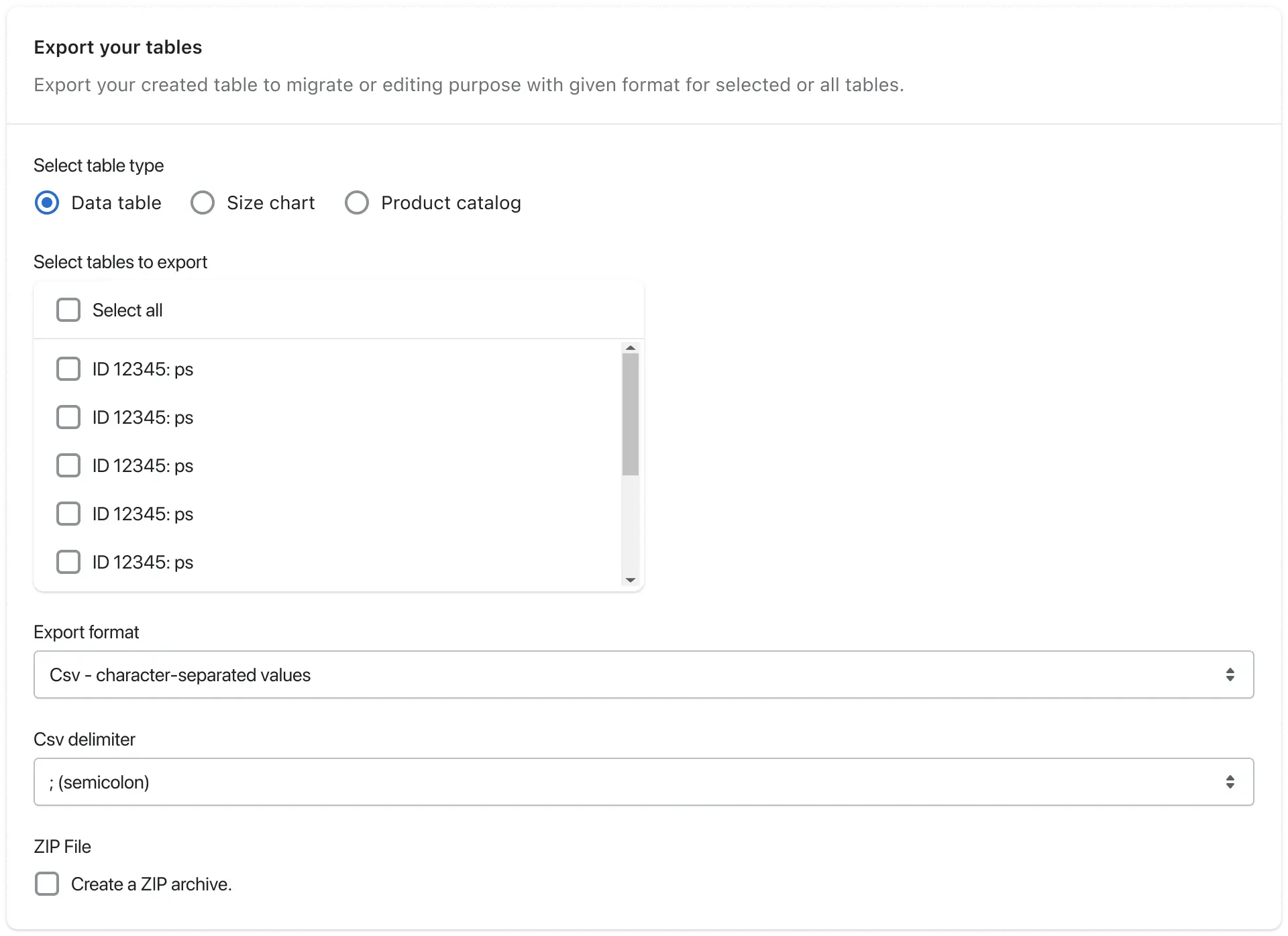
2. Size Chart
- When exporting a Size Chart table, all tabs inside that Size Chart are automatically exported.
- No manual tab selection is required.
- Each selected Size Chart table will include all its tab data in the exported file.
This ensures a complete backup of the entire Size Chart structure.
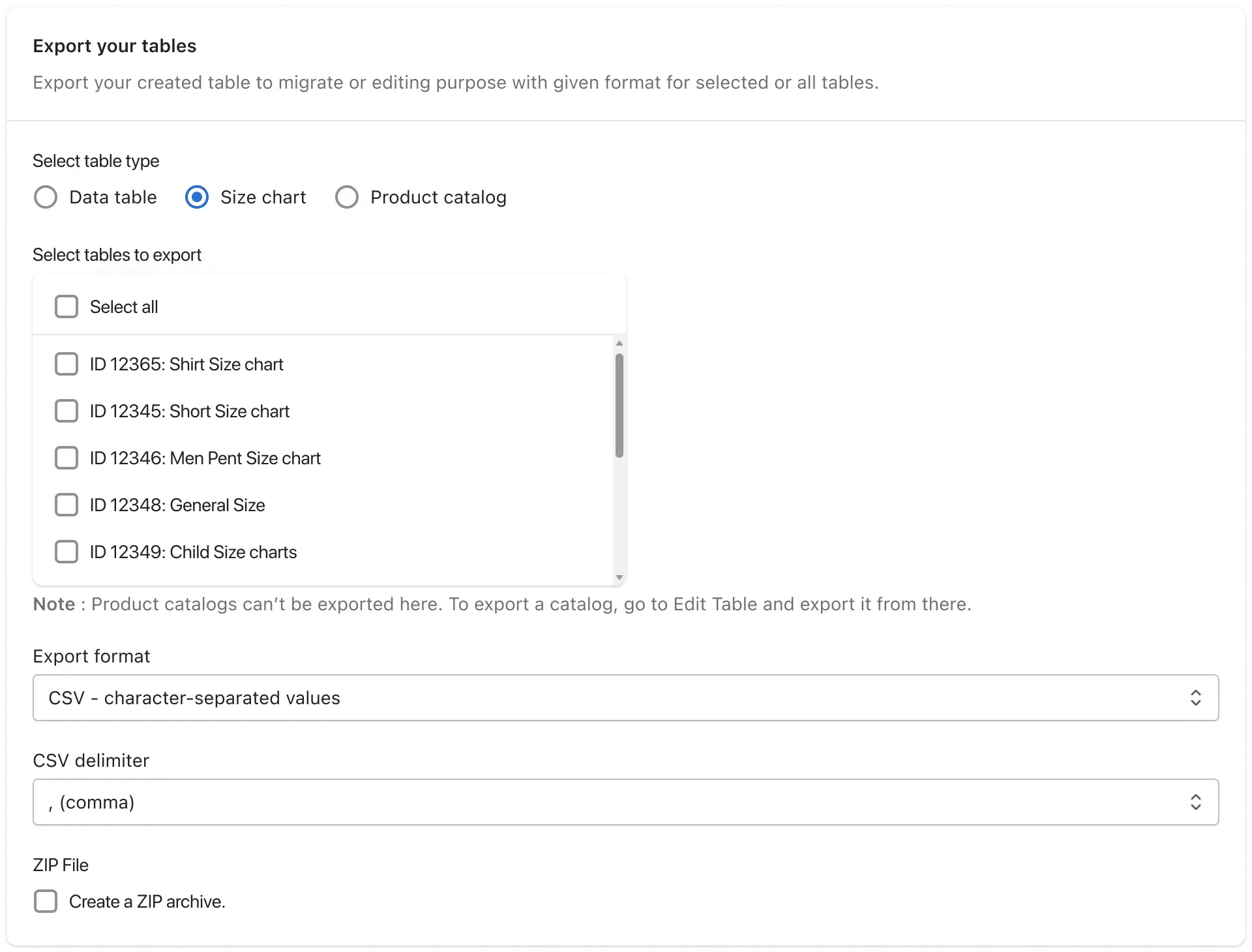
3. Product Catalog
- No additional export configuration is required.
- Simply select the Product Catalog table.
- Click Export File.
- The table will be exported directly.
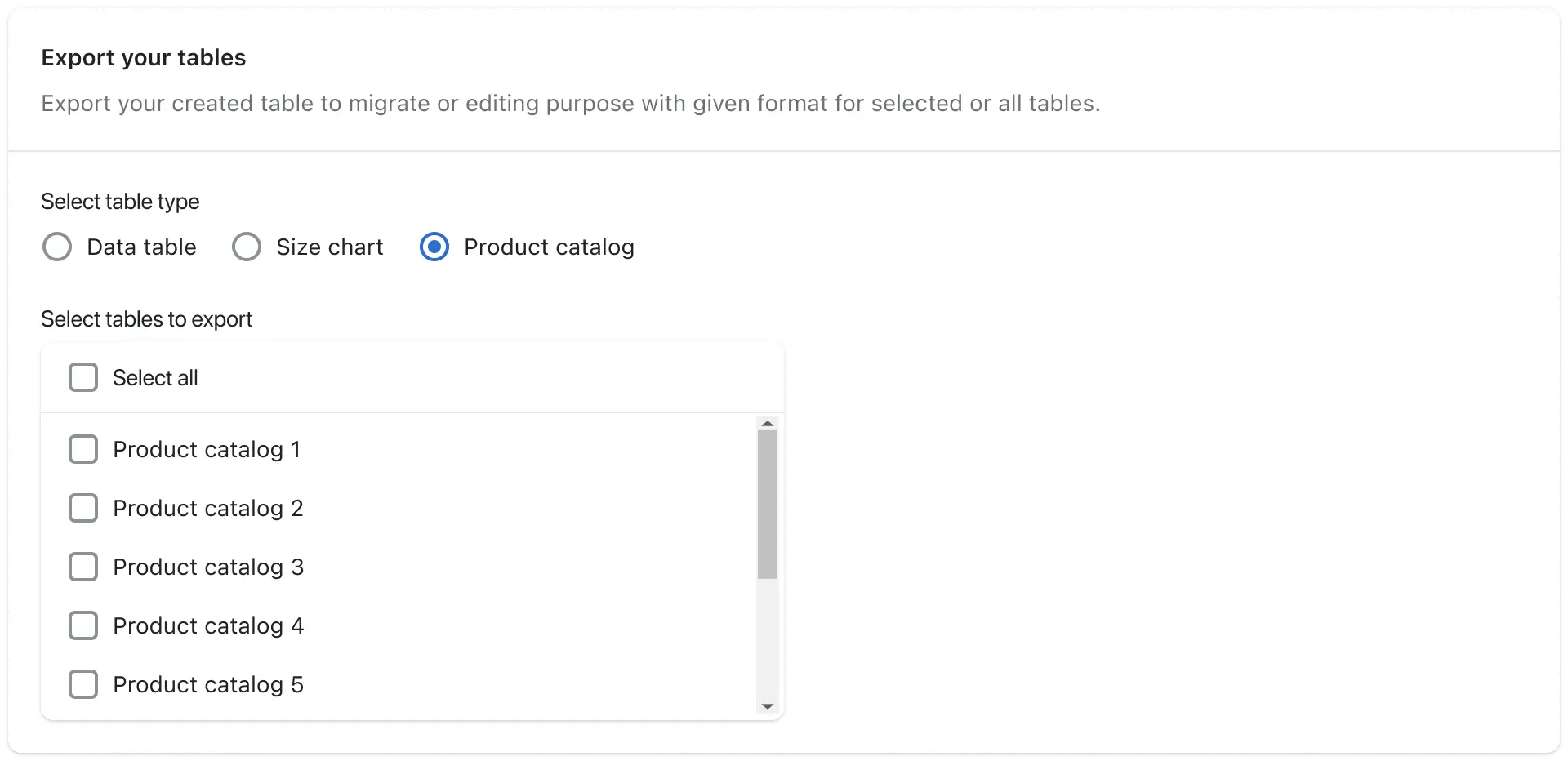
Dashboard Export Restriction (Important Update)
To ensure consistent export behaviour:
If you select multiple table types together
(Example: Data Table + Size Chart)
→ The Export button will be disabled.
When you hover over the disabled Export button, you will see the message:
“Export disabled for multiple table types.”
The Export button will only be enabled when you select tables from a single table type.
Examples:
- ✔ Multiple Data Tables → Allowed
- ✔ Multiple Size Charts → Allowed
- ✔ Multiple Product Catalog tables → Allowed
- ✘ Data Table + Size Chart → Not Allowed
- ✘ Size Chart + Product Catalog → Not Allowed
This restriction prevents unsupported mixed-type exports.
Export your tables
Export your created table for migration or backup purposes in the selected format for either specific or all tables.
Select Tables to Export
Select All:
Check the “Select All” option to export all tables of the selected type.
Select Specific Tables:
Select individual tables using the checkboxes provided before each table name. You can select multiple tables at once (within the same table type).
Export Format:
You can export the table in the following formats:
- CSV
- JSON
- HTML
CSV Delimiter (For CSV Format Only)
A CSV delimiter is the character used to separate values (fields) in a CSV file.
The commonly used delimiter is a comma (,). However, you can choose from:
- Semicolon (;)
- Comma (,)
- Tab (\t for tabular format)
Select the appropriate delimiter based on your spreadsheet software requirements.
ZIP File Option
- If exporting multiple tables, a ZIP file will be generated automatically.
- If exporting selected tables, you may enable the ZIP option to download them as a compressed archive.
- Each table will be included as a separate file inside the ZIP.
After completing the above process, click the “Export File” button located at the top right corner.
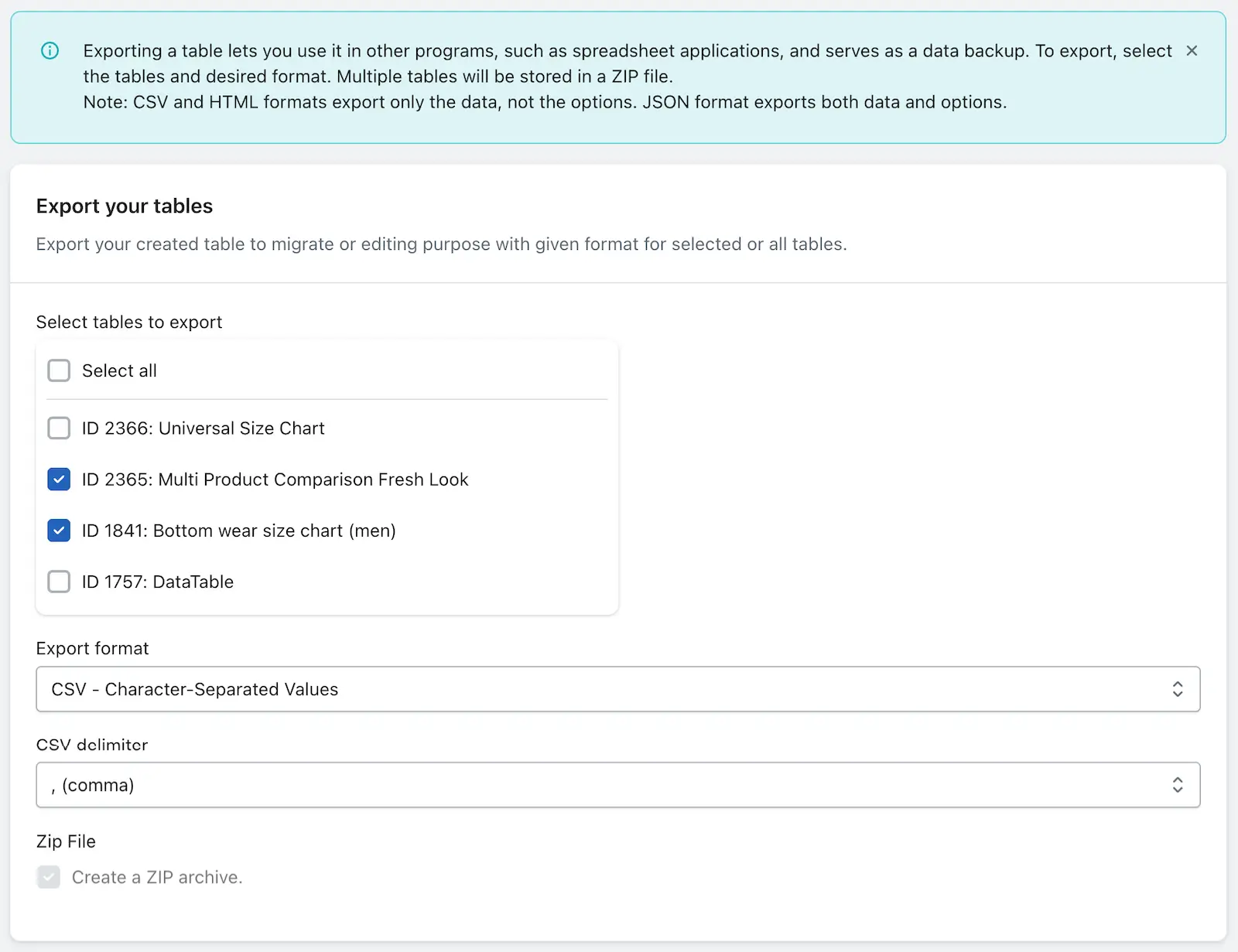
When you press the “Export File” button, the selected table will be exported and downloaded to your system.
- If one table is selected → A single file will download.
- If multiple tables are selected → A ZIP file will download containing individual files for each table.
This updated export flow ensures:
- Clear table-type based export
- Automatic tab export for Size Charts
- Simple export for Product Catalog
- Safe and consistent behavior with bulk export restrictions