






Have you ever hesitated upon a beautifully designed Shopify store and thought, "What Shopify theme is this?" You are not alone. Many store owners, designers, and developers look to identify the themes used by other websites to inspire or select the perfect theme for their own Shopify store.
Understanding the theme can help duplicate similar functionality that aligns with your brand's vision. One effective way to uncover this information is using a Shopify Theme Detector.
This guide will explore the best Shopify theme finder tools and manual methods for checking the theme name. We will also share examples and answer common questions.

What is a Shopify Theme Detector?
A Shopify theme detector is a tool that helps identify the Shopify theme name and theme developer used on a website. Some detectors can also provide information about installed apps, theme versions, and custom modifications.
Why Use a Shopify Theme Detector?
- Inspiration – Find out what themes successful Shopify stores are using.
- Competitive Analysis – See which themes competitors use to improve the stores.
- Efficiency – Avoid manually searching for themes through Shopify’s theme library.
- Customization Insights – Learn how a theme can be modified for different branding styles.
How to Detect Shopify Themes
There are two primary methods to uncover this information:
1. Using a Shopify Theme Detector Tool (Automatic Detection)
2. Manually Checking the Theme Name (Inspecting Website Code)
Let’s explore both methods in detail.
Using a Shopify Theme Detector Tool
Shopify Theme Detectors are specialized online tools designed to identify the theme a Shopify store uses. They analyze the store's public-facing code to determine the theme's name, developer, and other pertinent details. This information is invaluable for store owners, designers, and developers seeking inspiration or aiming to implement similar designs.
To identify the theme of a Shopify store using a theme detector tool, follow these steps:
Step 1: Choose a Reliable Shopify Theme Detector Tool
Several reputable Shopify Theme Detector tools are available online. Here are a few options:
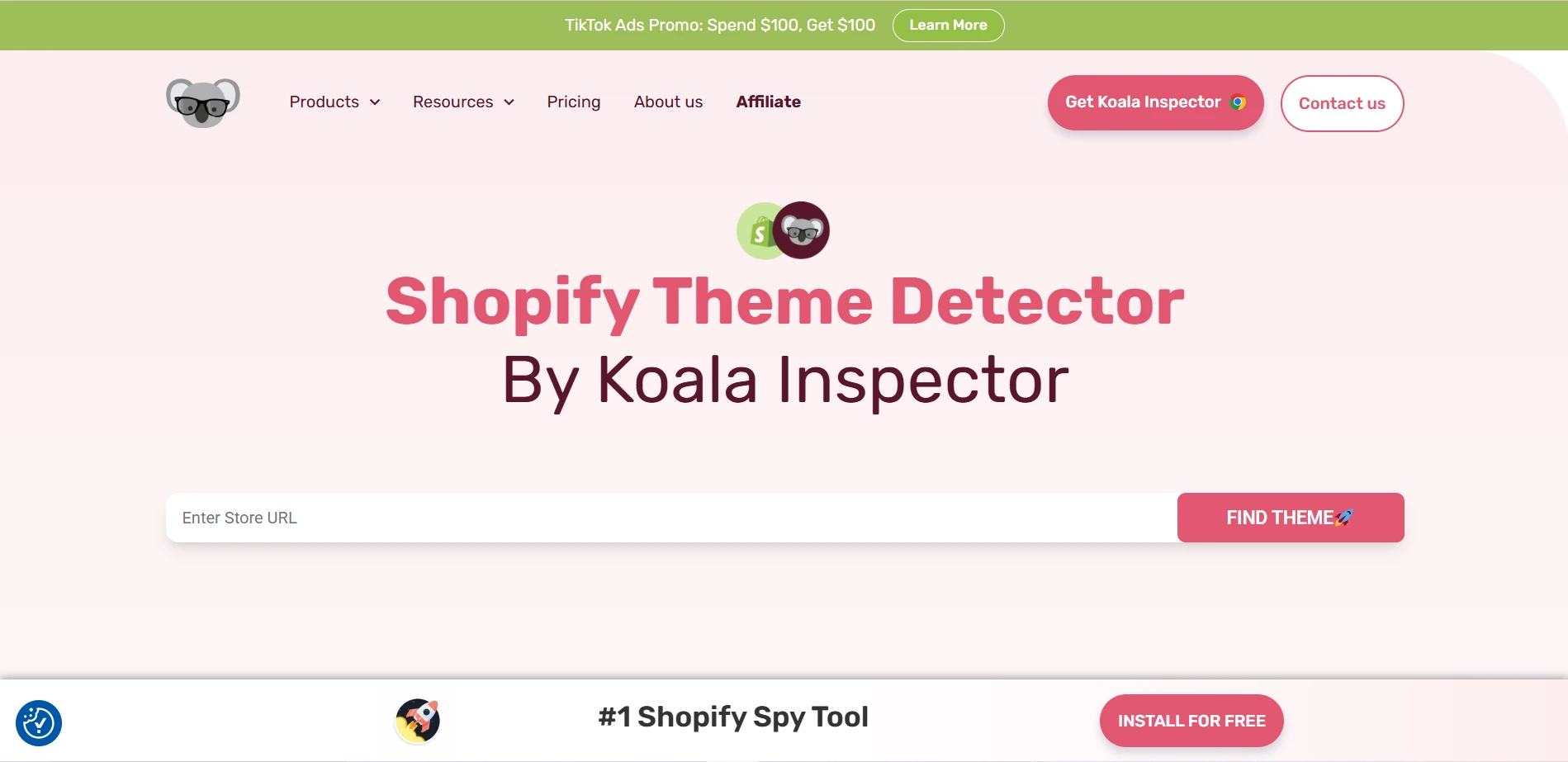
- Koala Apps' Shopify Theme Detector: A free-to-install Chrome extension that identifies any Shopify theme used on a website, even those with heavy customizations.
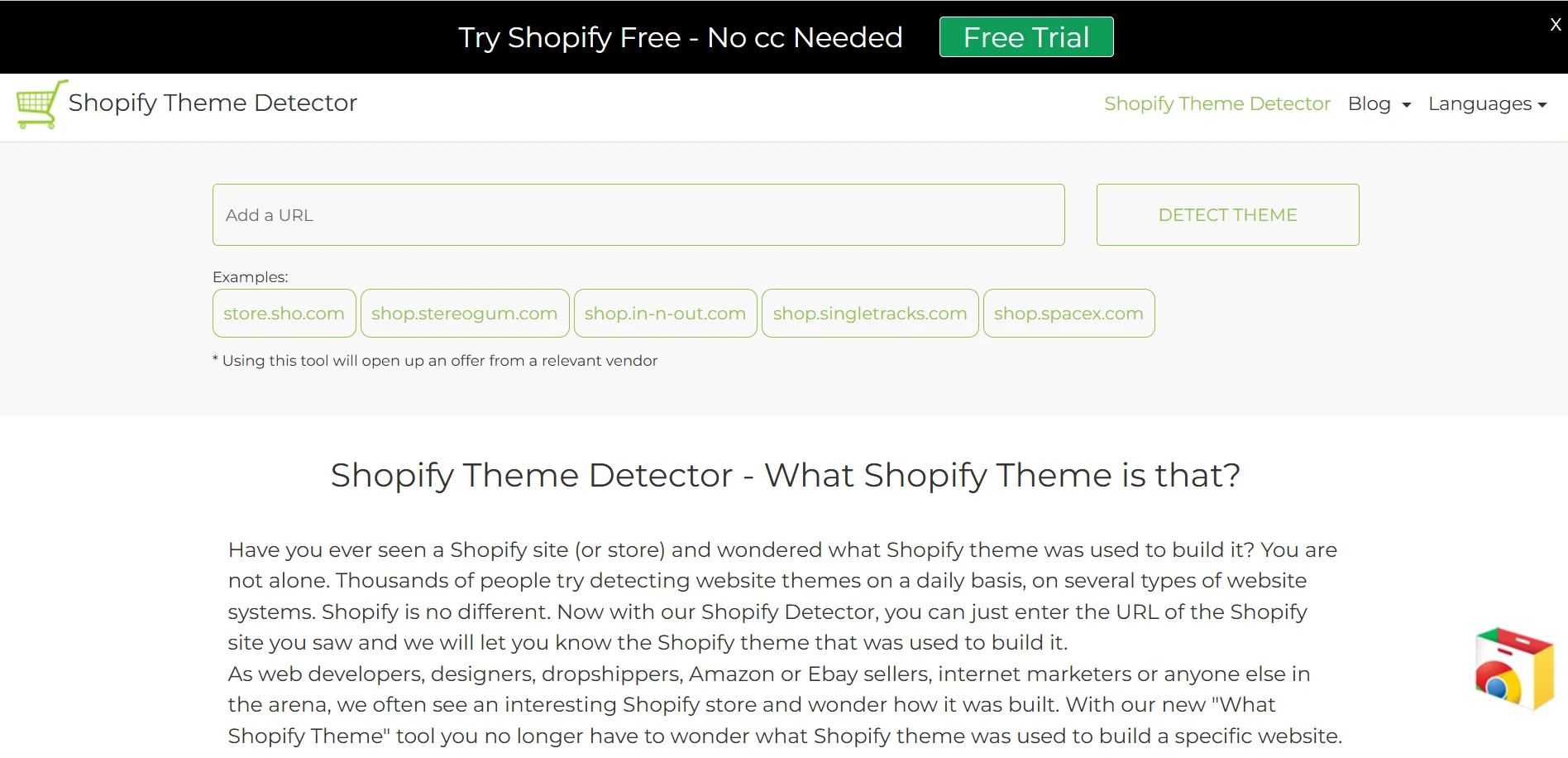
- Shopify Theme Detector by ShopThemeDetector: This tool allows users to enter a Shopify store URL and quickly find out which theme is being used.
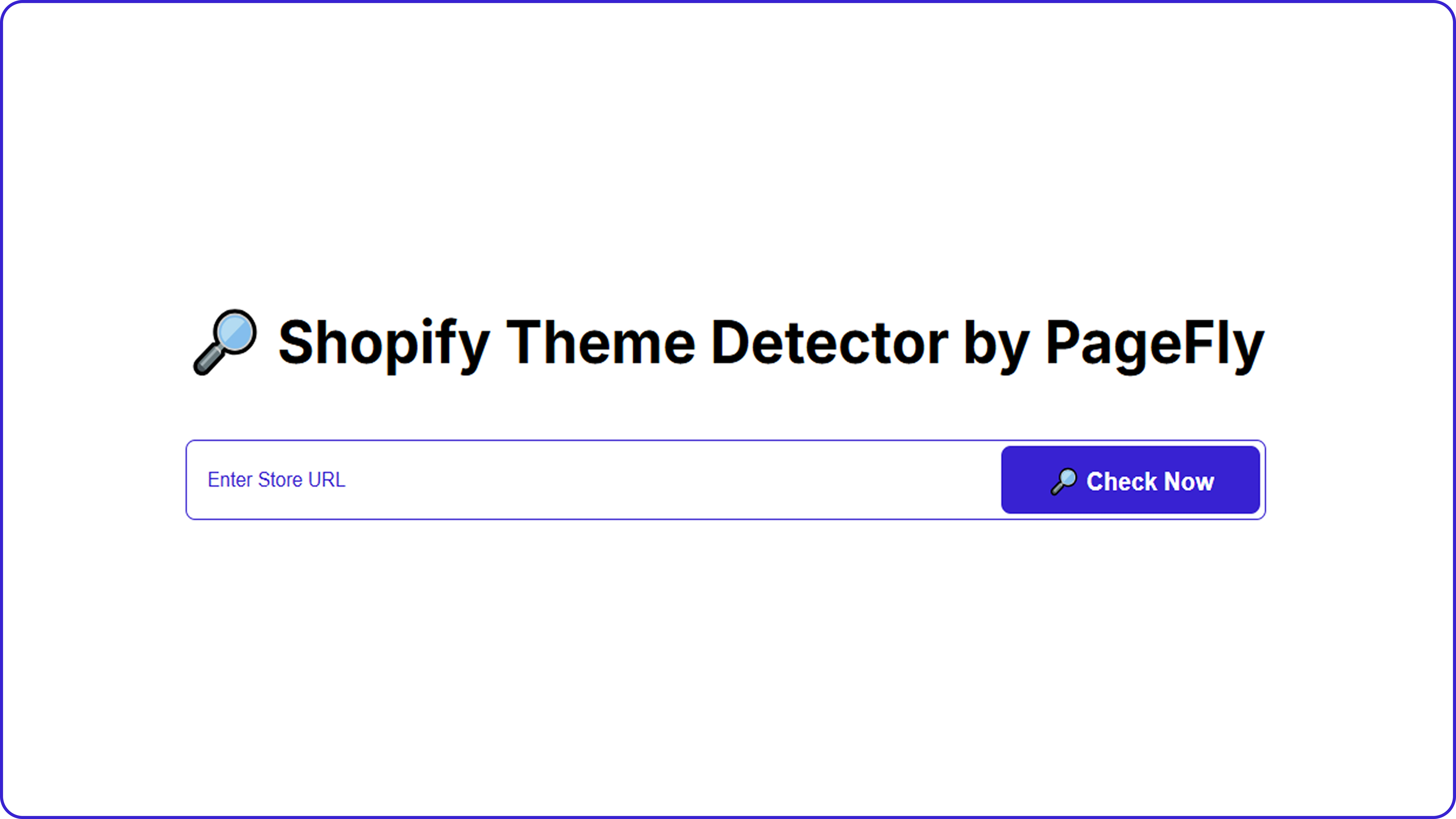
- Shopify Theme Detector by PageFly: Developed by PageFly, this tool enables merchants to discover the Shopify theme used on any store by simply entering the store's URL.
Step 2: Navigate to the Theme Detector's Website
Navigate to the website of your chosen Shopify Theme Detector tool. For example, if you're using Koala Apps' detector, go to Koala Apps Shopify Theme Detector.
Step 3: Enter the Shopify Store URL
Locate the input field labeled for the store's URL. Enter the complete web address of the Shopify store you wish to analyze. Ensure the URL is accurate to obtain precise results.
Step 4: Initiate the Detection Process
Click on the button labeled "Detect Theme," "Analyze," or similar, to start the detection process. The tool will then scan the provided URL to identify the theme.
Step 5: Review the Results
After the analysis, the tool will display the findings, which typically include:
- Theme Name: The official name of the theme.
- Developer: The creator or developer of the theme.
- Customization Level: This indicates how much the theme has been customized from its original version.
Manually Check the Shopify Theme Name
You can manually inspect the website's code if you're looking to identify a store's Shopify theme, especially when automatic detectors fall short due to heavy customizations. Here's a straightforward guide to help you through the process:
Using Page Source Code
Inspecting the page's source code can be a practical approach to manually identify a store's Shopify theme. Here's a simple, step-by-step guide:
Step 1: Open the Shopify Store in Your Browser:
- Navigate to the specific Shopify store you wish to analyze.
Step 2: Access the Page Source
- Right-click anywhere on the page and select "View Page Source".
- Alternatively, use keyboard shortcuts:
Windows/Linux: Press Ctrl + U
Mac: Press Cmd + Option + U
Step 3: Search for Theme Information
- Once the source code is open, press Ctrl + F (or Cmd + F on Mac) to open the search bar.
- Type in Shopify.theme and press Enter.
Step 4: Locate the Theme Name
- Look for a line resembling:
Shopify.theme = {"name":"[Theme Name]","id":12345678,...}
- The theme's name will be displayed next to
"name".
Example:
If you find:
Shopify.theme = {"name":"Dawn","id":12345678,...}
This indicates the store is using the Dawn theme.





About the author
Bhavesha Ghatode
Explore Content with Bhavesha, a passionate and dedicated technical content writer with a keen understanding of e-commerce trends. She is committed to sharing valuable insights, practical assets, and the latest trends that can help businesses thrive in a competitive environment.