



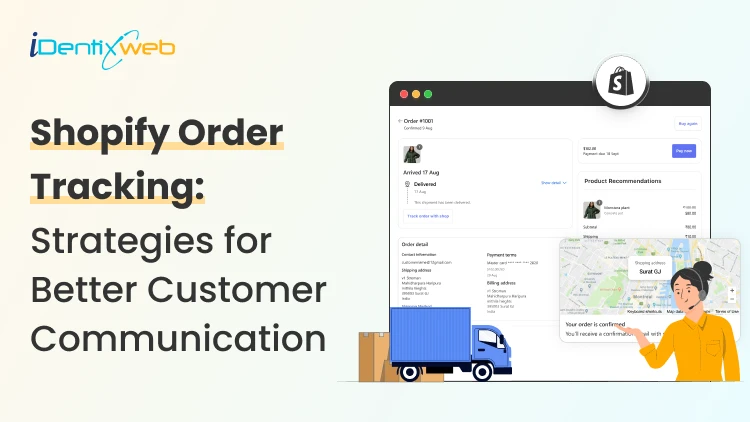

To add a Shopify order tracking page, start by using Shopify’s built-in order status page, which becomes available once you fulfill an order and add the tracking number. Customers can then track their shipment through the order status link, shipping confirmation email, or Shop app. If you want a branded Track Order page on your site, you will usually need a Shopify order tracking app like AfterShip or ParcelWILL.
A lot of store owners in 2026 still think they need an app to offer order tracking in Shopify. Shopify already gives a built-in order status page once you add tracking numbers to fulfilled orders.
Customers can check updates from the order status page, shipping emails, the Shop app, or by entering their order confirmation number and verifying their email or phone.
When I help new Shopify stores set this up, I keep the goal simple:
- Make tracking easy to find
- Make order updates easy to understand
- Make customers feel their order is moving
In this guide, I will help you how to achieve all these goals. We will get into the importance of enabling customers to track their orders, how to add a Shopify order tracking page, best apps for it and tips to communicate order status with customers.
What is the importance of enabling customers to track their orders?
A customer will feel excited at checkout, but the customer only gains trust after the payment. If they cannot check delivery progress easily, they message support.
If that happens, your team starts answering the same question again and again.
That is why I treat Shopify order tracking as part of CX. A clear tracking flow gives shoppers confidence. It also helps your store look more organized from day one.
Why does order tracking matter for new stores?
- Reduce “Where is my order?” messages
- Build trust after checkout
- Keep customers informed without manual follow-up
Shopify’s built-in tracking flow already covers the basics well. Let’s understand how to track a Shopify order without app.
How to add a Shopify tracking page for customers? (Without app)
Step 1: Fulfill the order and add the tracking number
This is the first thing I check when a store says customers cannot track orders properly.
When you fulfill an order and add the tracking number, Shopify uses it to send shipment updates to customers.
To find it, go to Orders, go to the specific order, and here view the Fulfilled section. Here you can find the tracking number and carrier.
If you buy shipping labels inside Shopify, the tracking number and carrier can be added automatically. If you use another carrier, you can add the tracking number manually during or after fulfillment. Shopify detects the carrier automatically.
Step 2: Make sure the order status link reaches the customer
I use Shopify’s default order confirmation and shipping templates. In this method, the order status page link is already included. Sometimes customers edit those templates. If so, check them carefully so the tracking path still works.
Step 3: Test the tracking flow yourself
I always test the full journey before calling it done. Here's how I do it.
Place a test order > add tracking > Open the email on mobile > Click the link > See how quickly I can reach the tracking page.
Step 4: Know what native Shopify tracking can and cannot do
Shopify’s built-in order status page is great for shipment visibility. Customers can reach it in different ways:
- Through the shipping confirmation email
- Through their customer account
- Through the Shop app
- By entering the order confirmation number and verifying their email or phone
Do you need an app for Shopify order tracking?
In my experience, merchants should use the built-in tracing feature if:
- They are a new store
- They ship with one or two carriers
- They want a simple setup with no extra app cost
- You just need customers to check the shipment progress easily
When should I use a Shopify order tracking app?
The built-in order status page is good, but a branded public tracking page in your store navigation is even better.
If you want to add an order tracking page on Shopify, you will need an app.
So if someone asks me how to track Shopify orders, my first answer will be to start with Shopify’s built-in setup. Move to an app only when you need more control, more branding, or a dedicated order lookup page.
I have used 3 apps to enable order tracking on Shopify for customers.
How to reduce delivery questions before they turn into tracking questions
Before a customer even starts tracking an order, it helps to set the right delivery expectation earlier.
That is where I use apps like Stellar Delivery Date & Pickup. It lets customers choose local delivery, store pickup, or shipping with a delivery date and time slot.
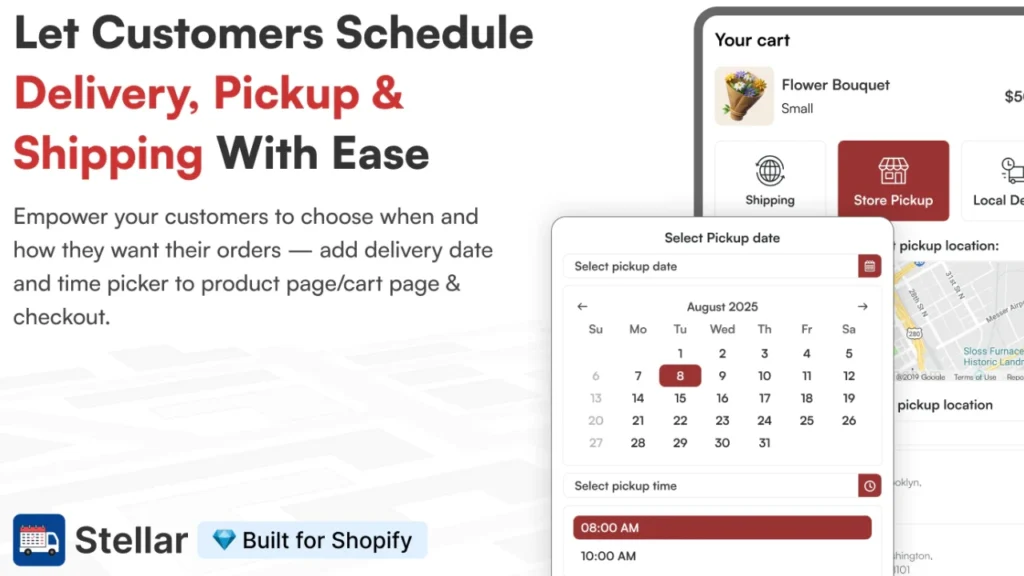
This helps store owners to reduce confusion around when an order is expected. I like Stellar for stores that handle time-sensitive orders like groceries, bakeries, and florists.
Best apps for Shopify order tracking
AfterShip Order Tracking
This is the first app that I have used, so I will always recommend it. Here is what I like about AfterShip.
- Branded tracking pages
- Automated email and SMS notifications
- Shipment analytics
- Wide carrier coverage
17TRACK Order Tracking
I have used this app for international customers because it has a great multilingual feature.
Features of 17Track that I love:
- Multilingual tracking
- Estimated delivery dates
- Proactive shipment alerts
- Return support
ParcelWILL Order Tracking
This app has the best live chat features that I always use if your customers are purchasing high-ticket items.
Some other features I love include:
- Easy setup
- Customizable tracking pages
- A beginner-friendly experience
- Integrated with the smart upsell system
Tips to communicate order status with customers
More than adding a Shopify order tracking page, I believe in communicating with the customer in a better way. Here’s what I have learned.
Keep your order updates clear
I always tell merchants to send updates at the right moment. Your customer should know:
- When the order is confirmed
- When it is shipped
- When tracking becomes active
If I’m a customer and these things are taking time, I would feel something is wrong.
Use simple status language
I have seen stores using confusing internal terms. Instead, use labels that customers understand right away.
- Order confirmed
- Packed
- Shipped
- Out for delivery
- Delivered
Set expectations early
If you need two business days to process orders before shipping, mention that clearly on:
- The product page
- The order confirmation email
- Your shipping policy page
Add a short note about tracking delays
Some delays happen; it's part of being a Shopify merchant. If you see a delay is incoming. Add a small message like:
- Tracking may take 24 to 48 hours to update after shipment
Make tracking easy to find
Customers need to check the order status quickly. If you use an app-based tracking page, add a Track Order link in your:
- Header
- Footer
- Help or support section
Test everything on mobile
It’s 2026. Customers have been checking order updates on their phones. If the link is not visible properly, support messages will still come in. I always review the full flow on mobile before I publish it.
Final thoughts: Add tracking to Shopify orders
For new stores, I would recommend Shopify’s built-in tracking first. Ensure that the order status path is easy for customers to follow.
Once your store grows, you can decide if you need a dedicated tracking page with the Shopify order tracking app. 17Track, ParcelWILL, and AfterShip are great choices.
FAQs
1. Can customers track their orders on Shopify?
Yes. Once you add tracking details to a fulfilled order, customers can view updates through Shopify’s order status page, shipping confirmation emails, the Shop app, or by verifying their order details.
2. Is there any simple way to add a tracking order page to a store?
Yes. The simplest way is to start with Shopify’s built-in order status page, because it already works once tracking is added to the order. If you want an order tracking page in your store navigation, use a Shopify order tracking app.
3. How to enable customers to track orders on Shopify?
Fulfill the order and add the tracking number and the carrier details. Shopify then uses that information to show tracking on the order status page and in shipping notifications.
4. How to add tracking to a Shopify order?
Go to the Order section in your Shopify admin, select an order, fulfill it, and enter the tracking number and carrier name or tracking URL.



About the author
Vineet Nair
Vineet is an experienced content strategist with expertise in the ecommerce domain and a keen interest in Shopify. He aims to help Shopify merchants thrive in this competitive environment with technical solutions and thoughtfully structured content.