






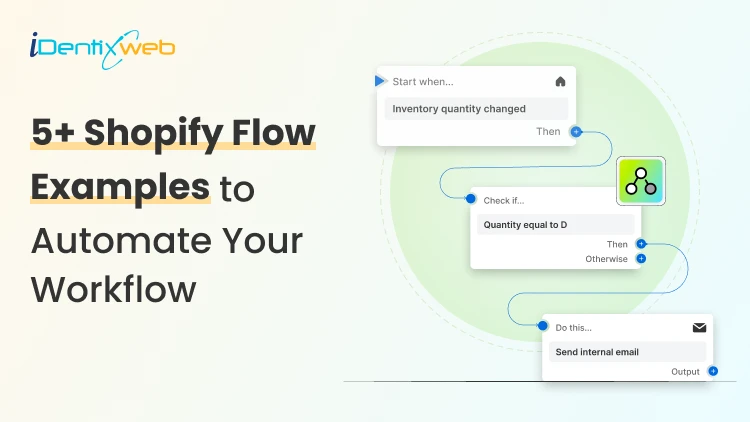

Some useful Shopify Flow examples are tagging high-value orders, sending low-stock alerts, tagging first-time customers, flagging risky orders for review, and notifying your team when orders stay unfulfilled for too long. You can also use Shopify Flow for more advanced workflows, like sending flagged order data to Google Sheets, creating a daily order summary, tagging customers linked to chargebacks as high risk, or routing vendor-specific orders automatically.
When I help Shopify merchants clean up their backend workflow, Shopify Flow is one of the first tools I use.
It helps me automate small but important tasks that usually get repeated every day. It helps store owners with less manual work and a smoother way to run the store operations as orders start coming in.
In simple terms, Shopify Flow works like this:
When something happens in your store, Shopify Flow can check a condition and then take an action automatically. For example, it can tag a high-value order, alert your team when stock runs low, or flag an order that looks risky.
In this guide, I’ll break down the core parts of a flow first, then walk through common Shopify Flow examples, and finally show you some advanced workflows you can use once the basics are in place.
Components of a Shopify Flow app: triggers, conditions, actions
Before I get into the best Shopify Flow examples, I will explain how a flow actually works.
Once you know the basic structure, it becomes much easier to build, edit, and use automations that fit your store.
Shopify Flow triggers: what starts the workflow
A trigger is the starting point of the workflow. It tells Shopify Flow when to begin.
Some common Shopify Flow triggers are:
- Order created
- Order paid
- Product inventory changed
- Customer created
For example, if an order gets paid, that event can trigger a workflow. From there, Flow can decide what should happen next.
Conditions: how Shopify Flow decides what to do
A condition is the rule-checking part of the flow. It helps Shopify decide whether the workflow should continue.
For example, you may want Shopify Flow to tag an order only if the order total is above a certain amount. If the order does not meet that rule, the action does not run.
Actions: what happens after the condition is met
This is what Shopify Flow does after the trigger happens and the condition matches.
Some simple actions include:
- Tag an order
- Send an internal email
- Hold fulfillment
- Add a customer tag
Common Shopify Flow examples that stores can start
Shopify Flow example #1: Tag high-value orders automatically
This is one of the first flows I like to set up. The trigger here is ‘order paid’. I set a condition of a threshold in terms of order value. Then Shopify Flow checks whether the order total is above the threshold. If it is, the workflow adds a tag to the order and can notify your team right away.
This helps you spot premium orders fast. You can review them more carefully and give them extra attention.
Shopify Flow example #2: Send a low-stock alert
I like this flow because it prevents avoidable stockouts. Low inventory problems usually start small. That is why this is one of the most practical examples for new stores.
The trigger here is ‘product variant inventory quantity changed’. Shopify Flow then checks whether stock has dropped below your set threshold. If it has, it sends an email to your team.
Shopify Flow example #3: Tag first-time customers
If you want cleaner customer data from the beginning, set this one up early. The trigger here is ‘order paid’. Then Shopify Flow checks whether the customer’s lifetime order count is equal to one. If yes, it adds a first-time buyer tag.
This way, you can separate new buyers from repeat customers without doing anything manually.
Shopify Flow example #4: Flag risky orders for review
Every store needs Shopify fraud protection. That is why I see this as one of the most important Shopify Flow examples to set up early.
The trigger is ‘order risk analyzed’. Shopify Flow checks whether the risk level is high. If it is, the flow adds a fraud-related tag and notifies your team for review.
Shopify Flow example #5: Alerts for unfulfilled orders
The trigger here is ‘order created’. After that, the workflow waits for a set number of hours. Then it checks whether the fulfillment status is still unfulfilled. If it is, Shopify Flow sends an alert to your operations team.
This catches delays before customers complain. It helps you stay ahead of missed handoffs, late packing, or anything that is slowing you down.
Advanced Shopify Flow examples for automation
Shopify Flow example #1: Connect Flow to other apps
As your store grows, connect Flow with the rest of your tools. For example, you can connect Shopify Flow to Google Sheets to keep a live data of flagged orders.
The workflow can start when order risk is analyzed, then check a rule such as high value, high risk, or a specific tag. If the condition matches, Flow can add a row to Google Sheets with the order number, customer name, total, and status, so your team has a clean record to review.
Shopify Flow example #2: Send a daily summary of order details
Instead of sending your team a new alert every time an order update happens, you can use a scheduled workflow to collect key order details.
Types of order details you can include:
- Order number
- Customer name
- Order date
- Total order value
- Payment status
- Fulfillment status
- Shipping method
- Product names or SKUs
- Quantity ordered
- Delivery or shipping location
- Order tags
- Risk status
Shopify Flow example #3: Tag customers linked to chargebacks
This is a workflow for stores that want better control over fraud issues. If an order results in a chargeback, Shopify Flow can automatically tag the customer as high risk. This adds a simple layer of protection without creating more manual work.
Shopify Flow example #4: Route bulk orders automatically
This is a useful workflow when order handling depends on the products inside the cart. If an order includes items from a specific vendor, Shopify Flow can automatically send that vendor an email with the order details.
That keeps the handoff fast and removes the need for someone on your team to spot and forward the order manually.

![How to Automate Shopify Post-purchase Email? [Examples + Tips to Convert]](https://www.identixweb.com/wp-content/uploads/2026/04/26-03-Thu-Blog-How-to-Streamline-Shopify-Post-purchase-Email-Flow_.webp "How to Automate Shopify Post-purchase Email? [Examples + Tips to Convert]")


About the author
Vineet Nair
Vineet is an experienced content strategist with expertise in the ecommerce domain and a keen interest in Shopify. He aims to help Shopify merchants thrive in this competitive environment with technical solutions and thoughtfully structured content.