




Problems with logging in, processing orders, or updating your store can arise, leading store owners to question, Is Shopify Down?
As one of the leading ecommerce platforms powering millions of online stores globally, Shopify is highly dependable. However, like any technology, occasional downtime is possible. If you suspect an issue, this guide will help you check Shopify’s live status and provide steps to handle it effectively.
What is the Shopify Server Status?
It is a real-time report that shows whether Shopify’s platform is running smoothly or experiencing issues. It helps merchants check for outages, server errors, or maintenance updates that might affect their stores.
How to Check If Shopify Is Down
When your website is not functioning correctly, the first step is to confirm whether the issue lies with Shopify or your setup. Here's how you check it:
1. Visit Shopify’s Status Page
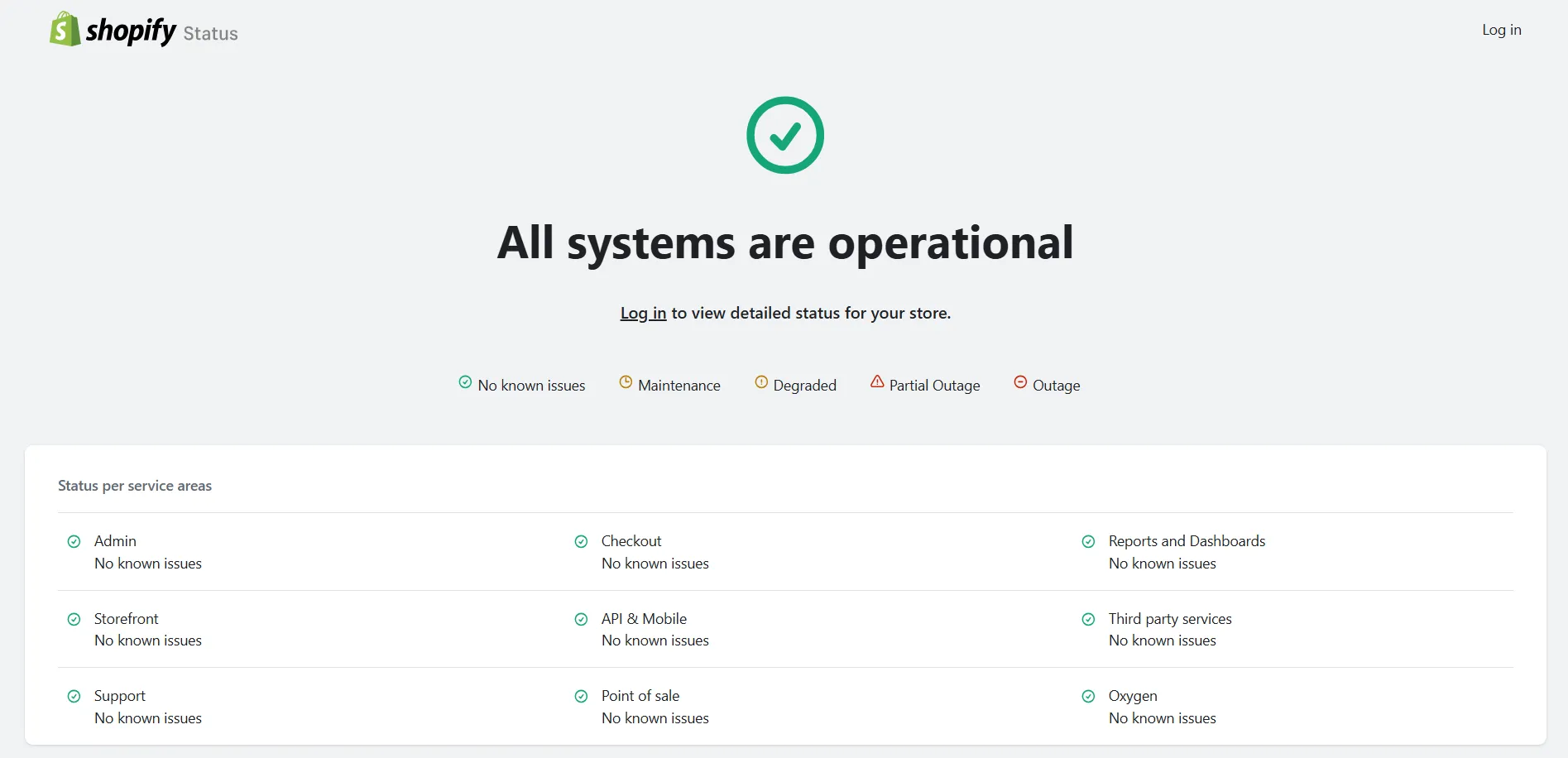
Shopify has a dedicated status page that provides proper updates about the platform’s performance. It displays:
- The operational status of many services, including Admin, Checkout, and Online Store.
- Past incidents and resolutions.
2. Use Third-Party Tools Like Down Detector
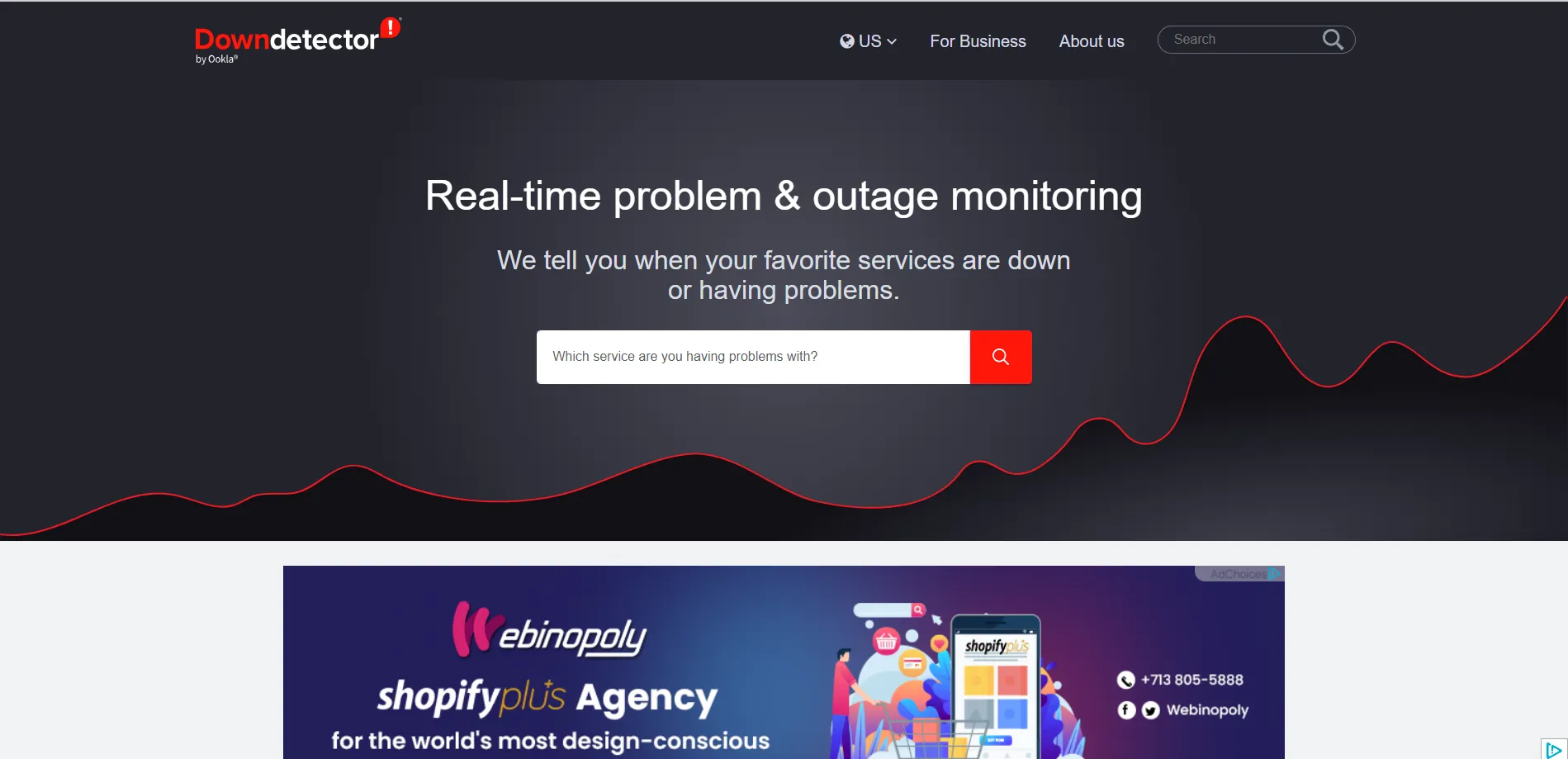
Shopify Down Detector is a popular tool for checking platform outages. Search for “Shopify down” to see reports from other users in real time. The tool also shows:
- Geographic heat maps of affected regions.
- A timeline of reported issues.
3. Check Shopify’s Social Media Channels
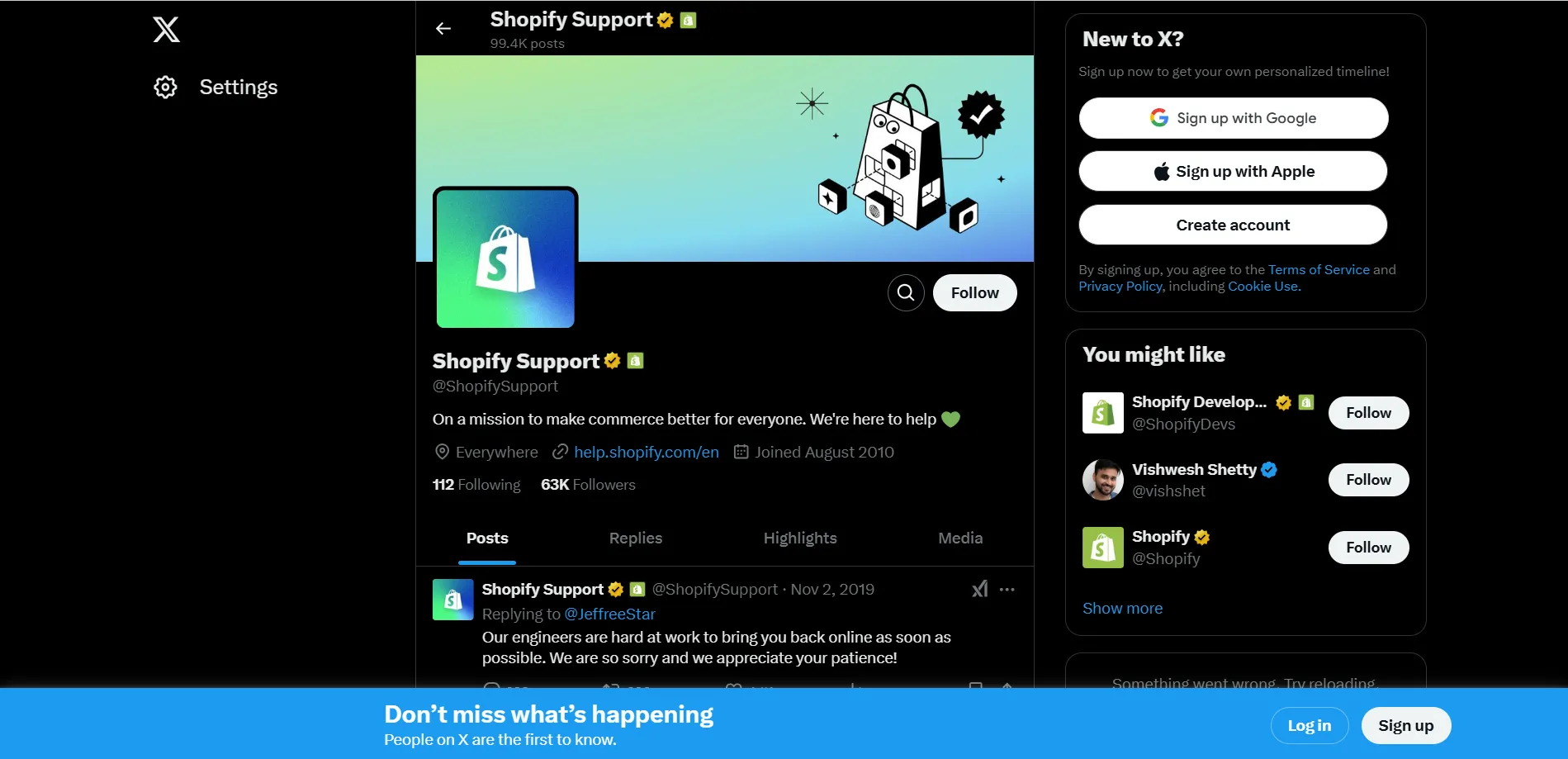
Shopify posts updates about server issues or outages on their official Twitter account (@ShopifySupport). This is especially helpful during widespread outages.
4. Test Other Websites
If you suspect a broader internet issue, check whether other websites are accessible. Sometimes, local network problems can mimic a platform-specific outage.
When downtime hits, it’s not just your store that’s affected
Cart behavior and conversion momentum can all take a hit. That’s why many growing merchants use iCart to protect their margins during downtime.
Common Reasons for Shopify Downtime
Apart from scheduled maintenance, whenever Shopify goes down, it typically impacts one of the following areas:
Shopify occasionally performs scheduled maintenance to improve performance and security. During these times, certain features or services might be temporarily unavailable.
During events like Black Friday or flash sales, an unexpected surge in traffic can overload servers, leading to temporary slowdowns or outages.
Like any technology, Shopify’s system may encounter bugs or errors that cause brief disruptions to the platform.
Apps installed on your store can sometimes conflict with Shopify’s functionality, potentially causing your website to go offline or behave unpredictably.
Not all problems are on Shopify’s end. Your internet connection or local network setup could cause access issues.
What to Do If Your Shopify Website Is Down
If your Shopify store is down and you encounter an error page while trying to log in or access your store, don’t panic. Follow these steps to resolve the issue and minimize its impact on your business:
1. Communicate with Customers
Transparency is key during an outage. Inform your customers about the situation to manage their expectations.
- Use social media platforms like Instagram, Facebook, or Twitter to post updates about the outage.
Example: “We are currently experiencing technical issues with our store. We’re working to resolve this as quickly as possible. Thank you for your patience!”
- Send a quick email blast to your mailing list apologizing for the inconvenience and reassuring customers that their orders are safe and the store will return online soon.
Example: “Dear customers, our store faces some technical difficulties. We are on it and will update you once the issue is resolved. Thank you for your understanding!”
2. Check for Updates
Before assuming the issue is with your store alone, verify if it’s a platform-wide problem.
- Visit the Shopify Status Page to see if there are ongoing outages or maintenance.
- Follow (@ShopifySupport on X) for real-time updates and troubleshooting tips.
3. Contact Shopify Support
If the issue still persists, contact Shopify Support.
- Use their live chat feature for immediate assistance.
- Email Shopify Support for more detailed inquiries, especially if you suspect a technical problem unique to your store.
- Call Shopify’s phone support if available in your region for urgent issues.
Tip: Be prepared to provide details like recent changes to your store, installed apps, or updates that may have contributed to the problem.
4. Check Third-Party Apps
Sometimes, the issue may not be with Shopify’s servers but with apps integrated into your store.
- Disable any recently installed or updated apps to rule out conflicts.
Example: If you recently added an app for product reviews and your store went down after installation, try disabling it to see if the issue is resolved.
- Review the app settings for potential errors and contact the app developer if needed.
5. Test Your Store After Fixes
Once Shopify or you have resolved the issue, ensure your store is fully functional before informing customers it’s back online.
- Test the checkout process by placing a test order to ensure smooth transactions.
- Check page load times across your store, as slow-loading pages might deter customers.
- Verify that all integrations and apps work correctly to avoid hidden issues.
Example: If you use a third-party shipping app, confirm it’s syncing correctly with your store.
How to Prevent Future Issues
While you can’t stop Shopify outages entirely, you can take proactive steps to minimize their impact on your business and ensure smoother operations:
1. Regular Backups
Regularly backing up your store’s data is essential to safeguard your business.
- Export your product information, customer data, and order history periodically.
- Use backup apps available to automate the process.
- In case of unexpected issues, backups ensure you can quickly restore critical data without losing important information.
2. Monitor Performance
Keeping an eye on your store’s performance helps you spot potential issues before they escalate.
- Use tools like Google Analytics or Shopify’s built-in reporting features to track key metrics such as page load times, bounce rates, and conversion rates.
- Identify any unusual patterns, such as slow loading times, which could indicate underlying problems.
- Address these issues promptly to maintain a seamless shopping experience for your customers.
3. Stay Informed
Awareness of platform updates and outages can help you prepare for potential downtime.
- Subscribe to Shopify’s status updates or follow their official channels for real-time alerts about scheduled maintenance or known issues.
- Set up email or SMS notifications for outages or updates to ensure you are always informed.
- Use this information to plan sales campaigns and avoid disruptions during maintenance windows.
4. Choose Reliable Apps
Third-party apps can enhance your store’s functionality, but poorly optimized apps can cause conflicts or slowdowns.
- Research and vet apps before installation by reading reviews and checking compatibility with your store’s theme and other apps.
- Regularly review the apps you’re using and uninstall any that are no longer necessary or cause performance issues.
- Opt for apps with active support teams to assist you if something goes wrong.
Wrapping Up
If you are asking if Shopify is down right now, start by checking Shopify’s status page or third-party tools like Down Detector. While outages are rare, they can disrupt your business. By staying informed and taking proactive steps, you can minimize downtime’s impact and ensure a seamless customer experience.
Bookmark this guide for future reference to handle any Shopify downtime with confidence.
FAQs
1. How often does Shopify experience downtime?
Shopify is highly reliable, with most outages being rare and short-lived. Scheduled maintenance is typically announced in advance.
2. Can I get compensated for Shopify downtime?
Shopify does not usually offer compensation for downtime unless stipulated in specific terms. Check your agreement or contact support for clarification.
3. What alternative platforms can I use if Shopify frequently causes downtime and recurring issues?
If Shopify experiences frequent downtime and doesn't meet your needs, you can consider alternative e-commerce platforms such as WooCommerce, BigCommerce, or Wix.
4. What is Shopify status?
Shopify status shows the platform's operational health, indicating if services are running smoothly. Check the Shopify Status page for updates on issues or maintenance.
5. What to do when Shopify is down?
First, confirm it’s a Shopify-wide incident by checking the official Shopify Status page (it shows Admin, Checkout, Storefront, API status and incident updates). If it’s a Shopify outage, avoid deploying theme/app changes, communicate a quick “temporary issue” update to customers, and monitor status until Shopify marks services operational again.
6. Why isn't my Shopify store working?
Most “store not working” cases are local or store-specific: browser/cache issues, theme bugs, recent code edits, app conflicts, or domain/TLS problems. Shopify’s own troubleshooting flow starts with testing incognito or another device/network and clearing cache, then reviewing recent theme/app changes and domain settings if the issue persists.
7. Why does Shopify keep saying server error?
“Server error” usually maps to HTTP 5xx errors like 500/502/503/504, which can be a platform incident, a temporary gateway timeout, or something triggered by your theme or an app. Rule out a Shopify incident first (Status page), then try the quick isolation steps Shopify commonly recommends: clear cache/cookies, use an incognito window or another browser/device, and roll back or disable anything you changed recently if the error is only happening on your store.



About the author
Bhavesha Ghatode
Explore Content with Bhavesha, a passionate and dedicated technical content writer with a keen understanding of e-commerce trends. She is committed to sharing valuable insights, practical assets, and the latest trends that can help businesses thrive in a competitive environment.