





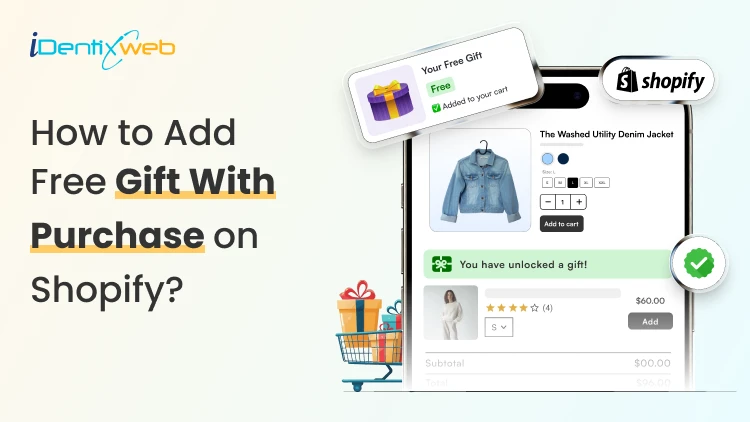

Shopify merchants can offer a free gift in two ways. The native Buy X Get Y discount makes a selected product free after customers meet a quantity or spending condition, but shoppers must add the gift to their cart themselves. For a fully automatic method, apps such as iCart or BOGOS can track the cart threshold, display progress, and add the selected gift once the customer qualifies.
You've probably added one extra item to your cart just to unlock a free gift a store promised you. This little nudge works on shoppers more often than Shopify merchants realize.
If you run a Shopify store, you can set up free gift with purchase within minutes.
The best part is none of this has to be manual. Once a customer's cart hits the amount you've set, the gift gets added on its own.
This guide walks you through exactly how to set up a Shopify free gift with purchase this way: what it is, why it's worth doing, and a full step-by-step setup.
What is Shopify free gift with purchase?
Shopify allows you to offer complimentary items through its "Free Gifts" feature, either via built-in discounts or third-party apps.
In the Shopify back-end, you can customize your gift and conditions to fit your needs. This includes setting minimum purchases, selecting specific products that trigger the gift, or running targeted promotions based on customer segments.
With "Shopify free gift with purchase" offers, you can automate adding free items to customers' orders. Customers receive loyalty gifts without manual or extra steps during checkout. It's an e-commerce marketing automation tool that enhances customer satisfaction and can help achieve your conversion goals.
You can add a free gift with Shopify using two methods:
- Using Shopify's native BXGY discount feature. This is manual
- Using a Shopify app. This will be automatic
How to add a free gift with purchase on Shopify (Method 1)
You can create a free-gift promotion using Shopify’s native Buy X get Y automatic discount.
Step 1: Create the gift product
Go to Products > Add product and create the product you want to offer as a gift.
Add inventory and make the product available on your Online Store so customers can place it in their carts.
Step 2: Open the Discounts section
From your Shopify admin, go to Discounts > Create discount.
Step 3: Select “Buy X get Y”
Choose Buy X get Y from the available discount types. This option allows customers to receive a specific product for free after meeting your purchase requirements.
Step 4: Choose the discount method
Under Method, select Automatic discount. This applies the offer automatically when the cart qualifies.
Step 5: Name the promotion
Enter a clear title, such as: Free Gift on Orders Over $75
For an automatic discount, this title will be displayed to customers in the cart and at checkout.
Step 6: Configure the purchase requirement
Under Customer buys, choose one of the following:
- Minimum quantity of items: For example, buy two eligible products.
- Minimum purchase amount: For example, spend at least $75.
Then select the specific products or collections that qualify for the offer.
Step 7: Select the free gift
Under Customer gets:
- Set the quantity to 1.
- Select Specific products or Specific collections.
- Add the product you created as the free gift.
- Under At a discounted value, select Free.
Step 8: Limit the number of gifts
Enable Set the maximum number of uses per order and enter 1 when customers should receive only one gift per order. Otherwise, the promotion may apply multiple times when customers meet the qualifying condition repeatedly.
Step 9: Set eligibility and combinations
Choose whether the offer applies to:
- All customers
- Specific customers
- Customer segments
- Selected markets
Step 10: Set the promotion dates
Select the start date and the end date. Without an end date, the promotion remains active until you deactivate it.
Step 11: Save and test the offer
Click Save, then test the promotion in your storefront.
In my experience running gift with purchase through apps gives the biggest returns. Apps like iCart can be used to run free gift with purchase campaigns for Shopify stores.
Let's now look at how to set this up.
How to automatically add a free gift to the cart in Shopify? (Method 2)
Step 1: Log in to your Shopify store.
Step 2: Go to Apps
Navigate to the 'Apps' section on the left taskbar. Install iCart Cart Drawer Cart Upsell.
Step 3: Activate the app in your theme
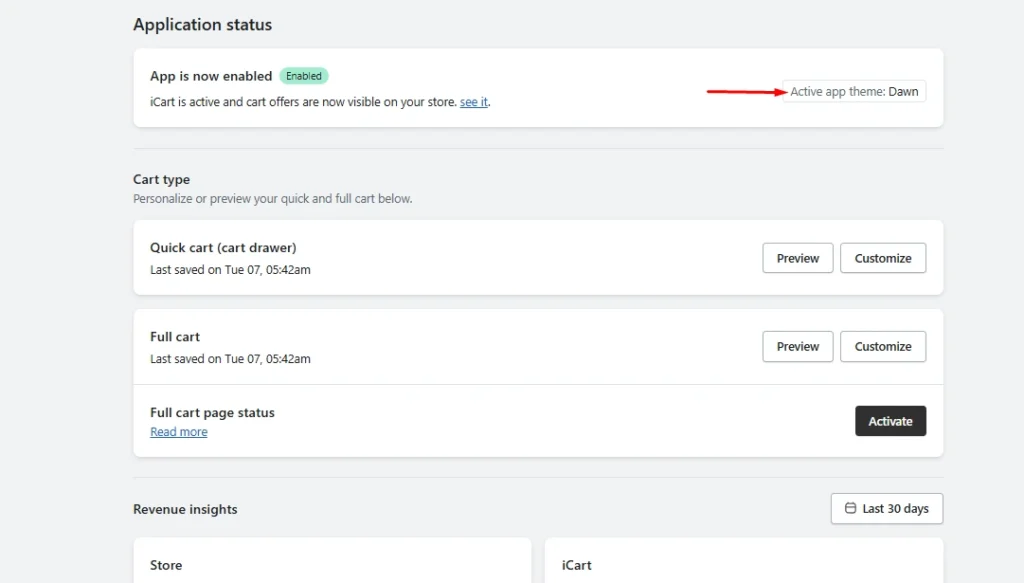
The app should be activated in your theme. The free gift with purchase section will be added to one of the widgets. You can either add these widgets to the cart drawer or the full cart. Click on 'customize' in one of the cart types.
Step 4: From the widget section, click on the Progress Bar widget.
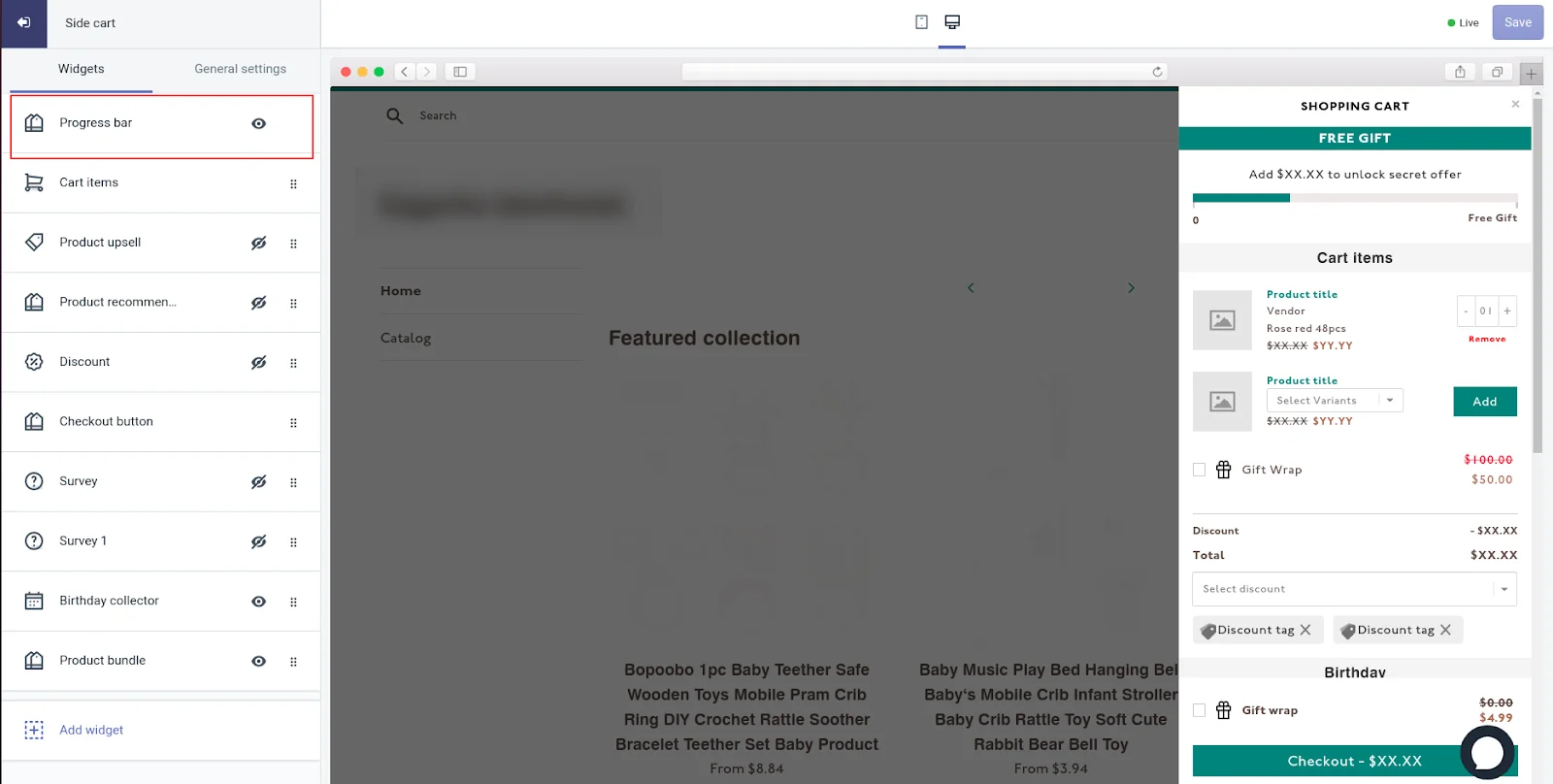
Step 5: Select the “Show widget title” checkbox
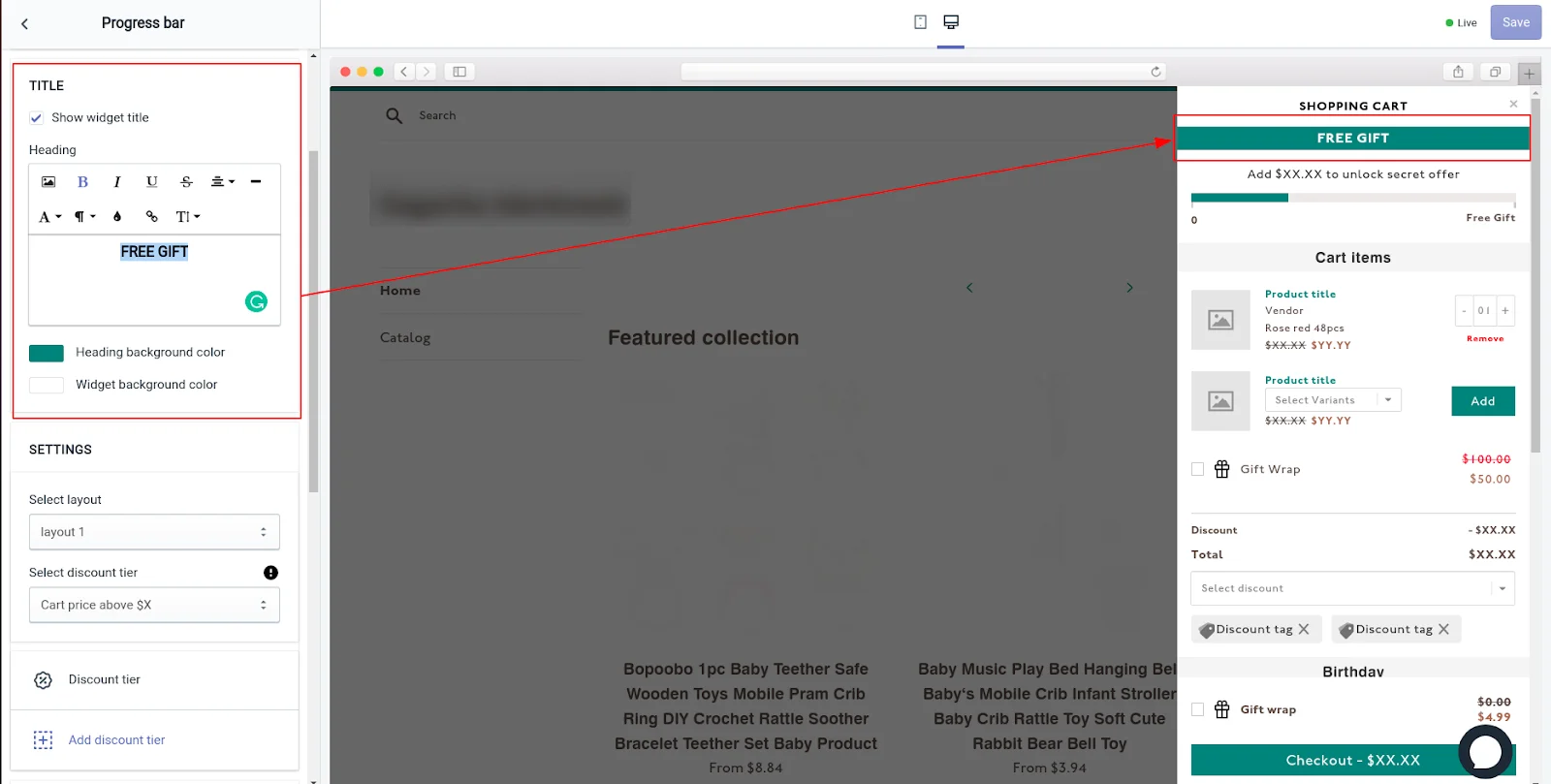
Rename this title to FREE GIFT
Step 6: Choose the layout
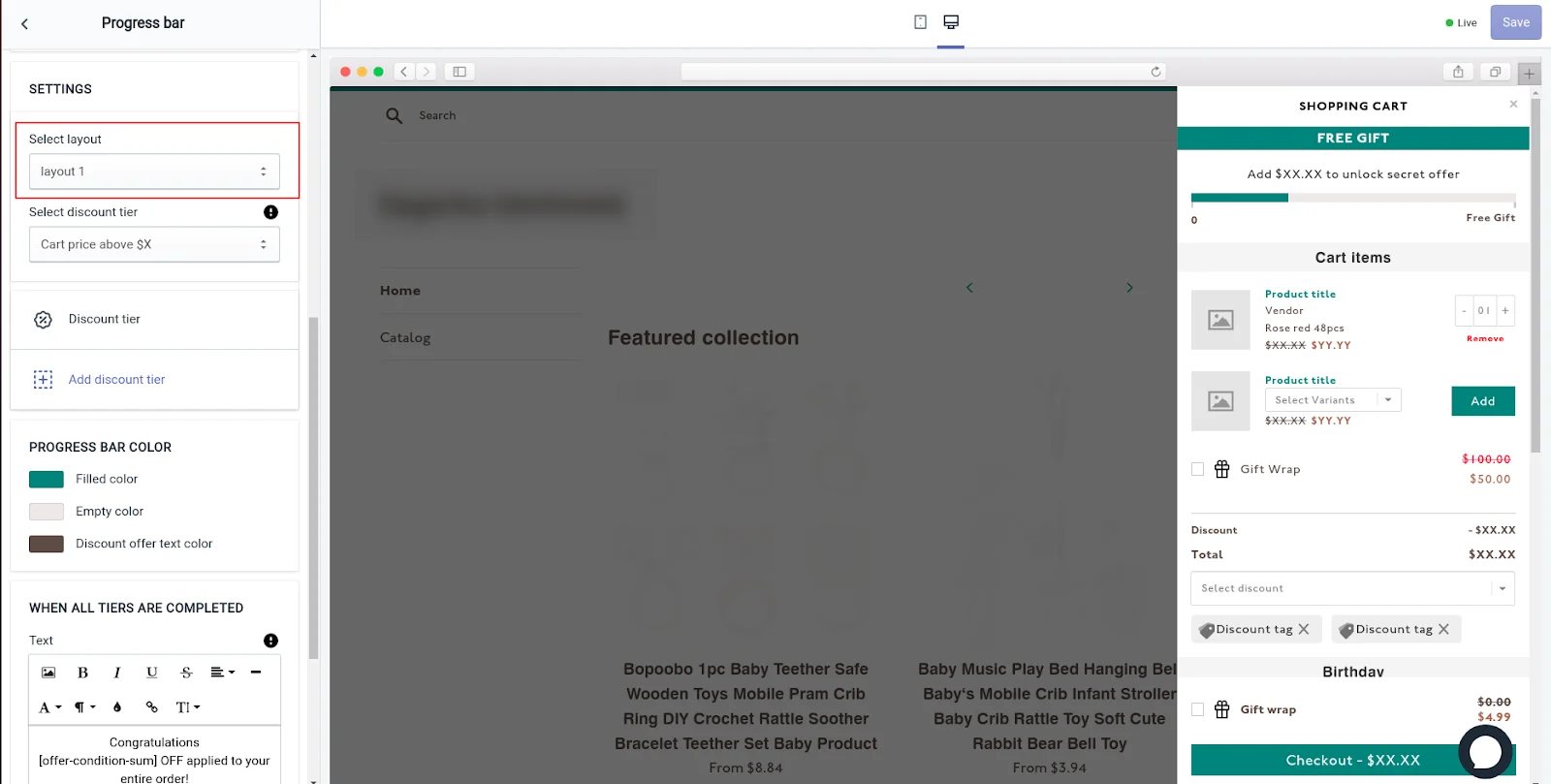
Step 7: Select Cart price above $X in the Discount tier.
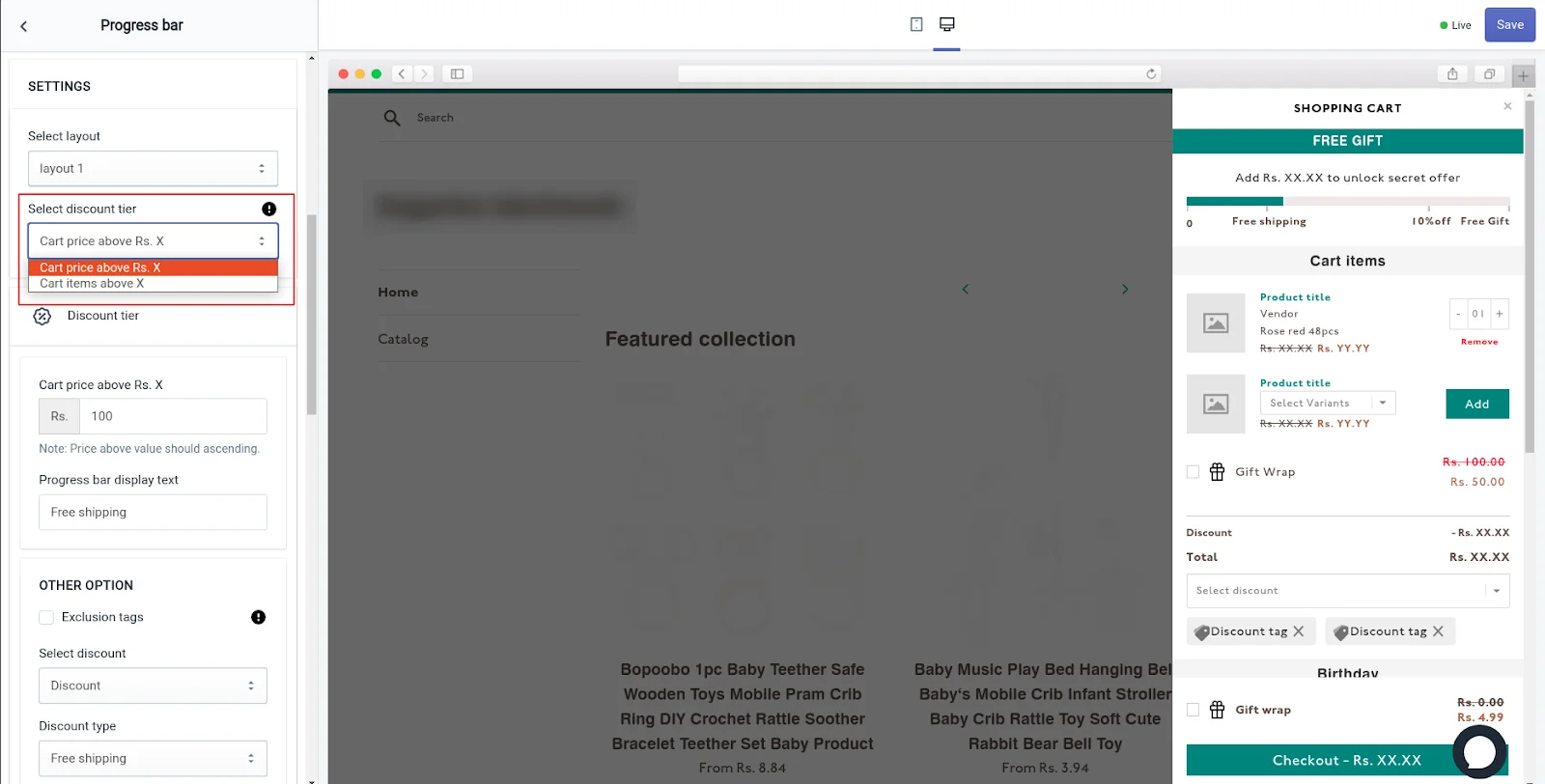
Below you can see various Discount tiers that represent different discount offers in the progress bar. It allows you to manage the number of discount tiers you want to show on the cart.
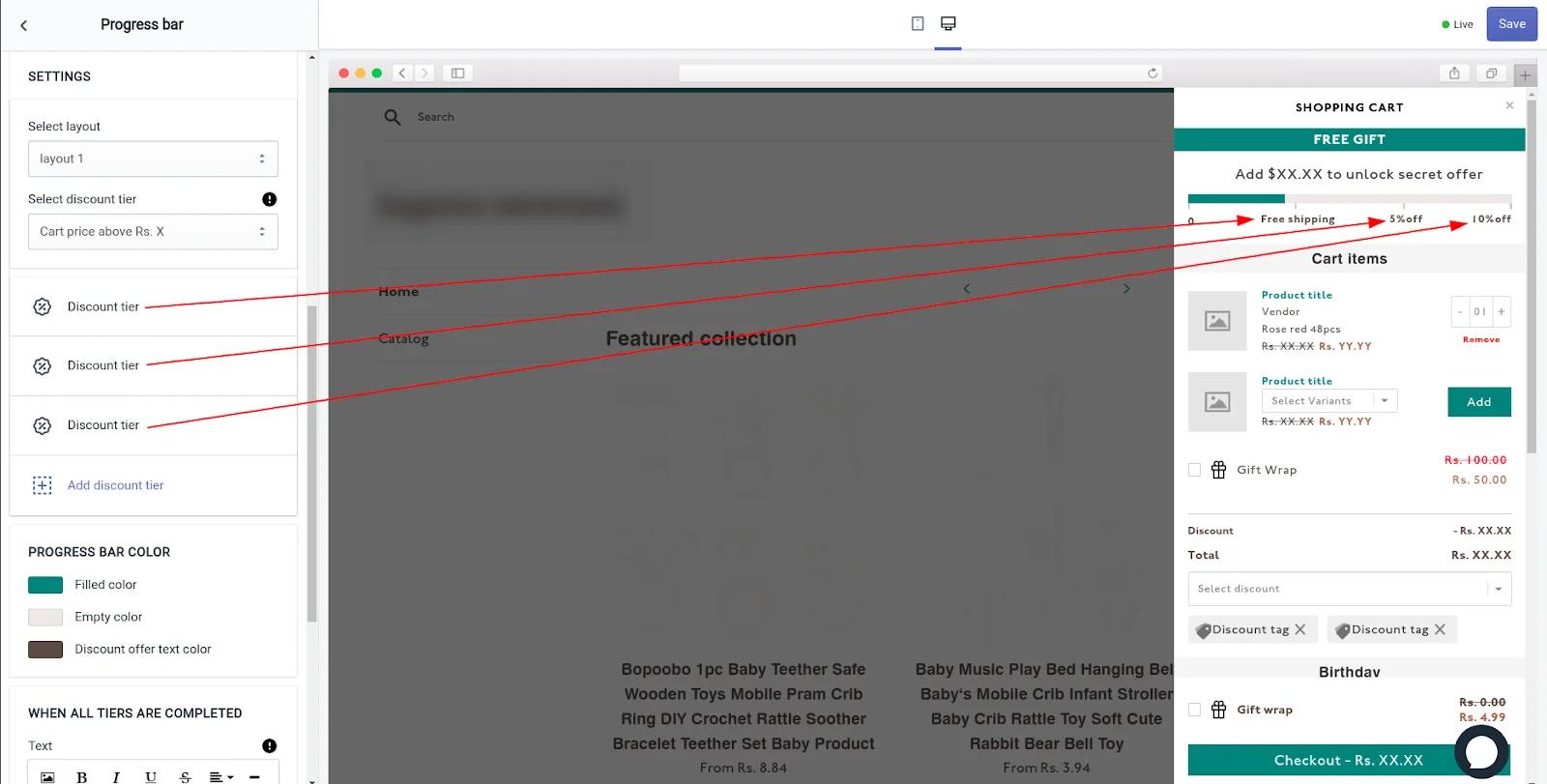
You can either add or delete the discount tiers as per your requirement. We shall keep only one discount tier to show our “Free Gift” and delete the rest.
Step 8: Click on the Discount tier to modify the discount conditions and variables.
Step 9: Enter the target cart value (X) in the Cart price above $X
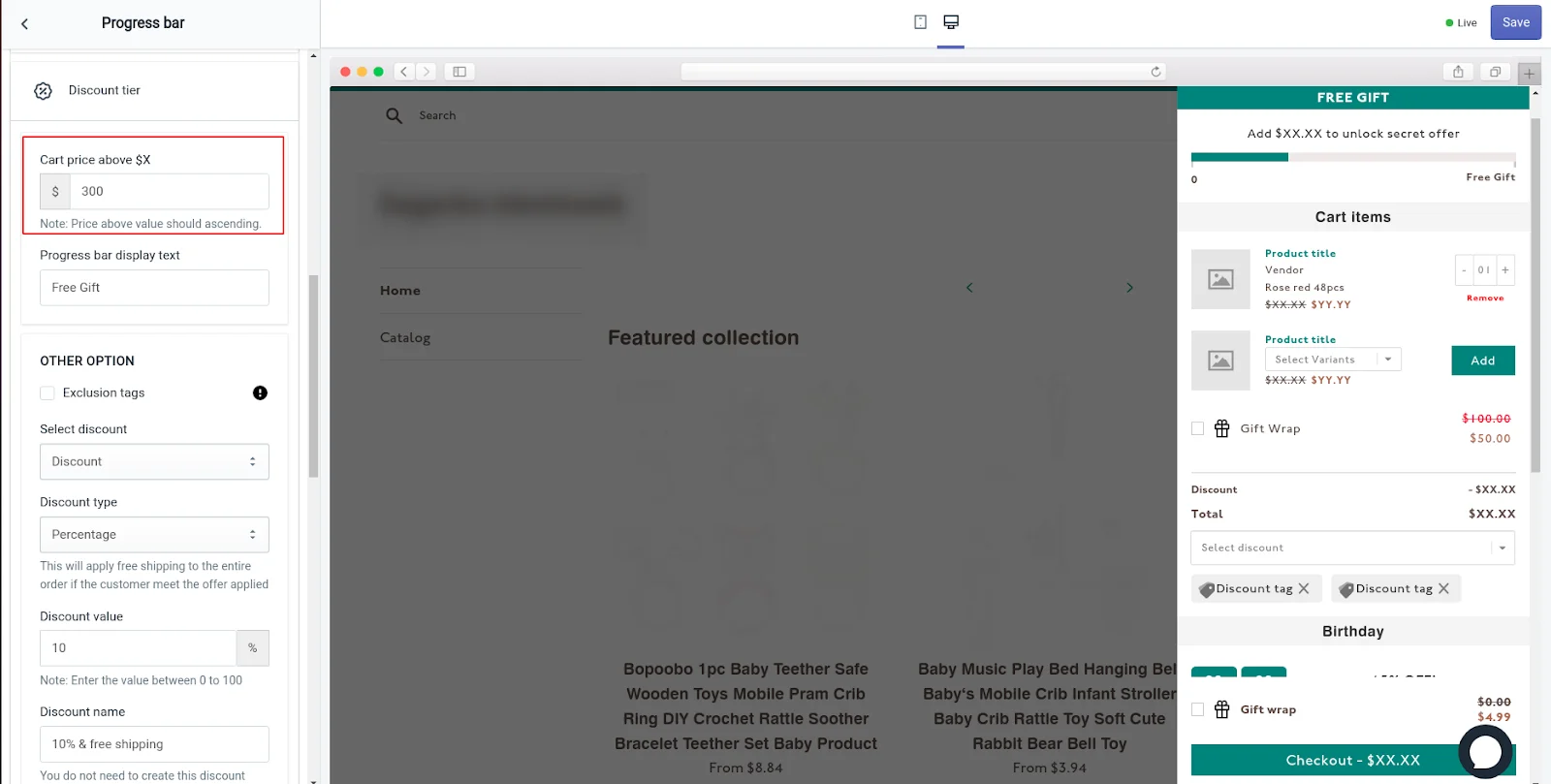
When the total cart amount is equal to or greater than this value (X), the customer will be eligible for a free gift or free product.
Step 10: Enter the offer text that you want to show to the customer.
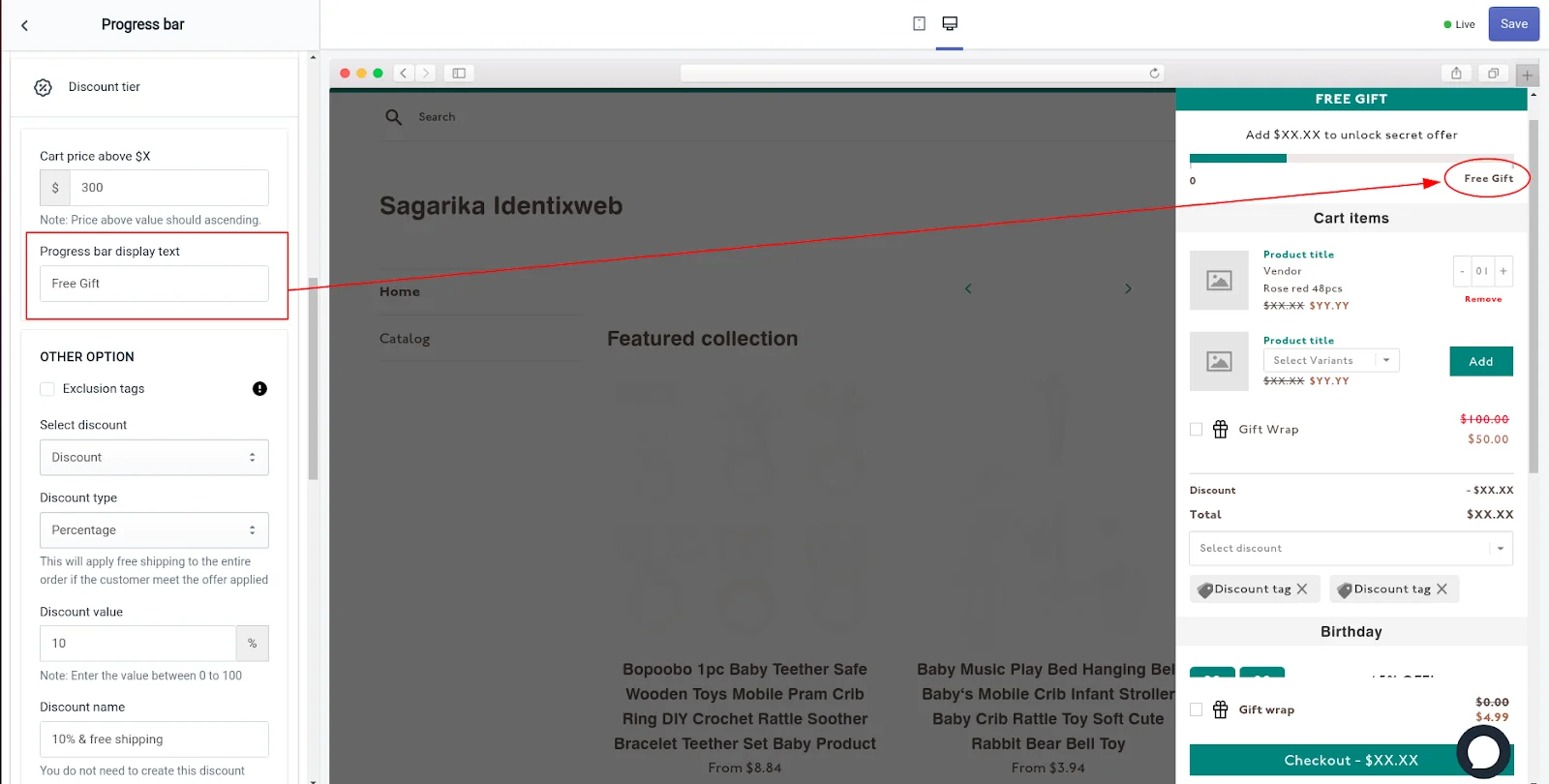
Step 11: Select the “Free Product” option from the discount drop-down list.
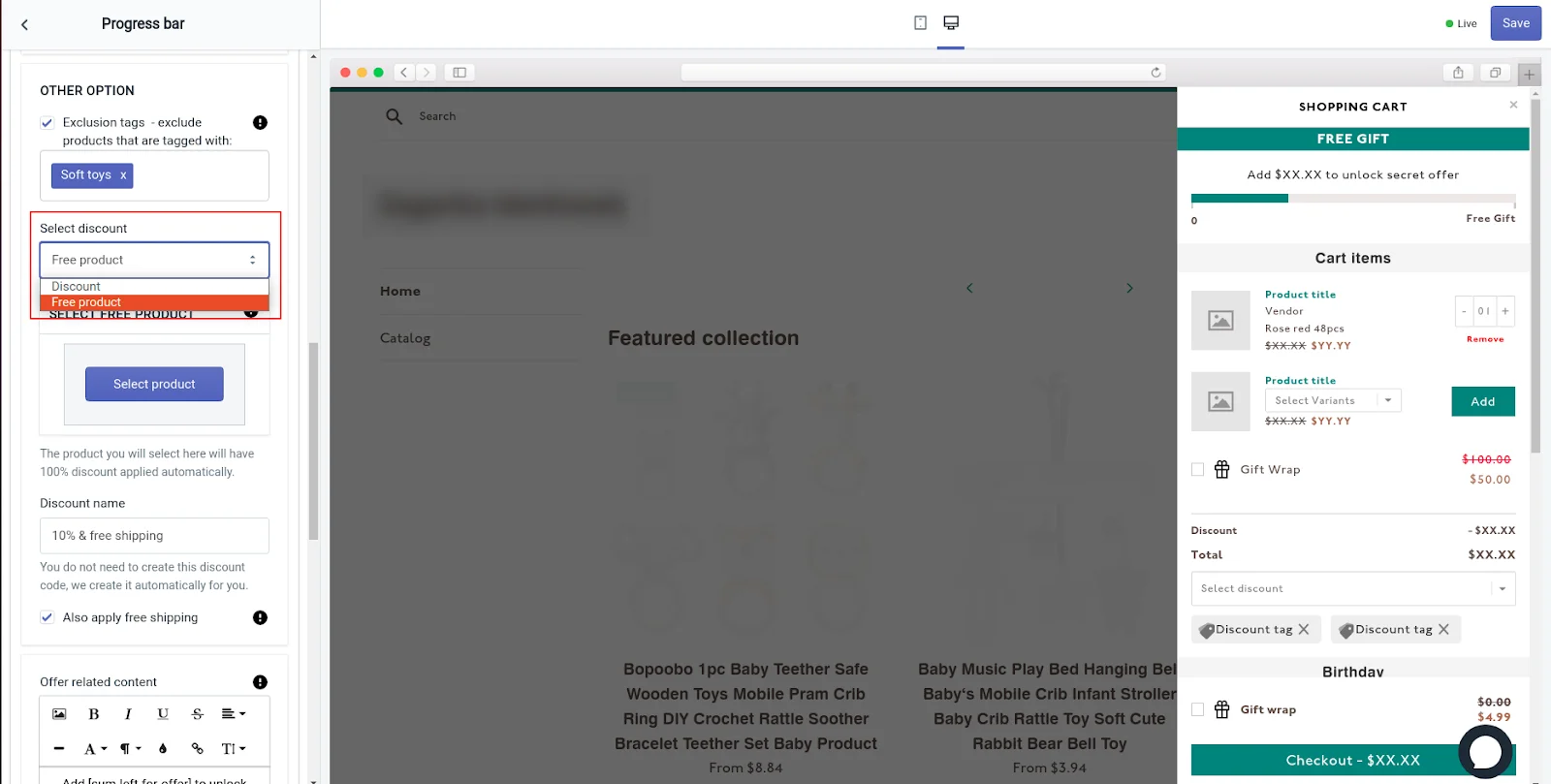
Step 12: Click on the “Select Product” button
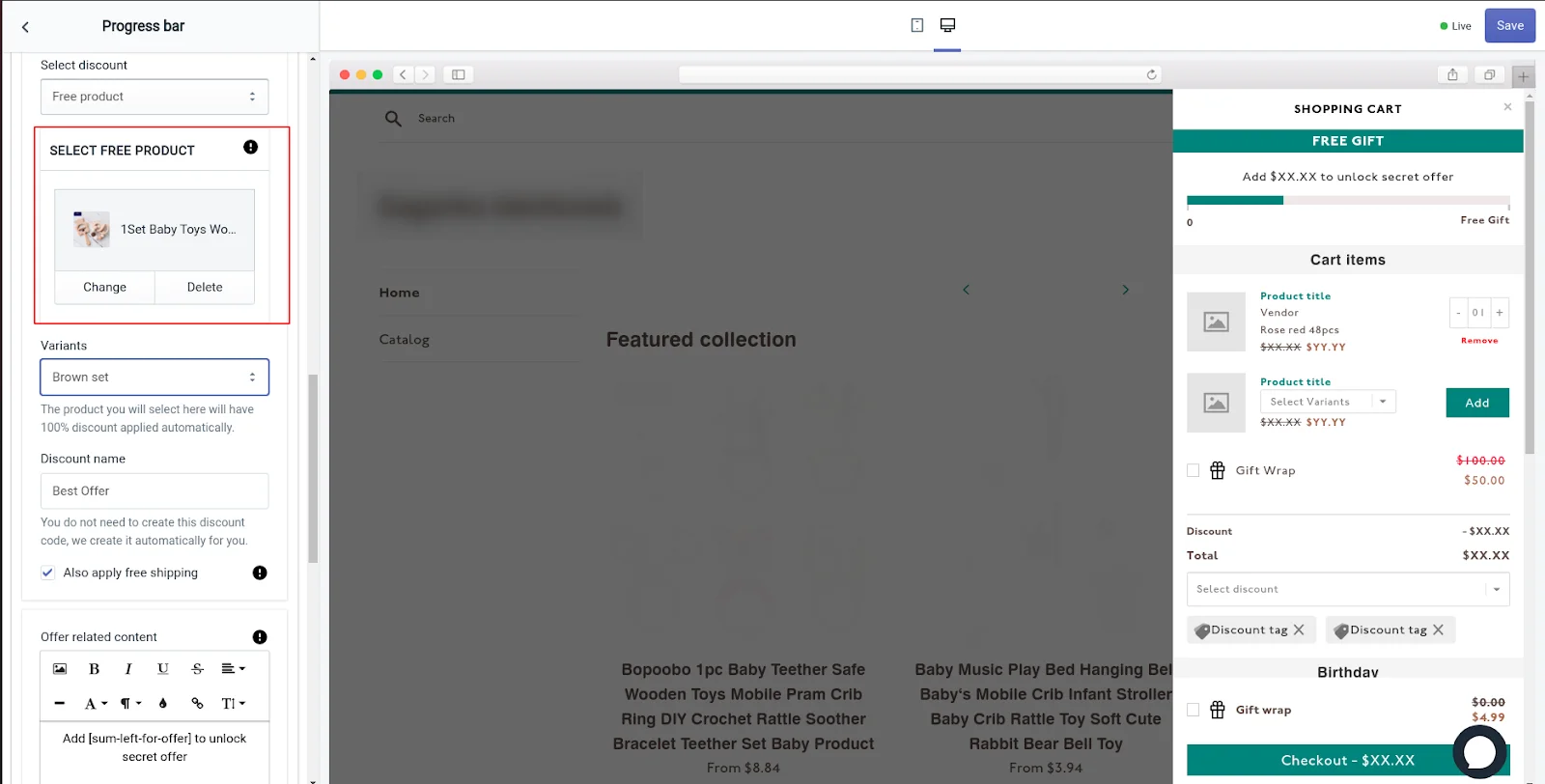
Choose the product that you want to give as a free gift with purchase to the customer.
Step 13: Enter the discount name
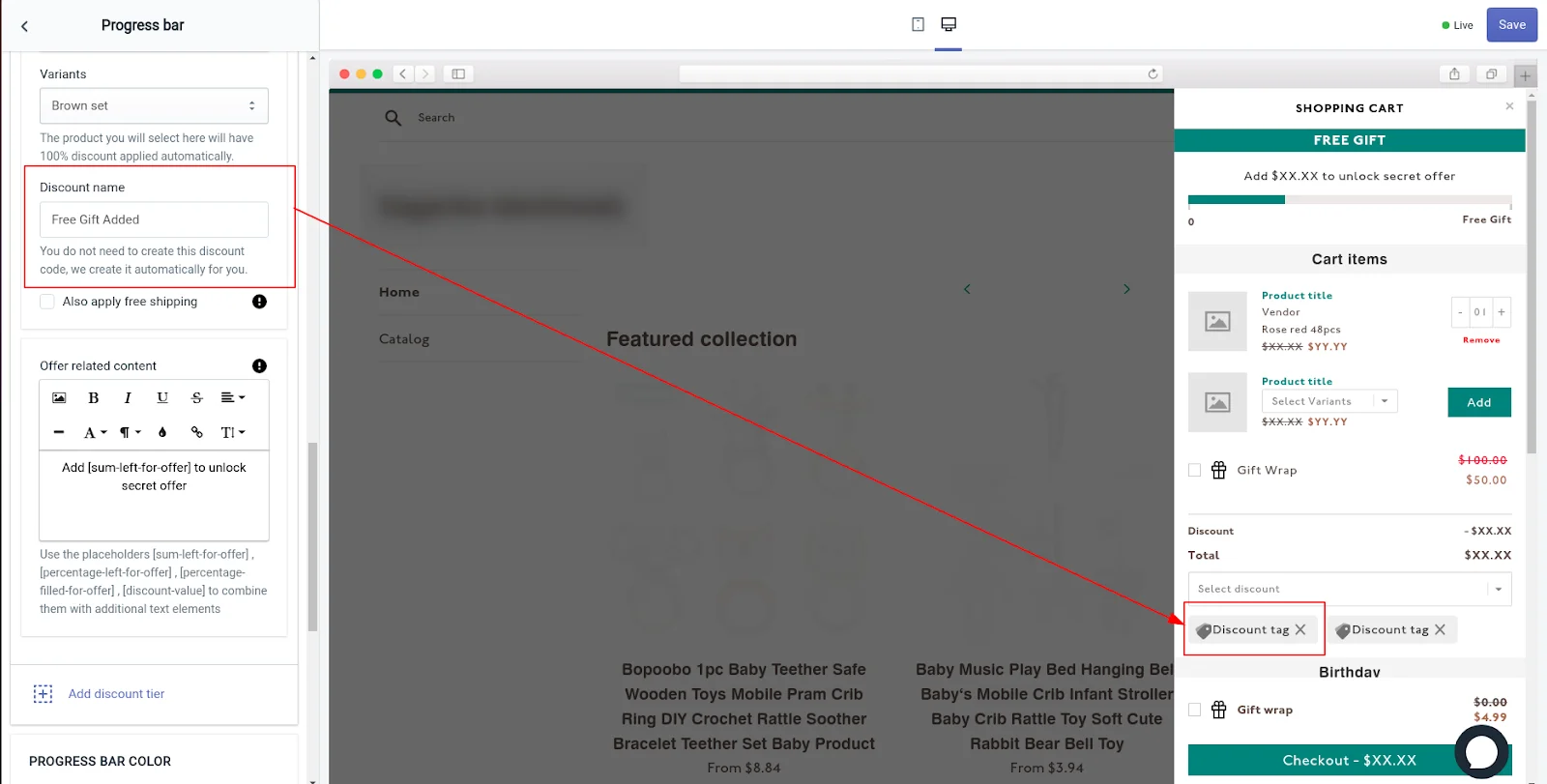
This will be visible to the customers when they are eligible for the free gift or the free gift is added to their shopping cart. If you want to add free shipping with the free gift, then you can tick the "Also Apply Free Shipping" checkbox.
Step 14: Enter the success message that you want to show to your customers when they win the free gift.
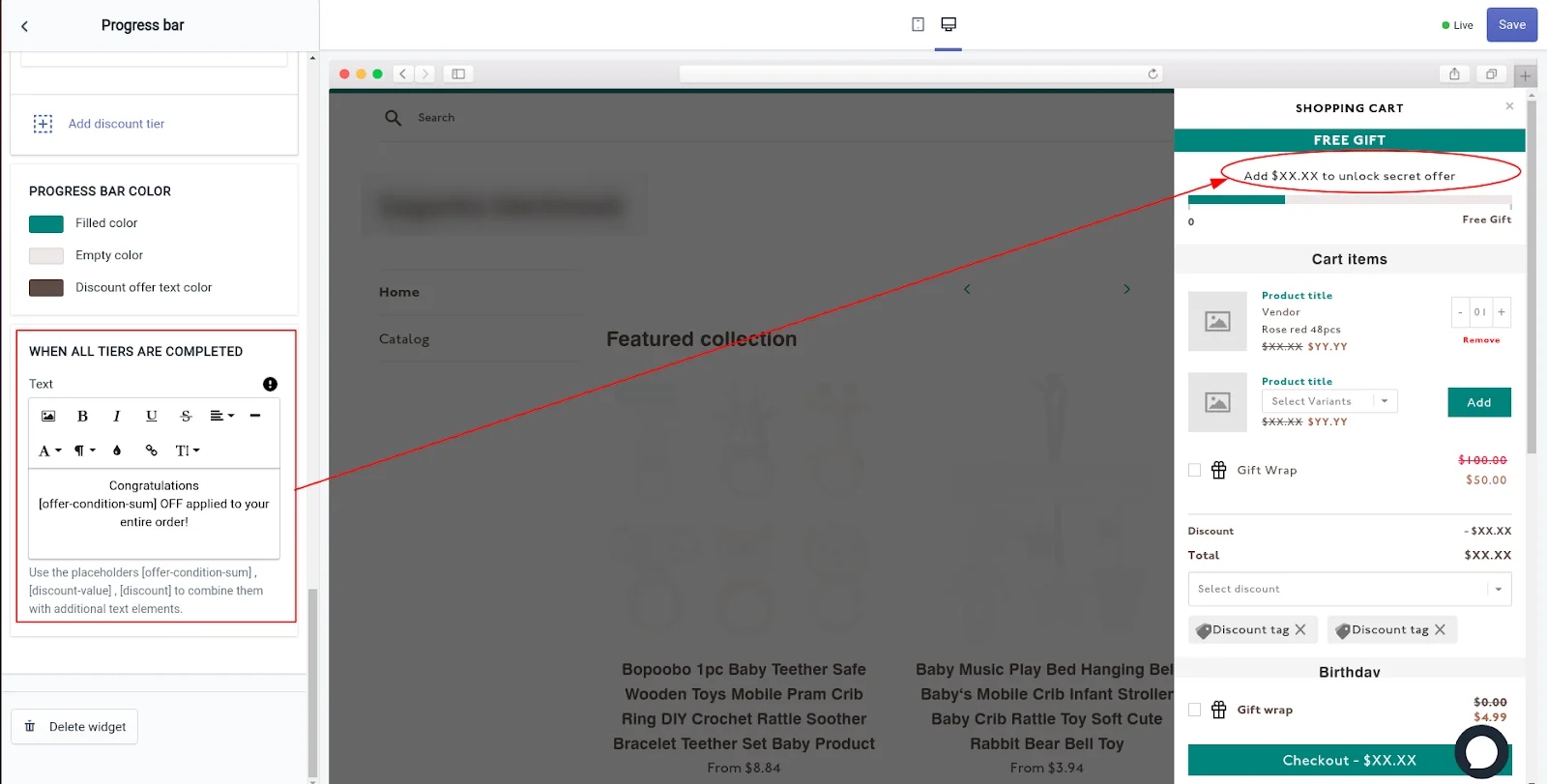
Step 15: Save the changes you’ve made in the app by clicking the Save button.
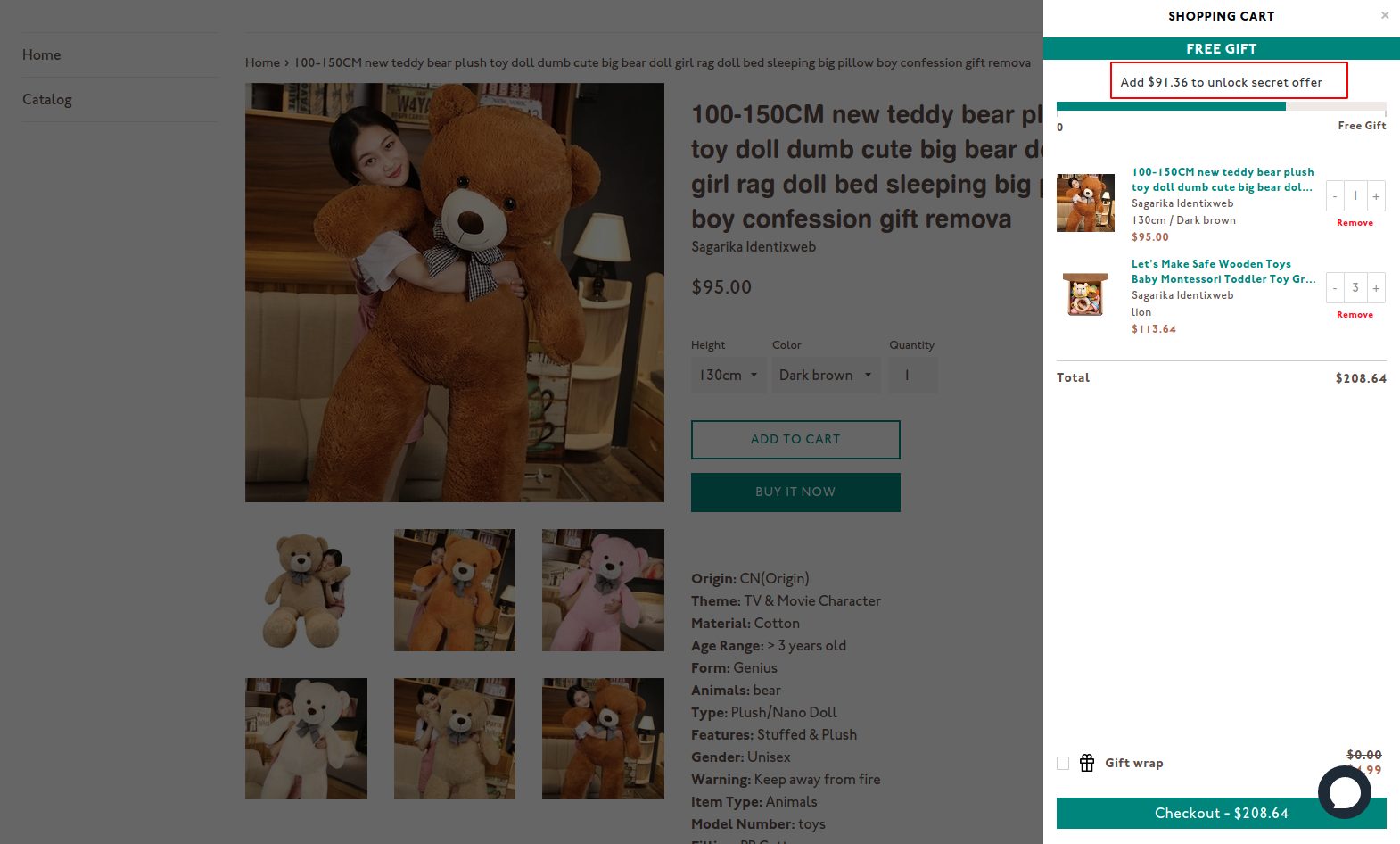
This is how the output will look like.
Why offer a free gift with purchase on Shopify?
Increases average order value
Setting a minimum cart value for the free gift naturally encourages customers to add one more item to qualify. This turns smaller carts into bigger ones.
Builds repeat purchases and loyalty
A well-timed freebie feels like a reward, not a discount, which makes customers more likely to come back to your store.
Clears slow-moving inventory
Turn overstocked or seasonal products into gifts, freeing up warehouse space without devaluing your catalog.
Wrapping up!
A free gift with purchase isn't complicated once it's set up. It's a small addition to your cart that consistently gets people to add one more item and feel good about it.
If you're not sure where to start, keep it simple. Pick one product you'd like to move faster, set your cart threshold just above what your average order already is, and see how customers respond to it.
You can always adjust the amount or swap the gift later. That's the advantage of running this through an app instead of a one-off discount code.
FAQs
1. How to add a free gift with purchase on Shopify?
In Shopify Admin, go to Discounts > Create discount > Buy X get Y. Set the required product quantity or minimum purchase amount, select the gift product under Customer gets, and apply a 100% discount. With Shopify’s native setup, customers must add the qualifying product and the gift product to their cart themselves. The gift is not automatically inserted.
2. How to automatically add a gift with purchase in Shopify?
For automatic gifting, use a Shopify app that inserts the gift when conditions such as cart value, product, collection or customer eligibility are met.
3. Can you sell gift cards on Shopify?
Yes, gift cards are available on all Shopify subscription plans and can be sold through your online store or Shopify POS. When the order is fulfilled, Shopify sends the customer or recipient a digital gift card containing a unique code that can be redeemed at checkout.
4. How to offer free shipping for orders over a certain amount on Shopify?
Go to Settings > Shipping and delivery, edit the appropriate shipping profile and rate, enable Offer free shipping, and enter the minimum order value customers must reach. You can also create an automatic free-shipping discount from the Discounts section and add a minimum purchase requirement.
5. Which is the best gift with purchase apps for Shopify?
BOGOs, iCart, and Monk are some of the best Shopify apps to add free gift with purchase on stores.
About the author
Sagarika Das
Sagarika Das is a content writer with a passion for the ecommerce world. She crafts engaging, SEO-friendly content that helps online businesses connect with customers and grow.