






The most reliable way to hide the nav bar in certain pages on Shopify is to edit your theme’s header.liquid file inside the Sections folder and wrap the navigation markup in a simple Liquid condition.
Your navigation bar doesn’t have to show up on every page just because your theme put it there.
In this guide, you’ll learn how to hide your nav bar across the store, and on certain pages and why so many Shopify merchants do it on high-intent pages.
Why do merchants hide Nav Bar on certain pages in Shopify?
1. To Boost Conversion Rate
High-intent landing pages (from ads, emails, influencers) often work better without a full header menu, because there are fewer exit points and your CTA (Add to Cart / Start Free Trial / Sign Up) becomes the obvious next step.
2. To Reduce Exit Rate
On the checkout page, cart drawer, or full cart page, a navigation bar can distract shoppers and increase exit rate. A cleaner layout keeps them focused on completing payment instead of browsing away.
4. To Simplify the Page Layout
Removing a busy navigation bar reduces visual clutter, so key elements like the headline, product info, and main CTA stand out clearly.
5. To Create a Better User Experience
A cleaner, distraction-free layout makes it easier for shoppers to understand what to do next, reduces decision fatigue, and helps them move smoothly through the buying journey.
First, let’s understand how to hide the navigation bar across all pages.
How to hide Nav Bar across all pages in Shopify?
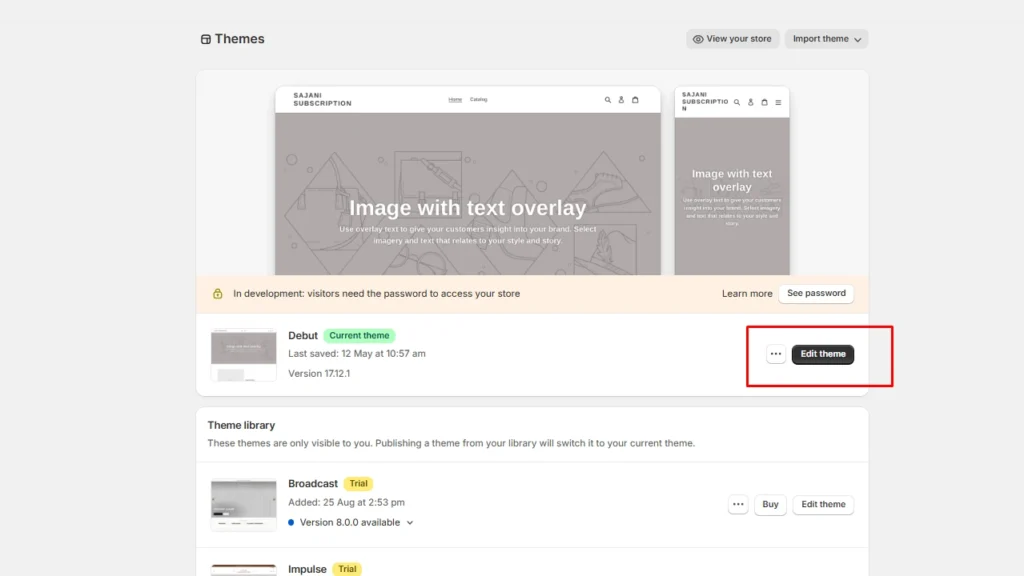
Step 1: Click on Edit Theme
Log in to your Shopify store. Navigate to Online store > Themes > Edit theme
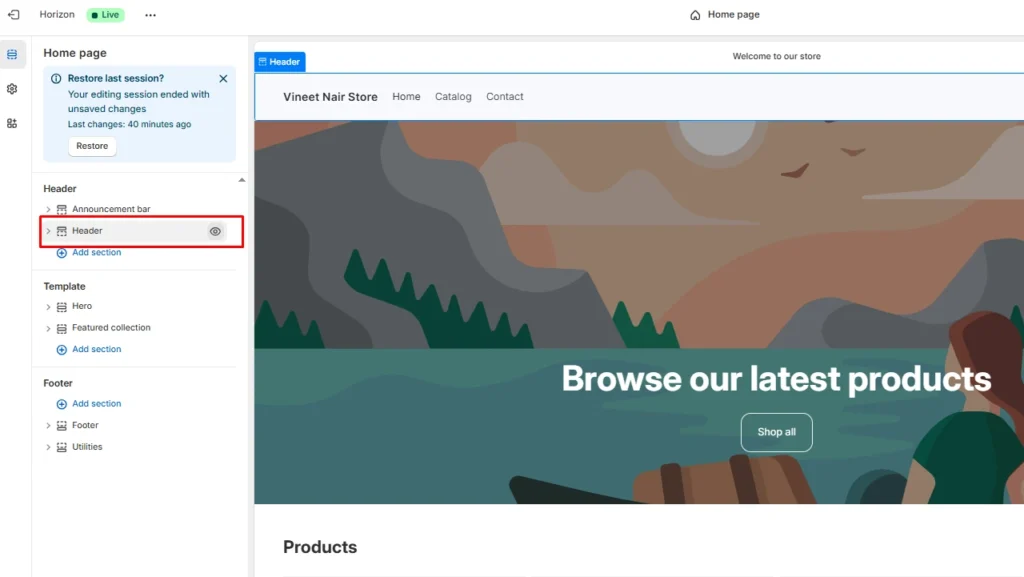
Step 2: Hide the header section
Hover over the header section, and you can see the eye icon near it. Click on it to hide it. Click Save. The navigation bar will be hidden.

How to hide Nav Bar on certain pages in Shopify?
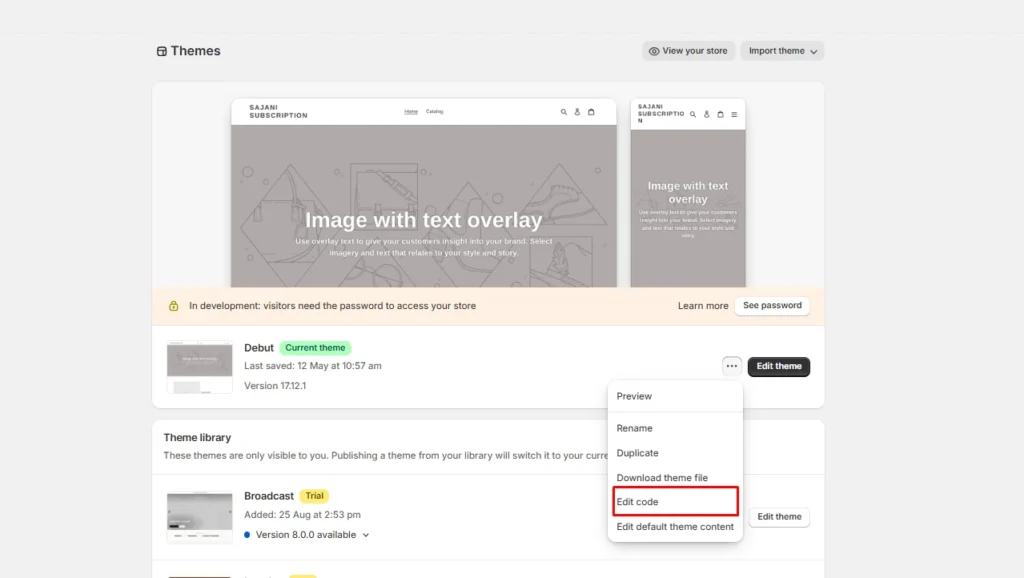
Step 1: Click on Edit Code
From your Shopify admin panel, navigate to Online store > Themes. Click on the 3 dots icon and click Edit code.
Step 2: Click the Header.liquid file
You can see the sections folder here. Expand this folder and select header.liquid file. The code will appear on the right side of the screen.
Here, you need to wrap the navigation in Liquid conditionals. This method needs technical expertise, so make sure you get assistance from a Shopify expert.
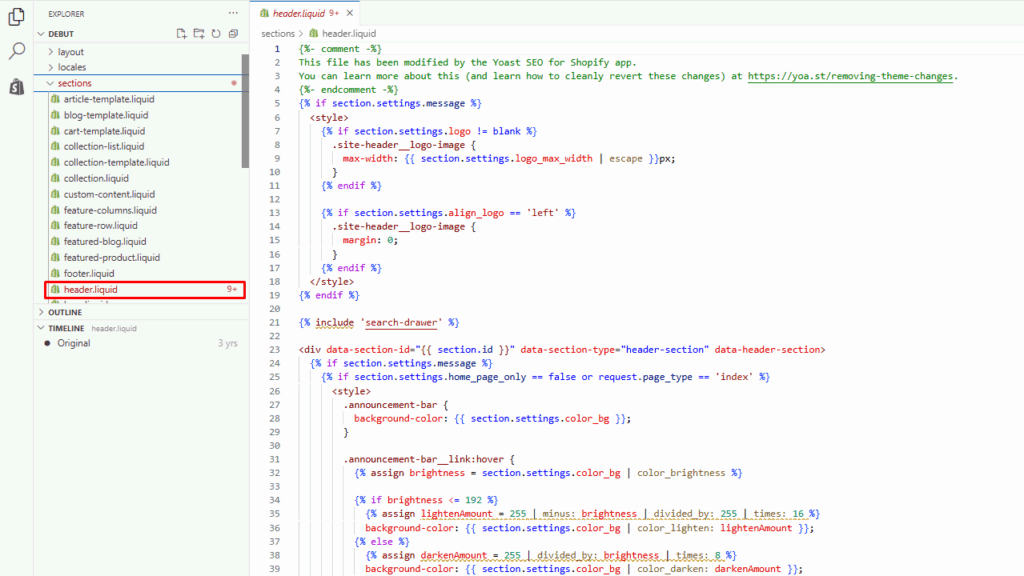
Once you have edited the code on specific pages, click Save to apply the changes.
Edit Your Navigation Around Your Brand
At the end of the day, your navigation bar is just a tool to guide shoppers, not a rule you have to follow on every page. In some parts of your Shopify store, a full menu helps people explore. On others, like landing pages, funnels, and post-purchase offers, hiding or simplifying it can genuinely boost conversions.
If you’re unsure where to start, begin small: test a no-nav version of a single landing page or offer page and compare results. When you see how much focus and clarity it adds, you’ll know exactly where navigation belongs in your store – and where it doesn’t.
FAQs
1. How to hide navigation on online stores in Shopify?
You can hide navigation by using a theme that lets you disable the header on specific templates, or by editing your theme code to remove or conditionally hide the header section.
2. Why do merchants hide the navigation bar in Shopify?
Merchants hide or simplify the navigation to reduce distractions and improve conversions on key pages like landing pages, product pages, and sometimes checkout-related steps. It creates a cleaner, more focused experience, so customers are more likely to complete an action.
3. How to hide the nav bar in certain pages in Shopify?
The most reliable method is to edit the code in the header.liquid in the sections folder of your theme.
4. How to edit the navigation bar in Shopify?
You edit the navigation bar in the design/layout in Online store → Themes → Edit code. From there, you can change which menu is displayed, adjust logo placement, enable sticky headers, and customize styles depending on what your theme supports.
5. Where is the navigation bar in Shopify?
On the storefront, the navigation bar is usually the main menu at the top of your site that shows links like Home, Shop, Collections, and Contact.


![How to Transfer Shopify Store Ownership? [2026 Updated Tutorial]](https://www.identixweb.com/wp-content/uploads/2026/03/13-03-Fri-Blog-Complete-Tutorial-to-Change-Store-Owner-on-Shopify.webp "How to Transfer Shopify Store Ownership? [2026 Updated Tutorial]")

About the author
Vineet Nair
Vineet is an experienced content strategist with expertise in the ecommerce domain and a keen interest in Shopify. He aims to help Shopify merchants thrive in this competitive environment with technical solutions and thoughtfully structured content.