







To add products to Shopify, go to your Shopify admin, click Products > Add product, then enter the product title, description, images, pricing, shipping, and inventory details. Add variants like size or color, customize the content based on SEO, and click Save to make it active. You can also use the mobile app and bulk uploads via CSV format to add products.
Adding products to Shopify sounds simple, but it can feel confusing the first time store owners.
Where do you upload images, set pricing, and add variants like size and color?
The good news is that Shopify makes it pretty straightforward once you understand the steps. You just add the product details, set inventory and shipping, and publish it to the right sales channels.
In this guide, I will walk you through the exact steps to add products to Shopify the right way. I will also cover faster options like adding products from the mobile app and importing products in bulk using a CSV, so you can choose the method that fits your store.
How to Add Products to Shopify? A Step-by-step Guide
Step 1: Navigate to Products from the Admin Panel
Log in to your Shopify admin and click on Open the Products section in the left sidebar.
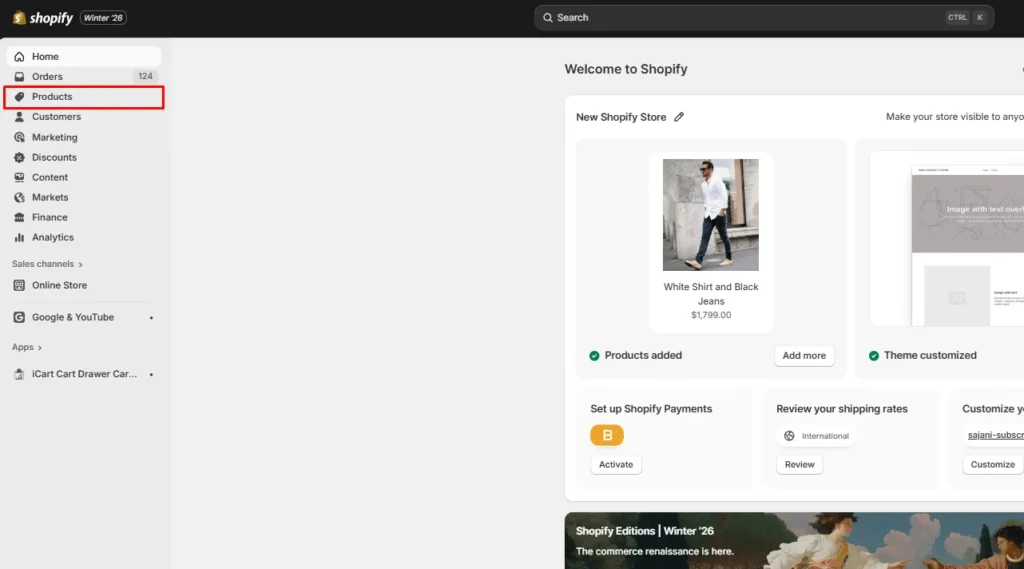
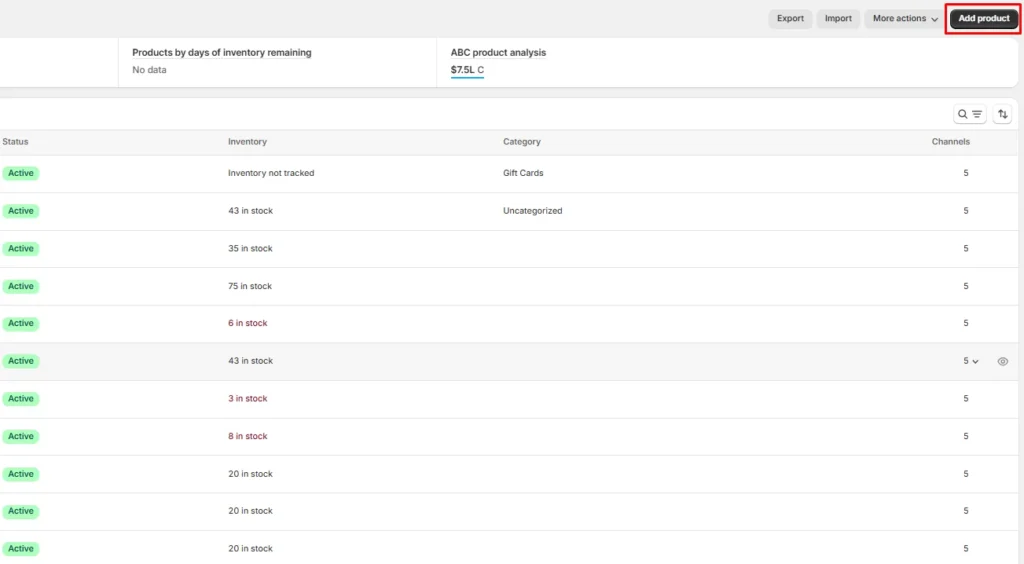
Step 2: Click on Add Product
To the extreme right of your screen, click on Add product
Step 3: Add the product details
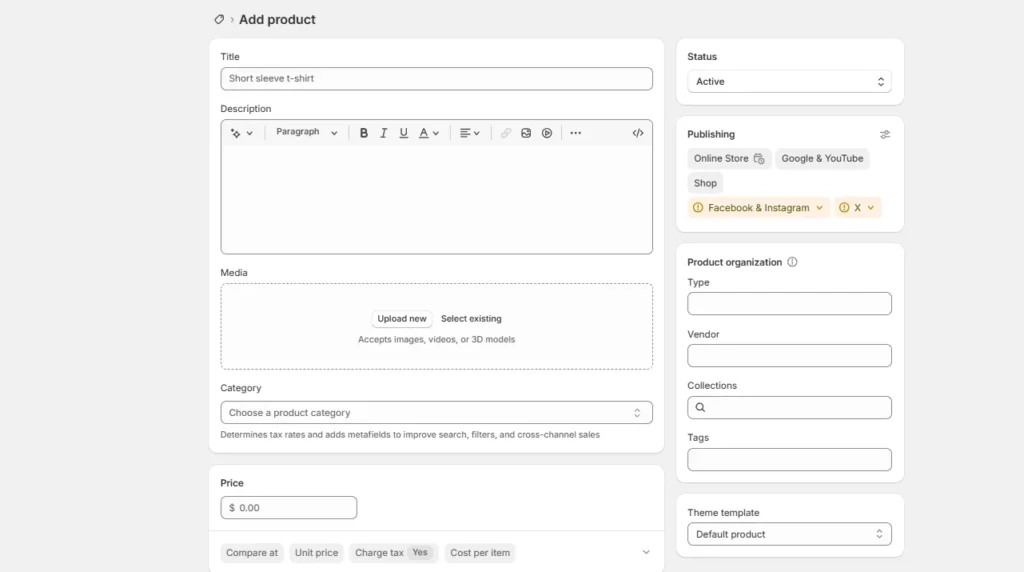
- Enter product details: Write a title & description, and upload media (High-quality images & videos).
- Set pricing: Fill in Price (and Compare-at price if you want to show a discount).
- Add inventory details: Turn on Track quantity, set SKU and Barcode.
- Add shipping info: If it’s a physical product, check Physical product, then add Weight and Customs info if you sell internationally.
- Create variants (if needed): If you sell sizes, colors, packs, etc., click Add options like size and color and create variants.
- Organize the product: Choose Product type, Vendor, add Tags, and assign it to the right Collections.
- Optimize search listing: Scroll to the Search engine listing and edit the page title, meta description, and URL handle for better SEO.
- Save the product: Click Save
Method 2: Using the Shopify Mobile App
- Install and open the Shopify app, log in, and go to Products from the dashboard.
- Tap Add product (the + icon), enter the product details like title, description, price, inventory, and photos, then choose the sales channels, set the status to Active, and save the product.
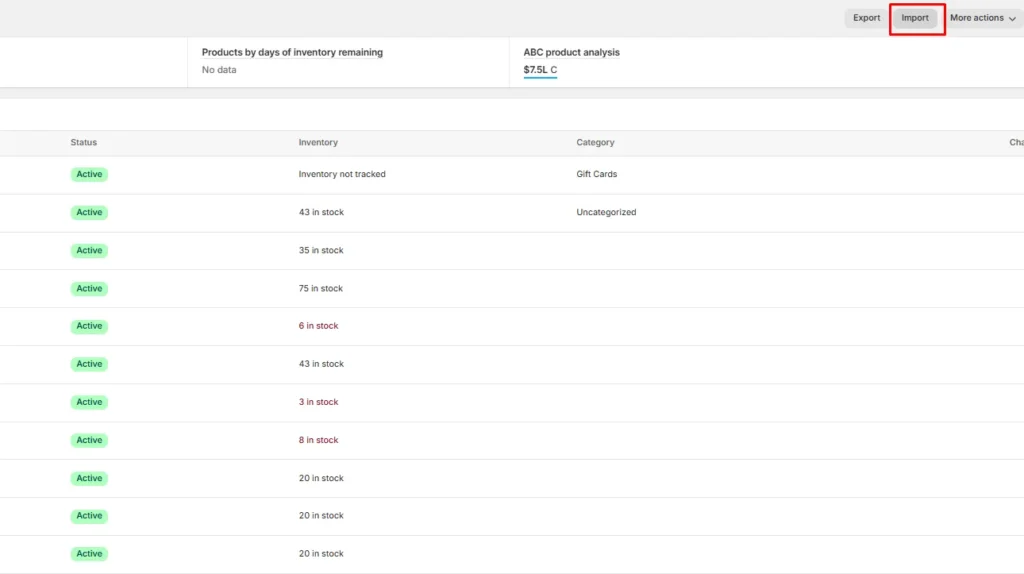
Method 3: Using Bulk Import
Go to Products in your admin panel, click Import, and download Shopify’s sample CSV if needed.
Create your CSV file by adding product details such as title, description, price, SKU, inventory, variants, and images.
Upload the CSV file, review the import preview, and confirm the upload. Once the process is complete, check the imported products for accuracy and publish them to your store.
Conclusion: Adding Products to Shopify is Easy
Adding products to Shopify is simple once you know the right method.
Whether you add products manually, use the mobile app, or upload items in bulk, Shopify gives you flexible options to manage your catalog.
Choose the method that fits your store size, and make sure to optimize search listings for SEO.
FAQs for How to Add Products to Shopify
1. Why can’t you add products to Shopify?
Most of the time, your user role does not have permission to create or edit products, so you either won’t see Add product or you can’t save changes. There are different reasons, including issues with browser cache, theme or code, or if your products are set on draft.
2. How to add products to my Shopify store?
In your admin, go to Products and click Add product, then enter the title, description, media, price, and inventory. Set the product status to Active and save it to make it live.
3. How to add products in bulk to my Shopify store?
Go to Products > Import and upload a formatted CSV containing your product info (including variants if needed). Review the preview and confirm the import to add multiple products in one go.
4. How to add products via the Shopify mobile app?
Open the Shopify app, tap Products, then tap + > Add product and fill in the details. Tap Save to add the product.
5. How to add products to cataloge?
When you are adding a product to Shopify, in the Product organization section, select the collection you want to add.



![Small Businesses Need These Cheap Shopify Themes [Low Cost Themes for 2026]](https://www.identixweb.com/wp-content/uploads/2026/03/03-03-Tue-Blog-Best-Budget-friendly-Shopify-Themes-for-Startups.webp "Small Businesses Need These Cheap Shopify Themes [Low Cost Themes for 2026]")

About the author
Vineet Nair
Vineet is an experienced content strategist with expertise in the ecommerce domain and a keen interest in Shopify. He aims to help Shopify merchants thrive in this competitive environment with technical solutions and thoughtfully structured content.