




To improve SEO on Shopify, start with strong product and collection pages: clear keyword-focused titles, unique descriptions, optimized meta titles, clean URLs, alt text, and internal links. Shopify already handles basics like sitemaps and structured data, but you should still monitor Google Search Console, improve page speed/Core Web Vitals, fix redirects, and use Product structured data so Google can show price, availability, reviews, and shipping details in search.
Want more traffic to your Shopify store?
Despite the rise of AEO and GEO, SEO still has a great impact on how visitors find your store and convert into potential customers.
But the thing is, how can you achieve this, or how can you bring more visitors to your website?
What is search engine optimization for Shopify?
Shopify search engine optimization is the process of configuring your store's content, structure, and technical settings so search engines can crawl, understand, and rank your pages.
Shopify handles a lot of the technical groundwork for you (automatic canonical tags, a generated sitemap.xml and robots.txt, and SSL by default), but ranking still depends on the choices you make: your keywords, titles, content depth, internal links, and page speed.
This Shopify SEO guide walks through 16 steps you can act on today, whether you're publishing your first product page or tightening up an established catalog.
How to improve SEO on Shopify: Step-by-step Guide
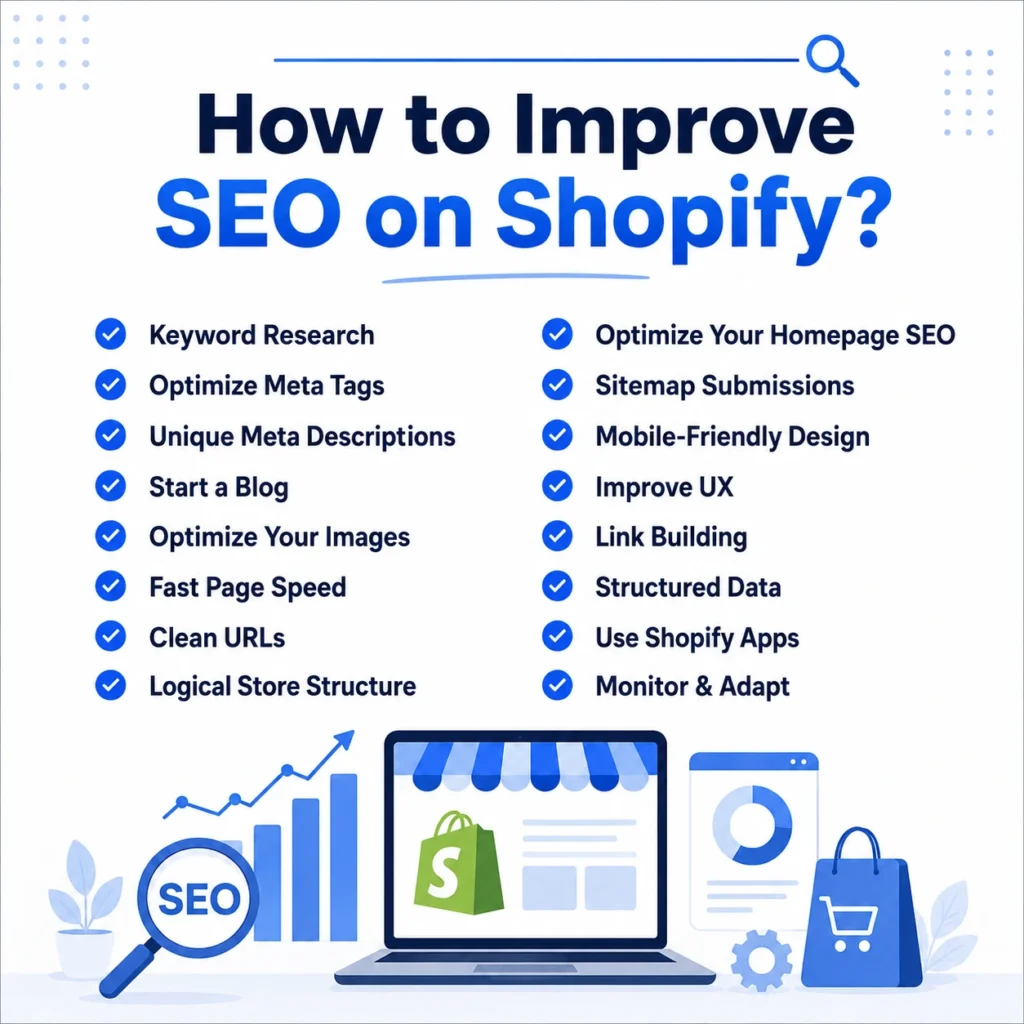
Now lets walk you through the 16-step checklist that I follow to improve organic traffic in Shopify stores.
1️⃣ Keyword Research
Identify the phrases customers use to find products like yours. Use keyword tools (Google Keyword Planner, Ahrefs, or Shopify’s own analytics) to discover related terms and their search volumes.
Analyze competitors’ sites to see which keywords they rank for. Focus on specific, long-tail keywords (e.g. “organic cotton t-shirts” instead of just “t-shirts”) that match your products and have good search volume. This will help your content rank for searches your buyers actually make.
- Use tools like Google Keyword Planner or Ubersuggest to find popular keyword ideas.
- Brainstorm main keywords (product names, categories) then expand them with related terms.
- Check Google Search Console or Analytics to see which queries already bring traffic to your site.
2️⃣ Optimize meta tags
Do you know that only 25% of small businesses have H1 tags on their website?
Optimize the title tag (page title) for each page. Write a unique, descriptive title under character limit and include your main keyword near the start. The title appears as the clickable link in search results, so make it clear and appealing.
Use one H1 header on each page that matches the page’s topic (often the product or category name). Avoid keyword stuffing; include terms naturally so the title reads well to shoppers.
- Ensure only one H1 tag per page, reflecting the main topic.
- Use unique, keyword-rich titles for each page.
- Include the primary keyword early in the title.
3️⃣ Unique meta descriptions
Write a unique meta description for every page (product, collection, blog, etc.). This snippet appears under your title in search results.
Use clear, natural language and include important keywords (without “stuffing”). A good description summarizes the page’s content and brings clicks (for example, mention a benefit or call-to-action). Keep each description compelling and short so searchers know what to expect from that page.
- Include a call-to-action or highlight (e.g., “Free shipping over $50”) to encourage clicks.
- Keep meta descriptions around 150–160 characters.
- Make each description unique and directly relevant to its page.
4️⃣ Start a blog

Add a blog to your Shopify store and post helpful content related to your products. Blog posts can target informational queries (e.g. “how to use X” or “tips for Y”), attracting visitors who may later buy.
Each post is a new page for Google to index, increasing your chances to rank for long-tail keywords. For example, write how-to guides, product comparisons, or trend articles in your niche. Link from each blog post to relevant products or collections to spread SEO value internally.
- Use internal links in posts to your products or categories, helping search engines crawl those pages.
- Write useful, niche-related content (e.g. tutorials, product guides).
- Update the blog regularly to keep content fresh and engage readers.
5️⃣ Optimize your images
Optimize all product and page images for both SEO and speed. Rename image files with descriptive, keyword-friendly names (e.g. blue-ceramic-mug.jpg instead of IMG1234.jpg)
Fill out the alt text for each image with a concise description (and relevant keywords) to help search engines understand them. Compress or resize images before uploading so they load quickly. Use tools like TinyPNG or Shopify’s built-in image resize feature. This keeps pages fast and can improve rankings.
- Use meaningful filenames (hyphenated words) for SEO-friendly image URLs.
- Compress and resize images to reduce file size (tools like TinyPNG).
- Write descriptive alt text (include the main keyword naturally) for every image.
6️⃣ Fast page speed
Make sure your store’s pages load very quickly on all devices. Compress images and use modern formats (e.g. WebP) so files are smaller without losing quality.
Enable lazy loading so images below the fold load only when scrolled into view. Minimize the use of large apps or scripts. Remove unused apps, and upgrade to a fast theme (Shopify’s Online Store 2.0 themes are built for speed). Fast-loading pages improve SEO and keep customers engaged.
- Remove or defer unused apps and JavaScript to reduce load time.
- Optimize and compress images (using Shopify’s image size parameters or tools)
- Use lazy loading: only load off-screen images when needed
7️⃣ Clean URLs
Use simple, descriptive URLs for your pages. Shopify auto-generates SEO-friendly URLs, but you can edit them. Include your target keyword in the URL slug and separate words with hyphens (e.g. /collections/organic-skincare).
Avoid long or random strings; clean URLs tell visitors and Google what the page is about. For example, prefer /products/hot-enough-habanero over a complicated URL.
- Keep URLs short and readable, using hyphens between words.
- Incorporate the main keyword in the URL slug without stuffing.
- Use lowercase letters and avoid symbols or excessive parameters.
8️⃣ Logical structure
Organize your store in a clear hierarchy: Homepage > Collections/Categories > Product pages. Give each collection/category page unique content (instead of just listing products) to improve SEO.
Use internal links to connect related pages (e.g. link a product to its collection or to similar items). Breadcrumb navigation (e.g. Home > Category > Subcategory > Product) helps users and search engines understand your structure.
- Add breadcrumbs so visitors see their path and easily navigate back through categories.
- Group products into meaningful collections/categories with descriptive names.
- Write introductory text on collection pages to explain what’s in that category.
9️⃣ Optimize your homepage SEO
Your homepage is often your highest-authority page, so don't leave its SEO on default settings.
In your Shopify admin, go to Online Store → Preferences to edit the homepage title tag and meta description, and make sure your main <h1> and intro copy clearly state what you sell and who you serve.
Add a few internal links from the homepage to your top collections so ranking signals flow to your money pages.
🔟 Sitemap submissions
Submit your sitemap to Google (and Bing) so search engines can index your pages efficiently. Shopify automatically creates a sitemap.xml (e.g. https://yourstore.com/sitemap.xml) listing all products, pages, collections, and blog posts.
In Google Search Console, add and verify your site, then submit this sitemap URL. This tells Google about all your pages and helps them get crawled and indexed faster. If you sell in multiple regions or use multiple domains, submit each domain’s sitemap separately.
- Find your sitemap at
https://[your-store].com/sitemap.xml(Shopify auto-generates it). - Verify your site in Google Search Console and submit the sitemap to assist crawling.
- Submit sitemaps for any additional domains or languages as needed.
1️⃣1️⃣ Mobile-friendly

Ensure your Shopify store is mobile-friendly. Most Shopify themes are mobile-friendly by default, but always test on phones and tablets.
60% of customers found a new product when they were searching on their mobile.
Make sure text is legible, buttons are easy to tap, and images resize properly on small screens. Google uses mobile-first indexing, so a smooth mobile experience can boost rankings. Use responsive design or Shopify’s built-in mobile settings so mobile visitors get a version of your site optimized for their device.
- Choose a responsive theme and check your store on multiple device sizes.
- Simplify navigation for mobile (e.g. collapsible menus) and avoid large pop-ups.
- Use sufficiently large fonts and clear CTA buttons for easy tapping.
1️⃣2️⃣ Improve UX
Enhance user experience (UX) to keep visitors happy and engaged. Use clear, easy navigation, a logical menu, search box, and breadcrumb links help users find products quickly.
Remove any obstacles (like confusing signup steps or cluttered layouts) that might make shoppers leave prematurely. A clean design, with visible contact info or FAQ access, also boosts trust. Good UX means customers stay longer and convert more often, which signals search engines that your site is valuable.
- Make your menu simple and intuitive; include a site search if you have many products.
- Include breadcrumb navigation (Home > Category > Product) so users never feel lost.
- Keep pages uncluttered: avoid overwhelming visitors with too many images or text.
1️⃣3️⃣ Link building
Build your store’s authority by earning backlinks from reputable sites. Backlinks (links pointing to your store) act as votes of confidence in SEO. Regular Backlink Monitoring also helps ensure your link profile remains healthy by identifying lost, broken, or potentially harmful links that could affect your search rankings.
Reach out to industry-related bloggers, publications, or complementary businesses to feature your products with a link back. Guest posting is a good strategy: write content for other blogs in your niche and include a link to your store. High-quality links (from respected sites) can significantly improve your search rankings.
- Write guest articles for industry blogs or magazines with a link back to your site.
- Get listed in relevant directories or local business listings with your website URL.
- Collaborate with influencers or partners who can mention your products (and link to you).
1️⃣4️⃣ Structured Data
Implement structured data (schema markup) so search engines understand your content better. Shopify themes include basic product schema, which can show details (like price, stock, reviews) right in search results.
You can add more schema types (for breadcrumbs, FAQs, events, etc.) using apps or custom code. Rich snippets from structured data (such as star ratings in product listings) make your result more eye-catching and can boost click-through rates.
- Product schema: ensures Google shows price, availability, and review stars for products.
- Breadcrumb schema: helps Google display the page’s hierarchy in results.
- FAQ/How-To schema: useful on blog posts or product pages if you answer common questions.
Clean product, breadcrumb, and FAQ markup are now one of the strongest signals for both Google and AI-powered results.
1️⃣5️⃣ Use Shopify Apps
Use the best Shopify apps for SEO to automate tasks and catch issues.
There are many SEO apps (free and paid) in the Shopify App Store. For example, Plug In SEO or Sherpas: Smart SEO can scan your store and auto-generate missing metadata (titles, descriptions), add structured data, and find broken links.
- SEO apps like Smart SEO or Plug In SEO can auto-create meta tags and alt text.
- Install an image optimizer app (e.g. TinyIMG, Crush Pics) to compress images on upload.
1️⃣6️⃣ Monitor & Adapt
Regularly track your SEO performance and adjust your strategy. Use Google Analytics to monitor traffic, bounce rates, and conversion behavior. Use Google Search Console to see which keywords bring visitors and to catch crawl errors or mobile issues.
While Google Analytics monitors traffic, bounce rates, and conversion behavior, using a SEO rank tracking tool can help you keep a close eye on your specific keyword positions.
Pay attention to your top pages and underperforming pages. Based on the data, update or improve content.
- Check Google Analytics/Console weekly to spot trends or problems.
- Look for pages with high impressions but low clicks; improve their titles/descriptions.
- Update older blog posts or product pages with new information or keywords as needed.
Shopify AI SEO: Ranking in the age of AI search
Search has changed. Google now shows AI Overviews and AI Mode answers above traditional links for many informational queries, and shoppers increasingly ask tools like ChatGPT, Gemini, and Perplexity for recommendations.
For Shopify stores, that means two things:
- Content needs more depth to stay visible
- Your product data needs to be machine-readable so AI can cite and recommend it.
What to focus on for Shopify AI SEO?
Lean into structured data
Schema markup helps both Google's AI features and external AI agents understand your products, pricing, and availability.
Build topical depth
AI favors stores that cover a topic across multiple angles. Cluster related blog posts and link them together rather than publishing one thin page per keyword.
Use Shopify's built-in AI tools
Shopify Magic can generate SEO-friendly product descriptions, meta titles, meta descriptions, and image alt text directly inside the admin, and Sidekick can help with tagging and on-page edits.
Both are free across Shopify plans. Treat the output as a strong first draft, then edit for brand voice and accuracy.
Keep keyword research human-led
Shopify's AI writes a copy, but it doesn't analyze search volume or difficulty. Keep using tools like Google Keyword Planner or Semrush for that.
FAQs
1. Which Shopify app is best for SEO?
Start with on-page optimization: use keyword research to write your content and include keywords naturally in page titles, meta descriptions, headings, and image alt text. Also submit your sitemap to Google Search Console, ensure fast page loading, and publish high-quality content that attracts backlinks. These off-page factors are crucial for boosting your store’s search rankings.
2. Does Shopify automatically do SEO?
Shopify handles many technical SEO basics for you. It auto-generates canonical tags, an up-to-date sitemap.xml and robots.txt, includes SSL security by default, and themes automatically add your store name. However, SEO isn’t fully automatic. You must still manually optimize your content by editing each page’s SEO fields in the Shopify admin to target your chosen keywords.
3. How to improve SEO on Shopify?
To improve SEO on Shopify, start with strong product and collection pages: clear keyword-focused titles, unique descriptions, optimized meta titles, clean URLs, alt text, and internal links. Shopify already handles basics like sitemaps and structured data, but you should still monitor Google Search Console, improve page speed/Core Web Vitals, fix redirects, and use Product structured data so Google can show price, availability, reviews, and shipping details in search.
4. Can you do SEO on Shopify?
Yes. Shopify is designed to support SEO optimization. It provides built-in SEO-friendly features and lets you fully customize on-page SEO. You can edit the title tag, meta description, URL, and image alt text for each product, collection or page directly in the Shopify admin to improve your store’s rankings.
5. What are some common mistakes to avoid in Shopify SEO?
Avoid “set and forget” automation and keyword stuffing. Don’t rely blindly on SEO apps without checking the results and don’t cram keywords unnaturally into titles or descriptions. Also don’t overlook technical issues like broken links or missing redirects, and be sure to optimize all your content.
6. Is Shopify good for SEO?
Yes. Shopify is generally a very SEO-friendly platform: it uses clean code, has fast hosting and default SSL, offers easy editing of all metadata, and automatically generates things like sitemaps. All of this help stores rank well.
7. Does changing Shopify theme affect SEO?
Switching your Shopify theme won’t hurt your SEO if you preserve your site’s key elements. However, failing to migrate important items (like existing page metadata, URL structures or structured data) to the new theme can cause rankings to drop.
8. How do I edit homepage SEO on Shopify?
Go to Online Store → Preferences in your Shopify admin to edit your homepage title tag and meta description. Then make sure your homepage has one clear <h1>, descriptive intro copy with your main keyword, and internal links to your top collections.
9. What is AI SEO in Shopify?
Shopify AI SEO means using AI both to optimize your store and to stay visible in AI-driven search. On the store side, Shopify Magic and Sidekick can generate titles, meta descriptions, and alt text. On the search side, you optimize for Google AI Overviews by adding structured data and publishing in-depth, trustworthy content that AI can cite.
10. Is Shopify's Google SEO different from regular SEO?
The fundamentals are the same. Keywords, quality content, fast pages, internal links, and backlinks all apply. The difference is that Shopify handles some technical pieces automatically (canonical tags, sitemap, SSL), so your Shopify Google SEO work focuses mostly on on-page optimization, site structure, and content.

About the author
Sajini Annie John
Meet Sajini, a seasoned technical content writer with a passion for e-commerce and expertise in Shopify. She is committed to helping online businesses to thrive through the power of well-crafted content.