






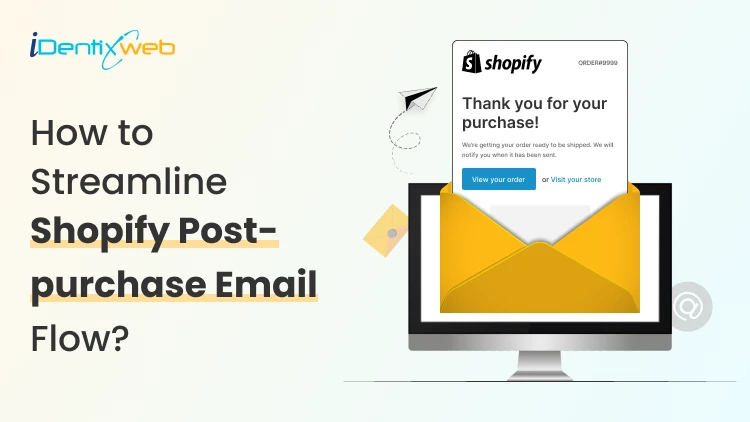

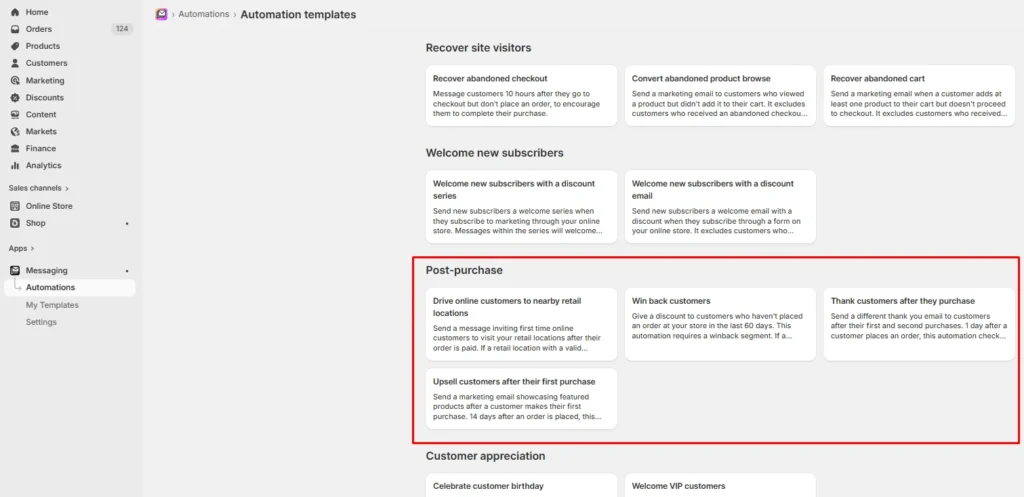
To automate a Shopify post purchase email with Shopify Messaging, install the app, open Shopify Messaging, then head to Automations, and after that select templates for Post Purchase. From there, edit the email copy, timing, and trigger so it matches what should happen after checkout.
I’ve seen a lot of Shopify stores put all their focus on getting the first sale. They work on ads and storefronts, but the moment the order comes in, the communication stops.
Right after checkout, customers want reassurance. They want to know their order is confirmed, when it will arrive, and what happens next. A strong Shopify post purchase email flow handles this perfectly.
A Shopify post purchase email is any email a customer gets after they complete checkout. In this blog, I’ll break down the types of post-purchase emails, how to set them up with automation, the best examples, and the conversion tips I use to make them work.
Types of Shopify post purchase email + Examples
A strong Shopify post purchase email flow does more than confirm the order. I use it to answer customer questions, build trust, and create the next buying opportunity. I sent each email with a goal in mind.
Order confirmation email
This is the first email customers expect after they buy. It should go out immediately because shoppers want instant proof that their order went through.
I keep this email clear and short. It should include the order summary, payment details, shipping information, and a support contact in case the customer needs help.
Here’s an example:
Subject: Your order is confirmed
Hi [First Name], thanks for your order. We’ve received your payment, and your order is now being processed. You can review your order details below, and if you need help, just reply to this email.
Shopify thank you email
The thank you email is where I make the customer feel good about buying. A warm thank you email can reinforce the buying decision, show brand personality, and make the experience feel more human.
Here’s an example:
Subject: Thanks for shopping with us
Hi [First Name], thank you for your order. We’re glad you chose us, and we’re excited to get this to you. We’ll keep you updated along the way.
Shipping and delivery update emails
I send these emails to keep customers in the loop after the order is placed. I group both shipping and delivery confirmation together because both serve one clear purpose: reducing uncertainty.
For example:
Subject: Your order is on the way
Hi [First Name], good news, your order has shipped. You can track it here: [Tracking Link]. We’ll send one more update when it gets delivered.
How-to emails
I write product education emails mainly for cosmetics stores because styling tips, care instructions, or a little guidance are required for this.
Here’s an example I use:
Subject: Quick tips before you use your product
Hi [First Name], your order should be with you soon, so here are a few quick tips to help you get the best results. [Tip 1], [Tip 2], and [Tip 3]. A little guidance now can make the experience much better.
Cross-sell or upsell emails
This is the revenue-focused email in the post-purchase flow. I send it after the customer has had a little time with the original purchase.
Product recommendations work better because they connect to what the customer already bought. A matching item, refill, add-on, or upgrade feels more useful.
Subject: Complete your purchase with these picks
Hi [First Name], based on what you bought, we picked a few products that go well with it. These are relevant add-ons that can help you get more value from your order. See the picks here: [Product Link].
Want to turn post-purchase Flow into extra revenue?
If you want to go beyond basic follow-up emails, SellMore Post Purchase Upsell is a smart option to add at this stage.

It helps you show one-click upsell offers on the post-purchase page and thank you page, so you can increase AOV after checkout. It also comes with AI-powered upsells, bundles, and analytics, which makes it a practical pick for stores that want to automate post-purchase sales more effectively.
How to automate Shopify post purchase emails?
Setting up post-purchase emails is not technical at all. I always tell store owners to keep it simple at the start.
Build the flow, choose the tool, then automate each step based on what the customer does after checkout.
Start with your post-purchase flow map
Before I touch any app or automation setting, I map the flow. This makes the whole setup easier because I know what, when, and why an email is sent.
Here’s a simple post purchase email flow that I follow
- Order confirmation: immediately
- Thank-you email: same day or next day
- Product education email: day 1 to 3
- Review request: after delivery and enough time to use the product
- Cross-sell or upsell email: based on the product cycle
- Loyalty rewards email: later, if there is no repeat purchase
This flow can be different based on your brand.
Choose your automation tool
Once the flow is clear, I pick the tool.
You can use built-in Shopify tools like Shopify Messaging or Shopify Flow. This is a good starting point if you want something easy to manage and quick to launch.
You can also use third-party apps as well. I use Omnisend for this. They have 500 emails/month for free in their starting plan, so it's a good start for new stores.
I use Shopify Messaging to automate. I start with Messaging > Automations and start with a post purchase template.
Pick the right triggers
A trigger is the action that starts an email. I keep this simple because merchants mix up campaigns and triggers.
A trigger is what tells the automation to send an email automatically based on customer behavior.
This is what I use as a common post purchase trigger:
- Purchase completed
- First purchase
- Shipping and delivery notification
- Product delivered
- Product review request
- Product or category purchased
I always choose triggers based on the purpose of the email. For example, if the email is meant to reassure, the trigger should happen right after purchase.
Segment your customers
Do not send every customer the same follow-up. That is one of the biggest mistakes I see with new stores.
To solve this issue, I perform a basic level of segmentation to make your emails feel much more relevant. I usually start with simple groups like:
- First-time customers vs repeat customers
- Product category purchased
- High-order-value customers
- Subscription customers vs one-time buyers
- Customers who bought consumables vs non-consumables
Add personalization
No matter how much AI gets into my workflow, adding personalization strategies helps in conversion.
Basically, add these details to the emails.
- The product the customer bought
- Shipping details
- A personal note for first-time buyers
- Usage tips based on the product type
- Recommendations linked to the original order
Test, launch, and track performance
Once the flow is ready, I launch it and watch the numbers.
I focus on metrics like:
- Click rate
- Repeat purchase rate
- Review rate
- Support tickets
- Revenue from follow-up emails
Best practices to convert Shopify post purchase emails
- Keep one clear CTA per email: A single next step, like tracking the order, leaving a review, or shopping for matching products, keeps the email focused on one goal.
- Work on your timing: Shopify post purchase emails work best when the timing fits the moment, for example, if an order is confirmed, send the order confirmation email instantly.
- Personalize the emails: Short sentences, clear subject lines, and natural copy make the email feel more personal and less like automation.
- Optimize for mobile: This is something I missed as well. Short subject lines, clean formatting, and easy-to-tap buttons help more people read and act on the email from their phone.
So what have we learned…
Shopify post purchase emails should be a part of the sales system from day one. I’ve seen new Shopify stores put all their effort into getting the first order, then miss the chance to build trust and bring that customer back.
A simple post-purchase flow fixes that by keeping communication clear, timely, and useful after checkout.
FAQs
1. Can you send emails through Shopify?
Yes. You can send and even automate emails with the Shopify Messaging app.
2. How to customize order confirmation email in Shopify?
Go to Shopify admin → Settings → Notifications → Customer notifications → Order confirmation> Edit code. From here, you can edit your order confirmation email.
3. How to reduce post purchase support tickets on Shopify?
The fastest way is to make your post-purchase emails answer the questions customers ask most: order confirmation, shipping updates, tracking, delivery status, and easy access to support links or FAQs.
4. What type of post purchase emails can I send?
You can send order confirmations, shipping and delivery emails, thank-you emails, upsell or cross-sell emails, and loyalty rewards emails.


About the author
Vineet Nair
Vineet is an experienced content strategist with expertise in the ecommerce domain and a keen interest in Shopify. He aims to help Shopify merchants thrive in this competitive environment with technical solutions and thoughtfully structured content.