







Key Highlights: To move the Shopify language switcher to the header, you can use two methods. First, check Online Store > Themes > Customize and see if your theme has a language selector option in the header or footer settings and enable it. If it does not, go to Edit code, find the existing localization or language snippet, and paste that render block into header.liquid near the account, search, or cart area.
A majority of the Shopify stores I notice have the language switcher active, but it sits in the footer.
This is a huge issue because if shoppers want to switch languages, they won't scroll down.
If a visitor lands on your store and wants to switch the language, they usually expect to find that option in the header, near the main navigation, account icon, or cart.
This is one of the few issues I always check when developing Shopify stores. In most cases, the language switcher is already working fine. It is just placed in the wrong spot.
Even if I place it at the header, there are Shopify language switcher dropdown styles I work with to go with the brand’s themes.
I will touch upon two things in this article. One is how to move Shopify language switcher to header. The other is how to change the dropdown styles of the switcher to go with your theme.
How to move Shopify language switcher to header (Editing theme)
This is the easiest method. I suggest starting with this.
Step 1: Edit your theme
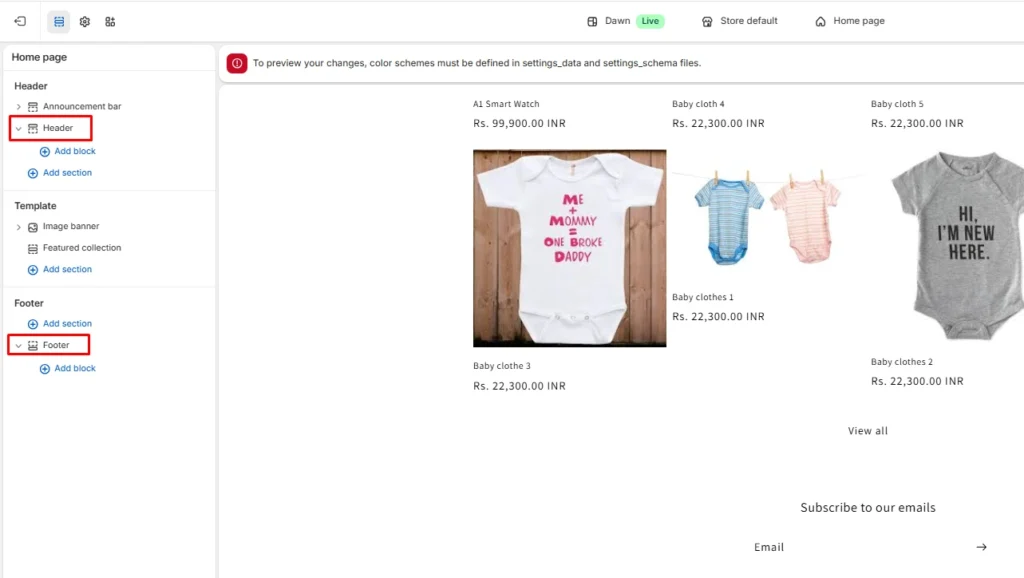
Go to Online Store > Theme > Edit theme and look for both the header and footer sections on the left sidebar.
Step 2: Look for Language selector
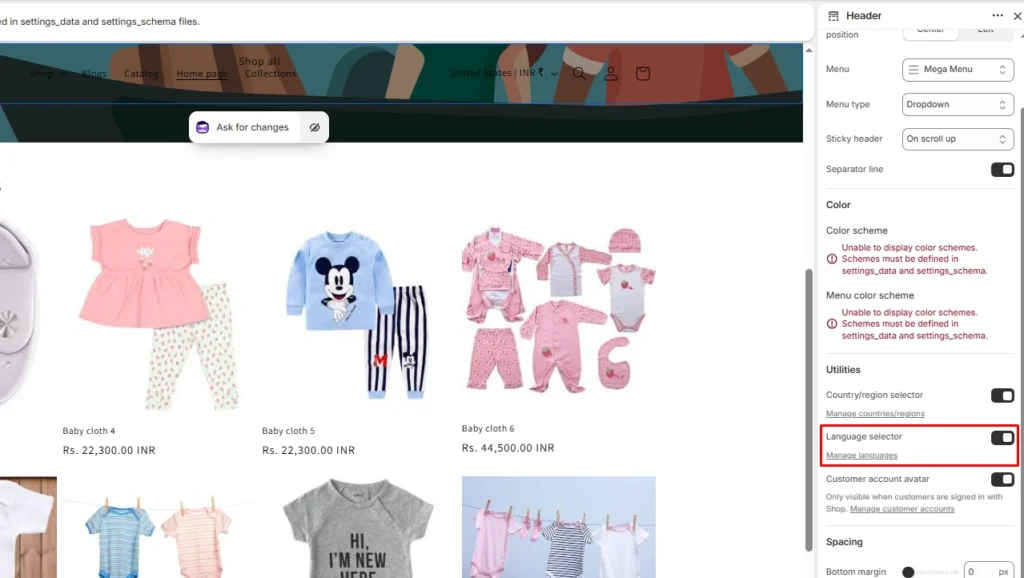
On the right sidebar, look for the Language selector option. You can enable this in both the header and footer sections.
The real problem comes when themes do not provide this section in their header or footer. Some themes come with built-in Shopify language switcher options, and some don’t.
In this case, you need to edit the theme code for this.
Customize your theme to match your brand
Note: I suggest getting help from experts who are good at coding for this method
How to move Shopify language switcher to header (Editing code)
Step 1: Duplicate your theme
I usually start with this because I do not want to mess up the storefront. To duplicate your theme, navigate to Online Store > Themes > Three dots icon > Duplicate.
Step 2: Go to the Edit code section
Go to Online Store > Themes > Three dots icon > Edit code. This will open the backend of your store with codes. It will look like this.
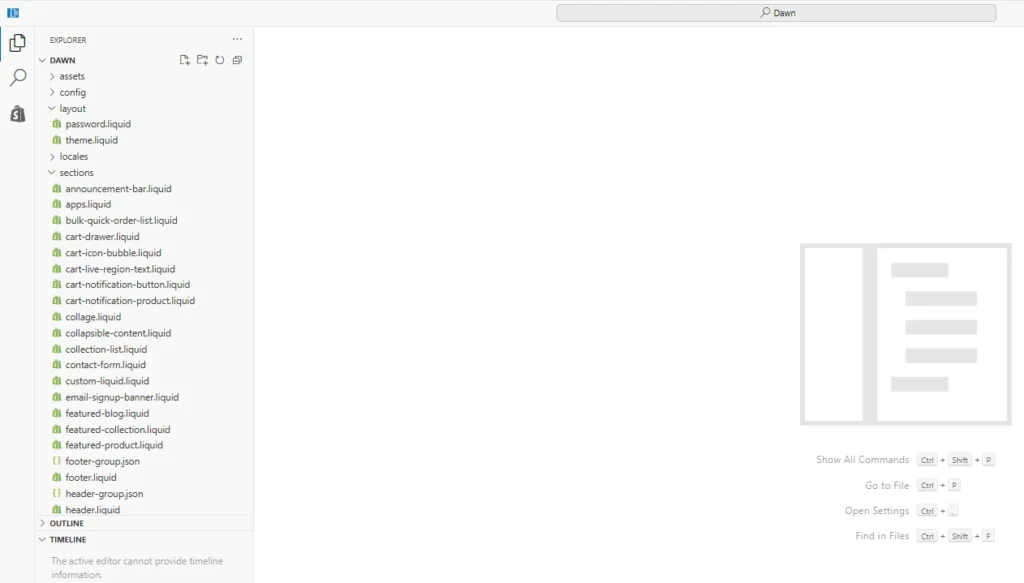
Step 3: Find the current language switcher position
Open these files first and search for localization or language. You will find one of these custom liquid files.
- snippets/localization-form.liquid
- snippets/language-localization.liquid
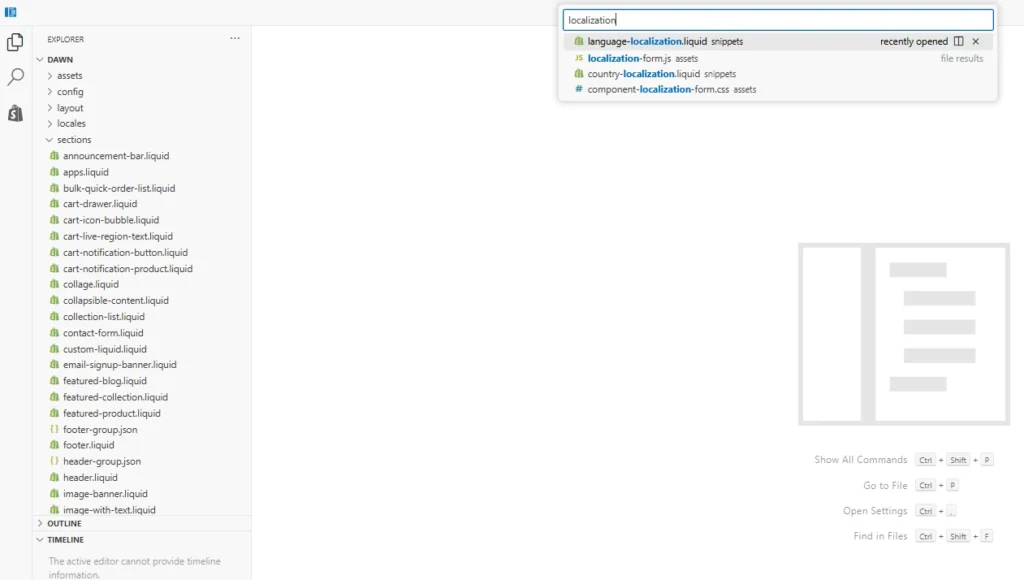
Step 4: Copy the render line or localization block
Open the liquid file, copy the code that outputs the language switcher. In many themes, it will look like one of these patterns:
{% render 'localization-form' %}
{% render 'language-localization' %}
Note: Code may differ in your store. Always take help from a developer in this step
Step 5: Paste that code into the header file
Now open your header.liquid section and paste the copied switcher code close to the account icon, search, or cart.
Language selectors should sit in the header area and should work alongside those utility actions instead of competing with them.
Step 6: Save and preview the theme
Click Save, then preview the duplicated theme. Test the language switcher in the header on:
- desktop
- mobile
- sticky header
Here’s an example of a language switcher near the account icon in the header section of Dr Squatch
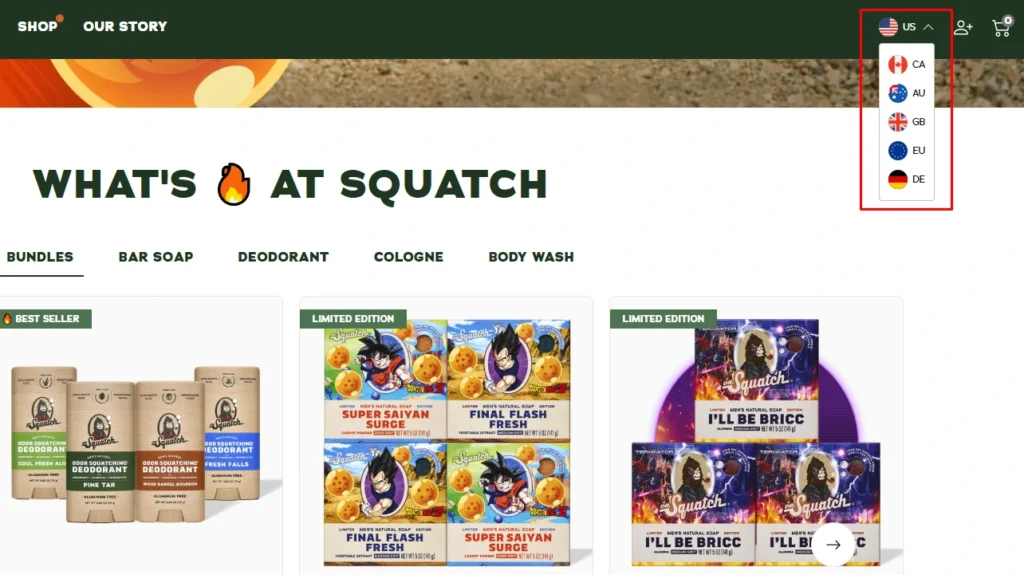
Tips to change the Shopify language switcher dropdown style
Match the header typography and spacing
- The language switcher should look like a natural part of the header. Keep the font size, spacing, icon alignment, and padding close to the account, search, and cart area.
Keep the dropdown easy to spot
- Make it visible enough that shoppers can find it quickly. Use the same contrast, colors, and overall styling pattern already used in your theme.
Use clear language labels
- Labels like English, Français, and Deutsch are easier for shoppers to understand at a glance. Do not use short labels like EN and FR.
Make sure the dropdown width fits longer names
- Small dropdown widths can make language names look messy in the header. Give the selector enough space so the text stays on one line and does not push nearby icons out of place.
Style hover, focus, and active states properly
- The switcher should clearly respond when someone hovers over or clicks it. This makes the dropdown easier to use and helps it feel consistent with the rest of the theme.
Language switcher is a small but useful tool
Moving the Shopify language switcher to the header is a small theme edit, but it will make a huge difference.
What matters most is getting it out of the footer and moving it to the header.
Make sure to check the spacing, test the dropdown on mobile, and make sure it does not affect the search, account, or cart area.
FAQs
1. How to add language switcher to Shopify?
To add a language switcher to Shopify, go to Online Store > Themes > Edit theme. Then, go to the header section and enable the language selector option. If your theme doesn't support this, then you need to edit the localization or language snippet in the backend.
2. How do I change my Shopify language to English?
If you mean your storefront, set English as the default or published language in your store’s Languages section inside Settings.
3. How to move Shopify language switcher to header?
I usually move the Shopify language switcher to the header by taking the existing localization form or language snippet from the footer and rendering it inside the header.liquid.
4. How to change the Shopify language switcher dropdown style?
Style the switcher the same way as the rest of the header, so it matches the theme’s typography, spacing, colors, height, and hover states. The selector should feel like part of the theme and stay easy to use on both desktop and mobile.
5. Which Shopify apps are best to add and customize the language switcher?
LangShop and Weglot are two great apps you can use to add and customize the language switcher.




About the author
Vineet Nair
Vineet is an experienced content strategist with expertise in the ecommerce domain and a keen interest in Shopify. He aims to help Shopify merchants thrive in this competitive environment with technical solutions and thoughtfully structured content.