






To create your Shopify store, sign up on Shopify, add your products with details like pricing, images, and choose a perfect theme you can customize easily. Next, configure payments and shipping and connect a domain to your store. Use the visual editor to build your homepage, create collections, and essential pages like About, Contact, and Policies. Finally, select a paid plan and remove your password to launch your store.
Planning to create a Shopify store? Then you have come to the right place.
Shopify is a complete E-commerce platform that allows you to start and manage your business.
Shopify offers the services to create your own beautiful websites and use their shopping cart to sell and manage your products. It also provides access to use the admin panel from where you can add products, process orders, and much more.
This blog gives you a complete updated guide to launching your Shopify store.
I suggest you follow the step-by-step instructions and try implementing additional features to launch your Shopify store.
Before getting started, let’s have a look at Shopify.
Why choose Shopify?
For E-commerce businesses, the online store should be accessible, flexible, and easy to use. Shopify comes with satisfying all these features. You can easily sell your products with no worries.
No need to worry about coding
Shopify does not feel complicated at all. If you are a non-technical user, then Shopify is the right platform to start your business.
It comes with a wide range of themes that allow you to create a beautiful and attractive storefront without coding or design experience.
Customer Support
Shopify offers 24*7 support which means your business will never stop due to any malfunction. Shopify offers support through phone, email, and chat.
Mobile Responsive
As of 2026, 30% of shoppers are on mobile. Shopify provides mobile-responsive themes. It also includes a free built-in mobile commerce shopping cart.
Customization Apps
If you want to sell products, add product reviews, or offer additional shipping options, then there’s going to be an app for that.
How to Build a Shopify Store in 2026?
Step 1: Start your free trial

Shopify makes it simple to start your own store right away. Go to Shopify’s homepage and click on Start for free at the top right corner.
Step 2: Sign up with Shopify

Enter your email address and password. Make sure your password is strong. Once you have entered your email and password, you will get a verification link in your email.
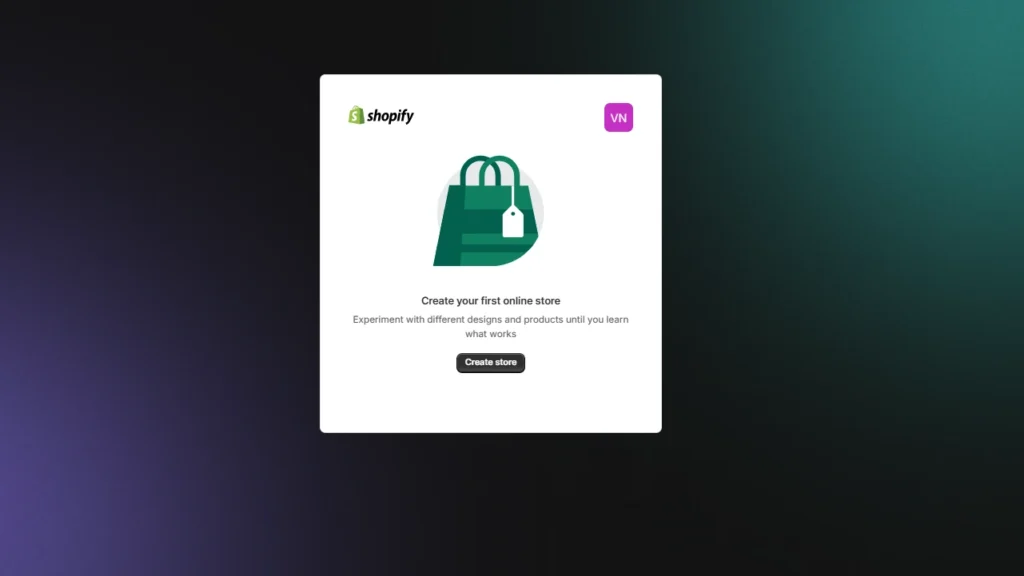
Step 3: Create your store
Now, once you log in, you will be redirected to the page where you need to create your online store.
Step 4: Enter payment details or skip
You can enter the payment information before going into the Shopify admin panel. We would recommend skipping adding the payment details.
Step 5: Go to customized setup
Next, you will be asked to answer some questions that help to set up your store better. We recommended not skipping this step. You will also be asked to add your store name.
Step 6: Learn the Shopify admin panel
- Home: Shows an overview of your store’s setup progress, key metrics, and important Shopify updates.
- Orders: Lets you view, process, fulfill, refund, and manage all customer orders in one place.
- Products: Used to add, edit, organize, and manage products, variants, collections, and inventory.
- Customers: Stores customer profiles, order history, contact details, and segmentation data.
- Marketing: Allows you to create, manage, and track marketing campaigns across multiple channels.
- Discounts: Helps you create and manage discount codes and automatic promotions to boost sales.
- Content: Manages your store’s pages and blog posts for branding, SEO, and informational content.
- Markets: Controls international selling settings like currencies, languages, pricing, and regions.
- Analytics: Displays reports and insights on sales, traffic, conversions, and customer behavior.
- Sales channels: Shows where you sell your products and lets you manage each channel’s settings.
- Online Store: Controls your website’s theme, pages, navigation, domains, and SEO settings.
- Apps: Let you install, manage, and configure apps to extend your store’s functionality.
Step 7: Design your Store
First you need to pick a theme to start designing your store.
Shopify has its own theme store, which provides a wide range of beautiful themes. With Shopify’s theme store, you can choose any of its pre-made templates.
Go to Sales channel>Online store>Themes.
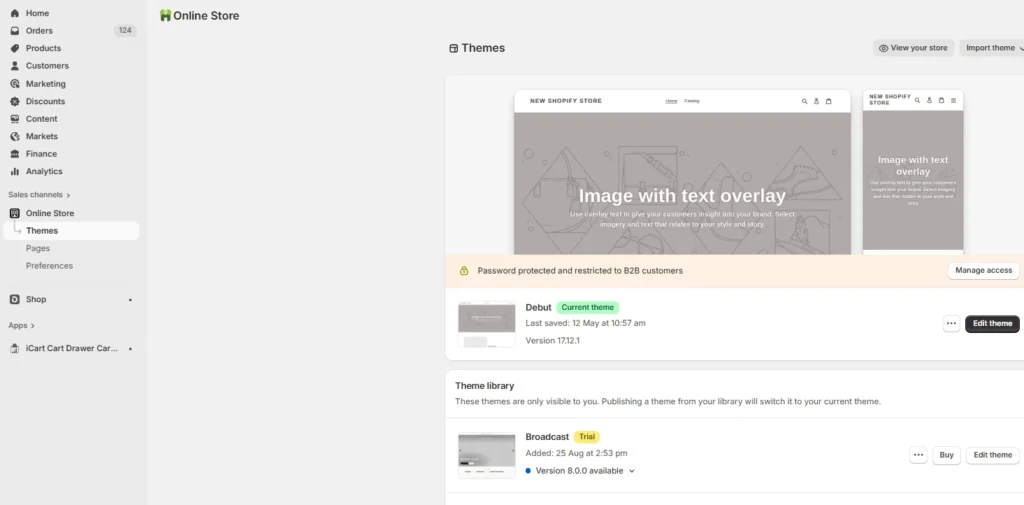
You can select from free themes like Dawn, which is a great starter theme or go with paid themes. Make sure the theme goes with the products that you are selling.
For example, if you are selling luxury items, themes like Prestige are a great choice.
After adding the theme, you can edit and preview how your store looks, which is completely free. Note that in paid themes, the preview is free, but you need to pay to publish.
Step 8: Add Navigation to your theme
Most of the Shopify themes allow you to make unique changes just by making a few settings that are very simple to do. This will help you gain attraction among other stores.
General
Coming to this option you can change or update your:
- Store Details, Store Address, Standards, and Formats, Store Currency
Payment Providers
This option lets you configure how to accept payments also you can do the following from this page
- Set up Shopify Payments
- Activate a third-party payment provider
- Activate an alternative payment method
- Activate a manual payment method
- Change your payment authorization settings
Checkout
From this page, you can make changes in following
- Customer Accounts
- Customer Contact
- Form Options
- Order Processing
- Email Marketing
- Checkout Language
- Fill out policies
Shipping
From this page, you can perform the following
- Shipping Origin
- Shipping rates at checkout
- Size and weight of packages used to calculate shipping costs
- Enable third-party calculated rates from carriers, or choose an external service for fulfillment.
Taxes
From this page, you can configure your tax setting such as
- Change the way taxes are calculated on your store
- Apply tax rates country wise on your store
Notifications
From this page, you can configure your tax settings such as
- Change the way taxes are calculated, Order Refund, Draft Order Invoice and Abandoned Checkout.
- For Shipping Notifications such as Fulfillment Request, Shipping confirmation, Shipping Update, Shipment out
Files
This option provides the option for merchants to upload images, videos, and documents and also to manage the files.
Sales Channels
This option lets you manage sales channels that you use to sell your products and services.
Account
This option lets you manage your accounts and permission
- It gives you an overview of the account along with the status and the selected plan.
- Store status empowers you to perform activities on your store such as Hire a Shopify Expert, pause your store, and close your store.
Billing
This option allows you to manage your billing information and view your invoices.
Step 9: Add products to your store
To add products navigate to the admin bar and click “Products”. Now you will be able to see a blue button called “Add a product.” Click it. After everything is been filling don’t forget to click the “Save Product” button.
Set up collections
A collection is a group of similar products. Usually, when customers come to your store they might be shopping for:
- Clothing for men, women or kids.
- Home decors
- Electronics
Products may appear in any number of collections. So this may help customers to find out their desired products and purchase them easily.
Manual vs. Automatic Collections
When you add a new collection, you can choose about adding products to your collections. You can have two choices
Manually
From here you can add and remove products to a collection individually.
Automatically
You can set up conditions based on certain criteria for including products automatically.
Step 10: Set up payment
Now it’s time to add a payment gateway. Payment gateway enables you to accept payment from your customers through your website. To set up payment click on “Settings” and then a section will appear named “Payments”. Click on it, and now you will be directed to the payment page where you can see various payment gateways.
I would suggest PayPal. If you don’t have a PayPal account then register at Paypal Website. While selecting the payment gateway for your online store note down some of the important things.
Transaction Fees
Some of the payment gateways charge flat fees for using their services. Compared to the payment gateway you will be able to know about the profit earned from the sales. Shopify solutions, such as TrueProfit, can help you accurately track your transaction fees without errors.
Card Types
While doing the transaction you need to be aware of the types of cards such as VISA and Mastercard used for transactions. As different gateways accept different card types, so make sure about that before moving to the payment gateway. All accept VISA and Mastercard and some accept American Express.
Offsite Checkout
Some gateways use Offsite Checkout which means the customers are taken away from your website and directed to a separate form for secure payment. After the payment is completed by the customer they will be redirected to the confirmation page.
Step 11: Set up Taxes and Shipping
Yeah, you are now somewhat nearer to the ending point. Come let’s finish this up.
Add General Details
Before launching your store make sure that you have filled in the entire details. Go to “Settings” then click on “General” and fill out the information. This can be proved to track the visitors visiting your store.
Taxes
Some stores like if they are selling digital products then they won’t charge any taxes but some stores charge taxes for the store selling physical items.
To set up product taxes in Shopify follow the below steps
- Move to “Products” page
- Click the name of a given product
- See down to the Pricing box and check the checkbox titled “Charge taxes on this product”.
Shipping
The Shipping charges will be charged based on the rules that you have already set on the Shipping page. To set up the shipping rate go to Settings > Shipping page.
Step 12: Test your order system
Basically, there are 2 ways to test your order system. One is by using Shopify’s Bogus Gateway to simulate a transaction. And the other one is by using a real payment provider from which you can cancel and refund the order.
To test your order system using the Bogus system follow the below steps:
- Go to Settings > Payments
- Before moving on check whether the credit card payment provider which is already activated is deactivated or not. If not then click on Edit then Deactivate and confirm your deactivation.
To test your order system using a real payment provider
- Make sure you have set up the payment gateway you want to test.
- Now order anything from your shop like a customer would and complete checkout using the real credit details.
- Now cancel the order immediately to refund and avoid paying transaction fees.
Is this free?
Yes, it is free just be sure to cancel and refund the order soon after you place it. If the billing cycle starts after you have placed a test order but before you cancel it, then the transaction fees will appear on the bill. You can still cancel after paying the bill but you will receive the refund in the form of transaction credit on your account which you can use it later for the transaction fees.
Step 13: Purchase & Setup your Domain Name
To make your website live you need a domain name.
There are 2 ways to buy a domain name. You can buy directly from Shopify which will add automatically to your E-commerce store. I think this would be a better solution for one who doesn’t have any idea about how to purchase and register a domain. Or you can buy a domain from a third party register like GoDaddy or Bluehost. To purchase your domain name from Shopify follow the below steps:
1. Connect your selected domain name with Shopify
In the dashboard go to Online Store > Domains. Here you will see “Connect existing domain”. After that click the “Next” button.
2. Update your DNS records
- Under the domain management section click on DNS Zone Editor.
- Go to the Select a Domain section then click on the drop-down menu and select the domain name that you want to update.
- Now add or replace the www CNAME to shops.myshopify.com and click save.
- Go back to Shopify’s admin area and click Verify connection from the Domains
3. Remove your Shopify storefront passwords
To remove the password go to Online Store > Themes and search for a yellow box that will be prompting you to remove your store password.
4. Set store’s domain as primary
From Settings > Domains make sure that Shopify has listed the correct domain name as per your site’s primary domain.
5. Add other domains (if needed)
You can always add additional domains if needed. To do this repeat steps 1 and 2 this will redirect your other domain names to your primary domain.
Yeah, your online store is ready!
Congratulations! Finally, here you have created your fully functional E-commerce store.
How to Build a Shopify Store FAQs
1. How to create a Shopify store?
Start a Shopify free trial, create your store login, and walk through the initial setup in your Shopify admin. Then add products, pick a theme, customize your storefront, and set up your domain and navigation so shoppers can browse easily. Finally, configure payments, shipping, and key pages (policies, contact), then pick a plan and remove the password to launch.
2. Can AI create a Shopify store?
Yes. Shopify offers an AI website builder that can generate stunning designs and help you build a site faster.
3. Can I create multiple Shopify stores with a single account?
Yes, you can have multiple stores associated with the same email and switch between them from the Shopify admin store switcher.
4. Can I build a Shopify store for free?
You can build and test your store during Shopify’s free trial (Shopify lists a 3-day free trial on its pricing pages). After the trial, you’ll need a paid plan to fully launch and sell.
5. How long does it take to create a Shopify store?
If you’re launching a simple store with a small catalog, you can get a working storefront live in a few hours. If you’re adding lots of products, custom branding, shipping rules, policies, and doing proper testing, expect a few days to a week for a solid setup.



About the author
Sajini Annie John
Meet Sajini, a seasoned technical content writer with a passion for e-commerce and expertise in Shopify. She is committed to helping online businesses to thrive through the power of well-crafted content.