



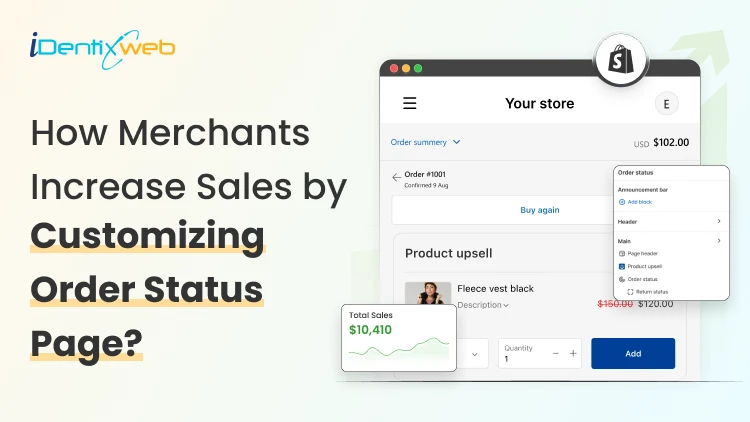
Imagine this scenario: A customer just placed an order from your store, but the journey is not over. They want to know the updates or track their order status, like “when will their product arrive?”
Here comes your “Shopify Order Status Page”.
But most of the Shopify merchants consider the order status page Shopify just an order confirmation page. And that’s the mistake. Because a well-optimized order status page can do more than product updates, it can give you extra revenue.
With many years of experience in working closely with Shopify merchants, I have seen many case studies that have made use of this page and doubled their revenue. So in this blog, I will show you how to earn extra revenue from the order status page by giving a smooth shopping experience for your customers.
What is the Shopify order status page?
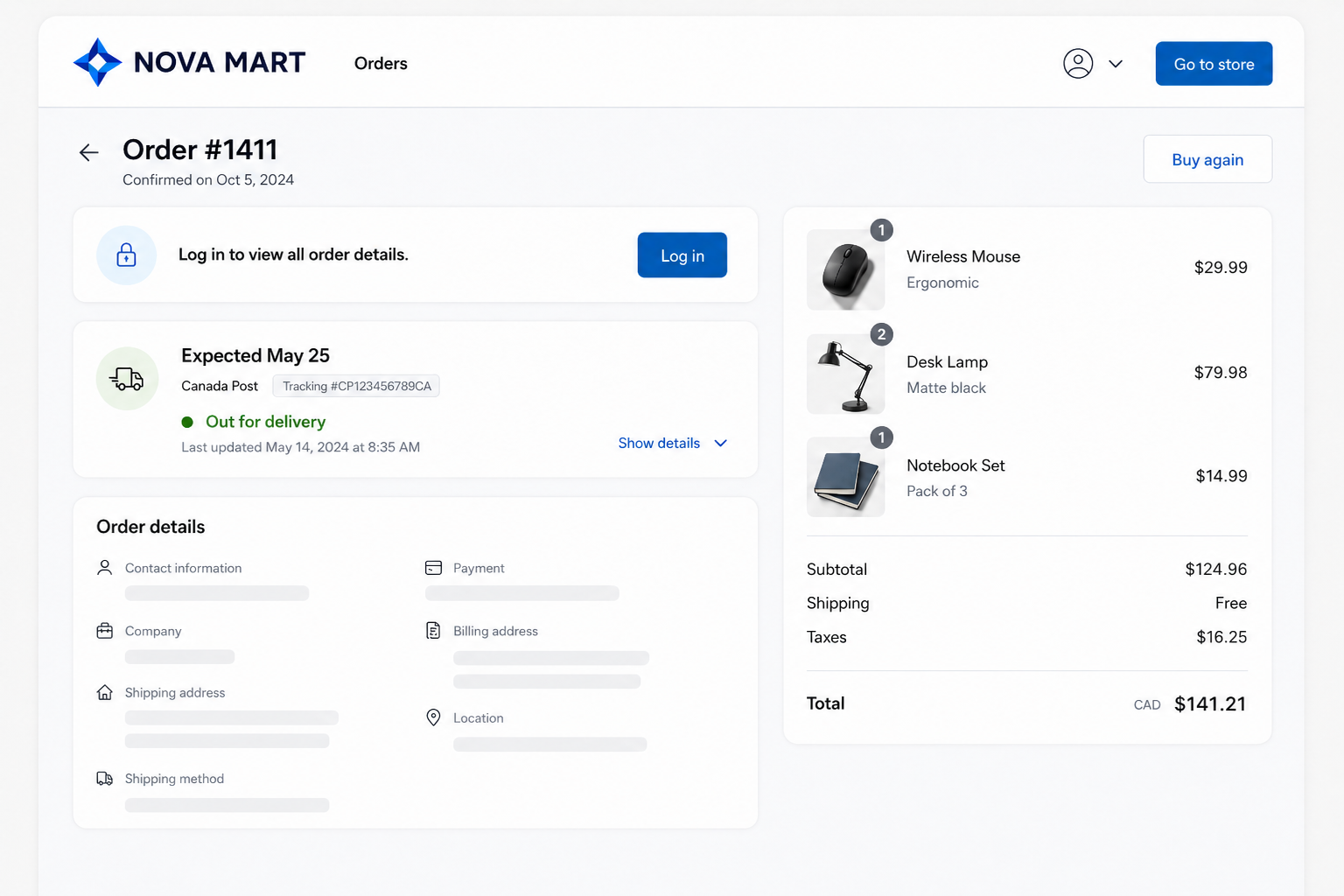
The Shopify order status page is the final screen a customer sees after completing checkout. This page shows a confirmation that their purchase has been successful. Customers can track their order, view shipping updates, and revisit details whenever they want.
Importance of the order status page in Shopify
1. It is the most revisited page after checkout
Customers come back to this page again and again to check where their order is. No other page in your store gets this kind of repeat attention from a single buyer.
2. It reduces support tickets
Most "Where is my order?" questions come from buyers who feel left in the dark. A clear order tracking page with live tracking and a delivery date cuts down on these messages and frees up your support team.
3. It drives repeat purchases
When the post-purchase experience feels smooth and on-brand, customers are far more likely to come back. A generic carrier page does the opposite; it breaks the connection with your store.
4. It builds trust during the waiting phase
Between "order placed" and "package delivered," buyers feel uncertain. Real-time updates and a clear delivery window calm that worry and protect your reviews.
Sell More After Every Sale
Show irresistible one-click post purchase upsells at the right moment that converts.
Install SellMoreHow to edit order status page in shopify for a better customer experience
Here is the good news: you do not have to build this page from scratch. Shopify creates an Order Status Page for every order on its own.
And if you want to make the page feel more like your brand? No worries. Shopify gives you built-in options to edit the order status page and shape it the way you want.
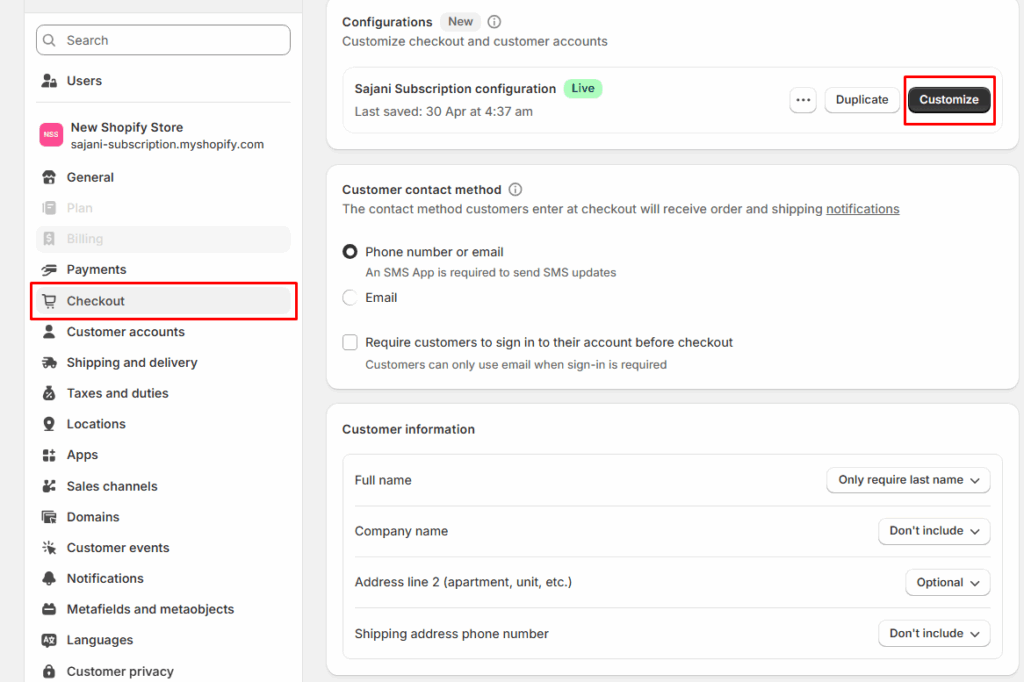
Step 1: From your Shopify admin, go to Settings > Checkout. In the Configurations section, click the Customise button.
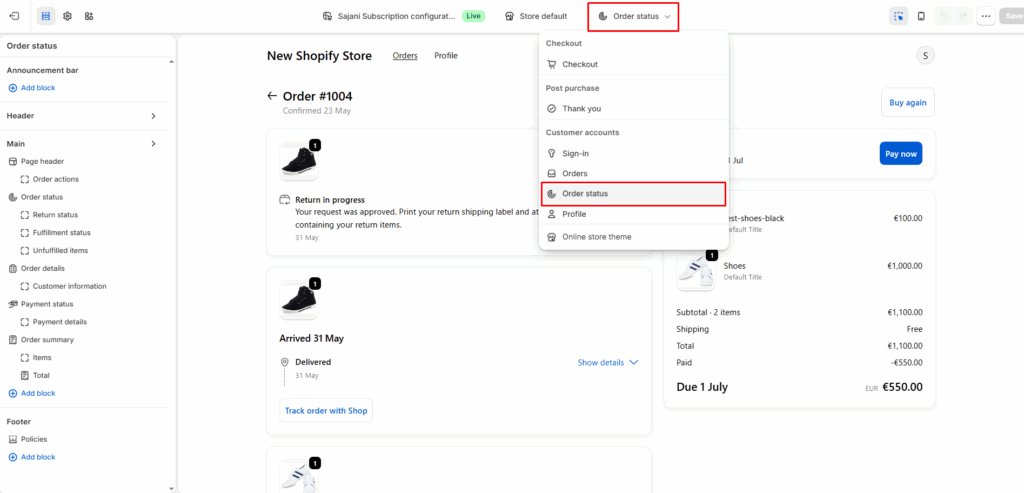
Step 2: Use the page selector at the top of the editor and choose Order status. You will see the live preview on the right.
Step 3: Update the logo, colors, fonts, and background to match your storefront.
Step 4: Click the Add app block option to drop in extra functionality like product upsells, bundles or product recommendations.
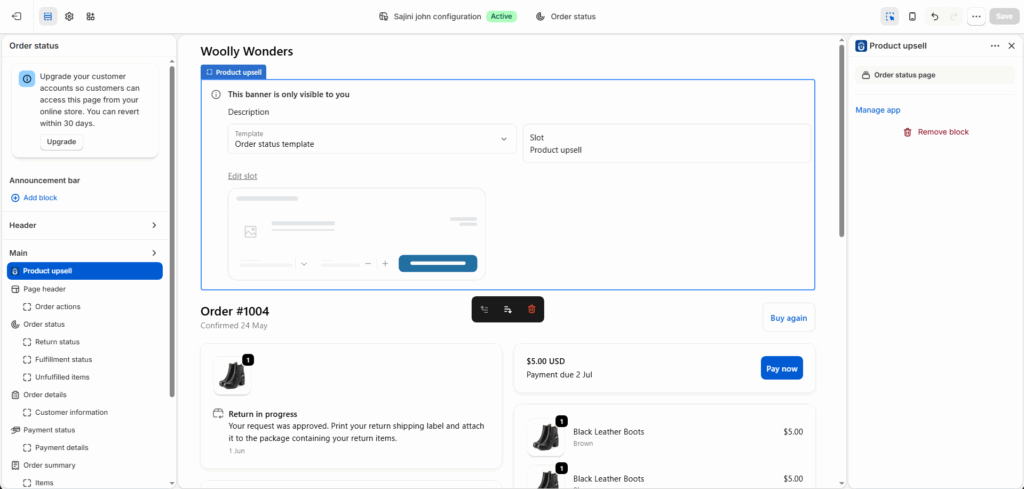
You can use apps like SellMore to implement easily without any coding or complex setup.
Sell More After Every Sale
Show irresistible one-click post purchase upsells at the right moment that converts.
Install SellMoreHow to Optimize Your Shopify Order Status Page
Most stores treat this page like the end of the road. A quick "thanks, your order is on the way", and that is it.
But here is the truth. Customers open this page more than once. Sometimes three or four times per order. They check it on their phone at lunch. They check it again before bed. They check it the next morning.
That is a lot of free attention. Most merchants waste it.
A few smart tweaks can turn this quiet page into a page that builds trust, calms anxiety, and brings in extra sales. Here are seven simple ways to do it.
1. Add Cross-Sells and Upsells
Your customer just bought something. This is the warmest moment in the whole buyer journey.
So instead of stopping at a plain "thank you" message, show them one well-picked offer.
A few ideas that work well:
- Recommend a matching product. Show items that pair nicely with what they just bought. A phone case after a phone. A leash after a pet bed.
- Offer a small bundle deal. Pair their order with one or two related items at a soft discount.
- Add a short, time-limited offer. "Add this in the next 30 minutes and save 15%." Urgency works here because the moment is fresh.
- Suggest an order upgrade. Let them swap to a bigger size, a longer plan, or a premium version.
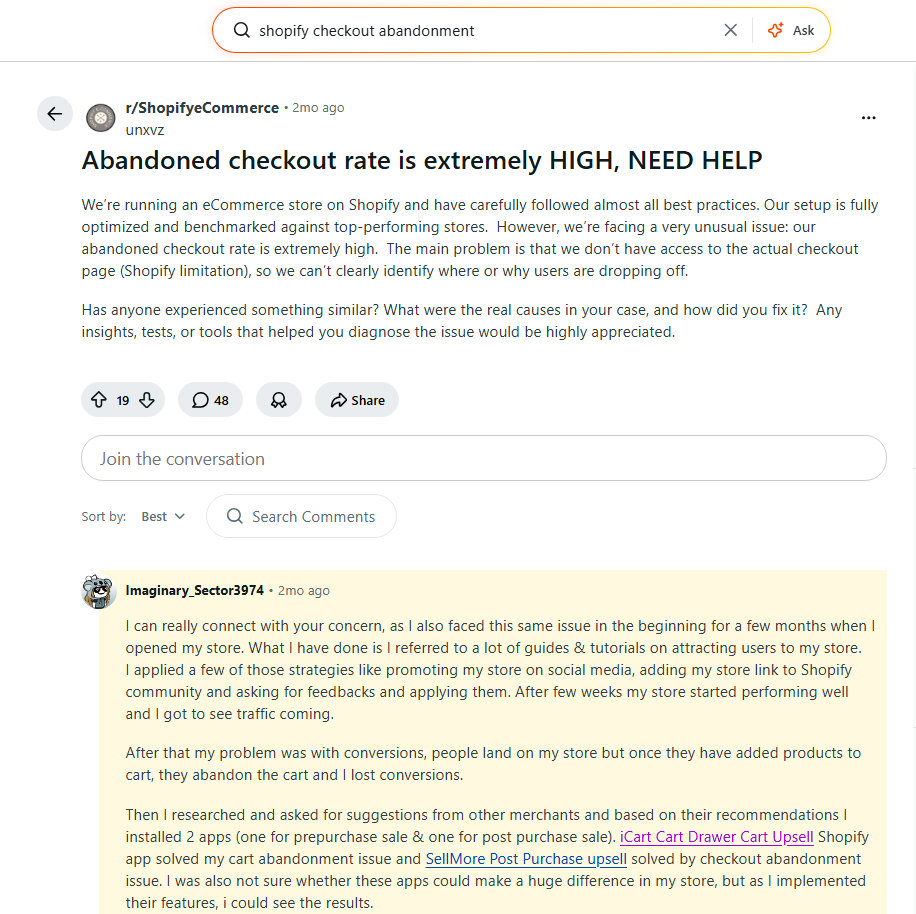
You can use Sellmore Post Purchase Upsell and have it live in minutes. Sellmore adds one-click offers right on the order status page. Just one tap and the upsell is added to the same order. Many merchants who are using SellMore are already achieving good results. Here is a Reddit comment of one of our merchant who is using SellMore in their store and making better revenue:
2. Use Custom Design
A default order status page does the job. But it feels like every other store. A branded page does much more. It keeps customers engaged. Because small tweaks can make a big difference.
You can match your store’s branding by adding your logo at the top, using your brand colors, font styles, etc. You can even customize the layout for better engagement. You can add a warm thank-you message with the customer's first name.
3. Capture Valuable Feedback
The order status page is the best spot to ask for honest feedback. Why? Because the experience is still fresh in the buyer's mind.
A follow-up email two weeks later? They have already forgotten. A quick survey right here? Sharp, honest answers.
Here is how to make it work:
- Add a short survey or feedback form on the page. Keep it to one or two questions.
- Use a simple star rating or a smiley scale easy to tap on mobile.
- Offer a small thank-you, like a discount on the next order, to bump up the response rate.
4. Display Reviews
Another smart move is to show customer reviews on the order status page.
Why? Because reviews are social proof. They quietly tell the buyer, "Other people loved this, and you will too."
A small doubt always sits in the buyer's mind after checkout. Reviews kill that doubt.
Here is what works well:
- Show product reviews for the item they just bought. It reassures them that they made the right call.
- Add a few short store reviews to build trust in your brand.
- If you have short customer video clips, drop one in. Real faces beat plain text every time.
Final Thoughts
Your Shopify order status page is the revenue machine that can help you earn more post purchase revenue. Remember, it is the page your customer comes back to again and again, so optimize it in the best way possible.
Because a few simple changes can turn this page into something much bigger. So treat your Shopify Order Status Page the way you treat your homepage. Because the sale does not end at checkout. The real bond with your customer starts right here.
Shopify Order Status Page FAQs
1. Where is the order status page on Shopify?
The order status page sits at the very end of your checkout flow. Shopify creates it on its own for every order; you do not have to build it.
2. How to create an order tracking page?
A full order tracking page goes a step beyond Shopify's default. It pulls live updates from the carrier and shows them on a clean, branded page. To build one, pick a tracking app from the Shopify App Store and install them in your store.
3. Can I add upsells to the Shopify Order Status Page?
Yes. Apps like Sellmore Post Purchase Upsell add one-click upsell offers right on the page. Customers can accept the offer without re-entering payment details, one tap, and the upsell is added to the same order.
4. Is the Order Status Page the same as the Thank You Page?
No. The Thank You page shows once after checkout. The Order Status Page can be revisited any time through the email link.
5. How do I edit the order status page on Shopify?
Go to Settings > Checkout > Configurations, click Customize, and pick Order Status from the page selector. From there, you can update the logo, brand colors, fonts, and add app blocks for tracking, upsells, surveys, and more.


About the author
Sajini Annie John
Meet Sajini, a seasoned technical content writer with a passion for e-commerce and expertise in Shopify. She is committed to helping online businesses to thrive through the power of well-crafted content.