





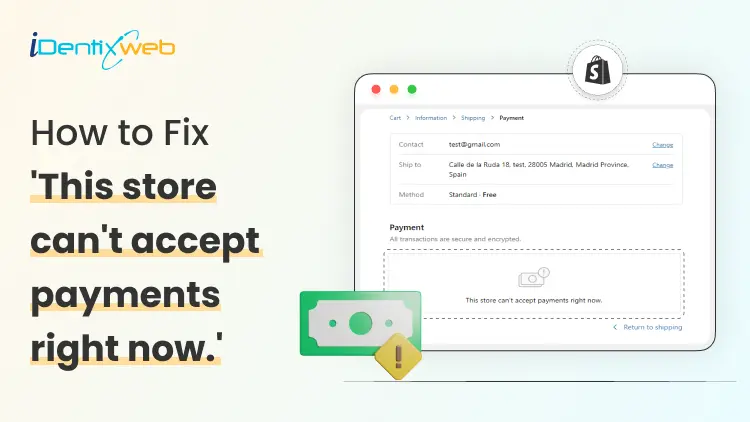
Your customer is ready to place an order. They hit checkout. And then Shopify hits you back with the worst message possible:
This store can’t accept payments right now.
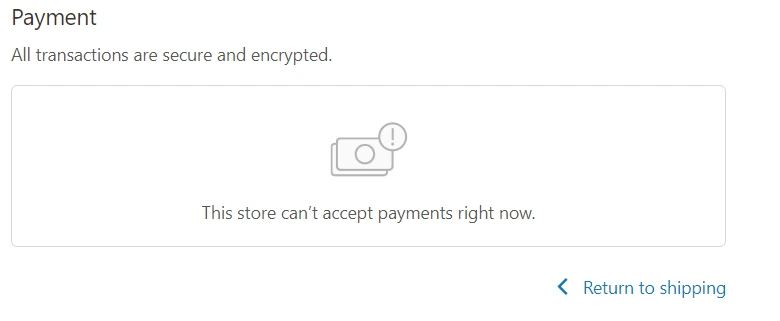
It’s the kind of error that makes the customer never visit your store again.
Here’s the good news. This error can be fixed easily. It’s almost always a setup issue inside Settings > Payments where Shopify can’t find a valid way to charge the customer.
Solve that, and checkout starts working again.
What ‘This store can’t accept payments’ error mean?
When Shopify shows ‘this store can’t accept payments right now’, it’s basically saying: “I can’t find a working way to charge the customer.”
Most of the time, this happens because your Shopify payment setup is incomplete, turned off, or you have not set up any additional payment methods.
The 4 most common causes (and how to fix each)
1) No active payment provider (most common issue)
Checkout is trying to charge the customer, but Shopify can’t find a live payment method to use. That’s why the checkout loads, but there’s an error.
What you’ll notice
- The checkout page opens, but the payment step fails.
- You might not see any card option at all.
Fix
- Go to Shopify admin > Settings > Payments.
- Activate Shopify Payments or choose additional payment methods (PayPal, for example) provider and turn on a third-party gateway.
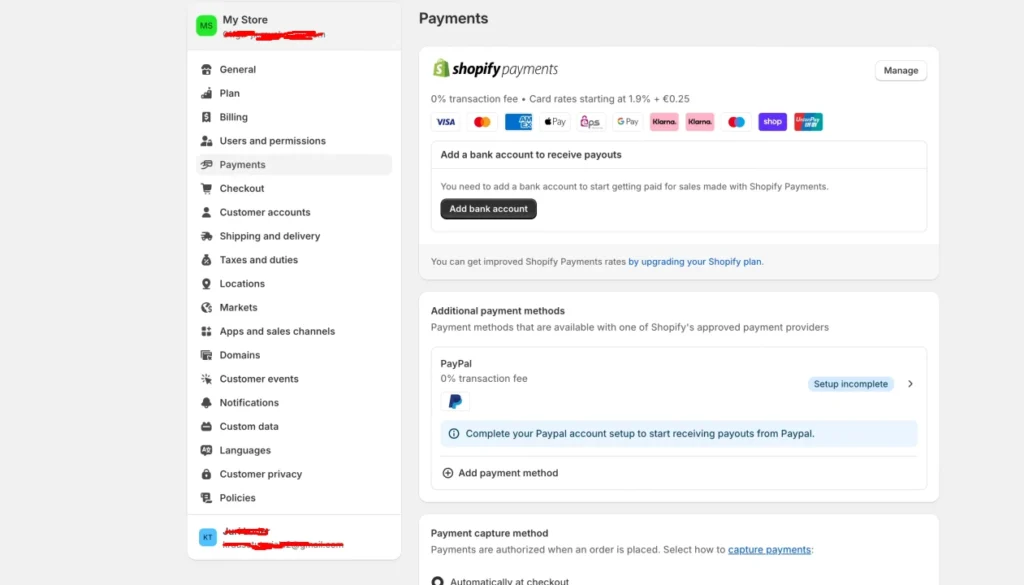
Note: Sometimes the Shopify Payments is not fully verified.
- To get the setup fully verified, open Settings > Payments > Shopify Payments > Manage.
- Finish every onboarding field and submit verification details if Shopify requests them.
- If you’re a US store, double-check you’re following the US-specific Shopify Payments requirements.
2) Test mode is on (and you forgot to turn it off)
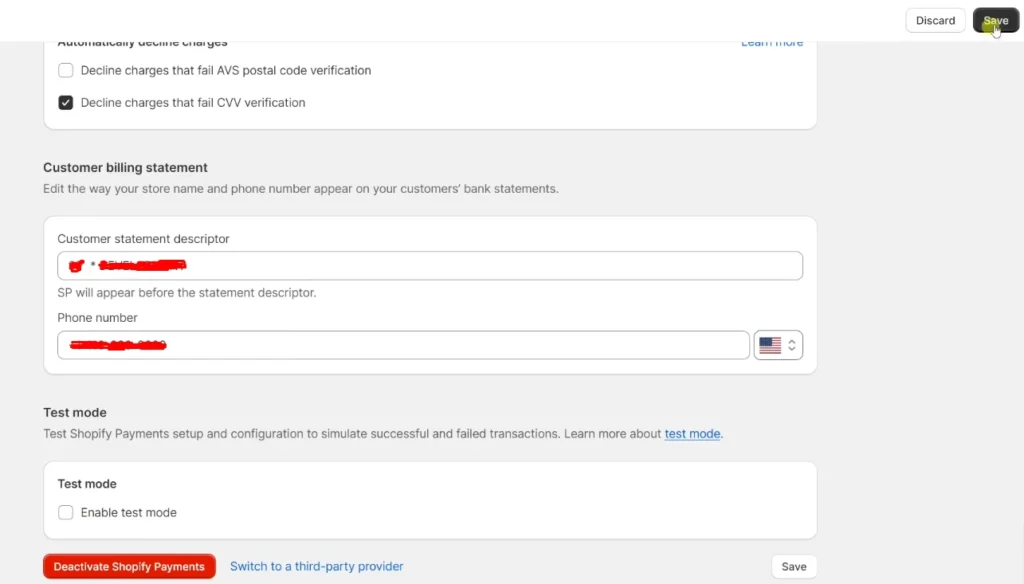
Test mode is great while building, but it can block real payments when you go live.
Fix
- If you use Shopify Payments: Settings > Payments > Shopify Payments > Manage. Scroll down and uncheck the Enable test mode box.
3) PayPal setup mismatch (especially for US stores)
You think PayPal is enabled, but Shopify can’t actually use it at checkout, so you end up with ‘This store can’t accept payments right now. shopify’
In the United States, PayPal often runs as PayPal Wallet inside Shopify Payments. That means PayPal might not appear as a separate item under Additional payment methods when you use Shopify Payments.
Fix
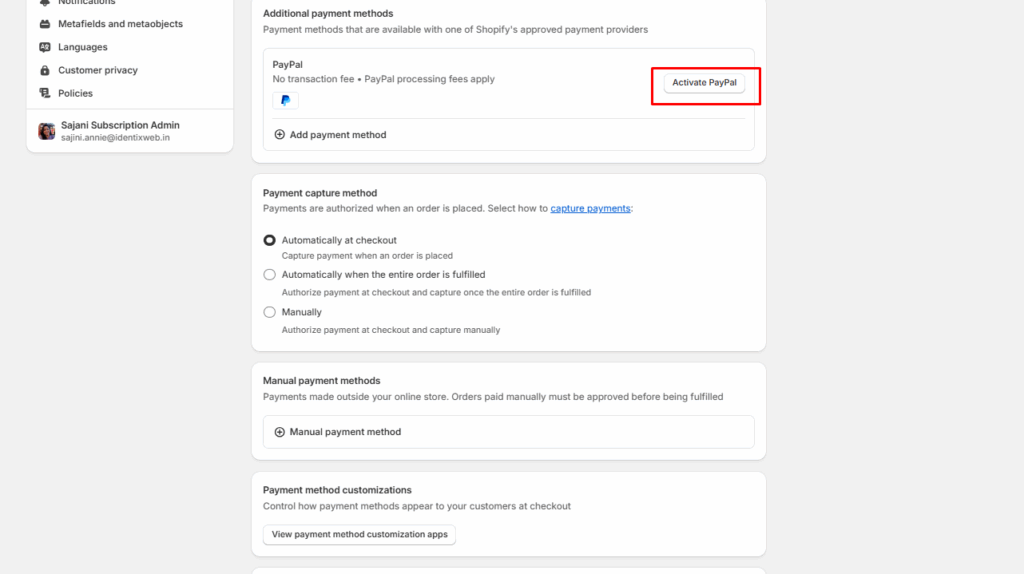
Go to Payments, scroll down, and if you notice a button that says ‘Activate PayPal’, there’s the issue.
Click on it and follow the instructions to activate PayPal on your store.
4) Shopify Payments account under review
Sometimes Shopify can’t process payments because your Shopify Payments account is under review.
What you need to notice
- A red banner in your Shopify admin asking for verification details or documents.
- An email asking for documents, sometimes referencing an internal payments escalation team.
Fix
1) Check the banner first.
Open your Shopify admin home screen and click any banner that mentions verification. Shopify usually places the secure upload link there when documents are required.
2) Reply to the verification email thread if Shopify asked you to.
If Shopify emailed you requesting documents or clarification, reply in that same thread after uploading.
Once payments are live again, what's next?
Once the 'This store can't accept payments right now' error is fixed, you need to recover those lost checkouts.
A sticky cart drawer with in-cart upsells, and clear incentives (like free shipping progress) can help turn “fixed” traffic into paid orders.
iCart is a proven Shopify upsell app that helps merchants increase their conversions through cart optimization.
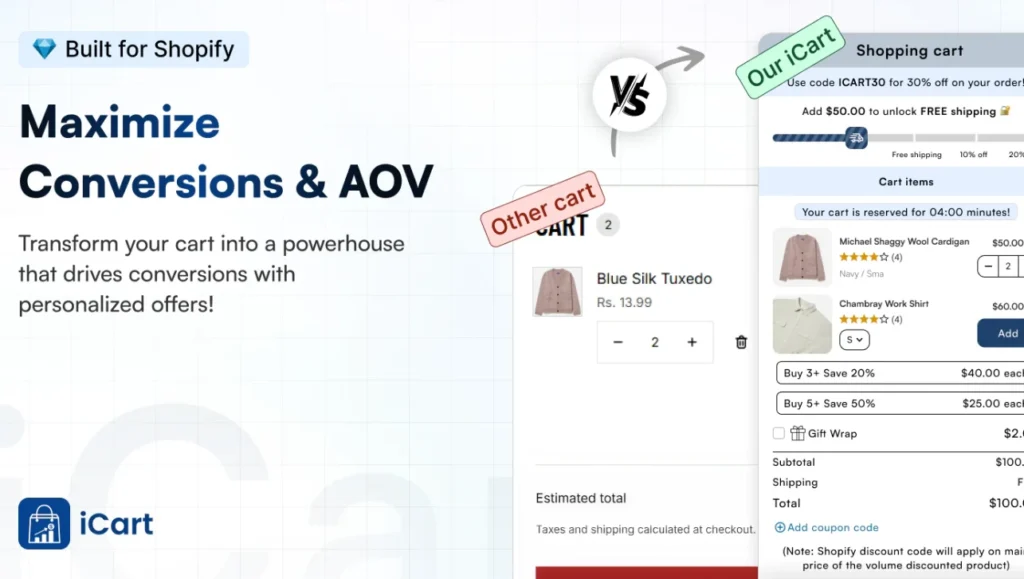
- Sticky cart drawer to keep shoppers from dropping after payments are fixed.
- In-cart upsells, cross-sells, and bundles to increase AOV.
- Free shipping progress bar + cart trust elements to push more checkouts to completion.
Best payment gateways for Shopify (Tried & Tested)
Shopify Payments
- It’s the most direct setup inside Shopify and usually the fastest path to checkout.
- It also unlocks Shopify’s accelerated checkout options like Shop Pay, which can reduce checkout friction for new stores.
- You avoid third-party transaction fees on orders processed through Shopify Payments.
Stripe
- If Shopify Payments is available in your country (including the US), Stripe typically won’t show as a separate gateway you can activate. This is because Stripe is Shopify Payments’ banking partner.
- For brand-new US stores, the practical move is usually: enable Shopify Payments (you still benefit from Stripe’s processing underneath) instead of trying to “add Stripe.”
PayPal
- Best fit if your buyers expect PayPal and you want a familiar wallet option at checkout.
- To add PayPal, go to Settings > Payments and click Activate PayPal. Follow the PayPal setup instructions to activate it in your store.
Square
- You can build a fully custom checkout UI with Stripe Elements if you want complete control over layout and fields.
- This is ideal for subscriptions. Stripe Billing supports subscription models from simple monthly plans to usage-based billing and contracts.
Wrapping Up
Most of the time, the ‘This store can’t accept payments’ is simply Shopify telling you that checkout can’t find a working way to charge the customer.
The fix is inside Settings > Payments, where a provider is missing, incomplete, or stuck in verification.
FAQs
1. Why can’t my Shopify store accept payments right now?
Most of the time, Shopify is telling you that checkout cannot find a valid, active payment method to charge the customer. Start in Settings > Payments, and configure Shopify Payments or add additional payment methods.
2. Why is my store not eligible for Shopify payments?
Shopify Payments eligibility depends on whether your business is in a supported country, sells an allowed product, and meets Shopify Payments’ T&Cs. In the US, Shopify can also require specific identity and banking details (like a US checking account that supports ACH) before you can use it.
3. What payments does Shopify accept?
Shopify can accept payments through Shopify Payments, third-party credit card providers, and other payment methods like Apple Pay, Google Pay, and Shop Pay, and can also offer local payment methods based on the customer’s location.
4. Does Shopify accept PayPal?
Yes. Shopify supports PayPal, but the setup depends on where your business is located. If your business is in the US and you use Shopify Payments, PayPal is provided through PayPal Wallet.
5. Does Shopify accept Google Pay?
Yes. Google Pay can be offered as an accelerated checkout option, but you must enable it through your credit card payment provider. In Shopify, you turn it on from Settings > Payments > (your card provider) Manage > Wallets > Google Pay.
6. What are the fees for Shopify payments?
Shopify Payments charges a processing fee per transaction, and the exact rate depends on your Shopify plan, card type, and where the card is registered. Shopify lets you view your store’s exact rates inside your admin under Settings > Payments > Shopify Payments > Manage > View payment rates.


![Best ChatGPT Prompts for Shopify You Can Copy-paste [+Tips to Write Prompts]](https://www.identixweb.com/wp-content/uploads/2026/03/13-03-Fri-Blog-AI-Prompts-for-Shopify-That-Grow-Your-Store-1.webp "Best ChatGPT Prompts for Shopify You Can Copy-paste [+Tips to Write Prompts]")

About the author
Vineet Nair
Vineet is an experienced content strategist with expertise in the ecommerce domain and a keen interest in Shopify. He aims to help Shopify merchants thrive in this competitive environment with technical solutions and thoughtfully structured content.