







Key Highlights : To automatically export Shopify into Google Sheets, you can use either a Shopify app or an automation platform. Shopify apps work best when you want recurring exports, bulk data handling, and a more complete Shopify Google Sheets integration for orders, products, customers, and inventory. Automation platforms like Zapier or Make are better when you want simple trigger-based workflows, such as sending every new order or new customer into Google Sheets automatically.
When I work with Shopify stores, I have noticed one thing:
They track all the data inside Shopify manually.
Orders in one place. Products in another. Customers are somewhere else. Inventory in a different tab.
This is why I always recommend using Google Sheets to track and analyze data in one place.
A simple sheet gives you one clean place to track orders, products, customers, inventory checks, and basic store numbers without moving to different tabs all day.
If you want to automatically export Shopify into Google Sheets, there are three methods. Two are automatic, that requires tools, and one is manual. I will explain every method in detail below. Let’s go over the basics of all these methods.
Methods to automatically export shopify into Google Sheets
| Method | Best for | Tool names to use |
| Shopify app | Stores that want recurring exports and bulk data handling. | Matrixify, eCommix, Datachamp |
| Automation platform | Stores that want simple workflows like “new order -> new row in Sheets” | Zapier, Make |
| One-off Shopify admin method | Stores that just need a quick export today | Shopify admin CSV export + Google Sheets import |
The best Shopify to Google Sheets setup is not always the fanciest one. Some stores need a full Shopify Google Sheets integration with scheduled exports. Some only want a simple trigger, like sending every new order into a sheet. Choose the method that works best for your goals.
Let’s get into each method in detail.
How to automatically export Shopify into Google Sheets (With an app)
Step 1: Install the app
If you want a bulk export, I would go with Matrixify. If you want spreadsheet reporting, Coefficient is a good choice. Read app details that match your goals before installing.
Step 2: Connect Shopify and your Google account
Apps will ask for permission to access your Shopify store data and your Google account. This lets the app sync data into Google Sheets.
Step 3: Choose the Shopify data you want to export
For a new store, these are usually orders, products, customers, or inventory. When I use Coefficient, I add orders, line items, products, variants, and inventory. List the data you want to export.
Step 4: Pick the destination sheet or create a new one
Apps let you create a new Google Sheet during setup or connect to an existing one. I start with a fresh sheet so the column structure stays simple and easy to read.
Step 5: Set the refresh schedule
This is the automation part. Instead of exporting data every time, you let the app refresh the sheet on a schedule. Schedule your export and import jobs with auto-repeat, hourly or daily refreshes.
Step 6: Run a test
Export a limited batch of orders, products, or inventory rows first with the app. That gives you a chance to spot missing fields and duplicate rows or columns in the sheet.
The best tip here is to check column and row formatting before using the sheet for reporting.
I always check date format or format, product titles, inventory columns, and line item structure before I start using the sheet.
If you want a setup that runs on triggers, automation platforms are the next best option.

Get experts to analyze your data & grow your store
Automatically export Shopify into Google Sheets (with automation platforms)
Step 1: Choose your automation platform
Zapier and Make are good platforms to start with. Both support Shopify and Google Sheets connections. Choose based on your goals.
Step 2: Create your automation
In Zapier, this will be a Zap. In Make, this will be a Scenario. This is the workflow that connects Shopify to Google Sheets.
Step 3: Pick Shopify as the trigger app
This means Shopify is the tool that starts the automation. Common trigger examples are New Paid Order, New Order, or New Customer.
For example, you can go through Zapier’s current Shopify + Google Sheets setup flow to choose a trigger event from Shopify.
Step 4: Connect your Shopify store
Log in to Shopify and approve the permissions the platform asks for. This lets Zapier or Make read the store event you selected.
After you connect both platforms, it's easy to follow the steps to export data into Google Sheets.
Here’s a great video to make things easier for you.
Difference between apps and automation platforms
| Factor | Shopify app method | Automation platform method |
| Best for | Stores that want a more complete Shopify Google Sheets integration. | Stores that want simple event-based workflows, like new paid order -> new row in Google Sheets. |
| Setup style | It's a store data tool. You connect Shopify, choose the data source, connect Google Sheets, and schedule exports or syncs. | This is a trigger-action model. Shopify starts the workflow, then Google Sheets receives the data as an action. |
| Works best | Better for data exports like products, customers, orders, inventory, and other store records in bulk. | Better for specific actions and events rather than deep bulk exports. |
| Bulk export strength | Stronger choice when you need larger exports. | Weaker for big bulk exports. This method is more about moving event data as it happens. |
| Ongoing automation | Supports scheduled export or import jobs with repeat options. | Runs when a trigger happens, such as a new paid Shopify order or another watched event. |
| Ease for beginners | Easier for store owners who want one tool built around Shopify data tracking. | Easier for store owners who only need one simple automation and want to set it up quickly without using a full export tool. |
There’s one more method if you want to go manual and export any specific data.
How to export specific data from Shopify to Google Sheets?
Step 1: Export the Shopify data you need
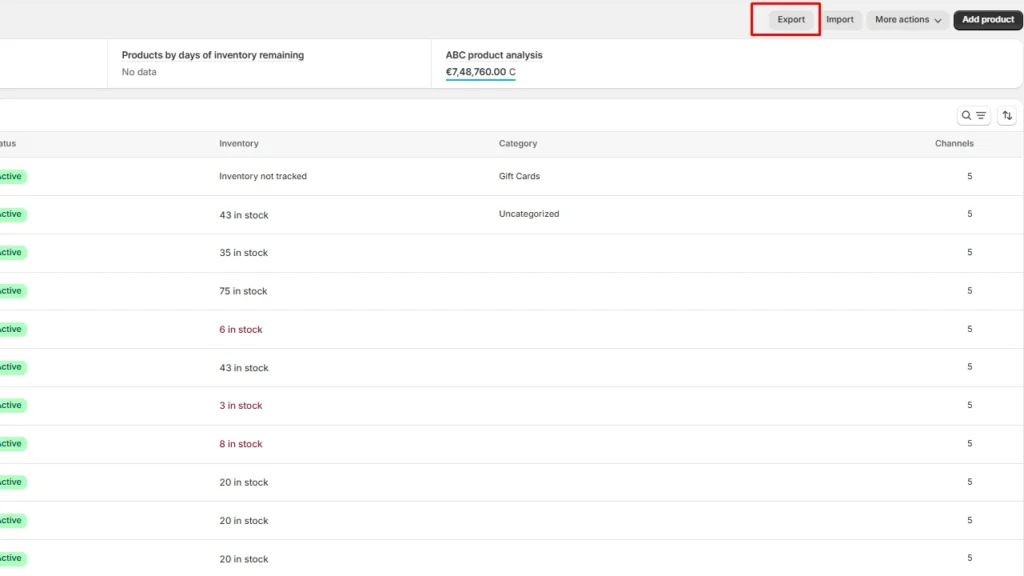
Log in to Shopify admin, go to the section you want, such as Orders, Products, Customers, or Inventory, and click Export to download the CSV.
Step 2: Import the CSV into Google Sheets
Open Google Sheets, create a blank sheet, then go to File > Import and upload the CSV file.
Step 3: Clean it and use it as your report
Check the dates, prices, and column layout, then save it as your working sheet for reporting or tracking.
Exporting data into Google Sheets is best for tracking
I would actually start with the manual method first. Export one CSV and review your orders, products, customers, or inventory in Google Sheets. That gives you a clear view of your data without adding extra tools too early.
Once that sheet becomes part of your weekly routine, switch to an app or an automation setup. This is a great way for tracking and automating your store data.
FAQs
1. Can I export data from Shopify?
Yes. You can export Shopify data as CSV files from areas like products, orders, customers, and inventory.
2. How do I export the whole Shopify store?
You cannot export the entire store in one go. You can export data section by section, or use a specialized app when you need broader bulk export coverage across many Shopify data types.
3. How to connect Shopify to Google Sheets?
The easiest way is to use a Shopify app that connects Shopify and Google Sheets for you.
4. Which are the best apps to export Shopify data into Google Sheets?
For most stores, I always install Matrixify, Coefficient, or Sheets - Data Connector first.
5. Does Zapier integrate with Shopify?
Yes. Zapier integrates with Shopify and supports Google Sheets workflows
6. Can I connect Shopify analytics to Google Sheets?
Yes, you can connect Shopify analytics to Google Sheets by using a Shopify app or an automation tool that pulls store data into a spreadsheet.



![How to Add Apple Pay to Shopify? [New & Easy Tutorial]](https://www.identixweb.com/wp-content/uploads/2026/03/20-03-Fri-Blog-How-to-Enable-Apple-Pay-in-Your-Shopify-Store_-.webp "How to Add Apple Pay to Shopify? [New & Easy Tutorial]")

About the author
Vineet Nair
Vineet is an experienced content strategist with expertise in the ecommerce domain and a keen interest in Shopify. He aims to help Shopify merchants thrive in this competitive environment with technical solutions and thoughtfully structured content.