





![How to Create Upsell in Shopify Without an App [2026 Tested]](https://www.identixweb.com/wp-content/uploads/2026/02/27-02-Fri-Blog-How-to-Create-Upsells-in-Shopify-Without-an-App_.webp "How to Create Upsell in Shopify Without an App [2026 Tested]")

Yes. You can add an upsell in Shopify without an app. But you need a little coding expertise. If you have it, you can create upsells in just a few minutes using metafields and meta objects.
Do you want to add upsells in Shopify that lift AOV without an app?
Most upsell apps do two things you don’t need right now:
- They add a monthly cost
- They add extra scripts to your store’s pages that slow the page load time.
If you want to save money and stop your dependency on upsell apps, this is the guide for you.
I have a tested method that helps you add an upsell on Shopify without installing an app. You’ll use your theme, Shopify’s native features, and your coding expertise for this.
The best way to add upsells without an app that I found is by using metafields and meta objects. You can create a pop-up upsell easily with just a few steps.
Here’s how it's done.
How to add upsell in Shopify without an app [Step-by-step guide]
Step 1: Create a product metafield to link the upsell product
Go to Settings > Metafields and metaobjects > Products > Add definition
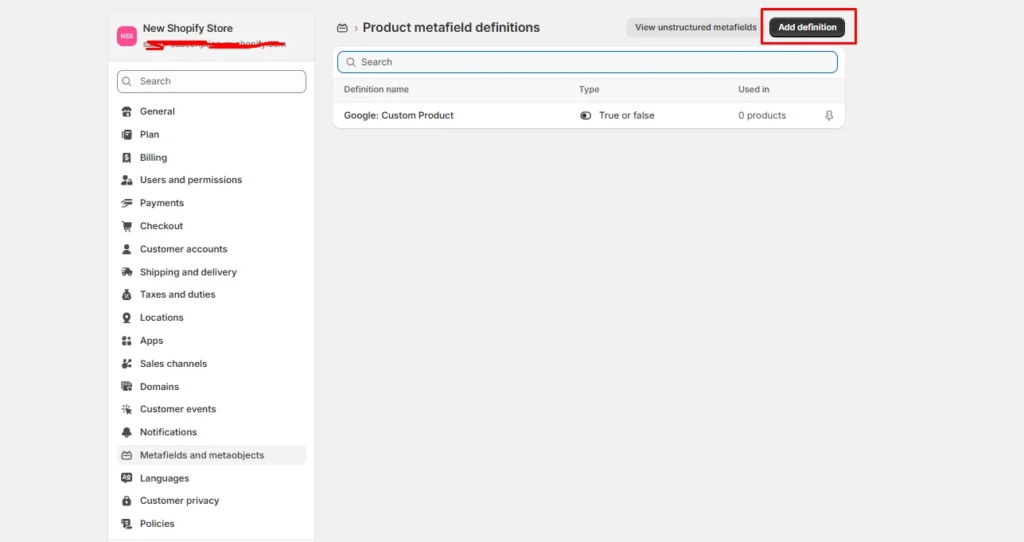
Here, add the details below:
- Name: upsell_product
- Type: Product
- Allow: Single product (not a list)
Click Save.
Step 2: Create a metafield for the upsell pop-up message
In the same section (Products), create another definition:
- Name: custom.upsell_message
- Type: Rich text
Step 3: Assign the upsell to the product
Go to Products and open the product you want to trigger the upsell on (the cheaper product).
Scroll down to the products' metafields section, and you will see the metafields you have set.
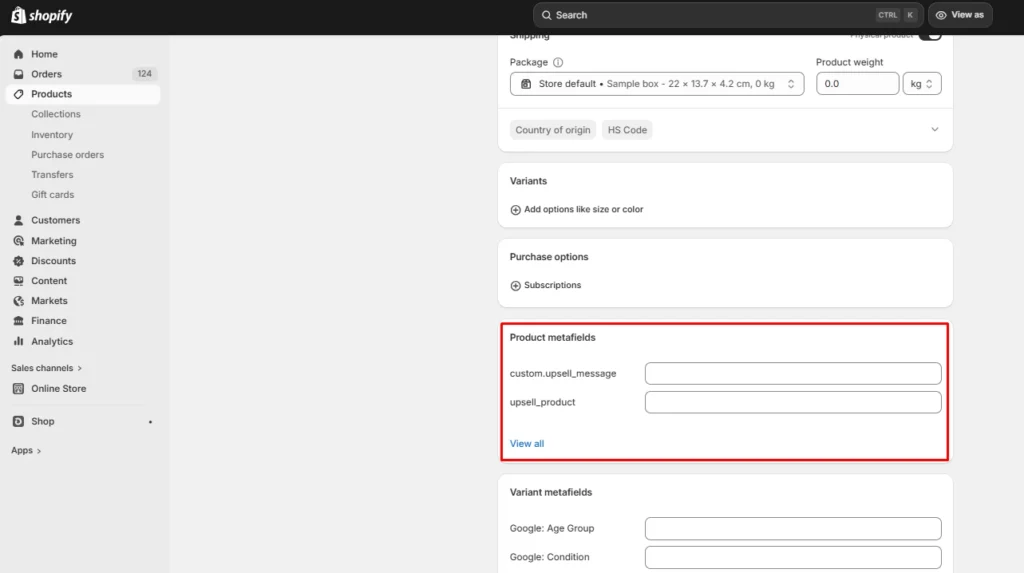
Here in the upsell_product: Select the upgraded product
In the custom.upsell_message: Add your text (example: “Upgrade to the Pro version for better performance.”)
Click Save.
Step 4: Add the upsell pop-up section to your theme
Add a new section file in your theme that reads those metafields and triggers a pop-up on add-to-cart.
Go to Online Store → Themes → … → Edit code.
Open Sections, then create a new file:
- File name: upsell-popup.liquid
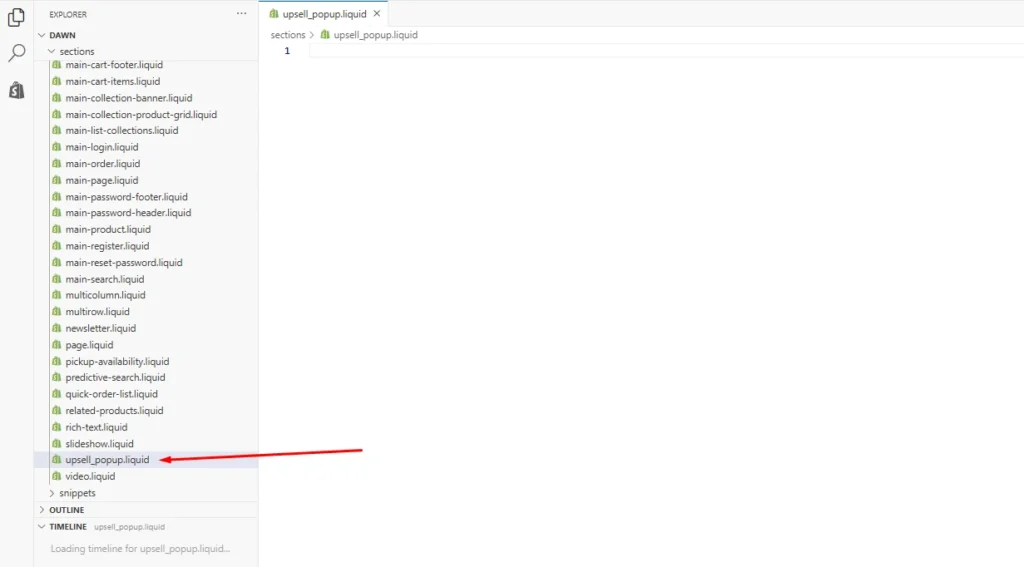
Paste the upsell pop-up section code into this file (the code usually includes the pop-up HTML, styling, and JavaScript that checks the metafields and swaps the product when the shopper clicks “Yes”).
This is where you need coding expertise. Once you have pasted the code in this section, save the file.
Step 5: Load the upsell popup section site-wide (in theme.liquid)
In the Edit code, open layout/theme.liquid.
Find the closing </body> tag. Right above it, render the section you created.
For example:
</>
{% section 'upsell-popup' %}
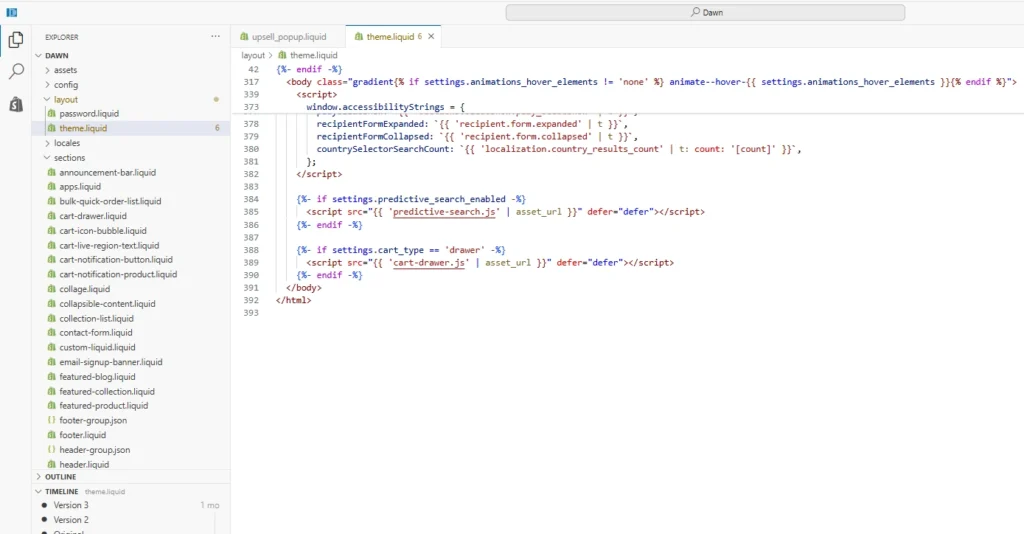
Save.
This makes the pop-up available across the storefront.
Step 6: Preview and test the upsell
Open your duplicated theme preview and test it like a shopper:
- Click on the selected product
- Click Add to cart
- Confirm the pop-up shows your upsell message
If you do not have coding experience, what to do?
Adding upsells on Shopify without an app does help you with reducing monthly costs.
But you cannot track, analyze or customize the upsells easily.
With in cart upsell Shopify apps like iCart Cart Drawer Cart Upsell, you can easily customize your cart with simple drag and drop features.
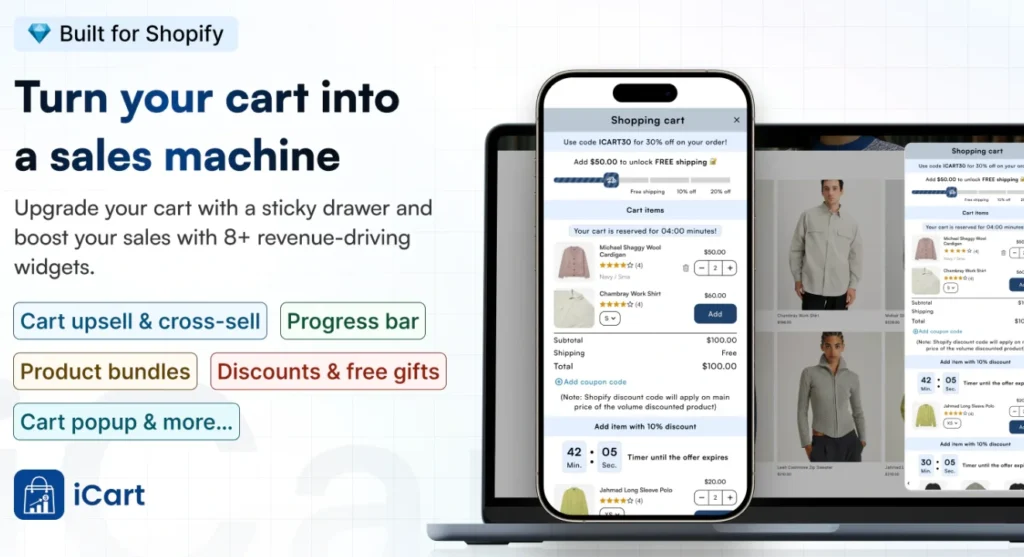
You can even add upsells in the cart drawer, full page, and pop-up within minutes and analyze your sales easily to customize based on your goals.
Read more methods to add upsells:
1️⃣ How to add frequently bought together in Shopify?
2️⃣ How to create bundles with and without an app?
To wind it up: You can add upsells without an app
Upsells can be created without an app in Shopify. You just need the right method and coding expertise.
The best way is to use metafields and meta objects. Once you have created the upsells, test them properly by adding the product as a shopper. Make sure to duplicate the theme before you add upsells with this method.
FAQs for Upsell in Shopify
1. Are there any free upsell apps for Shopify?
Yes, there are a number of upsell apps that offer a “free plan available” or “free to install,” usually with limits like order caps. For example, apps like iCart Cart Drawer Cart Upsell offer a free plan for up to 100 orders for a lifetime.
2. How to add an upsell in Shopify?
The best approach is to place the upsell where it feels natural: on the product page (complementary products) and inside the cart (one-click add-on). Shopify supports adding upsells in the store with and without an app.
3. How to add an upsell on Shopify without an app?
The best way is to use metafields and meta objects and create upsells as a pop-up when the user clicks on the cheaper product. You can find this by navigating to Settings > Metafields and metaobjects > Products > Add definition
4. Should I use an app for Shopify upselling?
If you have coding experience, you can add upsells in Shopify without an app. But the major drawback is that you cannot track the upsells or customize it based on your needs. Shopify upsell apps will help you easily add upsells without any coding knowledge.


About the author
Vineet Nair
Vineet is an experienced content strategist with expertise in the ecommerce domain and a keen interest in Shopify. He aims to help Shopify merchants thrive in this competitive environment with technical solutions and thoughtfully structured content.