





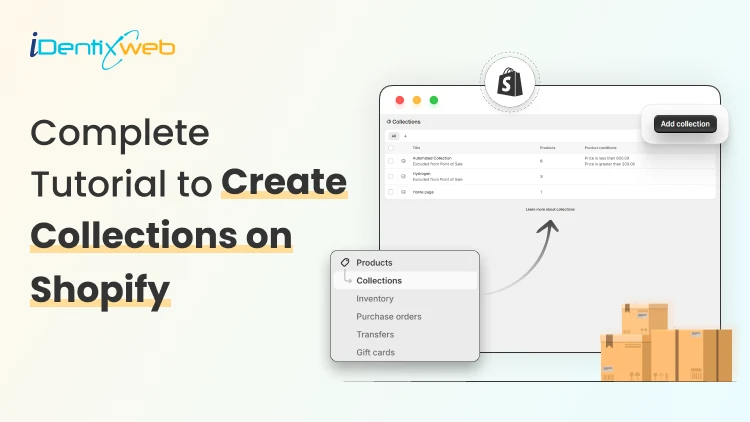

Go to Products > Collections and create a new collection. Enter the collection name, add the details, choose whether it will be manual or smart. Make sure to update the SEO listings for this collection page and save it. To add a collection to your storefront, link it in my store menu from Online Store > Navigation > Add menu item. Then open Online Store > Themes > Edit theme and add a Collection list section, select that collection and save.
I have seen many store owners focus on product pages first. They later realize that their store still feels hard to shop because everything is sitting without a proper collection strategy.
In my experience, fashion and accessories stores require collections the most. This is followed by home goods and electronics. But no matter what store, creating a collection in a Shopify store is essential to organize your products and getting sales.
In this guide, I will show you how to add a collection on Shopify storefront, what manual and automated collections are, and how to make sure those collections actually show up in your store.
I will also touch upon how to add a featured collection page to your storefront. But let's start with adding simple collections first.
How to Add a Collection on Shopify (Step-by-step Guide)
Step 1: Create a collection
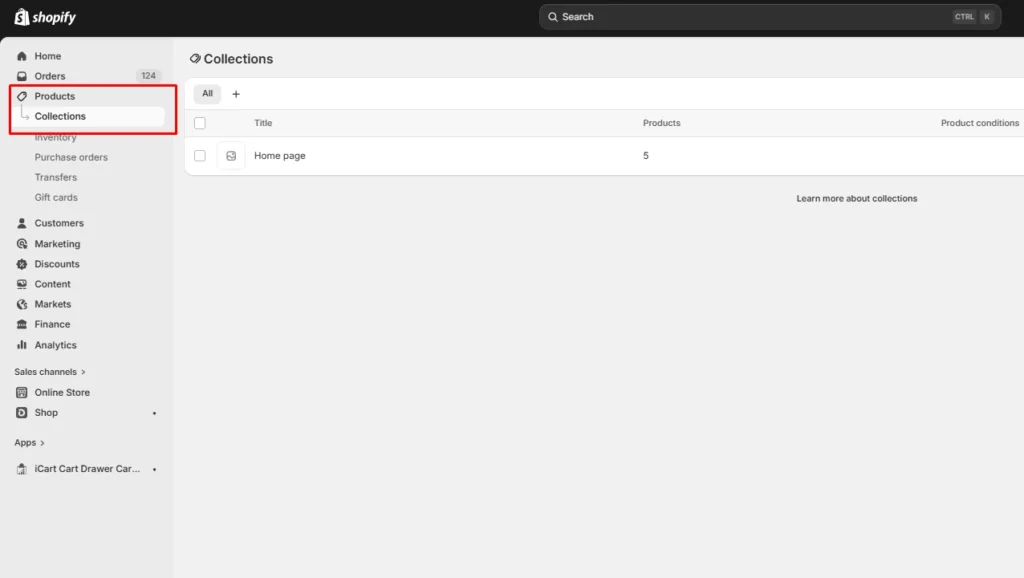
Go to Products > Collections > Add collection to start creating a collection.
Step 2: Edit your collection
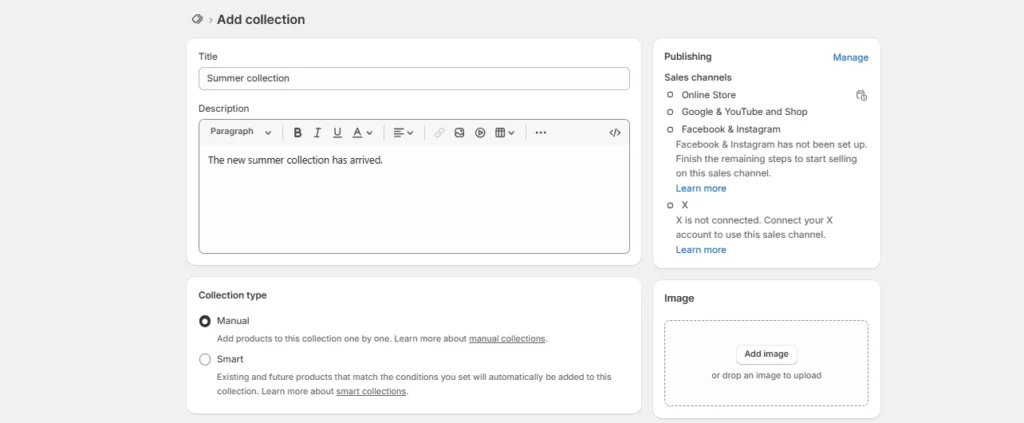
Type in your title, description, add an image, and select your collection type.
Manual: This option lets you manually add products one by one to your collection.
Smart: This helps you automate the process of creating collections by adding conditions. For example, you can add a condition like a product tag to automatically add products to your collection.
Step 3: Optimize your collection for SEO
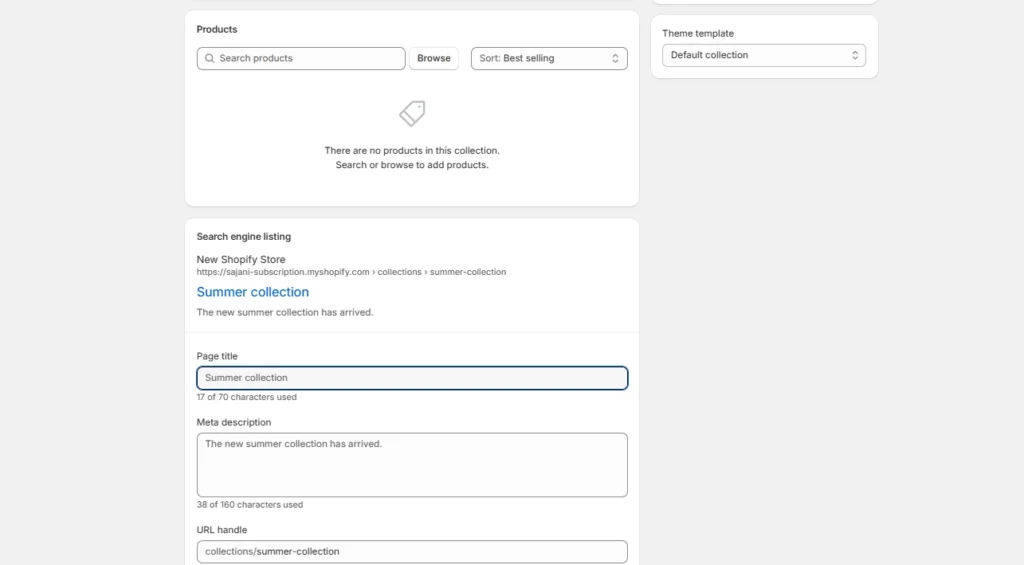
This is a crucial step in the process. To improve your traffic from search engines, you can add a proper title, meta description and URL handle to your collection.
Save your collection.
Step 4: Display collection in your storefront
Go to Online Store > Navigation and click on Add menu item. Here, you need to link the collection page to your homepage.
This is a crucial step that store owners miss every time. This will show collections when you are editing your theme.
Step 5: Customize your theme
Navigate to Online Store > Themes > Edit theme. Now, from the Template section, go to Add section > Collection list.
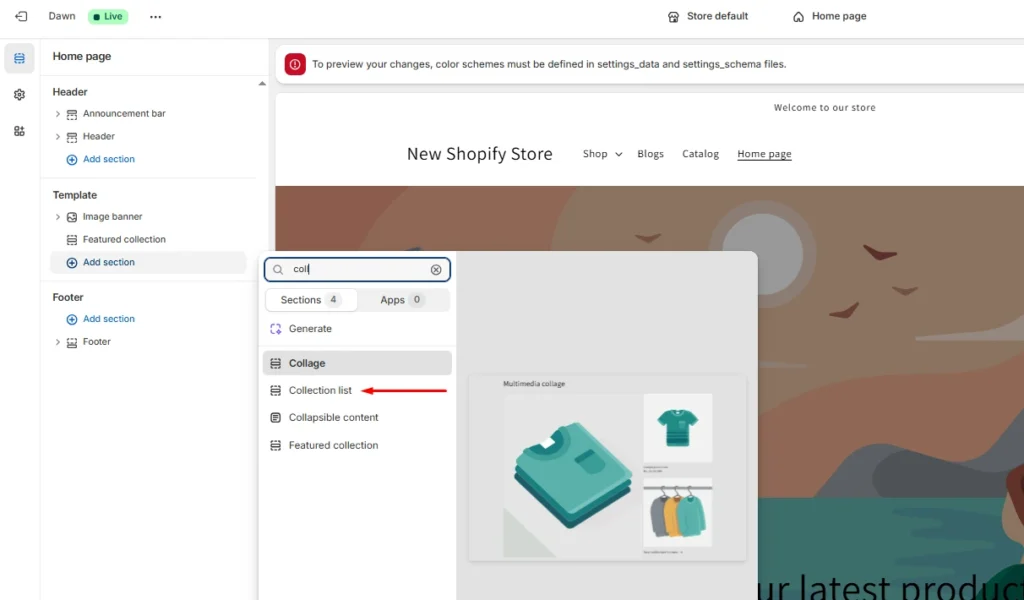
The collection you have created will appear here. Select it and hit Save.
Now this collection will appear on your homepage.
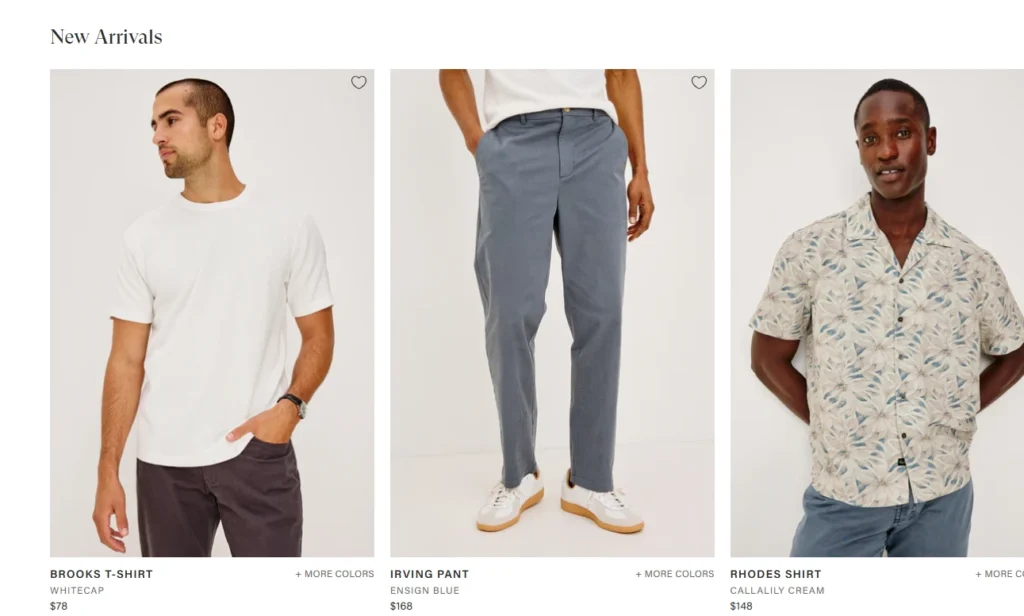
Here’s an example of the ‘New Arrivals’ collection on the homepage of the store, Rails.
You can also create a featured collection page on Shopify. This is a section provided in your theme that helps you showcase your products in the best way.
Unlike collections, featured collections come as a separate section under the template.
How to make featured collection in Shopify?
To add a featured collection on your homepage, you need to follow the complete process to create collections.
Step 1: Go to theme editor
Go to Online Store > Themes > Edit theme. Here you will have a template of featured collections on the left-hand side.
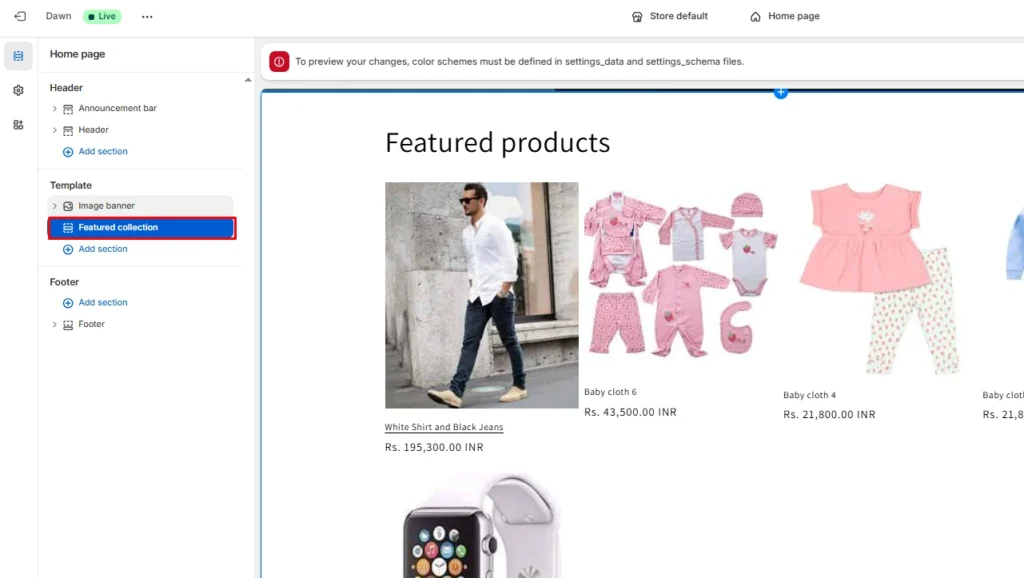
Step 2: Select featured collections
On the right-hand side, you can select your collection as a part of your featured collection. You can replace the current collection with the collection you want to feature.
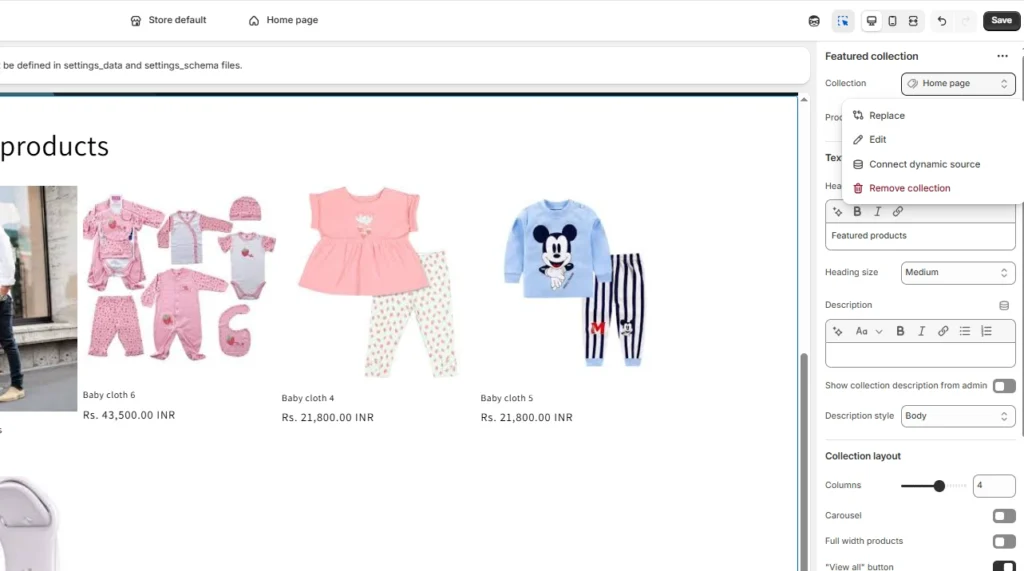
You can customize the layout of your featured collection here. Once you have set everything based on your needs, click Save.
The featured collection is now live in your store.
Basic SEO Tips for Shopify Collections
When I set up collections for a Shopify store, I treat them like landing pages. These tips have helped me rank my collections pages on top.
- I always start with a clear collection title and description. I keep it direct and specific so both shoppers and Google can instantly understand what the page is about. I make sure the main keyword fits naturally into the description without making it sound forced.
- Always edit the search engine listing instead of leaving Shopify’s default version as it is. This gives me more control over how the collection appears in Google search results.
- Avoid unnecessary words or messy slugs because simple URLs are easier to read, easier to manage, and better for long-term SEO.
- I use menu placement to improve discoverability. This helps both users and search engines understand the structure of the store more clearly.
Final Thoughts on Collections on Shopify
I have seen many new store owners upload products, launch the store, and then wonder why visitors are not exploring more pages. That is why I always tell them to start with collections early.
A few well-planned collections like ‘New Arrivals’ or ‘Best Sellers’ can make your store feel more organized, professional, and much easier for customers to browse.
FAQs
1. How to add a collection on Shopify?
Go to Products > Collections and click Add collection. Add the title, description, image, choose whether it will be manual or automated, and save it. Add this collection to your storefront by creating navigation to the homepage. Then customize your theme and add the collection you have created to the homepage.
2. Can you duplicate a collection in Shopify?
Yes. You can duplicate your collection in Shopify.
3. How to make a featured collection on Shopify?
Once your collection is added to your admin panel, go to Online Store > Themes > Edit theme. Here you can edit the Featured collection section on the left-hand side.
4. How to add a product to collections in Shopify?
In a manual collection, I need to manually add products in the collections page when I’m creating it. With automated collection, Shopify pulls products automatically based on the set conditions.



![Best ChatGPT Prompts for Shopify You Can Copy-paste [+Tips to Write Prompts]](https://www.identixweb.com/wp-content/uploads/2026/03/13-03-Fri-Blog-AI-Prompts-for-Shopify-That-Grow-Your-Store-1.webp "Best ChatGPT Prompts for Shopify You Can Copy-paste [+Tips to Write Prompts]")

About the author
Vineet Nair
Vineet is an experienced content strategist with expertise in the ecommerce domain and a keen interest in Shopify. He aims to help Shopify merchants thrive in this competitive environment with technical solutions and thoughtfully structured content.