






To add an FAQ page on Shopify, first create a new page in Online Store > Pages. Then open Online Store > Themes > Edit Theme and build an FAQ layout using your theme’s Collapsible Content section. Assign that FAQ template to your new page, add your questions and answers, and finally add the page to your Navigation menu so customers can find it.
You can have the best product in the world and still lose the sale because of one tiny question.
- “How long will this take to arrive?”
- “What if it doesn’t fit?”
- “Is this refundable?”
- “Can I change my address after I order?”
New Shopify stores get these questions a lot. This is where an FAQ page for a Shopify website gives your shoppers clarity in seconds. It answers the questions that stop checkout and saves time from replying to the same messages every day.
In this guide, you’ll learn how to add an FAQ page for Shopify, what to include, and how to write answers customers actually read.
You’ll also get a simple FAQ template to structure this page in your store, so you can build yours fast and keep improving it as your store grows.
How to add an FAQ page for Shopify (Step-by-step instructions)
Step 1: Create the FAQ page
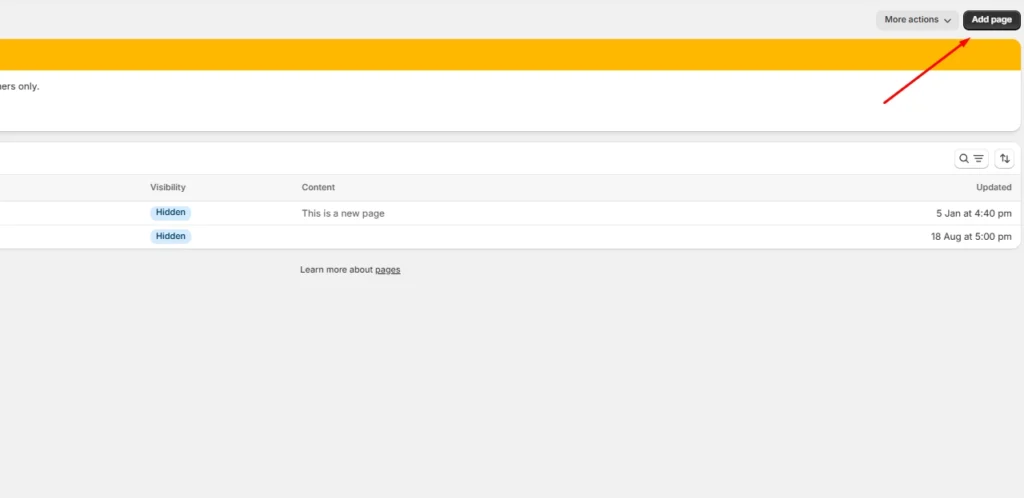
Login to your admin panel. Go to Online Store > Pages > Add page
Step 2: Name the FAQ page
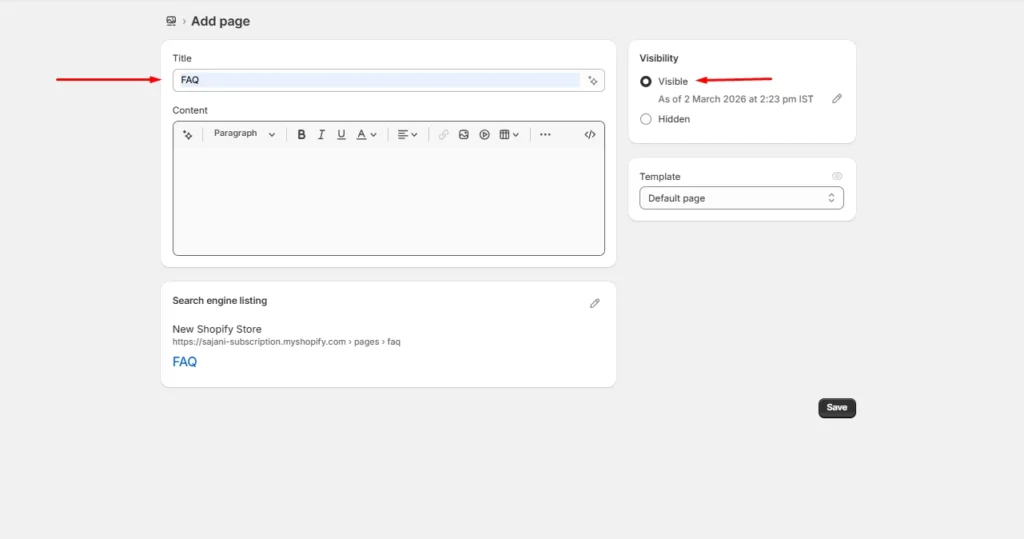
Give the page a title such as FAQ or Frequently Asked Questions. Also, make sure to keep the page Visible.
Save it.
Step 3: Create a template for FAQ
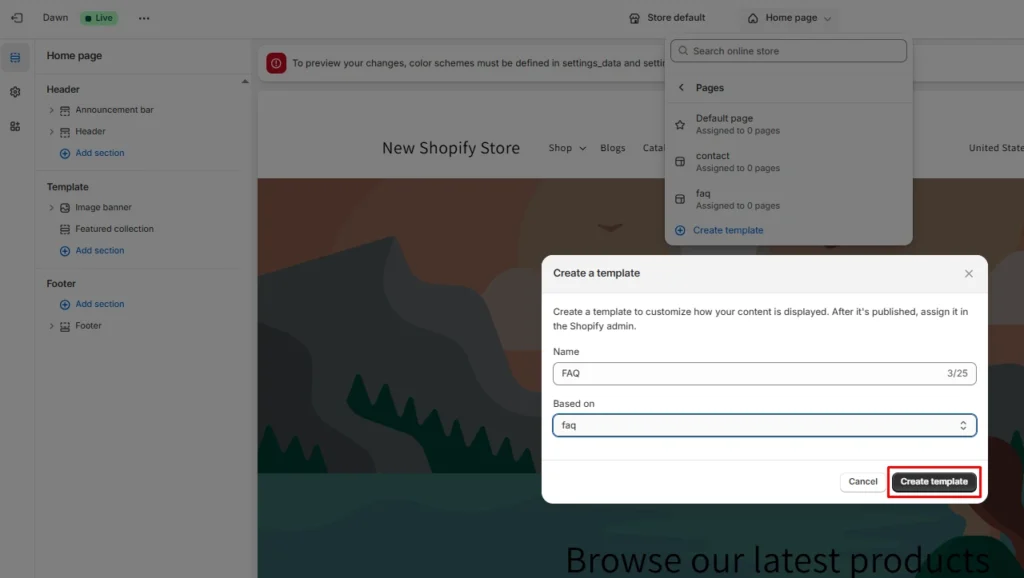
Now again navigate to Online Store > Themes > Edit Theme
Here, click on the top dropdown menu. Click on Pages > Create template
Name the template ‘FAQ’. From the dropdown, Based on, select FAQ and click Create template.
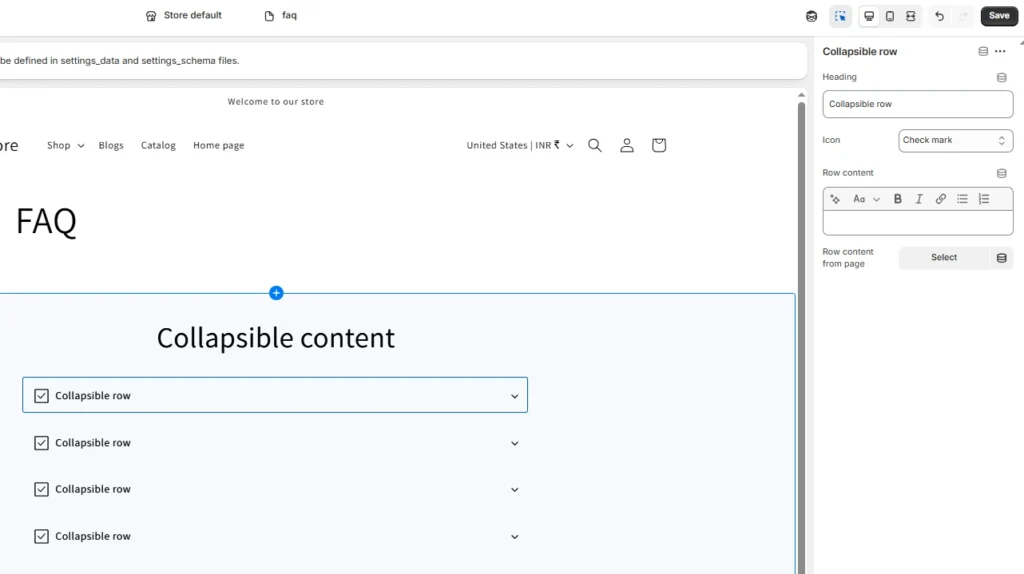
Step 4: Create a collapsible row for FAQs
Now in the theme editor. Go to Template > Add section > Collapsible row (In the Dawn theme)
It can also be called Collapsible content in some themes.
Select each collapsible row to add Questions (In the Heading) and Answers (In the Row content)
Save it once you have added the FAQs
Step 5: Add FAQs to your menu
This is the final step. Go to Online Store > Navigation and add the FAQ page to the main menu, and click Save. Your FAQ page is now live.
What is the best FAQ template for Shopify stores?
Orders and Payments
- Can I change or cancel my order?
- What payment methods do you accept?
- Do you offer COD? (only if relevant)
- I did not get an order confirmation. What now?
Shipping and Delivery
- Where do you ship from?
- How long does shipping take?
- How much is shipping?
- How do I track my order?
- Do you ship internationally? (only if relevant)
Returns and Refunds
- What is your return window?
- How do I start a return or exchange?
- When will I get my refund?
- What items are not eligible for returns?
- What if my item arrived damaged?
Products and Sizing
- How do I choose the right size?
- What materials are used?
- How do I care for this product?
- What is included in the package?
- Do you offer a warranty?
Support
- How do I contact you?
- What are your support hours?
- How fast do you reply?
Tips to create the perfect FAQ page
Answer with a clear “Yes/No”, then add the conditions:
Start with the simplest direct answer in the first line, so people don’t have to read. Then add the “when” and “how” details right after. Example: “Yes, you can change your address within 2 hours of ordering. After that, we can’t guarantee changes because the order may already be packed.”
Use collapsible rows (accordion-style FAQs)
Keep your FAQ page simple by hiding answers until someone clicks a question. This makes the page feel lighter, especially on mobile.
Put the most common questions at the top so shoppers get answers fast. Keep each question short and specific so it’s easy to scan.
Organize categories for queries
Don’t add 30 FAQs to one long list. Group these questions by topic, like Shipping, Returns, Products, Payments, and Orders
Add Search Functionality (for large FAQ lists)
If you do have a long list of FAQs that grows beyond 20–25 questions, adding a search functionality can help you.
A searchable FAQ lets shoppers type “tracking,” “refund,” or “size” and get the right answer in seconds.
Include a Contact Option (If the FAQ doesn’t answer the query):
Add a “Still have a question?” line with a button that links to your contact page. This reduces frustration because shoppers know what to do next.
More Guides for Shopify Pages
Your FAQ page should do the selling for you
A good FAQ page for Shopify removes doubt in seconds. Keep it clean with collapsible rows, group questions into clear categories, and add search when your list grows.
Write answers like you’re talking to one customer and lead with the direct answer first.
FAQs for the FAQ page for Shopify
1. How do I create an FAQ page for Shopify?
Create a new page in Shopify (Online Store > Pages), add your questions and answers, then link it in your footer or main menu. If your theme supports collapsible rows, use that so the page stays clean and easy to scan.
2. Why should I add an FAQ page to my Shopify store?
An FAQ page removes purchasing queries fast, especially for shipping, returns, sizing, and payment questions. It also cuts repetitive support messages, which matters a lot when you’re running a new store with limited time.
3. How many FAQs should I add to my homepage?
Keep a low number of FAQ, usually 5 to 8 questions max. Only add the questions that help with the purchasing, like shipping time, return window, tracking, and a key product question (size, warranty, or what’s included).
4. What does a good FAQ look like?
It should be scannable, grouped by category, and written in simple language with direct answers first. It should also link to the next step (tracking, returns policy, contact page) so shoppers never get stuck.
Post Tags

![How to Create Upsell in Shopify Without an App [2026 Tested]](https://www.identixweb.com/wp-content/uploads/2026/02/27-02-Fri-Blog-How-to-Create-Upsells-in-Shopify-Without-an-App_.webp "How to Create Upsell in Shopify Without an App [2026 Tested]")

About the author
Vineet Nair
Vineet is an experienced content strategist with expertise in the ecommerce domain and a keen interest in Shopify. He aims to help Shopify merchants thrive in this competitive environment with technical solutions and thoughtfully structured content.