






When your Shopify store starts growing, your top navigation can turn into a long list fast. That’s why many successful Shopify stores use a mega menu.
A mega menu shows multiple categories and subcategories in a large, multi-column dropdown. This helps shoppers scan options quickly without wasting time searching for products.
In this article, we will explain a few methods for creating a Shopify mega menu.
What is a Mega Menu?
A mega menu is a large dropdown navigation menu that opens when someone hovers or taps a top menu item. It shows multiple links at once in columns. For Shopify stores, it helps shoppers quickly jump to the right category, collection, or product without going through lots of pages.
Here’s an example of how a mega menu will look.
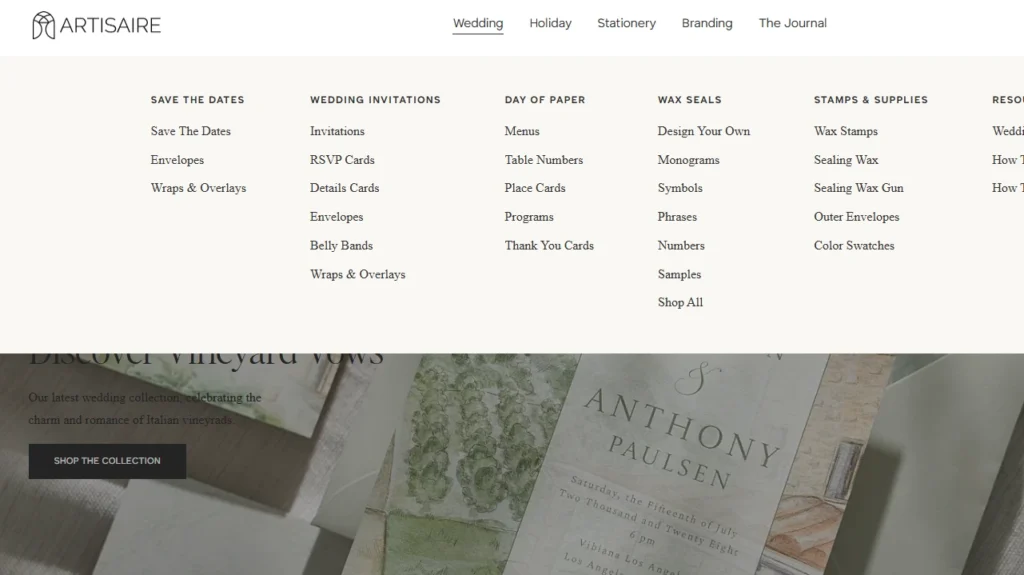
Source: Artisaire
How to Create a Shopify Mega Menu in Your Store?
Method 1: Using Theme Settings
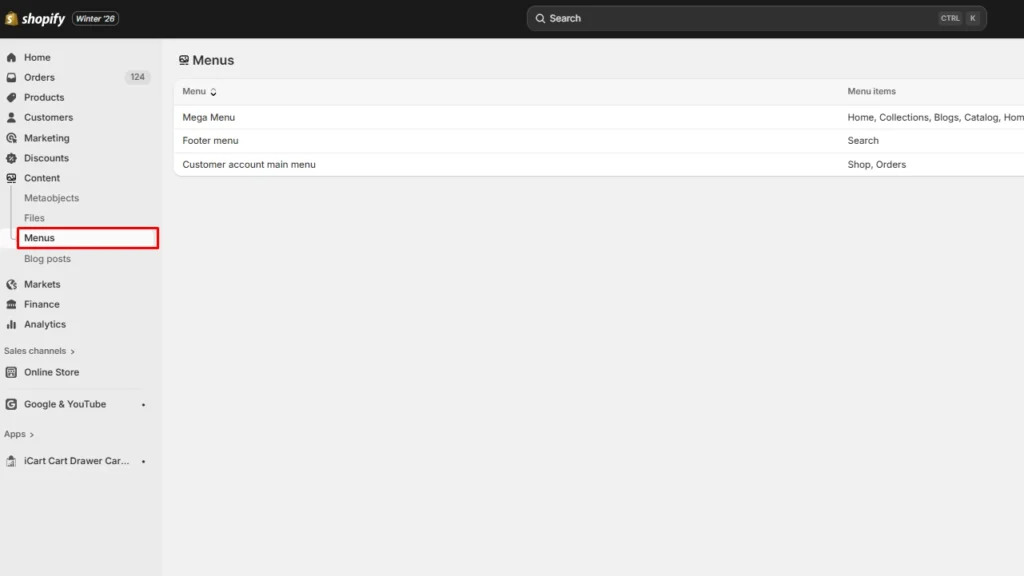
Step 1: Create your mega menu
From your Shopify admin panel, navigate to Content > Menus. Create or edit an existing menu.
Step 2: Add multi-level links
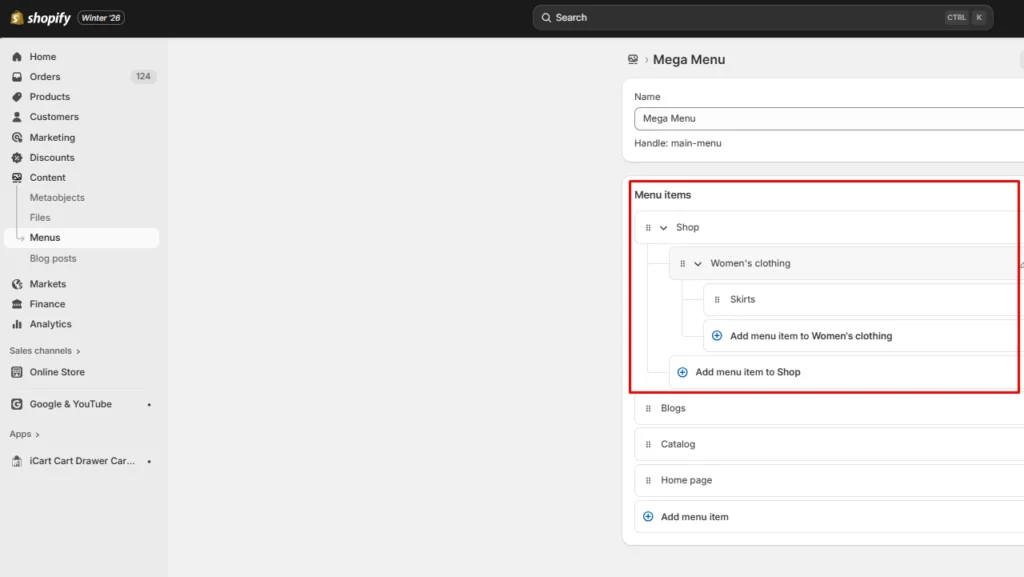
Create dropdown nesting by dragging menu items slightly to the right under the main item.
- Add your top-level items (example: Shop)
- Add your second-level items. These often become the headings. (example: Women’s clothing)
- Add third-level items under each second-level item (example: Skirts)
- Click Save.
Step 3: Assign that menu to your header in the theme editor
- Go to Online Store > Themes > Edit theme. Here I’m using the Dawn Shopify theme to create a mega menu. Click on the Header section in the sidebar.
- Set the Mega Menu to the menu you just built. It’s on the right-hand sidebar.
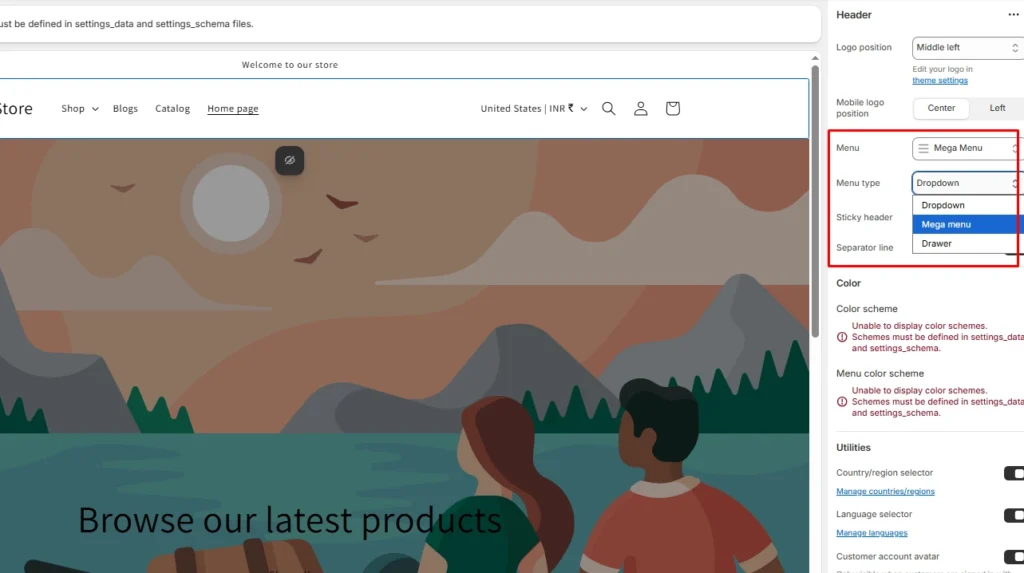
Once you have selected the menu type, you can preview the Shopify mega menu in your theme. Hit Save to publish.
Method 2: Using Shopify Apps
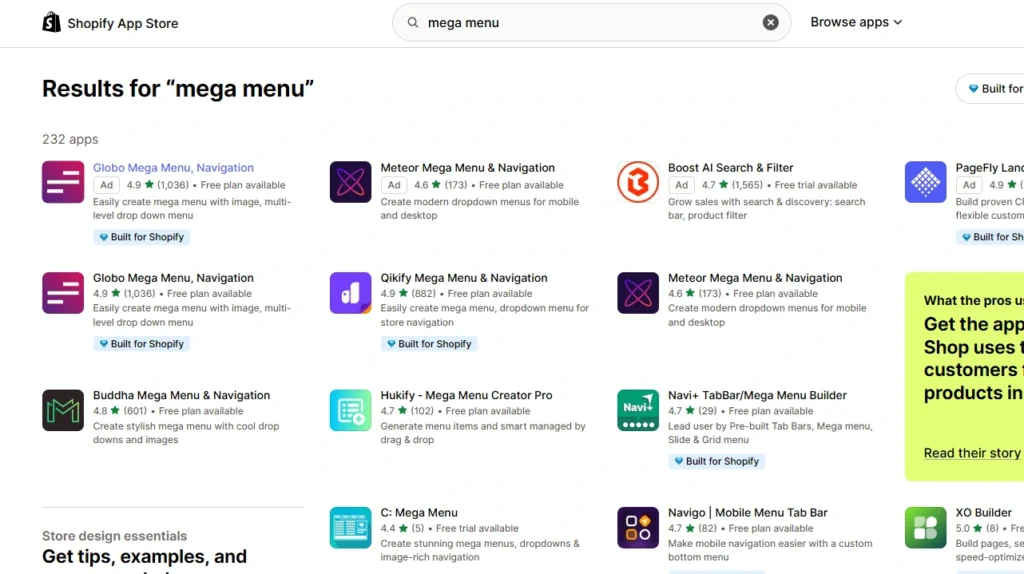
Step 1: Install the best mega menu app
- Most Shopify merchants use apps like Globo Mega Menu, Buddha Mega Menu & Navigation, or Qikify Mega Menu & Navigation.
- They’re designed for drag-and-drop mega menus, templates, and mobile-friendly layouts.
Step 2: Open the mega menu app
- Open the Shopify app for the mega menu installed from your Shopify admin (Apps).
- Follow its guided setup to build your menu layout, add links or collections, preview it, and publish the mega menu to your store.
Tips While Creating a Mega Menu in Shopify
- Start with your store structure first. Group products the way shoppers think (by category, use case, or collection), then build your mega menu around that.
- Keep it simple, even if you can add more. A mega menu works best when it feels easy to scan, not like a full sitemap.
- Limit columns: Try not to go beyond 4–5 columns in one mega menu. If you need more, split it into another top-level menu item.
- Use clear headings and shorter link names. Headings help people scan fast, and simple labels reduce confusion.
- Put best sellers and key collections at the top. People click what they see first, so place your most important links where they naturally land.
- Use images only when they help with shopping. A small promo tile for “New Arrivals” or a hero collection can work, but too many images make the menu harder to read.
- Test for mobile users: Mega menus can feel great on desktop but messy on phones, so test that it opens, scrolls, and taps easily.
- Test every link before you publish. One broken link inside a mega menu can ruin navigation fast, especially for new visitors.
Conclusion: Mega Menu Helps with Product
A mega menu is a navigation upgrade that helps shoppers find products faster. It helps especially when you have lots of collections and product types.
Build it around how shoppers browse, keep it clean, and your mega menu will quietly do its job: guide customers to the right products in less time.
FAQ for Shopify Mega Menu
1. What is a mega menu in Shopify?
A mega menu is a large dropdown navigation that shows many links at once in a wide, multi-column layout. It helps customers browse big catalogs faster without clicking through multiple layers.
2. What does a mega menu look like?
It typically opens as a wide panel from your top navigation and displays grouped links in columns with headings like Shop by Category. Some stores also include images, banners, or featured products inside the menu.
3. Why is your mega menu not showing in Shopify?
The most common issue is that your theme doesn’t support a true mega menu layout. Other issues include that the header isn’t set to display the main item in a dropdown style. It can also happen when nested items aren’t actually nested correctly in Content > Menus.
4. How to add a mega menu in Shopify?
Create a multi-level menu first by nesting items in Content > Menus (your parent category on top, subcategories under it). Then open Online Store > Customize > Header and assign the “mega menu” that you have created.
5. How to add an image for in mega menu in your Shopify store?
If your theme supports it, you can add an image by going to Customize > Header > Add block and matching it to the menu title you want. If not, you can use Shopify apps like Globo Mega Menu and Qikify Mega Menu & Navigation.
6. What is the difference between a drop-down and a mega menu in Shopify?
A dropdown menu usually shows a simple, single-column list of links under one item. A mega menu is a larger panel that can show multiple columns in text or image format, so customers can browse more options in one view.




About the author
Vineet Nair
Vineet is an experienced content strategist with expertise in the ecommerce domain and a keen interest in Shopify. He aims to help Shopify merchants thrive in this competitive environment with technical solutions and thoughtfully structured content.