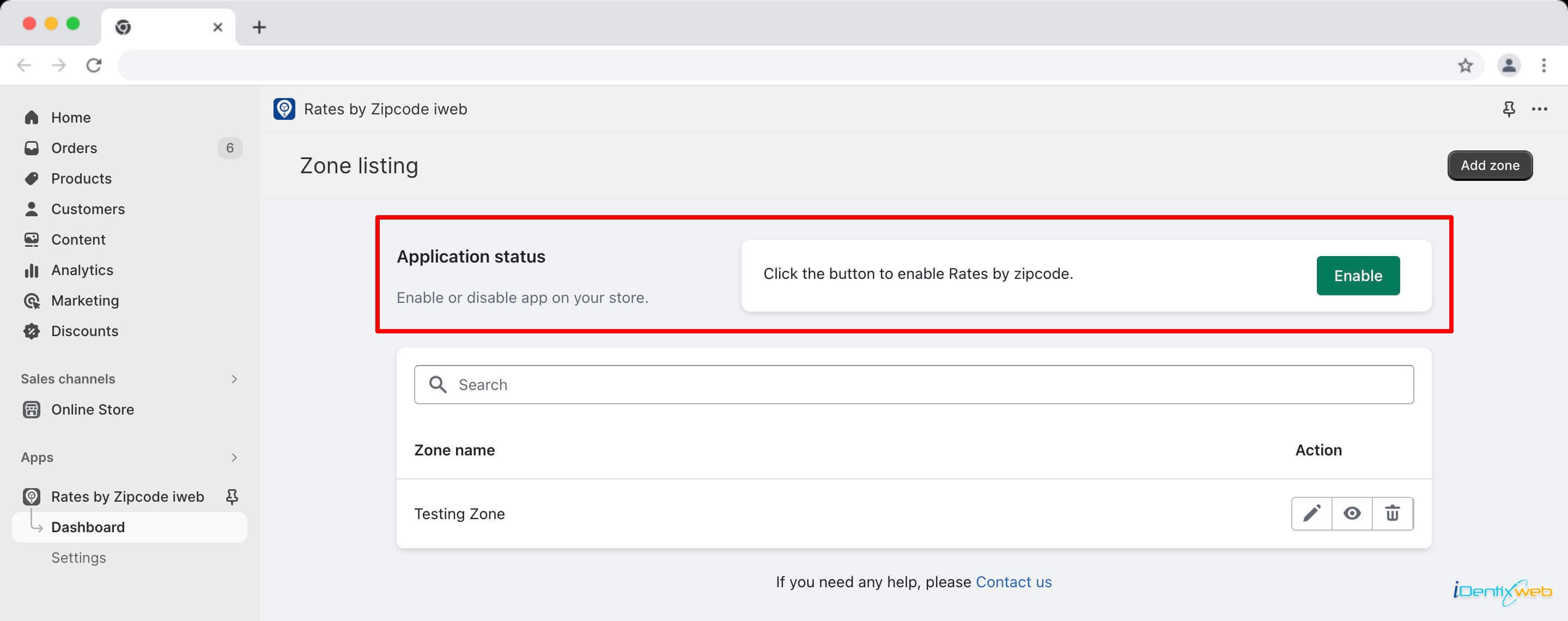
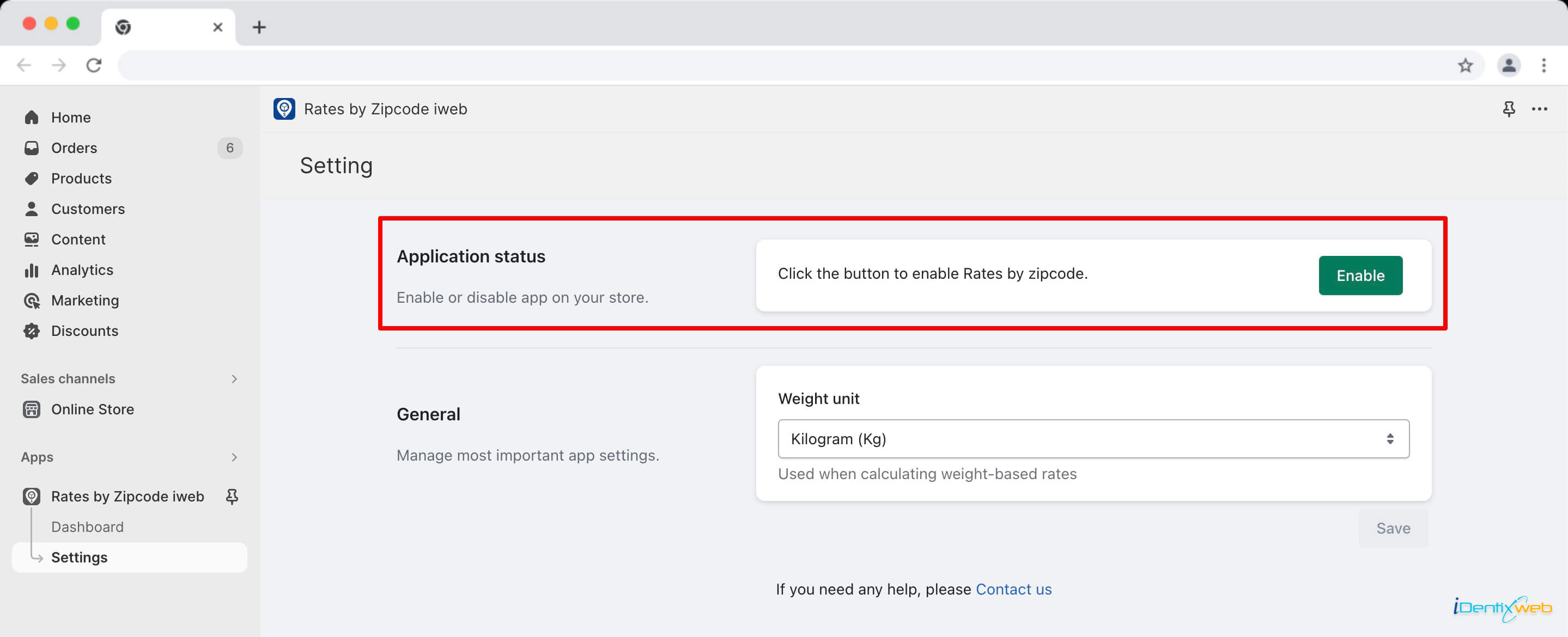
The Application status setting allows you to manage the functionality of your app by enabling or disabling it as needed. This guide provides instructions on how to control the app's status and what changes you can expect to see on your dashboard and settings menu. To enable or disable the app, go to the Settings menu and find the "Application status" option.
If the app is disabled, you can activate it directly from the dashboard by clicking the "Enable" button. Once enabled, the "Application status" section will no longer appear on the dashboard but will remain accessible in the Settings menu.
The Application status setting allows you to control the activation or deactivation of the application’s functionality. This guide will walk you through the process of enabling or disabling the app status, along with the changes you can expect to see on the dashboard page and the settings menu.
To enable/disable the app, visit the Setting menu from the app where you can see “Application status” option and can perform enable/disable action.
If the app is disabled, “Application status” option also displayed on the dashboard page, by clicking on the “Enable” button in that section, you can activate the app from Dashboard. After enabling the app from Dashboard, the “Application status” section will be disappeared from Dashboard and will be find in the Settings menu.