





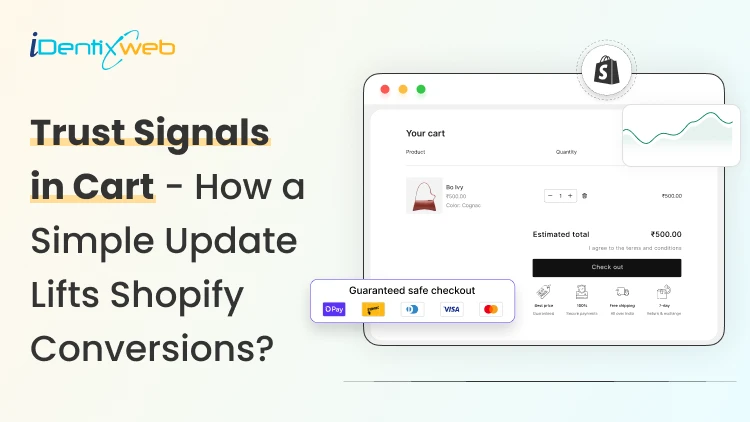
New shoppers do not leave because your product looks bad. They leave because something feels off right before they pay.
Just before they click ‘Checkout’, they often ask, ‘Can I trust this store?’
They start scanning for proof. They want to know if the payment is safe, if shipping is real, and what happens if the order shows up and it’s not what they expected.
That’s why trust signals in your Shopify store matter so much, especially in the cart. If your cart shows signals of trust, customers will move forward and complete the purchase.
The stats don’t lie
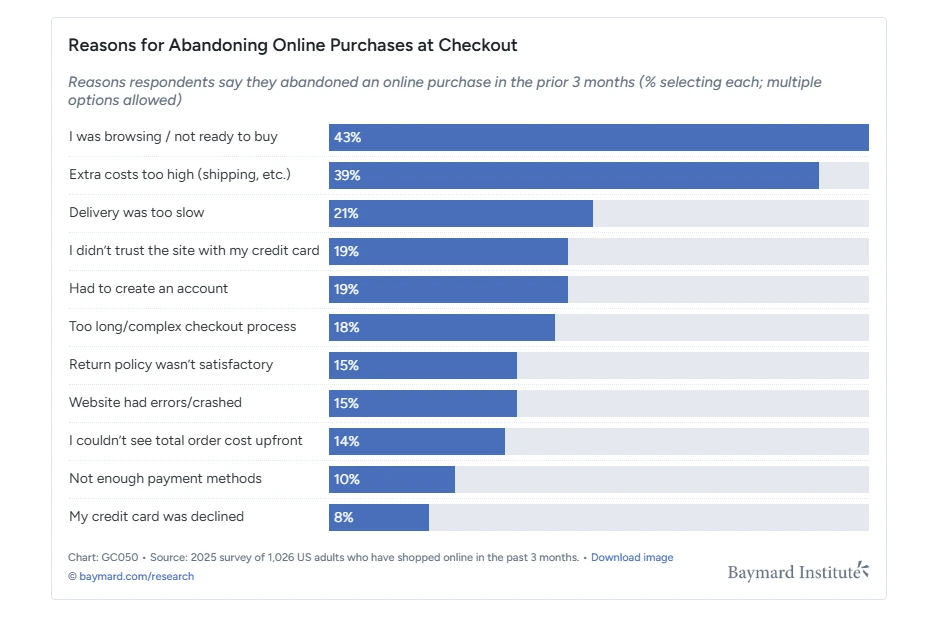
According to Baymard Institute’s research, untrustworthiness is one of the top 5 reasons for cart abandonment. But what do ‘trust signals’ actually mean?
When the customers have decided to checkout, they’re about to hand over their card details. That’s when doubt shows up, especially for new stores they have never bought from.
Customers ask themselves.
- Is the payment secure, or am I about to get scammed?
- Will this actually arrive?
- Can I return it if it doesn’t fit or it’s not what I expected?
If your cart doesn’t answer those questions fast, they will leave.
Trust signals exist to stop that pause.
A trust signal is any small proof in your store that tells a shopper you’re legit, and their order is safe to proceed.
Trust signals in Shopify, like payment icons, reviews, and clear shipping or returns info removes last-second doubt in the customer. They add a quick layer of comfort so the shopper feels confident clicking the checkout.
Types of trust signals that increase conversions
Payment method icons
- Put payment icons right under the Checkout button. That’s where the question hits. Example: “Visa, Mastercard, Amex, PayPal, Shop Pay”
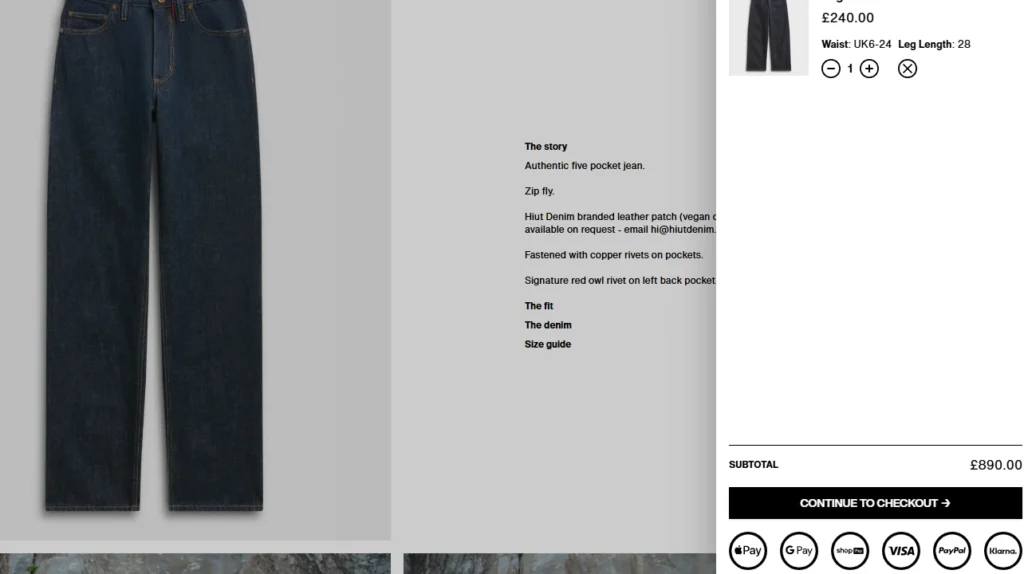
- Only show what you actually accept. If PayPal is not enabled, do not show it. Example: Remove Apple Pay icons if Apple Pay is not available in your checkout.
- If you use a cart drawer, add the icons there too. Many shoppers never see your full cart page. Example: Cart drawer shows “Checkout” plus icons below it.
Shipping clarity
- Add one clean line that sets expectations. Keep it simple. Example: “Ships in 24 hours. Delivery in 3 to 5 business days.”
- If you provide tracking, mention it in the cart before checkout. Example: “Tracking sent by email after shipping.”
- If you offer free shipping over a threshold, place it near the totals so it feels real. Example: “Free shipping over $50”
Adding a progress bar in the cart makes your free shipping goal feel real.
Instead of guessing, shoppers see exactly how close they are. For example, you’re $12 away from free shipping.
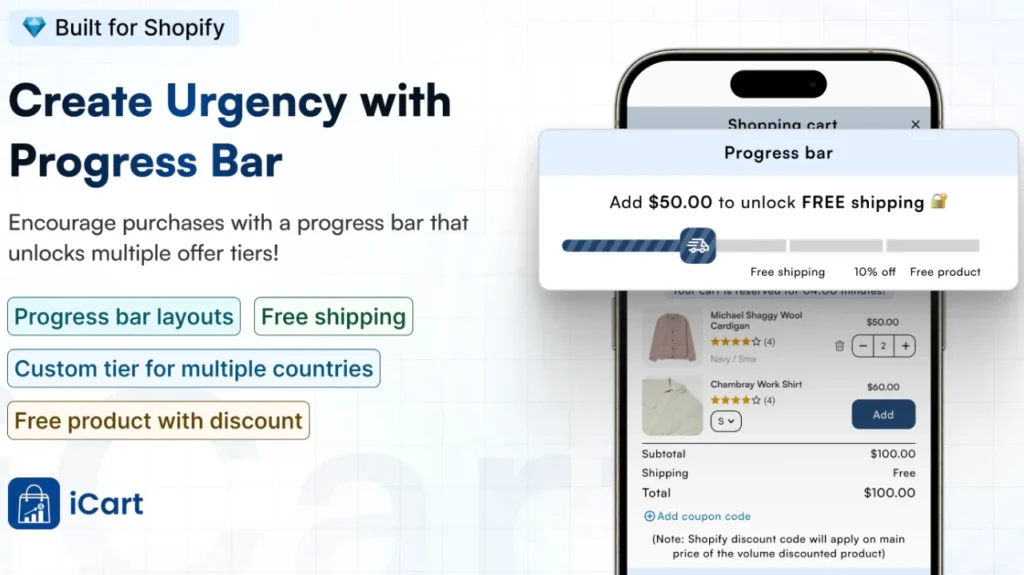
With iCart, you can show that free shipping threshold right inside the cart drawer, so the shopper sees it at the exact moment they’re deciding to check out.
It’s a simple way to increase Shopify conversions in the cart drawer.
Returns and guarantee badges
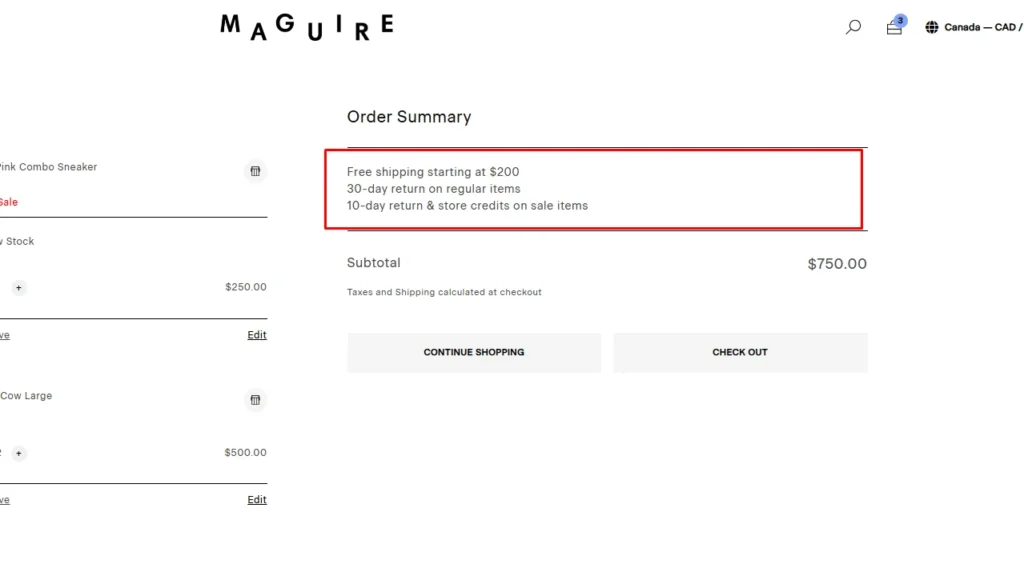
- Add a short badge to inform of the return policy at the order summary. Example: “30-day returns” or “Free exchanges”
- The return policy is very important, especially in fashion and apparel stores. These trust badges will help significantly decrease cart abandonment.
Review proof in cart
- Add quick numbers that feel real and easy to scan. Example: “4.7/5 average rating from 2,100 customers”
- If you can show one review line, keep it short and product-focused. Example: “Quality is better than expected.”
- Install the best Shopify product review apps to help you add product reviews, ratings, and testimonials to your store.
Security and checkout reassurance
- Use a simple reassurance text at the checkout button that matches your store’s design. Example: “Secure checkout” + payment icons below.
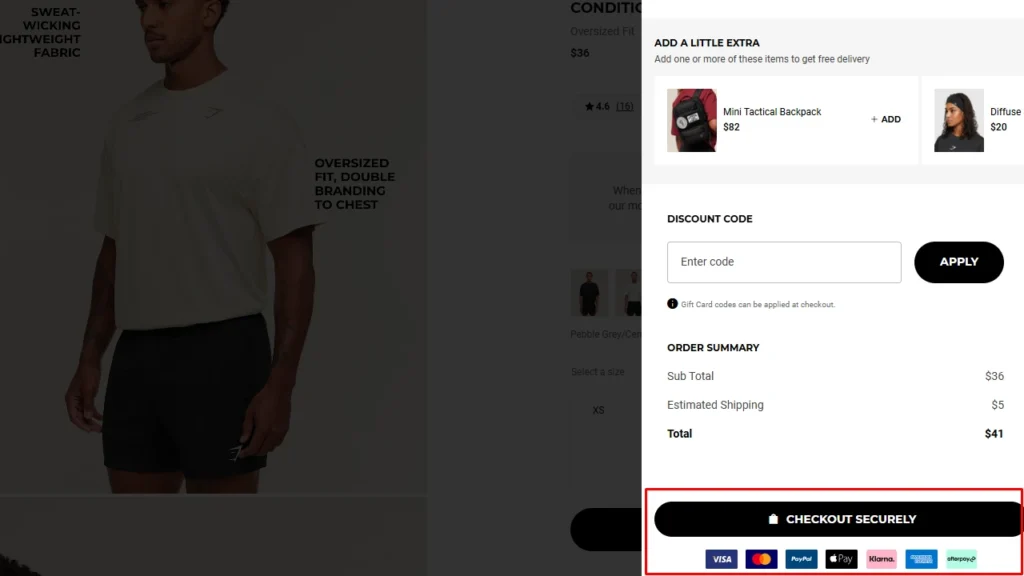
- If you want one more line, keep it short. Example: “Your payment is processed securely.”
Support access
- Add a small help line near the checkout to make the customers feel at ease. Example: “Need help? Chat with us” or “Questions? Email support”
- Keep it one click away. A nice tip here is to not bury it in the footer. A chat bubble, or a support link under the Checkout button, works perfectly as a trust badge in Shopify stores.
Where to place trust badges in Shopify?
| Trust signal | Best placement | Why it works |
| Payment icons | Under checkout button (cart drawer/cart page) | Removes payment uncertainty |
| Returns/guarantee | Near totals or below button | Reduces the considered risk |
| Shipping ETA | Near shipping line or below totals | Stops delivery anxiety |
| Review snippet | Near the item list or below the button | Adds social proof right before purchase |
| Support link | Near button | Prevents abandonment from queries |
Which is the best way to add trust badges in Shopify?
The easiest way to add a trust badge to your Shopify store is via a Shopify app.
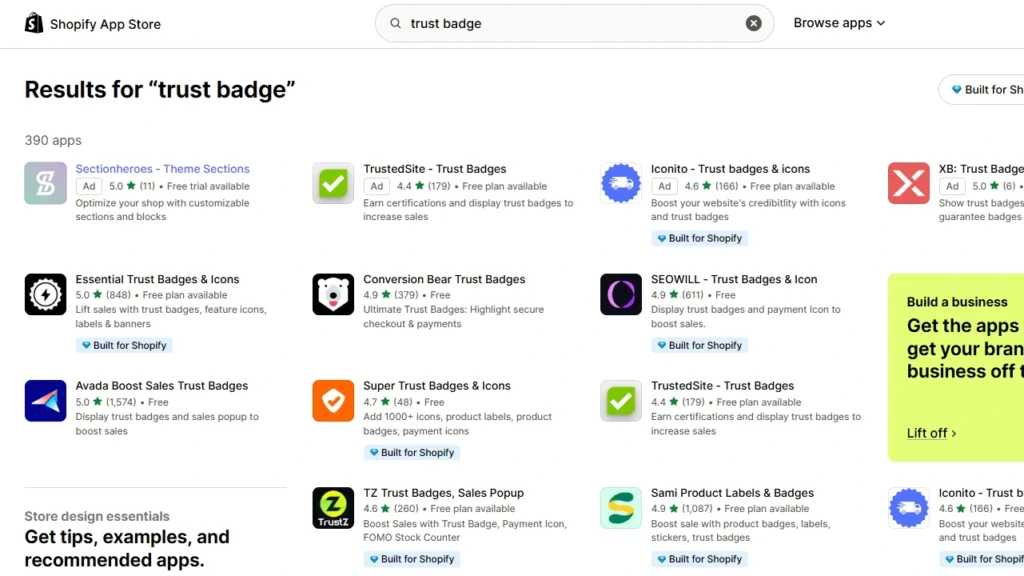
Step 1: Pick a trust badge app from the Shopify App Store
Go to the Shopify App Store and search for “trust badges.” You will see options like Essential Trust Badges that let you add payment icons, secure checkout badges, and guarantee/returns badges without touching code.
Step 2: Install it and build your badge set
After installation, create a clean set of badges that match your store. Choose the icons, add short text (like “30-day returns” or “Secure checkout”), and keep the design simple.
Step 3: Choose where the badges show up
Set placement based on where shoppers feel the most hesitation. For most new stores, the best spots are the product page (near Add to cart) and the cart/cart drawer (near the Checkout button).
Step 4: Turn it on in your theme
Go to Online Store > Themes > Customize, enable the app in the App embeds section and click Save.
Conclusion
Trust signals are about removing doubt at the exact moment a shopper is ready to pay. Badges like clear shipping and returns lines, and visible payment icons near the checkout button can make your cart feel safer instantly.
Trust badges Shopify FAQs
1. What are trust signals in ecommerce?
Trust signals are small cues that reduce anxiety right before someone pays. Trust badges include payment icons, clear shipping and returns info, review proof, and secure-checkout messaging.
2. How to add trust badges to Shopify?
The easiest way is to use a Shopify app that lets you pick icons, add short text, and place them on product/cart/footer without code. Most of these apps also include ready-made badge sets and placement controls so you can publish fast.
3. Can I add trust badges to the Shopify product page?
Yes. You can add them under the Add to cart button using a theme section/block (if your theme supports it) or an app block that inserts badges on product pages.
4. How to add trust badges to the Shopify checkout page?
On standard Shopify plans, you generally can’t add custom trust badge sections inside the checkout flow. On Shopify Plus, you can add things like Shipping & Payment icons using Checkout Blocks and place them inside checkout.
5. Can I add a trust badge to my store footer?
Yes. Many themes have a footer setting to show payment icons, and you can also add badges via an app block. If you want more control, some merchants add payment icons directly in the footer code.
6. Where can I download trust badge PNG images?
Most trust badge apps include built-in icon libraries and let you upload your own PNGs, which is usually the best option. If you download PNGs elsewhere, be careful with trademarked “security seals” or payment logos you’re not licensed to use, since that can hurt trust instead of helping.


![Best ChatGPT Prompts for Shopify You Can Copy-paste [+Tips to Write Prompts]](https://www.identixweb.com/wp-content/uploads/2026/03/13-03-Fri-Blog-AI-Prompts-for-Shopify-That-Grow-Your-Store-1.webp "Best ChatGPT Prompts for Shopify You Can Copy-paste [+Tips to Write Prompts]")

About the author
Vineet Nair
Vineet is an experienced content strategist with expertise in the ecommerce domain and a keen interest in Shopify. He aims to help Shopify merchants thrive in this competitive environment with technical solutions and thoughtfully structured content.