






To remove “Powered by Shopify,” go to Online Store > Themes and open your theme menu. Click Edit default theme content, search for powered, then replace the “Powered by Shopify” text with a single space and save. If it still shows in your footer, open Edit code, find footer.liquid, search for {{ powered_by_link }}, delete that line, and save.
To remove “Powered by Shopify,” go to Online Store > Themes and open your theme menu (three dots or Actions). Click Edit default theme content, search for powered, then replace the “Powered by Shopify” text with a single space and save.
If it still shows in your footer, open Edit code, find footer.liquid, search for {{ powered_by_link }}, delete that line, and save. Before you change any code, duplicate your theme first so you have a backup.
When creating a new online store, many Shopify merchants wonder how to get rid of “Powered by Shopify” from their website footer.
Most of them who use free Shopify themes or free trials might not be aware of whether it is allowed or not to remove Powered by Shopify.
Yes, you are allowed to remove powered by Shopify regardless of using free Shopify themes or a free trial for your online store.
What does ‘Powered by Shopify’ mean?
‘Powered by Shopify’ in your store refers to customers that your website is built on Shopify.
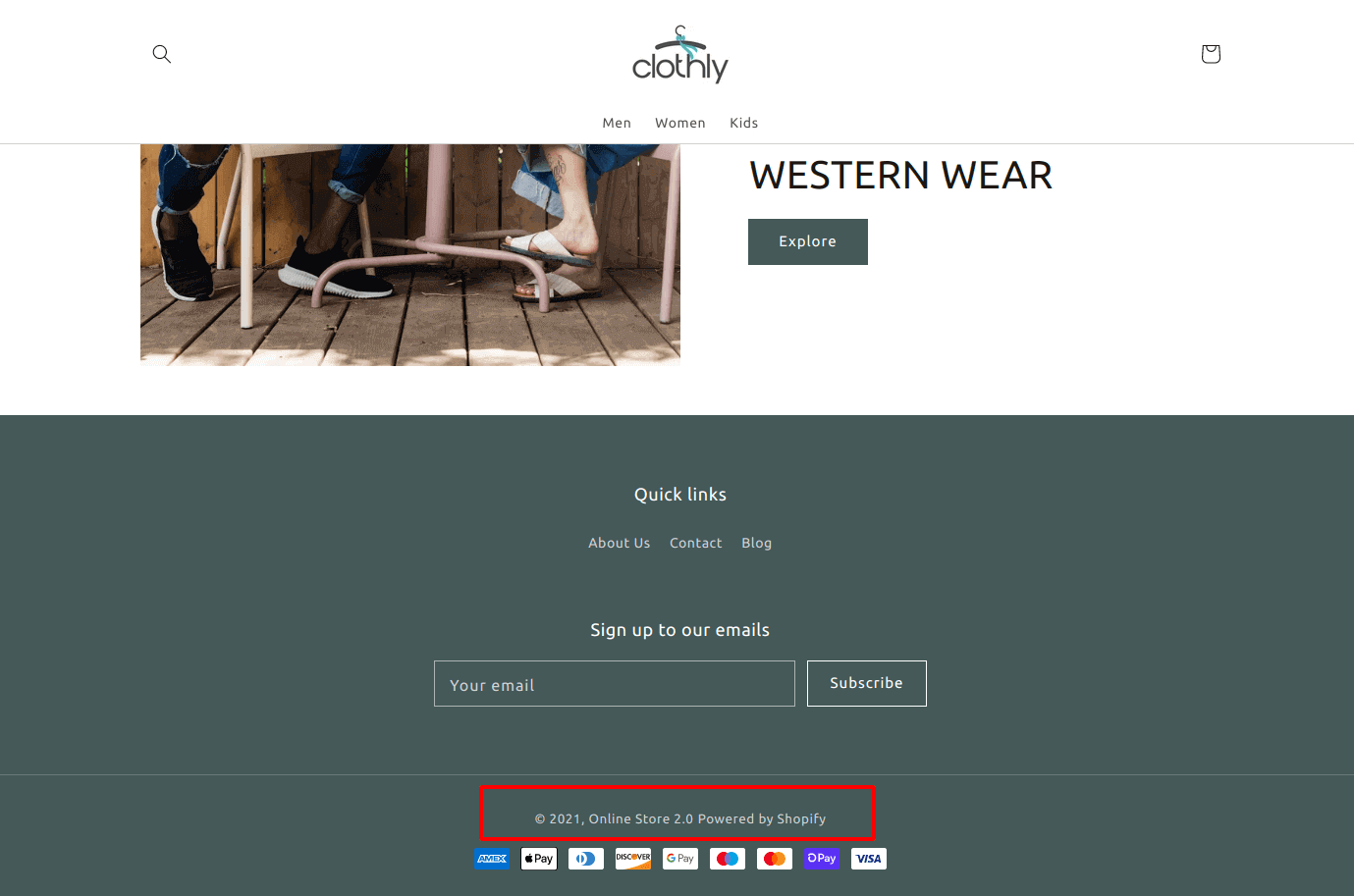
By default, this text is added to the store footer as seen below.
Where is Powered by Shopify found?
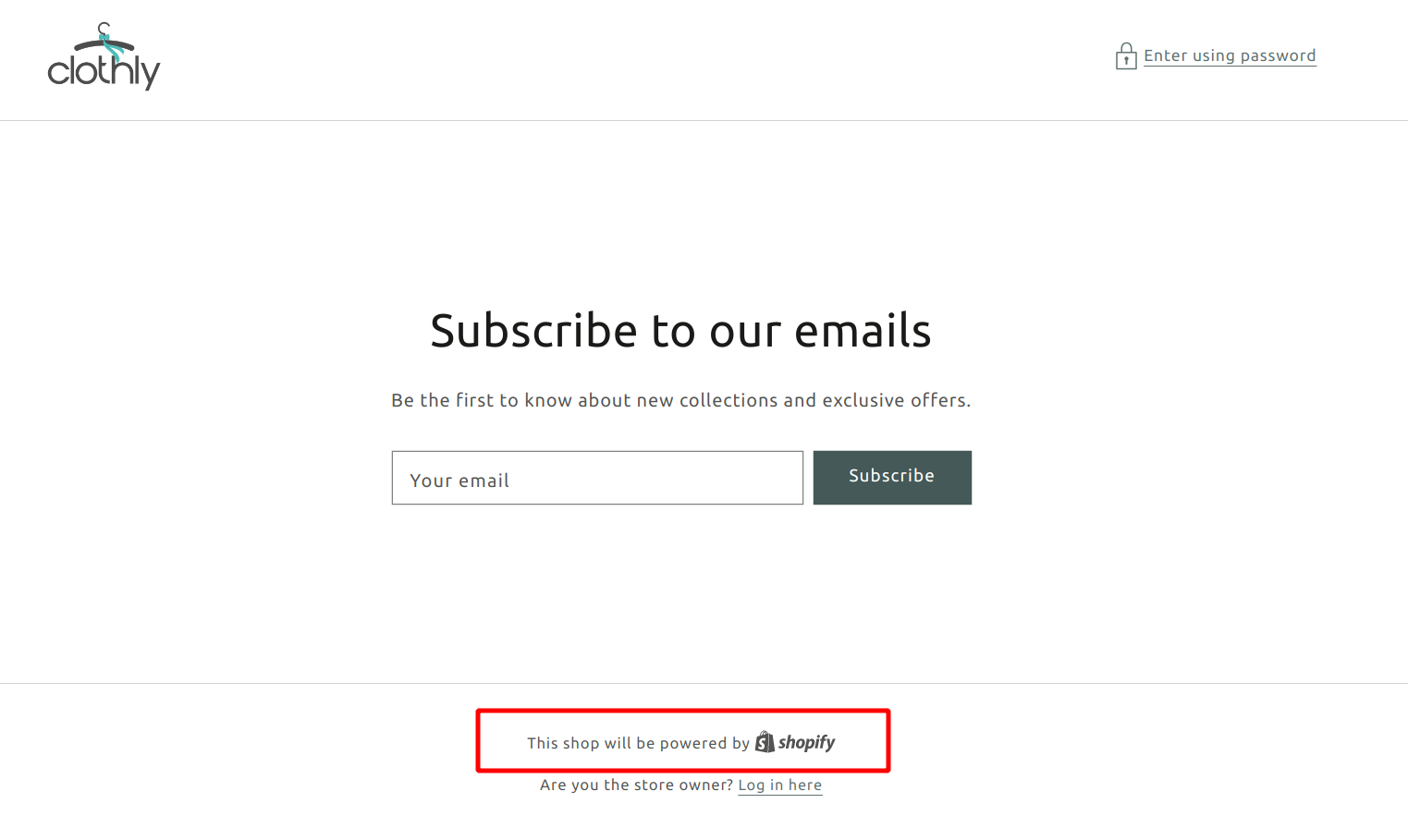
When creating a Shopify store, Shopify shows the ‘Powered by Shopify’ text/link on your store's footer. It is mainly found on two pages.
1. It is found on the footer of most of the pages of your store.
2. Password or Coming Soon page of your store (when the store is not live and password-protected)
How to remove Powered by Shopify from your store?
You'll discover how to remove Powered by Shopify from your store in two methods here.
Method 1: Steps to remove 'Powered by Shopify' (No code)
Step 1: Log in to your store admin.
Step 2: In your admin dashboard, go to Online store > Themes.
Step 3: Click the three dots (...) and select Edit default theme content.
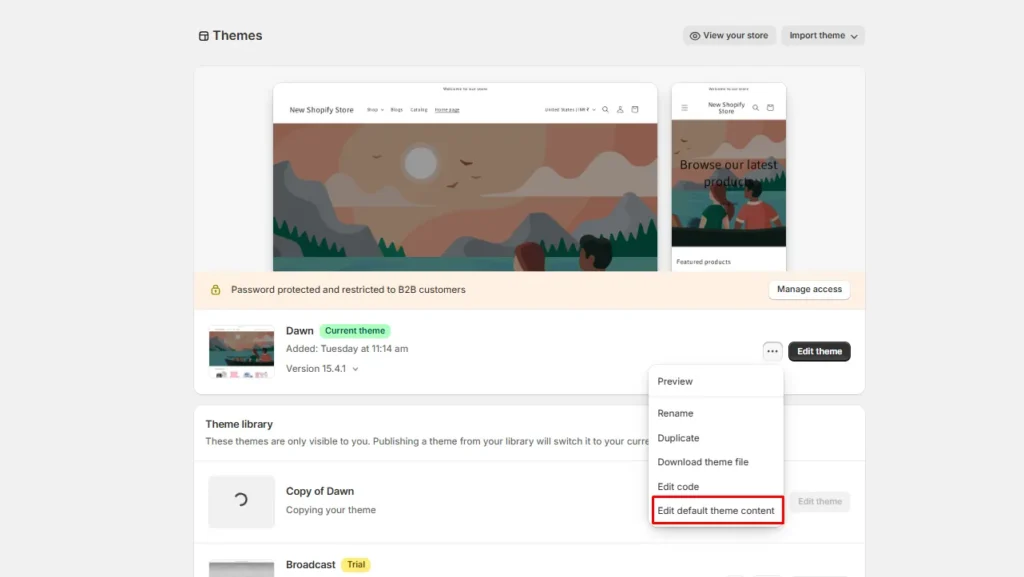
Step 4: Type “powered” in the Filter box. You will get the search results in a few seconds.
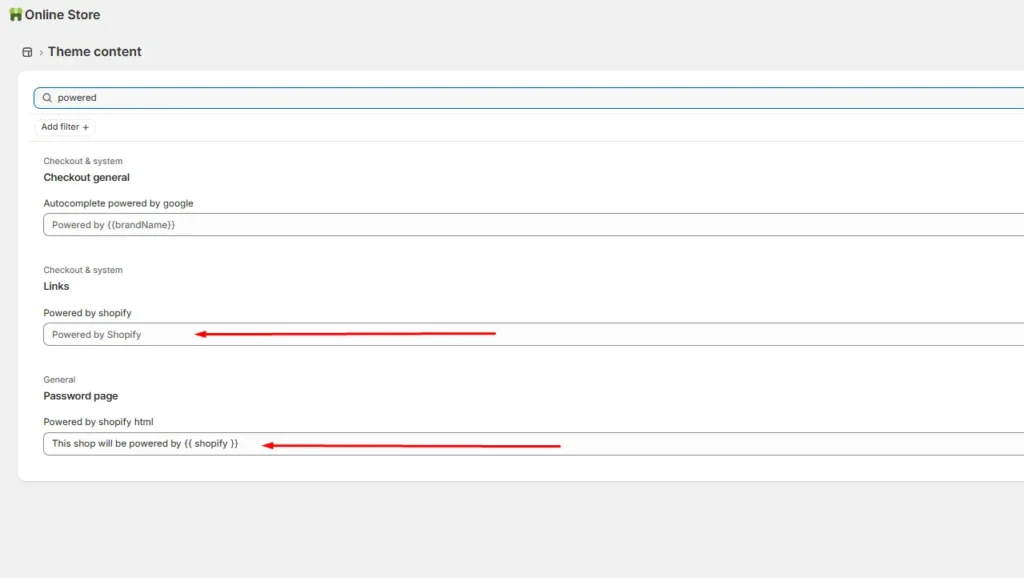
Step 5: Type a single space in the Powered by Shopify box or delete the text and click Save.
Step 6: Similarly, if your Shopify store is password-protected, use the same steps in the Powered by Shopify HTML box.
Method 2: How to get rid of 'Powered by Shopify' (With code)
Step 1: Log in to your store admin.
Step 2: In your admin dashboard, go to Online store > Themes.
Step 3: First, back up your theme. Click on the three dots (...) button and select Duplicate.
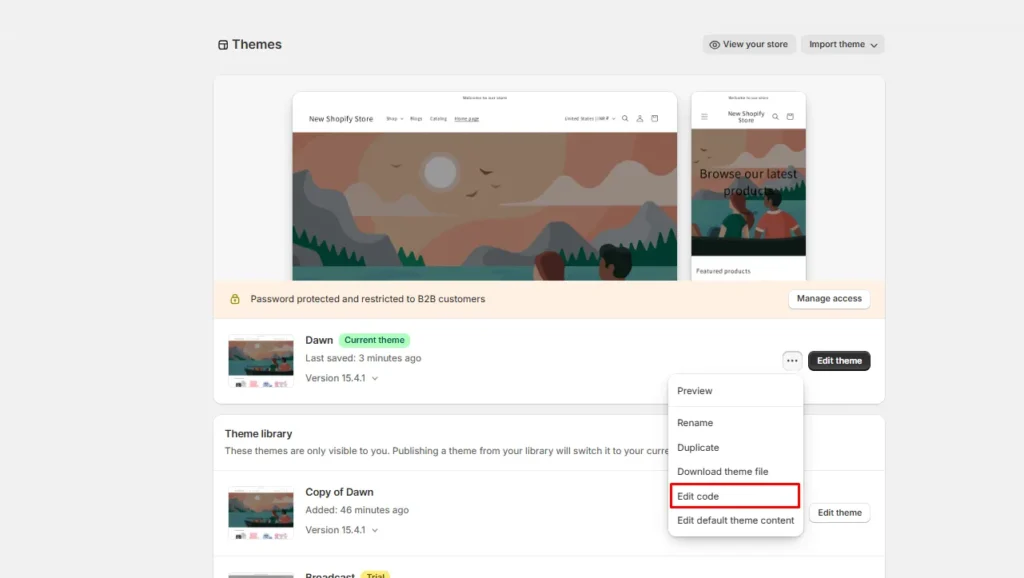
Step 4: Now, click the three dots (...) button and select Edit code.
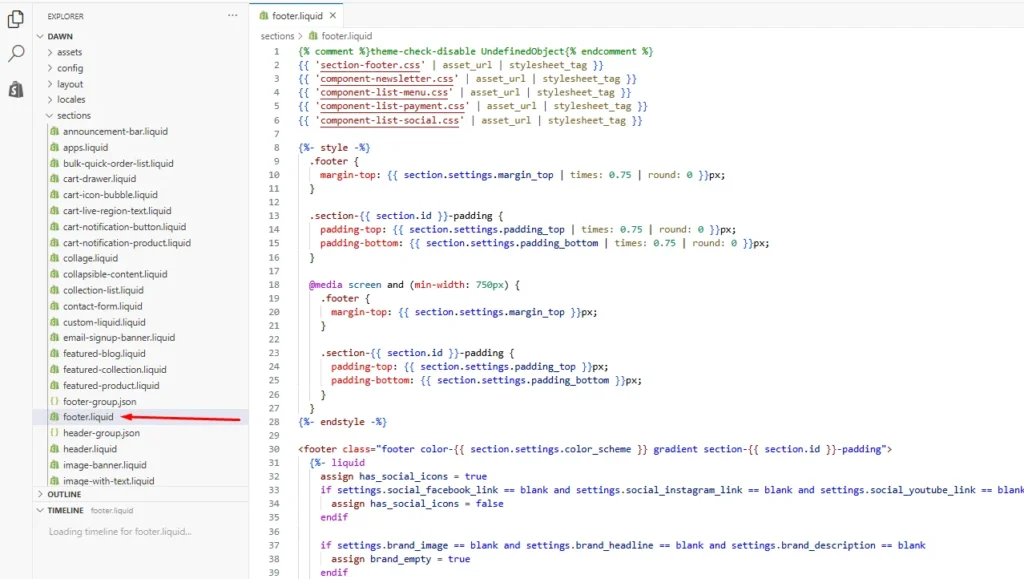
Step 4: Search for the footer.liquid file in the sections folder.
Step 5: In this footer.liquid file, locate this line of code by typing Ctrl + F and pasting the “{{ powered_by_link }}” code.
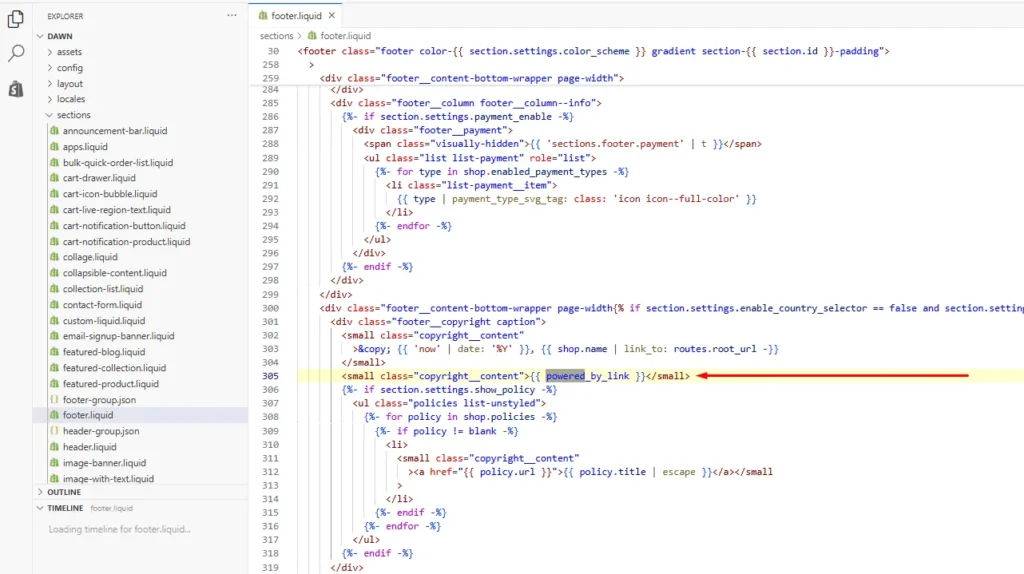
Step 6: Delete all the {{ powered_by_link }} code from the file and click Save
Step 7: Do the same to remove ‘Powered by Shopify’ from the Password page. Locate the “{{ powered_by_link }}” code in the password-footer.liquid file in the Section folder and delete it. Save the changes.
How to change Powered by Shopify?
Instead of removing Powered by Shopify from your online store, you can change it to Powered by [your-brand-name].
Adding your brand name to ‘Powered by’ will add more value to your website.
Steps to change Powered by Shopify
Step 1: Log in to your store admin.
Step 2: In your Shopify admin dashboard, go to Online store > Themes.
Step 3: Click on the three dots (...) menu and click Edit default theme content.
Step 4: Type “powered” in the Filter box. You will get the search results in a few seconds.
Step 5: You can see the field of 'Powered by Powered by {{Brand Name}} here.
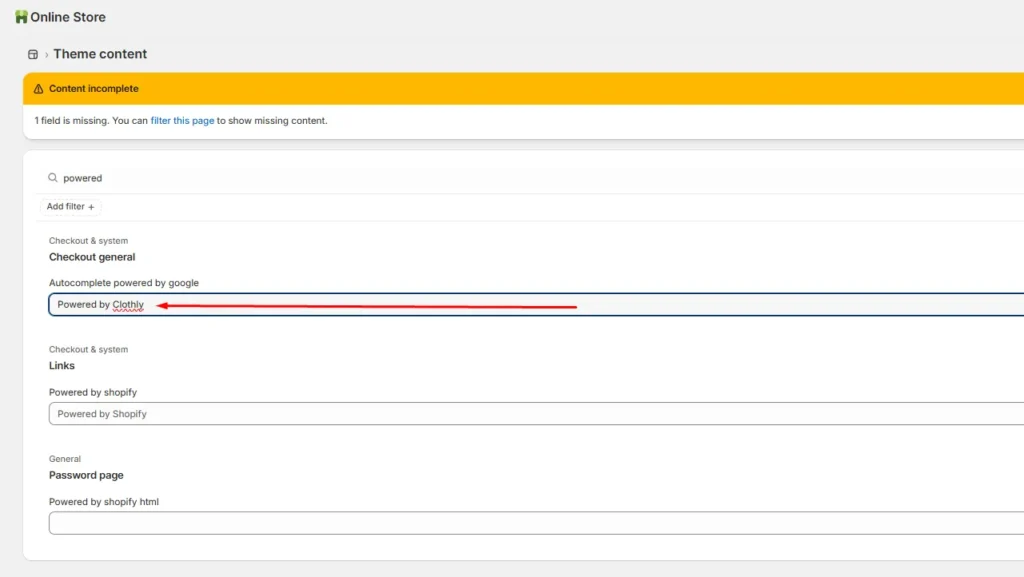
Step 6: Add your brand name here. For example, I have added Powered by Clothly. This will change the default ‘Powered by Shopify’ text from the Password page of your store.
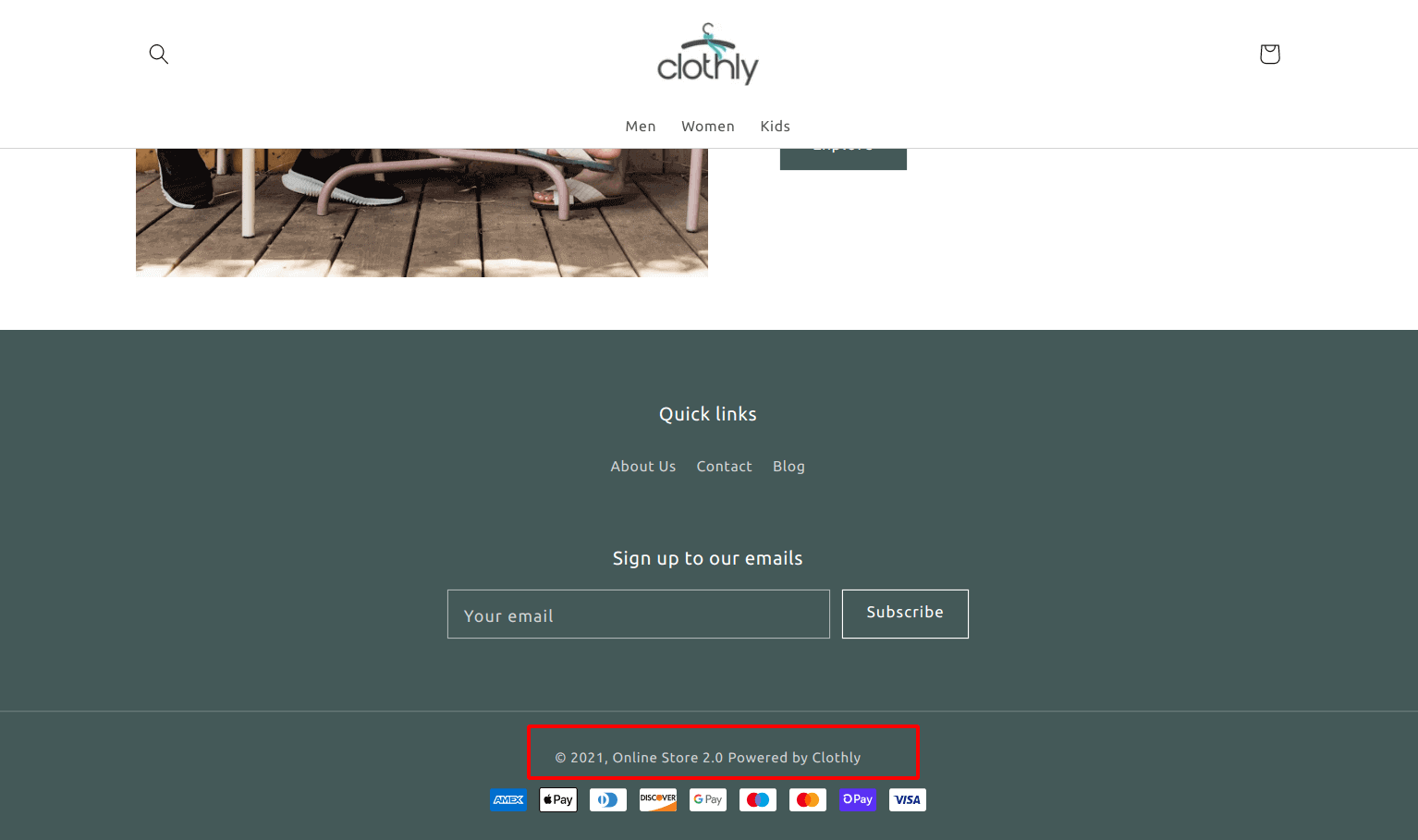
Step 7: Click Save to finish. It will look like this.
Why can't I remove ‘Powered by’ from my Shopify store?
When you set up your store, Powered by Shopify is a default setting. This is the main reason why you cannot remove it initially. Follow the above two methods of code and no code to easily remove it from your storefront.
To Wrap it Up
Removing “Powered by Shopify” is a small change, but it helps your store feel more branded and professional. Rather than removing it, I suggest replacing it with your brand name.
It feels more powerful and builds trust among customers who visit your store. This, in turn increases conversions.
FAQs for How to Remove Powered by Shopify
1. Can I remove powered by Shopify?
Yes. Shopify fully allows you to remove or customize the ‘Powered by Shopify’ footer credit. You can delete it using your theme’s settings or code, and doing so will not violate any Shopify policies.
2. Should I remove powered by Shopify for my store?
It’s optional and up to your branding preference. Many merchants remove it for a cleaner, more professional look and to focus on their own brand but keeping it won’t harm your store if you prefer it.
3. Is powered by Shopify legit?
Yes, it’s official and perfectly legitimate. It is Shopify’s default footer text, indicating your store is built on Shopify’s platform, not a scam or malware.
4. What does 'powered by Shopify' mean?
It means your online store is running on Shopify’s platform. In other words, it’s the default message that lets visitors know the website is built and hosted with Shopify’s e-commerce software.
5. How to hide powered by Shopify?
You can remove it in your Shopify admin under Online Store > Themes > Actions > Edit languages. Just search for the “Powered by Shopify” text and delete it, then save. If your theme doesn’t have that option, open Actions > Edit code and delete the line containing {{ powered_by_link }} in your footer file.


About the author
Sagarika Das
Sagarika Das is a content writer with a passion for the ecommerce world. She crafts engaging, SEO-friendly content that helps online businesses connect with customers and grow.