





If your Shopify store relies on local delivery, you cannot make mistakes for your local customers.
Local delivery features in Shopify will win you customers, but your plan decides how much control you get once the customer hits checkout.
This guide keeps it simple. You’ll see what Shopify local delivery looks like on standard plans, what changes on Shopify Plus, and how to choose without overpaying.
Quick overview
Standard plans let you set up Shopify local delivery using ZIP/postal codes or a delivery radius. You can also set delivery fees and minimum order rules so you don’t lose money on small orders.
Shopify Plus adds deeper checkout control with Checkout Blocks, so you can hide, rename, or reorder delivery options based on rules you care about.
What is Shopify local delivery & how is it different from local pickup?
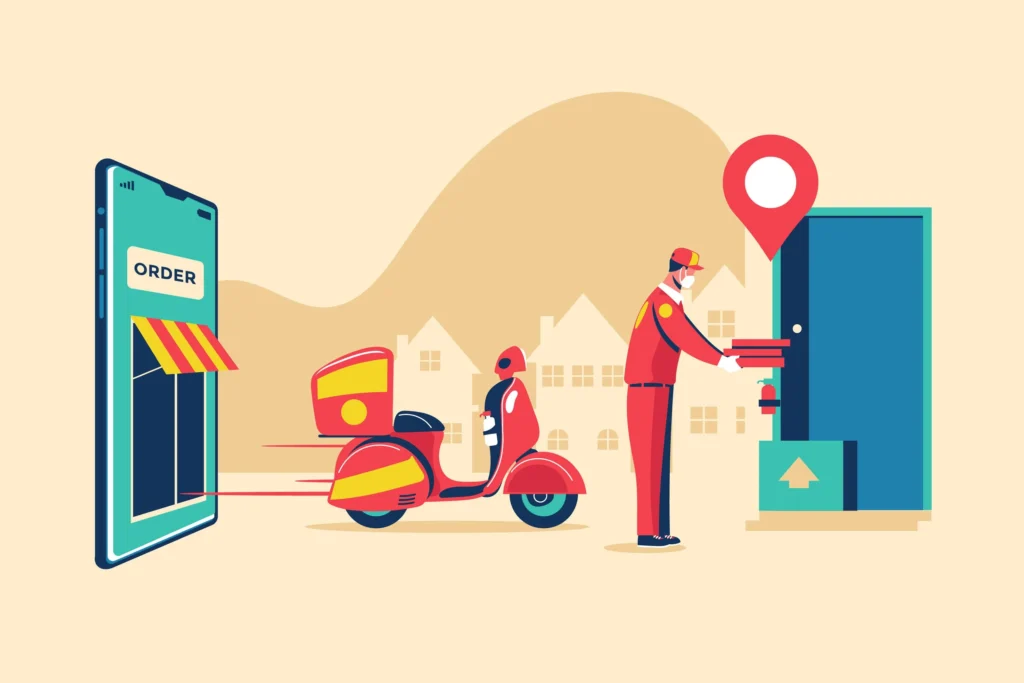
Shopify local delivery means you deliver the order to the customer’s address. It can be the same city or nearby ZIP codes. The customer enters their address at checkout, and Shopify shows local delivery if the address matches your delivery area.
In local pickup, the customer places the order online, then picks it up from your pickup location. They still check out online, but they do not need delivery.
The easiest way to remember it
- Local delivery: you go to the customer
- Local pickup: the customer comes to you
What Standard plans do I need for Shopify local delivery?
If you’re a new store owner, this is the good news: you can launch Shopify local delivery on a Standard plan and still look professional.
You can control where you deliver, what you charge, and when it makes sense to accept an order.
Most stores do not need Shopify Plus if they plan to deliver locally. You usually need Plus only when you want deeper checkout rules, like hiding or renaming delivery options based on conditions.
You can set delivery zones by ZIP codes or radius
Merchants can decide exactly where local delivery shows up at checkout. That’s your delivery “service area.”
Two ways to build a delivery zone:
- Choose a radius if you want a fast setup. This works great when you deliver within a simple distance like 5 or 10 miles.
- Use postal/ZIP lists if you want tighter control. This is better when one nearby ZIP is easy, and another ZIP is difficult because of factors like traffic.
Quick tip: If you deliver in a city, ZIP codes usually give you cleaner control than a radius. Radius can look simple, but real roads do not move in perfect circles.
You need to protect your margins while using local delivery. Customers expect local delivery to follow basic rules, especially for small businesses.
What rules can you set?
- Delivery fee: Charge a flat fee, or set it to $0 if you want to offer free local delivery.
- Minimum order amount: This is the easiest way to avoid losing money on small orders.
Real-world example: If your average order is $35, a $10 delivery run hurts. A minimum order of $50 makes your delivery model sustainable.
You can run local delivery from multiple locations
If you have more than one location, Shopify local delivery apps like Stellar support multiple locations.
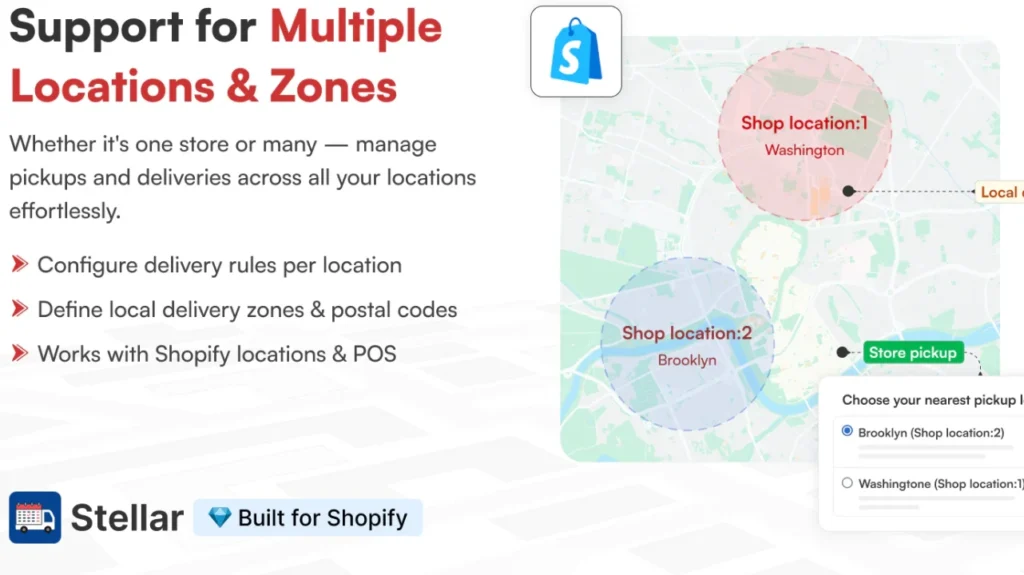
This matters when you ship from one place but deliver locally from another.
How it works in practice:
- Each location can have its own delivery rules, like a delivery fee and a minimum order.
This is also where you avoid customer confusion. A customer in Austin should not see delivery rules meant for Dallas.
What does Shopify Plus change for local delivery?
The one big difference between standard plans and Shopify Plus is that it lets you control how delivery options appear inside checkout.
This is the big feature. Shopify’s Checkout Blocks (powered by Shopify Functions) lets you conditionally hide, rename, and reorder delivery options in checkout.

What you can do:
- Hide a delivery option when it doesn’t make sense
Show fewer choices so customers do not pick the wrong one. You can hide delivery options based on rules you set in Checkout Blocks. - Rename delivery options to match how customers talk
“Local delivery” can become something clearer, like “Same-day local delivery” or “Next-day delivery.” This improves clarity without changing your actual delivery settings. - Reorder delivery options to influence selection
Put your preferred option higher so customers see it first. This is useful when you offer local delivery, shipping, and pickup, and you want the most relevant option to stand out.
Why does this matter for Shopify local delivery? Shopify Plus’s delivery customization is designed to rename, sort, and hide delivery options during checkout, including shipping, local delivery, and pickup options.
Note: Creating a delivery or payment method customization using Checkout Blocks is available only on Shopify Plus.
Here’s where Plus helps you with local delivery.
- You sell items that cannot be delivered (fragile, oversized, or local pickup only). Hide local delivery when those items are in the cart.
- You want clearer language than Shopify’s default labels. Rename “Local delivery” so customers instantly understand speed or coverage.
- You offer multiple methods, and customers keep choosing the wrong one. Reorder options so the best match appears first.
So do I need Plus for local delivery?
You probably do not need Plus if you are a new owner and just want to set up rules based on zones and pricing.
You should look at Plus if your checkout needs “if this, then that” logic for delivery options. Shopify Native apps, like Checkout Blocks, help with a deeper checkout customization.
| Need | Standard plans | Shopify Plus |
| Set up Shopify local delivery zones + fees | ✅ | ✅ |
| Rename/hide/reorder delivery options in checkout | ❌ | ✅ |
| Reduce checkout confusion with conditional delivery logic | Limited | Stronger control |
Conclusion
If you’re a new store owner, standard plans give you everything you need to set up local delivery. You can set delivery zones, fees, and protect your margins with a minimum order. That’s enough for most stores getting their first local orders.
Plus is about controlling how delivery options appear in checkout, so customers see the right choice at the right time. That matters when your delivery rules get complicated, or customers keep choosing the wrong option.
I would suggest going with the standard plan first. Test your local delivery orders. If the checkout confusion still persists, switch to Plus for stronger control.
FAQs
1. Why is the local delivery option not appearing in my Shopify store?
Shopify local delivery shows at checkout only when the customer meets Shopify’s eligibility rules. Common issues are: the customer used an accelerated checkout like Apple Pay, the address is outside your radius/ZIP list, or the cart can’t be fulfilled from one location with available inventory.
2. How to add the local delivery option on Shopify?
Go to Settings > Shipping and delivery > Local delivery, pick the location you deliver from, then enable local delivery for that location. Choose either a delivery radius or postal/ZIP codes, set a delivery fee (0 for free) and an optional minimum order, then save.
3. Do I need Shopify Plus to set up local delivery?
No. Standard plans can set up Shopify local delivery with zones, fees, minimums, and even conditional pricing rules. Shopify Plus is only needed if you want checkout-level customization for your local delivery, like hiding, renaming, or reordering delivery options.
4. What is the best local delivery app for Shopify?
Apps like Zapiet, Bird Pickup Delivery Date, Pickeasy, and Stellar Delivery Date & Pickup are popular options if your store depends on local delivery.
5. When should I use the local delivery feature?
Use Shopify local delivery when you serve nearby customers and want faster delivery than carrier shipping. Shopify positions local delivery as an alternative to standard shipping for customers close to your business, and you can deliver using your team or a third-party service.



About the author
Vineet Nair
Vineet is an experienced content strategist with expertise in the ecommerce domain and a keen interest in Shopify. He aims to help Shopify merchants thrive in this competitive environment with technical solutions and thoughtfully structured content.