





To change or update a Shopify theme without losing content, first duplicate your current theme as a backup. Go to Online Store > Themes and add the latest version or a new theme to your library, then transfer theme settings, custom code, app integrations, images, and layout changes. Preview the draft across desktop and mobile, test key store functions, and publish only after confirming everything works correctly.
There is always something new in 'new versions' of Shopify themes, including bug fixes and new features.
Updating the Shopify theme without losing data can feel tricky, especially if it’s your first time. Choosing the right theme is key for your business, as it shapes the entire customer experience.
The themes I have customized for stores are always dynamic. Their appearance and functionality evolve with each time you add or remove any feature.
In this guide, we will show you three simple methods to update and change Shopify themes without losing any of your customizations.
What happens to your data when you change a Shopify theme?
If you're trying to change your Shopify theme without losing data, know this: Your business data and your theme are stored separately in Shopify. Switching themes doesn't touch the data that actually runs your store.
These will be safe no matter which theme you use:
- Products, variants, and inventory
- Collections
- Customer accounts and order history
- Pages and blog posts
- Navigation menus
- Checkout, payment, and shipping settings
What can actually be affected by a theme change:
- Customizations made inside the old theme's editor (colors, layout, section settings)
- Direct code edits to theme files (Liquid, CSS, JS)
- Apps that inject code straight into theme files instead of using app blocks
How to change Shopify theme without losing data? (Using theme store)
Step 1: Create a backup copy of your current theme.
- From your Shopify admin, go to Online Store > Themes.
- For the theme that you want to duplicate, click Actions > Duplicate.
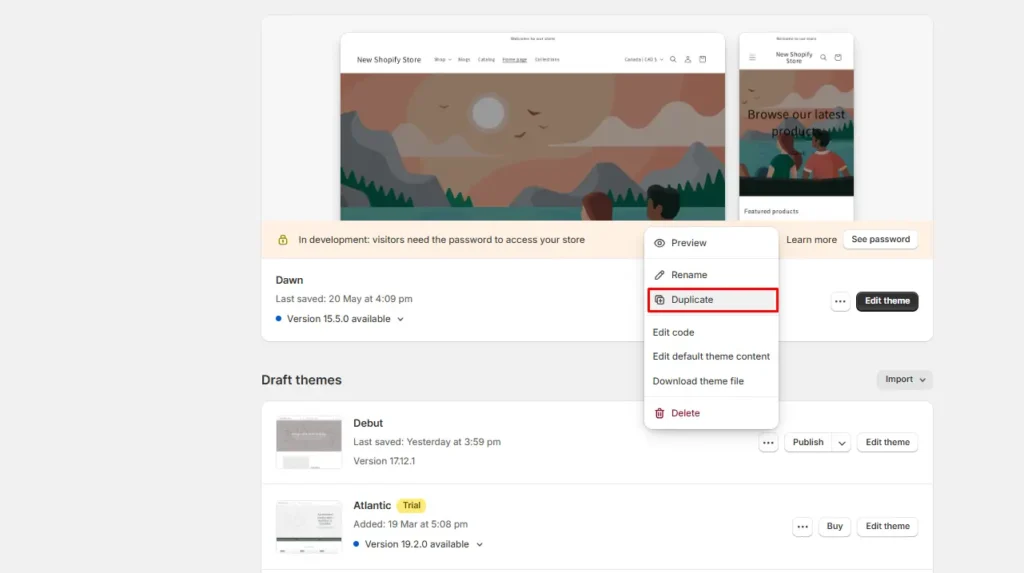
This will create a new theme backup of your current theme.
Step 2: Visit the Shopify Theme Store
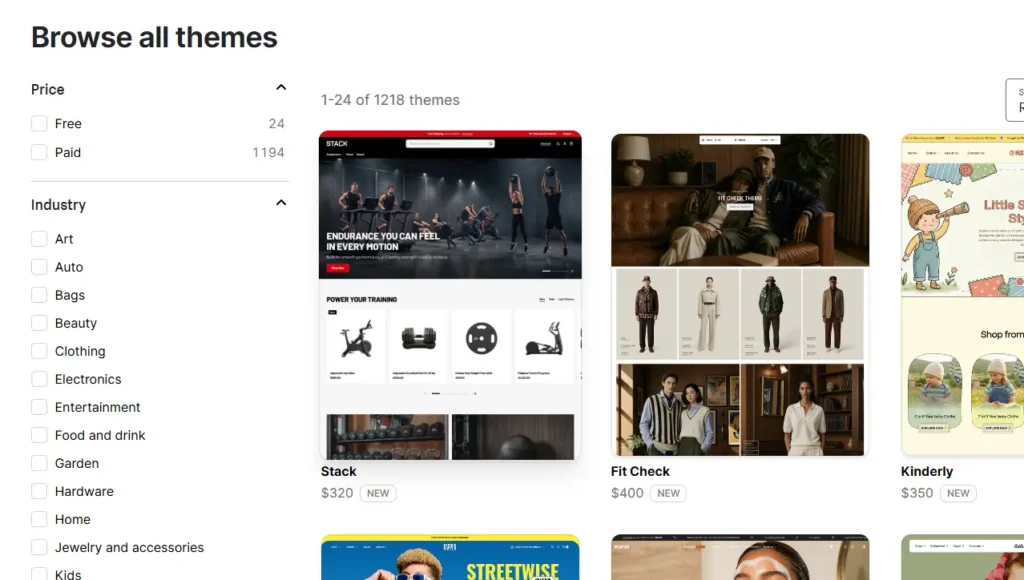
Scroll down to the ‘Discover themes’ section and click on Visit Theme Store.
Step 3: Search and add your theme
Browse the theme you want to add. Select the theme and click on Try Theme

This theme will now appear as an unpublished draft.
Step 4: Customize & preview your theme
Next customize your theme by clicking on the Edit Theme button. Here you can customize the layout, colors, and font that match your business.
You can also navigate to the three dots icon and click on Edit code to add custom code to your theme.
Note: Changes added to custom code must be manually applied to the new theme.
Once you have customized your theme, click on the three dots icon again and preview your theme. Check all your pages like a customer to make sure all changes are correct.
Step 5: Publish your theme
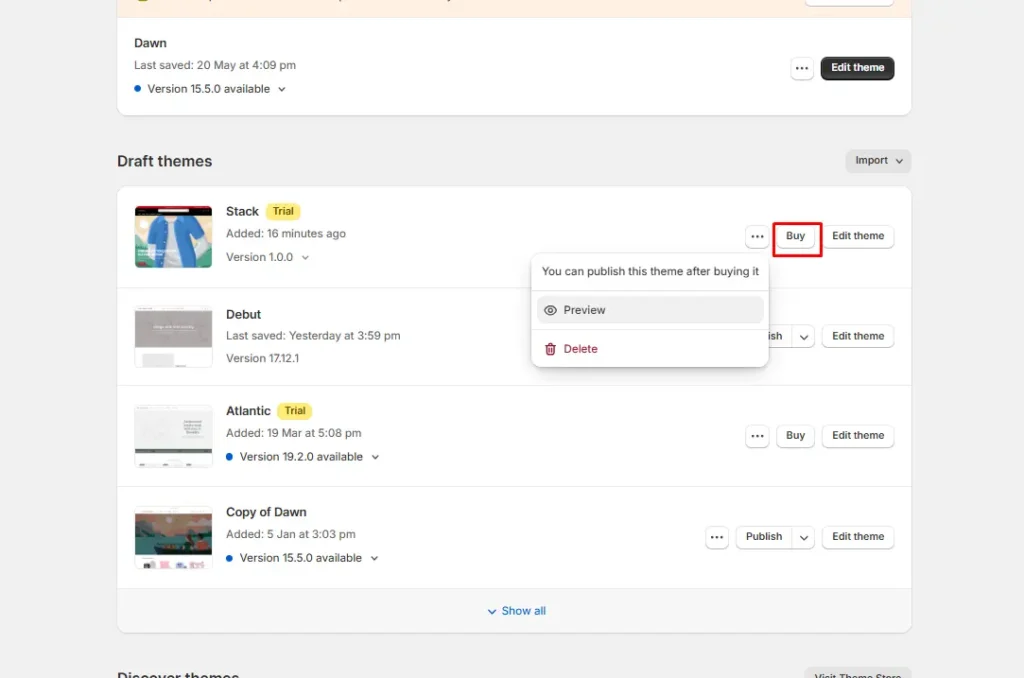
Once you have verified all the changes, you can publish your theme. You need to buy a paid theme before publishing it. Free themes like Dawn can be published as is.
Does Shopify ever update my theme automatically?
Yes, but only in a limited way. If your theme was installed from the Shopify Theme Store, Shopify occasionally pushes automatic patches to fix bugs or close security gaps.
When this happens, you'll see a notification in place of the version number in your admin. You can check exactly what changed from the theme's status dialog. These patches never touch your design, content, or settings. They're strictly bug and security fixes.
Automatic updates aren't available for every theme, though:
- Uploaded themes (instead of installed from the Theme Store) don't get automatic updates at all.
- If you bought a theme from the Theme Store and later uploaded it to a different store, it's treated as unlicensed there and won't be eligible for updates until it's repurchased for that store. Theme Store licenses are tied to one store.
- Themes bought from a designer outside the Theme Store need to go through that designer for updates.
- Vintage themes that use the original architecture by Shopify no longer receive updates of any kind, automatic or otherwise.
Wrapping up
Updating your Shopify theme is safest when you test the new version as a draft before publishing it immediately.
Preview every important page, test key store functions, and confirm that your sections, app integrations, and templates still work correctly.
Because custom Liquid, CSS, and other code changes may not transfer automatically, review them carefully before going live. Keep your previous theme as a backup so you can quickly restore it if the updated version causes any unexpected issues.
FAQs
1. Can I change my Shopify theme without losing content?
Yes. Products, collections, navigation menus, pages, and blog posts are managed separately in Shopify Admin. They are not deleted when you publish a different theme. However, theme-specific sections, blocks, fonts, colors, templates, wording, app-generated code, and custom code need to be recreated or transferred.
2. How to change Shopify theme without losing content?
Add the new theme to Online Store > Themes as a draft, then customize and preview it without affecting your live store. Check your homepage, product and collection templates, navigation, search, cart, app widgets, tracking, and mobile layout before publishing, while keeping the previous theme available as a backup.
3. Does changing Shopify theme affect SEO?
Changing themes does not delete your products, pages, URLs, or other admin-managed content. Shopify continues to generate features such as canonical tags, sitemaps, robots.txt files, and SSL certificates. However, a new theme can affect SEO through changes to page speed, headings, internal links, structured data, image handling, or custom title-tag code. Audit the draft theme before publishing.
4. How to upgrade Shopify theme?
Go to Online Store > Themes and click the theme’s version number or update notification, then select Add to draft themes. Shopify attempts to transfer theme-editor customizations and compatible code changes, but you should review the updated copy, test app functionality and custom CSS, and publish it only after confirming everything works correctly.
5. How to change Shopify theme without losing customization?
When updating to a newer version of the same theme, Shopify can copy theme settings, layouts, sections, blocks, templates, app extensions, and language-editor changes into the updated draft. When moving to a completely different theme, these customizations generally do not transfer automatically. Document your settings, back up custom code, and manually rebuild and test them in the new theme.
6. How do I select a Shopify theme?
Choose a theme based on your catalog size, industry, merchandising needs, navigation structure, and required features. These features include product filtering, quick buy, related products, video, or sticky navigation. Use the Shopify Theme Store’s industry and feature filters, then add or try the theme as a draft and preview its product pages, collections, cart, mobile experience, and customization options before purchasing or publishing it.




About the author
Sagarika Das
Sagarika Das is a content writer with a passion for the ecommerce world. She crafts engaging, SEO-friendly content that helps online businesses connect with customers and grow.