







You can easily set up SMS marketing on Shopify by creating SMS campaigns inside Shopify Messaging. You can also connect third-party SMS apps (Klaviyo or Omnisend) if you need deeper automation or segmentation. The setup is simple, but stores need to get consent and set up automated workflows & campaigns to get results from SMS marketing..
SMS works because it reaches people where they already are, on their phones. From my experience with Shopify stores, the real problems usually come in the setup, rather than the message.
SMS marketing done correctly in your Shopify store can bring down cart abandonment rate and increase conversions. In this guide, I will talk about how to set up SMS marketing on Shopify website with simple steps to follow.
Does Shopify have SMS marketing?
Yes. Shopify has built-in SMS marketing features. Store owners can use Shopify Messaging to create campaigns directly from the checkout flow.
How to set up SMS marketing on Shopify (Step-by-step guide)
Step 1: Get consent from customers
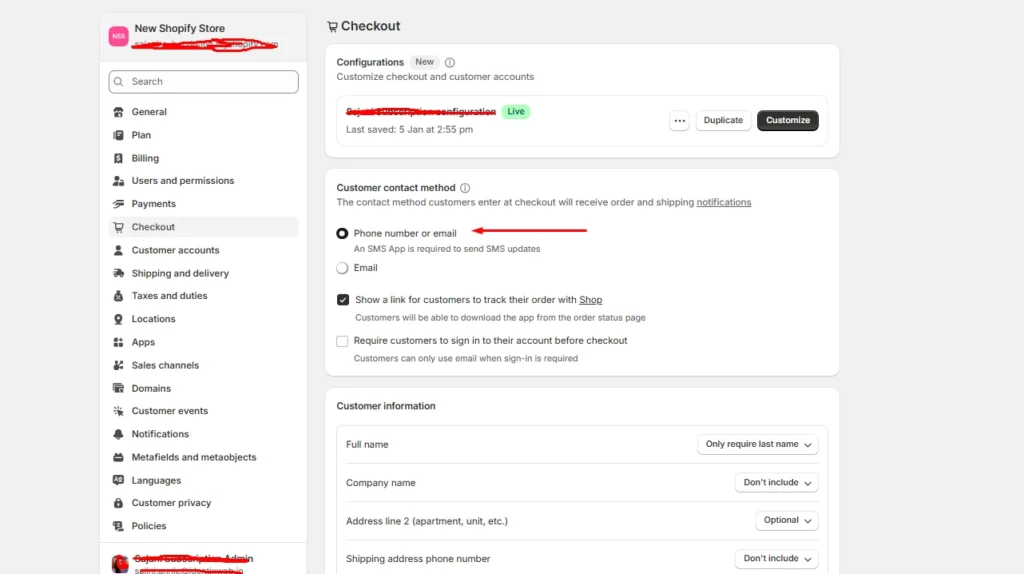
Before you run any SMS campaign, you need to opt for customer consent. To do this, go to Settings > Checkout and select the phone number or email option.
You can also add an SMS opt-in form in your store. I suggest adding it as a pop-up. This is great to get a list of high-intent customers.
Step 2: Choose your Shopify SMS marketing method
Before you set up anything, decide how you want to run campaigns on Shopify.
You have two main options.
The first is Shopify Messaging. This is Shopify’s built-in tool for SMS campaigns inside your admin.
The second is a third-party app like Klaviyo and Omnisend. This works better if you need advanced automations, deeper segmentation, or support for more countries.
I suggest starting with the tool that fits your current traffic, list size, and goals.
- If your store is new and you only want to send basic campaigns, choose Shopify Messaging.
- If you already know you need more control, then a third-party app may be the better fit.
Step 3: Install the selected tool and complete the basic setup
Once you choose an app, the next step is to set it up properly.
You also need to make sure the setup is complete before sending any SMS campaign.
For example, if you are choosing Shopify Messaging, confirm that the app is active and check the settings. It will also ask you to choose the countries you want to target.
I prefer doing this early. It avoids confusion later when you are ready to send your first message.
Step 4: Set target countries and check eligibility before you send
This step is important. Shopify Messaging does not support marketing everywhere.
I always check whether the countries I want to target are supported. Shopify also requires merchants to review its requirements and message rules before launching.
In my experience, many setup issues happen here, not when writing the actual SMS.
So before you send anything, make sure:
- Your target country is supported
- Your setup is eligible
- Your message follows the rules
Step 5: Build your subscriber list.
There are different kinds of SMS campaigns you can send. Welcome offers for new subscribers or abandoned checkout alerts to recover missed sales.
Once you start getting contact details, segment your subscriber list. I usually do it in 4 segments.
- New subscribers
- Recent buyers
- Abandoned checkout audience
- VIP or repeat buyers
Step 6: Create your first SMS campaign in Shopify
Once your list and segments are ready, you can create your first SMS campaign.
Start with any 3 campaign types. For new stores, I always go with.
- Welcome message
- Product launch or flash sale
- Back-in-stock or cart reminder
I use Shopify Messaging more than third-party apps because it allows me to send campaigns directly to subscribers and track performance. SMS is also billed per message, so I review the cost before sending.
Note: Make sure to add an unsubscribe option when crafting an SMS campaign. Give your customers a choice if they want to opt out.
Step 7: Track cost, clicks, and results
Once your first campaigns go out, track the right numbers. Do not try to measure everything at once. Start with these four metrics.
Opt-in growth: Shows whether your forms and checkout setup are working.
Clicks: Shows whether people care about your message.
Conversions: Shows whether the campaign is actually driving sales.
Unsubscribes: Shows whether your targeting, timing, or message needs work.
Best Practices that helped me run successfully SMS campaigns
Keep messages short, timely, and easy to act on
Messages work best when it is clear and quick to read. Stick to one main message and one CTA and send only when the timing matters. Shopify’s own SMS guidance focuses on character count, quiet hours, and lowering opt-outs.
Do not treat every phone number as marketing consent
Collecting a phone number is not the same as getting permission to send marketing texts. SMS campaigns can be sent only to customers who opt in to receive SMS marketing from your store.
If consent is not clear, your SMS setup will fail even before you start.
Do not mix up marketing SMS and order notifications
I have seen a lot of new store owners confuse these two. SMS marketing campaigns and Shopify push notifications are two separate things and need to be managed differently.
This is because a customer who gets shipping updates has not automatically agreed to receive sales messages. So always keep transactional texts and marketing texts separate.
Start small before you build automation
I always advise new stores that they do not need a big SMS setup on day one. Start with one simple campaign, like a welcome message. That is enough to test the channel properly.
You can create automations when you have a good set of contacts.
So, is Shopify SMS integration on Shopify worth it?
Yes, it can be worth it for a new store. But only when the setup is done properly.
From my experience, SMS works well when a store has clear consent, a small but quality contacts list, and a real reason to message people. It can reduce cart abandonment rate and boost your sales significantly.
FAQs
1. How to set up SMS marketing on Shopify?
To set up SMS marketing on Shopify, start with Shopify Messaging or a third-party app based on the store’s needs. Set target countries, turn on SMS consent at checkout and through forms, build a small subscriber list, and launch one simple campaign first.
2. Does Shopify have SMS marketing?
Yes, Shopify does have SMS marketing through the Shopify Messaging app.
3. Is SMS free on Shopify?
No, SMS marketing on Shopify is not free. Shopify bills SMS campaigns per message.
4. What is the best SMS marketing Shopify app?
Shopify Messaging (Native app), Klaviyo, and Omnisend are some of the top choices.
5. How top Shopify stores use SMS for sales?
Top Shopify stores send messages with strong buying intent, like product launches, flash sales, back-in-stock alerts, reminders, and exclusive drops.
6. How to grow SMS subscribers on Shopify store?
The best way to grow SMS subscribers on Shopify is to collect at checkout and through pop-up or inline forms. I usually recommend starting with one clear signup offer, keeping the consent language simple, and giving shoppers a real reason to join the list.

![How to Transfer Shopify Store Ownership? [2026 Updated Tutorial]](https://www.identixweb.com/wp-content/uploads/2026/03/13-03-Fri-Blog-Complete-Tutorial-to-Change-Store-Owner-on-Shopify.webp "How to Transfer Shopify Store Ownership? [2026 Updated Tutorial]")

About the author
Vineet Nair
Vineet is an experienced content strategist with expertise in the ecommerce domain and a keen interest in Shopify. He aims to help Shopify merchants thrive in this competitive environment with technical solutions and thoughtfully structured content.