



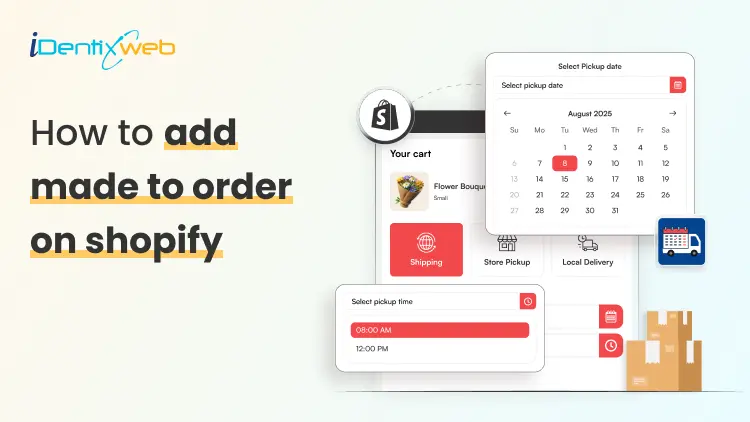
Made-to-order products are a great fit for Shopify stores that sell custom, handmade, personalized, fresh, or production-based items. Instead of keeping every product ready in stock, you create the item after a customer places an order. This model works well for custom cakes, flower bouquets, handmade jewelry, engraved gifts, tailored clothing, personalized hampers, furniture, artwork, printed products, and many other custom items.
But there is one challenge many merchants face: customers do not just want to know that the product is made for them. They also want to know when it will be ready.
In this guide, we will cover how to add made to order on shopify, how to set up delivery scheduling, and how to manage production timelines without confusing your customers.
What Does Made-to-Order Mean on Shopify?
A made-to-order product is a product that is created only after the customer places an order. Unlike regular ready-stock products, these items usually need extra time for preparation, customization, packaging, or delivery planning.
For example:
- A bakery prepares a custom cake after receiving the order.
- A florist creates a fresh bouquet for a selected date.
- A jewelry brand engraves initials after purchase.
- A clothing store stitches or customizes the item after order confirmation.
- A gift store prepares a personalized hamper based on selected products.
The main point is simple: the product is not instantly ready to ship. It needs a clear production timeline and a clear delivery or pickup schedule.
Shopify lets merchants create products, add variants such as size or color, and manage product details through the admin. Shopify’s own variant setup allows merchants to add options, values, images, prices, quantities, SKUs, and other product details for different variants.
So when people search for how to add made to order on Shopify, they are usually looking for more than a product listing. They want a complete setup where customers understand the customization, production time, and delivery date before placing the order.
Why Delivery Scheduling Matters for Made-to-Order Products
Made-to-order products depend on timing. A customer ordering a birthday cake, wedding bouquet, custom gift, or event-based product cannot wait for a vague delivery estimate. They need confidence that the product will arrive on the right date.
Delivery scheduling helps you:
- Show available delivery or pickup dates.
- Add preparation time before customers can choose a slot.
- Block holidays or unavailable dates.
- Limit orders per day or time slot.
- Manage same-day or next-day delivery with cutoff times.
- Give your team enough time to prepare each order properly.
This is especially useful for stores selling fresh, personalized, or event-specific products. Without proper scheduling, customers may choose dates your team cannot fulfill. That creates pressure, delays, refund requests, and poor customer experience.
A strong order scheduling Shopify setup solves this problem by connecting the customer’s preferred delivery time with your store’s real production capacity.
Use Stellar Delivery Date & Pickup to Make Scheduling Easier
For Shopify merchants who sell made-to-order products, the Delivery Date & Pickup Stellar app can make the scheduling process much easier.
The app lets customers select a delivery date and time for local delivery, store pickup, and shipping directly from the cart or product page. It also supports estimated delivery date and time, same-day delivery cutoff time, time slot limits, blackout dates, holidays, and route planning.
This is helpful because made-to-order stores often need more control than a normal shipping setup. For example, a bakery may want to accept only 20 cake orders per day. A florist may want to block Valentine’s Day slots once capacity is full. A handmade gift store may need three preparation days before showing available delivery dates.
For made-to-order stores, this turns delivery scheduling from a manual follow-up task into a smoother buying experience.
What You Need Before Setting Up Made-to-Order Products
Before you start the setup, prepare the basics. This makes the product page clearer and reduces customer confusion.
1. Clear Product Details
Write a product description that explains what is made to order, what customers can customize, and how long production takes.
Include details like:
- Available customization options
- Materials or ingredients used
- Size, color, or design choices
- Production time
- Delivery or pickup instructions
- Return or cancellation policy for custom products
2. Product Images or Samples
Even if the final product is custom, customers still need visual confidence. Add sample images, past order photos, mockups, or style references.
3. Production Timeline
Decide how much time you need before an order can be delivered. For example:
- Custom cake: 2 days
- Handmade jewelry: 5–7 days
- Printed T-shirt: 3 days
- Custom furniture: 15–20 days
- Personalized hamper: 1–2 days
This production time should be reflected in your delivery schedule.
4. Capacity Limits
Do not accept more orders than your team can handle. Decide your daily or slot-wise limit.
For example:
- 10 custom cakes per day
- 5 flower deliveries per time slot
- 20 gift hampers per day
- 3 furniture deliveries per week
Stellar’s order limit feature lets merchants control how many orders can be accepted daily or per time slot for shipping, store pickup, and local delivery.
How to Add Made to Order on Shopify and Schedule Delivery Dates
Now let’s move to the practical setup.
Step 1: Create a New Product in Shopify
Go to your Shopify admin and open:
Products > Add product
Add your product title, description, images, price, category, and product status.
For the product title, make it clear that the item is made to order. For example:
- Custom Birthday Cake - Made to Order
- Personalized Name Necklace - Made to Order
- Fresh Flower Bouquet - Made to Order
- Handmade Wooden Frame - Made to Order
In the product description, mention that the item is prepared after purchase. Add the estimated production time and delivery instructions.
Example:
“This product is made after your order is placed. Please allow 3-4 working days for preparation. You can choose your preferred delivery date at checkout.”
This small detail sets the right expectation before customers add the product to cart.
Step 2: Add Product Variants for Basic Choices
If your product has standard options, add them as variants. Variants are useful for choices like:
- Size
- Color
- Material
- Flavor
- Finish
- Style
- Quantity pack
For example, a made-to-order cake may have variants for size and flavor. A personalized bracelet may have variants for metal color and chain length.
Shopify allows merchants to add product options like size or color from the Variants section and add option values for the product.
Keep your variants simple. Too many options can overwhelm customers. If you need detailed personalization, use custom fields or a product options app instead of creating too many variant combinations.
Step 3: Add Customization Fields
Made-to-order products often need customer input. For example:
- Name to engrave
- Message for cake
- Preferred flower color
- Uploaded image
- Gift note
- Custom measurement
- Design reference
You can collect this information through product options, line item properties, or customization apps. The goal is to make sure the customer gives all required details before checkout.
Use clear labels like:
- “Enter the name you want printed”
- “Upload your design file”
- “Add your cake message”
- “Choose your preferred delivery occasion”
- “Mention any special instruction”
Also, add character limits where needed. This prevents long text that may not fit on the product.
Step 4: Set Inventory Based on Your Production Model
Inventory for made-to-order products can be tricky because you may not have finished stock ready. You may only have raw materials, production capacity, or supplier availability.
Step 5: Add Production Time to Your Delivery Schedule
This is where many Shopify stores make mistakes. They add made-to-order products but forget to adjust delivery availability.
For example, if a custom cake needs two days to prepare, customers should not be able to select today or tomorrow as the delivery date.
Set a preparation buffer before the first available delivery date. This protects your team and keeps expectations realistic.
Example setup:
- Product ordered on Monday
- Preparation time: 2 days
- First available delivery date: Thursday
- Unavailable dates: Sunday and public holidays
- Time slots: 10 AM-12 PM, 2 PM-4 PM, 5 PM-7 PM
Step 6: Use Cutoff Times for Same-Day or Next-Day Orders
Cutoff time means the last time a customer can place an order for a certain delivery option.
For example:
- Orders before 11 AM qualify for next-day delivery.
- Orders after 11 AM can only choose delivery from the following day.
- Same-day pickup is available only before 2 PM.
- Weekend delivery closes every Friday at 5 PM.
Stellar Delivery Date & Pickup supports cutoff time settings so merchants can hide same-day delivery slots after a set deadline. This helps stores manage logistics more smoothly and show only realistic delivery slots.
This is very useful for made-to-order products because production teams need time to prepare, pack, and dispatch orders.
Step 7: Set Order Limits Per Day or Time Slot
If your team can make only a fixed number of products per day, order limits are necessary.
For example:
| Product Type | Daily Limit | Slot Limit |
| Custom cakes | 20 orders | 5 per slot |
| Flower bouquets | 50 orders | 10 per slot |
| Handmade gifts | 15 orders | 5 per slot |
| Tailored clothing | 5 orders | Not required |
Without order limits, too many customers may select the same date. That can lead to delays and quality issues.
With a proper scheduling setup, customers only see dates and slots that your team can actually handle.
Conclusion
Setting up made-to-order products on Shopify is not just about adding a product and writing “custom” in the description. You need a complete process that covers customization, production time, inventory logic, delivery scheduling, cutoff times, capacity limits, and customer communication.
When customers know what they can customize and when they can receive the product, they feel more confident placing the order. Your team also gets a clearer workflow for preparing and fulfilling each order on time.
FAQs
1. How to add made to order on shopify?
To add a made-to-order product on Shopify, create a product, mention “Made to Order” in the title or description, add variants or custom fields, set inventory based on your production model, and add delivery scheduling rules.
2. Can Shopify handle made-to-order products?
Yes, Shopify can handle made-to-order products using product listings, variants, product options, inventory settings, and delivery scheduling apps. For advanced personalization or scheduling, apps make the process easier.
3. What is the best way to set delivery dates for made-to-order products?
The best way is to use a delivery date picker with preparation time, cutoff time, blocked dates, and order limits. This ensures customers can select only realistic delivery or pickup dates.
4. Why is order scheduling shopify important for custom products?
Order scheduling shopify is important because custom products need production time before delivery. A proper schedule helps merchants avoid overbooking, manage capacity, and give customers clear delivery expectations.




About the author
Sajini Annie John
Meet Sajini, a seasoned technical content writer with a passion for e-commerce and expertise in Shopify. She is committed to helping online businesses to thrive through the power of well-crafted content.