





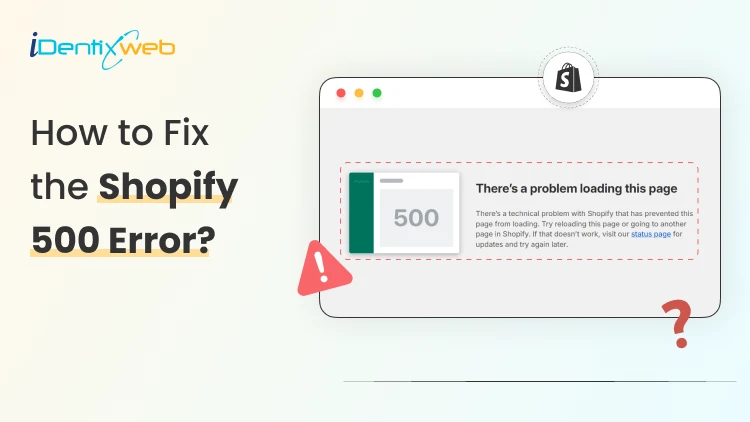

A Shopify 500 error means “Internal Server Error.” Shopify (or something connected to your store) could not complete a request, so pages may not load in the Admin or storefront. First, check the Shopify status page, then refresh and try an incognito window. Clear cache and disable browser extensions. If you recently installed an app or edited your theme, roll it back. If it continues, contact support.
A 500 internal server error feels scary at first because it can block sales, orders, or even your admin login. This issue is related to the server side, and in most cases, you can troubleshoot it fast with a simple checklist.
As a Shopify expert, we have come across this issue multiple times. Here’s a simple guide to help you fix Shopify error 500.
What is the Shopify 500 Error?
A 500 error is a server-side error. It means the system that should respond to the request hit an unexpected problem and could not finish the job.
For example, when a customer clicks Checkout, and your store shows a 500 error. It simply means the server failed to process their request, so the page couldn’t load.
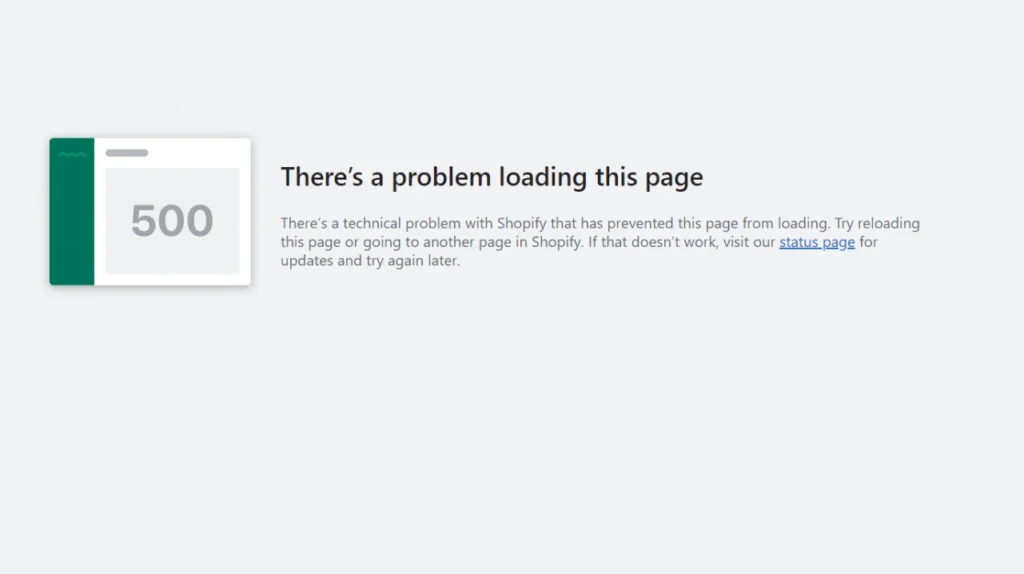
On Shopify, you will see it in a few places:
- Storefront (customers can’t load pages)
- Shopify admin (you see “There’s a problem loading this page”)
- Apps / API calls (your app requests fail with 500)
How to Fix Shopify Error 500? (From Your Side)
Check Shopify’s status first
Open Shopify’s status page and see if Admin, Checkout, or Storefront shows an incident. Shopify also offers a store-specific status view.
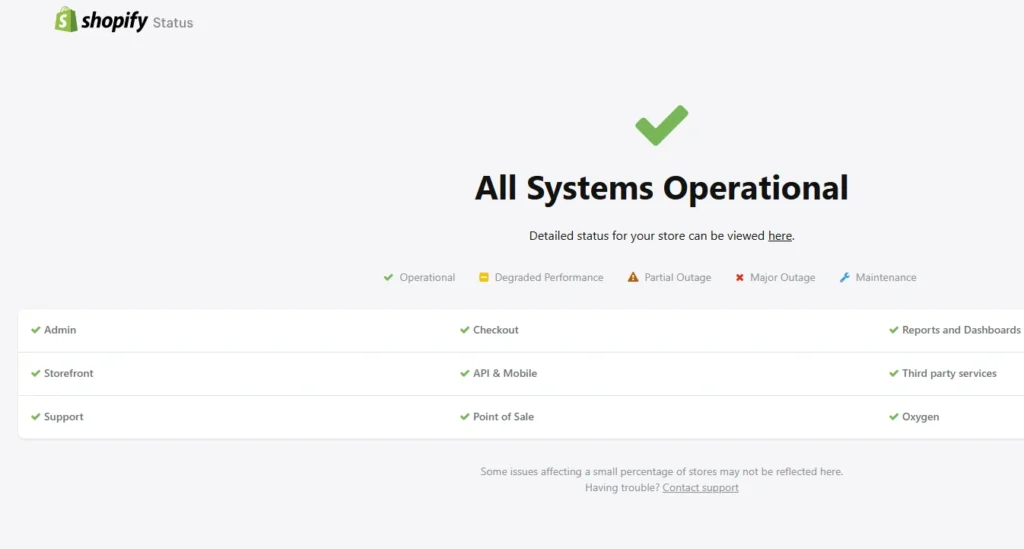
If Shopify shows an outage, don’t keep changing settings. Wait and monitor the updates.
Do the fast browser checks
- Refresh the page once, then try again: A temporary glitch can clear on a reload, so refresh once and retry the same action.
- Open an incognito/private window: This runs Shopify without your saved cookies and cached data, so you can see if the issue is coming from your current session.
- Clear cache and cookies: Old cached files or corrupted cookies can cause problems, so clearing them forces a clean load and fresh login.
- Disable extensions (ad blockers, privacy tools): Some extensions block scripts or cookies Shopify needs, so turning them off helps you confirm if an extension is causing the error.
- Switch browser (Chrome → Firefox): Different browsers handle cookies and scripts differently, so testing another browser quickly rules out a browser-specific issue.
- Switch device or network (Wi-Fi → mobile hotspot): Trying another device or connection helps you spot whether your current network or device settings are interfering.
Undo your most recent store changes
If the error started right after a change, reverse that change first.
Edit your theme code
- Go to Online Store > Themes > Edit code.
- Open the file you changed.
- Use the Timeline / Current version dropdown to roll back to an earlier saved version.
If you installed or updated an app:
- Temporarily disable the most recent app first.
- Re-test the storefront and admin after each disable. App conflicts can trigger server errors.
How to Fix Shopify Error 500? (Server side)
- Wait for it to resolve itself: Many 500 internal errors resolve themselves as Shopify fixes backend problems. Give it a short break and retry after a few minutes instead of making repeated changes.
- Contact support: If the issue still persists, contact Shopify support immediately. Share the exact time, the page/action, and any request ID or screenshot to help them trace it faster.
How to Fix 500 Server Error? (Developer side)
- Inspect Code: Review your latest Liquid and JavaScript changes and test the flow end-to-end. One wrong data type or a missing variable can break the request and trigger a 500.
- Look for GraphQL Errors: Check the API response for throttling or cost-limit signals. Simplify or split your queries and retry with backoff, since GraphQL limits often fail requests before they fully complete.
Wrapping Up: Fix 500 Internal Server Error With a Simple Checklist
A Shopify 500 error simply means the server could not complete a request. It can be temporary or related to something simple, like your browser session or issues related to your app or theme.
Start with the quick checks first: Checking Shopify status, refreshing the page, going incognito and clearing cache.
If the issue still remains, roll back recent theme or app changes. The final solution we recommended is contacting Shopify Support.
FAQs for Shopify Error 500
1. How to clear the cache on my Shopify website?
Open your browser settings and clear cached images/files (it is generally under privacy & security). Reload your store in the next step to force a fresh version to load.
2. How to check my Shopify store’s status?
To check your store’s status, visit shopifystatus.com. You need to be logged in before visiting this site.
3. What is a Shopify internal error?
A Shopify internal error means Shopify’s server has an unexpected problem while processing a request. It is generally not the merchant’s fault, but it can happen due to code issues, conflicts with the app or theme, or server overload.
4. How to fix the Shopify 500 error?
First, check Shopify’s status, then try quick fixes for this issue by refreshing your page, going to incognito mode, clearing cache/cookies, and disabling apps or extensions because these often solve “Admin page not loading” errors. If it still happens, edit your theme code or contact Shopify Support.
5. Why is your Shopify store not working?
Your store may be down due to a Shopify outage, or due to local issues like browser settings, VPN/firewall, or network problems. If the status is fine, follow Shopify’s theme troubleshooting steps and test on another device or connection.

![How to Create Upsell in Shopify Without an App [2026 Tested]](https://www.identixweb.com/wp-content/uploads/2026/02/27-02-Fri-Blog-How-to-Create-Upsells-in-Shopify-Without-an-App_.webp "How to Create Upsell in Shopify Without an App [2026 Tested]")

About the author
Vineet Nair
Vineet is an experienced content strategist with expertise in the ecommerce domain and a keen interest in Shopify. He aims to help Shopify merchants thrive in this competitive environment with technical solutions and thoughtfully structured content.