






To connect Shopify to Instagram, go to your Shopify Admin → Sales Channels → Add Sales Channel → Facebook & Instagram. Log in with your Facebook account, select your Instagram Business account, and sync your product catalog. Once approved, you can tag products directly in Instagram posts and Stories.
Connecting Shopify to Instagram is one of the fastest ways to turn your social media followers into paying customers. By linking your Shopify store with Instagram Shopping, you make your products discoverable directly inside the Instagram app. This guide will give you detailed steps to connect Shopify to Instagram.
What Does It Mean to Connect Shopify to Instagram?
When you link your product catalog from Shopify directly to Instagram's native shopping features. This allows you to:
- Tag products in Instagram feed posts, Reels, and Stories
- Display a dedicated Shop tab on your Instagram profile
- Let customers browse and buy products without leaving Instagram
- Sync inventory and product details automatically between Shopify and Instagram
The integration works through Meta (Facebook's parent company), which powers Instagram Shopping. Shopify acts as the backend system that manages your product catalog, while Instagram is the storefront your audience sees.
Why integrate Instagram Shopping with Shopify?
Integrating Instagram Shopping with Shopify turns your Instagram profile into a direct sales channel. Here's why it matters:
Reduces friction in the buying journey
Customers can discover a product in their feed and tap through to purchase without ever leaving Instagram. Fewer steps = higher conversion.
Your audience is already there
Instagram has over 2 billion monthly active users, many of whom actively look for products. Meeting them where they scroll is simply good business.
Shoppable content across formats
Once connected, you can tag products in feed posts, Reels, Stories, and Live videos. Every piece of content becomes a potential storefront.
Retargeting power
The integration feeds into Meta's ad ecosystem. You can retarget Instagram visitors and Shopify customers with precision using Meta ads, a major advantage for paid growth.
What is Required to Connect Shopify to Instagram?
Before you start the setup process, make sure you have all of these in place:
1. An Instagram Business or Creator Account
A personal Instagram account cannot be connected to Shopify. You need to convert it to a Business or Creator account. Go to your Instagram profile → Settings → Account → Switch to Professional Account.
2. A Facebook Business Page
Instagram Shopping runs through Meta infrastructure. You need a Facebook Business Page linked to your Instagram account. If you don't have one, create it at business.facebook.com.
3. A Facebook Business Manager (Meta Business Suite) Account
Meta Business Manager lets you manage your Facebook Page, ad accounts, and product catalogs in one place. Connect your Facebook Page and Instagram account inside Meta Business Suite before proceeding.
4. A Shopify Store with Products
Your Shopify store must have at least one product listed to sync the catalog. Make sure your products have clear titles, descriptions, prices, and images.
5. Compliance with Instagram's Commerce Policies
Instagram requires that your business sells physical goods (not services or digital products), operates in a supported country, and complies with their commerce eligibility requirements. Review these at help.instagram.com before starting.
Step-by-Step: How to Connect Shopify to Instagram
Follow these steps in order. The whole process typically takes 15 to 30 minutes, plus a review period from Meta that can take 24 to 48 hours.
Step 1: Add the Facebook & Instagram Sales Channel in Shopify
1. Log in to your Shopify Admin dashboard.
2. In the left sidebar, scroll to Sales Channels.
3. Click the + icon next to Sales Channels.
4. Find Facebook & Instagram in the list and click Add.
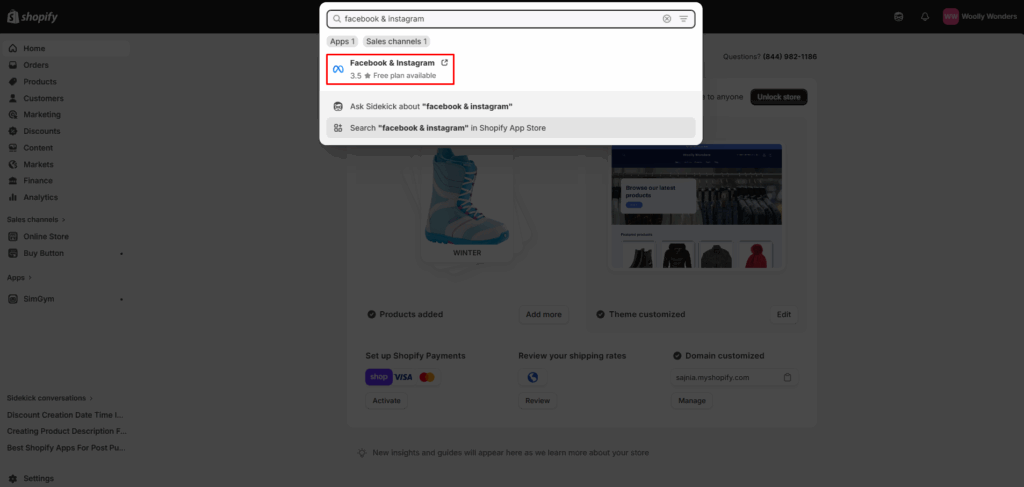
5. Click Add Sales Channel to confirm.
The Facebook & Instagram app will now appear in your Shopify sidebar. This is the central hub for managing your Instagram Shopping connection.
Step 2: Connect Your Facebook Account
6. Inside the Facebook & Instagram sales channel, click Get Started and do account setup.
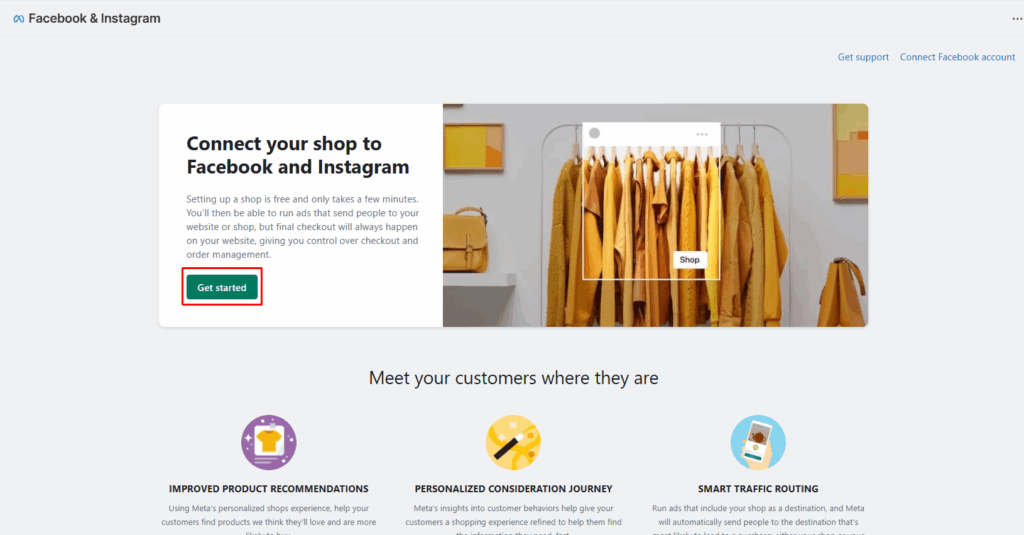
7. Click Connect Account and log in with your personal Facebook account (the one that has admin access to your Business Page).
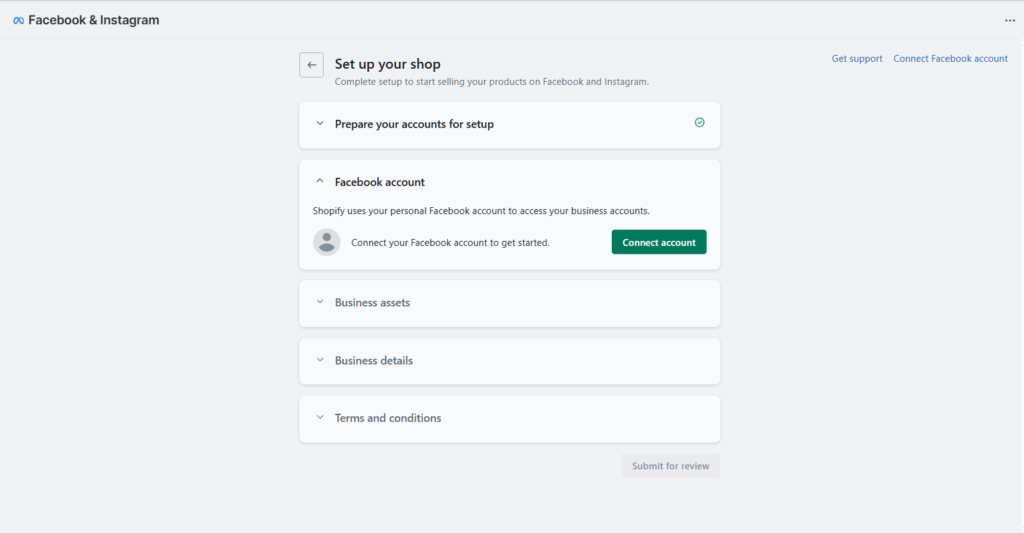
8. Grant the required permissions. Shopify needs access to your Facebook Pages, Business Manager, and catalog to function correctly.
Step 3: Set Up Your Instagram Account Connection
9. After connecting your Facebook account, you'll see options for different Meta assets.
10. Under the Instagram section, select your Instagram Business account from the dropdown.
11. If your Instagram account doesn't appear, go to Meta Business Suite and make sure your Instagram account is connected to your Facebook Page.
12. Click Connect to confirm the Instagram account selection.
Step 4: Sync Your Shopify Product Catalog
13. In the Facebook & Instagram sales channel in Shopify, navigate to the Catalog section.
14. Choose whether to create a new catalog or connect an existing one from Meta Business Manager.
15. For most new users, select Create New Catalog. Shopify will automatically sync your products to this catalog.
16. Review your product list to ensure titles, descriptions, and prices are accurate.
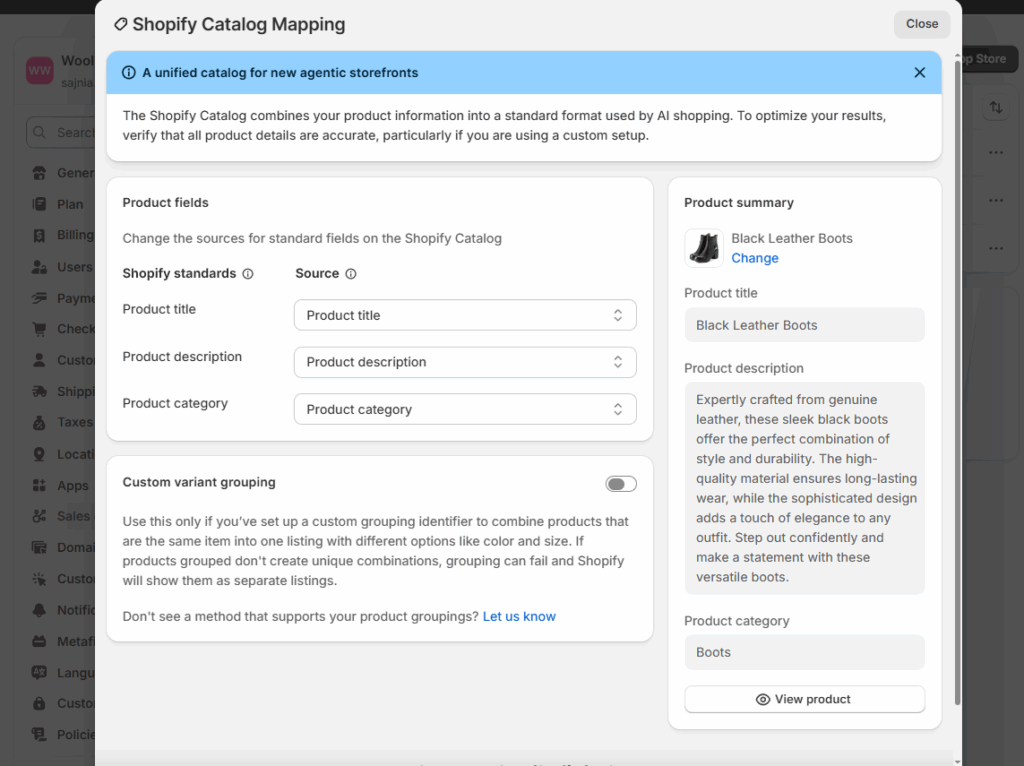
Your Shopify catalog syncs with Meta automatically after this step. Any product updates you make in Shopify will reflect on Instagram, though there may be a short delay.
Step 5: Submit Your Account for Instagram Shopping Review
17. Once your catalog is synced, navigate to the Instagram Shopping section inside the sales channel.
18. Click Submit for Review.
19. Meta will review your account to confirm you meet Instagram's commerce policies.
20. You'll receive a notification in the Facebook & Instagram app and in your Meta Business Suite once the review is complete.
The review typically takes 24 to 48 hours, but can sometimes take up to a week. You cannot tag products in posts until approval is granted.
Step 6: Enable Instagram Shopping in the Instagram App
21. Once approved, open the Instagram app on your phone.
22. Go to your profile → Settings → Business → Shopping.
23. Select the product catalog connected to your Shopify store.
24. Tap Done to activate Instagram Shopping on your profile.
Your Instagram profile will now display a Shop tab, and you'll be able to tag products in new posts.
Step 7: Tag Products in Instagram Posts and Stories
25. Create a new Instagram post or Story as usual.
26. Before publishing, tap Tag Products.
27. Search for the product from your Shopify catalog.
28. Place the product tag on the image.
29. Publish your post.
Tips to Get the Most from Your Shopify and Instagram Integration
- Optimize your product images for Instagram
- Keep product titles concise
- Use Stories product tags consistently
- Set up collections in your Instagram Shop
- Monitor performance in Shopify Analytics
Conclusion
Connecting Shopify to Instagram is one of the highest-leverage actions you can take for your ecommerce business. The setup takes less than an hour, and the result is a direct sales channel to your entire Instagram audience. Follow the steps above, and you'll have shoppable Instagram posts live within 48 hours.
Once the integration is active, the key is consistency; regularly tag products, keep your catalog updated in Shopify, and use Instagram's native shopping features in every relevant post and Story.
Frequently Asked Questions
1. Can I connect multiple Instagram accounts to one Shopify store?
Shopify supports one Facebook & Instagram connection per store, which typically means one Instagram Business account. Managing multiple Instagram accounts would require separate Shopify stores or switching the connected account.
2. How long does the Instagram Shopping review take?
The review usually takes 24 to 48 hours. In some cases, it can take up to a week. If you haven't heard back after 7 days, check your Meta Business Suite notifications or contact Meta Support.
3. What countries support Instagram Shopping?
Instagram Shopping is available in most countries in North America, Europe, Asia-Pacific, and Latin America. The availability of Instagram Checkout (in-app purchases) is more limited and currently primarily available in the United States. Check Meta's current supported countries list for the latest information.
4. Do I need Instagram Checkout to sell on Instagram?
No. You can connect Shopify to Instagram and tag products without enabling Instagram Checkout. When customers tap a product tag, they'll be redirected to your Shopify store to complete the purchase. Instagram Checkout is an additional feature that allows purchases inside Instagram without leaving the app.

![Best ChatGPT Prompts for Shopify You Can Copy-paste [+Tips to Write Prompts]](https://www.identixweb.com/wp-content/uploads/2026/03/13-03-Fri-Blog-AI-Prompts-for-Shopify-That-Grow-Your-Store-1.webp "Best ChatGPT Prompts for Shopify You Can Copy-paste [+Tips to Write Prompts]")

About the author
Sajini Annie John
Meet Sajini, a seasoned technical content writer with a passion for e-commerce and expertise in Shopify. She is committed to helping online businesses to thrive through the power of well-crafted content.